Wbcom Designs WPMediaVerse Docs
← Back to product Buy Now

Getting Started

Install, configure, and start sharing media in minutes.

Why WPMediaVerse

WPMediaVerse is a purpose-built media platform for WordPress. Unlike plugins that bolt media features onto WordPress posts or attachments, WPMediaVerse uses its own high-performance database architecture designed from the ground up for media-heavy communities.

The Problem with WordPress Attachments

Most WordPress media plugins store user uploads as wp_posts with post_type = 'attachment'. This creates serious problems at scale:

  • wp_posts table bloat — A community with 50,000 photos adds 50,000 rows to the same table that holds your pages, blog posts, menu items, and revisions. Every WP_Query on your site slows down.
  • wp_postmeta overhead — Each media item needs 10-20 meta rows for stats, privacy, tags, and file paths. At 50K media, that is 500K-1M rows in wp_postmeta — the single biggest performance bottleneck in WordPress.
  • No native stats — WordPress attachments have no built-in view counting, reaction tracking, or engagement metrics. Plugins that add these use postmeta, compounding the bloat.
  • Mixed concerns — Admin queries for pages and posts compete with media queries. There is no way to independently optimize media storage.

How WPMediaVerse Is Different

WPMediaVerse stores all media in dedicated custom tables, completely separate from wp_posts:

Table Purpose
mvs_media_index Core media record — title, author, file URL, privacy, status, timestamps
mvs_media_meta Sparse key-value metadata (thumbnails, EXIF, groups)
mvs_media_stats Views, reactions, comments, favorites — one row per media
mvs_reactions Individual emoji reactions with user attribution
mvs_comments Threaded comment system separate from wp_comments
mvs_favorites User favorites / saved items
mvs_follows User follow relationships
mvs_conversations Direct message conversations
mvs_messages Individual chat messages

What This Means for You

  • Zero wp_posts bloat — 100,000 media items add zero rows to wp_posts. Your pages, menus, and blog posts are unaffected.
  • Indexed queries — Every table has purpose-built indexes. Fetching "latest 12 public photos by user X" is a single indexed query, not a WP_Query with meta joins.
  • Independent scaling — You can optimize, partition, or replicate media tables without touching the rest of WordPress.
  • No postmeta bottleneck — Stats, privacy, and metadata live in dedicated columns or a sparse meta table. No serialized arrays, no autoload bloat.
  • Real-time stats — Views, reactions, and comments are atomic counters in mvs_media_stats, not meta values that need cache invalidation.

Performance at Scale

Metric Attachment-based plugins WPMediaVerse
10K media: wp_posts rows added 10,000 0
10K media: wp_postmeta rows added 100,000-200,000 0
Query: latest 12 photos WP_Query + 3 meta joins Single indexed SELECT
Query: user's photo count COUNT on wp_posts + meta COUNT on mvs_media_index (indexed)
Stats update (view count) update_post_meta (cache bust) UPDATE mvs_media_stats SET views = views + 1

Files Are Still in wp-content

WPMediaVerse stores database records in custom tables. The actual files (images, videos, audio) are stored in the standard WordPress uploads directory:

wp-content/uploads/wpmediaverse/2026/03/photo-name.jpg
wp-content/uploads/wpmediaverse/2026/03/photo-name-300x200.jpg  (thumbnail)
wp-content/uploads/wpmediaverse/2026/03/photo-name-1024x768.jpg (large)
wp-content/uploads/wpmediaverse/2026/03/photo-name-150x150.jpg  (square)

With Pro's cloud storage, files can also be stored on Amazon S3 or BunnyCDN while database records remain local.

How It Compares

Feature rtMedia BuddyBoss Media MediaPress WPMediaVerse
Storage wp_posts + postmeta wp_posts + postmeta wp_posts + postmeta Custom tables
Requires BuddyPress Yes Yes (BuddyBoss) Yes No (optional)
Standalone mode No No No Yes
Custom privacy levels Basic Basic Basic 6 levels (Pro)
Direct messaging No Separate plugin No Built-in
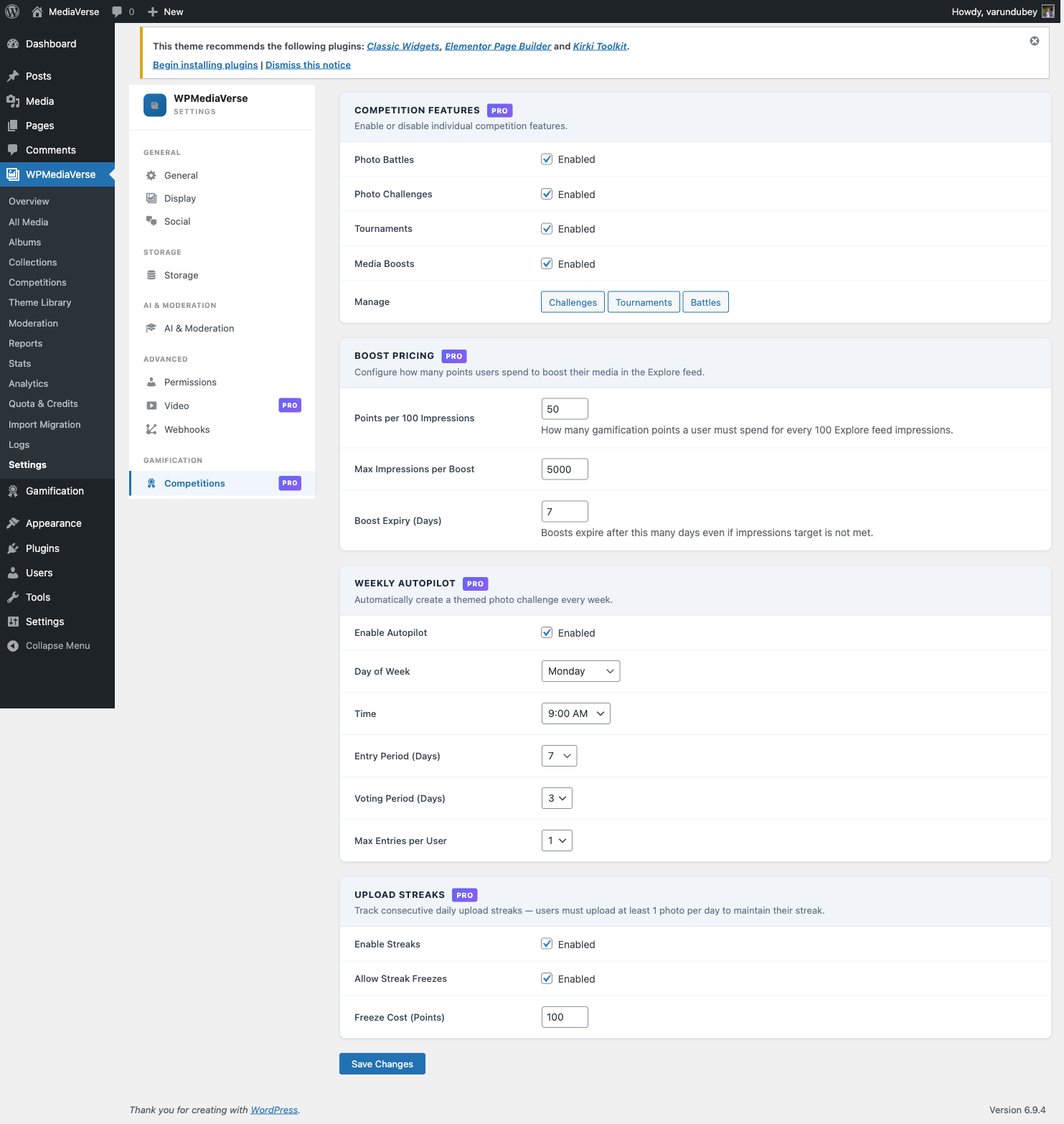
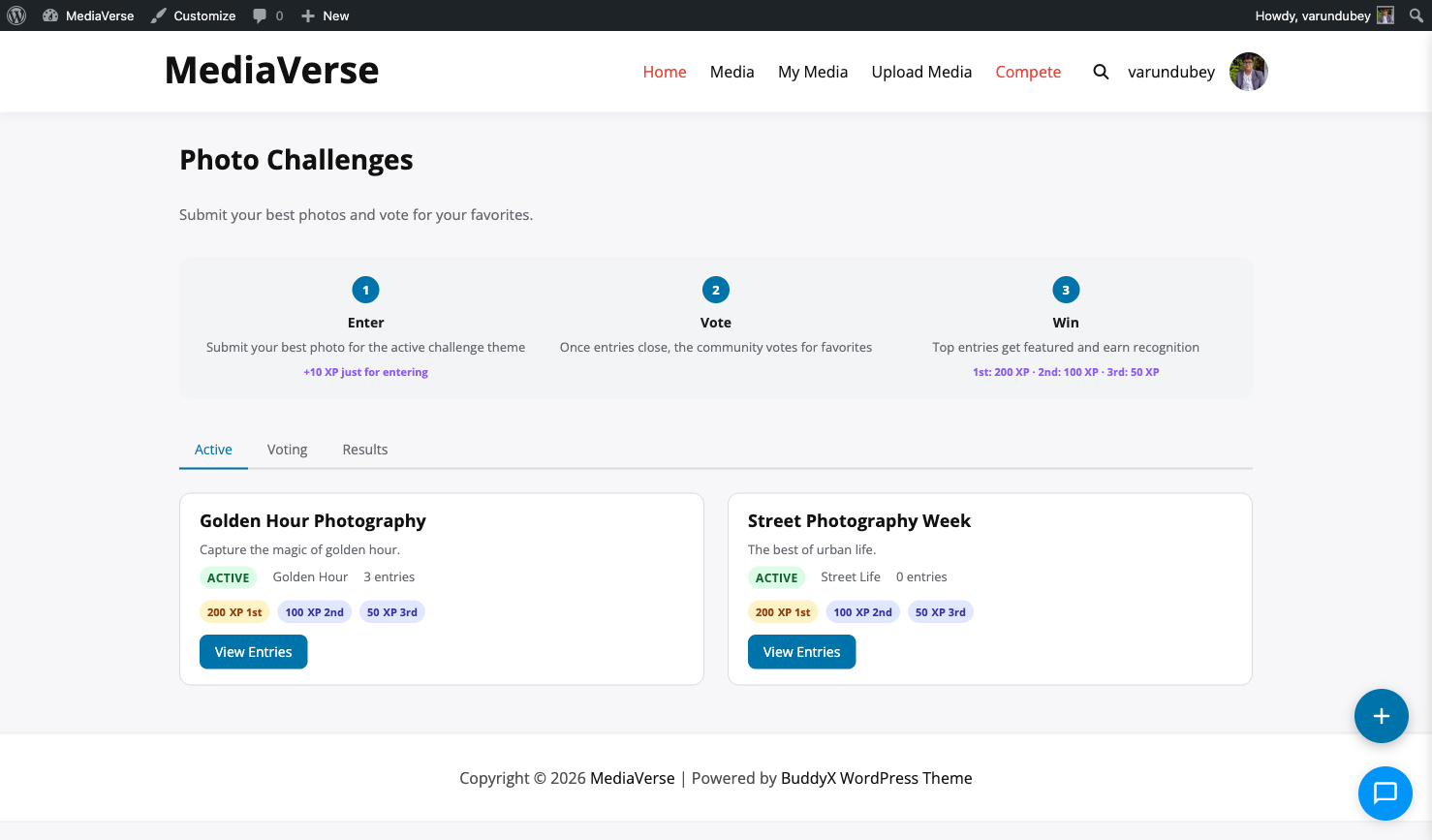
Gamification No No No Challenges, battles, tournaments (Pro)
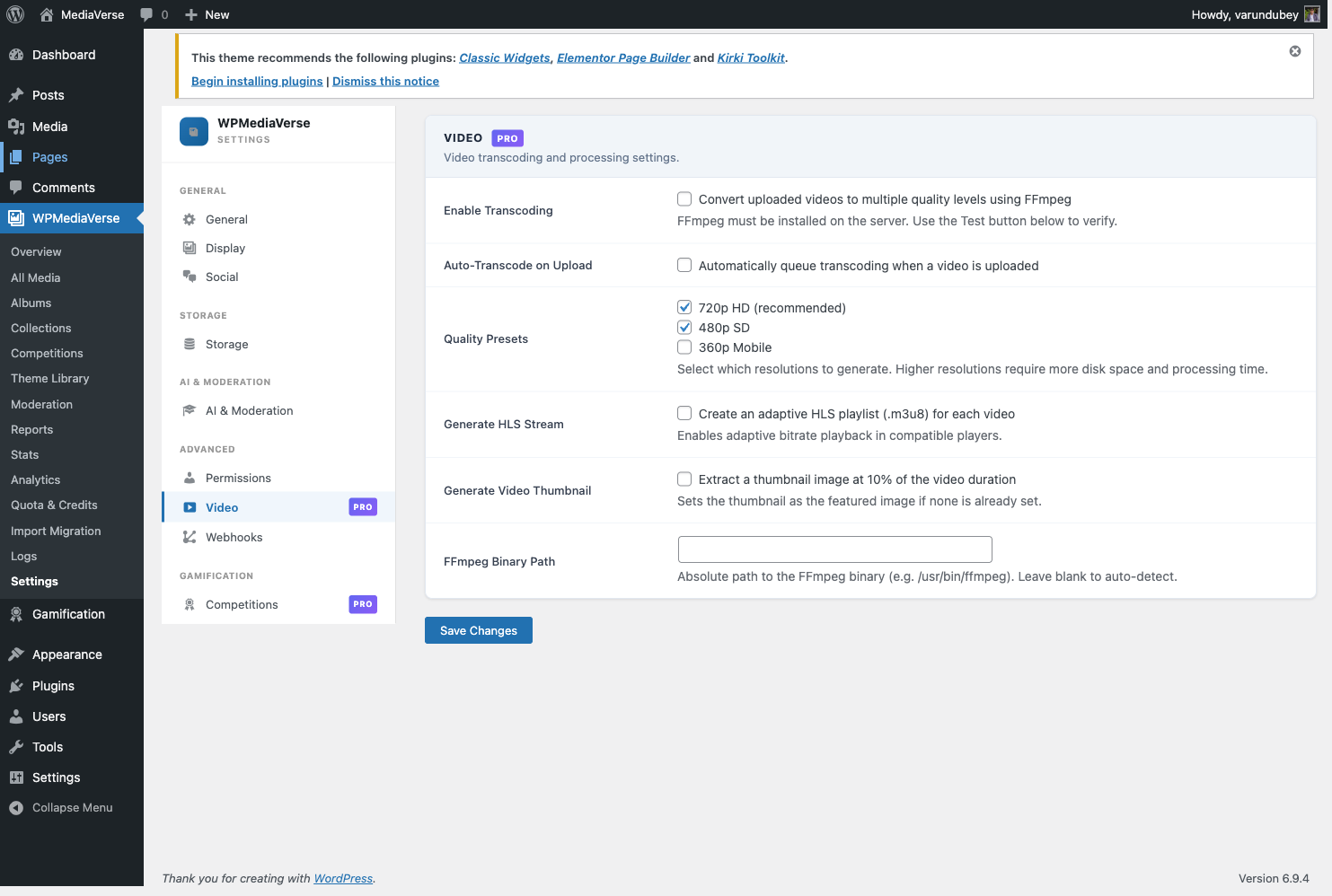
Video transcoding No No No Multi-quality + HLS (Pro)
Cloud storage No No No S3 + BunnyCDN (Pro)
AI moderation No No No OpenAI + Vision + Rekognition
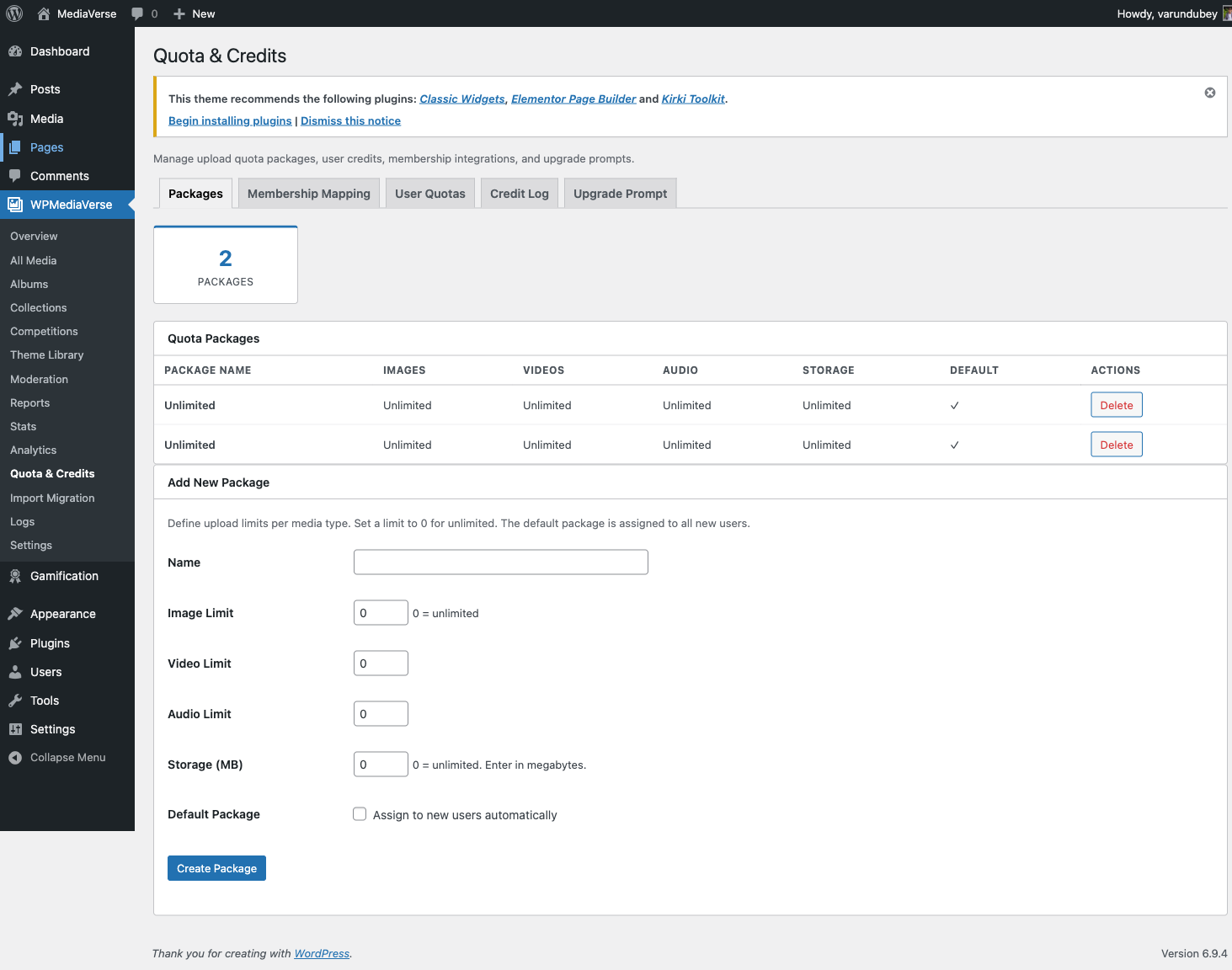
Upload quotas No No No Per-user packages (Pro)
Layout modes 1 1 1 5 (grid + 4 Pro layouts)

Use Cases

Photography Community

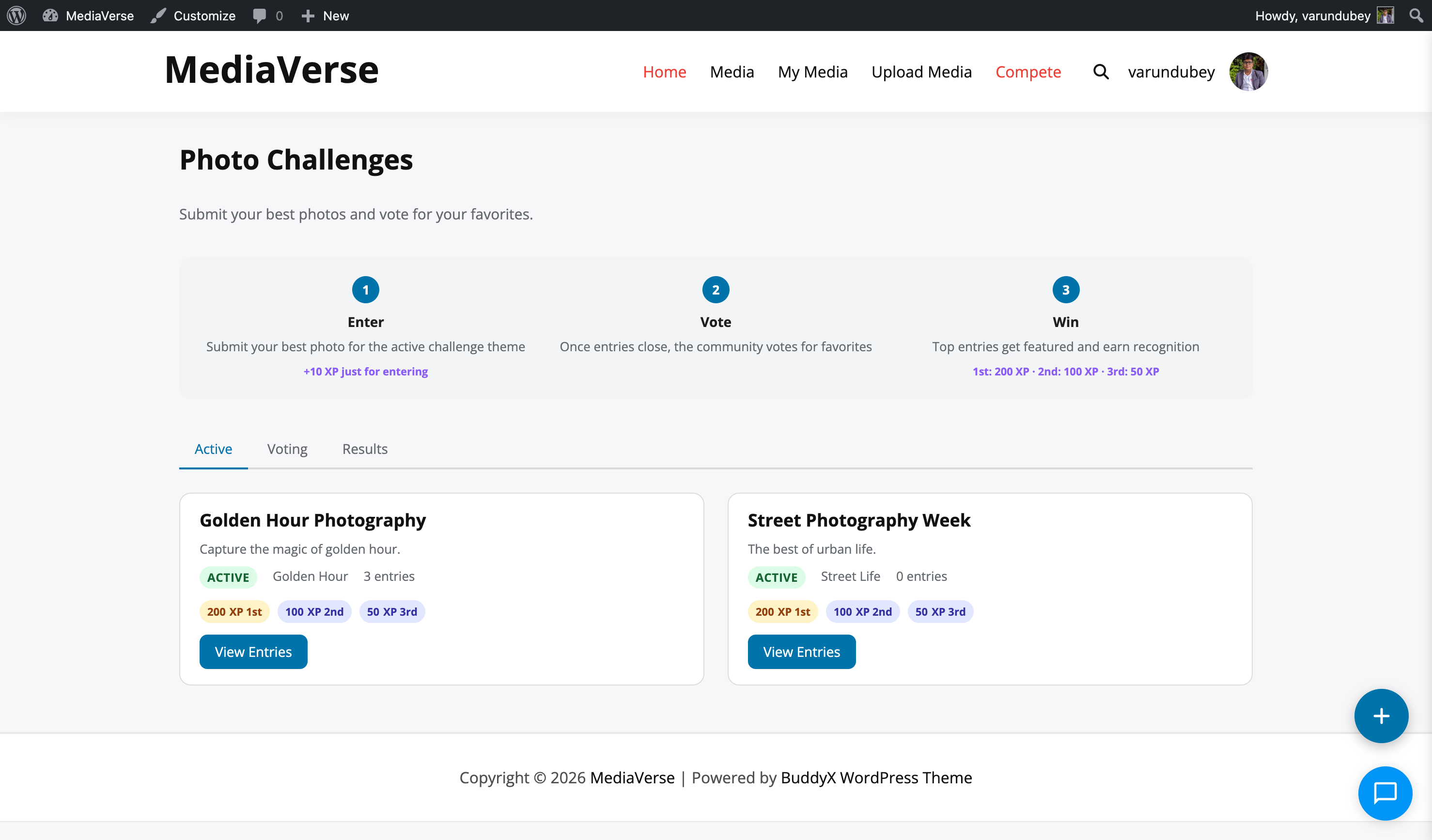
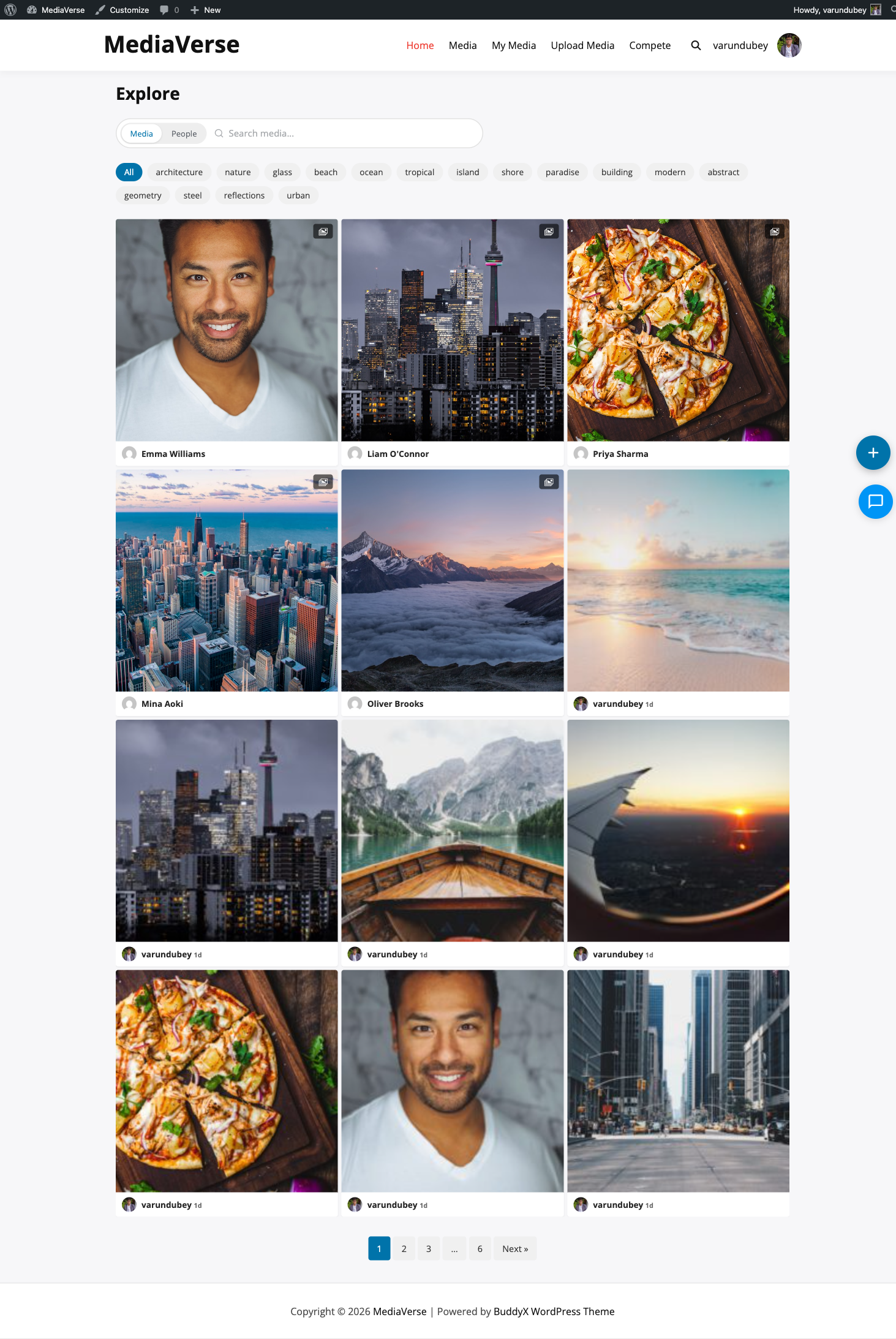
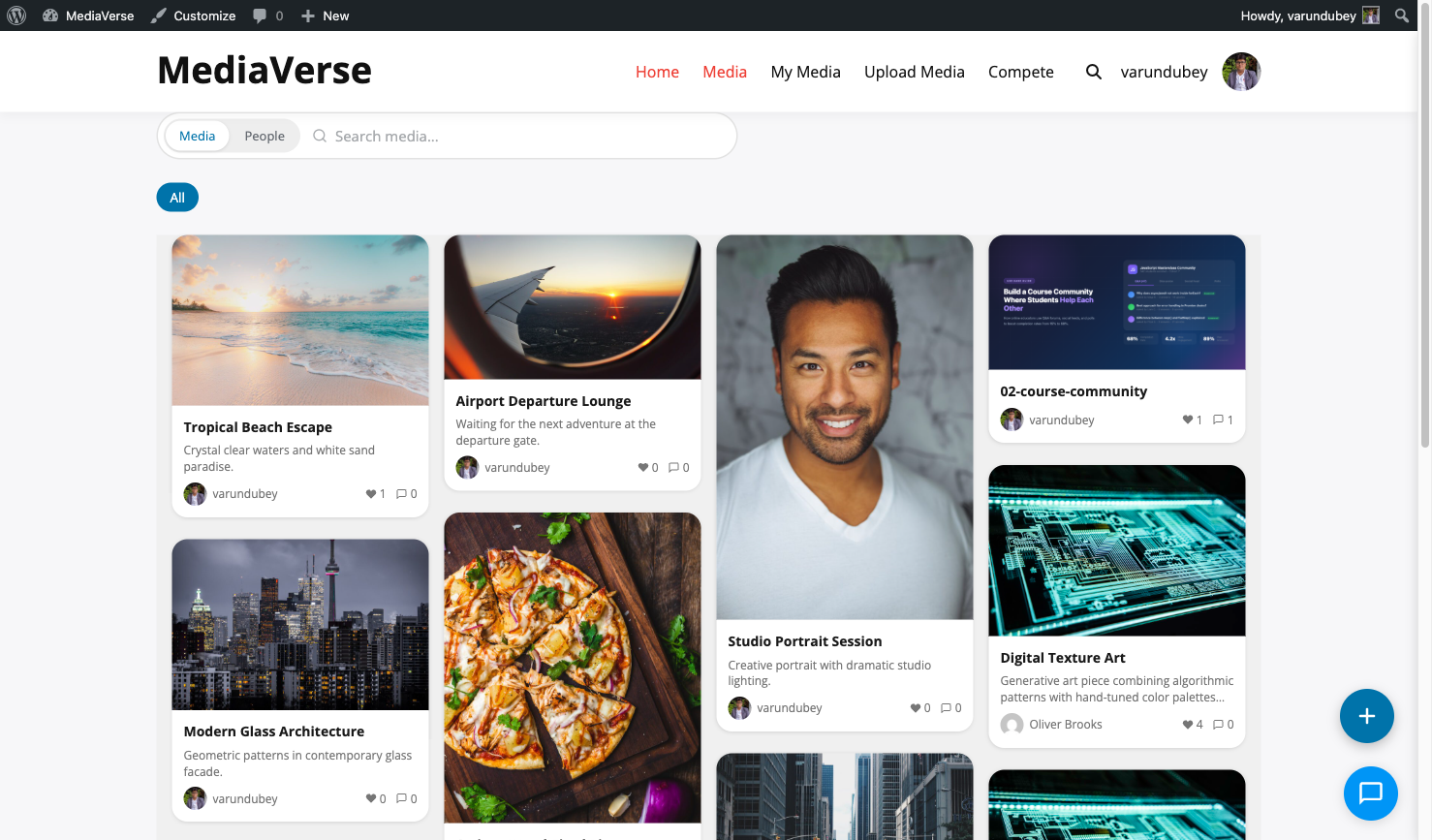
A social network for photographers to share, discover, and compete. Users upload photos, follow each other, enter weekly challenges, and battle head-to-head. The Pinterest or Instagram layout creates a visual-first experience.

Portfolio Showcase

Designers, artists, and photographers use WPMediaVerse as their portfolio. The Dribbble layout presents work in a professional shot grid. Clients can view galleries, leave comments, and message directly.

School or University

Students submit media projects through the upload system. Teachers use collections to curate work. Privacy controls ensure only enrolled members see content. Quotas limit storage per student.

Company Intranet

Employees share photos from events, marketing assets, and training videos. Group media tabs organize content by department. AI moderation flags inappropriate uploads automatically.

BuddyPress Community

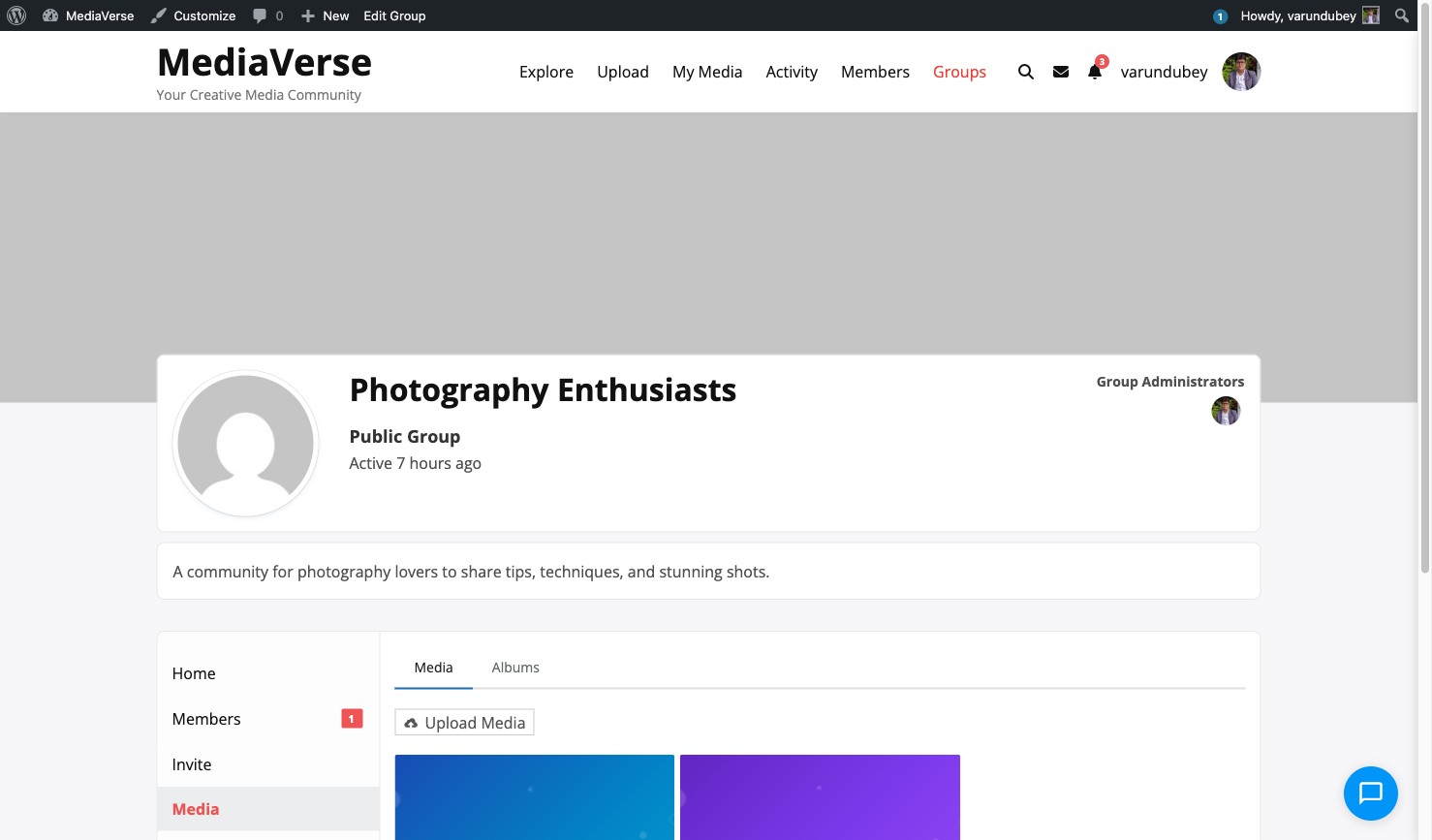
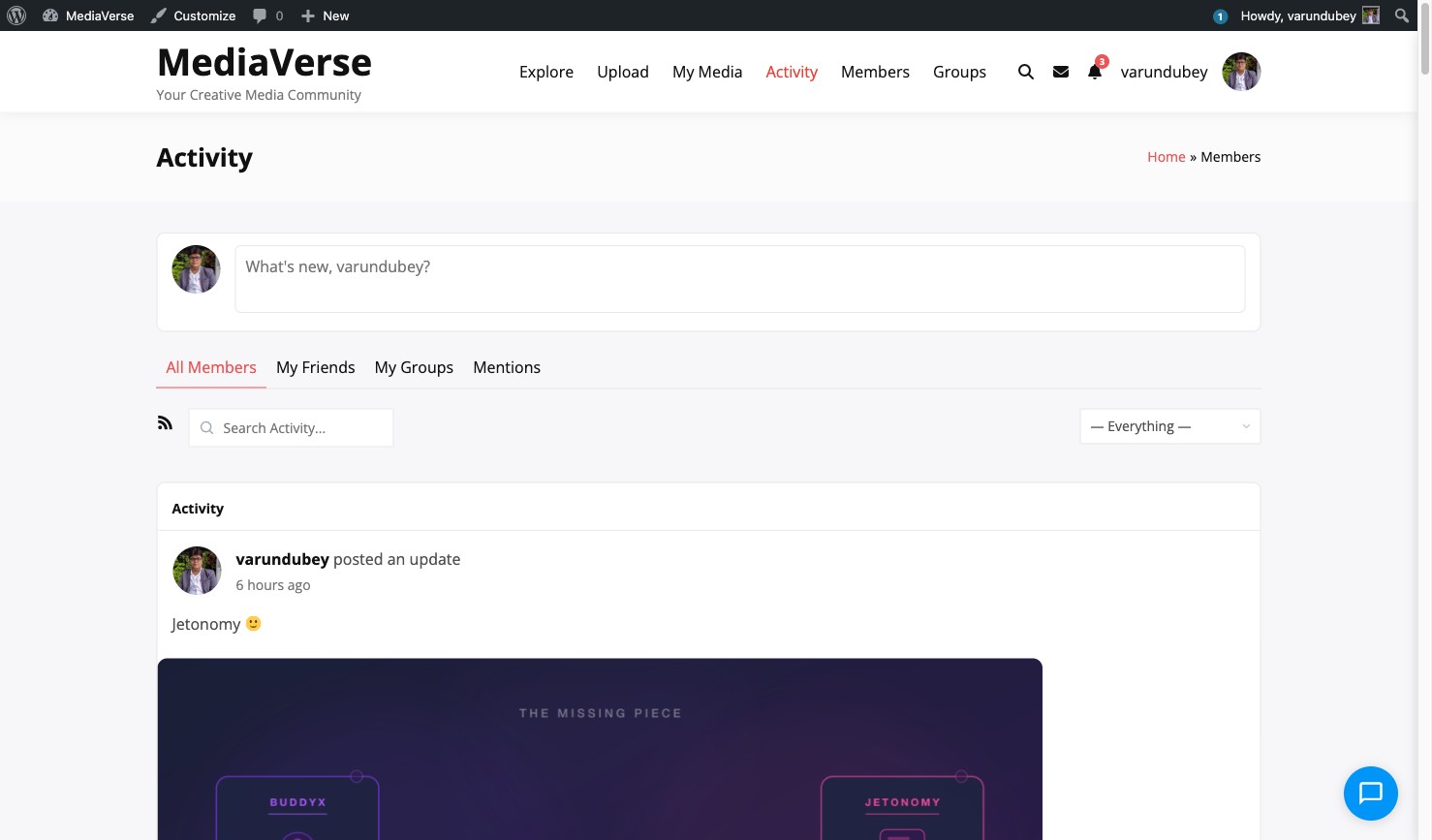
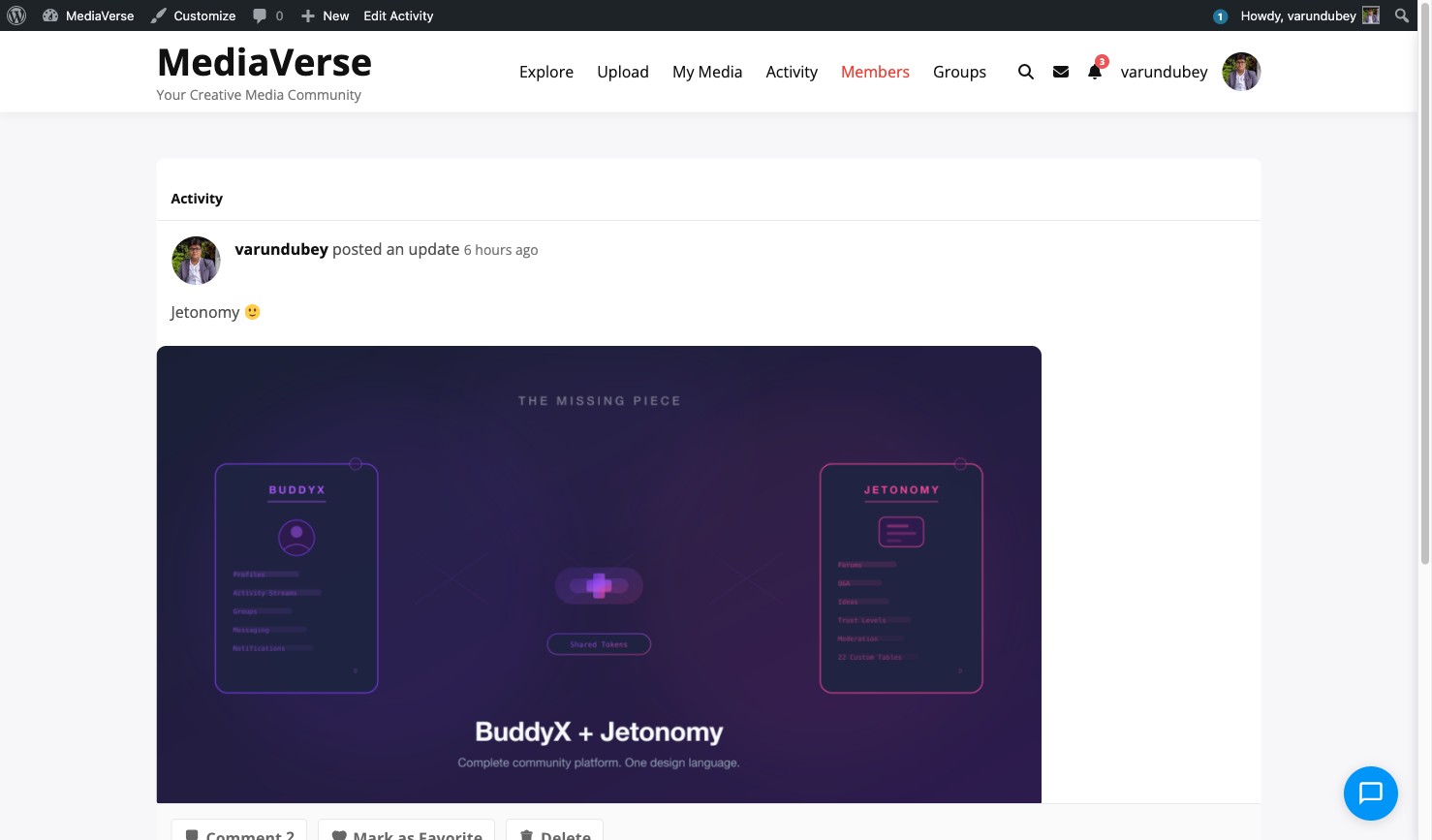
Add a rich media layer to any BuddyPress social network. Members get media tabs on profiles and groups, uploads appear in the activity stream, and followers see new content in their feed. Everything works out of the box — activate BuddyPress and the integration is automatic.

Frequently Asked Questions

Will my media appear in the WordPress Media Library?

No. WPMediaVerse media is managed through its own admin pages (Media > All Media) and frontend dashboard (My Media). This is intentional — it keeps the WordPress Media Library clean for your theme images, post attachments, and other site assets.

Can I use WPMediaVerse without BuddyPress?

Yes. WPMediaVerse is a standalone plugin. It creates its own pages (/media/, /my-media/, /upload-media/) and works on any WordPress site. BuddyPress integration activates automatically when BuddyPress is installed but is completely optional.

What happens to my data if I deactivate the plugin?

Deactivation stops all plugin functionality but your data stays intact in the database. Reactivating restores everything. Deleting the plugin (uninstall) removes all custom tables and data permanently.

Can I migrate from rtMedia / MediaPress / BuddyBoss?

Yes. WPMediaVerse Pro includes WP-CLI migration tools that import media records, preserving original upload dates, author attribution, and file URLs. See Migration Tools.

How does search work?

WPMediaVerse has its own search system that queries the mvs_media_index table directly. It searches titles and descriptions. Tags and categories use WordPress taxonomies for filtering.

Does it work with page builders?

Yes. WPMediaVerse provides Gutenberg blocks (Media Grid, Explore Feed, Album Viewer) and shortcodes for Elementor, Beaver Builder, and other builders. The blocks use the WordPress Interactivity API for dynamic behavior.

Installation

Get WPMediaVerse running on your WordPress site in under five minutes — install, activate, and your community is ready to start uploading.

Requirements

  • WordPress 6.5+
  • PHP 7.4+
  • MySQL 5.7+ or MariaDB 10.4+
  • BuddyPress 12.0+ (optional, for social integration)

Installing via WordPress Admin

  1. Go to Plugins > Add New Plugin in your WordPress dashboard.
  2. Search for WPMediaVerse.
  3. Click Install Now, then Activate.

WordPress plugin search showing WPMediaVerse install button

Installing via ZIP Upload

  1. Download the wpmediaverse.zip file from wbcomdesigns.com.
  2. Go to Plugins > Add New Plugin > Upload Plugin.
  3. Choose the ZIP file and click Install Now.
  4. Click Activate Plugin.

Upload plugin screen with WPMediaVerse ZIP selected

Installing via FTP

  1. Unzip the downloaded archive.
  2. Upload the wpmediaverse folder to /wp-content/plugins/.
  3. Go to Plugins in your dashboard and activate WPMediaVerse.

What Happens on Activation

When you activate WPMediaVerse, the plugin automatically:

  • Creates custom database tables for media index, stats, reactions, comments, favorites, follows, conversations, messages, collections, access grants, and webhooks — all separate from wp_posts for maximum performance.
  • Registers the mvs_album and mvs_collection custom post types (media itself uses the custom mvs_media_index table, not wp_posts).
  • Registers the mvs_tag and mvs_category taxonomies.
  • Adds default capabilities to the Administrator, Editor, Author, Contributor, and Subscriber roles.
  • Redirects you to the Setup Wizard for initial configuration.

Deactivation and Uninstall

Deactivation stops all plugin functionality but keeps your data intact.

Uninstall (deleting the plugin) removes all plugin data including:

  • All mvs_media, mvs_album, and mvs_collection posts
  • All custom database tables
  • All plugin options and transients

To preserve data after uninstalling, export your media library first.

Setup Wizard

After you activate WPMediaVerse, a 3-step wizard guides you through the only settings you need to make your first upload possible. The whole thing takes about two minutes.

Setup wizard welcome screen

Step 1: Permissions

Configure which user roles can upload and manage media.

Setup wizard permissions step with role checkboxes

By default, the wizard grants upload access to Subscribers, Authors, Editors, and Administrators. You can restrict or expand this per role.

Each role maps to a specific set of capabilities:

Role Upload Edit Own Delete Own Moderate Manage Settings
Administrator Yes Yes Yes Yes Yes
Editor Yes Yes Yes Yes No
Author Yes Yes Yes No No
Contributor No No No No No
Subscriber Yes Yes Yes No No

You can change role capabilities at any time in Media > Settings > Permissions.

Step 2: Display

Configure how media appears on your site.

Setup wizard display step showing grid column and items-per-page options

Option Choices Default
Grid Columns 2, 3, 4 3
Items Per Page 12, 24, 48 12
Thumbnail Style Square (cropped), Original proportions Square

Step 3: Done

The wizard marks setup as complete and redirects you to the Media Overview dashboard.

Setup wizard completion screen

From here you can:

  • Upload your first media file
  • Configure AI moderation settings
  • Set up BuddyPress integration (if BuddyPress is active)

Skipping the Wizard

If you close the wizard without completing it, you can return to it via Media > Setup. The wizard will not run automatically on subsequent visits once step 1 is saved.

Your First Upload

Upload your first photo in two minutes — drag, drop, set privacy, done. Here is exactly how it works.

Option 1: Use the Upload Block or Shortcode

Add the upload form to any page using either the Gutenberg block or shortcode.

In the Block Editor: Add the WPMediaVerse: Media Upload block to your page.

In the Classic Editor or any text area:

[mvs_upload]

Frontend media upload form with drag-and-drop area and privacy selector

Option 2: Upload via REST API

Use the REST endpoint directly (for custom integrations):

curl -X POST https://yoursite.com/wp-json/mvs/v1/media \
  -H "X-WP-Nonce: YOUR_NONCE" \
  -F "file=@/path/to/image.jpg" \
  -F "title=My First Upload" \
  -F "privacy=public"

The Upload Process

When you upload a file, WPMediaVerse:

  1. Validates the MIME type against your allowed file types list.
  2. Checks the file size against your configured maximum (default: 100 MB).
  3. Scans for duplicate files using SHA-256 hash comparison.
  4. Strips EXIF GPS data from images (if enabled — on by default).
  5. Stores the file using your configured storage driver (local by default).
  6. Creates an mvs_media post with the title, privacy level, and file metadata.
  7. Runs AI analysis if auto-analyze is enabled (requires OpenAI API key).
  8. Runs AI moderation if auto-moderate is enabled.
  9. Records BuddyPress activity if BuddyPress is active.

Supported File Types

By default, WPMediaVerse accepts:

Type Formats
Images JPEG, PNG, GIF, WebP
Video MP4, WebM
Audio MP3 (MPEG), OGG

You can customize allowed file types in Media > Settings > General.

Setting Privacy on Upload

Each file can have one of 6 privacy levels:

Level Who Can See It
Public Everyone, including logged-out visitors
Members Only Any logged-in WordPress user
Friends BuddyPress friends of the uploader (requires BuddyPress)
Group Members of a specific BuddyPress group (requires BuddyPress)
Private Only the uploader and administrators
Custom A specific list of user IDs (managed via API or access rules)

The default privacy level is set in Media > Settings > General > Default Privacy Level.

After Uploading

Your uploaded media appears:

  • On the media archive page (/wp-json/mvs/v1/media in the API)
  • In the Media post type list in your admin dashboard
  • In the Media tab on your BuddyPress profile (if BuddyPress is active)
  • In your media dashboard (use [mvs_dashboard] shortcode)

Free vs Pro Comparison

WPMediaVerse Free is a full-featured media platform. WPMediaVerse Pro unlocks advanced tools for professional communities, monetization, and engagement.

Quick Comparison

Feature Free Pro
Media Upload & Management
Drag & drop upload (photo, video, audio) Yes Yes
Bulk upload Yes Yes
Title, description, tags, categories Yes Yes
EXIF stripping & duplicate detection Yes Yes
Thumbnail generation (3 sizes) Yes Yes
Custom storage path Yes Yes
Amazon S3 cloud storage -- Yes
BunnyCDN cloud storage -- Yes
Feed Layouts
Default grid layout Yes Yes
Instagram layout (square grid + stories) -- Yes
Pinterest layout (masonry cards) -- Yes
Flickr layout (justified gallery) -- Yes
Dribbble layout (portfolio shots) -- Yes
Social Features
Follow / unfollow users Yes Yes
Emoji reactions on media Yes Yes
Threaded comments Yes Yes
Favorites (save for later) Yes Yes
@Mentions in comments Yes Yes
Share to social media Yes Yes
Direct messages (1-on-1 chat) Yes Yes
Voice messages in DMs Yes Yes
Media sharing in DMs Yes Yes
Message requests & privacy controls Yes Yes
Content Organization
Albums with cover photos Yes Yes
Collections (curated boards) Yes Yes
Stories (coming soon) Planned Planned
Gallery groups (multi-photo posts) Yes Yes
Privacy & Moderation
Public / Members Only / Private Yes Yes
Followers Only privacy level -- Yes
Group Members Only privacy level -- Yes
Custom privacy (specific users) -- Yes
Album-level privacy inheritance -- Yes
Privacy presets -- Yes
Bulk privacy updates -- Yes
AI content moderation (OpenAI) Yes Yes
Google Cloud Vision moderation -- Yes
AWS Rekognition moderation -- Yes
User reporting Yes Yes
User blocking Yes Yes
GDPR data export & erasure Yes Yes
Video
Video upload & playback Yes Yes
Multi-quality transcoding (720p/480p/360p) -- Yes
HLS adaptive streaming -- Yes
Video chapter markers -- Yes
Resume playback (pick up where you left off) -- Yes
Auto-captions via OpenAI Whisper -- Yes
Video analytics & heatmaps -- Yes
Image Processing
Basic text watermarking Yes Yes
Logo watermarking with positioning -- Yes
Watermark opacity & font control -- Yes
Gamification
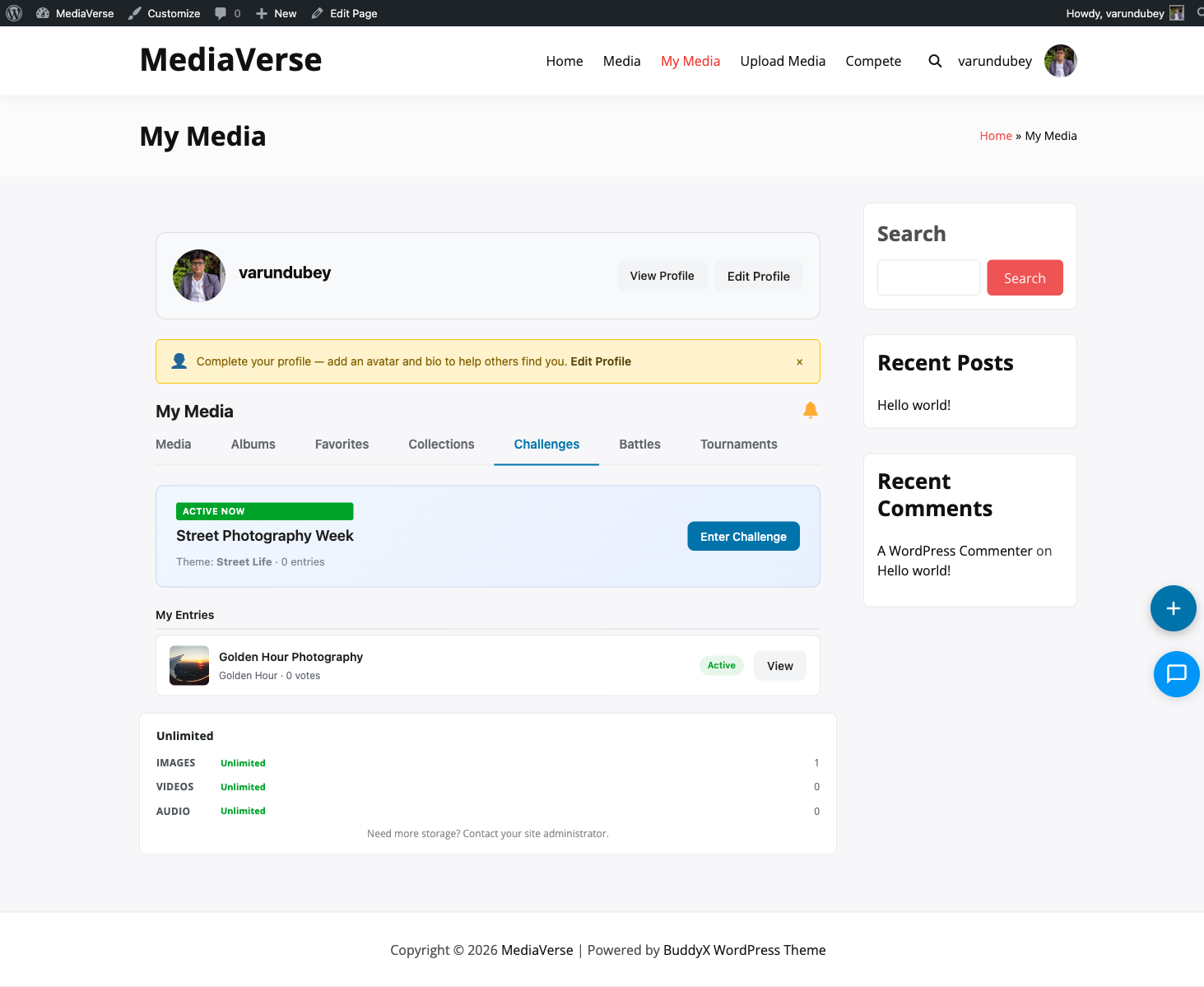
Photo Challenges (themed competitions) -- Yes
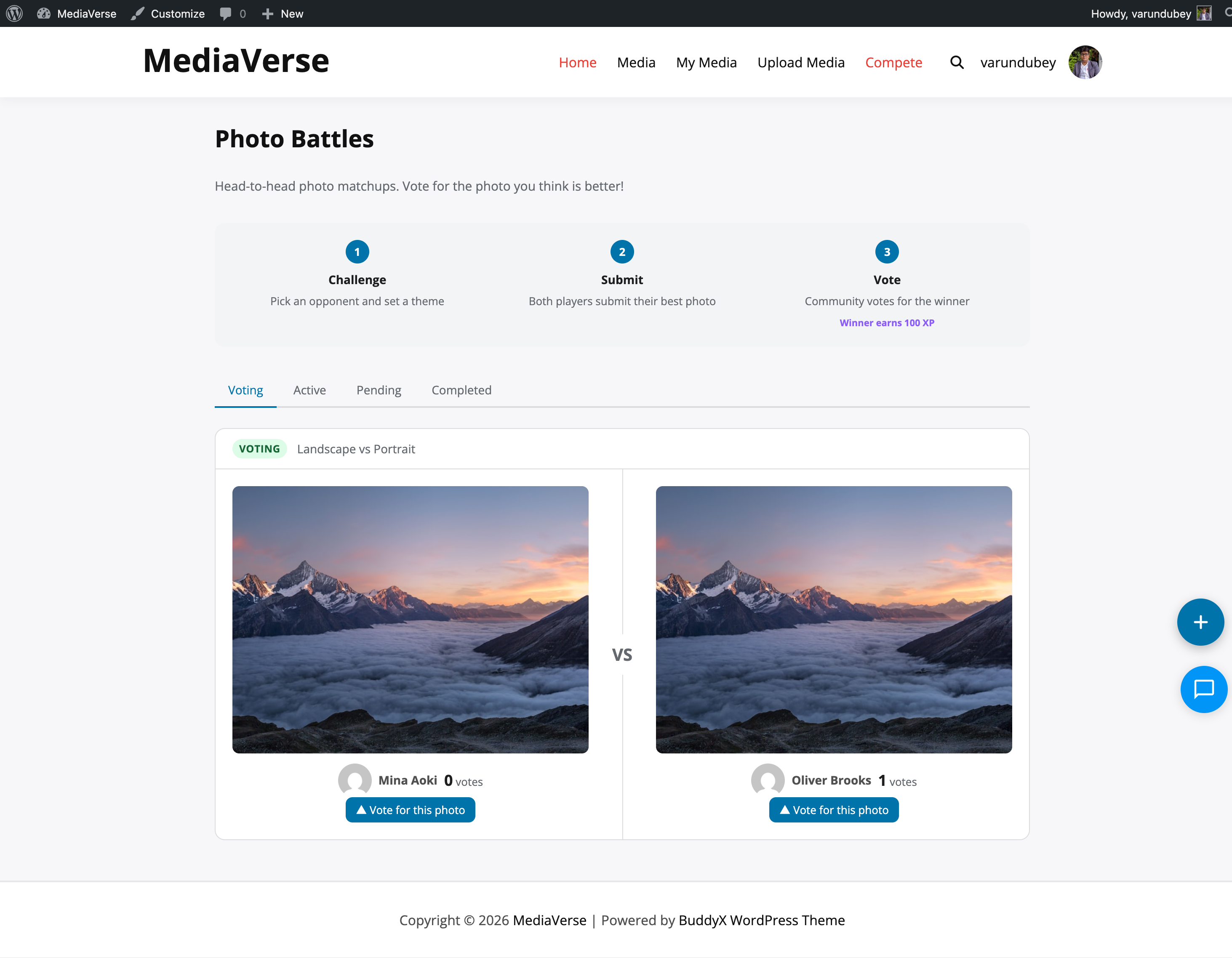
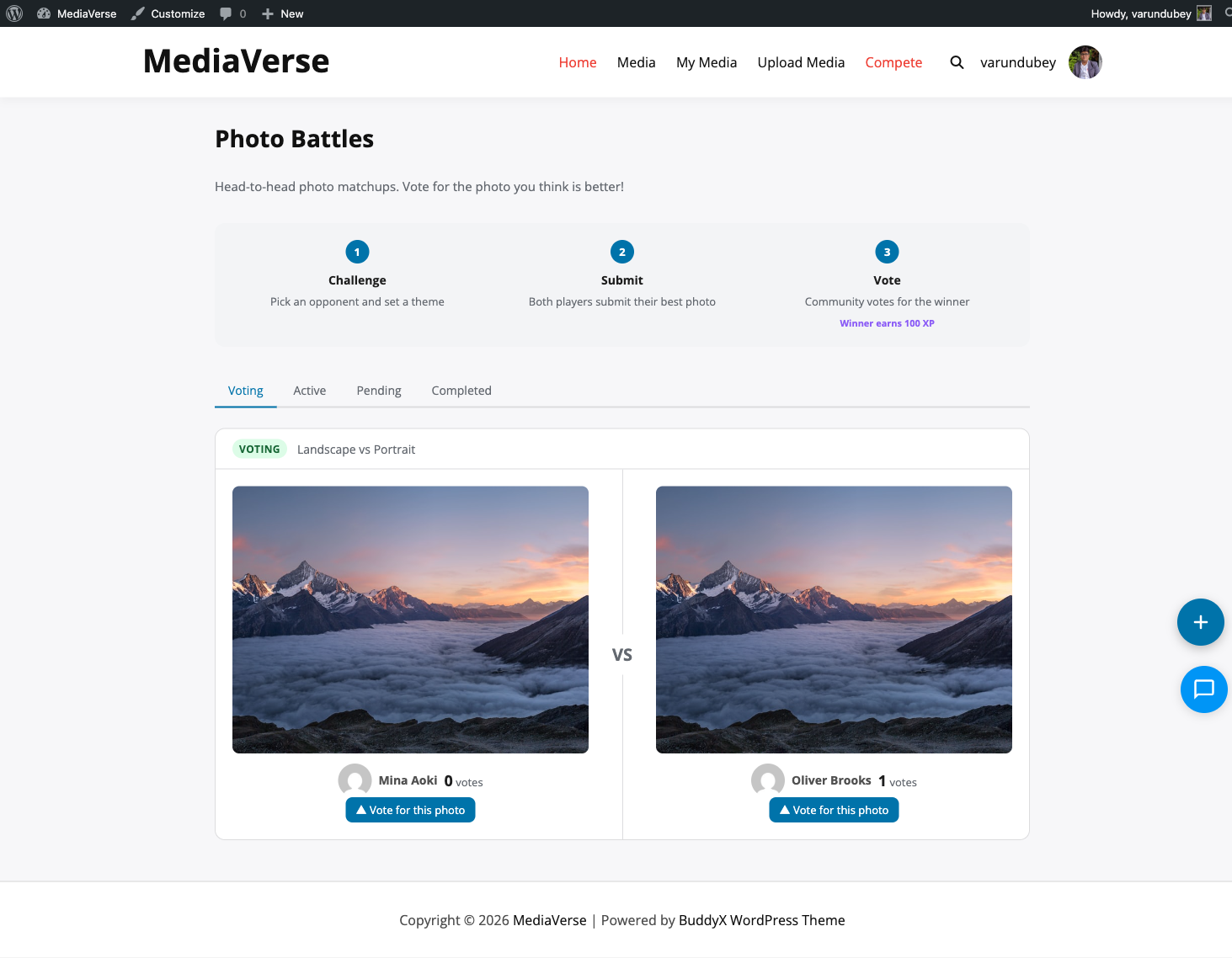
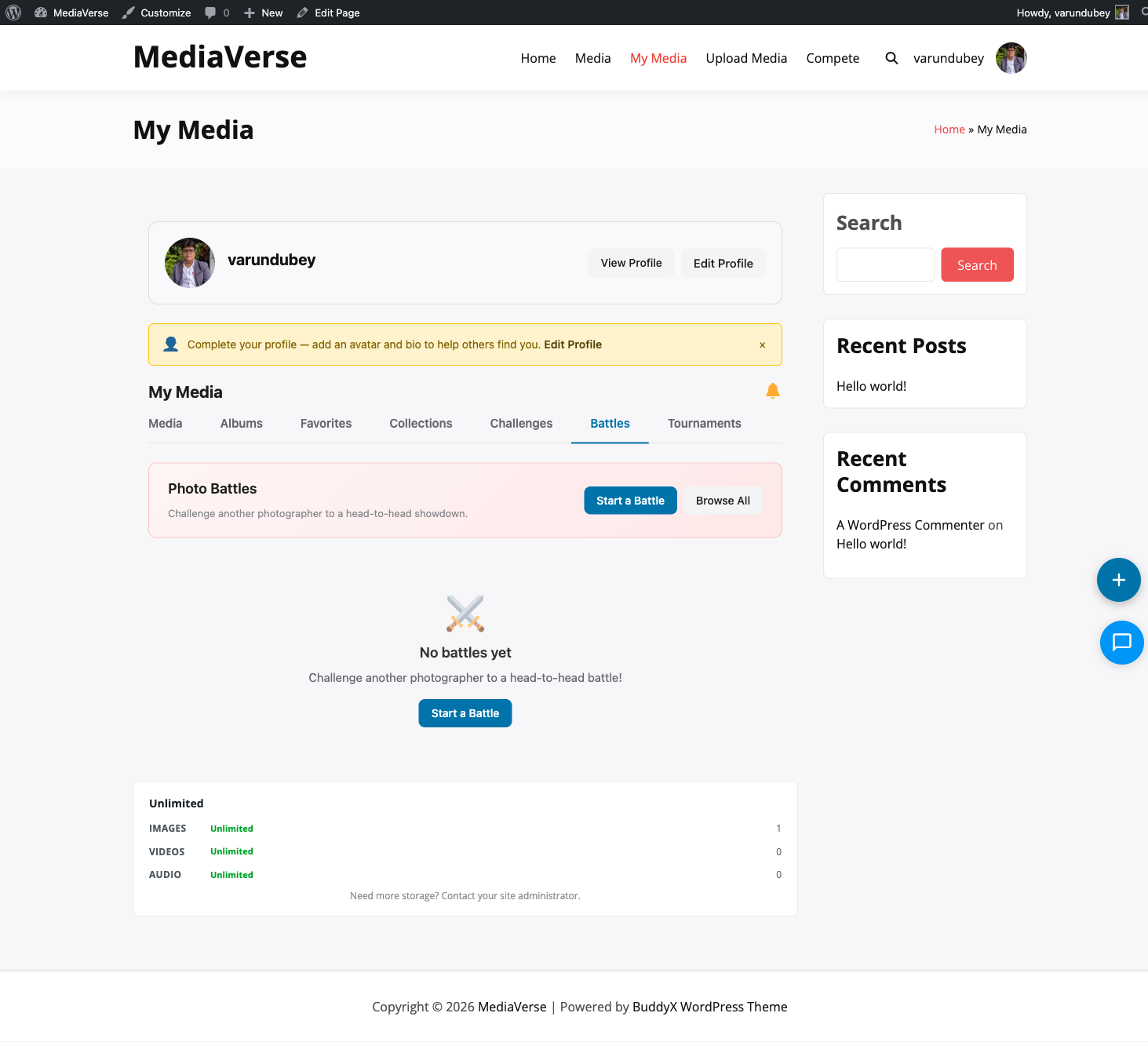
1v1 Photo Battles -- Yes
Single-elimination Tournaments -- Yes
Media Boosts (spend points for visibility) -- Yes
Upload Streaks with milestones -- Yes
Weekly Autopilot (auto-create challenges) -- Yes
XP integration with wb-gamification -- Yes
Quotas & Monetization
Per-user upload quotas (count + storage) -- Yes
Quota packages (Free, Premium, etc.) -- Yes
MemberPress integration -- Yes
Paid Memberships Pro integration -- Yes
WooCommerce integration -- Yes
Credit transaction log -- Yes
User Profiles
Public profile page (/media/@username/) Yes Yes
Follow / Message buttons Yes Yes
Custom avatar upload Yes Yes
Inline profile editing -- Yes
Admin Tools
Media overview dashboard Yes Yes
Media list with bulk actions Yes Yes
Settings (general, display, social, AI) Yes Yes
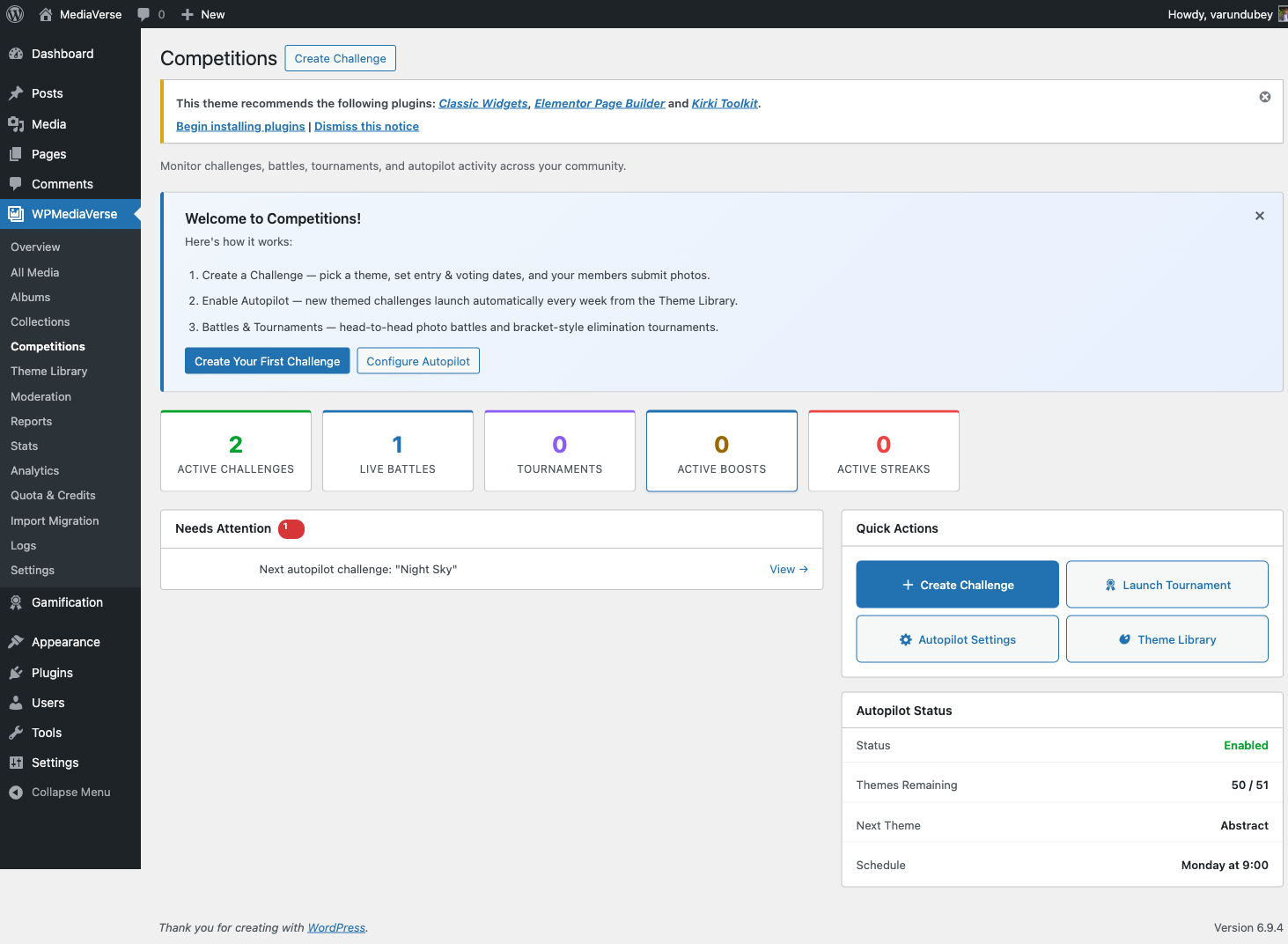
Competitions dashboard -- Yes
Challenge manager with theme library -- Yes
Tournament bracket manager -- Yes
Battle monitor -- Yes
Video analytics dashboard -- Yes
Quota & credits management -- Yes
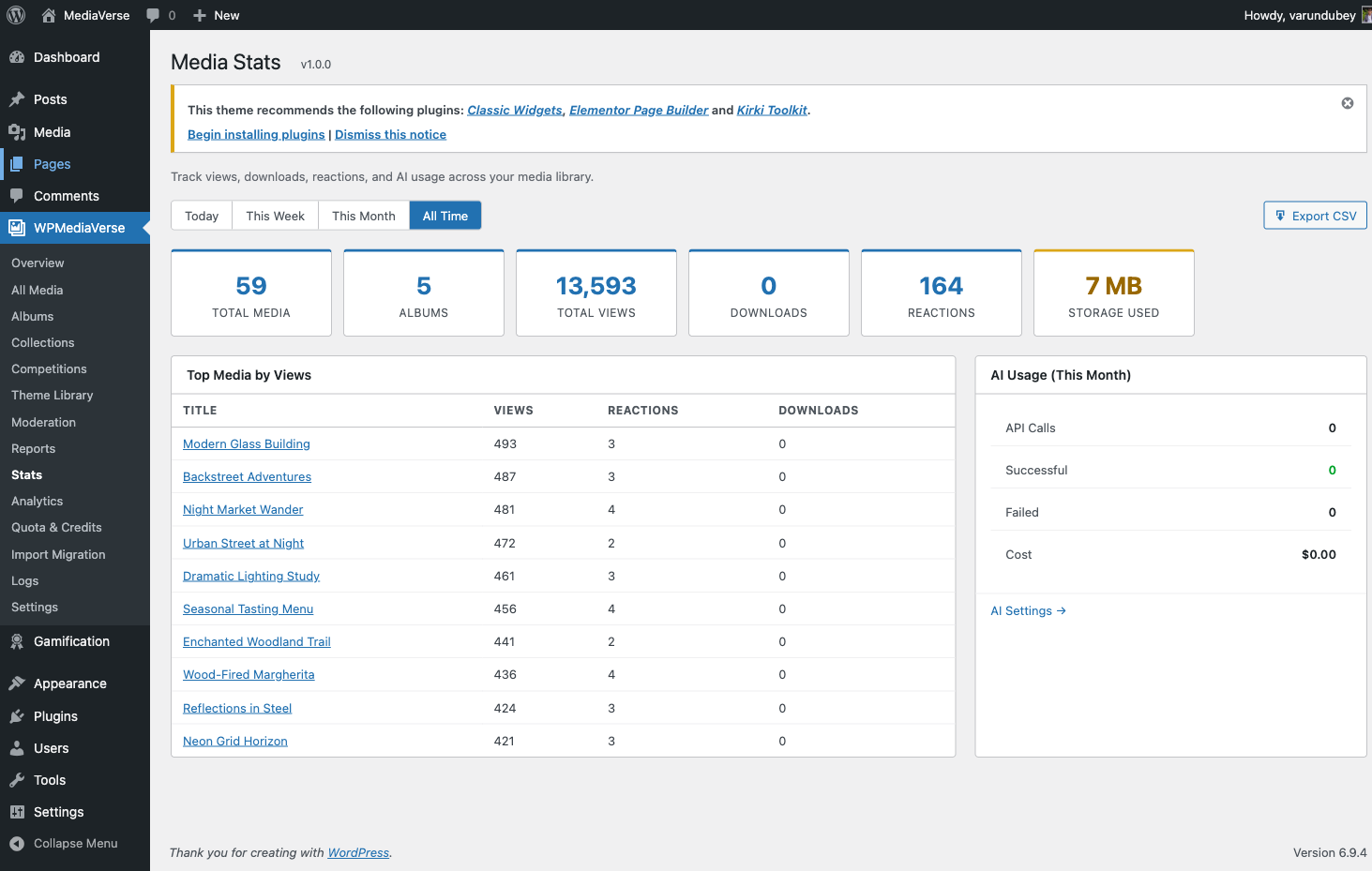
Media stats & insights -- Yes
BuddyPress Integration
Profile media tab Yes Yes
Group media tab Yes Yes
Activity stream media Yes Yes
Notifications (likes, comments, follows) Yes Yes
Developer
REST API (50+ endpoints) Yes Yes
Pro REST API (30+ additional endpoints) -- Yes
33 action hooks + 16 filter hooks Yes Yes
Template override system Yes Yes
Custom storage driver API Yes Yes
WP-CLI commands (8 commands) Yes Yes
Migration tools (rtMedia, MediaPress, BuddyBoss) -- Yes
Integrations
BuddyPress 12+ Yes Yes
wb-gamification -- Yes
MemberPress -- Yes
Paid Memberships Pro -- Yes
WooCommerce -- Yes
OpenAI (moderation + captions) Yes Yes
Google Cloud Vision -- Yes
AWS Rekognition -- Yes
Amazon S3 -- Yes
BunnyCDN -- Yes

What You Get Free

WPMediaVerse Free is not a stripped-down trial. It is a complete media platform with:

  • Full upload system with drag & drop, bulk upload, and duplicate detection
  • Albums, collections, and gallery groups
  • Complete social layer: follows, reactions, comments, favorites, mentions, sharing
  • Built-in direct messaging with voice messages, file sharing, and read receipts
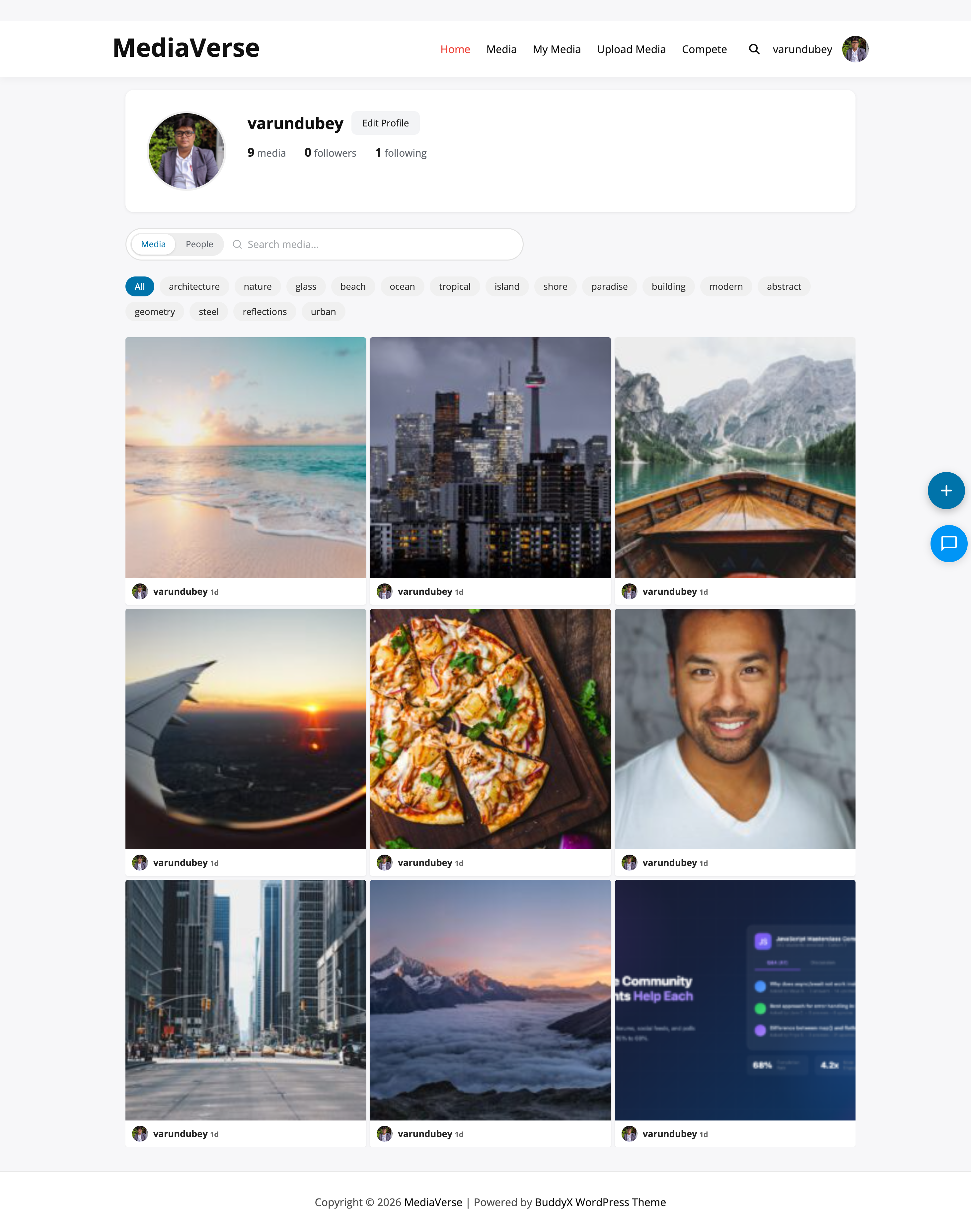
  • User profiles with follow/message buttons and media grids
  • AI content moderation via OpenAI
  • BuddyPress integration (profiles, groups, activity, notifications)
  • Full REST API with 50+ endpoints
  • GDPR compliance (data export + erasure)
  • User blocking and reporting

What Pro Adds

WPMediaVerse Pro is for sites that need professional-grade features:

  • Visual identity — Choose from Instagram, Pinterest, Flickr, or Dribbble layouts to match your community's style
  • Scale — Offload media to S3 or BunnyCDN for global CDN delivery and unlimited storage
  • Video intelligence — Multi-quality transcoding, adaptive streaming, chapters, auto-captions, and engagement analytics
  • Engagement — Gamification system with challenges, battles, tournaments, boosts, and streaks that keep users coming back
  • Monetization — Quota packages with MemberPress/WooCommerce integration let you sell tiered upload plans
  • Privacy — Six privacy levels with album inheritance, presets, and bulk management
  • AI — Google Vision and AWS Rekognition for auto-tagging and advanced content moderation
  • Migration — Import from rtMedia, MediaPress, or BuddyBoss with one WP-CLI command

Upgrading

  1. Purchase a Pro license at wbcomdesigns.com
  2. Upload and activate the wpmediaverse-pro.zip plugin
  3. Enter your license key at Media > License
  4. Pro features activate immediately — no data migration needed, no settings lost

Integrations

WPMediaVerse connects with 12+ third-party services and plugins out of the box. No custom code, no middleware — configure credentials in settings and the integration activates.

Integration Map

Integration Plugin What It Does Free Pro
BuddyPress Free Profile media tabs, group media, activity stream, notifications Yes Yes
BuddyNext Free Enhanced member directory and profile blocks Yes Yes
wb-gamification Pro XP points, badges, leaderboards for all competitions -- Yes
Amazon S3 Pro Store all media files on S3 with CDN delivery -- Yes
BunnyCDN Pro Store and deliver media via BunnyCDN edge network -- Yes
OpenAI Free AI content moderation, auto-tagging, description generation Yes Yes
Google Cloud Vision Pro Advanced image labeling, object detection, safe search -- Yes
AWS Rekognition Pro Face detection, content moderation, celebrity recognition -- Yes
OpenAI Whisper Pro Automatic video/audio transcription to WebVTT captions -- Yes
MemberPress Pro Auto-assign quota packages based on membership level -- Yes
Paid Memberships Pro Pro Auto-assign quota packages based on PMPro level -- Yes
WooCommerce Pro Sell upload quota packages as WooCommerce products -- Yes
WordPress Webhooks Free Send real-time HTTP notifications on media events Yes Yes

Community & Social

BuddyPress

WPMediaVerse is the most complete media solution for BuddyPress communities. The integration activates automatically when BuddyPress is detected — no configuration needed.

What users get:

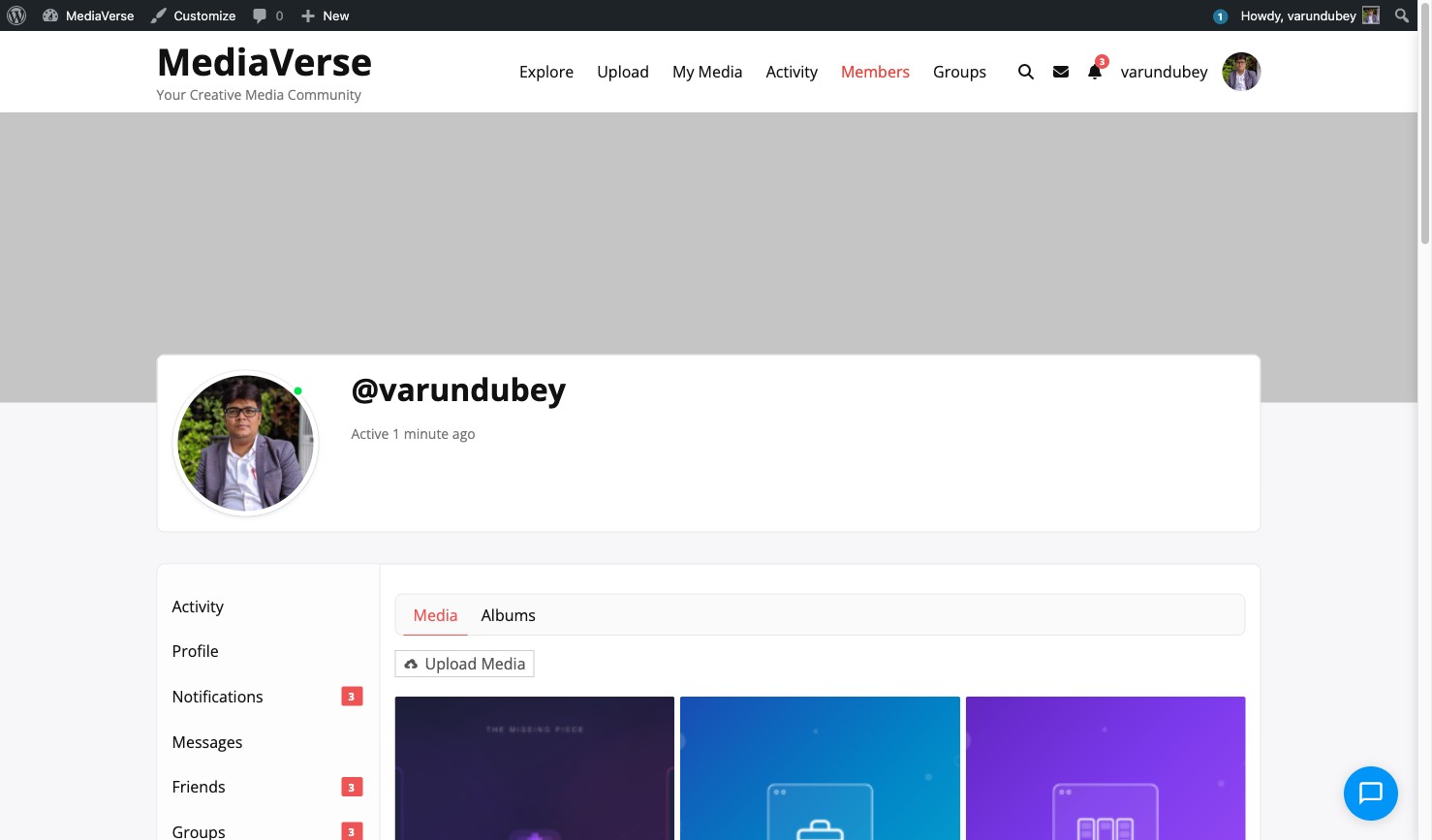
  • A Media tab on every member profile showing their uploads in a grid
  • A Media tab in every group where members upload and share within the group
  • Media uploads appear as activity items in the BuddyPress activity stream with thumbnails
  • Notifications when someone likes, comments on, or shares your media
  • One-click media sharing from the lightbox directly into BuddyPress activity

What admins get:

  • Zero configuration — activate BuddyPress and the integration works
  • Media tab visibility follows BuddyPress privacy settings
  • Activity items follow BuddyPress moderation rules
  • Compatible with BuddyPress 12.0+

See BuddyPress Integration for full details.

BuddyNext

If you use the BuddyNext theme, WPMediaVerse detects it automatically and enhances the member directory with media counts and the profile layout with media grid blocks.

wb-gamification (Pro)

WPMediaVerse Pro registers 14 gamification actions with the wb-gamification plugin:

Action When Default XP
Upload a photo User uploads media 10
Receive a like Someone reacts to your media 5
Receive a comment Someone comments on your media 5
Follow a user User follows someone 2
Enter a challenge User submits to a challenge 10
Win a challenge (1st) First place in challenge 100
Win a challenge (2nd) Second place 50
Win a challenge (3rd) Third place 25
Create a battle User starts a 1v1 battle 5
Win a battle Win a head-to-head battle 50
Register for tournament User joins a tournament 10
Win a tournament match Advance one round 25
Win a tournament Tournament champion 200
Reach streak milestone 7/30/100/365 day streak 50-5000

All XP values are configurable in Media > Settings > Gamification. The wb-gamification plugin handles points, badges, leaderboards, and leveling — WPMediaVerse triggers the actions.

Cloud Storage

Amazon S3 (Pro)

Offload every upload to an S3 bucket. Files are served from S3 directly (or via CloudFront if configured).

What you get:

  • Unlimited storage (pay-as-you-go with AWS)
  • Global CDN delivery when paired with CloudFront
  • Signed URLs for private/members-only media
  • Automatic retry (3 attempts) on upload failure
  • Connection test button in admin to verify credentials

Setup: Paste your bucket name, region, access key, and secret key into Media > Settings > Storage > Amazon S3. Click "Test Connection" to verify. New uploads go to S3 immediately.

Security: Store credentials in wp-config.php instead of the database:

define( 'MVS_PRO_AWS_ACCESS_KEY', 'AKIA...' );
define( 'MVS_PRO_AWS_SECRET_KEY', '...' );

See Cloud Storage for IAM policy and full setup guide.

BunnyCDN (Pro)

Store and deliver media through BunnyCDN's global edge network.

What you get:

  • 114 edge locations worldwide
  • Automatic image optimization
  • Per-request pricing (no minimum commitment)
  • Simpler setup than AWS (one API key)

Setup: Enter your storage zone name, API key, and CDN hostname into Media > Settings > Storage > BunnyCDN.

Custom Storage Drivers

WPMediaVerse uses a StorageDriverInterface that any developer can implement. Build drivers for Google Cloud Storage, DigitalOcean Spaces, Wasabi, Backblaze B2, or any S3-compatible service.

See Custom Storage Drivers for the interface spec.

AI & Machine Learning

OpenAI (GPT + Vision)

Built into the free plugin. Uses the OpenAI API for:

  • Content moderation — Automatically flag inappropriate uploads before they appear on the site
  • Auto-tagging — AI suggests relevant tags based on image content
  • Description generation — Generate alt text and descriptions for accessibility
  • Monthly budget cap — Set a dollar limit to prevent unexpected API costs

Setup: Paste your OpenAI API key into Media > Settings > AI & Moderation.

Google Cloud Vision (Pro)

Adds Google's image analysis capabilities:

  • Label detection — Identify objects, locations, activities in photos
  • Safe search — Detect explicit, violent, or medical content
  • Text detection — Extract text from images (OCR)
  • Circuit breaker pattern prevents API hammering on failures

Setup: Paste your Google Cloud API key into Media > Settings > AI & Moderation > Google Vision.

AWS Rekognition (Pro)

Adds Amazon's image and video analysis:

  • Object and scene detection — Identify objects with confidence scores
  • Face detection — Detect faces with attributes (smile, glasses, age range)
  • Content moderation — Flag suggestive, violent, or explicit content
  • Circuit breaker pattern with automatic recovery

Setup: Uses the same AWS credentials as S3 storage, or set separate credentials in Media > Settings > AI & Moderation > AWS Rekognition.

OpenAI Whisper (Pro)

Automatic speech-to-text transcription for video and audio uploads:

  • Generates WebVTT caption files
  • Captions are searchable and displayed as subtitles in the video player
  • Process runs asynchronously via Action Scheduler
  • Supports 50+ languages

Setup: Enable at Media > Settings > Video > Auto-Captions (uses the same OpenAI API key).

Monetization

MemberPress (Pro)

Automatically assign upload quota packages based on MemberPress membership levels.

How it works:

  1. Create quota packages in Media > Quotas (e.g., "Free: 50 photos", "Premium: unlimited")
  2. Map each MemberPress membership to a quota package
  3. When a user purchases or is assigned a membership, their quota updates automatically
  4. When a membership expires, the user reverts to the default package

Paid Memberships Pro (Pro)

Same automatic package assignment, but using PMPro membership levels instead of MemberPress.

WooCommerce (Pro)

Sell upload quota packages as WooCommerce products:

How it works:

  1. Create quota packages in Media > Quotas
  2. Create a WooCommerce product and map it to a quota package
  3. When a customer completes checkout, their quota package activates
  4. If the order is refunded or cancelled, the package reverts to default

This lets you sell storage tiers directly from your WooCommerce store.

Webhooks

WPMediaVerse can send real-time HTTP POST notifications to external services when events occur:

Event Payload
Media uploaded Media ID, file URL, author, type, privacy
Media deleted Media ID
Comment posted Comment ID, media ID, author, content
Reaction added Media ID, user ID, reaction type
Report submitted Media ID, reporter ID, reason
Moderation changed Media ID, old status, new status

Use cases:

  • Notify a Slack channel when new media is uploaded
  • Trigger a Zapier workflow on media events
  • Sync media metadata to an external CMS or DAM
  • Log moderation actions to an audit system

Setup: Add webhook URLs at Media > Settings > Webhooks. Each webhook can filter by event type.

See Webhooks for payload formats and authentication.

WordPress Core

Site Health

WPMediaVerse registers 3 custom tests in Tools > Site Health:

  • Database tables — Verifies all custom tables exist and have the expected schema
  • Upload directory — Checks that the wpmediaverse upload directory is writable
  • Required pages — Confirms Dashboard, Explore, and Upload pages are assigned

GDPR / Privacy Tools

  • Export Personal Data — Exports all user media, comments, reactions, favorites, DMs, and follow relationships
  • Erase Personal Data — Removes all of the above when processing an erasure request
  • Privacy Policy — Suggests privacy policy text via WordPress's built-in privacy policy tool

See GDPR & Privacy Compliance.

REST API

WPMediaVerse exposes 50+ REST endpoints in the free plugin and 30+ additional endpoints in Pro, all under the mvs/v1 and mvs-pro/v1 namespaces. Any external application, mobile app, or headless frontend can consume the full API.

See REST API Reference and Pro REST API Reference.

WP-CLI

8 CLI commands for automation, migration, and maintenance:

wp mvs stats              # Show media stats
wp mvs migrate            # Run database migrations
wp mvs reindex            # Rebuild media index
wp mvs cache-flush        # Flush all caches
wp mvs prune-views        # Clean old view records
wp mvs cleanup-expired    # Remove expired stories/tokens
wp mvs moderation-stats   # Show moderation queue stats
wp mvs import-rtmedia     # Import from rtMedia (Pro)

See WP-CLI Commands.

Gutenberg Blocks

5 blocks for the block editor:

Block Description
Media Grid Display a filtered grid of media items
Explore Feed Full explore page with search, tags, and pagination
Album Viewer Display an album's contents
Lock Overlay Restrict content visibility with a paywall-style overlay
Profile Edit Inline profile editing block

See Gutenberg Blocks.

Shortcodes

For classic editor and page builders:

Shortcode Description
[mvs_gallery] Media grid with filtering
[mvs_upload] Upload form
[mvs_dashboard] User's media dashboard
[mvs_profile] User profile card

See Shortcodes.

Settings

Configure every aspect of your media platform.

General Settings

Access these settings at Media > Settings > General.

General settings tab

General Section

Option Default Description
Max Upload Size 100 MB Maximum file size per upload. Enter value in MB. The plugin reads this setting server-side — WordPress's upload_max_filesize PHP ini value also applies.
Allowed File Types image/jpeg, image/png, image/gif, image/webp, video/mp4, video/webm, audio/mpeg, audio/ogg Comma-separated list of allowed MIME types.
Default Privacy Level Public The privacy level assigned to new uploads when the user does not choose one. Options: Public, Members Only, Private.
Duplicate Detection Warn (allow upload) What to do when a user uploads a file with a SHA-256 hash matching an existing media item. Options: Warn (allow upload), Skip (reject duplicate), Allow (no check).
Strip EXIF Data Enabled When enabled, removes GPS coordinates and device information from uploaded JPEG images before storing them.

Storage Section

Option Default Description
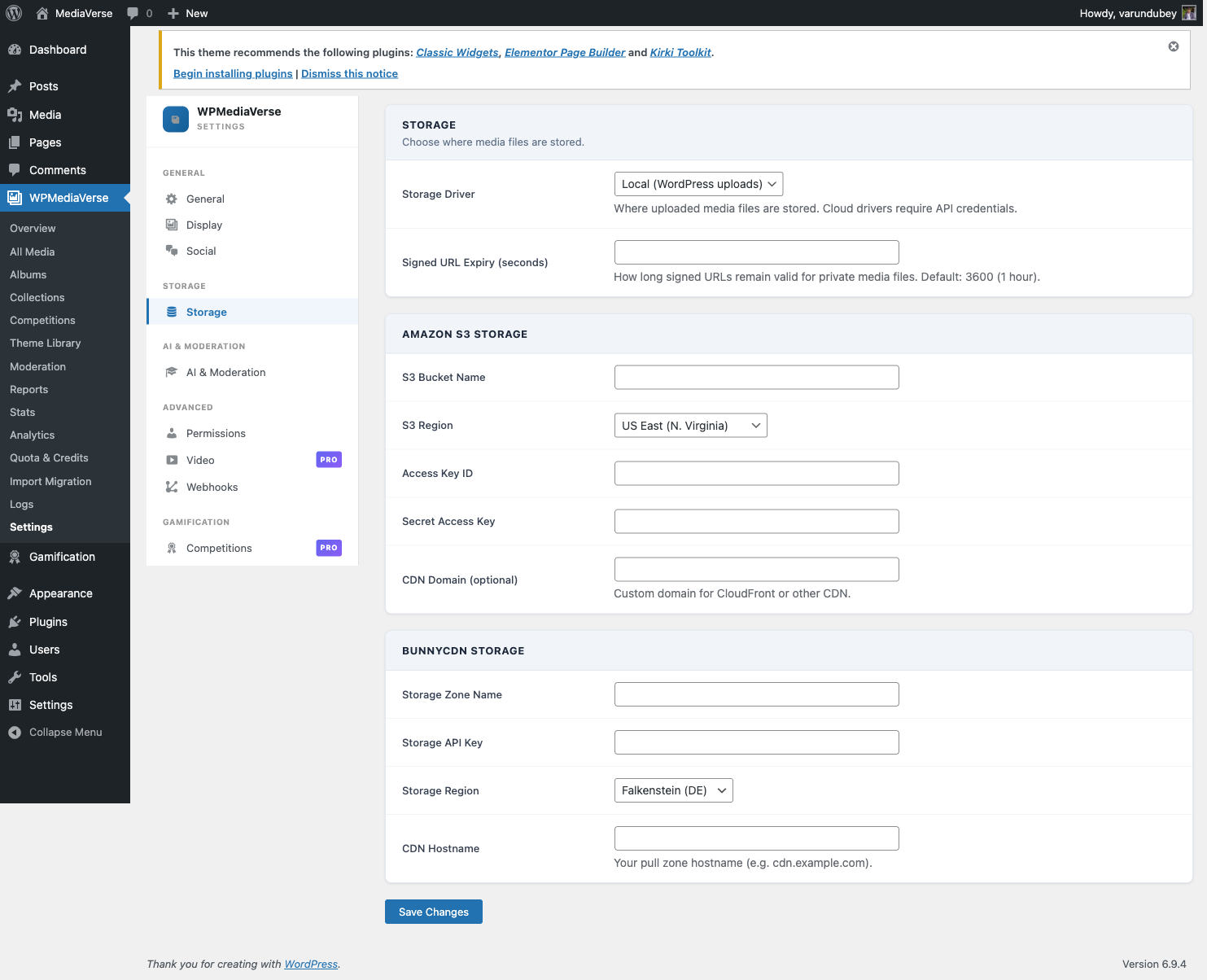
Storage Driver Local (WordPress uploads) Where uploaded files are stored. Local stores files in wp-content/uploads/wpmediaverse/YYYY/MM/. Amazon S3 and BunnyCDN require WPMediaVerse Pro.
Signed URL Expiry 3600 (1 hour) How long temporary signed URLs remain valid for private media files. Set in seconds.

Changing the storage driver only affects new uploads. Existing files remain in their original storage location. A notice appears after saving if the driver is changed.

Pages Section

Assign existing WordPress pages to WPMediaVerse page roles. WPMediaVerse uses these assignments to generate links in the navigation, chat panel, and notification emails.

Option Option Key Description
Dashboard Page mvs_page_dashboard The main logged-in user dashboard. Displays the follow feed, quick upload, and activity summary.
Explore Page mvs_page_explore The public media browse archive. Used as the landing page for non-logged-in visitors.
Upload Page mvs_page_upload The dedicated upload form page. Linked from the dashboard and the navigation bar.

Create a standard WordPress page for each role, then select it from the corresponding dropdown. Each page should contain only the matching WPMediaVerse shortcode ([mvs_dashboard], [mvs_explore], [mvs_upload]) with no other content.

If a page assignment is empty, WPMediaVerse falls back to the site home URL for that link. Set all three pages to avoid broken navigation.

Display Settings

Access these settings at Media > Settings > Display.

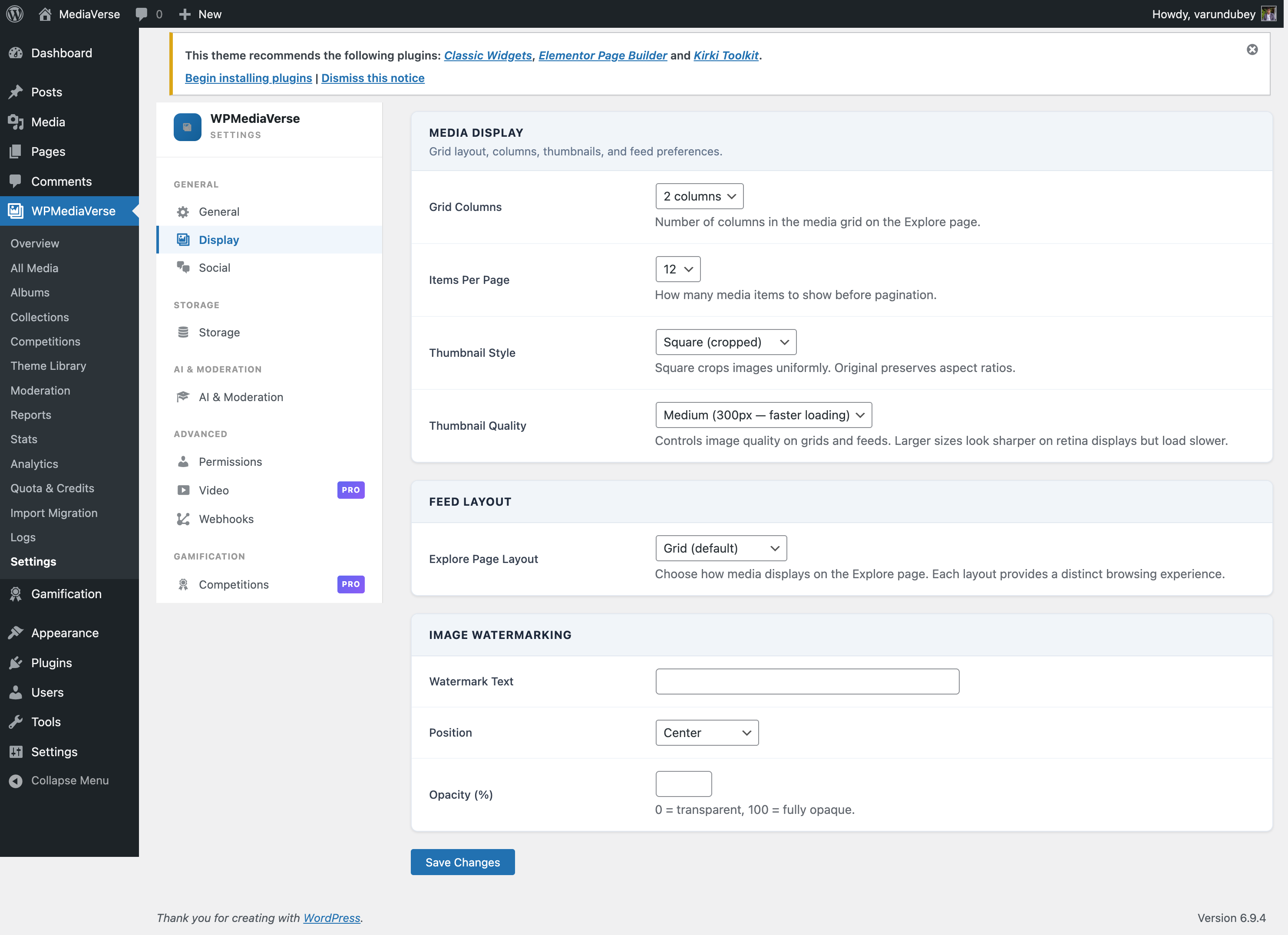
Display settings tab showing grid and thumbnail options

Media Display Section

Option Default Description
Grid Columns 3 Number of columns in the media grid. Applies to [mvs_gallery], the Media Grid block, and the explore archive. Options: 2, 3, 4 columns.
Items Per Page 12 Number of media items loaded per page. Options: 12, 24, 48.
Thumbnail Style Square (cropped) Controls the aspect ratio of grid thumbnails. Square crops images to a 1:1 ratio. Original proportions preserves the file's native aspect ratio.

How Display Settings Interact with Shortcodes

The [mvs_gallery] shortcode deliberately uses the backend settings for Grid Columns and Items Per Page rather than letting shortcode attributes override them. This ensures consistent display across your site.

The [mvs_album] shortcode allows you to override the column count directly:

[mvs_album id="123" columns="4"]

Thumbnail Generation

WPMediaVerse generates thumbnails for uploaded images using WordPress's built-in image editor. Thumbnails are stored alongside the original file in the wpmediaverse/YYYY/MM/ upload directory.

For video files, a placeholder thumbnail is displayed.

WPMediaVerse Pro: Additional Display Options

WPMediaVerse Pro adds a Watermark section to this tab, allowing you to overlay a text or image watermark on downloaded media files. The free version includes a basic watermark option under the General tab.

Permissions

Access these settings at Media > Settings > Permissions.

Permissions tab showing role-capability matrix

Custom Capabilities

WPMediaVerse registers the following custom WordPress capabilities:

Capability Description
upload_mvs_media Upload new media files
edit_mvs_media Edit own media posts
edit_others_mvs_media Edit media posts created by other users
delete_mvs_media Delete own media posts
delete_others_mvs_media Delete media posts created by other users
moderate_mvs_media Access the moderation queue and approve/reject media
manage_mvs_settings Access the WPMediaVerse settings page
manage_mvs_access Manage custom access grants for private media
read_mvs_media View media (used for private media visibility checks)
publish_mvs_media Publish media posts immediately (without pending review)

Default Role Assignments

Role upload edit own delete own moderate manage settings
Administrator Yes Yes Yes Yes Yes
Editor Yes Yes Yes Yes No
Author Yes Yes Yes No No
Contributor No No No No No
Subscriber Yes Yes Yes No No

Changing Permissions

  1. Go to Media > Settings > Permissions.
  2. Check or uncheck capabilities for each role.
  3. Click Save Permissions.

The page shows how many roles were updated. If no changes were needed, it shows "No changes were needed."

Granting Capabilities Programmatically

You can grant or revoke capabilities in your theme's functions.php or a custom plugin:

// Grant moderation capability to a custom role.
$role = get_role( 'shop_manager' );
if ( $role ) {
    $role->add_cap( 'moderate_mvs_media' );
    $role->add_cap( 'manage_mvs_access' );
}

Important Notes

  • The moderate_mvs_media capability grants access to the moderation queue and the ability to see all media regardless of privacy level.
  • The manage_mvs_settings capability is required to access any WPMediaVerse admin page.
  • Capabilities are stored in the WordPress wp_user_roles option and persist after plugin deactivation.

AI & Moderation Settings

Access these settings at Media > Settings > AI & Moderation.

AI and Moderation settings tab

AI Features Section

Option Default Description
AI Provider OpenAI (GPT-4 Vision) The AI service used for image analysis and moderation. Free version: OpenAI only. Pro adds Google Vision and AWS Rekognition.
OpenAI API Key (empty) Your OpenAI API key. You can also define MVS_OPENAI_API_KEY in wp-config.php instead.
OpenAI Model GPT-4o Mini Model used for analysis calls. GPT-4o Mini is cheaper; GPT-4o provides higher quality results.
Auto-Analyze Uploads Off When enabled, each new upload is automatically analyzed for a description and suggested tags.
Auto-Apply Tags Off When enabled, AI-suggested tags are automatically assigned to the mvs_tag taxonomy on new uploads. Requires Auto-Analyze to be on.
Auto-Moderate Uploads Off When enabled, each new upload is checked for policy violations. The action taken depends on the When AI Flags Content setting below.
Monthly AI Budget ($) 0 (unlimited) Set a dollar cap on AI API costs per calendar month. When the budget is reached, AI calls stop until the next month. Set to 0 to disable budget limiting.
Estimated Cost per Call ($) $0.01 Used for budget tracking. Adjust based on your actual API pricing.

Setting the API Key via wp-config.php

// wp-config.php
define( 'MVS_OPENAI_API_KEY', 'sk-your-key-here' );

When this constant is defined, the settings page field is disabled and shows a notice.

Moderation Section

Option Default Description
When AI Flags Content Flag for review What happens when AI detects a policy violation. Options: Flag for review (keeps media visible but adds it to the moderation queue), Hide (sets media to private), Reject (moves media to draft).
Auto-Hide Threshold 3 Number of user reports required to automatically hide a media item. The media is set to private and added to the moderation queue. Set to 0 to disable automatic hiding.

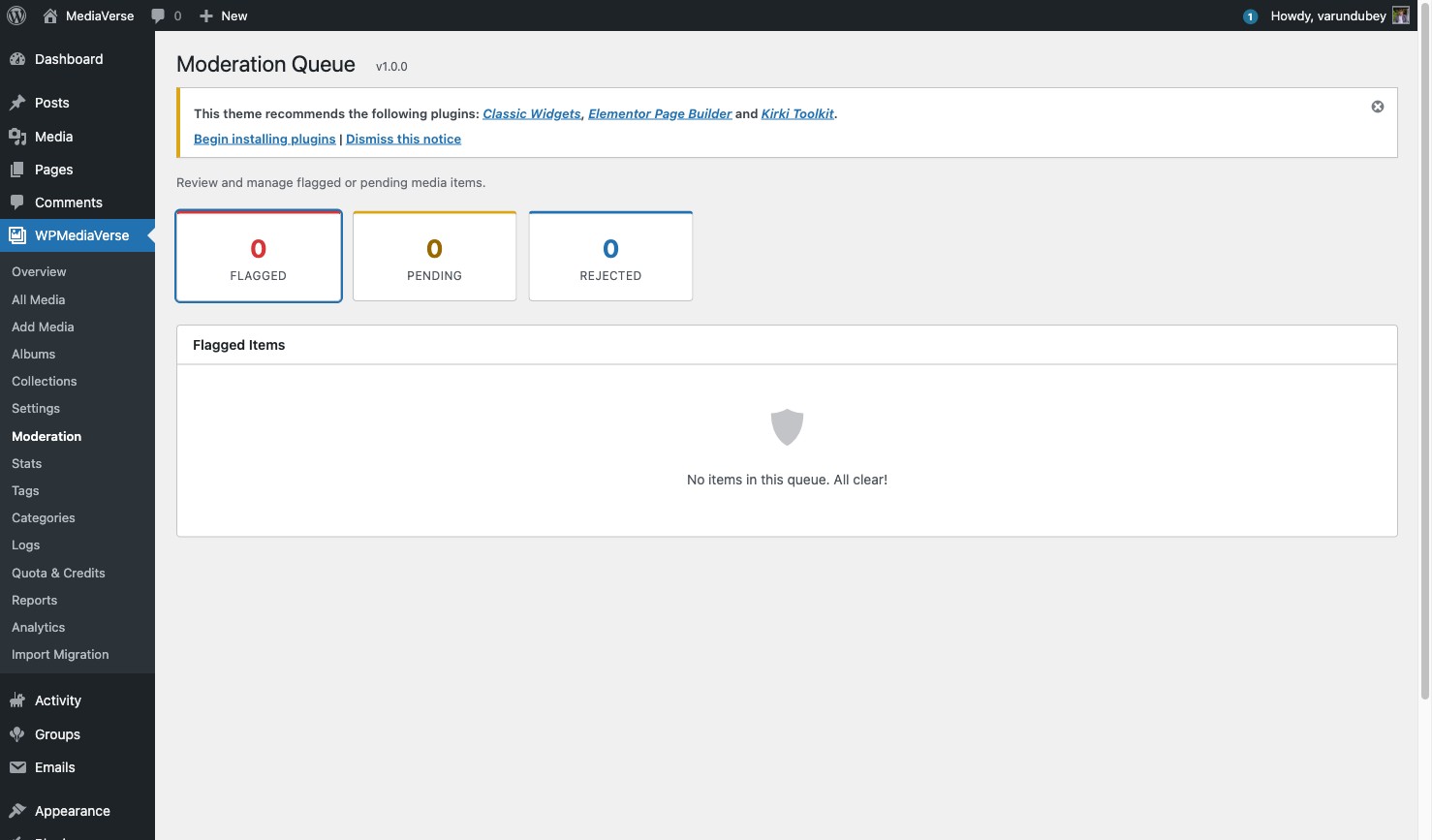
Moderation Queue

Administrators with the moderate_mvs_media capability can review flagged media at Media > Moderation Queue.

Moderation queue with pending media items

The queue shows:

  • Media flagged by AI
  • Media that reached the auto-hide threshold from user reports
  • Media manually flagged by moderators

Log Viewer

The AI & moderation activity log is available at Media > AI Logs. It shows each AI call, the result, estimated cost, and any action taken.

AI log viewer showing analysis results

Budget Alerts

When monthly AI spend reaches 80% of your budget, WPMediaVerse adds an admin notice. When the budget is fully consumed, AI calls are suspended and a warning appears on the settings page.

Webhooks

Access these settings at Media > Settings > Webhooks.

Webhooks allow WPMediaVerse to send signed HTTP POST notifications to external services when media events occur.

Webhooks settings tab showing webhook URL list

Supported Events

Event Triggered When
media.uploaded A new media file is successfully uploaded
media.updated An existing media post is saved/updated
media.deleted A media post is permanently deleted
media.moderated A media item's moderation status changes (approved, flagged, rejected)
media.reaction A user adds a reaction to a media item
media.comment A user posts a comment on a media item

Adding a Webhook

  1. Go to Media > Settings > Webhooks.
  2. Click Add Webhook.
  3. Enter the URL that should receive the POST request.
  4. Select which events should trigger this webhook.
  5. Optionally enter a secret key for signature verification.
  6. Click Save Webhooks.

Add webhook form with URL field and event checkboxes

Payload Format

All webhook payloads are sent as JSON via HTTP POST with these headers:

Content-Type: application/json
X-WPMediaVerse-Event: media.uploaded
X-WPMediaVerse-Signature: sha256=HMAC_SIGNATURE

Example: media.uploaded Payload

{
  "event": "media.uploaded",
  "timestamp": "2025-03-27T12:00:00Z",
  "site_url": "https://yoursite.com",
  "data": {
    "media_id": 123,
    "title": "My Photo",
    "media_type": "image",
    "file_url": "https://yoursite.com/wp-content/uploads/wpmediaverse/2025/03/photo.jpg",
    "privacy": "public",
    "author_id": 1,
    "created_at": "2025-03-27T12:00:00Z"
  }
}

Verifying Webhook Signatures

Use the secret key you configured to verify that requests are from WPMediaVerse:

$payload   = file_get_contents( 'php://input' );
$signature = $_SERVER['HTTP_X_WPMEDIAVERSE_SIGNATURE'] ?? '';
$secret    = 'your-webhook-secret';

$expected = 'sha256=' . hash_hmac( 'sha256', $payload, $secret );

if ( ! hash_equals( $expected, $signature ) ) {
    http_response_code( 401 );
    exit( 'Invalid signature' );
}

Retry Behavior

Failed webhook deliveries (non-2xx HTTP response or connection timeout) are retried up to 3 times with exponential backoff. Failed attempts are logged in the AI/webhook log visible at Media > AI Logs.

Social & Messaging Settings

Access these settings at Media > Settings > Social.

Social and Messaging settings tab

These settings control the follow system, who can send direct messages, and which events trigger email notifications.


Follows

Option Default Description
Enable Follow System Enabled Allow users to follow each other. When disabled, the Follow button is hidden site-wide and the follow feed is not available.

Direct Messages

Option Key Default Description
Enable Direct Messages mvs_dm_enabled Enabled Master toggle for the entire DM system. Disabling this removes the chat panel and Message buttons from all pages.
Who can send me messages mvs_dm_access followers Site-wide default for new accounts. Users can change this in their own account settings. Options: everyone, followers (people the recipient follows back), mutual (both users must follow each other), nobody.
Minimum account age to send DMs mvs_dm_min_age 0 Number of days a user account must exist before that user can initiate new conversations. Set to 0 to disable the restriction. This does not prevent receiving messages.
Show online status to others mvs_show_online_status Enabled Site-wide default. When enabled, a green dot appears next to a user's avatar in the chat panel when they are active. Users can override this in their own account settings.

Setting Who can send me messages here changes the default for all new user registrations. Existing users retain their individual setting unless you reset them via WP-CLI: wp mvs reset-dm-access --new-value=mutual.

Direct Messages section of the Social settings page


Notifications

These toggles control whether WPMediaVerse sends email notifications for social events. Transactional email delivery depends on your site's configured mailer (SMTP plugin, SendGrid, etc.).

Event Option Default Description
New follower mvs_notify_follow Enabled Email sent to a user when someone follows them
New reaction on my media mvs_notify_reaction Enabled Email sent when another user reacts to the recipient's media
New comment on my media mvs_notify_comment Enabled Email sent when someone comments on the recipient's media
Mention in a comment mvs_notify_mention Enabled Email sent when a user is @mentioned in a comment
New direct message mvs_notify_dm Enabled Email sent when a user receives a new direct message and has not read it within 5 minutes

Notifications section showing toggle switches

Users cannot override the DM email notification setting individually. If you want to give users control over their own notification preferences, use the mvs_user_notification_preferences filter to load per-user meta.


Defining Options via wp-config.php

You can lock any Social setting as a constant to prevent admin changes:

// wp-config.php
define( 'MVS_DM_ACCESS', 'mutual' );         // Lock DM access to mutual followers.
define( 'MVS_DM_MIN_AGE', 7 );               // Require 7-day-old accounts to send DMs.
define( 'MVS_SHOW_ONLINE_STATUS', false );    // Disable online status site-wide.

When a constant is detected, the corresponding field on the settings page is shown as read-only.

Features

Uploads, albums, social features, AI moderation, and more.

Media Upload

Free + Pro — Core functionality is included free. Features marked with (Pro) require WPMediaVerse Pro.

Share photos, videos, and audio with your community — no admin access needed, straight from any page on your site.

What You Can Do

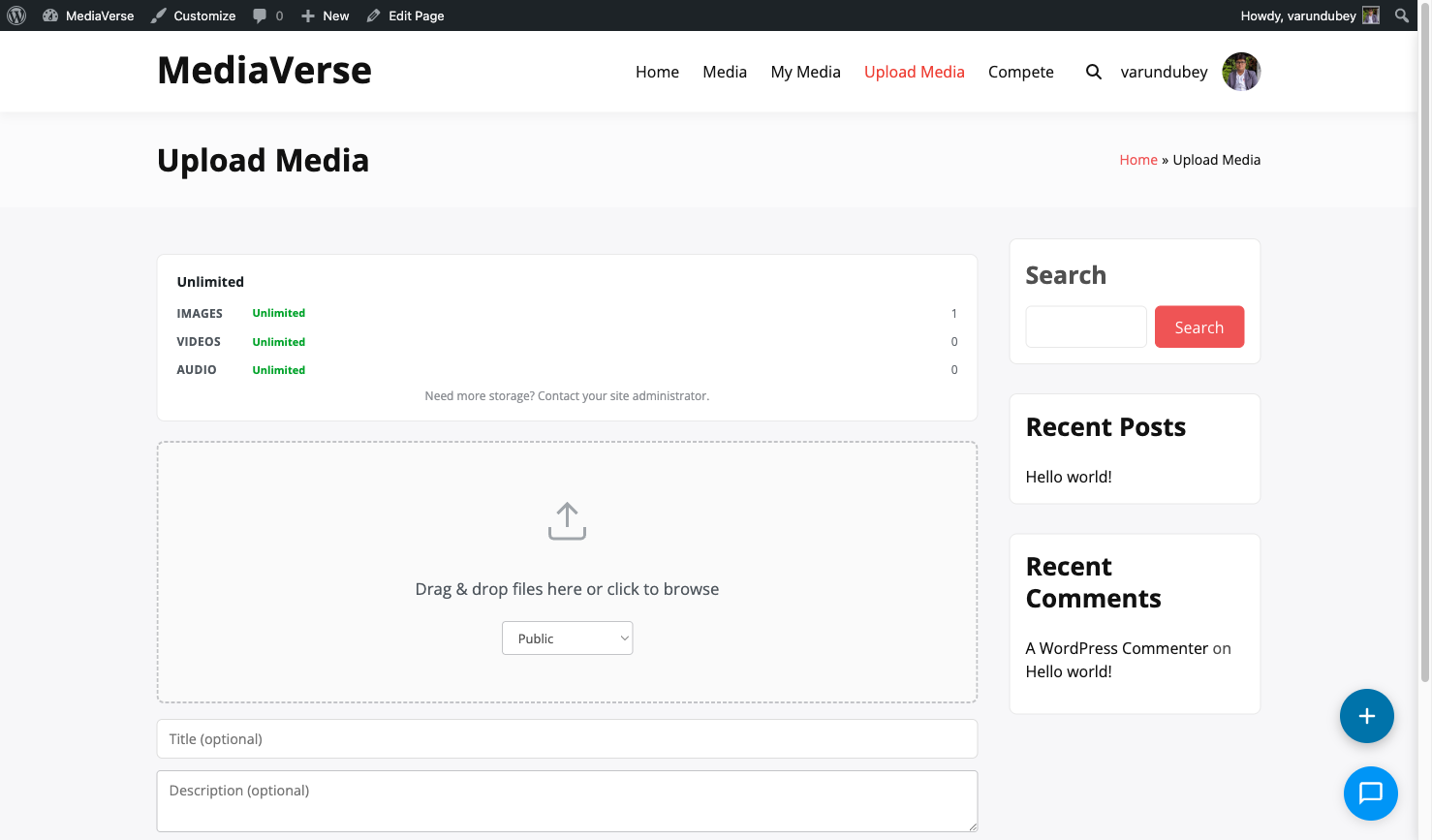
  • Drag and drop files directly onto the upload zone
  • Paste an image from your clipboard to upload instantly
  • Select multiple files at once for bulk upload
  • Set a title, description, and tags for each file before submitting
  • Choose who can see each file: public, members only, friends, or private
  • Upload JPEG, PNG, GIF, WebP images; MP4 and WebM videos; MP3 and OGG audio

How It Works (for Users)

  1. Go to the upload page your site administrator set up (often /upload/ or /media/upload/)
  2. Drag your files onto the upload zone, or click Browse to pick files from your device
  3. To paste a screenshot or copied image, click inside the upload zone and press Ctrl+V (Cmd+V on Mac)
  4. For each file, enter a title and optional tags. Select a privacy level from the dropdown
  5. Click Upload — a progress bar shows each file uploading
  6. When finished, your files appear in your media dashboard and your profile page
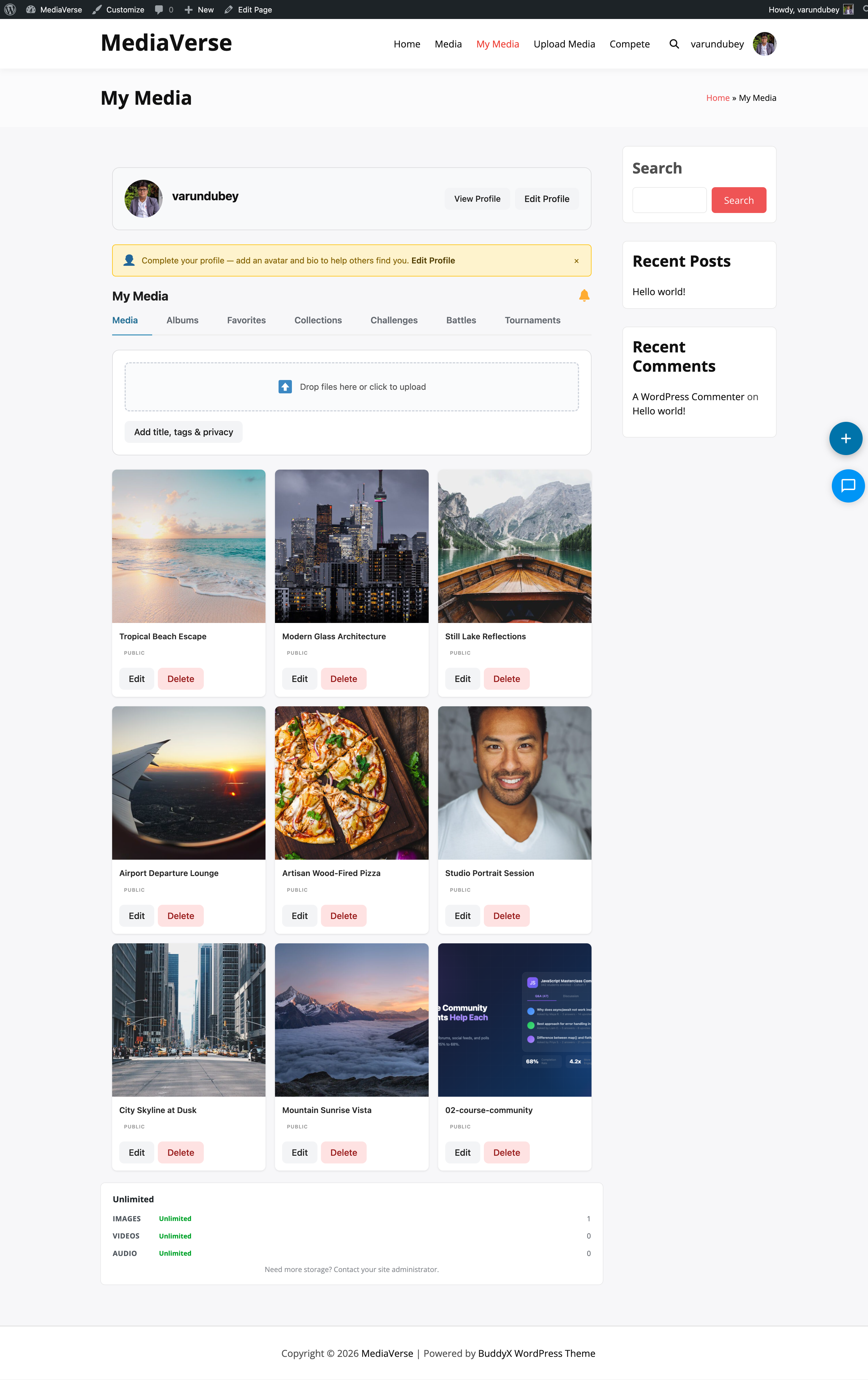
  7. Find all your uploads anytime under My Media or your profile's Media tab

Frontend upload form with drag-and-drop zone and privacy dropdown

For Site Owners

  1. Go to Media > Settings > General and confirm the allowed file types match what your community needs
  2. Add the upload form to any page: in the block editor, insert the WPMediaVerse: Media Upload block; in the classic editor, add [mvs_upload]
  3. Set the default privacy level and maximum file size for your site
  4. Enable Strip EXIF Data (on by default) to automatically remove GPS coordinates from photos before storage
  5. Users see the upload form immediately on that page when logged in

Supported File Formats

Type Formats
Images JPEG, PNG, GIF, WebP
Video MP4, WebM
Audio MP3 (MPEG), OGG

Customize allowed types in Media > Settings > General.

What Happens After Upload

  • Thumbnails are generated automatically for images and videos
  • EXIF GPS data is stripped from JPEG files (other metadata like camera model is kept)
  • A SHA-256 hash is computed to detect duplicate files
  • If AI moderation is enabled, the file is queued for automatic review
  • BuddyPress activity is recorded if BuddyPress is active on your site

Adding the Upload Form

Gutenberg Block: Add the WPMediaVerse: Media Upload block to any page or post.

Shortcode:

[mvs_upload]
[mvs_upload max_files="5" show_privacy="true"]
Attribute Default Description
max_files 10 Maximum number of files the user can upload at once
show_privacy true Whether to show the privacy level selector

Upload Validation

Every upload goes through these checks in order:

  1. MIME type check — file content is inspected (not just the extension) against your allowed types list.
  2. File size check — measured server-side against mvs_max_upload_size (default 100 MB).
  3. Extension block list — blocks PHP, shell, and other executable extensions even if the MIME passes.
  4. Double extension block — rejects filenames like photo.php.jpg.
  5. Duplicate detection — computes a SHA-256 hash and compares against existing uploads. Behavior depends on your Duplicate Detection setting (warn, skip, or allow).

EXIF Stripping

When Strip EXIF Data is enabled (default), GPS coordinates and device metadata are removed from JPEG images before storage. Non-GPS EXIF data (camera model, focal length) is retained.

Storage Path

Files are stored at:

wp-content/uploads/wpmediaverse/YYYY/MM/filename.ext

WordPress's wp_unique_filename() prevents filename collisions.

Programmatic Upload

Use the UploadService to upload files from code:

$upload_service = WPMediaVerse\Core\Plugin::container()->get( 'upload' );

$result = $upload_service->handle(
    $_FILES['my_file'],
    get_current_user_id(),
    array(
        'title'       => 'My File',
        'privacy'     => 'public',
        'description' => 'Optional description',
    )
);

if ( is_wp_error( $result ) ) {
    // Handle error.
} else {
    $media_id = $result; // int — new mvs_media post ID.
}

Actions Fired During Upload

  • mvs_before_media_insert — fires before the mvs_media post is created.
  • mvs_before_upload_form — fires before the upload form HTML is rendered (used by Pro for quota display).
  • mvs_media_uploaded — fires after the post is created and indexed. Passes $media_id (int).

Media Post Meta

Each mvs_media post stores:

Meta Key Type Description
_mvs_file_url string Public URL of the stored file
_mvs_file_path string Relative storage path
_mvs_media_type string image, video, or audio
_mvs_file_type string Full MIME type (e.g., image/jpeg)
_mvs_file_size int File size in bytes
_mvs_privacy string Privacy level (see Privacy & Access Control)
_mvs_sha256 string SHA-256 hash for duplicate detection
_mvs_group_id int BuddyPress group ID (for group privacy)

Albums

Included in Free — This feature is available in the free version of WPMediaVerse.

Group your photos into beautiful collections — tell a story, document a trip, or organize your portfolio with a single shareable album.

What You Can Do

  • Create albums to organize related photos and videos together
  • Add photos from your existing media library to any album
  • Set a cover photo that represents the album
  • Control album privacy independently from individual photo privacy
  • Share albums with friends or keep them private
  • Embed any album on a page using a block or shortcode

How It Works (for Users)

  1. Go to your media dashboard and click Create Album
  2. Give your album a title and optional description
  3. Choose a privacy level: public, members only, friends, or private
  4. Click Add Media to pick photos from your uploads — select as many as you like
  5. Drag photos in the album to reorder them. Click the star on any photo to set it as the cover
  6. Click Save Album — your album is live and appears on your profile
  7. To share your album, copy the album link from the album page and send it to anyone

Album creation form with title field and privacy selector

For Site Owners

  1. Albums are enabled by default once WPMediaVerse is activated
  2. To embed a specific album on a page, use the WPMediaVerse: Album Viewer block in the block editor — select the album from the block sidebar
  3. Or use the shortcode [mvs_album id="123"] where 123 is the album's post ID
  4. Users manage their own albums from their media dashboard
  5. Admins can view and delete any album from Media > Albums in wp-admin

Album Privacy

Albums have their own privacy level independent of the media items they contain. If a user can see the album but not a specific media item (because the item's privacy is more restrictive), that item is hidden from the album view.

Displaying an Album

Gutenberg Block: Add the WPMediaVerse: Album Viewer block, then select an album from the block settings.

Shortcode:

[mvs_album id="123"]
[mvs_album id="123" columns="4" show_title="true" show_description="true"]
Attribute Default Description
id (required) Album post ID
columns 3 Grid columns to display
show_title true Show the album title above the grid
show_description true Show the album description

REST API Endpoints for Albums

Method Endpoint Description
GET /mvs/v1/albums List albums
POST /mvs/v1/albums Create album
GET /mvs/v1/albums/{id} Get album
PUT /mvs/v1/albums/{id} Update album
DELETE /mvs/v1/albums/{id} Delete album
GET /mvs/v1/albums/{id}/items List album media
POST /mvs/v1/albums/{id}/items Add media to album
DELETE /mvs/v1/albums/{id}/items/{media_id} Remove media from album

Creating an Album via API

curl -X POST https://yoursite.com/wp-json/mvs/v1/albums \
  -H "X-WP-Nonce: YOUR_NONCE" \
  -H "Content-Type: application/json" \
  -d '{
    "title": "Summer 2025",
    "description": "Photos from our trip",
    "privacy": "public"
  }'

Adding Media to Albums via API

curl -X POST https://yoursite.com/wp-json/mvs/v1/albums/ALBUM_ID/items \
  -H "X-WP-Nonce: YOUR_NONCE" \
  -H "Content-Type: application/json" \
  -d '{"media_ids": [101, 102, 103]}'

This fires the mvs_album_items_added action, which triggers BuddyPress activity updates if BuddyPress is active.

BuddyPress Activity

When media is added to an album and BuddyPress is active, the mvs_album_items_added action updates the upload activity item to reference the album. This replaces the generic "uploaded media" activity with "uploaded media to [Album Name]".

Collections

Included in Free — This feature is available in the free version of WPMediaVerse.

Save and curate media from anyone on your site into personal boards — like Pinterest boards, but for your community's photos and videos.

What You Can Do

  • Save any public media item to a personal collection with one click
  • Create multiple collections for different themes or moods (e.g., "Travel Inspiration", "Black and White")
  • Curate manually by hand-picking individual photos, or let smart rules auto-fill a collection
  • Smart collections stay fresh automatically — tag a rule once and the collection updates itself
  • Share collections publicly or keep them private
  • Browse your saved collections from your media dashboard

How It Works (for Users)

  1. When you find a photo you love, click the Save button (bookmark icon) below it
  2. Choose an existing collection from the dropdown, or click New Collection to create one
  3. Give your new collection a name and choose a privacy level, then click Create
  4. The photo is added instantly — you'll see the bookmark icon turn solid to confirm
  5. Find all your collections under My Media > Collections in your dashboard
  6. To manage a collection, open it and click Edit to rename it, reorder items, or remove ones you no longer want
  7. To share a collection, copy the link from the collection page

Media item with bookmark/save button and collection picker

For Site Owners

  1. Collections are available to all users with upload access once WPMediaVerse is activated
  2. To embed a collection on any page, use [mvs_collection id="456"] or the WPMediaVerse: Collection Viewer block
  3. Smart collections are especially useful for curated showcase pages — create a smart collection filtered by a tag and embed it on your homepage
  4. Manage all collections from Media > Collections in wp-admin
  5. Use the Collection Settings meta box on any collection post to switch between manual and smart mode and configure smart rules

Collection Types

Type Description
Manual You add specific media items by hand. Items are stored in the wp_mvs_favorites table with the collection ID.
Smart Rules-based. The collection resolves its item list dynamically at request time based on criteria like tag, category, media type, or date range.

Displaying a Collection

Shortcode:

[mvs_collection id="456"]
[mvs_collection id="456" columns="3" per_page="20"]
Attribute Default Description
id (required) Collection post ID
columns 3 Grid columns to display
per_page 20 Maximum number of media items to show

If no id is provided, the shortcode outputs an error message. If the collection post is not published, the shortcode shows "Collection not found."

REST API Endpoints for Collections

Method Endpoint Description
GET /mvs/v1/collections List collections
POST /mvs/v1/collections Create collection
GET /mvs/v1/collections/{id} Get collection with resolved items
PUT /mvs/v1/collections/{id} Update collection
DELETE /mvs/v1/collections/{id} Delete collection

Creating a Smart Collection via API

curl -X POST https://yoursite.com/wp-json/mvs/v1/collections \
  -H "X-WP-Nonce: YOUR_NONCE" \
  -H "Content-Type: application/json" \
  -d '{
    "title": "Nature Photos",
    "type": "smart",
    "rules": {
      "tags": ["nature", "landscape"],
      "media_type": "image"
    },
    "privacy": "public"
  }'

Collection Meta Box

In the WordPress admin, each mvs_collection post has a Collection Settings meta box that lets you set the collection type and define smart rules without using the API.

Collection meta box in WordPress admin

Stories (Coming Soon)

Planned Feature — Stories infrastructure exists in the codebase but is not yet available as a user-facing feature.

Current Status

The backend StoryService is built and can mark any media item as a time-limited story with automatic expiration. However, there is currently:

  • No "Post as Story" option in the upload form
  • No dedicated REST endpoint for creating stories
  • No story viewer UI for browsing stories

What Works Today

Instagram Layout — Recent Uploaders Bar

When the Instagram layout is active (Pro), the explore page shows a horizontal bar of circular avatars above the feed. This displays users who uploaded recently — similar to the Instagram stories tray visual style, but these are links to user profiles, not ephemeral story content.

Instagram layout with story-style avatar bar

Backend Service

The StoryService class provides:

  • create( $media_id, $duration_hours ) — mark media as a story with expiration
  • is_active( $media_id ) — check if a story is still live
  • cleanup_expired() — hourly cron removes expired story flags
  • Default duration: 24 hours

Meta Keys

Key Value Description
is_story 1 Media is marked as a story
story_expires_at 2026-04-01 12:00:00 UTC expiration datetime

Hooks

Hook When Parameters
mvs_story_created Media marked as story $media_id, $expires_at
mvs_story_expired Story auto-expired by cleanup cron $media_id

Planned Features

The following are planned for a future release:

  • "Post as Story" toggle in the upload modal
  • Full-screen story viewer with tap-to-advance navigation
  • Story highlight reels on user profiles
  • Story reactions and reply-to-story DMs
  • REST API endpoints for story CRUD

Social Features

Included in Free — This feature is available in the free version of WPMediaVerse.

React, comment, follow, and share — WPMediaVerse turns your media site into a living community where every photo starts a conversation.

What You Can Do

  • React to any photo or video with emoji reactions (like, love, wow, and more)
  • Comment on media and edit your comment within 15 minutes of posting
  • Follow photographers you love — their new uploads appear in your feed
  • Save media to your favorites for quick access later
  • @mention other members in comments to notify them directly
  • Share any public media item to social networks or copy a direct link
  • Report inappropriate content directly from the media page

How It Works (for Users)

Following Someone

  1. Visit any member's profile page
  2. Click Follow — their public uploads now appear in your feed
  3. To stop following, click Unfollow on their profile
  4. See everyone you follow under My Media > Following

Reacting to Media

  1. Open any media item
  2. Click the reaction bar below the photo
  3. Choose your reaction — like, love, wow, haha, sad, or angry
  4. Your reaction is shown instantly. Click the same reaction to remove it
  5. Click a different reaction to change yours

Media item with reaction bar showing emoji counts

Commenting

  1. Scroll to the comments section below any media item
  2. Type your comment in the text box and press Enter or click Post
  3. To @mention someone, type @ followed by their username — they receive a notification
  4. To edit your comment, click the pencil icon next to it (available within 15 minutes of posting)
  5. To delete your comment, click the trash icon

Saving to Favorites

  1. Click the heart icon on any media item
  2. The item is added to your favorites list
  3. Find all your favorites under My Media > Favorites in your dashboard
  4. To save to a named collection instead, click the bookmark icon and choose or create a collection

Sharing Media

  1. Open any public media item
  2. Click Share to see options: copy the direct link, or share to social networks
  3. The share link respects the media's privacy — private media returns an error for unauthorized viewers

For Site Owners

  1. All social features are enabled by default
  2. Configure reaction types and moderation in Media > Settings > Social
  3. Set the comment edit window (default: 15 minutes) in Media > Settings > Social
  4. Set the auto-hide threshold: when a media item receives a certain number of reports, it is automatically hidden and sent to the moderation queue
  5. BuddyPress notifications fire automatically for reactions, comments, and mentions when BuddyPress is active

Reactions

WPMediaVerse uses a custom reactions system stored in a dedicated database table, separate from WordPress post meta.

REST API

Method Endpoint Description
GET /mvs/v1/media/{id}/reactions Get reaction counts for a media item
POST /mvs/v1/media/{id}/reactions Add or change your reaction
DELETE /mvs/v1/media/{id}/reactions Remove your reaction

Action: mvs_reaction_added

Fires when a reaction is added. BuddyPress integration uses this to send notifications.

do_action( 'mvs_reaction_added', $media_id, $user_id, $reaction_type );

Comments

WPMediaVerse uses a custom comments system stored in a dedicated table, separate from WordPress's wp_comments.

Comment section below a media item

REST API

Method Endpoint Description
GET /mvs/v1/media/{id}/comments List comments on a media item
POST /mvs/v1/media/{id}/comments Post a new comment
PUT /mvs/v1/media/{id}/comments/{comment_id} Edit a comment
DELETE /mvs/v1/media/{id}/comments/{comment_id} Delete a comment

Action: mvs_comment_created

do_action( 'mvs_comment_created', $comment_id, $media_id, $user_id );

BuddyPress integration uses this to record activity and send notifications.

Favorites

Users can save media items to their favorites or to a named collection.

REST API

Method Endpoint Description
POST /mvs/v1/media/{id}/favorite Add to favorites
DELETE /mvs/v1/media/{id}/favorite Remove from favorites
GET /mvs/v1/favorites List the current user's favorites

Follows

Users can follow other users to see their public media in a feed.

REST API

Method Endpoint Description
POST /mvs/v1/users/{id}/follow Follow a user
DELETE /mvs/v1/users/{id}/follow Unfollow a user
GET /mvs/v1/users/{id}/followers List a user's followers
GET /mvs/v1/users/{id}/following List who a user follows

Mentions

Users can @mention each other in comments. Mentioned users receive a notification.

Action: mvs_mentions_created

do_action( 'mvs_mentions_created', $mentioned_user_ids, $comment_id );

Sharing

The ShareService provides share URL generation for media items. Shareable links respect the media's privacy level — private media returns a 403 when accessed via a share link by an unauthorized user.

Reports

Users can report inappropriate media content.

REST API

Method Endpoint Description
POST /mvs/v1/media/{id}/report Submit a content report

When the number of reports for a single media item reaches the Auto-Hide Threshold (set in AI & Moderation settings), the media is automatically hidden and added to the moderation queue.

Direct Messages

Included in Free — This feature is available in the free version of WPMediaVerse.

Send private messages, share photos, record voice notes, and have real conversations — all without leaving your media community.

What You Can Do

  • Send a private message to any member directly from their profile
  • Attach photos, files, or share a media item from the gallery straight into chat
  • Record and send short voice messages
  • React to individual messages with any emoji
  • See typing indicators and read receipts in real time
  • Mute noisy conversations, pin important ones, or archive old chats
  • Search across all your messages to find anything instantly
  • Control who can message you: everyone, followers only, mutual followers only, or nobody

How It Works (for Users)

Starting a Conversation

  1. Visit any member's profile page
  2. Click Message — the chat panel opens in the bottom-right corner with that conversation ready
  3. Type your message and press Enter to send

To start a conversation without visiting a profile:

  1. Click the chat icon at the bottom of any page
  2. Click the compose icon inside the chat panel
  3. Search for the member by name or username and select them

Sending a Voice Message

  1. Open a conversation
  2. Click the microphone icon in the message bar
  3. Hold to record your message, then release to send
  4. The recipient sees a playable audio clip in the conversation

Sharing a Photo in Chat

  1. Open a conversation
  2. Click the media icon (photo frame) in the message bar
  3. Browse your uploaded media and click any item to share it directly into the chat

Managing Conversations

Action How to do it
Mute Open the conversation menu and click Mute — notifications are suppressed
Pin Click Pin to keep the conversation at the top of your list
Archive Click Archive to hide it from the main list. Find archived chats under the Archive tab
Search Click the search icon in the panel header and type any word or phrase

Message Requests

If a member has restricted who can message them to followers only, your message goes to their Requests tab rather than their main inbox. They can accept or decline the request.

  • Accept — Your conversation moves to their main inbox and messaging continues normally
  • Decline — The request is removed. You are not notified of the decline

Chat panel with message requests

For Site Owners

  1. Go to Media > Settings > Social to configure site-wide DM defaults
  2. Set who can send DMs by default: everyone, followers, mutual followers, or nobody
  3. Set a minimum account age (in days) to prevent new accounts from sending DMs
  4. Users can override their own DM access setting from their account settings
  5. The chat panel appears automatically at the bottom of every page for logged-in users — no shortcode needed
  6. To adjust how often the chat checks for new messages, set the polling interval (default: 3 seconds)

Database Tables

Table Purpose
mvs_conversations One row per conversation, stores metadata (muted, pinned, archived state per participant)
mvs_conversation_participants Maps users to conversations (supports future group chat expansion)
mvs_messages Individual messages with content, type, read status, and soft-delete flag
mvs_message_reactions Emoji reactions attached to individual messages

Opening a Conversation

There are three ways to start or open a conversation:

  • From a profile page — Click the Message button on any user's profile. The chat panel opens with that conversation pre-loaded. No searching required.
  • From the chat panel — Click the compose icon inside the chat panel and search by username or display name.
  • Deep links — Link directly to a conversation or user using a URL fragment:
Fragment Opens
#mvs-chat/{conversationId} A specific conversation by ID
#mvs-chat/user/{userId} The conversation with a specific user (creates one if none exists)

Message button on a user profile card

Chat Panel Features

Feature Description
Text messages Plain text with @mention support
File attachments Attach any file type within the site's allowed MIME list
Media sharing Share a WPMediaVerse media item directly into a conversation
Voice messages Record and send short audio clips
Emoji reactions React to individual messages with any emoji
Typing indicators Shows a live indicator when the other user is typing
Read receipts Delivered and read timestamps shown per message
Message deletion Delete your own messages (content replaced with "This message was deleted")

Chat panel showing a conversation with media share and reactions

Conversation Management

Action How
Mute Suppress notifications for a conversation without leaving it
Pin Keep a conversation at the top of the conversation list
Archive Hide a conversation from the main list; accessible via the Archive tab
Search Full-text search across all your messages via the search icon in the panel header

Privacy Settings

Each user controls their DM privacy from their account settings. Admins set the site-wide defaults at Media > Settings > Social.

Option Key Values
Who can message me mvs_dm_access everyone, followers, mutual, nobody
Minimum account age mvs_dm_min_age Integer (days). Prevents newly registered accounts from sending DMs.
Show online status mvs_show_online_status 1 (visible) or 0 (hidden)

When mvs_dm_access is set to nobody, the Message button is hidden on that user's profile.

Transport

The chat panel polls the REST API on a configurable interval to fetch new messages. The polling interval is set in milliseconds via the mvs_dm_poll_interval option (default: 3000). Define it as a constant to prevent admin overrides:

// wp-config.php
define( 'MVS_DM_POLL_INTERVAL', 2000 );

REST API

Base URL: /wp-json/mvs/v1/

All endpoints require a logged-in user. Pass the X-WP-Nonce header with a nonce from wp_create_nonce( 'wp_rest' ).

POST /conversations

Start a new conversation.

Body:

{ "participant_id": 42 }

Response: 201 Created with the new conversation object, or 200 OK with the existing conversation if one already exists between the two users.


GET /me/conversations

List all conversations for the current user. Excludes archived conversations unless ?include_archived=1 is passed.

Parameters:

Parameter Type Default Description
include_archived int 0 Set to 1 to include archived conversations
per_page int 20 Conversations per page
page int 1 Page number

GET /conversations/{id}/messages

List messages in a conversation. The current user must be a participant.

Parameters:

Parameter Type Default Description
per_page int 30 Messages per page
before int (none) Return messages with ID lower than this value (for pagination)

POST /conversations/{id}/messages

Send a message. The current user must be a participant and must satisfy the recipient's mvs_dm_access setting.

Body (JSON or multipart/form-data for file attachments):

Field Required Description
content No Text content
type No Message type: text (default), file, media, voice
media_id No WPMediaVerse media ID when type=media
file No File upload when type=file or type=voice
parent_id No Message ID to reply to. Creates a threaded reply visible under the parent message.

Response: 201 Created with the new message object.


POST /messages/upload

Upload a file to use as a DM attachment. Returns an attachment token to pass as file in a subsequent POST /conversations/{id}/messages call.

Body: multipart/form-data with a file field.

Response: 200 OK

{ "attachment_token": "att_abc123", "url": "https://yoursite.com/...", "mime_type": "image/jpeg" }

PATCH /conversations/{id}

Update conversation state for the current user.

Body:

Field Type Description
muted bool Set to true to mute, false to unmute
pinned bool Set to true to pin, false to unpin
archived bool Set to true to archive, false to restore

Response: 200 OK with the updated conversation object.


DELETE /conversations/{id}

Delete a conversation for the current user. The conversation remains visible to the other participant.

Response: 204 No Content


DELETE /messages/{id}

Soft-delete a message. Requires ownership of the message. The message record is kept but its content is replaced and is_deleted is set to 1.


DELETE /messages/{id}/unsend

Hard-delete a message. Only available within the edit window (default: 5 minutes after sending). Requires ownership of the message. The message record is permanently removed.

Response: 204 No Content


GET /me/messages/unread-count

Return the total number of unread messages across all conversations for the current user. Used to update the chat panel badge.

Response:

{ "unread_count": 4 }

POST /messages/{id}/reactions

Add or change a reaction on a message.

{ "emoji": "❤️" }

To remove a reaction, call this endpoint again with the same emoji.


Actions and Filters

mvs_dm_before_send

Fires before a message is saved. Use this to validate, block, or transform message content.

add_action( 'mvs_dm_before_send', function( $message_data, $conversation_id, $sender_id ) {
    // Inspect or modify $message_data before it is written.
}, 10, 3 );

mvs_dm_message_sent

Fires after a message is successfully saved.

do_action( 'mvs_dm_message_sent', $message_id, $conversation_id, $sender_id );

mvs_dm_poll_interval

Filter the polling interval in milliseconds delivered to the front end.

add_filter( 'mvs_dm_poll_interval', function( $ms ) {
    return 5000; // Poll every 5 seconds.
} );

Privacy & Access Control

Free + Pro — Core functionality is included free. Features marked with (Pro) require WPMediaVerse Pro.

WPMediaVerse provides 6 privacy levels for media items, albums, and collections. Access checks run on every REST API call and on the explore archive query.

Privacy Levels

Level Value Who Can View
Public public Everyone, including logged-out visitors
Members Only members Any logged-in WordPress user
Friends friends BuddyPress friends of the media owner (requires BuddyPress active)
Group group Members of a specific BuddyPress group (requires BuddyPress active)
Private private Only the media owner and users with moderate_mvs_media
Custom custom A specific list of user IDs defined via access grants

Owners and Moderators Always Have Access

Media owners (the post_author) and users with the moderate_mvs_media capability bypass all privacy checks. They can view all media regardless of its privacy level.

Setting Privacy on Upload

Set the privacy field when creating media via REST API:

curl -X POST https://yoursite.com/wp-json/mvs/v1/media \
  -H "X-WP-Nonce: NONCE" \
  -F "file=@photo.jpg" \
  -F "privacy=friends"

For group privacy, also include group_id:

  -F "privacy=group" \
  -F "group_id=42"

Changing Privacy After Upload

curl -X PUT https://yoursite.com/wp-json/mvs/v1/media/123 \
  -H "X-WP-Nonce: NONCE" \
  -H "Content-Type: application/json" \
  -d '{"privacy": "private"}'

Custom Access Grants

For custom privacy, grant access to specific users:

curl -X POST https://yoursite.com/wp-json/mvs/v1/media/123/access \
  -H "X-WP-Nonce: NONCE" \
  -H "Content-Type: application/json" \
  -d '{
    "user_id": 55,
    "expires_at": "2026-01-01T00:00:00Z"
  }'

Access grants can have optional expiry dates. Expired grants are cleaned up via wp mvs cleanup-expired or via cron.

Signed URLs for Private Files

For media stored with a non-public privacy level, WPMediaVerse can generate time-limited signed URLs:

curl https://yoursite.com/wp-json/mvs/v1/media/123/signed-url \
  -H "X-WP-Nonce: NONCE"

Response:

{
  "url": "https://yoursite.com/wp-content/uploads/wpmediaverse/2025/03/photo.jpg?token=abc123&expires=1743000000",
  "expires_at": "2025-03-27T13:00:00Z"
}

The signed URL TTL defaults to 3600 seconds (1 hour) and is configurable in Media > Settings > General > Signed URL Expiry.

Filtering Privacy Access in Code

Use the mvs_privacy_can_view filter to extend or override access logic:

add_filter( 'mvs_privacy_can_view', function( $result, $media_id, $user_id, $privacy ) {
    // Grant access to premium subscribers regardless of privacy level.
    if ( null === $result && wcs_user_has_subscription( $user_id, '', 'active' ) ) {
        return true;
    }
    return $result;
}, 10, 4 );

Return null to let the built-in logic run. Return true or false to override it.

Explore Archive Privacy Filtering

On the explore archive (/media/), WPMediaVerse applies automatic privacy filtering via a posts_where filter:

  • Logged-out users see only public media.
  • Logged-in non-moderators see public, members media, and their own media (any privacy level).
  • Moderators (moderate_mvs_media capability) see all media.

AI Moderation

Free + Pro — Core functionality is included free. Features marked with (Pro) require WPMediaVerse Pro.

WPMediaVerse integrates with OpenAI Vision (GPT-4o or GPT-4o Mini) to automatically analyze and moderate uploaded media. WPMediaVerse Pro adds support for Google Vision and AWS Rekognition.

AI moderation result on a media post

How AI Analysis Works

When Auto-Analyze Uploads is enabled, WPMediaVerse sends each uploaded image to OpenAI immediately after storage. The analysis returns:

  • A natural-language description of the image
  • Suggested tags (comma-separated keywords)
  • Safety categories with confidence scores (adult content, violence, etc.)

The description is saved to the mvs_media post's content. If Auto-Apply Tags is enabled, the suggested tags are assigned to the mvs_tag taxonomy.

How AI Moderation Works

When Auto-Moderate Uploads is enabled, WPMediaVerse checks the AI safety scores against configurable thresholds. If a policy violation is detected, the action defined in When AI Flags Content is applied:

Action What Happens
Flag for review Media stays published but appears in the moderation queue
Hide Media's _mvs_privacy is set to private
Reject Media's post_status is set to draft

All moderation actions fire the mvs_media_moderated action hook.

Triggering Analysis Manually

Site administrators can re-analyze any media item from the moderation queue or via the REST API:

curl -X POST https://yoursite.com/wp-json/mvs/v1/moderation/123/analyze \
  -H "X-WP-Nonce: NONCE"

Approving or Rejecting from the Moderation Queue

  1. Go to Media > Moderation Queue.
  2. Review the flagged item and its AI analysis result.
  3. Click Approve to publish or Reject to move to draft.

Moderation queue item with approve and reject buttons

Budget Control

Set a monthly spending cap at Media > Settings > AI & Moderation > Monthly AI Budget ($). WPMediaVerse tracks estimated spending per call and stops making AI calls when the budget is reached.

To check current spending:

wp mvs stats

Registering a Custom AI Provider (Developer)

Implement the AIProviderInterface and register your provider:

use WPMediaVerse\Services\AIProviderInterface;

class MyCustomProvider implements AIProviderInterface {

    public function get_id(): string {
        return 'my_provider';
    }

    public function is_available(): bool {
        return (bool) get_option( 'my_provider_api_key' );
    }

    public function analyze( int $media_id ): array|WP_Error {
        // Return array with 'description', 'tags', 'flags'.
    }
}

add_action( 'mvs_register_ai_providers', function( $ai_service ) {
    $ai_service->register_provider( new MyCustomProvider() );
} );

Moderation Status Meta

Meta Key Values Description
_mvs_moderation_status approved, pending, flagged, rejected Current moderation status
_mvs_ai_description string AI-generated description
_mvs_ai_tags string Comma-separated AI-suggested tags
_mvs_ai_flags serialized array Safety categories with scores

Shortcodes

Included in Free — This feature is available in the free version of WPMediaVerse.

WPMediaVerse provides 8 shortcodes for embedding media features in pages, posts, and classic editor content.

[mvs_gallery]

Displays a filterable media grid. Columns and items-per-page come from Media > Settings > Display and cannot be overridden by shortcode attributes.

[mvs_gallery]
[mvs_gallery type="image" category="nature" tag="summer" orderby="date"]
Attribute Default Description
type (all types) Filter by media type: image, video, or audio
category (all) Filter by mvs_category slug
tag (all) Filter by mvs_tag slug
orderby date Sort order: date, title, or views

[mvs_upload]

Displays the frontend file upload form. The form is only functional for logged-in users.

[mvs_upload]
[mvs_upload max_files="5" show_privacy="true"]
Attribute Default Description
max_files 10 Maximum number of files selectable at once
show_privacy true Show privacy level selector on the form

This shortcode fires the mvs_before_upload_form action before rendering.

[mvs_album]

Displays a single album by ID.

[mvs_album id="123"]
[mvs_album id="123" columns="4" show_title="true" show_description="false"]
Attribute Default Description
id (required) Album post ID
columns 3 Grid columns
show_title true Show album title
show_description true Show album description

[mvs_player]

Embeds a single media item in an interactive player.

[mvs_player id="456"]
[mvs_player id="456" autoplay="false" loop="false" download="false"]
Attribute Default Description
id (required) Media post ID
autoplay false Start playback automatically (audio/video)
loop false Loop the media after it finishes
download false Show a download button

[mvs_stats]

Displays site-wide media statistics.

[mvs_stats]
[mvs_stats views="true" downloads="true" reactions="true" top="true" top_count="5"]
Attribute Default Description
views true Show total view count
downloads true Show total download count
reactions true Show total reaction count
top true Show the top media list
top_count 5 Number of items in the top media list

[mvs_dashboard]

Displays a personal media dashboard for the logged-in user. Shows the user's own uploads, albums, and stats. Redirects to login if the user is not logged in.

[mvs_dashboard]

No configurable attributes. The dashboard uses the dashboard-view Interactivity API block store.

[mvs_collection]

Displays a collection by ID. Works for both manual and smart collections.

[mvs_collection id="789"]
[mvs_collection id="789" columns="3" per_page="20"]
Attribute Default Description
id (required) Collection post ID
columns 3 Grid columns
per_page 20 Maximum items to show

[mvs_profile_edit]

Displays a profile edit form for the logged-in user, allowing them to update their first name, last name, display name, bio, and avatar. Redirects to login if not logged in.

[mvs_profile_edit]

No configurable attributes. The form is powered by the mvs/profile-edit Interactivity API store and saves to /mvs/v1/profile.

Profile edit form with avatar upload and name fields

Gutenberg Blocks

Included in Free — This feature is available in the free version of WPMediaVerse.

WPMediaVerse registers 8 Gutenberg blocks under the WPMediaVerse block category. All blocks use the WordPress Interactivity API for reactive front-end behavior without a separate JavaScript framework.

Gutenberg block inserter showing the WPMediaVerse block category

Block List

Block Name Handle Description
Media Upload wpmediaverse/media-upload Frontend file upload form with drag-and-drop
Media Grid wpmediaverse/media-grid Filterable, paginated media gallery grid
Media Player wpmediaverse/media-player Single-item audio/video player with controls
Album Viewer wpmediaverse/album-viewer Displays a single album's media in a grid
Story Viewer wpmediaverse/story-viewer Recent uploaders bar — full story viewer coming soon
Media Stats wpmediaverse/media-stats Site-wide or per-user media statistics
Explore Feed wpmediaverse/explore-feed Infinite-scroll explore feed (all public media)
Lock Overlay wpmediaverse/lock-overlay Paywall/restriction overlay for any block

Interactivity API Architecture

Each block ships with a view.js module registered via wp_enqueue_script_module(). Blocks communicate through shared state in the mvs interactivity store. The shared-ui module provides common utilities (REST fetching, nonce management) shared by all blocks.

Using Blocks in Templates

All 8 blocks can be used in Full Site Editing (FSE) templates, template parts, and block patterns. They are fully compatible with query blocks and block themes.

Media Upload Block

Media Upload block in the editor

Block Settings:

  • Max Files per Upload (default: 10)
  • Show Privacy Selector (default: on)

Media Grid Block

Media Grid block showing filter controls and grid layout

Block Settings:

  • Media Type Filter (image/video/audio/all)
  • Category Filter
  • Tag Filter
  • Sort Order
  • Lightbox (default: on)
  • Show Reactions (default: on)

Grid columns and pagination inherit from Media > Settings > Display.

Media Player Block

Block Settings:

  • Media ID (required — use the picker to select)
  • Autoplay (default: off)
  • Loop (default: off)
  • Show Download Button (default: off)

Album Viewer Block

Block Settings:

  • Album (select from a dropdown of your albums)
  • Columns override
  • Show Title / Show Description

Story Viewer Block (Coming Soon)

Currently displays a horizontal bar of recent uploaders with circular avatars (visible in Instagram layout mode). A full story viewer with tap-to-advance navigation is planned for a future release.

Media Stats Block

Block Settings:

  • Show Views (default: on)
  • Show Downloads (default: on)
  • Show Reactions (default: on)
  • Show Top Media (default: on)
  • Top Media Count (default: 5)

Explore Feed Block

The Explore Feed block provides an infinite-scroll feed of all public media. It supports URL-based filtering via ?mvs_tag=slug and ?s=search-term query parameters.

Lock Overlay Block

The Lock Overlay block wraps any other block content and shows a restriction message to users who do not meet access criteria. Configure access rules via the Access Control REST API.

GDPR & Privacy Compliance

Included in Free — This feature is available in the free version of WPMediaVerse.

WPMediaVerse integrates with the WordPress privacy tools built into Tools > Export Personal Data and Tools > Erase Personal Data. No configuration is required. The integration is active whenever the plugin is active.

The privacy functionality lives in GDPRService.php.

What Gets Exported

When an administrator runs a personal data export for a user, WPMediaVerse adds the following data groups to the export ZIP:

Data Group What Is Included
Media uploads File URLs, titles, descriptions, privacy level, upload date
Comments All comments the user posted on media items
Reactions Each reaction (emoji, media item, timestamp)
Favorites Each media item the user saved as a favorite
Direct messages All conversation participants and message content
Follow relationships List of users the subject follows and users following the subject

The export respects the WordPress standard format. Each group appears as a named section in the downloadable HTML and JSON files.

What Gets Erased

When an administrator runs a personal data erasure for a user, WPMediaVerse removes:

  • All media items uploaded by that user (files and database records)
  • All comments posted by that user on media items
  • All reactions and favorites
  • All direct message conversations and messages where the user is a participant
  • All follow relationships (both directions)

Erasure is permanent and cannot be undone. Media items that belong to BuddyPress groups are also removed.

Before erasing, WordPress asks the user to confirm the request via email. WPMediaVerse erasure only runs after that confirmation is received.

Privacy Policy Text

WPMediaVerse registers suggested privacy policy text via wp_add_privacy_policy_content(). The suggestion appears in the Privacy Policy Guide at Settings > Privacy > Privacy Policy Guide.

The suggested text describes:

  • What media metadata is collected and stored
  • How direct messages are stored and for how long
  • What follow data is retained
  • How to request export or erasure

You are not required to use the suggested text verbatim. Review it and incorporate the relevant parts into your site's privacy policy.

Developer Notes

Adding Custom Data to the Export

Use the mvs_privacy_export_data filter to add plugin-extension data to the exporter:

add_filter( 'mvs_privacy_export_data', function( $data, $user ) {
    $data['my_extension'] = [
        'group_id'    => 'my-extension-data',
        'group_label' => __( 'My Extension Data', 'my-extension' ),
        'items'       => get_my_extension_data_for_user( $user->ID ),
    ];
    return $data;
}, 10, 2 );

Hooking into Erasure

Use the mvs_privacy_before_erase action to perform additional cleanup before WPMediaVerse deletes user data:

add_action( 'mvs_privacy_before_erase', function( $user_id ) {
    // Remove any extension data for this user.
    delete_user_meta( $user_id, 'my_extension_meta' );
} );

User Blocking & Reporting

Included in Free — This feature is available in the free version of WPMediaVerse.

WPMediaVerse includes a blocking system that prevents specific users from interacting with you and a reporting system that lets users flag abusive content or accounts for moderator review.

User profile page showing Block User and Report User options

Blocking a User

You can block a user from two places:

  • From their profile page — Open the action menu on the user's profile card and select Block User.
  • From the report flow — After submitting a report against a user, you are offered the option to also block them.

What Blocking Does

When you block a user, they cannot:

  • View your media items (media items are hidden from them on all browse pages and their direct URLs return a 403)
  • Send you direct messages (your profile shows no Message button for them; any existing conversation is locked)
  • Follow you (the Follow button is removed for them)
  • Comment on your media
  • React to your media

Blocking is one-directional. You can still view the blocked user's public media unless you also choose to hide it.

Blocks are stored per-user and do not require any admin action.

Confirmation dialog after blocking a user

Unblocking a User

Go to Account Settings > Blocked Users to see your full block list and remove individual blocks. You can also unblock via the REST API.

User Reporting

Reporting a user notifies the site moderators. It does not automatically take any action on the reported account.

To report a user, open the action menu on their profile card and select Report User. Choose a reason from the dropdown and optionally add a note.

Report Reasons

Value Label
spam Spam or fake account
inappropriate Inappropriate behavior
harassment Harassment or bullying
impersonation Impersonating someone
other Other

Reports appear in Media > Moderation Queue under the Users tab. Moderators with the moderate_mvs_media capability can review, dismiss, or act on reports.

Media Reporting

Any logged-in user can report a media item from the media card or the media detail page using the flag icon.

Report Reasons

Value Label
spam Spam or misleading
inappropriate Sexually inappropriate
copyright Copyright violation
harassment Harassment or hate speech
other Other

When a media item accumulates reports equal to the Auto-Hide Threshold set in Media > Settings > AI & Moderation, it is automatically hidden and added to the moderation queue.

Media card showing the report flag icon

REST API

Base URL: /wp-json/mvs/v1/

All endpoints require a logged-in user. Pass the X-WP-Nonce header with a nonce from wp_create_nonce( 'wp_rest' ).

POST /users/{id}/block

Block a user.

Response: 200 OK

{ "blocked": true }

DELETE /users/{id}/block

Unblock a user.

Response: 200 OK

{ "blocked": false }

GET /me/blocked

List users blocked by the current user.

Parameters:

Parameter Type Default Description
per_page int 20 Blocked users per page
page int 1 Page number

Response: Array of user objects with id, name, and avatar_url.


POST /users/{id}/report

Report a user account.

Body:

Field Required Description
reason Yes One of: spam, inappropriate, harassment, impersonation, other
note No Optional free-text note visible to moderators (max 500 characters)

Response: 201 Created

{ "report_id": 17, "status": "pending" }

POST /media/{id}/report

Report a media item.

Body:

Field Required Description
reason Yes One of: spam, inappropriate, copyright, harassment, other
note No Optional free-text note (max 500 characters)

Response: 201 Created

{ "report_id": 24, "status": "pending" }

Actions and Filters

mvs_user_blocked

Fires after a user is blocked.

add_action( 'mvs_user_blocked', function( $blocker_id, $blocked_id ) {
    // Perform additional cleanup or logging.
}, 10, 2 );

mvs_user_reported

Fires after a user report is submitted.

add_action( 'mvs_user_reported', function( $report_id, $reported_user_id, $reporter_id, $reason ) {
    // Notify a Slack channel, send to an external moderation service, etc.
}, 10, 4 );

mvs_media_reported

Fires after a media report is submitted.

add_action( 'mvs_media_reported', function( $report_id, $media_id, $reporter_id, $reason ) {
    // Custom post-report logic.
}, 10, 4 );

mvs_block_query_args

Filter the WP_Query arguments used to exclude blocked-user content from browse pages.

add_filter( 'mvs_block_query_args', function( $args, $viewer_id ) {
    // Adjust how blocked content is filtered.
    return $args;
}, 10, 2 );

BuddyPress Integration

Profile tabs, group media, activity feed, and notifications.

BuddyPress Integration Overview

Included in Free — WPMediaVerse is the most complete media solution for BuddyPress communities. Integration is optional — the plugin works standalone on any WordPress site, but when BuddyPress is active, it unlocks profile tabs, group media, activity stream, and notifications automatically.

WPMediaVerse integrates with BuddyPress to add media features directly into the BuddyPress social layer. The integration is automatic — no configuration needed. It activates when BuddyPress is active and gracefully skips all BP-specific code when BuddyPress is not installed.

Requirements

  • BuddyPress 12.0+
  • WPMediaVerse 1.0.0+

What the Integration Adds

BuddyPress Component Feature Added
Activity Records activity on media upload, comment, and album additions
Member Profiles Adds a Media tab showing the member's uploads
Groups Adds a Media tab in group navigation
Notifications Sends notifications for reactions, comments, and @mentions
Activity Post Form Adds a media attach button to the activity update form

Activation Check

The integration loads via BuddyPressIntegration::init(), which is called on plugins_loaded. Every feature check begins with:

if ( ! function_exists( 'buddypress' ) ) {
    return;
}

Individual features additionally check bp_is_active( 'activity' ), bp_is_active( 'groups' ), and bp_is_active( 'notifications' ) before hooking.

Multisite Compatibility

The BuddyPress integration works on WordPress Multisite networks. Activity and notifications are scoped to the site where BuddyPress is installed. Media uploaded on a subsite is recorded in that subsite's activity stream.

Profile Media Tab

Included in Free — WPMediaVerse is the most complete media solution for BuddyPress communities. Integration is optional — the plugin works standalone on any WordPress site, but when BuddyPress is active, it unlocks profile tabs, group media, activity stream, and notifications automatically.

When BuddyPress is active, WPMediaVerse adds a Media tab to every user's BuddyPress profile page.

BuddyPress member profile with Media tab active

Tab Location

The tab appears in the main BuddyPress profile navigation at:

/members/{username}/media/

It is added via bp_setup_nav at priority 100.

What the Tab Shows

The Media tab displays the profile owner's published media items in a paginated grid. Privacy filtering applies:

  • Visitors see only the profile owner's public media.
  • Logged-in users see public and members-only media.
  • BuddyPress friends see public, members-only, and friends media.
  • The profile owner sees all their own media.
  • Moderators (moderate_mvs_media) see all media.

Media tab content showing grid of photos with privacy badges

Profile URL Pattern

WPMediaVerse also registers a standalone media profile URL:

/media/@{username}/
/media/@{username}/page/2/

These URLs are handled by the TemplateLoader and use the explore.php template, filtered to the specific user.

User Profile Edit Page

Logged-in users can edit their avatar and profile details at:

/media/edit-profile/

Or use the [mvs_profile_edit] shortcode on any page.

Disabling the Profile Tab

To remove the profile tab without disabling the entire integration:

remove_action( 'bp_setup_nav', array( $integration, 'add_profile_tab' ), 100 );

Since $integration is not easily accessible externally, the cleaner approach is to use the tab's existence to skip rendering:

add_action( 'bp_setup_nav', function() {
    // Remove the WPMediaVerse media nav item from BP.
    bp_core_remove_nav_item( 'media' );
}, 200 );

Group Media Tab

Included in Free — WPMediaVerse is the most complete media solution for BuddyPress communities. Integration is optional — the plugin works standalone on any WordPress site, but when BuddyPress is active, it unlocks profile tabs, group media, activity stream, and notifications automatically.

When BuddyPress Groups is active, WPMediaVerse adds a Media tab to every BuddyPress group.

BuddyPress group page with Media tab

Tab Location

The tab appears in the group navigation at:

/groups/{group-slug}/media/

It is registered via bp_setup_nav at priority 100, conditional on bp_is_active( 'groups' ).

What the Tab Shows

The group media tab displays media that was:

  • Uploaded with privacy=group and group_id={this-group-id}.
  • Reassigned to the group via the mvs_media_group_assigned action.

Privacy applies within the group: only group members can view the tab content.

Assigning Media to a Group

When uploading, set the privacy to group and provide the group_id:

curl -X POST https://yoursite.com/wp-json/mvs/v1/media \
  -H "X-WP-Nonce: NONCE" \
  -F "file=@photo.jpg" \
  -F "privacy=group" \
  -F "group_id=42"

This stores _mvs_privacy=group and _mvs_group_id=42 on the media post.

Group Activity Integration

Media uploaded to a group fires the mvs_media_group_assigned action:

do_action( 'mvs_media_group_assigned', $media_id, $group_id );

The BuddyPress integration listens to this action and re-scopes the upload's activity item from the member component to the groups component, so it appears in the group's activity stream rather than the member's personal stream.

BuddyPress group activity stream with media upload

Group Activity in the Activity Post Form

When a group member uses the BP activity post form inside a group, the Attach Media button (added by WPMediaVerse) automatically assigns uploaded media to that group.

Activity Stream Media

Included in Free — WPMediaVerse is the most complete media solution for BuddyPress communities. Integration is optional — the plugin works standalone on any WordPress site, but when BuddyPress is active, it unlocks profile tabs, group media, activity stream, and notifications automatically.

WPMediaVerse records media events as BuddyPress activity items and enhances existing activity with media thumbnails and inline video players.

Activity Types Registered

WPMediaVerse registers two custom activity action types:

Action Type Component Label
mvs_media_upload wpmediaverse Media Uploads
mvs_media_upload groups Group Media Uploads
mvs_comment wpmediaverse Media Comments

These appear in the BuddyPress activity filter dropdown.

When Activity Is Recorded

Event Action Hook Activity Recorded
Media uploaded via UploadService mvs_media_uploaded "Username uploaded [media title]" with thumbnail
Media published via admin/WP-CLI publish_mvs_media Fallback activity without thumbnail
Comment posted on media mvs_comment_created "Username commented on [media title]"
Media added to an album mvs_album_items_added Updates existing upload activity to reference the album
Media assigned to a group mvs_media_group_assigned Reassigns activity to the group component

Activity Format

BuddyPress activity item showing a media upload

Upload activities use the format:

Username uploaded a [type] — [media title]

For group uploads:

Username uploaded a photo in the group [Group Name] — [media title]

Thumbnail Injection

WPMediaVerse injects media thumbnails into activity items in two ways:

  1. bp_get_activity_content_body filter (priority 0) — transforms activity content to include an image tag.
  2. bp_activity_entry_content action — injects thumbnails for activities with empty content (common for imported media).

Inline video players are injected for video media via inject_video_player_in_activity.

Attaching Media via the Activity Post Form

The Attach Media button appears in the BuddyPress activity post form for members and inside groups.

BuddyPress activity post form with Attach Media button

Users select previously uploaded media or upload new files inline. The media IDs are attached to the activity via bp_activity_posted_update / bp_groups_posted_update.

Allowed HTML Tags in Activity

WPMediaVerse extends the bp_activity_allowed_tags filter to allow its custom HTML attributes (data-mvs-*, data-wp-*) to pass through BP's kses filter without being stripped.

BuddyPress Notifications

Included in Free — WPMediaVerse is the most complete media solution for BuddyPress communities. Integration is optional — the plugin works standalone on any WordPress site, but when BuddyPress is active, it unlocks profile tabs, group media, activity stream, and notifications automatically.

When BuddyPress Notifications is active, WPMediaVerse sends in-app notifications for media social events.

Notification Types

Event Action Hook Who Gets Notified
Someone reacts to your media mvs_reaction_added Media owner
Someone comments on your media mvs_comment_created Media owner
Someone @mentions you in a comment mvs_mentions_created Each mentioned user

Notification Registration

WPMediaVerse registers wpmediaverse as a BuddyPress notification component via the bp_notifications_get_registered_components filter.

Notification format strings are registered via:

add_filter( 'bp_notifications_get_notifications_for_user', ... );

Notification Format

Notifications appear in the BuddyPress notification bell with these formats:

Type Format
Reaction Username reacted to your photo [media title]
Comment Username commented on your media [media title]
Mention Username mentioned you in a comment on [media title]

BuddyPress notification dropdown showing WPMediaVerse notifications

Notification Filters (BP Nouveau)

In BuddyPress Nouveau, notification filter links are registered via bp_nouveau_notifications_init_filters to allow users to filter their notification list by WPMediaVerse notifications.

Reading Notifications via REST API

curl https://yoursite.com/wp-json/mvs/v1/notifications \
  -H "X-WP-Nonce: NONCE"

This returns WPMediaVerse-specific notifications. For the full BuddyPress notification list, use the BP REST API.

Marking Notifications as Read

curl -X PUT https://yoursite.com/wp-json/mvs/v1/notifications/123 \
  -H "X-WP-Nonce: NONCE" \
  -H "Content-Type: application/json" \
  -d '{"is_new": false}'

Real-Time Notification Polling

WPMediaVerse includes a REST polling transport (RestPollingTransport) that the frontend uses to poll /mvs/v1/notifications for new notifications without requiring WebSockets.

Pro Features

Layout modes, cloud storage, video, quotas, and advanced privacy.

WPMediaVerse Pro

Requires WPMediaVerse Pro — This feature is available exclusively in the Pro version.

WPMediaVerse Pro extends the free plugin with advanced layout modes, cloud storage, video processing, AI providers, quota management, and granular privacy controls.

WPMediaVerse Pro license key entry screen

Requirements

  • WPMediaVerse (free) 1.0.0 or higher installed and activated
  • WordPress 6.5+
  • PHP 8.0+
  • MySQL 5.7+ or MariaDB 10.4+

Installation

  1. Install and activate the free WPMediaVerse plugin first.
  2. Go to Plugins > Add New Plugin > Upload Plugin.
  3. Upload the wpmediaverse-pro.zip file and click Install Now.
  4. Click Activate Plugin.
  5. Go to Media > License and enter your license key.
  6. Click Activate License.

Media License settings page with activation status

Pro features activate immediately after a valid license is confirmed. No site reload is required.

Updating Pro

When an update is available, WordPress shows it in the standard Plugins screen. The updater requires a valid active license. If your license has expired, download the latest ZIP from your account at wbcomdesigns.com and upload it manually.

Pro Feature Categories

Category Page What It Adds
Layout Modes layout-modes.md Instagram, Pinterest, Flickr, and Dribbble feed layouts
Cloud Storage cloud-storage.md Amazon S3 and BunnyCDN storage drivers
Video Transcoding video-transcoding.md Async FFmpeg transcoding to 720p/480p/360p and HLS
Video Chapters video-chapters.md Chapter markers and resume playback
Auto-Captions auto-captions.md OpenAI Whisper transcription and WebVTT captions
Watermarking watermarking.md GD-based text and logo watermarks on media
Video Analytics video-analytics.md Play event tracking, heatmaps, and retention reports
AI Providers ai-providers.md Google Cloud Vision and AWS Rekognition support
Quotas quotas.md Per-user storage and count limits with membership integration
Advanced Privacy advanced-privacy.md Multi-level privacy, presets, album inheritance, and bulk updates

License Management

Setting Location Description
License Key Media > License Your product license key from wbcomdesigns.com
Activation Status Media > License Shows active, inactive, or expired
Deactivate License Media > License Release the activation to use on another site

A single license activates one site. Purchase additional activations from your account dashboard if you need to run Pro on multiple sites.

Layout Modes

Requires WPMediaVerse Pro — This feature is available exclusively in the Pro version.

Transform your media community's look with one click — choose the visual style that fits your audience, from Instagram-style grids to Pinterest masonry boards.

What You Can Do

  • Switch between four distinct visual layouts without touching code
  • Match your community's purpose: photo sharing, discovery, portfolios, or design showcases
  • Override the global layout for any individual gallery using a shortcode attribute
  • Conditionally switch layouts by page context using the mvs_pro_feed_layout filter

The Four Layouts at a Glance

Mode Best For
Instagram Photo-sharing communities, daily uploads, stories
Pinterest Inspiration boards, discovery-focused sites
Flickr Photography portfolios, camera clubs
Dribbble Design showcases, creative portfolios

How to Switch Layouts (for Site Owners)

  1. Go to Media > Settings > Display
  2. Find the Feed Layout option and select your preferred mode
  3. Click Save Settings — the explore page, all profile media tabs, and gallery shortcodes update immediately

The setting is stored in the mvs_pro_feed_layout option.

What Changes for Users When You Switch Layouts

  • The explore/browse page re-renders in the new layout style
  • All user profile media tabs switch to the new layout automatically
  • The lightbox updates: Flickr mode shows EXIF camera data in the sidebar; Instagram shows the swipe carousel
  • Stories appear above the grid in Instagram mode only

Layout mode selector in Settings showing all four options


Choosing a Layout Mode

The selected mode applies to the explore archive, user profile media tab, and any [mvs_gallery] shortcode or Media Grid block that does not override it with a layout attribute.


Instagram Mode

Perfect for photo-sharing communities and daily uploads.

Instagram layout with recent uploaders bar and vertical card feed

The Instagram layout renders a vertical card feed. Each post shows the author avatar, full-width photo, reaction/comment/share buttons, like count, caption, and inline comment box — identical to the Instagram experience.

  • Recent uploaders appear as circular avatars above the feed (links to their profiles)
  • Each card has heart, comment, share, and bookmark buttons
  • Clicking "Expand" opens the lightbox with the full media detail view
  • Other users' posts show a "Following" button in the card header

Feed template: templates/feed/instagram.php Profile template: templates/profile/instagram.php


Pinterest Mode

Ideal for inspiration boards, discovery-focused sites, and mixed-format content.

Pinterest masonry layout with cards of varying heights

The Pinterest layout uses a masonry algorithm that preserves each image's original proportions. Cards include the media title and a truncated description below the image.

  • Column count is controlled by the Grid Columns display setting (2–4)
  • Hovering a card reveals a save-to-collection button
  • Infinite scroll loads the next page of results automatically

Feed template: templates/feed/pinterest.php Profile template: templates/profile/pinterest.php


Flickr Mode

Best for photography portfolios, camera clubs, and image-quality-focused communities.

Flickr justified gallery layout with full-width rows

The Flickr layout uses a justified gallery algorithm: images in each row are resized to fill the full container width while maintaining a consistent row height. The default row height is 200px and is configurable per shortcode.

  • Clicking an image opens the lightbox with EXIF data displayed in the sidebar
  • Profile page shows a filmstrip-style contact sheet view

Feed template: templates/feed/flickr.php Profile template: templates/profile/flickr.php

Shortcode override:

[mvs_gallery layout="flickr" row_height="240"]
Attribute Default Description
layout (site setting) Force a specific layout for this shortcode instance
row_height 200 Target row height in pixels (Flickr mode only)

Dribbble Mode

Great for design showcases, creative portfolios, and high-resolution work.

Dribbble layout showing large shot thumbnails in a 2-column grid

The Dribbble layout presents media as large portfolio shots in a 2-column grid. Each card shows the title, view count, and reaction count on hover. This layout is optimised for high-resolution PNG and GIF files.

  • Animated GIFs play on hover
  • Profile page shows featured work prominently at the top before the full grid

Feed template: templates/feed/dribbble.php Profile template: templates/profile/dribbble.php


Overriding the Layout Per Shortcode

You can force any layout mode on a per-shortcode basis without changing the global setting:

[mvs_gallery layout="pinterest"]
[mvs_gallery layout="flickr" row_height="180"]
[mvs_gallery layout="dribbble"]

The layout attribute accepts: instagram, pinterest, flickr, dribbble.

Overriding the Layout in Code

add_filter( 'mvs_pro_feed_layout', function( $layout ) {
    // Force Flickr layout on archive pages.
    if ( is_post_type_archive( 'mvs_media' ) ) {
        return 'flickr';
    }
    return $layout;
} );

Cloud Storage

Requires WPMediaVerse Pro — This feature is available exclusively in the Pro version.

Stop storing media on your web server — offload every photo and video to Amazon S3 or BunnyCDN for faster delivery, lower server load, and global CDN performance.

Pluggable Storage Architecture

WPMediaVerse separates where media records live (always in your WordPress database) from where files are stored (local, S3, or BunnyCDN). Every upload goes through a StorageDriverInterface — a clean abstraction that means:

  • Switch drivers anytime — Change from local to S3 in one setting. Existing files continue to serve from their original location; new uploads go to the new driver.
  • Build your own driver — Developers can register custom drivers (Google Cloud Storage, DigitalOcean Spaces, Wasabi) by implementing the StorageDriverInterface. See Custom Storage Drivers.
  • Signed URLs for private media — Cloud drivers generate time-limited signed URLs so private and members-only media stays protected even when served from a public CDN.
  • No lock-in — Media metadata stays in your WordPress database regardless of storage driver. Switch providers without losing any data.

Why Use Cloud Storage

  • Your WordPress server no longer stores or serves media files — reducing disk usage and bandwidth costs
  • Files are served from edge locations closest to each visitor, so images load faster worldwide
  • S3 and BunnyCDN both scale to millions of files without any WordPress configuration changes
  • Private media gets signed URLs so only authorized users can access the actual file — even with cloud storage

Setting Up Amazon S3

  1. Log into your AWS Console and create an S3 bucket
  2. Create an IAM user with the required permissions (see IAM Policy below) and save the access key and secret key
  3. In WordPress, go to Media > Settings > Storage
  4. Set Storage Driver to Amazon S3
  5. Enter your bucket name, region, access key ID, and secret access key
  6. If you use CloudFront or a custom domain, enter the hostname in the CDN Domain field
  7. Click Test Connection — WPMediaVerse Pro uploads a small test file and reads it back to confirm everything works
  8. Click Save Settings — all new uploads now go directly to S3

S3 configuration fields in Storage settings

Setting Up BunnyCDN

  1. Log into your BunnyCDN dashboard and create a Storage Zone
  2. Note your storage zone name, API key, region, and pull zone hostname
  3. In WordPress, go to Media > Settings > Storage
  4. Set Storage Driver to BunnyCDN
  5. Enter your storage zone name, API key, region, and CDN hostname
  6. Click Test Connection to verify
  7. Click Save Settings — all new uploads now go to BunnyCDN

Cloud Storage settings panel showing driver selector

Choosing a Storage Driver

Go to Media > Settings > Storage and set the Storage Driver option. The value is stored in the mvs_storage_driver option.

Value Driver
local Default WordPress uploads directory (no Pro required)
s3 Amazon S3
bunny BunnyCDN

Only one driver is active at a time. Switching drivers does not migrate existing files — previously uploaded files remain at their original URLs.


Amazon S3

S3 configuration fields in Storage settings

Settings

Option Option Key Description
S3 Bucket mvs_pro_s3_bucket The name of your S3 bucket
S3 Region mvs_pro_s3_region AWS region code, e.g. us-east-1
Access Key ID mvs_pro_s3_access_key Your AWS IAM access key ID
Secret Access Key mvs_pro_s3_secret_key Your AWS IAM secret access key
CDN Domain mvs_pro_s3_cdn_domain Optional CloudFront or custom domain for file URLs

Storing Credentials in wp-config.php

Instead of saving credentials to the database, define them as constants in wp-config.php:

define( 'MVS_PRO_AWS_ACCESS_KEY', 'AKIAIOSFODNN7EXAMPLE' );
define( 'MVS_PRO_AWS_SECRET_KEY', 'wJalrXUtnFEMI/K7MDENG/bPxRfiCYEXAMPLEKEY' );

When these constants are defined, WPMediaVerse Pro uses them instead of the database values. The admin fields show a placeholder indicating constants are in use.

Required IAM Policy

Your IAM user needs at minimum:

{
  "Effect": "Allow",
  "Action": [
    "s3:PutObject",
    "s3:GetObject",
    "s3:DeleteObject",
    "s3:ListBucket"
  ],
  "Resource": [
    "arn:aws:s3:::your-bucket-name",
    "arn:aws:s3:::your-bucket-name/*"
  ]
}

CDN Domain

If you serve your bucket through CloudFront or a custom domain, enter the hostname (without trailing slash) in the CDN Domain field. WPMediaVerse Pro replaces the default S3 URL with this domain for all generated file URLs.


BunnyCDN

BunnyCDN configuration fields in Storage settings

Settings

Option Option Key Description
Storage Zone mvs_pro_bunny_zone Your BunnyCDN storage zone name
API Key mvs_pro_bunny_api_key Your BunnyCDN API key
Region mvs_pro_bunny_region Storage region: de, ny, la, sg, syd
CDN Hostname mvs_pro_bunny_cdn_hostname Your pull zone hostname, e.g. media.yoursite.b-cdn.net

Regions

Value Location
de Falkenstein, Germany (default)
ny New York, USA
la Los Angeles, USA
sg Singapore
syd Sydney, Australia

Testing the Connection

After saving settings, click Test Connection in the Storage settings panel. WPMediaVerse Pro uploads a small test file, reads it back, then deletes it. The result (success or error message) appears inline without a page reload.

Storage settings panel showing connection test result

If the test fails, verify your credentials, bucket name, and that the IAM or API key has sufficient permissions.


File Path Structure

Files are stored under the same path structure used for local uploads:

wpmediaverse/YYYY/MM/filename.ext

For S3 this becomes s3://your-bucket/wpmediaverse/YYYY/MM/filename.ext. For BunnyCDN it becomes a path within your storage zone.

Signed URLs with Cloud Storage

When media privacy is not public, WPMediaVerse Pro generates signed URLs through the active cloud driver rather than the local file system. S3 presigned URLs use the AWS SDK. BunnyCDN signed URLs use token authentication configured on your pull zone.

Video Transcoding

Requires WPMediaVerse Pro — This feature is available exclusively in the Pro version.

Give your community professional-quality video playback with automatic quality selection — viewers on fast connections get 720p, mobile users on slower connections get 360p, automatically.

What Users See

When a user plays a video, they see a quality selector in the player corner showing available options: 720p, 480p, and 360p. The player automatically selects the best quality for their connection and lets them override it manually. Playback starts faster because the video streams progressively rather than requiring a full download.

While transcoding is in progress after upload, the video plays at its original uploaded resolution. Once transcoding completes (typically within a few minutes), the quality selector appears.

Single media page showing quality selector in the video player

What Admins Need

  • FFmpeg installed on the server and accessible from PHP. Verify this by running which ffmpeg via SSH.
  • Action Scheduler 3.0+ (bundled with WooCommerce, or install as a standalone plugin from wordpress.org)

Shared hosting plans often do not have FFmpeg. VPS and dedicated servers typically do. Contact your host if you are unsure.

Enabling Transcoding

  1. Confirm FFmpeg is installed on your server: run which ffmpeg via SSH and note the path
  2. Go to Media > Settings > Video
  3. Enable Transcode Uploaded Videos
  4. If your FFmpeg path differs from /usr/bin/ffmpeg, update the FFmpeg Path field
  5. Click Save Settings
  6. All new video uploads will now be queued for transcoding automatically

Video settings tab with transcode toggle and FFmpeg path

Requirements

  • FFmpeg installed on the server and accessible from PHP (verify with which ffmpeg via SSH)
  • Action Scheduler 3.0+ (bundled with WooCommerce or installable as a standalone plugin)

Enabling Transcoding

Go to Media > Settings > Video and enable Transcode Uploaded Videos. The setting is stored in the mvs_pro_transcode_enabled option.

Option Option Key Default Description
Transcode Uploaded Videos mvs_pro_transcode_enabled 0 Enable async FFmpeg transcoding on upload
FFmpeg Path mvs_pro_ffmpeg_path /usr/bin/ffmpeg Absolute path to the FFmpeg binary

Video settings tab with transcode toggle and FFmpeg path

Output Formats

Each uploaded video is transcoded to:

Resolution Bitrate Format
720p ~2500 kbps MP4 (H.264 + AAC)
480p ~1000 kbps MP4 (H.264 + AAC)
360p ~500 kbps MP4 (H.264 + AAC)

An HLS playlist (master.m3u8) is also generated, referencing all three resolutions. The player loads the HLS stream by default and falls back to direct MP4 at the highest available resolution for browsers without HLS support.

File Storage

Transcoded files are stored at:

/wp-content/uploads/mvs-transcodes/{media_id}/
  720p.mp4
  480p.mp4
  360p.mp4
  master.m3u8
  720p/
  480p/
  360p/

If cloud storage is configured, the transcoded files are uploaded to the same bucket or storage zone using the same path structure.

Post Meta

Meta Key Values Description
_mvs_transcode_status pending, processing, complete, failed Current transcoding job status
_mvs_transcodes serialized array URLs to each transcoded file and the HLS playlist

REST API

Base URL: /wp-json/mvs-pro/v1/

GET /media/{id}/transcodes

Get the transcoding status and file URLs for a media item.

Response:

{
  "status": "complete",
  "transcodes": {
    "720p": "https://example.com/wp-content/uploads/mvs-transcodes/123/720p.mp4",
    "480p": "https://example.com/wp-content/uploads/mvs-transcodes/123/480p.mp4",
    "360p": "https://example.com/wp-content/uploads/mvs-transcodes/123/360p.mp4",
    "hls": "https://example.com/wp-content/uploads/mvs-transcodes/123/master.m3u8"
  }
}

POST /media/{id}/transcodes

Trigger transcoding manually. Requires ownership or edit_others_mvs_media. Use this to re-transcode a file after correcting the FFmpeg path.

Response: 202 Accepted with the current status object.

Transcoding Queue

Action Scheduler processes the transcoding queue in the background. You can monitor jobs at Tools > Scheduled Actions (if WooCommerce is active) or at the Action Scheduler standalone admin page. Filter by the mvs_pro_transcode hook to see only transcoding jobs.

Troubleshooting

If transcoding fails, check:

  1. FFmpeg is installed: run ffmpeg -version via SSH.
  2. The path in Media > Settings > Video > FFmpeg Path matches the which ffmpeg output.
  3. The PHP process has permission to invoke the binary (disable_functions in php.ini does not block it).
  4. The mvs-transcodes directory inside wp-content/uploads is writable by the web server user.

Failed jobs set _mvs_transcode_status to failed. Re-trigger via the REST API endpoint above or by editing the media item in WP Admin and clicking Re-Transcode.

Video Chapters

Requires WPMediaVerse Pro — This feature is available exclusively in the Pro version.

WPMediaVerse Pro lets you add chapter markers to video files and tracks each viewer's resume position so they can pick up where they left off.

Video player showing chapter markers on the progress bar

How Chapters Work

Chapter markers appear on the video player's progress bar as clickable tick marks. A chapter list panel opens alongside the player, showing each chapter title and its timestamp. Clicking a chapter jumps the video to that position.

Chapter data is stored per media item via the REST API and rendered into the player on page load.


REST API

Base URL: /wp-json/mvs-pro/v1/

GET /media/{id}/chapters

Retrieve the chapter list for a media item.

Response:

{
  "chapters": [
    { "time": 0, "title": "Introduction" },
    { "time": 145, "title": "Main Topic" },
    { "time": 312, "title": "Conclusion" }
  ]
}

time is in seconds from the start of the video.

PUT /media/{id}/chapters

Replace the chapter list for a media item. Requires ownership or edit_others_mvs_media.

Body:

{
  "chapters": [
    { "time": 0, "title": "Introduction" },
    { "time": 145, "title": "Main Topic" },
    { "time": 312, "title": "Conclusion" }
  ]
}

Sending an empty array ("chapters": []) removes all chapters from the media item.

Response: 200 OK with the updated chapter list.


Resume Playback

WPMediaVerse Pro tracks the furthest playback position reached by each authenticated user. When a user returns to a video they have partially watched, the player offers a Resume from X:XX prompt.

Resume positions are stored server-side, not in browser storage, so they persist across devices.

REST API

GET /media/{id}/resume

Get the resume position for the current authenticated user.

Response:

{
  "position": 187,
  "updated_at": "2025-03-28T09:14:00Z"
}

Returns 404 if no resume position exists for this user and media item.

POST /media/{id}/resume

Save or update the resume position. The player calls this endpoint as the video plays.

Body:

{ "position": 187 }

position is in seconds. The endpoint accepts updates only when the new position is greater than the stored one, preventing backwards seeks from overwriting progress.

Response: 200 OK.

DELETE /media/{id}/resume

Clear the resume position for the current user. This is called when the user watches to the end of the video or manually dismisses resume tracking.

Response: 204 No Content.


Adding Chapters via WP Admin

  1. Go to Media > All Media and open the media item you want to edit.
  2. Scroll to the Chapters meta box.
  3. Click Add Chapter, enter the timestamp (in M:SS or H:MM:SS format) and a title.
  4. Repeat for each chapter.
  5. Click Update.

Chapters meta box in the media edit screen

Importing Chapters from a File

You can import chapters from a plain text file using the WP-CLI command:

wp mvs chapters import --media_id=123 --file=/path/to/chapters.txt

The file format is one chapter per line: HH:MM:SS Chapter Title. Lines starting with # are ignored.

Auto-Captions

Requires WPMediaVerse Pro — This feature is available exclusively in the Pro version.

WPMediaVerse Pro transcribes video and audio files using the OpenAI Whisper API and attaches the result as a WebVTT caption file. Captions are served with the media player and can be edited via the REST API.

Video player with captions visible and CC button

Requirements

  • An OpenAI API key with access to the Whisper transcription endpoint
  • The media file must be a supported audio or video format (MP3, MP4, M4A, WAV, WEBM, OGG)

Enabling Auto-Captions

Go to Media > Settings > Video and configure the following options.

Option Option Key Default Description
Auto-Generate Captions mvs_pro_captions_auto 0 Automatically transcribe each uploaded video or audio file
Whisper API Key mvs_pro_whisper_api_key (empty) Your OpenAI API key

Auto-captions settings section with API key field

When Auto-Generate Captions is on, WPMediaVerse Pro queues a transcription job via Action Scheduler immediately after a file is stored. The caption file is saved once the Whisper API responds.

Caption File Storage

WebVTT files are stored at:

/wp-content/uploads/mvs-captions/{media_id}/captions.vtt

If cloud storage is active, the VTT file is also uploaded alongside the media file.

REST API

Base URL: /wp-json/mvs-pro/v1/

GET /media/{id}/captions

Retrieve the caption file content and metadata for a media item.

Response:

{
  "status": "complete",
  "language": "en",
  "vtt_url": "https://example.com/wp-content/uploads/mvs-captions/123/captions.vtt",
  "generated_at": "2025-03-28T10:00:00Z"
}

status can be none, pending, complete, or failed.

POST /media/{id}/captions

Trigger Whisper transcription manually, or upload a custom VTT file.

To trigger automatic transcription (no body required):

curl -X POST https://yoursite.com/wp-json/mvs-pro/v1/media/123/captions \
  -H "X-WP-Nonce: NONCE"

To upload your own VTT file (multipart/form-data):

Field Required Description
file Yes A .vtt file
language No BCP 47 language code, e.g. en, fr, de

Response: 202 Accepted when queuing transcription, 201 Created when uploading a custom file.

PUT /media/{id}/captions

Replace the caption content with edited VTT text. Use this to correct transcription errors.

Body (JSON):

{
  "content": "WEBVTT\n\n00:00:00.000 --> 00:00:04.000\nHello and welcome.\n\n00:00:04.500 --> 00:00:09.000\nToday we are covering...",
  "language": "en"
}

Response: 200 OK with the updated caption metadata.

DELETE /media/{id}/captions

Remove the caption file and reset the caption status to none.

Response: 204 No Content.

WebVTT Format

WPMediaVerse Pro always stores captions in WebVTT format. If you upload an SRT file, it is automatically converted to VTT before saving.

Example VTT file:

WEBVTT

00:00:00.000 --> 00:00:04.000
Hello and welcome to this video.

00:00:04.500 --> 00:00:09.000
Today we are covering the main topic.

Editing Captions in WP Admin

  1. Open the media item in Media > All Media.
  2. Scroll to the Captions meta box.
  3. The VTT content is displayed in an editable text area.
  4. Make your corrections and click Update.

Captions meta box in the media edit screen

Watermarking

Requires WPMediaVerse Pro — This feature is available exclusively in the Pro version.

WPMediaVerse Pro applies text or logo watermarks to image files using PHP's GD library. Watermarks are applied at download time so your stored originals are never modified.

Watermark settings panel showing text and logo options

Requirements

  • PHP GD extension enabled (verify with phpinfo() — look for the gd section)
  • For logo watermarks: a PNG file with a transparent background is recommended

Enabling Watermarks

Go to Media > Settings > Display > Watermark and configure the options below.

Option Option Key Default Description
Enable Watermarking mvs_pro_watermark_enabled 0 Apply a watermark to downloaded image files
Watermark Type mvs_pro_watermark_type text text to overlay a text string, logo to overlay an image
Watermark Text mvs_pro_watermark_text (empty) The text to overlay (used when type is text)
Watermark Image mvs_pro_watermark_image_id (empty) WordPress attachment ID of the logo image
Position mvs_pro_watermark_position bottom-right Where on the image to place the watermark
Opacity mvs_pro_watermark_opacity 70 Watermark opacity, 0 (transparent) to 100 (opaque)

Watermark position selector showing position options

Watermark Positions

Value Location
top-left Top-left corner with padding
top-right Top-right corner with padding
center Centred on the image
bottom-left Bottom-left corner with padding
bottom-right Bottom-right corner with padding

Text Watermarks

When Watermark Type is text, WPMediaVerse Pro renders the string in Watermark Text using a bundled TrueType font. You can change the font by replacing assets/fonts/watermark.ttf in the Pro plugin directory, or by using the filter:

add_filter( 'mvs_pro_watermark_font_path', function( $path ) {
    return '/path/to/your-font.ttf';
} );

Font size scales automatically based on the longest dimension of the output image.

Logo Watermarks

When Watermark Type is logo, select an image from your WordPress Media Library using the Watermark Image field. WPMediaVerse Pro resizes the logo to 15% of the output image's width before compositing. Override that ratio:

add_filter( 'mvs_pro_watermark_logo_ratio', function( $ratio ) {
    return 0.10; // 10% of image width.
} );

How Watermarks Are Applied

Watermarks are applied dynamically when a user requests a download. The watermarked image is streamed directly to the browser — it is not cached to disk. The original file in storage is never changed.

If you want to apply watermarks to existing media in bulk, use WP-CLI:

wp mvs watermark apply --all
wp mvs watermark apply --media_id=123

Bypassing Watermarks

Users with the manage_options capability and the media owner always download the original file without a watermark. To grant additional roles watermark-free downloads:

add_filter( 'mvs_pro_skip_watermark', function( $skip, $media_id, $user_id ) {
    if ( user_can( $user_id, 'upload_files' ) ) {
        return true;
    }
    return $skip;
}, 10, 3 );

Video Analytics

Requires WPMediaVerse Pro — This feature is available exclusively in the Pro version.

WPMediaVerse Pro records play events for every video, builds per-video heatmaps, and provides a dashboard showing retention and engagement metrics.

Video analytics dashboard showing play counts and retention curve

How Event Tracking Works

The player fires events to the REST API as viewers interact with a video. Events are rate-limited to one event per second per session to prevent flooding. Anonymous viewers are tracked by session ID; authenticated users are tracked by user ID.

Tracked Events

Event Fired When
play Playback starts or resumes
pause Playback is paused
seek User jumps to a new position
complete Playback reaches the end of the video
buffer Player enters a buffering state

Events are written to the mvs_play_events database table.

Database Table: mvs_play_events

Column Type Description
id bigint Auto-increment primary key
media_id bigint The mvs_media post ID
user_id bigint WordPress user ID, or 0 for anonymous
session_id varchar Unique session identifier
event varchar Event type: play, pause, seek, complete, buffer
position float Playback position in seconds when the event fired
created_at datetime UTC timestamp

Settings

Option Option Key Default Description
Data Retention mvs_pro_analytics_retention_days 365 Days to keep raw event rows before pruning

Go to Media > Settings > Analytics to change the retention period. A daily WP-Cron job deletes rows older than the configured limit.

Analytics settings panel showing retention days field

REST API

Base URL: /wp-json/mvs-pro/v1/

POST /media/{id}/analytics/event

Record a single play event. Authentication is not required — anonymous events are accepted.

Body:

{
  "event": "play",
  "position": 0,
  "session_id": "abc123xyz"
}

session_id should be a stable string generated client-side per browser session (e.g. a UUID stored in sessionStorage).

Rate limiting: Returns 429 Too Many Requests if more than one event per second is received for the same session.

Response: 204 No Content.

GET /media/{id}/analytics/heatmap

Get the heatmap data for a video: how often each second of the video has been viewed.

Response:

{
  "media_id": 123,
  "duration": 360,
  "heatmap": [42, 41, 40, 39, 38, 12, 12, 11, ...]
}

heatmap is an array where each index is a second of the video and the value is the view count for that second.

GET /media/{id}/analytics/retention

Get the audience retention curve: the percentage of viewers still watching at each point in the video.

Response:

{
  "media_id": 123,
  "retention": [100, 98, 97, 95, 60, 58, ...]
}

Each value is a percentage (0–100). Index 0 always starts at 100.

GET /media/{id}/analytics/dashboard

Get aggregated statistics for a media item. Requires ownership or moderate_mvs_media.

Response:

{
  "media_id": 123,
  "total_plays": 310,
  "unique_viewers": 205,
  "completion_rate": 0.42,
  "avg_watch_time": 148,
  "peak_concurrent": 12
}

avg_watch_time is in seconds. completion_rate is a decimal between 0 and 1.

Viewing Analytics in WP Admin

Open a media item in Media > All Media, then click the Analytics tab in the edit screen. You can see the retention curve, heatmap, and summary statistics for the last 7, 30, or 90 days.

Analytics tab on the media edit screen with retention curve

AI Providers

Requires WPMediaVerse Pro — This feature is available exclusively in the Pro version.

WPMediaVerse Pro adds Google Cloud Vision and AWS Rekognition as AI analysis providers alongside the built-in OpenAI Vision option. All three providers support auto-tagging and content moderation.

AI and Moderation settings tab showing provider selector

Supported Providers

Provider Auto-Tag Content Moderation Configuration Location
OpenAI Vision (free + Pro) Yes Yes Media > Settings > AI & Moderation
Google Cloud Vision Yes Yes Media > Settings > AI & Moderation > Google Vision
AWS Rekognition Yes Yes Media > Settings > AI & Moderation > AWS Rekognition

Only one provider is active at a time. Select it under Media > Settings > AI & Moderation > Provider.


Google Cloud Vision

Requirements

  • A Google Cloud project with the Cloud Vision API enabled
  • An API key or service account with roles/cloudvision.user

Settings

Option Option Key Description
Vision API Key mvs_pro_google_vision_key Google Cloud API key

Google Vision settings section with API key field

What Google Vision Returns

  • Labels: Object and scene descriptions, mapped to mvs_tag terms when Auto-Apply Tags is on
  • Safe Search: Likelihood scores for adult, violence, racy, medical, and spoof categories
  • Web Detection: Public web entities that match the image (used as supplemental tags)

AWS Rekognition

Requirements

  • AWS account with the Rekognition service enabled in your chosen region
  • IAM user or role with rekognition:DetectLabels and rekognition:DetectModerationLabels permissions

Settings

Option Option Key Description
Access Key ID mvs_pro_aws_access_key AWS IAM access key ID
Secret Access Key mvs_pro_aws_secret_key AWS IAM secret access key
Region mvs_pro_aws_region AWS region, e.g. us-east-1

AWS Rekognition settings section

What Rekognition Returns

  • Labels: Hierarchical object and scene labels with confidence scores, mapped to mvs_tag terms
  • Moderation Labels: Content categories (nudity, violence, drugs, etc.) with confidence scores used by the moderation threshold settings

Circuit Breaker

WPMediaVerse Pro implements a circuit breaker for all AI providers. If a provider returns 5 consecutive errors (network timeout, invalid API key, rate limit), the circuit opens and no further API calls are made for 5 minutes. This prevents quota exhaustion during outages.

When the circuit is open:

  • New uploads skip AI analysis and are marked with _mvs_ai_status = skipped
  • The circuit half-opens after 5 minutes and retries a single request
  • If the retry succeeds, the circuit closes and normal operation resumes
  • If the retry fails, the circuit stays open for another 5 minutes

You can reset the circuit manually from WP Admin at Media > Settings > AI & Moderation > Reset Circuit Breaker, or via WP-CLI:

wp mvs ai reset-circuit

Auto-Tagging Behaviour

All providers map their returned labels to mvs_tag taxonomy terms. Terms are created if they do not exist. Confidence thresholds control which labels are applied:

Setting Option Key Default Description
Min Tag Confidence mvs_pro_ai_tag_confidence 70 Minimum provider confidence score (0–100) to apply a tag
Max Tags Per Item mvs_pro_ai_max_tags 10 Cap on the number of tags applied per media item

Content Moderation Thresholds

Each safety category has an independent threshold. When a category's confidence score meets or exceeds the threshold, the moderation action configured in When AI Flags Content is applied.

Configure thresholds at Media > Settings > AI & Moderation > Moderation Thresholds.

Moderation threshold sliders for content categories

Quotas

Requires WPMediaVerse Pro — This feature is available exclusively in the Pro version.

Limit free users to 50 photos, give premium members unlimited uploads — quota packages let you build a tiered media community where upgrades have real value.

What Users See

When a user goes to upload media, a usage widget appears at the top of the upload page. It shows a progress bar for each limit in their active package: how many images they have used out of their allowed total, the same for video and audio, and overall storage used versus their storage cap. When a limit is reached, the upload form shows a friendly message explaining which limit was hit and how to upgrade.

Upload page with quota usage widget

Use Cases

  • Free tier: 50 photos, 5 videos, 100 MB storage. Upgrade to Pro for unlimited.
  • Club membership: 500 photos, 50 videos, 5 GB storage for paying members.
  • Content creator plan: Unlimited photos and videos, 50 GB storage.

Setting Up Quotas (for Site Owners)

  1. Go to Media > Quota Packages and click Add New Package
  2. Enter a name (e.g., "Free", "Pro Member", "Content Creator")
  3. Set the limits for image count, video count, audio count, and total storage. Use -1 for unlimited
  4. Click Save
  5. Go to the Assignments tab to map the package to a membership level or user role
  6. Set a Default Package at Media > Quota Packages > Settings — this applies to users with no membership

Repeat to create as many packages as your membership tiers require.

Add New Package screen with count and storage limits

Membership Integrations

WPMediaVerse Pro detects active membership plugins and maps their levels to quota packages automatically.

Plugin How to Map
MemberPress Media > Quota Packages > Assignments > MemberPress tab
Paid Memberships Pro Media > Quota Packages > Assignments > PMPro tab
WooCommerce Memberships Media > Quota Packages > Assignments > WooCommerce tab

When a user holds multiple memberships, WPMediaVerse Pro applies the highest limits across each dimension independently.


How Quotas Work (Technical)

When a user uploads a file, WPMediaVerse Pro checks the user's active quota package before accepting the upload. If the upload would exceed any limit in the package, the API returns 403 Forbidden with the error code mvs_quota_exceeded.

Users with the manage_options capability are never subject to quota limits.

Database Tables

mvs_quota_packages

Stores the quota package definitions.

Column Type Description
id bigint Primary key
name varchar Human-readable package name
max_image_count bigint Maximum image files allowed, -1 for unlimited
max_video_count bigint Maximum video files allowed, -1 for unlimited
max_audio_count bigint Maximum audio files allowed, -1 for unlimited
max_storage_bytes bigint Total storage cap across all file types, -1 for unlimited
created_at datetime UTC creation timestamp

mvs_credit_log

Logs every quota deduction and addition for auditing and rollback on delete.

Column Type Description
id bigint Primary key
user_id bigint WordPress user ID
media_id bigint Related mvs_media post ID
type varchar image, video, or audio
bytes bigint File size in bytes (positive = deduct, negative = restore)
reason varchar upload, delete, admin_adjust
created_at datetime UTC timestamp

REST API

Base URL: /wp-json/mvs-pro/v1/

GET /quota/user/{id}

Get the current quota usage and limits for a user. Requires ownership or manage_options.

Response:

{
  "user_id": 5,
  "package": "Pro Member",
  "usage": {
    "image_count": 48,
    "video_count": 3,
    "audio_count": 1,
    "storage_bytes": 524288000
  },
  "limits": {
    "max_image_count": 500,
    "max_video_count": 50,
    "max_audio_count": 50,
    "max_storage_bytes": 5368709120
  }
}

storage_bytes and max_storage_bytes are raw byte values. Divide by 1073741824 to display in GB.

GET /quota/packages

List all quota packages. Requires manage_options.

Response:

{
  "packages": [
    {
      "id": 1,
      "name": "Free",
      "max_image_count": 50,
      "max_video_count": 5,
      "max_audio_count": 5,
      "max_storage_bytes": 524288000
    }
  ]
}

POST /quota/adjust

Manually adjust a user's usage (for migrations or corrections). Requires manage_options.

Body:

{
  "user_id": 5,
  "type": "image",
  "bytes": -2097152,
  "reason": "admin_adjust"
}

A negative bytes value restores storage credit. A positive value deducts it.

Response: 200 OK with the updated usage object.

Frontend Usage Widget

A usage summary widget appears on the upload page and the user's media dashboard. It shows a progress bar for each limit in the user's active package.

Upload page with quota usage widget

To disable the widget on the upload page:

add_filter( 'mvs_pro_show_quota_widget', '__return_false' );

Advanced Privacy

Requires WPMediaVerse Pro — This feature is available exclusively in the Pro version.

WPMediaVerse Pro extends the free plugin's 6 privacy levels with album-level inheritance, per-user presets, and bulk privacy updates.

Privacy selector on the upload page showing all six levels

Privacy Levels

The six levels available in both free and Pro versions:

Level Value Who Can View
Public public Everyone including logged-out visitors
Members Only members Any logged-in WordPress user
Friends friends BuddyPress friends of the owner (requires BuddyPress)
Group group Members of a specific BuddyPress group (requires BuddyPress)
Private private Only the owner and users with moderate_mvs_media
Custom custom A defined list of user IDs via access grants

Pro adds multi-level inheritance, presets, and bulk management on top of these levels.


Album-Level Inheritance

When a media item is inside an album, it can inherit the album's privacy level instead of using its own. Enable this behaviour per album using the inherit_privacy flag.

When inherit_privacy is true:

  • The media item's own _mvs_privacy value is ignored
  • Access checks use the parent album's privacy level
  • Changing the album's privacy instantly updates visibility for all items that inherit from it

To enable inheritance when creating or updating an album:

curl -X PUT https://yoursite.com/wp-json/mvs/v1/albums/55 \
  -H "X-WP-Nonce: NONCE" \
  -H "Content-Type: application/json" \
  -d '{"inherit_privacy": true, "privacy": "members"}'

Album edit screen showing the Inherit Privacy toggle


REST API

Base URL: /wp-json/mvs-pro/v1/

GET /media/{id}/privacy

Get the current privacy settings for a media item.

Response:

{
  "media_id": 123,
  "privacy": "friends",
  "inherited_from_album": false,
  "album_id": null
}

PUT /media/{id}/privacy

Update the privacy level for a single media item. Requires ownership or edit_others_mvs_media.

Body:

{
  "privacy": "group",
  "group_id": 42
}

group_id is required when privacy is group.

Response: 200 OK with the updated privacy object.

PUT /media/privacy/bulk

Update privacy for multiple media items in one request. Requires ownership of all items or edit_others_mvs_media.

Body:

{
  "media_ids": [101, 102, 103],
  "privacy": "private"
}

Items the authenticated user does not own are skipped. The response lists which IDs were updated and which were skipped.

Response:

{
  "updated": [101, 102],
  "skipped": [103]
}

GET /privacy/presets

List the current user's saved privacy presets.

Response:

{
  "presets": [
    {
      "id": 1,
      "name": "Close friends only",
      "privacy": "friends",
      "is_default": true
    }
  ]
}

POST /privacy/presets

Save a new privacy preset for the current user.

Body:

{
  "name": "Close friends only",
  "privacy": "friends",
  "is_default": true
}

Setting is_default to true makes this preset the pre-selected option on the upload form. Only one preset can be the default; saving a new default clears the flag from the previous one.

Response: 201 Created with the new preset object.


Bulk Privacy Updates

Site administrators can update privacy in bulk from Media > All Media:

  1. Select media items using the checkboxes.
  2. Open the Bulk Actions dropdown.
  3. Select Change Privacy.
  4. Choose the target privacy level and click Apply.

Media list table with bulk actions dropdown

This uses the same PUT /media/privacy/bulk endpoint internally and respects the same ownership rules.


User Privacy Presets

Users can save their preferred privacy level as a named preset from the upload page. The preset they mark as default is automatically selected each time they open the upload form.

Presets are stored as user meta. They are personal and not visible to other users or administrators.

Upload form showing preset selector dropdown


Developer Filter

Use mvs_privacy_can_view (available in the free plugin) to extend access logic. Pro privacy checks run through the same filter:

add_filter( 'mvs_privacy_can_view', function( $result, $media_id, $user_id, $privacy ) {
    // Grant access to users with a custom capability.
    if ( null === $result && user_can( $user_id, 'mvs_vip_access' ) ) {
        return true;
    }
    return $result;
}, 10, 4 );

Return null to let built-in logic run. Return true or false to override it.

Gamification

Photo challenges, battles, tournaments, points, and streaks.

Gamification Overview

Requires WPMediaVerse Pro — This feature is available exclusively in the Pro version.

WPMediaVerse Gamification turns your media community into a competitive platform. Users earn XP, enter photo competitions, challenge each other to battles, and boost their media visibility — all integrated with the wb-gamification plugin's XP and reward engine.

Gamification requires WPMediaVerse Pro and the wb-gamification plugin (active and configured). All gamification features are disabled by default. Enable each feature individually at Media > Settings > Gamification.

Gamification overview in WPMediaVerse admin settings

Requirements

  • WPMediaVerse Pro 1.0.0+
  • wb-gamification plugin (active)
  • WordPress 6.5+
  • PHP 7.4+

Feature Types

Feature Description Setting Key
Photo Challenges Themed weekly competitions with voting mvs_challenges_enabled
Photo Battles 1v1 head-to-head media matchups mvs_battles_enabled
Tournaments Single-elimination bracket competitions mvs_tournaments_enabled
Media Boosts Spend points to increase media visibility mvs_boosts_enabled
Upload Streaks Track consecutive daily uploads mvs_streaks_enabled

Competition Types

All three competition types share a unified database schema. Each type follows its own lifecycle, but they share the same tables.

Challenges

Themed weekly competitions. Admin creates a challenge with a theme, entry window, and voting window. Users submit a photo, community votes, winners earn XP prizes.

Battles

1v1 matchups. A challenger picks a photo and invites an opponent. Both submit photos, the community votes, the system resolves the winner.

Tournaments

Single-elimination brackets for 4 to 64 participants. Users register, the system seeds the bracket, rounds proceed by community vote until a winner is determined.

Database Schema

Table Purpose
mvs_competitions Master record for all challenges, battles, and tournaments
mvs_competition_entries User photo submissions for any competition type
mvs_competition_matches Individual head-to-head pairings (battles and tournament rounds)
mvs_competition_votes Per-user votes on entries or matches
mvs_boosts Active and expired media boost records

The mvs_competitions.type column distinguishes between challenge, battle, and tournament records.

XP Integration

WPMediaVerse registers 14 gamification actions with the wb-gamification manifest. These actions fire automatically as users interact with competitions.

wb-gamification manifest showing WPMediaVerse actions and XP values

XP is awarded via do_action( 'wbgam_award_xp', $user_id, $action_slug, $reference_id ). The manifest file ships with the plugin and can be filtered using mvs_gamification_manifest.

Frontend Pages

URL Description
/media/challenges/ Browse and enter photo challenges
/media/battles/ View active and completed battles
/media/tournaments/ Browse tournaments and view brackets
/compete/ Unified competition hub showing all active competitions

The My Media dashboard adds Challenges, Battles, and Tournaments tabs showing the logged-in user's entries, results, and active matches.

My Media dashboard with competition tabs

Scheduled Actions

All competition lifecycle transitions run via Action Scheduler on an hourly recurrence. No competition state changes happen in real time — transitions occur at the next hourly tick after a deadline passes.

Scheduled Action Trigger Condition
mvs_activate_challenges Challenge start date reached
mvs_close_challenge_entries Entry deadline reached
mvs_finalize_challenges Voting deadline reached
mvs_resolve_expired_battles Battle vote deadline reached
mvs_start_tournaments Tournament registration deadline reached
mvs_resolve_tournament_matches Match vote deadline reached
mvs_expire_boosts Boost impression target or duration reached
mvs_check_streaks Daily at 2 AM — break streaks for missed uploads

Action Scheduler must be running for gamification to function. If you use a managed host that blocks WP-Cron, configure Action Scheduler with a server-level cron trigger.

Photo Challenges

Requires WPMediaVerse Pro — This feature is available exclusively in the Pro version.

Run weekly themed photo competitions — your community submits their best shots, votes for their favorites, and the top three photographers win XP prizes.

What You Can Do (as a User)

  • Browse active challenges and see the current theme
  • Enter your best photo for any active challenge
  • Vote for your favorite entries during the voting window
  • Track your standing and see the final rankings with winner badges
  • Earn XP for participating, even if you do not place in the top three

How It Works (for Users)

  1. Go to Media > Challenges on your site
  2. Click the Active tab to see the current challenge theme (e.g., "Golden Hour Photography")
  3. Click Enter Challenge — a media picker opens showing your uploaded photos
  4. Select one of your photos or upload a new one, add an optional caption, and click Submit
  5. Your entry appears in the challenge gallery alongside other participants
  6. When the entry window closes, the challenge moves to the Voting tab
  7. Vote for your single favorite entry — you can only vote once per challenge
  8. When voting closes, open the Finalized tab to see the ranked results
  9. Winner badges (1st, 2nd, 3rd) appear on the top entries and XP is awarded automatically to your account

Photo Challenges frontend page showing active challenge

For Site Owners

  1. Go to Media > Settings > Gamification and enable Photo Challenges
  2. Go to Media > Competitions > Challenge Manager and click Add Challenge
  3. Set a theme title, entry start date, entry end date, and voting end date
  4. Set XP prizes for 1st, 2nd, 3rd place and a participation XP amount for all entrants
  5. Click Save — the challenge appears on the frontend when the start date arrives
  6. To run challenges on autopilot without manual creation, enable Autopilot in the settings (see below)

Challenge Manager create form

Lifecycle

A challenge moves through four stages. All transitions are handled by Action Scheduler on an hourly schedule.

Stage Description
Scheduled Challenge is published but the start date has not arrived
Active Entry window is open — users can submit photos
Voting Entry window closed — community can vote on submissions
Finalized Voting closed — winners determined, XP awarded

Creating a Challenge

Go to Media > Competitions > Challenge Manager and click Add Challenge.

Challenge Manager create form

Field Description
Theme Title or topic for the challenge (e.g., "Golden Hour Photography")
Theme Library Pick from 25+ pre-built themes instead of writing one manually
Entry Start Date and time when photo submissions open
Entry End Date and time when submissions close
Voting End Date and time when voting closes
Max Entries Per User How many photos one user may submit
XP — 1st Place XP awarded to the top vote-getter
XP — 2nd Place XP awarded to the second-highest vote-getter
XP — 3rd Place XP awarded to the third-highest vote-getter
XP — Participation XP awarded to all entrants when the challenge finalizes

Autopilot

Autopilot creates and schedules challenges automatically so you do not need to create them manually each week.

Setting Key Description
Enable Autopilot mvs_autopilot_enabled Automatically create a new challenge when the current one enters Voting stage
Autopilot Day mvs_autopilot_day Day of the week to start each new challenge (0 = Sunday, 6 = Saturday)
Autopilot Hour mvs_autopilot_hour Hour of day (0–23, site timezone) to open entries

When autopilot runs, it picks the next unused theme from the Theme Library. Once all themes are used, it cycles back to the first theme.

Theme Library

The Theme Library ships with 25+ pre-built challenge themes. Go to Media > Competitions > Theme Library to browse, add, edit, or disable themes.

Theme Library grid showing theme cards with categories

Themes are categorized (Nature, Urban, Portrait, Abstract, etc.). You can add custom themes and assign them to any category.

Settings Reference

Setting Key Default
Enable Photo Challenges mvs_challenges_enabled Off
Enable Autopilot mvs_autopilot_enabled Off
Autopilot Day mvs_autopilot_day 1 (Monday)
Autopilot Hour mvs_autopilot_hour 9

REST API

Base URL: /wp-json/mvs-pro/v1/challenges

Method Endpoint Description
POST /challenges Create a new challenge. Requires manage_options.
GET /challenges/{id} Get challenge details including stage, entry count, and dates
POST /challenges/{id}/enter Submit a photo entry. Requires authentication.
GET /challenges/{id}/entries List submitted entries with vote counts
POST /challenges/{id}/vote Cast a vote for an entry. One vote per user.

POST /challenges/{id}/enter

{
  "media_id": 456,
  "caption": "Optional entry caption"
}

Returns 409 Conflict if the user has already reached max_entries_per_user for this challenge.

POST /challenges/{id}/vote

{
  "entry_id": 789
}

Returns 403 Forbidden if the challenge is not in Voting stage. Returns 409 Conflict if the user already voted.

Frontend Behavior

The /media/challenges/ page displays challenges in three tabs: Active, Voting, and Finalized.

Challenges page with tab navigation and challenge cards

  • Active tab — Shows the entry submission form when the user is logged in and has not yet reached the entry limit
  • Voting tab — Shows all entries as a grid with vote buttons; the user's vote is highlighted after casting
  • Finalized tab — Shows entries ranked by votes with winner badges for positions 1, 2, and 3

The media picker in the entry form lets users select from their existing uploaded media or upload a new photo directly.

Challenge entry submission form

Scheduled Actions

Action Hook Condition
mvs_activate_challenges Runs hourly — sets Scheduled challenges to Active when start date is past
mvs_close_challenge_entries Runs hourly — sets Active challenges to Voting when entry deadline is past
mvs_finalize_challenges Runs hourly — sets Voting challenges to Finalized, tallies votes, awards XP

Photo Battles

Requires WPMediaVerse Pro — This feature is available exclusively in the Pro version.

Challenge any photographer on the site to a head-to-head photo duel — your best shot vs. theirs, side by side, with the community deciding the winner.

What You Can Do (as a User)

  • Challenge any member to a 1v1 photo battle directly from a media item page
  • Pick your strongest photo as your battle entry
  • Accept or decline incoming battle challenges from your notifications
  • Watch the live vote count during the voting period
  • See your win/loss record on your media dashboard

How It Works (for Users)

Challenging Someone

  1. Open any of your uploaded photos on the site
  2. Click Challenge to Battle
  3. Search for a member by username to challenge them
  4. Your photo is set as your battle entry and the invite is sent
  5. Your opponent receives a notification to accept or decline

After the Challenge is Accepted

  1. Both you and your opponent have 48 hours to confirm or change your battle photo
  2. Choose one photo from your uploads — click Submit My Photo
  3. Once both photos are submitted, the battle opens for community voting
  4. The VS layout shows both photos side by side with a vote button under each
  5. Any logged-in member (except participants) can cast one vote
  6. When the voting period ends, the winner is announced automatically and XP is awarded

Photo Battles frontend page showing VS layout

Viewing Your Battles

Go to My Media > Battles to see all your battles with win/loss/pending status. Click any battle to see the full vote breakdown.

For Site Owners

  1. Go to Media > Settings > Gamification and enable Photo Battles
  2. Battles are self-service — users challenge each other directly, no admin involvement required
  3. Submit and vote windows are currently 48 hours each
  4. Monitor all active battles from Media > Competitions

Lifecycle

Stage Description
Pending Challenger sent the invite — waiting for opponent response
Accepted Opponent accepted — both users can now submit their battle photo
Submitting Both users have 48 hours (default) to submit photos
Voting Both photos submitted — community votes for 48 hours (default)
Resolved Vote deadline passed — winner determined, XP awarded
Declined Opponent declined the challenge — battle closed
Expired Submit or vote deadline passed with incomplete participation

Starting a Battle

From any media item page, click Challenge to Battle. You can also start a battle from your My Media dashboard.

Media item page with Challenge to Battle button

  1. Select the photo you want to use as your battle entry
  2. Search for and select your opponent by username
  3. Submit the challenge invite

The opponent receives a WPMediaVerse notification and, if BuddyPress notifications are active, a BuddyPress notification.

Submitting a Photo

After the opponent accepts, both users have 48 hours to submit their battle photo. Each participant selects one photo from their media library or uploads a new one.

If either participant does not submit within the deadline, the battle expires and no XP is awarded.

Voting

Once both photos are submitted, the battle moves to Voting. Any logged-in user (not just participants) can vote for one photo. Participants cannot vote in their own battle.

Votes are recorded in mvs_competition_votes. Each user can cast one vote per battle.

Settings Reference

Setting Key Default
Enable Photo Battles mvs_battles_enabled Off

Submit and vote deadlines are currently fixed at 48 hours each. Configurable deadline settings are planned for a future release.

REST API

Base URL: /wp-json/mvs-pro/v1/battles

Method Endpoint Description
POST /battles Create a new battle challenge
GET /battles/{id} Get battle details, stage, and vote counts
POST /battles/{id}/accept Accept a battle invite. Opponent only.
POST /battles/{id}/decline Decline a battle invite. Opponent only.
POST /battles/{id}/submit Submit your battle photo
POST /battles/{id}/vote Cast a vote for a photo in this battle

POST /battles

{
  "challenger_media_id": 456,
  "opponent_user_id": 99
}

Returns 403 Forbidden if battles are disabled. Returns 400 Bad Request if the challenger does not own the specified media.

POST /battles/{id}/submit

{
  "media_id": 501
}

Returns 403 Forbidden if the authenticated user is not a participant in this battle. Returns 409 Conflict if this participant already submitted.

POST /battles/{id}/vote

{
  "entry_id": 789
}

Returns 403 Forbidden if the battle is not in Voting stage, or if the voter is a participant.

Frontend Behavior

The /media/battles/ page shows all battles visible to the logged-in user.

Battles browse page showing battle cards with VS layout

  • Active battles — Shows the VS card layout with both photos and vote buttons if the battle is in Voting stage
  • Pending battles — Shows a card with the invite status and accept/decline buttons for the opponent
  • Resolved battles — Shows final vote counts with a winner badge

The My Media > Battles tab shows only the user's own battles with win/loss/pending status.

My Media Battles tab showing battle history

Scheduled Actions

Action Hook Condition
mvs_resolve_expired_battles Runs hourly — resolves battles where the vote deadline has passed; expires battles where the submit deadline passed without both submissions

Tournaments

Requires WPMediaVerse Pro — This feature is available exclusively in the Pro version.

Enter a single-elimination bracket competition — submit your best photo, survive each round of community voting, and claim the championship title.

What You Can Do (as a User)

  • Register for an open tournament with one of your photos
  • Watch the bracket fill up as other photographers register
  • Vote in active round matches — any member can vote (except in their own match)
  • Track your bracket position round by round
  • Earn XP for every match you win and a large XP prize if you win the tournament

How It Works (for Users)

Registering

  1. Go to Media > Tournaments on your site
  2. Find a tournament in the Registration stage and click Register
  3. Pick one photo from your uploads to represent you in the tournament
  4. Click Submit Registration — your photo appears in the participant list
  5. Once registration closes, the bracket is generated automatically

Following the Bracket

  1. Open the tournament detail page to see the full bracket visualization
  2. Completed rounds are shown in grey; the active round's matches are highlighted
  3. Each matchup shows two photos side by side with the current vote count
  4. Click Vote on the photo you think should advance — you get one vote per match
  5. You cannot vote in a match where you are a participant
  6. When all matches in a round are resolved, the next round opens automatically

What Happens If You Win or Lose

  • Win a match: You advance to the next round and earn Round Win XP
  • Lose a match: You are eliminated but keep any XP already earned
  • Win the tournament: You earn the Winner XP prize and a tournament champion badge
  • Reach the final but lose: You earn the Runner-Up XP prize

Tournament bracket visualization showing round progression

For Site Owners

  1. Go to Media > Settings > Gamification and enable Tournaments
  2. Go to Media > Competitions > Tournament Manager and click Add Tournament
  3. Set the title, bracket size (4, 8, 16, 32, or 64 participants), registration window, and match vote duration
  4. Set XP prizes for the winner, runner-up, and each round win
  5. Click Save — the tournament appears on the frontend when registration opens
  6. The bracket generates automatically when registration closes

Tournament Manager create form

Bracket Sizes

Supported sizes: 4, 8, 16, 32, 64 participants.

If registrations do not fill the bracket exactly, the system assigns byes to the highest-seeded empty slots. Bye recipients automatically advance to the next round without a match.

Seeding is random at bracket generation time.

Lifecycle

Stage Description
Registration Tournament is open — users can register with a photo
In Progress Registration closed — bracket generated, rounds underway
Finals Only two participants remain
Complete Winner determined, XP awarded to all placers

The system generates the bracket when the registration deadline passes (hourly Action Scheduler check). Each round's matches open for voting simultaneously. A new round begins after all matches in the current round are resolved.

Creating a Tournament

Go to Media > Competitions > Tournament Manager and click Add Tournament.

Tournament Manager create form

Field Description
Title Tournament name displayed to users
Bracket Size Maximum participants: 4, 8, 16, 32, or 64
Registration Opens Date and time users can start registering
Registration Closes Deadline for registrations — bracket generates after this
Match Vote Duration How long each round's matches are open for votes (in hours)
XP — Winner XP awarded to the tournament winner
XP — Runner-Up XP awarded to the finalist who loses
XP — Round Win XP awarded each time a participant wins a match

Settings Reference

Setting Key Default
Enable Tournaments mvs_tournaments_enabled Off

REST API

Base URL: /wp-json/mvs-pro/v1/tournaments

Method Endpoint Description
POST /tournaments Create a tournament. Requires manage_options.
GET /tournaments/{id} Get tournament details, stage, and participant count
POST /tournaments/{id}/register Register for a tournament with a photo
GET /tournaments/{id}/bracket Get the full bracket structure with all matches and results
POST /tournaments/{id}/vote Cast a vote in an active tournament match

POST /tournaments/{id}/register

{
  "media_id": 456
}

Returns 409 Conflict if the user is already registered. Returns 400 Bad Request if registration is closed or the bracket is full.

GET /tournaments/{id}/bracket

Returns the full bracket as a nested structure by round.

{
  "tournament_id": 12,
  "size": 16,
  "current_round": 2,
  "rounds": [
    {
      "round": 1,
      "matches": [
        {
          "match_id": 101,
          "entry_a": { "entry_id": 5, "media_id": 456, "user_id": 11, "votes": 14 },
          "entry_b": { "entry_id": 9, "media_id": 502, "user_id": 22, "votes": 8 },
          "winner_entry_id": 5,
          "status": "resolved"
        }
      ]
    }
  ]
}

POST /tournaments/{id}/vote

{
  "match_id": 201,
  "entry_id": 789
}

Returns 403 Forbidden if the match is not in the current active round. Returns 409 Conflict if the user already voted in this match. Participants cannot vote in matches they are part of.

Frontend Behavior

The /media/tournaments/ page lists all tournaments with their current stage and participant count.

Tournaments browse page showing tournament cards

Clicking a tournament opens the detail page with the bracket visualization. Active matches show vote buttons directly inside the bracket.

Tournament detail page with bracket

  • Registration stage — Shows a Register button and the current participant count relative to bracket size
  • In Progress — Shows the bracket with completed rounds greyed out and active round matches highlighted
  • Complete — Shows the full bracket with the winner highlighted at the top

The My Media > Tournaments tab shows tournaments the user is registered in, with their current bracket position.

Bye Handling

When registrations do not fill the bracket exactly, byes are assigned before round 1 begins. A bye appears in the bracket as an automatic win — the real participant advances and their slot shows "Bye" for the opposing side. Bye participants do not earn a Round Win XP award.

Scheduled Actions

Action Hook Condition
mvs_start_tournaments Runs hourly — generates brackets when registration deadline passes
mvs_resolve_tournament_matches Runs hourly — resolves matches where the vote deadline has passed; advances winners to next round; detects when all matches in a round are resolved and opens the next round

Media Boosts

Requires WPMediaVerse Pro — This feature is available exclusively in the Pro version.

Spend your earned points to push a photo to the top of the Explore feed — get more eyes on your best work right when you want it seen.

What You Can Do (as a User)

  • Boost any of your photos to increase its visibility in the Explore feed
  • Choose how many impressions you want to buy (e.g., 500 views)
  • See a live point cost preview before committing
  • Track how many impressions your boost has delivered so far
  • Cancel an active boost at any time (points are not refunded)
  • Run boosts on multiple photos simultaneously

How It Works (for Users)

  1. Open one of your uploaded photos
  2. Click Boost — a panel shows your current point balance and the cost per 100 impressions
  3. Enter your target impression count (e.g., 500 impressions costs 250 points at the default rate)
  4. Click Confirm Boost — points are deducted immediately from your balance
  5. Your photo is now marked as boosted and appears at elevated positions in the Explore feed
  6. Return to the photo page anytime to see a progress bar showing impressions delivered vs. target
  7. When the impression target is reached (or after 30 days), the boost expires automatically and your photo returns to its normal organic rank

Media item page showing Boost button

Where Boosted Content Appears

Boosted photos appear throughout the Explore feed at regular intervals mixed in with organic content — they do not all cluster at the top. This means boosted photos reach a wider audience as visitors scroll, rather than just people who see the top of the page.

For Site Owners

  1. Go to Media > Settings > Gamification and enable Media Boosts
  2. Set the Max Impressions Per Boost (default: 5,000) to control how large a boost can be
  3. Set the Cost Per 100 Impressions (default: 50 points) to match your community's point economy
  4. Users must earn points through other gamification activities (uploads, challenges, streaks) before they can boost

How Boosts Work (Technical)

  1. The user clicks Boost on any media item they own
  2. They set an impression target (up to the site maximum)
  3. The system deducts points from their wb-gamification balance
  4. The media item is flagged as boosted in mvs_boosts
  5. The Explore feed query injects boosted items at a higher rank
  6. When the impression counter reaches the target, or the boost duration expires, the boost auto-expires and the media returns to organic ranking

A user can have multiple media items boosted simultaneously. One media item can only have one active boost at a time.

Boost Cost Calculation

Cost is based on the impression target:

cost = ceil( impression_target / 100 ) × mvs_boost_cost_per_100

Example: boosting for 500 impressions at the default cost of 50 points per 100 costs 250 points.

The point deduction fires via wb-gamification's point spend API at the moment the boost is created. If the user does not have enough points, the API returns an error and the boost is not created.

Settings Reference

Setting Key Default Description
Enable Media Boosts mvs_boosts_enabled Off Master toggle for the boosts feature
Max Impressions Per Boost mvs_boost_max_impressions 5000 The highest impression target a user can set
Cost Per 100 Impressions mvs_boost_cost_per_100 50 Points deducted per 100 impressions purchased

Database Table: mvs_boosts

Column Type Description
id bigint Primary key
media_id bigint The boosted media item
user_id bigint User who created the boost
target_impressions int Impression target set at boost creation
current_impressions int Running impression count
points_spent int Points deducted from user balance
status varchar active or expired
created_at datetime When the boost was created
expires_at datetime Hard expiry datetime (independent of impressions)

REST API

Base URL: /wp-json/mvs-pro/v1/media/{id}/boost

Method Endpoint Description
POST /media/{id}/boost Create a boost for a media item
GET /media/{id}/boost Get the active boost status for a media item
DELETE /media/{id}/boost Cancel an active boost. Points are not refunded.

POST /media/{id}/boost

{
  "target_impressions": 500
}

Returns 400 Bad Request if target_impressions exceeds mvs_boost_max_impressions. Returns 402 Payment Required if the user does not have enough points. Returns 409 Conflict if the media item already has an active boost.

GET /media/{id}/boost

{
  "active": true,
  "target_impressions": 500,
  "current_impressions": 143,
  "points_spent": 250,
  "expires_at": "2026-04-07T09:00:00Z"
}

Returns { "active": false } if no active boost exists.

Explore Feed Injection

Boosted media is injected into the Explore feed by a filter on the WPMediaVerse explore query. The injected items appear at regular intervals (every N organic items) rather than clustering at the top. The injection interval is not currently user-configurable.

Impression counts increment server-side when a boosted item is rendered in the feed. Impressions are tracked per page load, not per unique user.

Expiry

A boost expires when either condition is met:

  • current_impressions reaches target_impressions
  • The current time passes expires_at

The hard expiry datetime is set to 30 days after boost creation, regardless of the impression target.

Scheduled Actions

Action Hook Condition
mvs_expire_boosts Runs hourly — sets status = expired on boosts where the impression target is reached or expires_at has passed

Upload Streaks

Requires WPMediaVerse Pro — This feature is available exclusively in the Pro version.

Upload one photo a day and watch your streak grow — hit milestones to earn XP rewards, and use freeze tokens to protect your streak on days you miss.

What You Can Do (as a User)

  • Build a streak simply by uploading at least one photo or video each day
  • See your current streak count and your all-time best streak on your dashboard
  • Earn XP automatically when you hit streak milestones: 7 days, 30 days, 100 days, 365 days
  • Use freeze tokens to skip one missed day without losing your streak
  • Show off your streak badge next to your username across the site

How It Works (for Users)

Building Your Streak

  1. Upload any photo or video on your site — that counts as your streak day
  2. Your streak counter increments once per calendar day, no matter how many files you upload
  3. Come back the next day and upload again to keep your streak alive
  4. Your streak count and a flame badge appear on your profile and next to your username in comments

Streak Milestones

When your streak reaches a milestone, XP is awarded automatically to your account:

Milestone XP Awarded
7 days 50 XP
30 days 250 XP
100 days 1,000 XP
365 days 5,000 XP

Each milestone is awarded only once. If your streak breaks and you rebuild to 7 days again, no additional XP is awarded for that milestone.

User dashboard showing streak badge with flame icon

Using Freeze Tokens

If you miss a day, a freeze token automatically protects your streak. One token covers one missed day. If you have no tokens and miss a day, your streak resets to zero (your all-time best is never reset).

Freeze tokens are earned through other gamification rewards on the site. Admins can also grant them manually.

Where Your Streak Badge Appears

Once your streak reaches 3 days, a badge showing your streak count appears:

  • Next to your username on every media card you post
  • Next to your name in comments
  • On your profile page
  • In the member directory

For Site Owners

  1. Go to Media > Settings > Gamification and enable Upload Streaks
  2. Streaks run automatically — no manual management needed
  3. Grant freeze tokens to specific users from Users > Edit User > Streak Tokens in wp-admin
  4. The daily streak check runs at 2 AM site timezone via Action Scheduler — confirm Action Scheduler is processing jobs

How Streaks Work (Technical)

A streak increments by 1 when a user uploads at least one media item on a calendar day (site timezone). If the user uploads multiple times on the same day, the streak still only increments once.

If a user misses a day with no upload, the mvs_check_streaks cron job (runs daily at 2 AM, site timezone) resets their current streak to 0. The longest streak value is never reset.

A streak freeze token skips one missed day. If the user has a freeze token and misses a day, the cron job consumes one token and does not reset the streak.

User Meta Keys

Meta Key Type Description
_mvs_current_streak int Number of consecutive days with at least one upload
_mvs_longest_streak int The user's all-time highest streak
_mvs_last_upload_date string YYYY-MM-DD of the user's most recent upload (site timezone)
_mvs_streak_freezes int Number of unused freeze tokens

Milestone XP Rewards

XP is awarded once per milestone. If a user reaches day 30, they receive the 7-day and 30-day rewards. If their streak later breaks and they rebuild to day 7, no XP is awarded again for that milestone.

Milestone awards are tracked via a separate user meta key to prevent duplicate payouts.

Milestone XP Awarded
7 days 50 XP
30 days 250 XP
100 days 1,000 XP
365 days 5,000 XP

Streak milestone XP award notification

Streak Freeze Tokens

Freeze tokens are earned through wb-gamification rewards or granted manually by an admin. Users cannot purchase them directly with points.

When the mvs_check_streaks cron runs and finds a user missed yesterday:

  1. Check _mvs_streak_freezes
  2. If count is greater than 0 — decrement by 1, leave streak intact
  3. If count is 0 — reset _mvs_current_streak to 0

A freeze only protects against a single missed day. Two consecutive missed days break the streak even with a freeze token.

Streak Badge

A streak badge displays next to the username in media cards, comments, and the member directory when the user has an active streak of 3 days or more. The badge shows the current streak count.

Media card showing username with streak badge

The badge is suppressed if the user's streak is 0 or if the streaks feature is disabled.

Settings Reference

Setting Key Default
Enable Upload Streaks mvs_streaks_enabled Off

Scheduled Actions

Action Hook Schedule Description
mvs_check_streaks Daily at 2 AM (site timezone) Compares _mvs_last_upload_date to yesterday for every user with a streak greater than 0. Applies freezes or resets streaks. Awards XP for newly reached milestones.

The daily streak check runs via Action Scheduler, not WP-Cron. If Action Scheduler is not processing jobs, streaks will not break or award XP on time.

Gamification Admin Dashboard

Requires WPMediaVerse Pro — This feature is available exclusively in the Pro version.

The Gamification admin area is accessible at Media > Competitions. It provides a unified view of all active and pending competitions, plus dedicated managers for challenges, tournaments, and battles.

Gamification admin screens only appear when at least one gamification feature is enabled in Settings.

Competitions admin page showing the main table

Competitions Overview Table

The main Competitions page lists every challenge, battle, and tournament in a single table.

Column Description
Title Competition name — click to open the detail view
Type Challenge, Battle, or Tournament
Status Current lifecycle stage with a color-coded badge
Entries Number of participants or entries submitted
Created Date the competition was created
Start / End Active date range
Actions Quick action buttons for the row

Quick Actions:

  • View — Opens the frontend competition page in a new tab
  • Edit — Opens the admin edit form for this competition
  • Finalize — Manually force a competition to the Finalized/Resolved stage. Use this when the scheduled action has not run yet or to end a competition early.

You can filter the table by Type and Status using the dropdowns above the table.

Competitions table filter controls

Challenge Manager

Go to Media > Competitions > Challenge Manager to create and edit photo challenges.

Challenge Manager list view

The Challenge Manager list shows all challenges sorted by start date descending. Click Add Challenge to open the create form, or click any challenge title to edit it.

From the edit form you can:

  • Change the theme, dates, and XP prize amounts for a challenge that has not yet started
  • View the current entry count for a challenge that is Active or in Voting
  • Manually trigger finalization before the voting deadline

You cannot edit entry windows or XP prizes after a challenge reaches Active stage. Changing dates for an Active challenge requires manually editing the database.

Theme Library

Click Media > Competitions > Theme Library to manage the pool of challenge themes used by Autopilot.

Theme Library admin page with category filter

Column Description
Theme Name The challenge title displayed to users
Category Organizational category (Nature, Urban, Portrait, etc.)
Used Count How many times Autopilot has used this theme
Status Active (available to Autopilot) or Disabled

Add a custom theme by clicking Add Theme. Set the name, category, and optional description. Mark a theme as Disabled to exclude it from Autopilot selection without deleting it.

Tournament Manager

Go to Media > Competitions > Tournament Manager to create and manage tournaments.

Tournament Manager showing tournament list

From the Tournament Manager you can:

  • Create a new tournament with bracket size, dates, and XP prizes
  • View the generated bracket for any in-progress tournament
  • Manually advance a round if the scheduled action has not yet run
  • View per-match vote counts and participant photos

Clicking a tournament title opens the admin bracket view, which mirrors the frontend bracket but adds vote count detail and a manual resolve button per match.

Admin bracket view for a tournament

Battle Monitor

Go to Media > Competitions > Battle Monitor to oversee all active battles.

Battle Monitor table showing active battles

The Battle Monitor table includes every battle that is not in a terminal state (Declined, Expired, Resolved). Columns show:

Column Description
Challenger Username and photo thumbnail
Opponent Username and photo thumbnail
Stage Current stage (Pending, Accepted, Submitting, Voting)
Votes Vote count for each side (visible once in Voting stage)
Submit Deadline When the submit window closes
Vote Deadline When the vote window closes
Actions Resolve (force resolution) or Delete

Resolve disputes — If a battle is stuck due to a bug or edge case, use the Resolve button to manually set a winner or mark the battle as expired.

Gamification Settings Page

Go to Media > Settings > Gamification to configure all gamification features.

Gamification settings page showing feature toggles

Feature Toggles

Toggle Setting Key What It Controls
Enable Photo Challenges mvs_challenges_enabled Shows the challenges frontend page and enables the REST API routes
Enable Photo Battles mvs_battles_enabled Shows the battles frontend page and enables the REST API routes
Enable Tournaments mvs_tournaments_enabled Shows the tournaments frontend page and enables the REST API routes
Enable Media Boosts mvs_boosts_enabled Shows Boost buttons on media items and enables the REST API routes
Enable Upload Streaks mvs_streaks_enabled Activates streak tracking on media upload and the daily cron check

Autopilot Configuration

Setting Key Default
Enable Autopilot mvs_autopilot_enabled Off
Autopilot Day mvs_autopilot_day 1 (Monday)
Autopilot Hour mvs_autopilot_hour 9

XP Reward Amounts

These fields set the default XP prizes applied when creating new challenges and tournaments. Existing competitions are not affected when you change these values.

Field Description
Challenge 1st Place XP Default XP for challenge winner
Challenge 2nd Place XP Default XP for challenge runner-up
Challenge 3rd Place XP Default XP for third place
Challenge Participation XP Default XP for all entrants
Tournament Winner XP Default XP for tournament champion
Tournament Runner-Up XP Default XP for tournament finalist
Tournament Round Win XP Default XP per round win

Boost Configuration

Setting Key Default
Max Impressions Per Boost mvs_boost_max_impressions 5000
Cost Per 100 Impressions mvs_boost_cost_per_100 50

Saving the Settings page does not restart any scheduled actions. If you enable a feature that was previously disabled, existing scheduled actions will pick up the new state on the next hourly run.

Developer Guide

REST API, hooks, templates, storage drivers, WP-CLI, and migrations.

REST API Reference

Endpoints and hooks marked (Pro) require WPMediaVerse Pro.

Base URL: /wp-json/mvs/v1/

All write operations require authentication. Pass the X-WP-Nonce header with a nonce generated via wp_create_nonce( 'wp_rest' ).

The API uses WordPress REST API rate limiting. Excessive requests return 429 Too Many Requests.


Media

GET /media

List media items. Respects privacy rules for the authenticated user.

Parameters:

Parameter Type Default Description
page int 1 Page number
per_page int 10 Items per page (max: 100)
media_type string (all) Filter by type: image, video, audio
author int (all) Filter by user ID
tag string (all) Filter by mvs_tag slug
category string (all) Filter by mvs_category slug
orderby string date Sort field: date, title, views
order string DESC Sort direction: ASC, DESC
search string (none) Full-text search

Response:

{
  "items": [
    {
      "id": 123,
      "title": "Sunset Photo",
      "description": "",
      "media_type": "image",
      "file_url": "https://example.com/wp-content/uploads/wpmediaverse/2025/03/photo.jpg",
      "privacy": "public",
      "author_id": 1,
      "album_id": null,
      "views": 42,
      "reactions_count": 5,
      "comments_count": 2,
      "created_at": "2025-03-27T12:00:00Z"
    }
  ],
  "total": 50,
  "pages": 5
}

POST /media

Upload a new media file. Requires upload_mvs_media capability.

Body (multipart/form-data):

Field Required Description
file Yes The file to upload
title No Media title (defaults to filename)
description No Text description
privacy No Privacy level (default: site setting)
group_id No BuddyPress group ID (required when privacy=group)
album_id No Add to this album after upload
is_story No true to mark as a story

Response: 201 Created with the new media object.

GET /media/{id}

Get a single media item. Returns 403 Forbidden if the user cannot view it.

PUT /media/{id}

Update a media item. Requires ownership or edit_others_mvs_media.

Body (JSON):

{
  "title": "Updated Title",
  "description": "Updated description",
  "privacy": "private"
}

DELETE /media/{id}

Delete a media item and its stored file. Requires ownership or delete_others_mvs_media.

GET /media/{id}/signed-url

Generate a time-limited signed URL for a private file. Requires view access to the media.


Albums

GET /albums

List albums. Supports page, per_page, author, orderby, order.

POST /albums

Create an album. Requires upload_mvs_media.

{
  "title": "My Album",
  "description": "Optional",
  "privacy": "public"
}

GET /albums/{id}

Get an album with its media list.

PUT /albums/{id}

Update an album.

DELETE /albums/{id}

Delete an album (does not delete the media items it contains).

GET /albums/{id}/items

List media in an album.

POST /albums/{id}/items

Add media to an album.

{ "media_ids": [101, 102, 103] }

DELETE /albums/{id}/items/{media_id}

Remove a media item from an album.


Collections

GET /collections

List collections.

POST /collections

Create a collection.

{
  "title": "Nature",
  "type": "smart",
  "rules": { "tags": ["nature"], "media_type": "image" },
  "privacy": "public"
}

GET /collections/{id}

Get a collection with its resolved item list.

PUT /collections/{id}

Update a collection.

DELETE /collections/{id}

Delete a collection.


Reactions

GET /media/{id}/reactions

Get reaction counts grouped by type.

POST /media/{id}/reactions

Add or change your reaction.

{ "type": "love" }

DELETE /media/{id}/reactions

Remove your reaction.


Comments

GET /media/{id}/comments

List comments. Supports page, per_page.

POST /media/{id}/comments

Post a comment. Use @username syntax for mentions.

{ "content": "Great photo @jane!" }

PUT /media/{id}/comments/{comment_id}

Edit your comment.

DELETE /media/{id}/comments/{comment_id}

Delete a comment. Requires ownership or moderate_mvs_media.


Access Control

POST /media/{id}/access

Grant a user access to private/custom media.

{
  "user_id": 55,
  "expires_at": "2026-01-01T00:00:00Z"
}

DELETE /media/{id}/access/{user_id}

Revoke access for a user.


Favorites

POST /media/{id}/favorite

Add media to favorites.

DELETE /media/{id}/favorite

Remove from favorites.

GET /favorites

List the current user's favorites.


Follows

POST /users/{id}/follow

Follow a user.

DELETE /users/{id}/follow

Unfollow a user.

GET /users/{id}/followers

List followers.

GET /users/{id}/following

List who a user follows.


User Profile

GET /profile

Get the current user's profile.

PUT /profile

Update profile fields.

{
  "first_name": "Jane",
  "last_name": "Smith",
  "display_name": "jsmith",
  "bio": "Photographer"
}

POST /profile/avatar

Upload a new profile avatar (multipart/form-data, file field).

DELETE /profile/avatar

Remove the custom avatar and revert to Gravatar.


Moderation

GET /moderation/queue

List flagged media items. Requires moderate_mvs_media.

POST /moderation/{id}/approve

Approve a media item.

POST /moderation/{id}/reject

Reject a media item (sets post_status to draft).

POST /moderation/{id}/analyze

Trigger AI analysis on a media item.


Bulk Operations

POST /bulk

Perform bulk operations on multiple media items. Requires appropriate capabilities.

{
  "action": "delete",
  "media_ids": [101, 102, 103]
}

Supported actions: delete, publish, privatize, approve, reject.


Stats

GET /stats

Get site-wide media statistics.

GET /stats/media/{id}

Get per-item statistics (views, downloads, reactions).


Reports

POST /media/{id}/report

Submit a content report.

{
  "reason": "inappropriate",
  "details": "Optional explanation"
}

Tags

GET /tags

List mvs_tag terms. Supports search, per_page.

POST /tags

Create a new tag. Requires moderate_mvs_media.

GET /tags/cloud

Return all tags with usage counts, suitable for rendering a tag cloud.

POST /tags/merge

Merge two tags. Requires moderate_mvs_media. All media carrying source_id will be re-tagged with target_id and source_id will be deleted.

{
  "source_id": 12,
  "target_id": 7
}

PUT /tags/{id}

Rename a tag. Requires moderate_mvs_media.

{ "name": "New Tag Name" }

Notifications

GET /notifications

List the current user's WPMediaVerse notifications.

PUT /notifications/{id}

Mark a notification as read/unread.

POST /notifications/mark-all-read

Mark all of the current user's notifications as read.


Messaging

Base path: /wp-json/mvs/v1/

All messaging endpoints require authentication. Message requests (conversations from users you do not follow) land in the Requests tab until accepted or declined.

GET /me/conversations

List the current user's conversations.

Parameters:

Parameter Type Default Description
tab string all Filter conversations: all, unread, requests
per_page int 20 Conversations per page (max: 50)
page int 1 Page number

POST /conversations

Start a new conversation.

{ "recipient_id": 42 }

Response: 201 Created with the new conversation object.

GET /conversations/{id}/messages

List messages in a conversation. Returns newest-first.

Parameters:

Parameter Type Default Description
per_page int 30 Messages per page (max: 100)
before int (none) Return messages with ID less than this value (cursor pagination)

POST /conversations/{id}/messages

Send a message. Requires that the conversation is not in a declined-request state.

{
  "content": "Hey, love the photo!",
  "parent_id": null,
  "message_type": "text",
  "media_id": null
}
Field Required Description
content Yes (if no media_id) Message text (max length controlled by mvs_message_max_length)
parent_id No Reply to this message ID
message_type No text (default) or media
media_id No Attach an existing media post to the message

PATCH /conversations/{id}

Update conversation preferences for the current user.

{
  "is_muted": true,
  "is_pinned": false,
  "is_archived": false
}

DELETE /conversations/{id}

Leave (soft-delete) the conversation for the current user.

POST /conversations/{id}/read

Mark all messages in the conversation as read for the current user.

POST /conversations/{id}/typing

Send a typing indicator event. Typically called while the user is composing. No persistent storage — triggers a real-time event only.

POST /conversations/{id}/accept

Accept a message request. Moves the conversation from the Requests tab to All.

POST /conversations/{id}/decline

Decline a message request. The conversation is removed from the inbox.

DELETE /messages/{id}

Soft-delete a message for the current user. The message content is hidden but the record is retained.

DELETE /messages/{id}/unsend

Hard-delete (unsend) a message. Only available within the edit window defined by mvs_comment_edit_window. Requires message ownership.

POST /messages/{id}/reactions

Add an emoji reaction to a message.

{ "emoji": "heart" }

DELETE /messages/{id}/reactions

Remove your emoji reaction from a message.

POST /messages/upload

Upload an attachment to use in a DM. Returns a temporary media reference ID to pass as media_id when sending the message.

Body: multipart/form-data with a single file field. Max size controlled by mvs_dm_max_upload_size.

Response:

{ "media_id": 204, "url": "https://example.com/..." }

GET /me/messages/unread-count

Return the total unread message count for the current user.

Response:

{ "count": 3 }

GET /messages/poll

Long-poll for new messages since a given message ID. The server holds the connection open (up to 30 seconds) and responds as soon as a new message arrives or the timeout is reached.

Parameters:

Parameter Type Description
since int Return messages with ID greater than this value

Activity Feed

GET /mvs/v1/feed

Return the activity feed for the current user.

Parameters:

Parameter Type Default Description
scope string public Feed scope: public (all public media) or following (media from followed users)
per_page int 20 Items per page (max: 100)
page int 1 Page number

GET /mvs/v1/users/{id}/activity

Return the public activity for a specific user — media uploads, album creations, and reactions.


Users

GET /mvs/v1/users/{id}

Get a user's public profile, including bio, avatar URL, follower/following counts, and public media count.

GET /mvs/v1/users/{id}/media

List a user's public media. Supports page, per_page, media_type, orderby, order.

GET /mvs/v1/users/search

Search for users by display name or username.

Parameters:

Parameter Type Description
q string Search term (minimum 2 characters)

Error Responses

All errors follow the WP REST API error format:

{
  "code": "mvs_invalid_type",
  "message": "This file type is not allowed.",
  "data": { "status": 400 }
}

Common error codes:

Code Status Meaning
mvs_invalid_type 400 MIME type not in allowed list
mvs_file_too_large 400 File exceeds max upload size
mvs_blocked_extension 400 Dangerous file extension
mvs_duplicate 409 Duplicate file (when duplicate_action=skip)
mvs_not_found 404 Resource not found
rest_forbidden 403 Access denied by privacy rules
mvs_storage_failed 500 Storage driver error

Pro REST API Reference

Endpoints and hooks marked (Pro) require WPMediaVerse Pro.

Base URL: /wp-json/mvs-pro/v1/

WPMediaVerse Pro registers its own REST namespace. All endpoints require an active Pro license. Authentication uses the same mechanism as the free API: pass X-WP-Nonce with a nonce from wp_create_nonce( 'wp_rest' ).

Unless noted, all endpoints require a logged-in user. Admin-level endpoints additionally require the manage_mvs_settings capability.

The API uses WordPress REST API rate limiting. Excessive requests return 429 Too Many Requests.


Competitions

GET /competitions

List all active competitions (challenges, battles, and tournaments).

Auth: User

Parameters:

Parameter Type Default Description
type string (all) Filter by type: challenge, battle, tournament
status string active Filter by status: active, pending, closed
per_page int 10 Items per page (max: 100)
page int 1 Page number

Response:

{
  "items": [
    {
      "id": 5,
      "type": "challenge",
      "title": "Black and White Week",
      "status": "active",
      "starts_at": "2025-04-01T00:00:00Z",
      "ends_at": "2025-04-07T23:59:59Z",
      "entry_count": 34
    }
  ],
  "total": 3,
  "pages": 1
}

GET /competitions/{id}

Get a single competition with full details and leaderboard.

Auth: User

Response includes: rules, prizes, leaderboard (top 10 entries by vote count), user_entry (current user's submitted entry if any).


POST /competitions/{id}/entries

Submit a media entry to a competition.

Auth: User

Body:

{ "media_id": 123 }

Returns 409 Conflict if the user has already submitted an entry and the competition does not allow multiple entries.


DELETE /competitions/{id}/entries/{entry_id}

Withdraw a competition entry. Only allowed before the competition closes.

Auth: User (entry owner only)


POST /competitions/{id}/entries/{entry_id}/vote

Vote for a competition entry. One vote per user per competition.

Auth: User

Body:

{ "value": 1 }

POST /competitions (admin)

Create a new competition.

Auth: Admin

Body:

{
  "type": "challenge",
  "title": "Spring Photo Challenge",
  "description": "Share your best spring photos.",
  "starts_at": "2025-04-01T00:00:00Z",
  "ends_at": "2025-04-07T23:59:59Z",
  "voting_method": "public",
  "max_entries_per_user": 1,
  "prizes": ["1st: Pro license", "2nd: Free theme"]
}

PUT /competitions/{id} (admin)

Update a competition. Changing starts_at or ends_at on an active competition triggers a notification to existing entrants.

Auth: Admin


DELETE /competitions/{id} (admin)

Delete a competition and all its entries. This action is irreversible.

Auth: Admin


Media (Pro Extensions)

GET /media/{id}/transcodes

List available transcode renditions for a video.

Auth: User (must have view access to the media)

Response:

{
  "status": "complete",
  "renditions": [
    { "label": "720p", "url": "https://…/video-720p.mp4", "size_bytes": 14200000 },
    { "label": "480p", "url": "https://…/video-480p.mp4", "size_bytes": 7100000 },
    { "label": "360p", "url": "https://…/video-360p.mp4", "size_bytes": 3800000 },
    { "label": "hls",  "url": "https://…/playlist.m3u8",  "size_bytes": null }
  ]
}

status values: pending, processing, complete, failed.


POST /media/{id}/transcodes

Manually trigger transcoding for a video that was uploaded before transcoding was enabled, or to re-transcode after changing quality settings.

Auth: Admin

Response: 202 Accepted


GET /media/{id}/chapters

List chapter markers for a video.

Auth: User (must have view access)

Response:

{
  "chapters": [
    { "id": 1, "label": "Introduction", "time_seconds": 0 },
    { "id": 2, "label": "Main Feature",  "time_seconds": 120 }
  ]
}

PUT /media/{id}/chapters

Replace all chapter markers for a video.

Auth: User (media owner or edit_others_mvs_media)

Body:

{
  "chapters": [
    { "label": "Introduction", "time_seconds": 0 },
    { "label": "Main Feature",  "time_seconds": 120 }
  ]
}

GET /media/{id}/resume

Get the current user's resume position for a video.

Auth: User

Response:

{ "position_seconds": 342 }

POST /media/{id}/resume

Save the current playback position. Called automatically by the Pro video player every 10 seconds.

Auth: User

Body:

{ "position_seconds": 342 }

GET /media/{id}/captions

List available caption tracks (WebVTT files) for a video.

Auth: User (must have view access)

Response:

{
  "tracks": [
    { "id": 1, "language": "en", "label": "English", "url": "https://…/captions-en.vtt", "generated": true }
  ]
}

POST /media/{id}/captions

Upload a manual caption track.

Auth: User (media owner or edit_others_mvs_media)

Body (multipart/form-data):

Field Required Description
file Yes WebVTT file
language Yes BCP-47 language code (e.g., en, fr)
label No Human-readable label shown in the player

POST /media/{id}/captions/generate

Trigger OpenAI Whisper transcription to auto-generate captions.

Auth: Admin

Response: 202 Accepted


DELETE /media/{id}/captions/{caption_id}

Delete a caption track.

Auth: User (media owner or edit_others_mvs_media)


GET /media/{id}/analytics

Get play analytics for a single video: total plays, unique viewers, average watch percentage, and a per-day play count for the last 30 days.

Auth: User (media owner) or Admin

Parameters:

Parameter Type Default Description
days int 30 Number of days of history to return (max: 365)

Response:

{
  "total_plays": 412,
  "unique_viewers": 308,
  "avg_watch_pct": 64,
  "daily": [
    { "date": "2025-04-01", "plays": 18 }
  ]
}

POST /media/{id}/boost

Boost a media item so it appears at the top of the Explore feed for a set duration. Deducts from the user's boost balance.

Auth: User (media owner)

Body:

{ "duration_hours": 24 }

PUT /media/{id}/privacy

Update the privacy level of a media item. This is a Pro-only endpoint because it supports the advanced privacy options (group, custom, presets).

Auth: User (media owner or edit_others_mvs_media)

Body:

{
  "privacy": "custom",
  "allowed_user_ids": [5, 12, 33],
  "expires_at": "2026-01-01T00:00:00Z"
}

Admin

GET /admin/quotas

List storage and media count quotas for all users or a filtered subset.

Auth: Admin

Parameters:

Parameter Type Default Description
user_id int (all) Filter to a single user
exceeded bool (all) Set to true to list only users who have exceeded their quota
per_page int 20 Users per page
page int 1 Page number

Response:

{
  "items": [
    {
      "user_id": 42,
      "display_name": "Jane Smith",
      "storage_used_bytes": 524288000,
      "storage_limit_bytes": 1073741824,
      "media_count": 34,
      "media_limit": 100
    }
  ],
  "total": 150,
  "pages": 8
}

PUT /admin/quotas/{user_id}

Override the quota for a specific user. Overrides take precedence over membership-level defaults.

Auth: Admin

Body:

{
  "storage_limit_bytes": 2147483648,
  "media_limit": 200
}

Pass null for either field to remove the override and revert to the membership-level default.


DELETE /admin/quotas/{user_id}

Remove all quota overrides for a user.

Auth: Admin


GET /admin/analytics

Get site-wide video analytics: total plays, total watch time, top media by plays, and daily play counts.

Auth: Admin

Parameters:

Parameter Type Default Description
days int 30 Number of days of history (max: 365)
top_n int 10 Number of top media items to include

Response:

{
  "total_plays": 9841,
  "total_watch_seconds": 1843200,
  "top_media": [
    { "media_id": 55, "title": "Summer Reel", "plays": 412 }
  ],
  "daily": [
    { "date": "2025-04-01", "plays": 320 }
  ]
}

Error Responses

Pro endpoints use the same error format as the free API:

{
  "code": "mvs_pro_license_inactive",
  "message": "WPMediaVerse Pro license is not active.",
  "data": { "status": 403 }
}

Additional Pro error codes:

Code Status Meaning
mvs_pro_license_inactive 403 Pro license not active on this site
mvs_transcode_unavailable 503 FFmpeg not found or transcoding service unreachable
mvs_quota_exceeded 403 User has reached their storage or media count limit
mvs_competition_closed 409 Competition is no longer accepting entries
mvs_already_entered 409 User has already submitted an entry to this competition
mvs_boost_insufficient 402 User does not have enough boost balance
mvs_caption_format 400 Uploaded file is not valid WebVTT

Hooks & Filters

Endpoints and hooks marked (Pro) require WPMediaVerse Pro.

All hooks and filters use the mvs_ prefix.


Actions

mvs_before_media_insert

Fires before the mvs_media post is created during an upload. Use this to validate or modify upload args before database insertion.

Parameters: none (fires during UploadService processing)

add_action( 'mvs_before_media_insert', function() {
    // E.g., check quota before insertion.
} );

mvs_media_uploaded

Fires after a new media post is created, stored, and indexed. This is the primary hook for post-upload processing.

Parameters:

Parameter Type Description
$media_id int The new mvs_media post ID
add_action( 'mvs_media_uploaded', function( int $media_id ) {
    // Send a notification, trigger a third-party sync, etc.
} );

mvs_before_upload_form

Fires before the upload form HTML is rendered (both block and [mvs_upload] shortcode). Use this to display quota information or custom notices.

Parameters: none

add_action( 'mvs_before_upload_form', function() {
    echo '<p class="mvs-quota-info">You have used X of Y MB.</p>';
} );

mvs_reaction_added

Fires when a user adds a reaction to a media item.

Parameters:

Parameter Type Description
$media_id int Media post ID
$user_id int User who added the reaction
$reaction_type string Reaction type (e.g., love, wow)
add_action( 'mvs_reaction_added', function( int $media_id, int $user_id, string $type ) {
    // Send push notification, update leaderboard, etc.
}, 10, 3 );

mvs_comment_created

Fires when a comment is posted on a media item.

Parameters:

Parameter Type Description
$comment_id int New comment ID
$media_id int Media post ID
$user_id int Commenting user ID
add_action( 'mvs_comment_created', function( int $comment_id, int $media_id, int $user_id ) {
    // Record engagement metrics.
}, 10, 3 );

mvs_mentions_created

Fires when @mentions are parsed from a new comment.

Parameters:

Parameter Type Description
$mentioned_user_ids int[] Array of mentioned user IDs
$comment_id int Comment containing the mentions
add_action( 'mvs_mentions_created', function( array $user_ids, int $comment_id ) {
    // Custom mention notifications.
}, 10, 2 );

mvs_media_moderated

Fires when a media item's moderation status changes.

Parameters:

Parameter Type Description
$media_id int Media post ID
$action string Moderation action: approved, flagged, rejected
add_action( 'mvs_media_moderated', function( int $media_id, string $action ) {
    if ( 'rejected' === $action ) {
        // Notify the media owner.
    }
}, 10, 2 );

mvs_album_items_added

Fires when media items are added to an album.

Parameters:

Parameter Type Description
$album_id int Album post ID
$media_ids int[] Array of added media post IDs
$user_id int User who added the items

mvs_media_group_assigned

Fires when a media item is assigned to a BuddyPress group.

Parameters:

Parameter Type Description
$media_id int Media post ID
$group_id int BuddyPress group ID

mvs_register_ai_providers

Fires during plugin init to allow registering custom AI providers.

Parameters:

Parameter Type Description
$ai_service AIService The AI service instance
add_action( 'mvs_register_ai_providers', function( $ai_service ) {
    $ai_service->register_provider( new MyAIProvider() );
} );

mvs_loaded

Fires after the plugin is fully initialized and the DI container is ready. Use this instead of plugins_loaded when you need access to WPMediaVerse services.

Parameters: none

add_action( 'mvs_loaded', function() {
    // Safe to resolve services from the container here.
} );

mvs_favorite_toggled

Fires when a user adds or removes a media item from favorites.

Parameters:

Parameter Type Description
$media_id int Media post ID
$user_id int User who toggled the favorite
$is_favorited bool true if added, false if removed
add_action( 'mvs_favorite_toggled', function( int $media_id, int $user_id, bool $is_favorited ) {
    if ( $is_favorited ) {
        // Award points, send notification, etc.
    }
}, 10, 3 );

mvs_media_deleted

Fires after a media item is permanently deleted (post and stored file removed).

Parameters:

Parameter Type Description
$media_id int Deleted media post ID
add_action( 'mvs_media_deleted', function( int $media_id ) {
    // Remove from external CDN, clean up third-party records, etc.
} );

mvs_reaction_toggled

Fires when a user adds, changes, or removes a reaction on a media item.

Parameters:

Parameter Type Description
$media_id int Media post ID
$user_id int User who changed the reaction
$type string|null Reaction type (e.g., love) or null if removed
add_action( 'mvs_reaction_toggled', function( int $media_id, int $user_id, $type ) {
    // Update leaderboard or send notification.
}, 10, 3 );

mvs_tags_merged

Fires after two tags are merged. All media previously tagged with $source_tag_id now carry $target_tag_id.

Parameters:

Parameter Type Description
$source_tag_id int The tag that was merged (now deleted)
$target_tag_id int The surviving tag
add_action( 'mvs_tags_merged', function( int $source_tag_id, int $target_tag_id ) {
    // Sync tag changes to external search index.
}, 10, 2 );

mvs_media_flagged

Fires after AI content moderation flags a media item.

Parameters:

Parameter Type Description
$media_id int Media post ID
$result array AI analysis result array
add_action( 'mvs_media_flagged', function( int $media_id, array $result ) {
    // Alert moderation team via Slack, etc.
}, 10, 2 );

mvs_report_submitted

Fires when a user files a content report.

Parameters:

Parameter Type Description
$media_id int Reported media post ID
$user_id int User who submitted the report
$reason string Report reason slug
add_action( 'mvs_report_submitted', function( int $media_id, int $user_id, string $reason ) {
    // Escalate automatically for severe reasons.
}, 10, 3 );

mvs_user_blocked

Fires when one user blocks another.

Parameters:

Parameter Type Description
$blocker_id int User ID who initiated the block
$blocked_id int User ID who was blocked
add_action( 'mvs_user_blocked', function( int $blocker_id, int $blocked_id ) {
    // Remove from follower lists, clean DM threads, etc.
}, 10, 2 );

mvs_story_created

Fires after a story is published. Stories have a finite TTL and expire automatically.

Parameters:

Parameter Type Description
$story_id int Media post ID of the new story
$user_id int Author user ID
add_action( 'mvs_story_created', function( int $story_id, int $user_id ) {
    // Notify followers of the new story.
}, 10, 2 );

mvs_story_expired

Fires when the scheduled cron removes an expired story.

Parameters:

Parameter Type Description
$story_id int Media post ID of the expired story
add_action( 'mvs_story_expired', function( int $story_id ) {
    // Archive to external storage before deletion.
} );

mvs_user_followed

Fires when a follow relationship is created.

Parameters:

Parameter Type Description
$follower_id int User who followed
$following_id int User who was followed
add_action( 'mvs_user_followed', function( int $follower_id, int $following_id ) {
    // Send a "new follower" notification.
}, 10, 2 );

mvs_user_unfollowed

Fires when a follow relationship is removed.

Parameters:

Parameter Type Description
$follower_id int User who unfollowed
$following_id int User who was unfollowed
add_action( 'mvs_user_unfollowed', function( int $follower_id, int $following_id ) {
    // Update follower count caches.
}, 10, 2 );

mvs_conversation_created

Fires after a new DM conversation is created.

Parameters:

Parameter Type Description
$conversation_id int New conversation ID
$creator_id int User who started the conversation
add_action( 'mvs_conversation_created', function( int $conversation_id, int $creator_id ) {
    // Bootstrap real-time channel subscriptions.
}, 10, 2 );

mvs_message_sent

Fires after a DM is stored.

Parameters:

Parameter Type Description
$message_id int New message ID
$conversation_id int Conversation the message belongs to
$sender_id int Sending user ID
add_action( 'mvs_message_sent', function( int $message_id, int $conversation_id, int $sender_id ) {
    // Push via WebSocket or push notification.
}, 10, 3 );

mvs_message_request_accepted

Fires when a user accepts a DM message request.

Parameters:

Parameter Type Description
$conversation_id int Conversation ID
$user_id int User who accepted the request
add_action( 'mvs_message_request_accepted', function( int $conversation_id, int $user_id ) {
    // Notify the original sender.
}, 10, 2 );

mvs_profile_updated

Fires after a user's profile is saved.

Parameters:

Parameter Type Description
$user_id int User ID
$fields array Key/value pairs of updated fields
add_action( 'mvs_profile_updated', function( int $user_id, array $fields ) {
    // Sync to CRM or external profile service.
}, 10, 2 );

mvs_avatar_uploaded

Fires after a user uploads a custom avatar.

Parameters:

Parameter Type Description
$user_id int User ID
$url string Public URL of the new avatar
add_action( 'mvs_avatar_uploaded', function( int $user_id, string $url ) {
    // Resize and push to CDN.
}, 10, 2 );

mvs_privacy_changed

Fires when the privacy level of a media item is changed.

Parameters:

Parameter Type Description
$media_id int Media post ID
$new_privacy string New privacy level
$old_privacy string Previous privacy level
add_action( 'mvs_privacy_changed', function( int $media_id, string $new_privacy, string $old_privacy ) {
    // Invalidate signed URLs or CDN cache.
}, 10, 3 );

mvs_media_shared

Fires when a user shares a media item to an external platform.

Parameters:

Parameter Type Description
$media_id int Media post ID
$user_id int User who shared
$platform string Target platform slug (e.g., twitter, facebook)
add_action( 'mvs_media_shared', function( int $media_id, int $user_id, string $platform ) {
    // Record share analytics.
}, 10, 3 );

mvs_moderation_changed

Fires when a media item's moderation status changes via the REST API or admin UI.

Parameters:

Parameter Type Description
$media_id int Media post ID
$new_status string New moderation status: approved, rejected, flagged
$old_status string Previous moderation status
add_action( 'mvs_moderation_changed', function( int $media_id, string $new_status, string $old_status ) {
    // Notify the media owner of the decision.
}, 10, 3 );

Filters

mvs_upload_args

Filters the upload arguments before file processing. Return a WP_Error to reject the upload.

Parameters:

Parameter Type Description
$upload_args array Array with keys: mime, media_type, file_size, file_name
$user_id int Uploading user ID

Returns: array|WP_Error

add_filter( 'mvs_upload_args', function( array $args, int $user_id ) {
    // Reject uploads larger than 10 MB for subscribers.
    if ( $args['file_size'] > 10 * MB_IN_BYTES && ! user_can( $user_id, 'upload_files' ) ) {
        return new WP_Error( 'quota_exceeded', 'Upload limit exceeded for your plan.' );
    }
    return $args;
}, 10, 2 );

mvs_privacy_can_view

Filters the privacy access check result. Return null to use the built-in check, true to grant access, or false to deny.

Parameters:

Parameter Type Description
$result bool|null Current result (null = use default)
$media_id int Media post ID
$user_id int User ID (0 for anonymous)
$privacy string Media privacy level

Returns: bool|null

add_filter( 'mvs_privacy_can_view', function( $result, int $media_id, int $user_id, string $privacy ) {
    if ( 'group' === $privacy && my_custom_group_check( $media_id, $user_id ) ) {
        return true;
    }
    return $result;
}, 10, 4 );

mvs_locate_template

Filters the resolved template path. Use this to provide templates from a custom location.

Parameters:

Parameter Type Description
$template string Resolved template file path
$template_name string Template filename (e.g., media-single.php)
$template_path string Subdirectory within the template directory

Returns: string

add_filter( 'mvs_locate_template', function( string $template, string $name ) {
    $custom = get_stylesheet_directory() . '/my-theme-media/' . $name;
    return file_exists( $custom ) ? $custom : $template;
}, 10, 2 );

mvs_media_response

Filters the REST API response object for a single media item. Use this to add or remove fields before the response is sent.

Parameters:

Parameter Type Description
$data array REST response data array
$media_id int Media post ID

Returns: array

add_filter( 'mvs_media_response', function( array $data, int $media_id ) {
    $data['custom_field'] = get_post_meta( $media_id, '_custom_field', true );
    return $data;
}, 10, 2 );

mvs_comment_edit_window

Filters the time window (in seconds) within which a user can edit their own comment. Default: 900 (15 minutes).

Parameters: none (scalar filter)

Returns: int

add_filter( 'mvs_comment_edit_window', function() {
    return 1800; // Extend to 30 minutes.
} );

mvs_can_send_message

Filters whether a user is allowed to send a DM to a recipient. Return false to block the send.

Parameters:

Parameter Type Description
$can bool Current permission result
$sender_id int Sending user ID
$recipient_id int Receiving user ID

Returns: bool

add_filter( 'mvs_can_send_message', function( bool $can, int $sender_id, int $recipient_id ) {
    // Block DMs for unverified accounts.
    if ( ! my_is_verified( $sender_id ) ) {
        return false;
    }
    return $can;
}, 10, 3 );

mvs_dm_message_rate_limit

Filters the maximum number of DM messages a user can send per minute. Default: 20.

Parameters: none (scalar filter)

Returns: int

add_filter( 'mvs_dm_message_rate_limit', function() {
    return 10; // Tighter limit for free-tier users.
} );

mvs_message_max_length

Filters the maximum character length for a single DM message. Default: 2000.

Parameters: none (scalar filter)

Returns: int

add_filter( 'mvs_message_max_length', function() {
    return 500;
} );

mvs_watermark_enabled

Filters whether a watermark is applied to a specific media item.

Parameters:

Parameter Type Description
$enabled bool Whether watermarking is currently enabled
$media_id int Media post ID

Returns: bool

add_filter( 'mvs_watermark_enabled', function( bool $enabled, int $media_id ) {
    // Disable watermark for media in the "portfolio" album.
    if ( get_post_meta( $media_id, '_album_slug', true ) === 'portfolio' ) {
        return false;
    }
    return $enabled;
}, 10, 2 );

mvs_watermark_config

Filters the watermark configuration array before the watermark is rendered.

Parameters:

Parameter Type Description
$config array Watermark config: position, opacity, image_url, text

Returns: array

add_filter( 'mvs_watermark_config', function( array $config ) {
    $config['opacity'] = 0.3;
    $config['position'] = 'bottom-right';
    return $config;
} );

mvs_user_display_name

Filters a user's display name. Pro uses this to append a streak badge.

Parameters:

Parameter Type Description
$name string Current display name
$user_id int User ID

Returns: string

add_filter( 'mvs_user_display_name', function( string $name, int $user_id ) {
    if ( my_is_verified( $user_id ) ) {
        $name .= ' (verified)';
    }
    return $name;
}, 10, 2 );

mvs_user_profile_url

Filters the public profile URL for a user.

Parameters:

Parameter Type Description
$url string Default profile URL
$user_id int User ID

Returns: string

add_filter( 'mvs_user_profile_url', function( string $url, int $user_id ) {
    // Point to a custom profile page route.
    return home_url( '/members/' . get_userdata( $user_id )->user_login . '/' );
}, 10, 2 );

mvs_storage_driver

Filters the active storage driver slug. Use this to override the driver set in Settings, for example to switch between local and S3 per-environment.

Parameters:

Parameter Type Description
$driver_slug string Current driver slug (e.g., local, s3, b2)

Returns: string

add_filter( 'mvs_storage_driver', function( string $driver ) {
    return defined( 'MVS_STORAGE_DRIVER' ) ? MVS_STORAGE_DRIVER : $driver;
} );

mvs_openai_api_key

Filters the OpenAI API key used for AI moderation and tagging. Use this to supply the key from a secrets manager instead of the database.

Parameters:

Parameter Type Description
$key string API key from plugin settings

Returns: string

add_filter( 'mvs_openai_api_key', function() {
    return defined( 'OPENAI_API_KEY' ) ? OPENAI_API_KEY : '';
} );

mvs_avatar_max_size

Filters the maximum allowed avatar upload size in bytes. Default: 2097152 (2 MB).

Parameters: none (scalar filter)

Returns: int

add_filter( 'mvs_avatar_max_size', function() {
    return 5 * MB_IN_BYTES; // Allow up to 5 MB.
} );

mvs_dm_max_upload_size

Filters the maximum allowed size in bytes for a DM attachment upload. Default: inherits from mvs_avatar_max_size base value unless overridden.

Parameters: none (scalar filter)

Returns: int

add_filter( 'mvs_dm_max_upload_size', function() {
    return 10 * MB_IN_BYTES;
} );

Additional Free Actions

These actions are available in the free plugin:

Hook When Parameters
mvs_access_rule_created Access rule created for a media item $media_id, $rule_id, $rule_data
mvs_access_rule_deleted Access rule removed $media_id, $rule_id
mvs_access_granted User granted access to restricted media $media_id, $user_id, $source
mvs_access_revoked User access revoked $media_id, $user_id
mvs_avatar_deleted Custom avatar removed $user_id
mvs_conversation_read User reads a DM conversation $conversation_id, $user_id
mvs_message_deleted Message deleted (soft or hard) $message_id, $user_id, $is_unsend
mvs_message_reaction_added Emoji reaction added to a message $message_id, $user_id, $emoji
mvs_voice_message_sent Voice message sent in DM $message_id, $conversation_id, $duration
mvs_watermark_invalidated Single media watermark cleared $media_id
mvs_watermarks_invalidated_all All watermarks cleared site-wide --
mvs_settings_sidebar_after After settings sidebar sections render --

Additional Free Filters

Filter Description Parameters Default
mvs_activity_types Register activity feed types $types Built-in types
mvs_activity_max_media Max media per activity post $count 6
mvs_avatar_allowed_types Allowed MIME types for avatar upload $types JPEG, PNG, GIF, WebP
mvs_buddynext_active Whether BuddyNext integration is active $active Auto-detected
mvs_generate_watermark Override watermark generation $image, $media_id, $config null
mvs_locate_template Override template file location $path, $template_name, $subdir Plugin template
mvs_media_metadata Filter extracted media metadata $metadata, $media_id Raw metadata
mvs_privacy_can_view Override privacy access check $allowed, $media_id, $user_id, $privacy null
mvs_profile_data Filter profile data in REST response $data, $user_id Raw profile
mvs_profile_update_fields Filter allowed profile update fields $fields, $user_id Default fields
mvs_settings_sections Register settings sidebar sections $sections Built-in sections
mvs_settings_group_labels Override settings group labels $labels Default labels
mvs_show_online_status Filter online status visibility $show, $viewer_id, $user_id Based on setting
mvs_theme_json Filter theme.json data $data Default theme.json

bp_activity_allowed_tags (BP filter extended by WPMediaVerse)

WPMediaVerse extends this filter to allow its custom HTML attributes through BP kses sanitization. This is handled internally and does not require developer configuration.


BuddyPress-Specific Actions

These actions are fired by BuddyPressIntegration and only run when BuddyPress is active.

Hook When Parameters
mvs_bp_upload_activity_recorded After upload activity is saved to BP $activity_id, $media_id
mvs_bp_comment_activity_recorded After comment activity is saved to BP $activity_id, $comment_id

Pro-Only Actions (Pro)

These actions are fired by WPMediaVerse Pro and only available when the Pro plugin is active.

Competition Actions

Hook When Parameters
mvs_challenge_created Admin creates a new challenge $competition_id, $args, $created_by
mvs_challenge_entry_submitted User submits entry to a challenge $challenge_id, $user_id, $media_id
mvs_challenge_finalized Challenge voting ends, winners determined $challenge_id, $results
mvs_battle_created User creates a battle $competition_id, $challenger_id, $opponent_id
mvs_battle_accepted Opponent accepts a battle invite $battle_id, $user_id
mvs_battle_resolved Battle voting ends, winner determined $battle_id, $winner_id, $loser_id
mvs_tournament_created Admin creates a tournament $competition_id, $args, $created_by
mvs_tournament_started Tournament registration closes, bracket generated $tournament_id
mvs_tournament_match_resolved A single bracket match is resolved $match_id, $winner_id
mvs_tournament_finalized Tournament ends, champion crowned $competition_id, $champion_id

Autopilot Actions

Hook When Parameters
mvs_autopilot_challenge_created Autopilot successfully creates a weekly challenge $competition_id, $theme
mvs_autopilot_create_failed Autopilot failed to create a challenge $error, $theme
mvs_autopilot_no_theme_available All themes in the pool have been used --
mvs_autopilot_pool_reset Theme pool recycled back to the beginning $pool

Streak Actions

Hook When Parameters
mvs_streak_milestone User reaches a streak milestone (7, 30, 100, 365 days) $user_id, $days, $xp_awarded

Video & Caption Actions

Hook When Parameters
mvs_pro_transcode_complete All transcode presets finished for a media item $media_id, $results, $final_status
mvs_pro_captions_generated Whisper transcription saved as WebVTT $media_id, $vtt_url

Quota & Membership Actions

Hook When Parameters
mvs_pro_credits_added Credits added to a user's quota $user_id, $media_type, $amount, $source
mvs_pro_woo_package_assigned WooCommerce order assigns a quota package $user_id, $product_id, $package_id, $order_status
mvs_pro_woo_package_reverted WooCommerce order cancelled, reverted to default $user_id, $default_package_id, $order_status
mvs_pro_memberpress_package_assigned MemberPress membership assigns a package $user_id, $membership_id, $package_id
mvs_pro_memberpress_package_reverted MemberPress membership expired, reverted $user_id, $default_package_id
mvs_pro_pmpro_package_assigned PMPro level assigns a package $user_id, $level_id, $package_id
mvs_pro_pmpro_package_reverted PMPro level cancelled, reverted $user_id, $default_package_id
mvs_quota_render_mapping_fields Admin quota page renders mapping fields --
mvs_quota_save_mapping Admin saves quota mapping --

Layout Actions

Hook When Parameters
mvs_layout_assets After the active layout's CSS/JS is enqueued $layout_instance, $slug

Pro-Only Filters (Pro)

Layout Filters

Filter Description Parameters Default
mvs_active_layout Override the active layout slug $slug Value of mvs_pro_feed_layout option
mvs_layout_modes Register custom layout modes $modes (slug => class) Built-in 4 modes
mvs_layout_template_map Override template file mapping for active layout $map, $layout_instance Layout's default map

Messaging Filters (Pro copy)

These filters exist in both free and Pro. When Pro is active, its messaging service takes priority.

Filter Description Parameters Default
mvs_dm_access_level Override DM access check result $access, $sender_id, $recipient_id Site setting
mvs_dm_message_rate_limit Max messages per minute per user $limit 20
mvs_dm_convo_rate_limit Max new conversations per hour $limit 10
mvs_message_max_length Max message character length $length 2000
mvs_dm_max_upload_size Max DM attachment file size in bytes $bytes 10 * MB_IN_BYTES

Template Overrides

Endpoints and hooks marked (Pro) require WPMediaVerse Pro.

WPMediaVerse uses a template loading system that checks your active theme before falling back to plugin templates. This lets you fully customize media page layouts without modifying the plugin.

How It Works

The TemplateLoader class calls locate_template() to check these locations in order:

  1. Child theme: wp-content/themes/child-theme/wpmediaverse/template-name.php
  2. Parent theme: wp-content/themes/parent-theme/wpmediaverse/template-name.php
  3. Plugin default: wp-content/plugins/wpmediaverse/templates/template-name.php

Creating a Theme Override

Create a wpmediaverse/ directory inside your theme and copy the template file you want to modify:

wp-content/themes/your-theme/
└── wpmediaverse/
    ├── media-single.php       # Single media item page
    ├── album.php              # Single album page
    ├── collection.php         # Single collection page
    ├── explore.php            # Media archive / explore page
    └── profile-edit.php       # Profile edit page

Available Templates

File Used For
media-single.php Single mvs_media post page
album.php Single mvs_album post page
collection.php Single mvs_collection post page
explore.php mvs_media and mvs_album archive, taxonomy archives, and /media/@username/ profile pages
profile-edit.php /media/edit-profile/ endpoint

Available Partials

Template partials are located in templates/partials/ and loaded with TemplateLoader::get_template():

WPMediaVerse\Core\TemplateLoader::get_template( 'partials/media-card.php', array(
    'media_id' => $post->ID,
) );

Using TemplateLoader in Custom Code

use WPMediaVerse\Core\TemplateLoader;

// Load a template with data.
TemplateLoader::get_template( 'media-single.php', array(
    'media_id' => 123,
    'show_reactions' => true,
) );

// Just locate the path (without loading).
$path = TemplateLoader::locate( 'explore.php' );

Filtering the Template Path

You can override any template path using the mvs_locate_template filter:

add_filter( 'mvs_locate_template', function( string $template, string $name, string $path ) {
    // Use a completely different directory for all WPMediaVerse templates.
    $override = WP_CONTENT_DIR . '/my-media-templates/' . $name;
    return file_exists( $override ) ? $override : $template;
}, 10, 3 );

BuddyX Theme Integration

WPMediaVerse adds the mvs-page and no-sidebar CSS body classes to all WPMediaVerse pages. The BuddyX theme (and any theme that handles these classes) renders these pages full-width without a sidebar.

Pages that receive these classes:

  • Single mvs_media, mvs_album, mvs_collection posts
  • mvs_media and mvs_album archives
  • mvs_tag and mvs_category taxonomy pages
  • /media/edit-profile/ endpoint
  • /media/@username/ profile pages
  • Any page whose ID matches an mvs_page_* option (e.g., the page containing [mvs_dashboard])

Shortcode Context in Block Templates

When a shortcode renders a block template (via Shortcodes::render_block_template()), the variable $mvs_shortcode_context is set to true. Block render.php files should check this variable before calling get_block_wrapper_attributes(), which causes a PHP warning outside a block context:

if ( empty( $mvs_shortcode_context ) ) {
    $wrapper_attrs = get_block_wrapper_attributes();
}

Custom Storage Drivers

Endpoints and hooks marked (Pro) require WPMediaVerse Pro.

WPMediaVerse uses a pluggable storage driver system. The free plugin ships with a Local driver (stores files in the WordPress uploads directory). WPMediaVerse Pro adds Amazon S3 and BunnyCDN drivers. You can implement your own driver by implementing the StorageDriverInterface.

StorageDriverInterface

namespace WPMediaVerse\Services;

interface StorageDriverInterface {

    /**
     * Store a file.
     *
     * @param string $source_path  Absolute local path of the temporary file.
     * @param string $dest_path    Relative destination path (e.g., "2025/03/photo.jpg").
     * @return bool True on success.
     */
    public function store( string $source_path, string $dest_path ): bool;

    /**
     * Delete a file.
     *
     * @param string $path Relative path.
     * @return bool True on success.
     */
    public function delete( string $path ): bool;

    /**
     * Get the public URL for a file.
     *
     * @param string $path Relative path.
     * @return string Full URL.
     */
    public function url( string $path ): string;

    /**
     * Check if a file exists.
     *
     * @param string $path Relative path.
     * @return bool
     */
    public function exists( string $path ): bool;

    /**
     * Get the absolute filesystem path for a stored file.
     *
     * @since 1.1.0
     *
     * @param string $path Relative path.
     * @return string Absolute file path.
     */
    public function get_full_path( string $path ): string;
}

Implementing a Custom Driver

use WPMediaVerse\Services\StorageDriverInterface;

class MyS3CompatibleDriver implements StorageDriverInterface {

    private string $bucket;
    private string $endpoint;

    public function __construct() {
        $this->bucket   = get_option( 'my_storage_bucket' );
        $this->endpoint = get_option( 'my_storage_endpoint' );
    }

    public function store( string $source_path, string $dest_path ): bool {
        // Upload $source_path to $this->bucket/$dest_path.
        // Return true on success.
    }

    public function delete( string $path ): bool {
        // Delete $this->bucket/$path.
    }

    public function url( string $path ): string {
        return $this->endpoint . '/' . $this->bucket . '/' . $path;
    }

    public function exists( string $path ): bool {
        // Check if object exists in bucket.
    }

    public function get_full_path( string $path ): string {
        // For remote drivers, this may return the URL or a temp local path.
        return $this->url( $path );
    }
}

Registering Your Driver

Use the mvs_storage_drivers filter to add your driver to the storage service:

add_filter( 'mvs_storage_drivers', function( array $drivers ): array {
    $drivers['my_s3_compatible'] = new MyS3CompatibleDriver();
    return $drivers;
} );

Then set mvs_storage_driver to my_s3_compatible in the database (or add it to the settings page dropdown via a separate filter).

Local Driver Reference

The built-in local driver stores files at:

{wp_upload_dir['basedir']}/wpmediaverse/YYYY/MM/filename.ext

Files are served from:

{wp_upload_dir['baseurl']}/wpmediaverse/YYYY/MM/filename.ext

get_full_path() returns the absolute filesystem path, which is used by services like WatermarkService and AIService that need to read the file from disk.

Signed URLs

If your driver supports private file delivery, implement signed URL generation by integrating with the SignedUrlService. The SignedUrlService stores tokens in the database and validates them on the signed URL REST endpoint. For local storage, signed URLs append a ?token= parameter that the plugin validates before serving the file.

For cloud drivers, you can generate native presigned URLs (e.g., S3 presigned URLs) and return them instead:

add_filter( 'mvs_generate_signed_url', function( string $url, int $media_id, int $ttl ) {
    if ( 'my_s3_compatible' === get_option( 'mvs_storage_driver' ) ) {
        $path = get_post_meta( $media_id, '_mvs_file_path', true );
        return my_generate_presigned_url( $path, $ttl );
    }
    return $url;
}, 10, 3 );

WP-CLI Commands

Endpoints and hooks marked (Pro) require WPMediaVerse Pro.

WPMediaVerse registers all its commands under the wp mvs namespace.

wp mvs stats

Display plugin statistics in a table.

wp mvs stats

Output:

+-------------------+-------+
| Metric            | Value |
+-------------------+-------+
| Published Media   | 342   |
| Albums            | 18    |
| Total Views       | 9841  |
| Total Reactions   | 512   |
| Total Favorites   | 203   |
| DB Version        | 5     |
| Plugin Version    | 1.0.0 |
+-------------------+-------+

wp mvs migrate

Run or check database migrations.

# Run all pending migrations.
wp mvs migrate

# Check if migrations are needed (dry run).
wp mvs migrate --check

Options:

Option Description
--check Only check if migrations are needed; do not run them

Examples:

# Typical update workflow:
wp mvs migrate --check
wp mvs migrate

wp mvs prune-views

Delete old per-view tracking records to keep the wp_mvs_media_views table from growing indefinitely.

# Prune views older than 90 days (default).
wp mvs prune-views

# Prune views older than 30 days.
wp mvs prune-views --days=30

# Preview how many rows would be deleted.
wp mvs prune-views --dry-run

# Combine options.
wp mvs prune-views --days=30 --dry-run

Options:

Option Default Description
--days=<days> 90 Retain records newer than this many days
--dry-run off Show count without deleting

wp mvs cleanup-expired

Remove expired custom access grants from the wp_mvs_access_grants table.

# Cleanup with default batch size (100 grants at a time).
wp mvs cleanup-expired

# Use a larger batch size for faster cleanup on large sites.
wp mvs cleanup-expired --batch-size=500

Options:

Option Default Description
--batch-size=<size> 100 Number of grants to process per batch

wp mvs reindex

Rebuild the wp_mvs_media_index table from all published mvs_media posts. Run this if the index becomes out of sync (e.g., after a direct database import or migration from another plugin).

# Reindex with default batch size.
wp mvs reindex

# Use smaller batches to reduce memory usage on large sites.
wp mvs reindex --batch-size=50

Options:

Option Default Description
--batch-size=<size> 100 Number of posts to process per batch

The command outputs progress as it processes each batch and shows a final count of indexed items.


wp mvs cache-flush

Flush all WPMediaVerse caches — both object cache groups and plugin-managed transients. Run this after making direct database changes or when stale data is suspected.

wp mvs cache-flush

Output:

Success: WPMediaVerse caches flushed.

wp mvs moderation-stats

Display the current moderation queue statistics broken down by status.

wp mvs moderation-stats

Output:

+----------+-------+
| Status   | Count |
+----------+-------+
| Pending  | 14    |
| Approved | 3281  |
| Rejected | 57    |
+----------+-------+

wp mvs backfill-activity-thumbnails

Backfill BuddyPress activity thumbnails for media items that were imported without them (e.g., bulk imports or migrations from another plugin). Processes items in batches to avoid memory exhaustion.

# Backfill with default batch size.
wp mvs backfill-activity-thumbnails

# Use a smaller batch on memory-constrained hosts.
wp mvs backfill-activity-thumbnails --batch-size=25

# Preview what would be updated without writing to the database.
wp mvs backfill-activity-thumbnails --dry-run

Options:

Option Default Description
--batch-size=<size> 50 Number of activity records to process per batch
--dry-run off Count eligible records without updating them

Scheduling Maintenance with WP-CLI Cron

Add these commands to your server cron for automated maintenance:

# /etc/cron.d/wpmediaverse

# Prune old views weekly.
0 2 * * 0 www-data wp --path=/var/www/html mvs prune-views --days=90

# Cleanup expired access grants daily.
0 3 * * * www-data wp --path=/var/www/html mvs cleanup-expired

Exit Codes

All commands follow WP-CLI conventions:

  • 0 — success
  • 1 — error (WP_CLI::error())

Migration Tools

Endpoints and hooks marked (Pro) require WPMediaVerse Pro.

WPMediaVerse Pro includes WP-CLI commands to import media from three popular WordPress media plugins. Each command reads the source plugin's data, maps it to WPMediaVerse's mvs_media post type and wp_mvs_media_index table, and preserves the original upload dates, author attribution, and file URLs.

WPMediaVerse Pro is required. The migration commands are not available in the free plugin.

Always run with --dry-run first to review what will be imported before committing changes.


wp mvs import-rtmedia

Import media from rtMedia.

The command reads rtm_media table records and their associated meta, creates mvs_media posts with matching post dates and authors, and inserts index rows.

# Preview the import without making any changes.
wp mvs import-rtmedia --dry-run

# Run the full import.
wp mvs import-rtmedia

# Use a smaller batch size to reduce memory usage on large sites.
wp mvs import-rtmedia --batch-size=50

Options:

Option Default Description
--dry-run off Preview counts and field mapping; do not write any data
--batch-size=<n> 100 Number of rtMedia records to process per batch
--skip-existing on Skip media whose original attachment ID has already been imported
--album-map on Recreate rtMedia albums as WPMediaVerse albums and re-associate media

What is mapped:

rtMedia field WPMediaVerse destination
media_author post_author on mvs_media post
media_date post_date on mvs_media post (original date preserved)
attachment_id Resolved to file URL; stored in mvs_media_index.file_url
activity_id Stored as _mvs_source_activity_id post meta for reference
Album membership Re-created as WPMediaVerse album relationships
Media type Mapped to image, video, or audio based on MIME type

Dry-run output example:

Found 842 rtMedia records.
842 would be created (0 skipped as duplicates).
Albums: 14 would be created.
Run without --dry-run to execute.

wp mvs import-mediapress

Import media from MediaPress.

The command queries mpp_media custom posts and their gallery associations, then creates matching mvs_media posts and index rows.

# Preview the import.
wp mvs import-mediapress --dry-run

# Run the full import.
wp mvs import-mediapress

# Limit to a specific MediaPress gallery.
wp mvs import-mediapress --gallery-id=12

Options:

Option Default Description
--dry-run off Preview counts; do not write any data
--batch-size=<n> 100 Number of MediaPress media posts to process per batch
--gallery-id=<id> (all) Import only media belonging to this MediaPress gallery
--skip-existing on Skip media whose mpp_media post ID has already been imported

What is mapped:

MediaPress field WPMediaVerse destination
post_author post_author on mvs_media post
post_date post_date on mvs_media post (original date preserved)
_mpp_media_manager_id Resolved to file URL via attachment
Gallery Re-created as WPMediaVerse album
mpp_media_type Mapped to image, video, or audio
Privacy (gallery-level) Mapped to WPMediaVerse privacy: mpp-publicpublic, mpp-membersmembers, mpp-friendsfollowers, mpp-privateprivate

wp mvs import-buddyboss

Import media from BuddyBoss Platform (BuddyBoss Media component).

The command reads BuddyBoss media entries stored as custom posts and creates matching mvs_media posts.

# Preview the import.
wp mvs import-buddyboss --dry-run

# Run the full import.
wp mvs import-buddyboss

# Import only a specific media type.
wp mvs import-buddyboss --type=video

Options:

Option Default Description
--dry-run off Preview counts; do not write any data
--batch-size=<n> 100 Number of BuddyBoss media posts to process per batch
--type=<type> (all) Limit import to photo, video, or document
--skip-existing on Skip media whose BuddyBoss post ID has already been imported
--include-albums on Re-create BuddyBoss albums as WPMediaVerse albums

What is mapped:

BuddyBoss field WPMediaVerse destination
post_author post_author on mvs_media post
post_date post_date on mvs_media post (original date preserved)
bb_media_id attachment Resolved to file URL; stored in mvs_media_index.file_url
Album membership Re-created as WPMediaVerse album relationships
Group ID (_bb_media_group_id) Stored as _mvs_bp_group_id post meta for BuddyPress integration
Privacy Mapped from BuddyBoss privacy levels to WPMediaVerse equivalents

Post-Migration Steps

After running any import command, run the following to ensure the index is consistent and all view stats are initialised:

wp mvs reindex
wp mvs migrate

Check imported media at Media > All Media in wp-admin. Filter by the original author to verify counts match.

wp-admin Media list filtered by imported author


Preserving Original File URLs

All three import commands store the original file URL in mvs_media_index.file_url without moving or copying the files. Your existing URLs continue to work. If you later change the storage driver in WPMediaVerse Pro (e.g., moving to Amazon S3), use wp mvs migrate-storage to batch-transfer files.


Handling Import Errors

If a batch fails, the command outputs the failing record IDs and continues. Review errors with:

wp mvs import-rtmedia 2>&1 | tee import-log.txt

Check wp-content/debug.log for detailed error traces when WP_DEBUG_LOG is enabled:

// wp-config.php
define( 'WP_DEBUG', true );
define( 'WP_DEBUG_LOG', true );

Exit Codes

All import commands follow WP-CLI conventions:

  • 0 — completed (including dry-run)
  • 1 — fatal error (source plugin tables not found, Pro license inactive, etc.)

Something unclear? Open a support ticket →

Buy WPMediaVerse