Wbcom Designs WB Member Wiki Docs
← Back to product Buy Now

Getting Started

Installation, activation, and initial setup

Installation & Setup

WB Member Wiki adds a collaborative wiki system to your WordPress site. Members can create, edit, and manage a shared knowledge base with revision tracking, interlinking, and role-based access control.

Requirements

  • WordPress 5.8 or higher
  • PHP 7.4 or higher
  • Optional: BuddyPress, BuddyBoss, or PeepSo for community profile integration

Installation

  1. Download the plugin ZIP file from your account
  2. Go to Plugins > Add New > Upload Plugin in your WordPress admin
  3. Select the ZIP file and click Install Now
  4. Click Activate after installation completes

The plugin will appear under WB Plugins > Member Wiki in your admin menu.

Admin Overview

Initial Configuration

After activation, follow these steps to get your wiki running:

Step 1: Create the Dashboard Page

The wiki dashboard is a regular WordPress page that uses a shortcode to display the wiki interface.

  1. Go to WB Plugins > Member Wiki
  2. Click the General tab
  3. Under Dashboard Page, click Auto Create Page
  4. The plugin creates a page titled "Wiki Dashboard" with the [member-wiki-dashboard] shortcode

Alternatively, create a page manually and add the [member-wiki-dashboard] shortcode to its content.

Step 2: Configure User Roles

  1. Go to the Permissions tab
  2. Select which roles can create wiki pages
  3. Select which roles can edit others' pages (the core wiki feature)
  4. Select which roles can delete pages
  5. Select which roles can protect pages from editing
  6. Click Save Changes

Step 3: Verify Setup

Return to the Overview tab to see quick stats showing your published, draft, and pending page counts, along with the detected community platform.

Shortcodes

The plugin provides two shortcodes:

Shortcode Purpose
[member-wiki-dashboard] Full wiki hub with listing, search, create, edit, and revision history
[member-wiki] Standalone editor form for creating or editing a single wiki page

What's Next

  • Generate demo data to see the wiki in action (see Demo Data)
  • Configure display options like Table of Contents and contributor lists
  • Set up platform integration if using BuddyPress or PeepSo

Quick Start Guide

Get your wiki up and running in under five minutes. This guide walks you through creating your first wiki page and exploring core features.

Before You Begin

Make sure you have:

  1. Activated the WB Member Wiki plugin
  2. Created a wiki dashboard page (see Installation & Setup)
  3. Configured at least one user role with wiki create permissions

Creating Your First Wiki Page

Wiki Dashboard

  1. Visit your wiki dashboard page on the frontend
  2. Click Create New Page
  3. Fill in the page details:
    • Title — Give your page a descriptive title (e.g., "Getting Started with Our Community")
    • Content — Write your wiki content using the visual editor. Use headings (H2, H3) to structure your content
    • Category — Select or create a category to organize your page
    • Tags — Add relevant tags for discoverability
    • Parent Page — Optionally nest this page under an existing page for hierarchical structure
  4. Click Publish to make the page live

Adding Wiki Links

Link between wiki pages using double-bracket syntax in your content:

Learn more about [[Community Guidelines]] for posting rules.

This creates a link to the "Community Guidelines" wiki page. If the target page doesn't exist yet, the link appears styled differently so you can click it to create the page.

You can also use custom display text:

Check our [[Community Guidelines|posting rules]] before contributing.

Exploring the Dashboard

The wiki dashboard provides several views accessible via URL parameters:

View What It Shows
List All published wiki pages with categories and search
Create New page editor form
Edit Edit an existing page
History Revision history for a page
Search Search results across all wiki pages
Contributions Pages contributed by a specific user

Key Features at a Glance

Table of Contents

Pages with three or more headings automatically display a Table of Contents at the top. Users can show/hide it.

Revision History

Every edit creates a revision. Authors can add edit summaries to explain their changes. Administrators can compare and restore previous versions.

Edit Locking

When a user starts editing a page, a soft lock prevents others from making conflicting edits. The lock refreshes automatically via heartbeat and expires after the configured duration.

Page Protection

Administrators and users with the protect role can lock pages so only admins can edit them. This is useful for important reference pages that shouldn't be modified by regular contributors.

Community Platform Integration

If you're running BuddyPress, BuddyBoss, or PeepSo, the plugin automatically adds a Wiki tab to member profiles showing their contributions. No additional configuration needed.

Next Steps

General Settings

  • Configure General Settings to customize the wiki URL slug and editor behavior
  • Set up Permissions to control which roles can create, edit, delete, and protect pages
  • Adjust Display Options to toggle the Table of Contents, contributor lists, and revision counts

Wiki Dashboard

Using the wiki dashboard, search, and demo data

Dashboard Overview

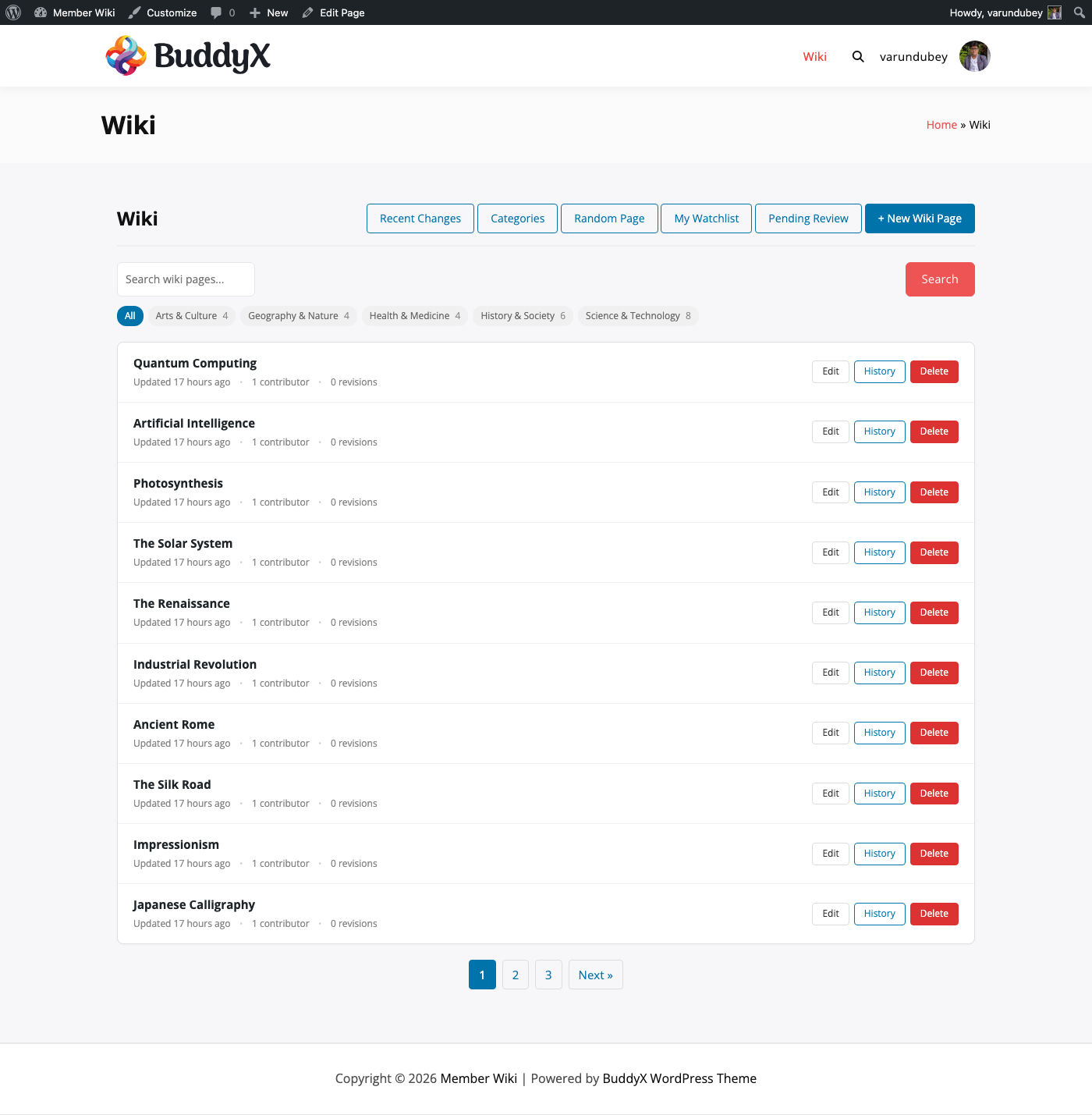
The wiki dashboard is the central hub for your knowledge base. It displays all published wiki pages, provides search and filtering, and gives users access to create, edit, and manage wiki content.

Accessing the Dashboard

The dashboard is rendered by the [member-wiki-dashboard] shortcode placed on a standard WordPress page. Create a page (or use the Auto-Create button in General Settings), then visit it on the front end. The CPT archive is intentionally disabled — the dashboard page is the single entry point to the wiki.

Wiki Dashboard

Dashboard Views

The dashboard supports multiple views, controlled by URL query parameters:

Page Listing (Default)

The default view shows all published wiki pages in a paginated list. Each entry displays:

  • Page title (linked to the full page)
  • Category badges
  • Author name
  • Last modified date
  • Edit and history links (for users with permissions)

Pages are displayed according to the Pages Per Page setting (default: 10).

Create New Page

Users with create permissions see a Create New Page button. Clicking it loads the wiki editor form where they can:

  • Enter a title and content
  • Select categories and tags
  • Choose a parent page for hierarchical structure
  • Save as draft or publish immediately

Edit Page

Accessible via the edit link on any page listing or the edit button on a single wiki page. The editor pre-populates with the existing content and metadata.

Revision History

Each page has a history view showing all revisions with:

  • Revision date and time
  • Author who made the change
  • Edit summary (if provided)
  • Links to view the diff between any two revisions
  • Restore button for administrators

Revision Diff

Compare two revisions side by side. Title and content changes are highlighted using WordPress's built-in diff engine.

Search Results

The search view displays matching wiki pages ranked by relevance. Search is also available as live autocomplete via AJAX.

User Contributions

Shows all wiki pages authored or contributed to by a specific user. Accessible from community profile pages (BuddyPress/PeepSo) or via the contributions URL parameter.

Admin Overview Tab

Site administrators see an Overview tab in WB Plugins > Member Wiki with:

  • Quick Stats — Published, draft, and pending review page counts
  • Platform Info — Which community platform is detected (BuddyPress, PeepSo, or Standalone)
  • Demo Data Wizard — Generate or remove sample wiki content for testing

Admin Overview

URL Structure

Wiki pages use the URL structure yourdomain.com/{wiki-slug}/{page-slug}/ where {wiki-slug} is configurable in General Settings (default: wiki).

Dashboard actions use query parameters:

URL Parameter View
?wbmw_action=list Page listing (default)
?wbmw_action=create Create new page
?wbmw_action=edit&wbmw_page_id=123 Edit page
?wbmw_action=history&wbmw_page_id=123 Revision history
?wbmw_action=diff&from=10&to=12 Compare revisions
?wbmw_action=search&s=query Search results
?wbmw_action=contributions&user=5 User contributions
?wbmw_action=recent-changes Recent changes log
?wbmw_action=category Category browser
?wbmw_action=random Redirect to a random wiki page

Search & Filtering

Finding a specific wiki page is fast — whether you type a quick search, browse by category, or filter by tag, you can get to the right page in seconds without scrolling through a long list.

Live Search (Autocomplete)

Wiki Dashboard with Search

Your wiki dashboard includes a search field with live autocomplete. As you type:

  1. After 2 characters, matching page titles appear in a dropdown
  2. Click any suggestion to go directly to that page

The autocomplete returns up to 10 suggestions, ordered alphabetically by title. For example, if your wiki has pages on "Climate Change", "CRISPR", and "Coral Reefs", typing "c" and "l" immediately surfaces "Climate Change" and you can navigate without finishing the query.

Full Search

When you need to search page content (not just titles), submit the search form for full results:

  1. Enter your query in the dashboard search field
  2. Press Enter or click the search button
  3. Results display as a paginated list ranked by WordPress relevance scoring

Full search matches against both page titles and content, returning only published wiki pages.

Category Filtering

Your wiki pages are organized into categories. You can:

  • Browse pages by category from the dashboard listing
  • Click any category badge on a page to see all pages in that category
  • Navigate directly to a category archive: yourdomain.com/wiki-category/{category-slug}/

For example, if you have a "Science & Technology" category, clicking its badge shows only those pages — useful when your wiki covers many topics and you want to focus on one area.

Tag Filtering

Tags let you find pages that share a theme across multiple categories:

  • Tags appear on individual wiki pages
  • Clicking a tag shows all pages with that tag
  • Tag archive URL: yourdomain.com/wiki-tag/{tag-slug}/

Random Page

You can jump to a random wiki page using the ?wbmw_action=random URL parameter on your dashboard page. This is handy for discovery when you want to browse the wiki casually rather than search for something specific.

Developer: Customizing Search

Developers can modify search behavior using the wbmw_search_args filter:

add_filter( 'wbmw_search_args', function( $args, $query ) {
    // Boost title matches
    $args['orderby'] = 'relevance';

    // Limit to specific category
    $args['tax_query'] = array(
        array(
            'taxonomy' => 'wiki_category',
            'field'    => 'slug',
            'terms'    => 'guides',
        ),
    );

    return $args;
}, 10, 2 );

The filter receives the WP_Query arguments array and the original search query string.

Demo Data

WB Member Wiki includes a demo data wizard that generates realistic Wikipedia-style wiki pages to help you test and evaluate the plugin before adding your own content.

Generating Demo Data

Demo Data Wizard

  1. Go to WB Plugins > Member Wiki > Overview
  2. Scroll to the Demo Data section at the bottom
  3. Choose the number of pages to generate: 10 or 25
  4. Click Generate Demo Data
  5. Wait for the progress indicator to complete

The wizard creates:

  • 5 categories — Science & Technology, History & Society, Arts & Culture, Geography & Nature, Health & Medicine
  • 29 tags — Relevant topic tags across all categories
  • 50 wiki pages — Full-length articles with hierarchical parent/child relationships

What Gets Created

Page Content

Each generated page includes:

  • A descriptive title (e.g., "Quantum Computing", "The Renaissance", "Coral Reefs")
  • 400-800 words of Wikipedia-style content with multiple H2/H3 sections
  • Bullet lists, bold terms, and structured information
  • Wiki interlinks using [[Page Title]] syntax linking to other generated pages
  • Proper category and tag assignments

Hierarchical Structure

Some pages are created with parent/child relationships to demonstrate the wiki's hierarchical capabilities:

  • Quantum Computing > Quantum Entanglement, Quantum Algorithms
  • The Solar System > Mars, Jupiter
  • Ancient Rome > Roman Architecture, Roman Military
  • DNA and Genetics > CRISPR Gene Editing
  • Ancient Egypt > The Great Pyramids

Contributor Tracking

Demo pages are created with the current admin user as the author and contributor, demonstrating the contributor tracking feature.

Removing Demo Data

All demo content is tracked with a _wbmw_demo_data meta flag for clean removal:

  1. Go to WB Plugins > Member Wiki > Overview
  2. In the Demo Data section, click Remove Demo Data
  3. Confirm the removal when prompted
  4. The wizard deletes all demo pages and cleans up empty terms

Removing demo data only deletes content created by the wizard. Your manually created wiki pages, categories, and tags are never affected.

Status Indicator

When demo data is active, the Overview tab shows a green status badge indicating how many demo pages are currently installed. This makes it easy to distinguish demo content from real content.

Tips

  • Generate demo data on a staging site first to evaluate the plugin
  • Use demo pages to test your theme's wiki page styling
  • Check that [[wiki links]] render correctly between demo pages
  • Test the revision history and diff viewer with demo content
  • Remove demo data before launching your wiki to the public

Recent Changes

Recent Changes gives you a live pulse on your wiki — a chronological log of every edit, grouped by date, so you can see at a glance what your community has been working on.

What You'll See

Each entry in the list displays:

  • Time of the edit (HH:MM format)
  • Page title linked to the full wiki page
  • Editor's avatar and name (pulled from the most recent revision author)
  • Edit summary in parentheses, if the editor provided one when saving
  • A history link to jump straight to that page's full revision history

Entries are grouped under date headings (e.g., "March 12, 2026") in reverse chronological order, so the newest edits are always at the top.

Time Filter

Use the filter bar at the top to narrow results to a specific window. For example, after a sprint of wiki work you can quickly check "Last 1 day" to review everything your team touched:

Filter Shows changes from
Last 1 day Past 24 hours
Last 3 days Past 3 days
Last 7 days Past week
Last 14 days Past two weeks
Last 30 days Past month (default)

Clicking a filter reloads the view with the selected range via the ?days= URL parameter.

Pagination

The view is paginated at 50 entries per page. Use the ?wiki_paged= URL parameter to navigate between pages.

Accessing Recent Changes

Navigate to Recent Changes by adding this parameter to your wiki dashboard URL:

?wbmw_action=recent-changes

Or use the helper function in templates:

$url = wbmw_get_recent_changes_url();

Developer Notes

The Recent Changes query uses WordPress's date_query against post_modified to filter by the selected day range. It retrieves only published wiki pages, ordered by modification date descending.

The editor shown for each entry is taken from the most recent WordPress revision for that page. If no revision exists, it falls back to the page's post_author.

To customize the day filter options, override the wiki-recent-changes.php template in your theme (see Template Overrides).

Watchlist

The watchlist lets logged-in users track specific wiki pages and receive email notifications whenever those pages are edited.

How the Watchlist Works

Each user maintains a personal watchlist stored in user meta (_wbmw_watchlist key) as an array of wiki page IDs. The list is private — users cannot see each other's watchlists.

When a watched page is saved, the plugin emails every watcher (except the user who made the edit) with a notification containing:

  • The page title
  • The name of the editor who made the change
  • A link to view the page
  • A link to the page's revision history

Notifications are sent only if the Enable Watchlist Emails setting is enabled (default: yes).

Watching a Page

To watch a page, visit any published wiki page and click Watch. The button appears in the page action bar. If you are already watching a page, the button shows Unwatch.

Watch and Unwatch actions update immediately via AJAX without a page reload.

Viewing Your Watchlist

Your watchlist is accessible from the wiki dashboard. The watchlist view shows:

  • All watched pages you are currently subscribed to, ordered by most recently modified first
  • The time since each page was last updated
  • An Unwatch button to remove a page from your list

Pages that have been deleted or unpublished are automatically excluded from the list display.

The watchlist fetches up to 50 watched pages at once.

Accessing the Watchlist

The watchlist is accessed via the wiki dashboard with the following URL parameter:

?wbmw_action=watchlist

Email Notification Format

Notification emails are plain-text and include:

Subject: [Site Name] Wiki page "Page Title" has been updated

Hi [Watcher Name],

The wiki page "Page Title" has been updated by [Editor Name].

View the page: https://example.com/wiki/page-title/
View history: https://example.com/wiki-dashboard/?wbmw_action=history&wbmw_page_id=123

You are receiving this because you are watching this page.

Developer: Watchlist Class

The watchlist is managed by the WBMW_Watchlist class (static methods):

// Check if the current user is watching a page
WBMW_Watchlist::is_watching( $page_id );

// Get a user's full watchlist (returns array of page IDs)
WBMW_Watchlist::get_watchlist( $user_id );

// Add a page to a user's watchlist
WBMW_Watchlist::watch( $page_id, $user_id );

// Remove a page from a user's watchlist
WBMW_Watchlist::unwatch( $page_id, $user_id );

// Get all user IDs watching a specific page
WBMW_Watchlist::get_watchers( $page_id );

User Meta Key

Meta Key Type Description
_wbmw_watchlist int[] Serialized array of watched wiki page IDs, stored per user

Category Browser

Categories give your wiki structure — instead of scrolling through a flat list of pages, your visitors can drill into a topic area and see exactly what's there. The Category Browser makes this navigation intuitive, starting from a high-level overview and letting users go as deep as they need.

Navigating Categories

Root View

When you open the category browser without specifying a category, you see all top-level categories as a grid of cards. Each card shows:

  • Category name
  • Number of pages in that category

For example, if your wiki has "Science & Technology", "History & Society", and "Arts & Culture" as top-level categories, your visitors immediately understand how the knowledge base is organized.

Category View

Clicking a category card opens that category's detail view, which shows:

  1. Category description — if you've added one for the term in the admin
  2. Subcategories — child categories listed as cards with page counts
  3. Pages in this category — all published wiki pages assigned to this category, sorted alphabetically by title

If a category has no subcategories and no pages, the view shows "This category is empty."

Navigation Controls

  • A Parent Category button appears when you're inside a subcategory, linking back up the hierarchy
  • An All Categories button appears when viewing a top-level category, returning you to the root
  • A Dashboard button is always present to return to the main wiki listing

Accessing the Category Browser

Add the wbmw_action=category parameter to your wiki dashboard URL:

# Root view (all categories)
?wbmw_action=category

# Jump directly to a specific category (pass the term ID)
?wbmw_action=category&wiki_cat=12

Category Taxonomy

Wiki categories use the wiki_category taxonomy registered specifically for the wiki-page post type. Categories are hierarchical — they can have parent and child relationships.

Taxonomy slug wiki_category
Hierarchical Yes
Archive URL yourdomain.com/wiki-category/{slug}/

Managing Categories

You can create categories in two ways:

  • From the editor — type a new category name in the category field while creating or editing a page
  • From WordPress admin — go to Wiki Pages > Wiki Categories in the admin menu

Any description you add to a category in the admin will appear at the top of that category's browser view — useful for explaining the scope of a category to your readers.

Developer Notes

The category view fetches subcategories using get_terms() with 'parent' => $category_id and pages using a tax_query against wiki_category. The page list fetches up to 100 pages per category, sorted alphabetically.

To customize the category layout, override wiki-category.php in your theme (see Template Overrides).

Creating & Editing

Creating wiki pages, using the editor, and interlinking

Creating Wiki Pages

Any user with the appropriate role can create new wiki pages from the frontend dashboard. This guide covers the full page creation workflow.

Prerequisites

  • You must be logged in
  • Your user role must be listed in the Create permission setting (see Permissions)
  • Administrators always have create access

Creating a New Page

From the Dashboard

Wiki Edit Page

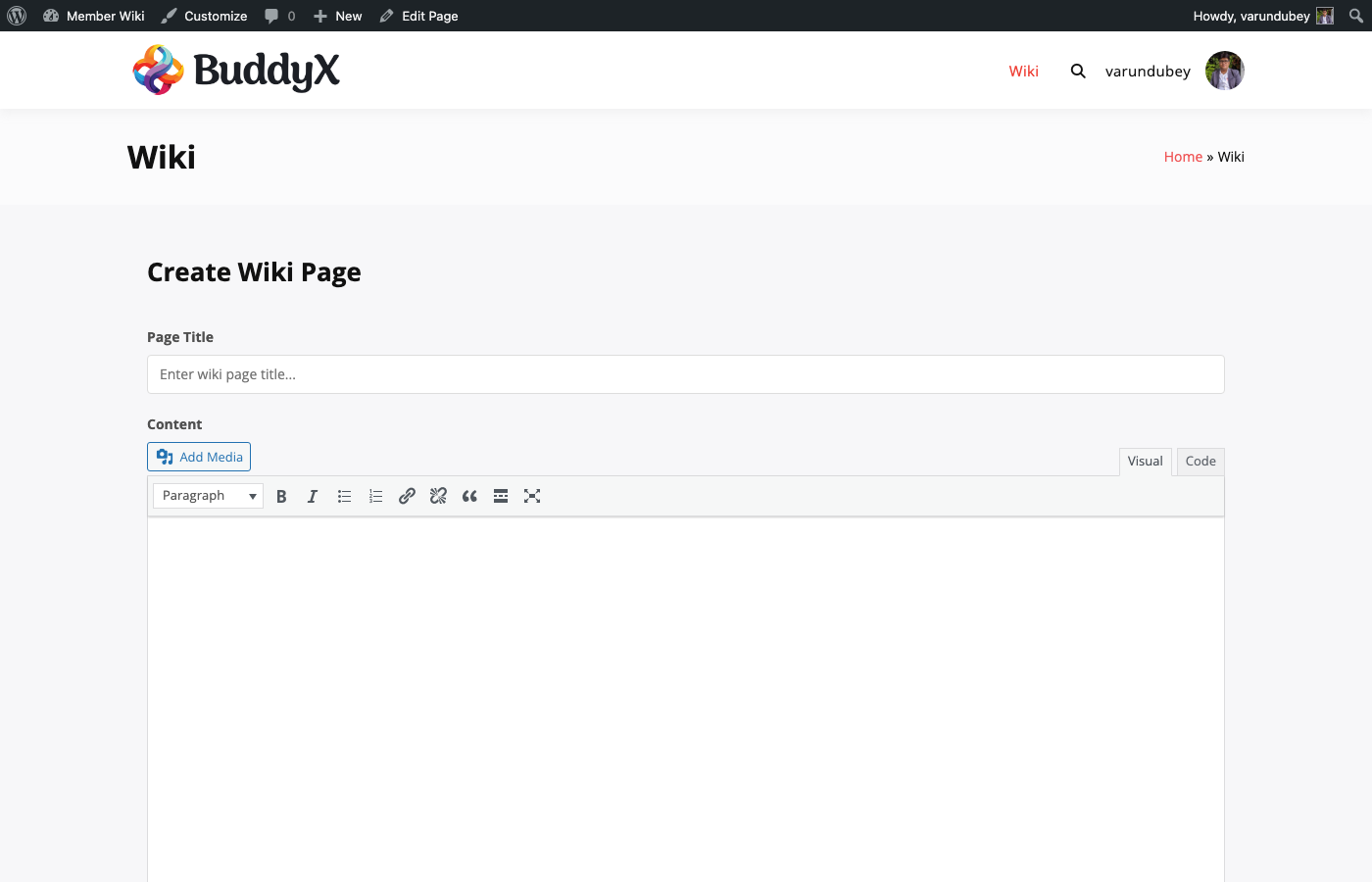
  1. Visit your wiki dashboard page
  2. Click Create New Page (visible only to users with create permission)
  3. The editor form loads with empty fields

Direct URL

Navigate directly to the create form:

yourdomain.com/wiki-dashboard/?wbmw_action=create

Page Fields

Title

Enter a clear, descriptive title for your wiki page. The title is used to generate the URL slug and is how other pages link to yours via [[Page Title]] syntax.

Tips:

  • Use natural language titles (e.g., "Quantum Computing" not "quantum-computing-overview")
  • Keep titles concise but specific
  • Avoid duplicate titles since wiki links resolve by exact title match

Content

Write your page content using the visual editor (TinyMCE). You can use:

  • Headings (H2, H3, H4) to structure sections
  • Bold and italic text for emphasis
  • Bullet and numbered lists
  • Links to external resources
  • Images uploaded via the media uploader
  • Wiki links using [[Page Title]] syntax

Pages with three or more headings automatically generate a Table of Contents.

Categories

Select one or more categories from the dropdown, or type a new category name to create one on the fly. Categories help organize your wiki into browsable sections.

Tags

Add relevant tags to improve discoverability. Type tag names and press Enter. Tags provide cross-cutting organization across categories.

Parent Page

For hierarchical wiki structures, select a parent page. This creates a nested relationship:

Solar System (parent)
├── Mars (child)
├── Jupiter (child)
└── Saturn (child)

Child pages appear nested under their parent in listings and can inherit navigation context.

Publication Status

Choose how to save your page:

Status Description
Publish Page is immediately visible to all visitors
Draft Page is saved but only visible to the author and admins
Pending Page is submitted for review before publishing

Auto-Save

While editing, the plugin automatically saves your draft at regular intervals (configurable in General Settings, default: 30 seconds). Auto-save behavior depends on page status:

  • Draft pages — Content is updated directly (safe since unpublished)
  • Published pages — An autosave revision is created without affecting the live content

The editor shows a timestamp of the last auto-save.

Image Uploads

Wiki contributors can upload images directly from the editor, even if their WordPress role doesn't normally include upload capabilities. The plugin dynamically grants the upload_files capability to users who have wiki create permissions.

Supported formats: JPG, PNG, GIF, WebP

Images are uploaded as WordPress media attachments. Contributors can edit and delete their own uploaded images.

After Publishing

Once published, your wiki page is accessible at:

yourdomain.com/{wiki-slug}/{page-slug}/

The page appears in:

  • The wiki dashboard listing
  • Category and tag archives
  • Search results
  • Other pages' backlink sections (if they link to your page)

Editor & Formatting

WB Member Wiki provides a rich text editor for creating and editing wiki pages. This guide covers the editor features and formatting options available to wiki contributors.

Visual Editor

Wiki Editor

The default editor is the Classic Editor (TinyMCE), which provides a familiar word-processor-like interface. The editor includes a toolbar with formatting buttons for:

  • Text formatting — Bold, italic, underline, strikethrough
  • Headings — H2, H3, H4 levels (H1 is reserved for the page title)
  • Lists — Bullet lists and numbered lists
  • Links — Insert and edit hyperlinks
  • Media — Upload and insert images
  • Alignment — Left, center, right, justify
  • Block quotes — Indented quotation blocks

Heading Structure

Use headings to organize your wiki page into logical sections. A well-structured page typically follows this pattern:

Page Title (H1 — auto-generated from title field)
├── Introduction paragraph
├── Section One (H2)
│   ├── Subsection (H3)
│   └── Subsection (H3)
├── Section Two (H2)
│   └── Detail (H4)
└── References (H2)

Pages with three or more headings automatically generate a Table of Contents at the top.

Wiki Link Syntax

The most important formatting feature is the wiki link syntax, which connects pages within your knowledge base:

Basic Link

Learn more about [[Quantum Computing]] in our wiki.

This creates a link to the wiki page titled "Quantum Computing".

Custom Display Text

See [[Quantum Computing|our quantum guide]] for details.

This displays "our quantum guide" as the link text while linking to the "Quantum Computing" page.

Link Behavior

Target Page Status Link Appearance
Exists and published Standard blue link
Does not exist Styled differently with option to create the page

For more details on interlinking, see Wiki Links & Interlinks.

Best Practices

Writing Style

  • Lead with an introduction — Start each page with a clear paragraph summarizing the topic
  • Use headings liberally — Break content into H2/H3 sections for readability and TOC generation
  • Bold key terms — Highlight important concepts on first use
  • Use lists — Present related items, steps, or options as bullet or numbered lists
  • Add interlinks — Link to related wiki pages using [[Page Title]] syntax

Content Length

Wiki pages work best at 400-1000 words. If a page grows beyond that, consider splitting it into parent/child pages.

Images

  • Use images to illustrate complex concepts
  • Add descriptive alt text for accessibility
  • Supported formats: JPG, PNG, GIF, WebP
  • Images upload as WordPress media attachments

Page Metadata Fields

The editor sidebar includes optional metadata fields that give wiki pages special behavior. These appear below the category and tag selectors when creating or editing a page.

Stub Article

Check Mark as stub to flag the page as a stub — a short article that needs expansion. Stub pages display a notice at the bottom encouraging other contributors to expand the content.

Use this when you want to create a placeholder page to establish a wiki link target without having the full content ready yet.

Disambiguation Note

The Disambiguation Note field lets you add a hatnote at the top of the page — a brief notice pointing readers to related pages with similar names.

For example, on a page about "Mercury (Planet)" you might add:

For the element, see [[Mercury (Element)]]. For the car brand, see [[Mercury (Automobile)]].

The hatnote renders as a styled notice above the page content, making it immediately visible to readers who may have arrived at the wrong page.

Redirect

The Redirect to field lets you turn a page into a transparent redirect to another wiki page. Select the target page from the dropdown and save — anyone visiting the original page will be automatically forwarded.

Use redirects to handle:

  • Alternative spellings ("Colour" → "Color")
  • Abbreviations ("AI" → "Artificial Intelligence")
  • Former page titles after a rename

Redirected pages are still visible in the admin and can be edited by selecting "Edit Redirect" on the page.

Edit Summary

When saving changes to an existing page, you can add an edit summary explaining what you changed. Edit summaries appear in the revision history and help other contributors understand the evolution of the page.

Good edit summaries are brief and specific:

  • "Added section on safety considerations"
  • "Fixed incorrect date in timeline"
  • "Expanded the introduction paragraph"

Table of Contents

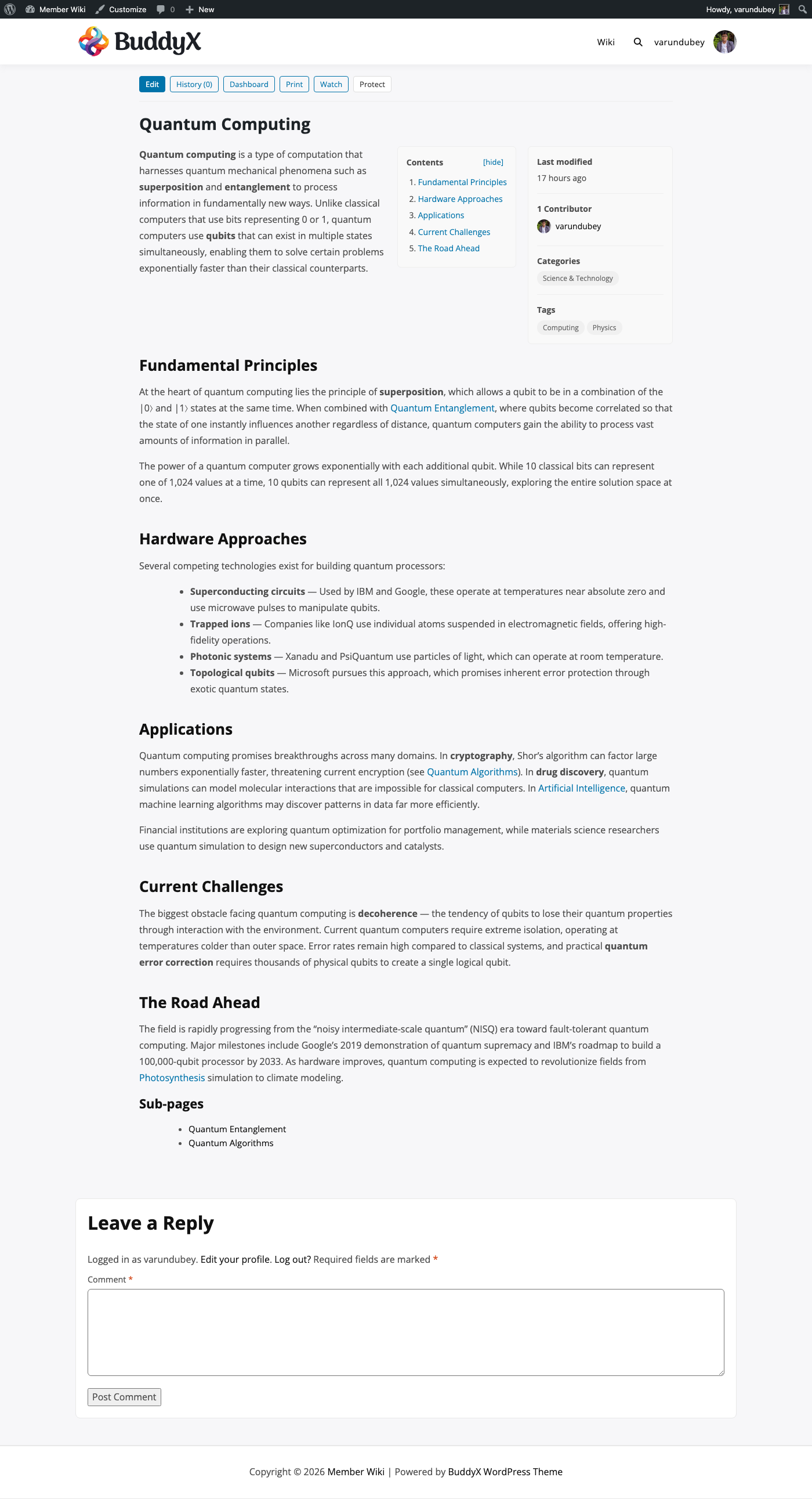
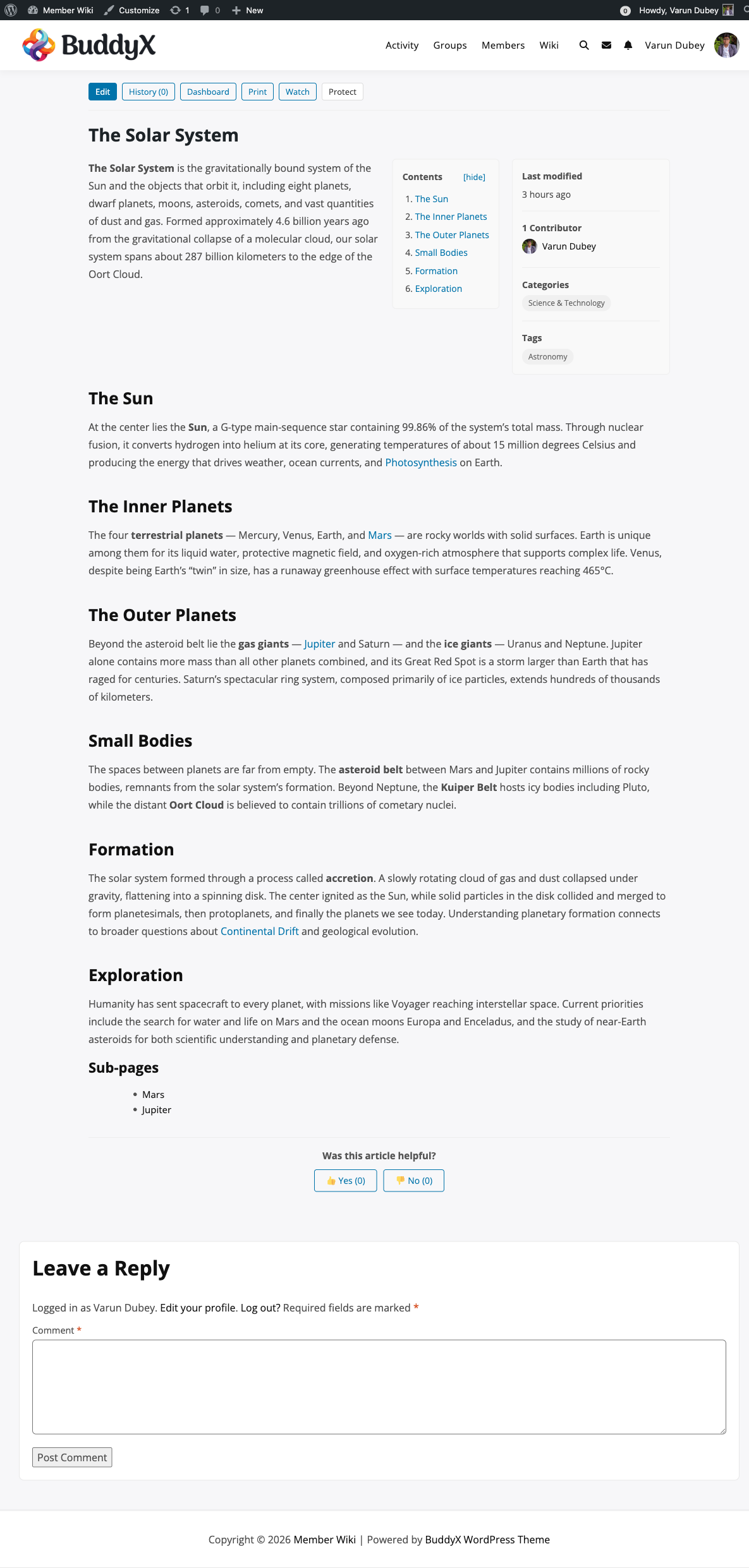
WB Member Wiki automatically generates a Table of Contents (TOC) for wiki pages that have three or more headings. The TOC appears inline in the page content, above the first heading, giving readers a quick overview and easy navigation to any section.

Wiki Page with Table of Contents

How It Works

The TOC is generated automatically — no shortcode or markup is needed. When you save a wiki page:

  1. The plugin scans the page content for <h2>, <h3>, and <h4> headings
  2. If three or more headings are found, a TOC box is inserted before the first heading
  3. Each heading becomes a numbered link in the TOC
  4. Headings receive id attributes matching the link anchors (e.g., #the-sun, #inner-planets)

If a page has fewer than three headings, no TOC is generated.

TOC Structure

The TOC box shows:

  • A "Contents" label at the top
  • A [hide] / [show] toggle that collapses or expands the TOC
  • A numbered list of all headings, in document order

Nested headings (H3 inside H2, etc.) are displayed as a flat numbered list, not a nested tree.

Writing Pages with Good TOC Structure

Use heading levels to organize longer pages:

## Overview          ← H2
## Installation      ← H2
### Requirements     ← H3
### Steps            ← H3
## Configuration     ← H2
## Troubleshooting   ← H2

Best practices:

  • Use H2 (##) for main sections
  • Use H3 (###) for sub-sections within H2
  • Avoid skipping heading levels (don't jump from H2 to H4)
  • Keep heading text concise — it becomes the TOC anchor link text
  • Write headings as complete phrases, not single words

Hiding the TOC

Readers can click [hide] on any page to collapse the TOC. The preference is not remembered between pages.

There is currently no per-page option to disable the TOC from within the editor. To suppress the TOC site-wide or on specific pages, use the developer filter below.

Frequently Asked Questions

My page has 4 headings but no TOC appears. Why? Check that the headings are actual <h2>, <h3>, or <h4> HTML elements — not bold text or paragraphs styled to look like headings. In the TinyMCE editor, use the Paragraph dropdown to select "Heading 2", "Heading 3", or "Heading 4".

How do I change the minimum number of headings required to show the TOC? Use the wbmw_toc_min_headings filter:

// Show TOC only if page has 5 or more headings
add_filter( 'wbmw_toc_min_headings', function( $min ) {
    return 5;
} );

Can I show the TOC even on pages with fewer than 3 headings? Yes, lower the minimum to 1:

add_filter( 'wbmw_toc_min_headings', function( $min ) {
    return 1;
} );

How do I disable the TOC entirely?

// Disable TOC on all wiki pages
add_filter( 'wbmw_toc_html', '__return_empty_string' );

// Disable TOC for a specific page
add_filter( 'wbmw_toc_html', function( $html, $headings ) {
    if ( is_singular( 'wiki_page' ) && get_the_ID() === 123 ) {
        return '';
    }
    return $html;
}, 10, 2 );

Can I customize the TOC appearance? Yes. The TOC is wrapped in a <div class="wbmw-toc"> element. Add CSS to your theme to override the default styles:

/* Custom TOC box styling */
.wbmw-toc {
    background: #f8f9fa;
    border: 1px solid #dee2e6;
    border-radius: 4px;
    padding: 16px 20px;
    display: inline-block;
    min-width: 200px;
    margin-bottom: 20px;
}

.wbmw-toc nav ol {
    margin: 0;
    padding-left: 20px;
}

You can also modify the TOC HTML programmatically via the wbmw_toc_html filter (see Hooks & Filters Reference).

Does the TOC affect the page heading hierarchy for SEO? No. The TOC is injected via a WordPress content filter (the_content) after the page is saved. It reads your heading structure but does not modify the actual page content in the database.

Helpfulness Rating

The Helpfulness Rating widget lets readers vote on whether a wiki page was helpful. It appears at the bottom of every published wiki page and shows running totals of positive and negative votes.

Helpfulness Rating Widget

How It Works

Each published wiki page displays:

Was this article helpful? 👍 Yes (12) 👎 No (3)

Visitors click Yes or No. Their vote is counted immediately and the totals update without a page reload.

  • Logged-in users can vote once per page (rate-limited by user ID)
  • Guest visitors can vote once per page per browser session (rate-limited by session)

Votes are stored as post meta:

Meta Key Description
_wbmw_helpful_yes Total count of "Yes" votes
_wbmw_helpful_no Total count of "No" votes

Enabling or Disabling the Widget

The helpfulness rating widget is controlled by the Display > Helpfulness Rating toggle.

  1. Go to WB Plugins > Member Wiki > Display
  2. Find the Helpfulness Rating section
  3. Toggle Enable helpfulness rating widget on or off
  4. Click Save Changes

When disabled, the widget is hidden from all wiki pages. Existing vote data is preserved.

Viewing Helpfulness Data

Vote counts are displayed publicly on each page. There is no dedicated admin dashboard for helpfulness data — you can query it directly from the database if needed:

// Get yes/no counts for a specific page
$yes = (int) get_post_meta( $page_id, '_wbmw_helpful_yes', true );
$no  = (int) get_post_meta( $page_id, '_wbmw_helpful_no', true );

// Get helpfulness ratio
$total = $yes + $no;
$ratio = $total > 0 ? round( ( $yes / $total ) * 100 ) : 0;

Or query via WP_Query to find your least helpful pages:

$pages = get_posts( array(
    'post_type'      => 'wiki_page',
    'posts_per_page' => 10,
    'meta_key'       => '_wbmw_helpful_no',
    'orderby'        => 'meta_value_num',
    'order'          => 'DESC',
) );

Resetting Votes

To reset the vote count on a specific page, delete its post meta:

delete_post_meta( $page_id, '_wbmw_helpful_yes' );
delete_post_meta( $page_id, '_wbmw_helpful_no' );

Frequently Asked Questions

Can users change their vote after submitting? No. Votes are final once submitted. The widget shows only the Yes/No buttons until voted; after voting, the updated count is displayed.

Are guest votes reliable? Guest votes are limited per browser session. They are less reliable than logged-in user votes since the same visitor could clear their cookies and vote again. For community wikis where most readers are logged-in members, this is generally not an issue.

Can I hide the rating widget on specific pages? Use the wbmw_show_helpfulness_rating filter:

add_filter( 'wbmw_show_helpfulness_rating', function( $show, $page_id ) {
    // Hide on a specific page
    if ( $page_id === 123 ) {
        return false;
    }
    return $show;
}, 10, 2 );

Can I change the button labels or emoji? The widget HTML is rendered in templates/partials/wiki-helpfulness.php. Override it in your theme by creating your-theme/wb-member-wiki/partials/wiki-helpfulness.php.

Where do I see which pages are underperforming? There's no built-in report, but you can use the code example above to query pages with the most "No" votes. Pages with high negative ratings are good candidates for content review and improvement.

Collaboration

Multi-user editing, revisions, and page protection

Contributors & Revisions

WB Member Wiki tracks every edit made to a wiki page, maintaining a complete revision history and a list of all contributors. This enables transparency, accountability, and the ability to restore previous versions.

Contributor Tracking

Every user who edits a wiki page is added to its list of contributors. The contributor list is stored in the _wbmw_contributors post meta as an array of user IDs.

Viewing Contributors

Single Wiki Page showing Contributors

When enabled in Display Options, the contributor list appears on each wiki page showing:

  • Display name of each contributor
  • Link to their profile (if using BuddyPress or PeepSo)
  • Total number of unique contributors

Contributors are listed in the order they first contributed to the page.

How Contributors Are Tracked

A user is added to the contributor list whenever they:

  • Create a new wiki page (they become the first contributor)
  • Edit and save an existing wiki page
  • The same user is only listed once regardless of how many edits they make

Revision History

Every save creates a WordPress revision, extended with wiki-specific metadata:

  • Edit summary — A brief note explaining the change
  • Author — The user who made the revision

Viewing Revision History

  1. Navigate to any wiki page
  2. Click History (available to users with edit permission)
  3. The history view shows all revisions in reverse chronological order

Each revision entry displays:

  • Date and time of the edit
  • Author name
  • Edit summary (if provided)
  • Links to view the full revision or compare with other revisions

Comparing Revisions (Diff View)

Select two revisions to compare them side by side:

  1. From the history view, select two revisions
  2. The diff view shows changes highlighted in both the title and content
  3. Added text appears in green, removed text in red

The diff uses WordPress's built-in wp_text_diff() engine for accurate comparison.

Restoring a Previous Version

Administrators and users with edit permission can restore any previous revision:

  1. Open the revision history for a page
  2. Click Restore next to the desired revision
  3. Confirm the restoration
  4. The page content reverts to the selected revision
  5. A new revision is created recording the restoration

Restoring a revision doesn't delete any history. The restoration itself becomes a new revision entry.

Edit Summaries

Edit summaries are short descriptions of what changed in each edit. They appear in the revision history and help contributors understand the page's evolution.

Adding an Edit Summary

When saving changes to an existing page, the editor includes an edit summary field. Enter a brief description before saving.

Good edit summaries:

  • "Added section on environmental impact"
  • "Corrected founding date from 1923 to 1925"
  • "Reorganized subsections for clarity"

Why Edit Summaries Matter

  • Help other contributors understand changes without reading the diff
  • Create a readable changelog for each page
  • Make it easier to find when a specific change was made
  • Support collaborative editing by communicating intent

Revision Limits

The plugin respects WordPress's revision settings. By default, WordPress keeps all revisions. You can limit the number of revisions stored using the WP_POST_REVISIONS constant in wp-config.php:

// Keep the last 20 revisions per page
define( 'WP_POST_REVISIONS', 20 );

The plugin retrieves up to 50 revisions per page in the history view.

Edit Locking & Protection

WB Member Wiki includes two mechanisms to prevent conflicts and protect important content: edit locking for real-time collaboration safety, and page protection for administrative content control.

Edit Locking

Edit locking prevents two users from editing the same page simultaneously, avoiding conflicting changes that could result in lost work.

How It Works

  1. When a user opens a page for editing, the plugin creates a soft lock using WordPress transients
  2. The lock records the user ID and timestamp
  3. While the lock is active, other users see a warning that the page is being edited
  4. The lock auto-refreshes every 30 seconds via a heartbeat AJAX call
  5. The lock expires after the configured duration if the heartbeat stops (e.g., user closes the tab)

Lock Duration

Configure the lock duration in WB Plugins > Member Wiki > General:

General Settings - Edit Locking

  • Default: 120 seconds (2 minutes)
  • Range: 30 to 600 seconds
  • The lock refreshes automatically while the editor is open

If a user's browser closes or loses connection, the lock expires after the configured duration, allowing others to edit the page.

Conflict Detection

Beyond locking, the plugin detects conflicts when saving:

  1. The editor records when the user started editing (started_at timestamp)
  2. On save, the plugin compares this to the page's post_modified_gmt
  3. If the page was modified after the user started editing, a conflict warning appears
  4. The user can choose to force save (overwrite) or review the changes first

Enabling/Disabling

Edit locking can be toggled in General Settings:

  • Enable Edit Lock — Turn the locking system on or off
  • When disabled, multiple users can edit simultaneously (last save wins)

Page Protection

Page protection locks a page so only administrators can edit it. This is useful for important reference pages, policies, or community guidelines that should not be modified by regular contributors.

Protecting a Page

Users with the protect role permission can protect a page:

  1. Navigate to the wiki page you want to protect
  2. Click the Protect action link
  3. Confirm the protection

The page is now locked to admin-only editing. A protection indicator appears on the page.

Unprotecting a Page

To allow regular editing again:

  1. Navigate to the protected wiki page
  2. Click the Unprotect action link
  3. Confirm the change

Who Can Protect Pages

Protection requires the protect role permission, configured in WB Plugins > Member Wiki > Permissions. By default, only administrators can protect pages.

How Protection Affects Editing

User Role Protected Page Unprotected Page
Administrator Can edit Can edit
Editor (wiki role) Cannot edit Can edit
Author (own page) Cannot edit Can edit own page
Contributor Cannot edit Cannot edit (no edit-others permission)

Technical Details

Page protection is stored as a post meta value:

  • Meta key: _wbmw_protected
  • Meta value: true (when protected)
  • When unprotected, the meta is deleted entirely

Protection is checked at the beginning of every edit permission check. If a page is protected, only users with the manage_options capability (administrators) can edit it, regardless of other role settings.

Best Practices

  • Protect finalized content — Lock pages that serve as official references or policies
  • Use edit locking for active collaboration — Keep it enabled when multiple users contribute regularly
  • Set reasonable lock durations — 2 minutes is usually enough; increase for complex pages that take longer to edit
  • Communicate protection — Let your community know why certain pages are protected and how to request changes

Pending Review & Moderation

When users submit wiki pages with the Pending status, those pages enter a review queue before they are published. This lets site editors or administrators review and approve community contributions before they appear publicly.

How the Pending Queue Works

A page enters the pending queue when a contributor saves it with the Pending status. Pending pages are:

  • Not publicly visible
  • Listed in the Pending Review queue on the wiki dashboard
  • Accessible to moderators who can approve or reject them

Accessing the Pending Queue

The pending review queue is available to users with the Edit Others role permission or administrators. Access it via:

?wbmw_action=pending

The queue header shows the total count of pages awaiting review, e.g. "Pending Review (4)".

Reviewing a Submission

Each item in the queue shows:

  • Page title
  • Author display name
  • Time since submission

Three actions are available for each pending page:

Action What it does
Review Opens the page in the editor so you can read and optionally edit it before deciding
Approve Publishes the page immediately, making it publicly visible
Reject Moves the page to trash

Approve and Reject

Approve and Reject are link-based actions secured with WordPress nonces:

  • Approve URL pattern: ?wbmw_action=approve&wbmw_page_id={id}&_wpnonce={nonce}
  • Reject URL pattern: ?wbmw_action=reject&wbmw_page_id={id}&_wpnonce={nonce}

Only users whose roles have can_approve() permission (determined by the Edit Others role setting) can perform these actions.

Who Can Moderate

The can_approve() permission check grants moderation access to:

  • Administrators — always have access
  • Users in the Edit Others roles — configured in WB Plugins > Member Wiki > Permissions

Admin Email Notification

When a moderated-role user submits a new wiki page that lands in pending status, the plugin automatically sends an HTML notification email to the configured moderator address.

Email contents:

  • Page title
  • Submitter's display name
  • Pending status badge
  • Direct link to the pending review queue in WordPress admin

Configure the recipient at WB Plugins > Member Wiki > General > Pending Review Email. Leave blank to use the site admin email.

The notification email template is located at templates/email-pending-notification.php and can be overridden in your theme at your-theme/wb-member-wiki/email-pending-notification.php.

To override the recipient address programmatically:

add_filter( 'wbmw_pending_notify_email', function( $email ) {
    return 'moderators@yoursite.com';
} );

Developer Hooks

Two actions fire during the moderation workflow:

wbmw_page_approved

Fired after a pending page is approved and published.

add_action( 'wbmw_page_approved', function( $page_id, $user_id ) {
    // Example: notify the page author that their submission was approved
    $author_id = get_post_field( 'post_author', $page_id );
    $author    = get_userdata( $author_id );
    if ( $author && $author_id !== $user_id ) {
        wp_mail(
            $author->user_email,
            'Your wiki page was approved',
            'Your submission "' . get_the_title( $page_id ) . '" has been published.'
        );
    }
}, 10, 2 );
Parameter Type Description
$page_id int Wiki page ID that was approved
$user_id int User ID who performed the approval

wbmw_page_rejected

Fired after a pending page is rejected (moved to trash).

add_action( 'wbmw_page_rejected', function( $page_id, $user_id ) {
    // Example: log rejections for auditing
    error_log( sprintf( 'Wiki page %d rejected by user %d', $page_id, $user_id ) );
}, 10, 2 );
Parameter Type Description
$page_id int Wiki page ID that was rejected
$user_id int User ID who performed the rejection

User Contributions

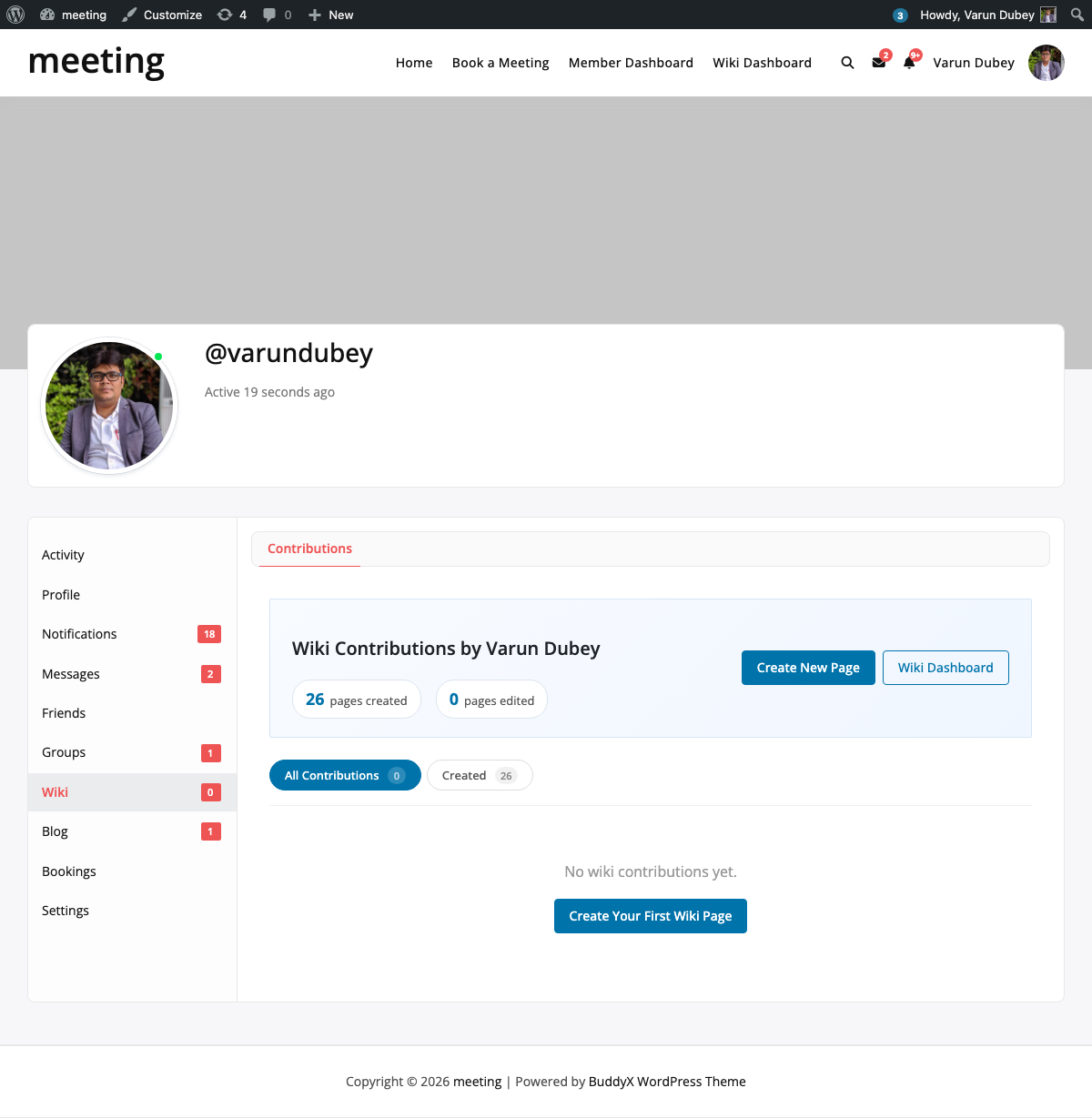
The Contributions view shows a paginated list of wiki pages that a specific user has created or edited. It is used in BuddyPress and PeepSo profile tabs and is also accessible from the standalone wiki dashboard.

What the Contributions View Shows

At the top of the view, a stats bar displays the user's contribution summary:

  • Pages created — total number of wiki pages the user created
  • Pages edited — total number of wiki pages the user has contributed to (including pages created by others)

Below the stats, the list is filterable by two tabs:

Tab What it shows
All Contributions All published pages the user has contributed to (created or edited)
Created Only pages where the user is the original author

Each list item shows:

  • Lock icon if the page is protected (admin-only editing)
  • Page title linked to the full wiki page
  • "creator" badge if the viewing user originally created this page
  • Excerpt (up to 20 words, if a custom excerpt exists)
  • Last updated time in relative format
  • Category names the page belongs to
  • View button (always shown)
  • Edit button (shown only to the owner of the profile, if they have edit permission)

Accessing Your Own Contributions

If you are viewing your own contributions, a Create New Page button appears (if you have create permission) and a Wiki Dashboard link. These are not shown when viewing another user's contributions.

Accessing Contributions

Via the dashboard

?wbmw_action=contributions&user=5

Replace 5 with the user ID whose contributions you want to view.

In BuddyPress / PeepSo

When using BuddyPress or PeepSo, a Wiki tab appears on member profile pages automatically and loads this view for the profile owner.

Filtering

Switch between "All Contributions" and "Created" by appending wiki_filter to the current URL:

?wbmw_action=contributions&user=5&wiki_filter=all
?wbmw_action=contributions&user=5&wiki_filter=created

Pagination

Results are paginated using the Pages Per Page setting from General Settings (default: 10). Navigate pages with:

?wiki_paged=2

Developer Hooks

Two hooks fire within the contributions template:

wbmw_before_contributions

Fires before the contributions list is rendered.

add_action( 'wbmw_before_contributions', function( $user_id, $query ) {
    // Example: show a custom message for new contributors
    if ( $query->found_posts === 0 ) {
        echo '<div class="notice">Welcome! Start contributing to the wiki.</div>';
    }
}, 10, 2 );
Parameter Type Description
$user_id int User ID whose contributions are displayed
$query WP_Query The query object for the contributions list

wbmw_after_contributions

Fires after the contributions list is rendered.

add_action( 'wbmw_after_contributions', function( $user_id, $query ) {
    // Example: add a link to external profile
}, 10, 2 );
Parameter Type Description
$user_id int User ID whose contributions are displayed
$query WP_Query The query object for the contributions list

Technical Notes

The "All Contributions" query finds pages where the user's ID is stored in the _wbmw_contributors post meta array. The query uses a SQL LIKE search followed by PHP-side verification to avoid serialization false positives from partial integer matches.

The "Created" filter uses a standard author WP_Query argument.

Settings

Plugin configuration and admin settings

General Settings

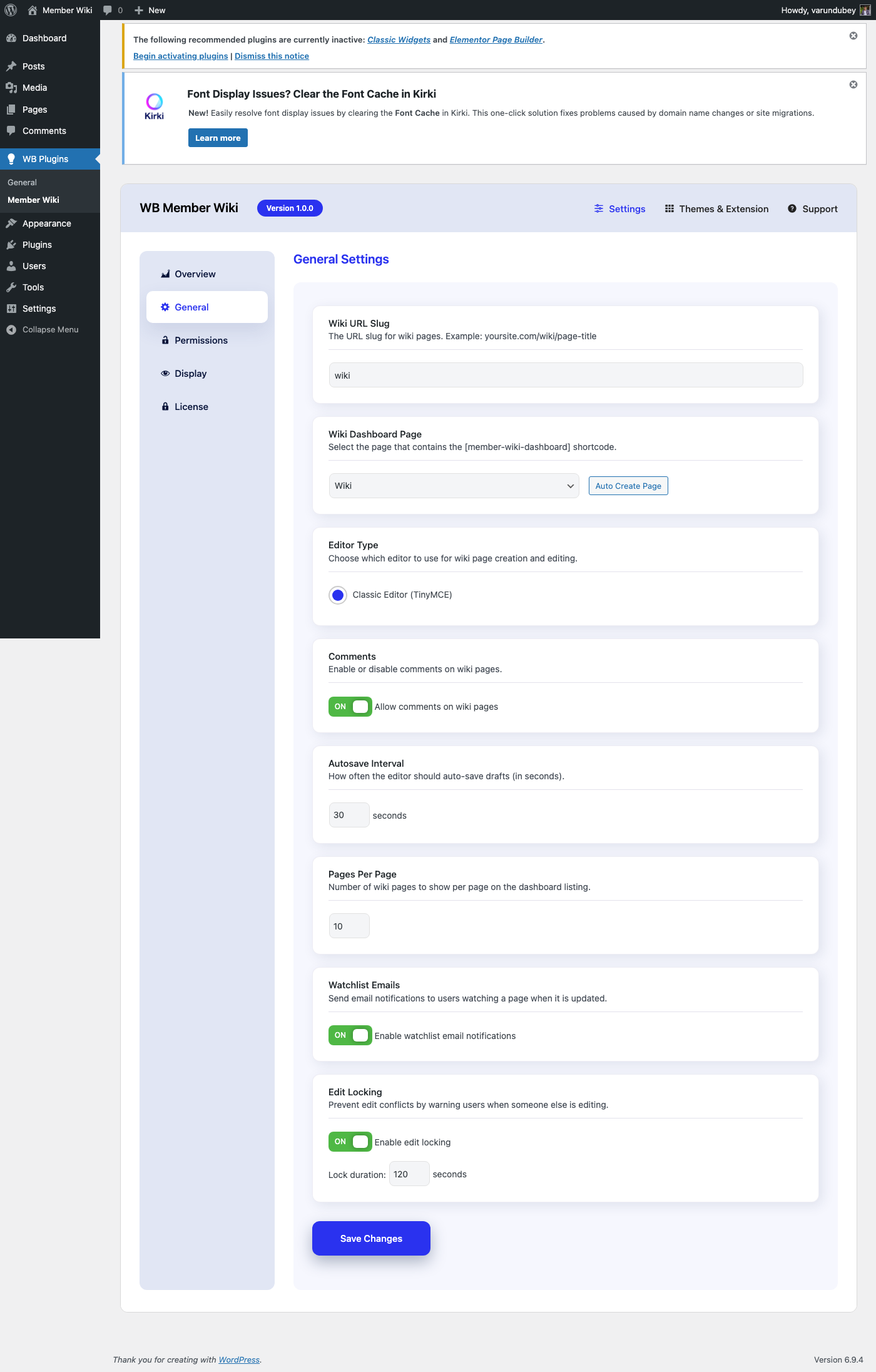
The General Settings tab controls the core behavior of your wiki, including the URL structure, dashboard page, editor configuration, and collaboration features.

Access these settings at WB Plugins > Member Wiki > General.

General Settings

Wiki URL Slug

Setting: Wiki Slug Default: wiki

The URL slug determines the base URL for all wiki pages:

yourdomain.com/{wiki-slug}/{page-slug}/

For example, with the default slug wiki, a page titled "Getting Started" would be accessible at:

yourdomain.com/wiki/getting-started/

Changing the slug automatically triggers a rewrite rule flush on the next page load.

Note: Choose your slug before publishing wiki content. Changing it later will break existing links unless you set up redirects.

Dashboard Page

Setting: Dashboard Page Default: None (must be configured)

Select the WordPress page that serves as your wiki dashboard. This page should contain the [member-wiki-dashboard] shortcode.

Auto Create Page

Click the Auto Create Page button to automatically:

  1. Create a new WordPress page titled "Wiki Dashboard"
  2. Add the [member-wiki-dashboard] shortcode to its content
  3. Publish the page
  4. Select it as the dashboard page

Editor Type

Setting: Editor Type Default: Classic (TinyMCE)

Choose the editor interface for creating and editing wiki pages:

Editor Description
Classic TinyMCE visual editor with familiar word-processor toolbar

The Classic editor provides a reliable, familiar editing experience suitable for most wiki content.

Comments

Setting: Allow Comments Default: Enabled

Toggle whether comments are allowed on wiki pages. When enabled, visitors can leave comments on published wiki pages using WordPress's built-in commenting system.

Auto-Save

Setting: Auto-Save Interval Default: 30 seconds Range: 10 to 300 seconds

How frequently the editor auto-saves draft content while a user is editing. Lower values save more frequently but generate more server requests.

Auto-save behavior:

  • Draft pages — Content is updated directly
  • Published pages — An autosave revision is created without modifying the live content

Pages Per Page

Setting: Pages Per Page Default: 10 Range: 5 to 100

The number of wiki pages displayed per page on the dashboard listing. Adjust based on your content volume and page layout.

Revision Limit

Setting: Revision Limit Default: 50 Range: 5 to 200

The maximum number of revisions to keep per wiki page. When a page exceeds this limit, the oldest revision is automatically pruned on each save.

Choosing the right limit:

Scenario Recommended limit
Low-traffic wiki, minimal history needed 10–20
Standard use 50 (default)
High-activity wiki, full audit trail required 100–200

Lowering this limit frees up database storage on large wikis. Raising it preserves more history for accountability and rollback.

Pending Review Email

Setting: Pending Review Email Default: Site admin email

When a moderated-role user submits a wiki page that lands in Pending status, the plugin sends an HTML notification email to this address.

Leave the field blank to use the WordPress admin email (Settings > General > Administration Email Address). Enter a specific email address to route notifications to a dedicated moderator inbox.

Example use cases:

  • Route notifications to a moderation team address (wiki-mods@yoursite.com)
  • Send to a department lead instead of the site admin
  • Leave blank on single-admin sites to use the admin email automatically

Note: This email only fires when a page is newly created with pending status (i.e., submitted by a moderated role). It does not fire when an admin manually changes a published page to pending.

You can also override this address programmatically:

add_filter( 'wbmw_pending_notify_email', function( $email ) {
    return 'wiki-team@yoursite.com';
} );

Watchlist Emails

Setting: Enable Watchlist Emails Default: Disabled

When enabled, users who have added a wiki page to their watchlist receive an email notification whenever that page is updated.

Email notifications are sent via WordPress's standard wp_mail() function and include the page title, the editor's name, their edit summary (if provided), and a direct link to the updated page.

Note: Requires your WordPress site to have a properly configured outbound email. Use a plugin like WP Mail SMTP if emails are not sending reliably.

Edit Lock

Enable Edit Lock

Setting: Enable Edit Lock Default: Enabled

When enabled, the plugin creates a soft lock when a user opens a page for editing. Other users see a warning that the page is currently being edited.

When disabled, multiple users can edit the same page simultaneously. The last save wins.

Edit Lock Duration

Setting: Edit Lock Duration Default: 120 seconds Range: 30 to 600 seconds

How long the edit lock persists after the last heartbeat. The lock auto-refreshes every 30 seconds while the editor is open. If the user closes their browser or loses connection, the lock expires after this duration.

Recommended values:

Scenario Duration
Quick edits, small team 60 seconds
Standard use 120 seconds (default)
Long-form editing 300 seconds
Unreliable connections 600 seconds

Saving Settings

Click Save Changes at the bottom of the page. Settings are saved per-tab, so changes to other tabs are preserved when saving General settings.

Permissions

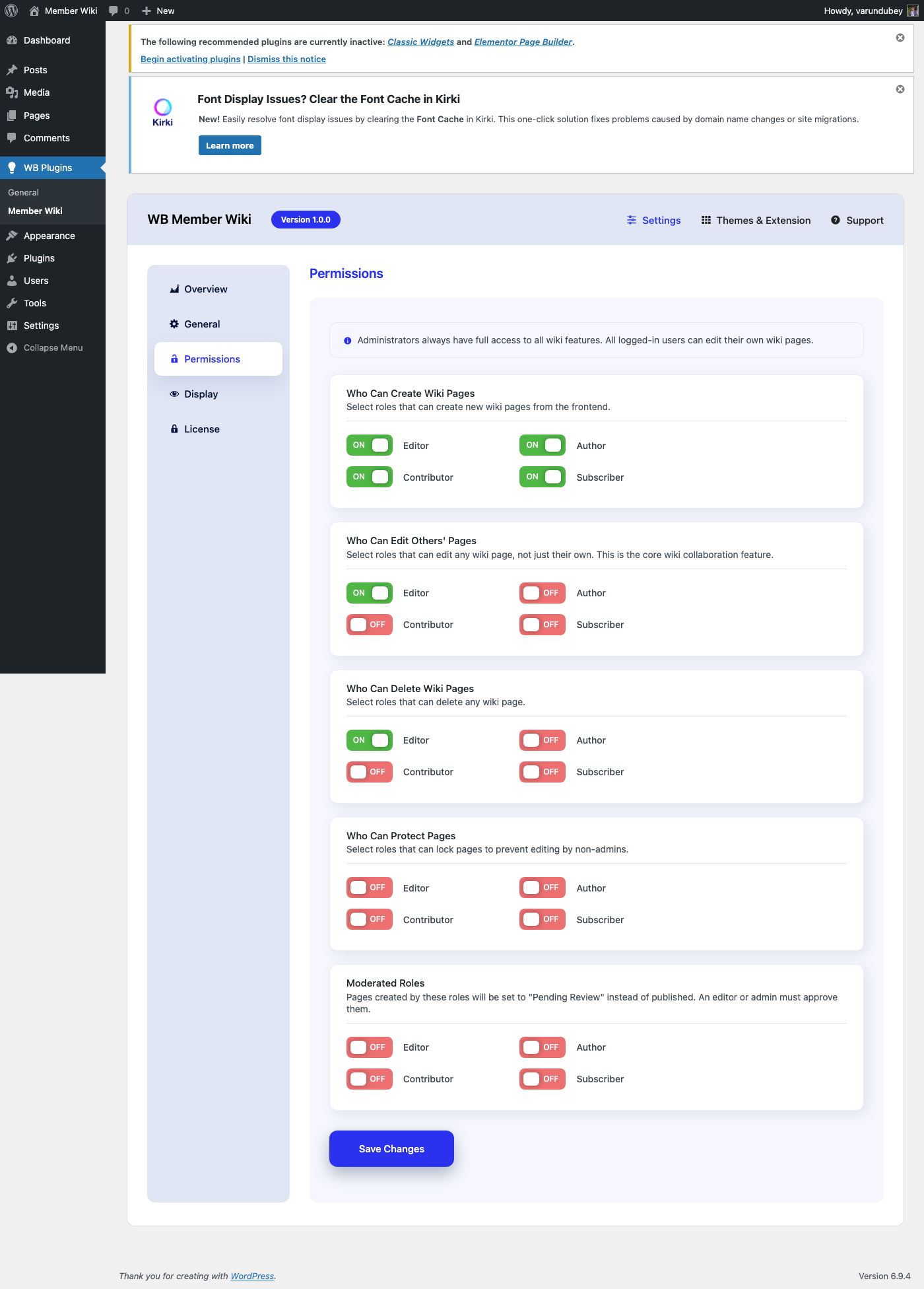
The Permissions tab controls which WordPress user roles can perform specific actions in the wiki. This is the most important configuration for a collaborative wiki since it determines who can create, edit, delete, and protect pages.

Access these settings at WB Plugins > Member Wiki > Permissions.

Permissions Settings

Permission Model

WB Member Wiki uses a role-based permission system with four permission types. Administrators (manage_options capability) always have full access regardless of these settings.

Create Pages

Setting: Roles that can create wiki pages

Select which user roles are allowed to create new wiki pages. Users with any of the selected roles can:

  • Access the "Create New Page" button on the dashboard
  • Submit new wiki pages as published, draft, or pending review
  • Upload images for use in wiki content

Common configurations:

Scenario Roles
Open wiki (anyone can contribute) Subscriber, Contributor, Author, Editor
Moderated wiki Contributor, Author, Editor
Staff-only wiki Editor

Edit Others' Pages

Setting: Roles that can edit any wiki page

This is the core wiki permission. Unlike a blog where only the author can edit their posts, a wiki allows designated roles to edit any page regardless of who created it.

Users with any of the selected roles can:

  • Edit any published wiki page (not just their own)
  • Save changes to pages created by other users
  • Add edit summaries to the revision history

Note: Users who created a page can always edit their own page, as long as they have the create permission. The "edit others" permission extends this to all pages.

Common configurations:

Scenario Roles
Fully collaborative wiki Contributor, Author, Editor
Trusted editors only Editor
Admin-only editing (none selected — only admins can edit others' pages)

Delete Pages

Setting: Roles that can delete wiki pages

Select which roles can move wiki pages to the trash. Users with any of the selected roles can:

  • Delete any wiki page (moved to trash, not permanently deleted)
  • Page authors can always delete their own pages if they have create permission

Recommendation: Keep this restricted to Editor or higher. Deletion should be a deliberate action by trusted users.

Protect Pages

Setting: Roles that can protect/unprotect pages

Page protection locks a page so only administrators can edit it. Users with the protect permission can:

  • Protect a page (lock it to admin-only editing)
  • Unprotect a previously protected page

Protected pages display a lock indicator and reject edit attempts from non-admin users.

Recommendation: Only grant this to roles you trust with editorial oversight, typically Editor or higher.

Permission Hierarchy

The following table shows how permissions interact:

Action Admin Protect Role Edit Others Role Create Role No Role
Create page Yes Per setting Per setting Yes No
Edit own page Yes Per setting Per setting Yes No
Edit others' page Yes Per setting Yes No No
Edit protected page Yes No No No No
Delete any page Yes Per setting Per setting Own only No
Protect page Yes Yes No No No
View published page Yes Yes Yes Yes Yes
View revision history Yes Per edit Per edit Own only No
Restore revision Yes Per edit Per edit Own only No

Customizing Permissions with Filters

Developers can override permission checks using filters:

// Allow all logged-in users to edit wiki pages
add_filter( 'wbmw_can_edit', function( $can_edit, $page_id, $user_id ) {
    return is_user_logged_in();
}, 10, 3 );

// Restrict creation to users with a custom capability
add_filter( 'wbmw_can_create', function( $can_create, $user_id ) {
    $user = get_userdata( $user_id );
    return $user && $user->has_cap( 'wiki_contributor' );
}, 10, 2 );

Available permission filters:

Filter Parameters Purpose
wbmw_can_view $can_view, $page_id, $user_id Control page visibility
wbmw_can_create $can_create, $user_id Control page creation
wbmw_can_edit $can_edit, $page_id, $user_id Control page editing
wbmw_can_delete $can_delete, $page_id, $user_id Control page deletion

Saving Settings

Click Save Changes at the bottom. Permission changes take effect immediately for all users.

Display Options

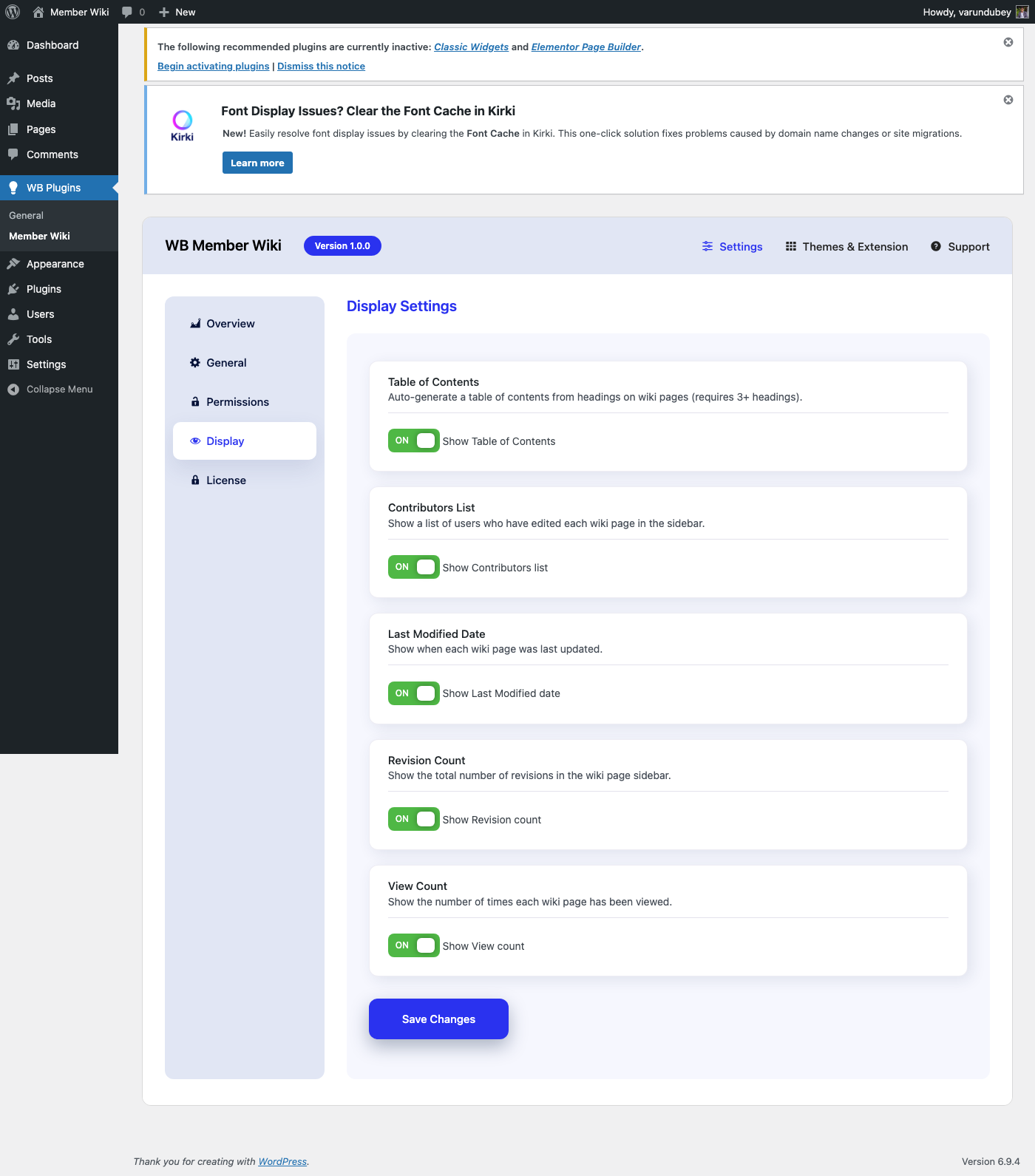
The Display Options tab controls what information appears on individual wiki pages. These settings affect the frontend presentation for all visitors.

Access these settings at WB Plugins > Member Wiki > Display.

Display Settings

Table of Contents

Setting: Show Table of Contents Default: Enabled

When enabled, wiki pages with three or more headings (H2, H3, H4) automatically display a Table of Contents at the top of the page content.

TOC Features

  • Collapsible — Users can show/hide the TOC with a toggle button
  • Nested structure — H3 headings appear nested under H2, H4 under H3
  • Anchor links — Each heading gets a unique ID for direct linking
  • Auto-generated — No manual configuration needed per page

TOC HTML Structure

The TOC is rendered as a semantic navigation element:

<div class="wbmw-toc">
  <div class="wbmw-toc-header">
    <strong>Contents</strong>
    <button class="wbmw-toc-toggle">[hide]</button>
  </div>
  <nav class="wbmw-toc-list">
    <ol>
      <li><a href="#section-title">Section Title</a></li>
    </ol>
  </nav>
</div>

Customizing the TOC

Developers can modify the TOC HTML using the wbmw_toc_html filter:

add_filter( 'wbmw_toc_html', function( $toc_html, $headings ) {
    // Modify the TOC HTML
    return $toc_html;
}, 10, 2 );

Contributors List

Setting: Show Contributors Default: Enabled

Displays a list of all users who have edited the wiki page. Contributors are shown with their display names, linked to their profiles when using BuddyPress or PeepSo.

This encourages collaborative editing by giving credit to all contributors, not just the original author.

Last Modified Date

Setting: Show Last Modified Default: Enabled

Shows when the wiki page was last updated. This helps visitors assess the currency of the information and identifies pages that may need updating.

The date displays in your site's configured date format.

Revision Count

Setting: Show Revision Count Default: Enabled

Displays the total number of revisions for each wiki page. A high revision count indicates an actively maintained page, while a low count might indicate newer or less-reviewed content.

Page View Count

Setting: Show View Count Default: Disabled

When enabled, each wiki page tracks and displays how many times it has been viewed. The count increments on each page load (excluding admin users and search engine bots).

This is useful for identifying your most-read pages and surfacing popular content. For example, if you notice certain pages consistently get high traffic, those are good candidates for keeping up-to-date and well-illustrated.

Note: View counts are stored as post meta and begin counting from the moment you enable the setting. Existing pages start at zero.

Summary of Display Settings

Setting Default What It Shows
Table of Contents On Auto-generated TOC from headings
Contributors On List of users who edited the page
Last Modified On Date of most recent edit
Revision Count On Total number of revisions
View Count Off Number of times the page has been viewed

Styling

All display elements use CSS classes prefixed with wbmw- for easy customization in your theme:

Element CSS Class
Table of Contents .wbmw-toc
TOC header .wbmw-toc-header
TOC toggle button .wbmw-toc-toggle
TOC navigation .wbmw-toc-list
Contributors section Uses theme defaults
Last modified Uses theme defaults
Revision count Uses theme defaults

Saving Settings

Click Save Changes at the bottom. Display changes take effect immediately on all wiki pages.

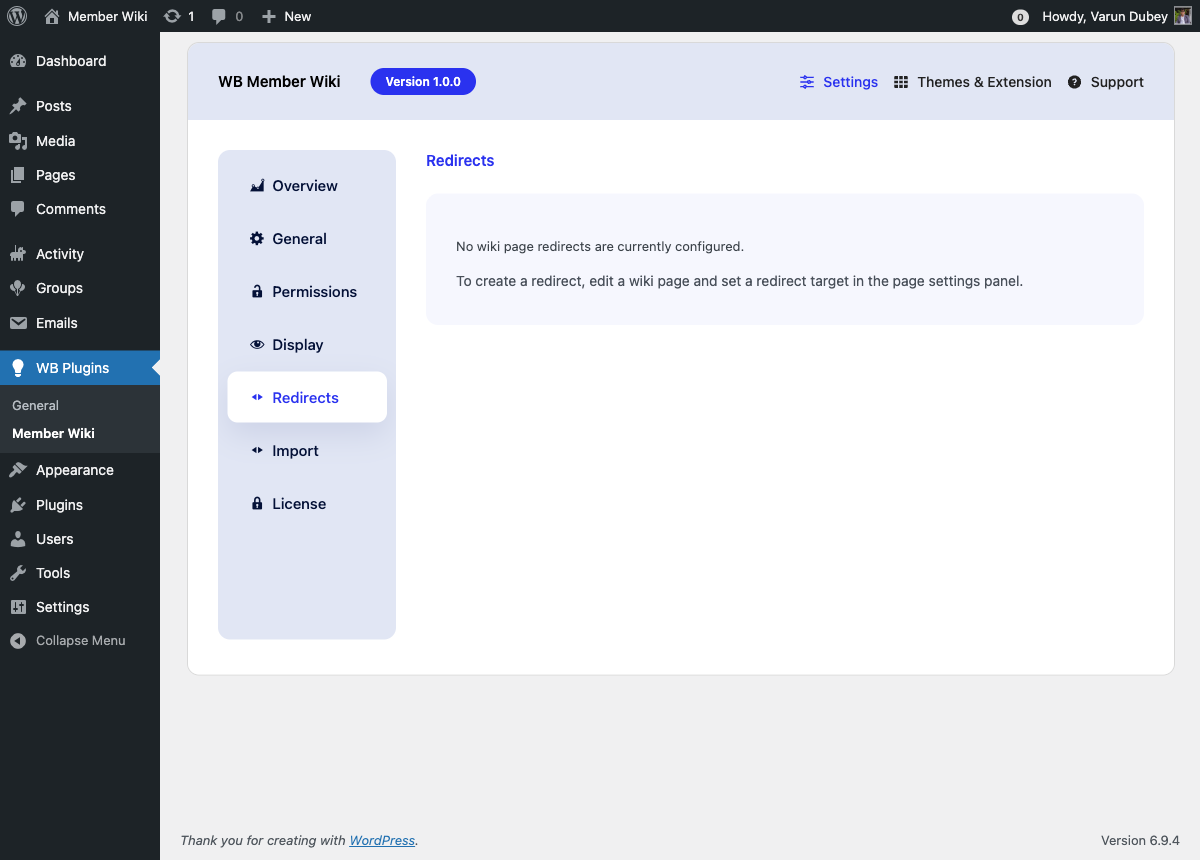
Redirects

The Redirects tab lets you view and remove wiki page redirect rules. Redirects send visitors from an old URL to the current page automatically — useful when you rename a page or merge two pages.

Access this tab at WB Plugins > Member Wiki > Redirects.

Redirects Tab

How Redirects Work

When a wiki page has a redirect target configured, visiting that page's URL automatically forwards the visitor to the target page. The original URL returns a 301-style redirect, so bookmarks and incoming links continue to work even after a page is renamed or its content is moved.

Redirects are stored as post meta (_wbmw_redirect_to) on the source page.

Creating a Redirect

Redirects are set from the wiki page editor — not from this settings tab. To create a redirect:

  1. Open the wiki page you want to redirect from
  2. Click Edit to open it in the editor
  3. In the right-hand sidebar panel, find the Redirect Target field
  4. Start typing a page title and select the target page
  5. Save the page

Once saved, the page's URL will forward visitors to the target. The source page is no longer publicly viewable as a wiki page.

Managing Existing Redirects

The Redirects tab lists all wiki pages that currently have a redirect target configured:

Column Description
Source Page The page whose URL is being redirected
Redirects To The target page visitors are sent to
Remove Button to delete the redirect rule

Removing a Redirect

Click Remove next to any redirect to delete it. The source page will revert to displaying its own content instead of forwarding. This action takes effect immediately.

Note: Removing a redirect does not restore the source page's content. If the page's content was deleted or emptied, you will need to edit the page to add content back.

When to Use Redirects

Scenario What to do
You renamed a page and want old links to still work Set a redirect from the old page to the new one
You merged two pages into one Redirect the removed page to the combined page
A page title changed via search-and-replace Check if old URLs are still being linked from other wiki pages and redirect them
You're migrating content from another wiki Import the pages, then set redirects from old slugs

Frequently Asked Questions

Can I redirect a page to an external URL? No. Redirects target other wiki pages within your site only. For external redirects, use a dedicated redirect plugin like Redirection.

What happens to pages that link to a redirected page using [[WikiLink]] syntax? [[WikiLink]] links resolve by page title, so they automatically point to the correct page. If you redirect "Old Title" to "New Title", any [[Old Title]] links still work — they will follow the redirect.

Can I redirect in a loop (A → B → B)? No, the plugin only follows one level of redirect. If a target page also has a redirect, the second redirect is not followed. Avoid chaining redirects.

Does removing a redirect affect SEO? Removing a redirect means the original URL no longer forwards. Search engines may have indexed the original URL; removing the redirect could cause 404 errors for those indexed pages. Only remove a redirect if you're certain the old URL is no longer needed.

Import Wiki Pages

WB Member Wiki can import content from three external platforms: MediaWiki, Notion, and Confluence. This lets you migrate an existing knowledge base without rebuilding pages manually.

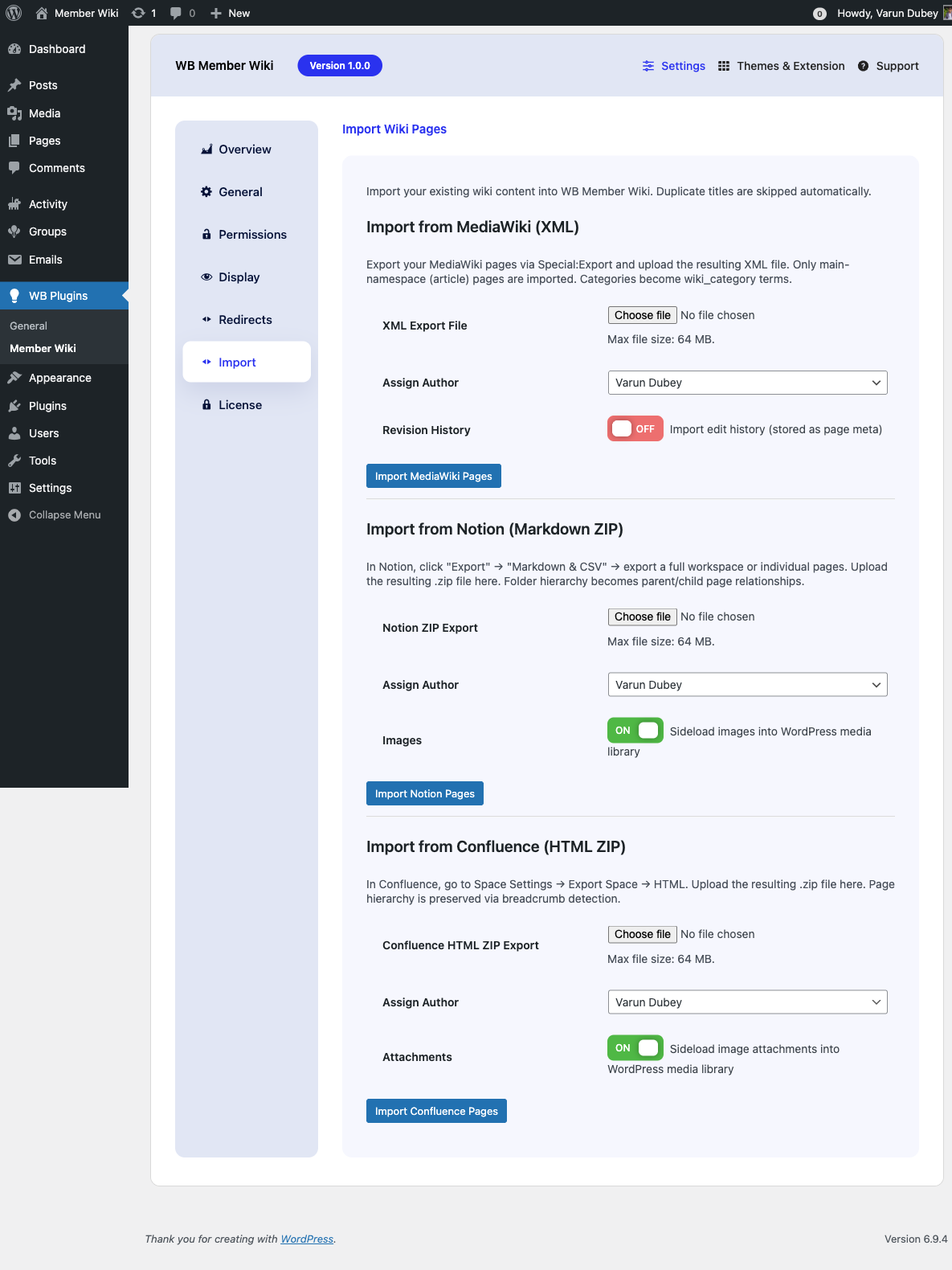
Access the import tools at WB Plugins > Member Wiki > Import.

Import Tab

Before You Import

  • Back up your site before running any large import
  • Duplicate page titles are automatically skipped — existing wiki pages are not overwritten
  • Imports run in the browser tab — keep it open until complete. Large imports may take several minutes
  • Set a reasonable PHP memory limit (128M or higher recommended) and execution time (the plugin sets max_execution_time to 300 seconds automatically)

Import from MediaWiki (XML)

Migrate content from any MediaWiki installation (Wikipedia, Fandom, self-hosted wikis).

Export from MediaWiki

  1. Go to Special:Export on your MediaWiki site
  2. Enter the page titles you want to export, or use Add pages from category to bulk-select
  3. Check Include only the current revision, not the full history (unless you want revision notes imported)
  4. Click Export to download an .xml file

For large wikis, use the MediaWiki XML export script to export all pages at once.

Import Options

Option Description
XML Export File The .xml file downloaded from MediaWiki (Special:Export)
Assign Author WordPress user to set as the post author for imported pages
Revision History When checked, imports edit summaries from the XML and stores them as page meta (_wbmw_import_history)

What Gets Imported

  • Pages in the main namespace (namespace 0) — talk pages, user pages, and template pages are skipped
  • Page content — wikitext is converted to HTML (headings, bold/italic, links, lists, tables, horizontal rules)
  • Categories[[Category:Name]] tags become wiki_category terms
  • [[WikiLink]] syntax — preserved and will resolve to other imported pages
  • Revision notes — if "Revision History" is checked, editor summaries are stored as post meta

What Is Not Imported

  • Images and file uploads (these need to be re-uploaded manually)
  • Templates and transclusions
  • Talk pages and user pages
  • Infoboxes (converted to plain text)

Import from Notion (Markdown ZIP)

Migrate content from Notion workspaces exported as Markdown.

Export from Notion

  1. In Notion, click Settings & Members (or your workspace name)
  2. Go to Settings > Export content
  3. Choose Export format: Markdown & CSV
  4. For full workspace: export everything. For specific pages: open the page → ··· menu → Export → Markdown
  5. Download and save the resulting .zip file

Import Options

Option Description
Notion ZIP Export The .zip file downloaded from Notion
Assign Author WordPress user to set as the post author for imported pages
Images When checked, local images in the ZIP are uploaded to your WordPress media library and embedded in the page

What Gets Imported

  • All .md files in the ZIP become wiki pages
  • Folder hierarchy — nested folders become parent/child page relationships
  • Markdown formatting — headings, bold, italic, code, tables, blockquotes, lists
  • Images — sideloaded into WordPress media library (when Images option is checked)
  • Internal links.md file links are converted to [[Page Title]] wiki links
  • Notion property blocks — stripped (the Key: Value header block Notion adds to exported pages)

Notion File Naming

Notion appends a 32-character hex ID to all exported filenames (e.g., Getting Started 1a2b3c4d5e6f...md). The importer automatically strips this ID suffix so page titles are clean.


Import from Confluence (HTML ZIP)

Migrate content from Confluence spaces exported as HTML.

Export from Confluence

  1. Go to your Confluence space
  2. Click Space Settings (gear icon in the left sidebar)
  3. Select Export Space
  4. Choose HTML as the export format
  5. Select Normal Export (includes all pages)
  6. Click Export and download the resulting .zip file

Import Options

Option Description
Confluence HTML ZIP Export The .zip file downloaded from Confluence
Assign Author WordPress user to set as the post author for imported pages
Attachments When checked, image attachments are uploaded to your WordPress media library and embedded in pages

What Gets Imported

  • All HTML pages in the ZIP (excluding the index file and non-page files)
  • Page hierarchy — breadcrumb navigation in Confluence HTML exports is used to reconstruct parent/child relationships
  • Confluence links (<ac:link>) — converted to [[Page Title]] wiki links
  • Confluence images (<ac:image>) — sideloaded into WordPress media library (when Attachments option is checked)
  • Page content — cleaned of Confluence-specific tags (<ac:*>, <ri:*>, structured macros)

What Is Not Imported

  • Confluence macros (Jira issues, status macros, code macros that render as widgets)
  • User @mentions
  • Comments and inline annotations
  • Page permissions and restrictions

Import Results

After each import, a results summary appears below the import button:

✓ Import complete: 47 imported, 3 skipped.
  • Imported — pages successfully created as wiki pages
  • Skipped — pages with titles that already existed as wiki pages (no overwrite)
  • Errors — individual page errors are listed below the summary if any occurred

Frequently Asked Questions

Can I run the importer multiple times? Yes. Duplicate titles are always skipped, so re-running an import is safe. Only new pages (titles not already in your wiki) will be created.

My import timed out halfway through. What do I do? Increase your PHP max_execution_time in php.ini or .htaccess. For very large imports (500+ pages), consider splitting the export into multiple smaller files. Pages already imported will be skipped if you retry.

Images are not appearing after a MediaWiki import. Why? MediaWiki XML exports do not include image files — only page text. You'll need to download images separately from the MediaWiki file namespace and upload them manually to WordPress.

My Notion pages have broken formatting. Why? Notion's Markdown export sometimes produces inconsistent formatting for complex pages (databases, linked views, embeds). The importer converts standard Markdown faithfully, but Notion-specific features are stripped.

Do imported pages appear in the wiki immediately? Yes. Imported pages are published immediately with the assigned author. To review them first, you can either import as a non-admin user (which forces pending status if moderated roles are enabled) or change the post status in WordPress admin after import.

Can I undo an import? Not automatically. Each imported page is a regular wiki page and can be deleted individually. For bulk removal, use the WordPress admin: Wiki Pages > All Wiki Pages, select all, and trash.

Platform Integration

BuddyPress, BuddyBoss, PeepSo, standalone usage, and multilingual

BuddyPress & BuddyBoss Integration

WB Member Wiki automatically integrates with BuddyPress and BuddyBoss when either plugin is active. The integration adds a Wiki tab to member profiles showing each user's wiki contributions.

Automatic Detection

The plugin uses a platform detector that checks for active community plugins on every page load. If BuddyPress or BuddyBoss is active, the integration enables automatically with no configuration needed.

You can verify the detected platform in WB Plugins > Member Wiki > Overview under the "Active Platform" section.

Profile Wiki Tab

When BuddyPress/BuddyBoss is detected, the plugin adds:

Main Navigation Tab

BuddyPress Wiki Tab

A Wiki tab appears in each member's profile navigation, positioned after the default tabs. The tab displays a count badge showing how many wiki pages the user has contributed to.

Contributions Sub-Tab

Under the Wiki tab, a Contributions sub-tab lists all wiki pages the member has authored or edited. This includes:

  • Page titles linked to the wiki pages
  • Categories and tags
  • Publication status
  • Last modified dates

Admin Bar Menu

A Wiki link is added to the WordPress admin bar under the user's profile dropdown, providing quick access to wiki contributions from anywhere on the site.

What Counts as a Contribution

A user appears as a contributor to a wiki page when they:

  • Create a new wiki page (they are the author)
  • Edit and save an existing wiki page (added to the _wbmw_contributors meta)

The contributor tracking persists across all edits, so even if a user's changes are later revised by someone else, they remain listed as a contributor.

Profile URLs

With BuddyPress/BuddyBoss active, the wiki constructs profile URLs using BuddyPress's URL structure:

yourdomain.com/members/{username}/wiki/
yourdomain.com/members/{username}/wiki/contributions/

User Display Names

The integration uses BuddyPress display name functions to show user names consistently with the rest of the community platform.

Theme Compatibility

The Wiki profile tab uses BuddyPress template hierarchy:

  1. First checks for wb-member-wiki/ templates in your theme
  2. Falls back to the plugin's built-in templates
  3. Renders within BuddyPress's standard profile template structure

The tab styling inherits from your BuddyPress/BuddyBoss theme, ensuring visual consistency.

BuddyBoss Specifics

BuddyBoss extends BuddyPress, so the same integration works for both. The plugin detects BuddyBoss through its BuddyPress compatibility layer. All features work identically whether you're running stock BuddyPress or BuddyBoss.

Troubleshooting

Wiki Tab Not Appearing

  1. Verify BuddyPress/BuddyBoss is active in Plugins
  2. Check the platform is detected in WB Plugins > Member Wiki > Overview
  3. Clear any caching plugins and reload the profile page
  4. Ensure the user has contributed to at least one wiki page (the tab appears regardless, but the count badge may be empty)

Profile URL Conflicts

If the Wiki tab URL conflicts with another plugin's profile tab, the integration uses a priority of 100 for navigation registration, which can be adjusted with custom code:

// Change Wiki tab position
add_action( 'bp_setup_nav', function() {
    buddypress()->members->nav->edit_nav( array(
        'position' => 200,
    ), 'wiki' );
}, 200 );

PeepSo Integration

WB Member Wiki integrates with PeepSo to add a Wiki tab to member profiles, showing each user's wiki contributions within the PeepSo community interface.

Automatic Detection

When PeepSo is active, the plugin automatically detects it and enables the profile integration. No manual configuration is required.

Verify the detected platform in WB Plugins > Member Wiki > Overview under the "Active Platform" section, which should show "PeepSo".

Profile Wiki Tab

Navigation Tab

A Wiki tab with a book icon (ps-icon-book) is added to PeepSo member profiles. The tab appears alongside other profile sections like Activity, About, and Friends.

Wiki Segment

Clicking the Wiki tab displays the user's wiki contributions in a dedicated profile segment. The segment lists:

  • Wiki pages the user has authored
  • Wiki pages the user has contributed edits to
  • Page titles, categories, and publication status

Profile URLs

With PeepSo, wiki contribution URLs follow PeepSo's profile URL structure. The plugin uses PeepSo's built-in functions to generate correct profile and wiki contribution links.

User Display Names

User names are displayed consistently with PeepSo's display name format, ensuring a seamless experience across the community platform.

Theme Compatibility

The Wiki segment renders within PeepSo's profile template structure. It uses PeepSo's standard segment rendering approach, so the styling matches your PeepSo theme configuration.

Troubleshooting

Wiki Tab Not Showing

  1. Confirm PeepSo is active in Plugins
  2. Check platform detection in the Member Wiki Overview tab
  3. Clear caching plugins and refresh the profile page
  4. The Wiki tab is added via the peepso_navigation_profile filter at priority 100

Styling Issues

If the Wiki tab or contribution list doesn't match your PeepSo theme:

  1. Check for CSS conflicts in your theme
  2. The plugin uses .wbmw- prefixed CSS classes that can be customized
  3. PeepSo segment rendering should inherit standard PeepSo styles

Standalone Mode

You don't need BuddyPress or PeepSo to run a great wiki. WB Member Wiki works as a fully functional wiki system on any standard WordPress site — no community platform required. When neither BuddyPress nor PeepSo is detected, the plugin automatically operates in standalone mode using only WordPress core features.

This is ideal for company knowledge bases, project documentation sites, and internal team wikis where you want wiki functionality without the overhead of a full community plugin.

How It Works

The plugin's platform detector checks for active community plugins on each page load. When none are found, it uses WordPress's native user system for:

  • User authentication and authorization
  • User display names
  • Profile links (standard WordPress author archive pages)

Features in Standalone Mode

Wiki Dashboard in Standalone Mode

All core wiki features work in standalone mode:

Feature Status
Wiki page creation and editing Fully functional
Categories and tags Fully functional
Wiki links and interlinking Fully functional
Revision history and diffs Fully functional
Edit locking Fully functional
Page protection Fully functional
Table of Contents Fully functional
Search Fully functional
Auto-save Fully functional
Image uploads Fully functional
Contributor tracking Fully functional
Role-based permissions Fully functional

What's Different

In standalone mode, the plugin does not add:

  • Profile tabs to member profiles (no community platform to hook into)
  • Admin bar wiki links
  • Community-style user profile URLs

User Contributions

User contributions are still tracked and accessible via the dashboard:

yourdomain.com/wiki-dashboard/?wbmw_action=contributions&user={user_id}

However, there is no automatic profile tab linking to this page.

User Profile Links

Contributor names on wiki pages link to the WordPress author archive page (yourdomain.com/author/{username}/) instead of a community profile page.

When to Use Standalone Mode

Standalone mode is ideal for:

  • Knowledge bases — Company or project documentation without social features
  • Internal wikis — Team wikis for organizations that don't need a community platform
  • Simple WordPress sites — Sites that want wiki functionality without the overhead of a community plugin
  • Evaluation — Testing the wiki features before deciding on a community platform

Adding a Community Platform Later

If you install BuddyPress, BuddyBoss, or PeepSo after the wiki is already set up:

  1. Install and activate the community plugin
  2. The platform detector automatically picks up the new platform
  3. Profile tabs and navigation items are added automatically
  4. All existing wiki content, permissions, and settings are preserved
  5. No migration or reconfiguration needed

The transition is seamless. Check WB Plugins > Member Wiki > Overview to verify the new platform is detected.

Multilingual Support (WPML & Polylang)

WB Member Wiki supports multilingual sites using WPML or Polylang. Wiki pages and taxonomies can be translated, and the wiki dashboard URL automatically switches to the correct language.

Supported Plugins

Plugin Support level
WPML (v4.0+) Full — content translation + URL switching
Polylang (v3.0+) Full — content translation + URL switching

WPML Setup

WPML patches WordPress's get_permalink() globally, so WB Member Wiki's URLs switch language automatically once WPML is configured.

Step 1: Configure translatable content

WB Member Wiki ships a wpml-config.xml file in the plugin root. WPML reads this automatically — no manual configuration required. It declares:

  • wiki_page CPT as translatable
  • wiki_category and wiki_tag taxonomies as translatable
  • Custom fields: _wbmw_revision_note (translate), metadata fields (copy)

Step 2: Translate your wiki pages

  1. Go to Wiki Pages > All Wiki Pages in WordPress admin
  2. Use the WPML language column to add translations for each page
  3. Translate category and tag terms via Taxonomy Translation in WPML

Step 3: Translate your dashboard page

  1. Translate the WordPress page that contains the [member-wiki-dashboard] shortcode
  2. WPML automatically routes the dashboard URL to the correct language

That's all. WPML handles URL routing for wiki pages and the dashboard page without any additional configuration.


Polylang Setup

Polylang does not patch get_permalink() globally. WB Member Wiki includes a Polylang integration that intercepts the dashboard URL and swaps it for the translated version.

Step 1: Set up languages

Configure your site languages in Polylang > Languages as you normally would.

Step 2: Register wiki content for translation

In Polylang > Settings:

  1. Under Post Types, check Wiki Pages
  2. Under Taxonomies, check Wiki Category and Wiki Tag

Step 3: Translate your wiki pages

  1. Go to Wiki Pages > All Wiki Pages
  2. Use the Polylang language column to add translations
  3. Translate category and tag terms under their respective taxonomy screens

Step 4: Translate your dashboard page

  1. Translate the WordPress page containing [member-wiki-dashboard] via the Polylang language switcher on the page edit screen
  2. Polylang links the translations together

Once the translated dashboard page exists, WB Member Wiki automatically detects the current language and routes the dashboard link to the correct translated page.


How URL Switching Works

WB Member Wiki uses the wbmw_dashboard_url filter to return the correct dashboard URL:

  • WPML — no intervention needed; get_permalink() returns the translated URL already
  • Polylang — the plugin calls pll_current_language() and pll_get_post() to look up the translated page ID, then returns its permalink

This means all links to the wiki dashboard (in navigation, BuddyPress tabs, etc.) automatically reflect the active language.


Translating Wiki Content

Page Titles and Content

Each language gets its own wiki page post. Translators can work on each language version independently in the WordPress editor or via the WPML/Polylang translation editor.

[[WikiLink]] Syntax

Wiki links ([[Page Title]]) resolve against page titles in all languages. If you write [[Climate Change]] in an English page, and the French translation of that page is titled "Changement Climatique", use [[Changement Climatique]] in French pages for proper resolution.

Categories and Tags

Translate category and tag terms independently for each language. Terms are language-specific — the English "Science & Technology" and French "Sciences et technologies" are separate terms linked via WPML/Polylang.


Frequently Asked Questions

Do I need to configure anything in WB Member Wiki settings? No. The multilingual integration activates automatically when WPML or Polylang is detected. No plugin-specific configuration is needed.

Does standalone mode (no community platform) work with multilingual? Yes. The multilingual integration is independent of the platform integration (BuddyPress, PeepSo, standalone).

Watchlist emails — do they send in the user's language? Not automatically. Watchlist email content is not currently translated. Email text will always be in the site's default language. You can use the wbmw_watchlist_email_subject and wbmw_watchlist_email_body filters to customize email content per language.

Can I use a different approach for the dashboard URL? Yes. Use the wbmw_dashboard_url filter to return any URL:

add_filter( 'wbmw_dashboard_url', function( $url ) {
    // Custom multilingual URL logic
    $lang = apply_filters( 'wpml_current_language', null );
    if ( 'fr' === $lang ) {
        return 'https://example.com/fr/wiki/';
    }
    return $url;
} );

Does the importer (MediaWiki, Notion, Confluence) support multilingual? Imported pages are created in the default language. You can then add translations through WPML or Polylang's normal translation workflow after importing.

Developer Guide

Hooks, filters, REST API, and template customization

Hooks & Filters Reference

WB Member Wiki provides a comprehensive set of hooks and filters for developers to customize and extend wiki behavior. This reference documents all available extension points.

Permission Filters

These filters let you override the default role-based permission checks.

wbmw_can_view

Control whether a user can view a wiki page.

add_filter( 'wbmw_can_view', function( $can_view, $page_id, $user_id ) {
    // Example: Restrict viewing to logged-in users only
    return is_user_logged_in();
}, 10, 3 );
Parameter Type Description
$can_view bool Current permission result
$page_id int Wiki page post ID
$user_id int User ID being checked

wbmw_can_create

Control whether a user can create new wiki pages.

add_filter( 'wbmw_can_create', function( $can_create, $user_id ) {
    // Example: Require a custom capability
    $user = get_userdata( $user_id );
    return $user && $user->has_cap( 'wiki_contributor' );
}, 10, 2 );
Parameter Type Description
$can_create bool Current permission result
$user_id int User ID being checked

wbmw_can_edit

Control whether a user can edit a specific wiki page.

add_filter( 'wbmw_can_edit', function( $can_edit, $page_id, $user_id ) {
    // Example: Allow all members of a BuddyPress group to edit
    if ( function_exists( 'groups_is_user_member' ) ) {
        $group_id = get_post_meta( $page_id, '_wiki_group_id', true );
        if ( $group_id && groups_is_user_member( $user_id, $group_id ) ) {
            return true;
        }
    }
    return $can_edit;
}, 10, 3 );
Parameter Type Description
$can_edit bool Current permission result
$page_id int Wiki page post ID
$user_id int User ID being checked

wbmw_can_delete

Control whether a user can delete a specific wiki page.

add_filter( 'wbmw_can_delete', function( $can_delete, $page_id, $user_id ) {
    // Example: Prevent deletion of pages with children
    $children = get_children( array( 'post_parent' => $page_id, 'post_type' => 'wiki_page' ) );
    if ( ! empty( $children ) ) {
        return false;
    }
    return $can_delete;
}, 10, 3 );
Parameter Type Description
$can_delete bool Current permission result
$page_id int Wiki page post ID
$user_id int User ID being checked

Content Filters

wbmw_toc_html

Modify the Table of Contents HTML before it's inserted into the page content.

add_filter( 'wbmw_toc_html', function( $toc_html, $headings ) {
    // Example: Add a custom class to the TOC container
    return str_replace( 'class="wbmw-toc"', 'class="wbmw-toc my-custom-toc"', $toc_html );
}, 10, 2 );
Parameter Type Description
$toc_html string Generated TOC HTML
$headings array Array of extracted headings with tag, text, and id

wbmw_search_args

Modify the WP_Query arguments used for wiki search.

add_filter( 'wbmw_search_args', function( $args, $query ) {
    // Example: Exclude protected pages from search
    $args['meta_query'] = array(
        array(
            'key'     => '_wbmw_protected',
            'compare' => 'NOT EXISTS',
        ),
    );
    return $args;
}, 10, 2 );
Parameter Type Description
$args array WP_Query arguments
$query string Original search query string

CPT Registration

wbmw_post_type_args

Modify the post type registration arguments for the wiki_page CPT.

add_filter( 'wbmw_post_type_args', function( $args ) {
    // Example: Change the menu icon
    $args['menu_icon'] = 'dashicons-book-alt';

    // Example: Disable archive page
    $args['has_archive'] = false;

    return $args;
} );
Parameter Type Description
$args array register_post_type() arguments

wbmw_change_wiki_slug

Override the wiki URL slug dynamically.

add_filter( 'wbmw_change_wiki_slug', function( $slug ) {
    // Example: Use 'knowledge-base' instead of 'wiki'
    return 'knowledge-base';
} );
Parameter Type Description
$slug string Current wiki slug

wbmw_change_wiki_label

Override the "Wiki" label used in platform navigation tabs (BuddyPress, PeepSo).

add_filter( 'wbmw_change_wiki_label', function( $label ) {
    return __( 'Knowledge Base', 'my-plugin' );
} );
Parameter Type Description
$label string Current tab label (default: "Wiki")

wbmw_integration_mode

Override the auto-detected platform integration mode.

add_filter( 'wbmw_integration_mode', function( $mode ) {
    // Valid values: 'buddypress', 'buddyboss', 'peepso', 'standalone'
    return 'standalone';
} );
Parameter Type Description
$mode string Detected integration mode

Lifecycle Actions

These actions fire during key wiki page lifecycle events.

wbmw_page_created

Fired after a new wiki page is created (not on updates).

add_action( 'wbmw_page_created', function( $page_id, $user_id ) {
    // Example: Log new page creation
    error_log( sprintf( 'User %d created wiki page %d', $user_id, $page_id ) );
}, 10, 2 );
Parameter Type Description
$page_id int Newly created wiki page ID
$user_id int User who created the page

wbmw_page_updated

Fired after a wiki page is saved (both create and update).

add_action( 'wbmw_page_updated', function( $page_id, $user_id ) {
    // Example: Send notification to admins
    $page_title = get_the_title( $page_id );
    $user       = get_userdata( $user_id );
    wp_mail(
        get_option( 'admin_email' ),
        'Wiki Page Updated: ' . $page_title,
        sprintf( '%s updated the wiki page "%s".', $user->display_name, $page_title )
    );
}, 10, 2 );
Parameter Type Description
$page_id int Wiki page post ID
$user_id int User who made the edit

wbmw_before_page_delete

Fired before a wiki page is trashed.

add_action( 'wbmw_before_page_delete', function( $page_id, $user_id ) {
    // Example: Archive page content before deletion
    $content = get_post_field( 'post_content', $page_id );
    update_option( 'wiki_archive_' . $page_id, $content );
}, 10, 2 );
Parameter Type Description
$page_id int Wiki page ID about to be deleted
$user_id int User performing the deletion

wbmw_page_deleted

Fired after a wiki page is trashed.

add_action( 'wbmw_page_deleted', function( $page_id, $user_id ) {
    // Example: Notify page author
    $author_id = get_post_field( 'post_author', $page_id );
    if ( $author_id !== $user_id ) {
        // Send notification to the original author
    }
}, 10, 2 );
Parameter Type Description
$page_id int Deleted wiki page ID
$user_id int User who deleted the page

wbmw_page_protected

Fired after a wiki page is protected.

add_action( 'wbmw_page_protected', function( $page_id, $user_id ) {
    // Example: Log protection changes
    error_log( sprintf( 'Wiki page %d protected by user %d', $page_id, $user_id ) );
}, 10, 2 );
Parameter Type Description
$page_id int Wiki page ID
$user_id int User who protected the page

wbmw_page_unprotected

Fired after a wiki page protection is removed.

add_action( 'wbmw_page_unprotected', function( $page_id, $user_id ) {
    // Example: Track unprotection events
}, 10, 2 );
Parameter Type Description
$page_id int Wiki page ID
$user_id int User who unprotected the page

wbmw_page_approved

Fired after a pending wiki page is approved and published.

add_action( 'wbmw_page_approved', function( $page_id, $user_id ) {
    // Example: notify the original author
    $author_id = get_post_field( 'post_author', $page_id );
    if ( $author_id && $author_id !== $user_id ) {
        $author = get_userdata( $author_id );
        wp_mail( $author->user_email, 'Your wiki page was approved', get_the_title( $page_id ) . ' is now published.' );
    }
}, 10, 2 );
Parameter Type Description
$page_id int Wiki page ID that was approved
$user_id int User ID who performed the approval

wbmw_page_rejected

Fired after a pending wiki page is rejected (moved to trash).

add_action( 'wbmw_page_rejected', function( $page_id, $user_id ) {
    // Example: log the rejection
    error_log( sprintf( 'Wiki page %d rejected by user %d', $page_id, $user_id ) );
}, 10, 2 );
Parameter Type Description
$page_id int Wiki page ID that was rejected
$user_id int User ID who performed the rejection

wbmw_revision_restored

Fired after a wiki revision is restored.

add_action( 'wbmw_revision_restored', function( $page_id, $revision_id, $user_id ) {
    // Example: Add a revision note about the restore
    update_post_meta( $page_id, '_wbmw_last_restore', array(
        'revision_id' => $revision_id,
        'user_id'     => $user_id,
        'time'        => current_time( 'mysql' ),
    ) );
}, 10, 3 );
Parameter Type Description
$page_id int Wiki page ID
$revision_id int Revision ID that was restored
$user_id int User who restored the revision

Data Filters

These filters let you modify data before it's saved.

wbmw_page_data

Filter the post data array before wp_insert_post() or wp_update_post().

add_filter( 'wbmw_page_data', function( $post_data, $page_id, $user_id ) {
    // Example: Force all new pages to be drafts for review
    if ( 0 === $page_id ) {
        $post_data['post_status'] = 'draft';
    }
    return $post_data;
}, 10, 3 );
Parameter Type Description
$post_data array Post data for wp_insert_post/wp_update_post
$page_id int Wiki page ID (0 for new pages)
$user_id int Current user ID

wbmw_page_categories

Filter category term IDs before they are assigned to a wiki page.

add_filter( 'wbmw_page_categories', function( $term_ids, $page_id ) {
    // Example: Always add a default category
    $default_cat = get_term_by( 'slug', 'general', 'wiki_category' );
    if ( $default_cat && empty( $term_ids ) ) {
        $term_ids[] = $default_cat->term_id;
    }
    return $term_ids;
}, 10, 2 );
Parameter Type Description
$term_ids int[] Array of category term IDs
$page_id int Wiki page ID

wbmw_page_tags

Filter tag names before they are assigned to a wiki page.

add_filter( 'wbmw_page_tags', function( $tags, $page_id ) {
    // Example: Normalize tag casing
    return array_map( 'strtolower', $tags );
}, 10, 2 );
Parameter Type Description
$tags string[] Array of tag names
$page_id int Wiki page ID

Display Filters

These filters modify data before it's rendered in templates.

wbmw_page_actions

Filter the action buttons shown on the single wiki page view.

add_filter( 'wbmw_page_actions', function( $actions, $page_id, $user_id ) {
    // Example: Add a "Print" button
    $actions['print'] = '<a href="#" class="wbmw-btn wbmw-btn-sm" onclick="window.print()">Print</a>';

    // Example: Remove the dashboard link
    unset( $actions['dashboard'] );

    return $actions;
}, 10, 3 );
Parameter Type Description
$actions array Keyed array of action HTML strings (edit, history, dashboard, protect/unprotect)
$page_id int Wiki page ID
$user_id int Current user ID

wbmw_breadcrumbs

Filter breadcrumb items before display on the single wiki page.

add_filter( 'wbmw_breadcrumbs', function( $breadcrumbs, $page_id ) {
    // Example: Add a "Home" breadcrumb at the start
    return array( 0 => 'Home' ) + $breadcrumbs;
}, 10, 2 );
Parameter Type Description
$breadcrumbs array Associative array of page_id => title
$page_id int Current wiki page ID

wbmw_contributors_list

Filter contributor user IDs before display on the single wiki page.

add_filter( 'wbmw_contributors_list', function( $contributors, $page_id ) {
    // Example: Exclude a specific bot user
    return array_filter( $contributors, function( $uid ) {
        return $uid !== 99;
    } );
}, 10, 2 );
Parameter Type Description
$contributors int[] Array of user IDs
$page_id int Wiki page ID

wbmw_backlinks_list

Filter backlink post objects before display on the single wiki page.

add_filter( 'wbmw_backlinks_list', function( $backlinks, $page_id ) {
    // Example: Sort backlinks alphabetically
    usort( $backlinks, function( $a, $b ) {
        return strcmp( $a->post_title, $b->post_title );
    } );
    return $backlinks;
}, 10, 2 );
Parameter Type Description
$backlinks WP_Post[] Array of backlink post objects
$page_id int Wiki page ID

wbmw_template_path

Filter the resolved file path before a template is loaded. Use this to redirect specific templates to a custom location beyond the standard theme override directory.

add_filter( 'wbmw_template_path', function( $template_path, $template, $args ) {
    // Example: Use a different template for the print view
    if ( 'wiki-print' === $template ) {
        return get_stylesheet_directory() . '/my-wiki-print.php';
    }
    return $template_path;
}, 10, 3 );
Parameter Type Description
$template_path string Resolved absolute path to the template file
$template string Template name without extension (e.g., wiki-page, wiki-edit)
$args array Variables passed to the template

wbmw_pagination_args

Filter the arguments passed to paginate_links() when building wiki pagination.

add_filter( 'wbmw_pagination_args', function( $args, $query ) {
    // Example: change the previous/next labels
    $args['prev_text'] = '&laquo; Previous';
    $args['next_text'] = 'Next &raquo;';
    return $args;
}, 10, 2 );
Parameter Type Description
$args array paginate_links() arguments
$query WP_Query The query being paginated

wbmw_list_query_args

Filter the WP_Query arguments for the wiki dashboard listing page.

add_filter( 'wbmw_list_query_args', function( $args ) {
    // Example: Change default sort order to title
    $args['orderby'] = 'title';
    $args['order']   = 'ASC';
    return $args;
} );
Parameter Type Description
$args array WP_Query arguments

Template Hooks

Template hooks let you inject custom content at strategic points in wiki templates. All template hooks can be used in theme template overrides.

Editor Form Hooks

These hooks fire within the wiki editor form (templates/wiki-edit.php). All pass $page_id (int, 0 for new) and $is_edit (bool).

Hook Location Purpose
wbmw_before_editor_form Before <form> opens Add content above the editor form
wbmw_editor_after_title After title input Add custom fields after the title
wbmw_editor_after_content After wp_editor() Add fields after the content editor
wbmw_editor_before_sidebar Before sidebar options Add options before parent/category/tag
wbmw_editor_after_sidebar After sidebar options Add custom option sections
wbmw_editor_before_submit Before submit buttons Add elements before Save/Publish
wbmw_after_editor_form After </form> closes Add content below the editor form
// Example: Add a custom meta field after the title
add_action( 'wbmw_editor_after_title', function( $page_id, $is_edit ) {
    $value = $is_edit ? get_post_meta( $page_id, '_wiki_subtitle', true ) : '';
    echo '<div class="wbmw-field">';
    echo '<label for="wiki-subtitle">Subtitle</label>';
    echo '<input type="text" id="wiki-subtitle" name="wiki_subtitle" value="' . esc_attr( $value ) . '">';
    echo '</div>';
}, 10, 2 );

Single Page Hooks

These hooks fire within the single wiki page view (templates/wiki-page.php). All pass $page_id (int) and $wiki_page (WP_Post).

Hook Location Purpose
wbmw_before_page_actions Before action buttons bar Add custom action buttons
wbmw_after_page_actions After action buttons bar Add content after actions
wbmw_before_page_sidebar Before metadata sidebar Add custom sidebar sections (top)
wbmw_after_page_sidebar After sidebar sections Add custom sidebar sections (bottom)
wbmw_before_page_content Before article content Add content before article body
wbmw_after_page_content After article content Add content after article body
wbmw_before_child_pages Before sub-pages listing Customize child pages intro
wbmw_after_child_pages After sub-pages listing Add content after children
wbmw_before_backlinks Before "What links here" Customize backlinks intro
wbmw_after_backlinks After backlinks section Add content after backlinks
// Example: Add a "Share" section after the page content
add_action( 'wbmw_after_page_content', function( $page_id, $wiki_page ) {
    $url = get_permalink( $page_id );
    echo '<div class="wiki-share">';
    echo '<strong>Share this page:</strong> ';
    echo '<a href="https://twitter.com/intent/tweet?url=' . urlencode( $url ) . '">Twitter</a>';
    echo '</div>';
}, 10, 2 );

Listing Hooks

These hooks fire within the wiki dashboard listing (templates/wiki-list.php).

Hook Parameters Purpose
wbmw_before_wiki_list $query (WP_Query) Add content/filters above the list
wbmw_after_wiki_list $query (WP_Query) Add content below the list
wbmw_wiki_list_item_actions $page_id (int) Add custom per-page action links
// Example: Add a "Quick View" link to each list item
add_action( 'wbmw_wiki_list_item_actions', function( $page_id ) {
    echo '<a href="#" class="wbmw-btn wbmw-btn-sm quick-view" data-id="' . esc_attr( $page_id ) . '">Quick View</a>';
} );

Contributions Hooks

These hooks fire within the contributions template (templates/wiki-contributions.php).

Hook Parameters Purpose
wbmw_before_contributions $user_id, $query (WP_Query) Add content before contributions list
wbmw_after_contributions $user_id, $query (WP_Query) Add content after contributions list

History Hooks

These hooks fire within the revision history template (templates/wiki-history.php).

Hook Parameters Purpose
wbmw_before_revision_table $page_id, $revisions (array) Add content before revision table
wbmw_after_revision_table $page_id, $revisions (array) Add content after revision table

Diff Hooks

These hooks fire within the diff comparison template (templates/wiki-diff.php).

Hook Parameters Purpose
wbmw_before_diff_view $page_id (int) Add content before the diff comparison
wbmw_after_diff_view $page_id (int) Add content after the diff comparison

Notification Filters

wbmw_pending_notify_email

Override the recipient email for pending submission notifications. Fires when a moderated-role user creates a new wiki page that lands in pending status.

add_filter( 'wbmw_pending_notify_email', function( $email ) {
    // Example: Route to a dedicated moderation team inbox
    return 'wiki-mods@yoursite.com';
} );
Parameter Type Description
$email string Recipient email (from settings or admin_email fallback)

wbmw_dashboard_url

Filter the wiki dashboard URL before it is used in navigation links, platform tabs, and email notifications.

add_filter( 'wbmw_dashboard_url', function( $url ) {
    // Example: Override for a custom multilingual setup
    $lang = apply_filters( 'wpml_current_language', null );
    if ( 'de' === $lang ) {
        return home_url( '/de/wiki/' );
    }
    return $url;
} );
Parameter Type Description
$url string Current dashboard page permalink

Note: Polylang integration uses this filter automatically to switch the dashboard URL to the active language. WPML does not need it because WPML patches get_permalink() globally.

Admin Filters

wbmw_admin_setting_tabs

Modify the admin settings tabs.

add_filter( 'wbmw_admin_setting_tabs', function( $tabs ) {
    // Example: Add a custom tab
    $tabs['integrations'] = __( 'Integrations', 'my-plugin' );
    return $tabs;
} );
Parameter Type Description
$tabs array Associative array of tab_key => tab_label

Content Processing Order

The plugin applies content filters in this order:

Priority Filter Class
5 the_content WBMW_Interlinking::parse_wiki_links()
15 the_content WBMW_TOC::add_toc()

Wiki links are processed first (priority 5) so the TOC generator (priority 15) doesn't interfere with link syntax. If you add custom content filters, choose your priority accordingly.

Constants

Constant Value Description
WBMW_VERSION 1.0.0 Plugin version
WBMW_PLUGIN_PATH /path/to/wb-member-wiki/ Plugin directory path
WBMW_PLUGIN_URL URL to plugin directory Plugin URL
WBMW_PLUGIN_BASENAME wb-member-wiki/wb-member-wiki.php Plugin basename

Post Type and Taxonomy Constants

Constant Value Description
WBMW_CPT::POST_TYPE wiki_page Wiki page post type
WBMW_CPT::TAXONOMY_CATEGORY wiki_category Category taxonomy
WBMW_CPT::TAXONOMY_TAG wiki_tag Tag taxonomy

Post Meta Keys

Meta Key Type Description
_wbmw_protected string Page protection flag (true when protected)
_wbmw_contributors array User IDs of all page contributors
_wbmw_links_to int Backlink index entry (one per outgoing link target)
_wbmw_outgoing_links array Serialized array of outgoing link page IDs
_wbmw_revision_note string Edit summary for a revision
_wbmw_revision_author int User ID who created a revision
_wbmw_demo_data int Demo data flag (1 for generated demo pages)

Helper Functions

// Access control singleton
$access = wbmw_access();
$can_edit = $access->can_edit( $page_id );

// Platform detector singleton
$platform = wbmw_platform();
$is_bp = $platform->is_buddypress();
$name = $platform->get_platform_name();

// Settings helper
$settings = WBMW_Helpers::get_settings();
$slug = WBMW_Helpers::get_settings( 'wiki_slug', 'wiki' );

// Dashboard URL
$url = WBMW_Helpers::get_dashboard_url();

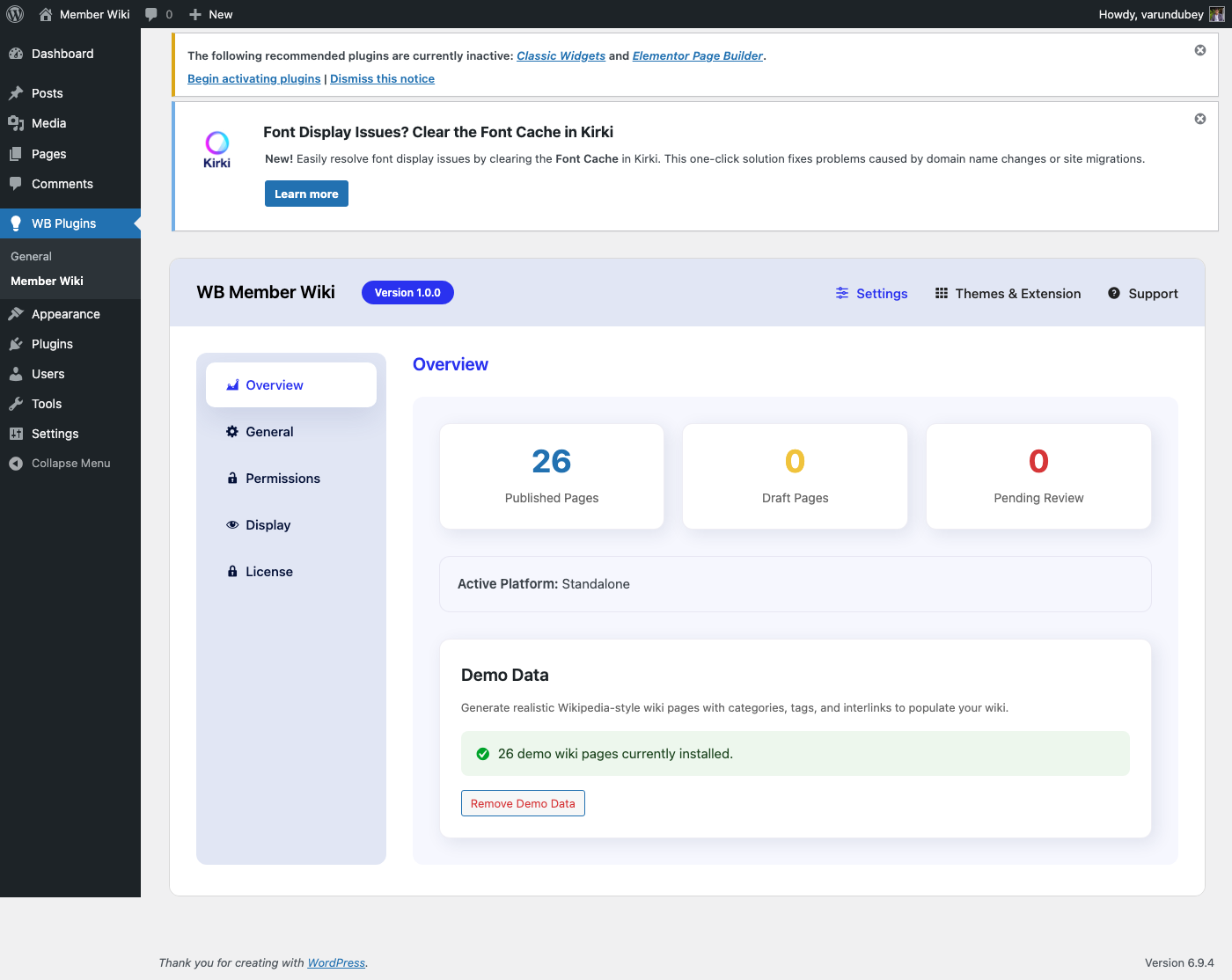
Template Overrides

WB Member Wiki uses a template hierarchy that allows theme developers to customize the wiki's frontend appearance without modifying the plugin directly.

How Template Loading Works

When rendering wiki pages, the plugin checks for templates in this order:

  1. Theme directory: wp-content/themes/{your-theme}/wb-member-wiki/
  2. Plugin directory: wp-content/plugins/wb-member-wiki/templates/

If a matching template exists in your theme, it takes priority over the plugin's built-in template.

Available Templates

Single Wiki Page

File: single-wiki-page.php

Renders an individual wiki page. The template receives the standard WordPress $post object with wiki-specific content that has already been processed through the content filters (wiki links parsed, TOC added).

Override path:

wp-content/themes/{your-theme}/wb-member-wiki/single-wiki-page.php

Wiki Archive

File: archive-wiki-page.php

Renders the wiki page archive listing. Displays all published wiki pages in the standard WordPress archive format.

Override path:

wp-content/themes/{your-theme}/wb-member-wiki/archive-wiki-page.php

Dashboard Templates

The dashboard shortcode uses several templates for different views:

Template Purpose
wiki-list.php Dashboard page listing
wiki-edit.php Create/edit page form
wiki-history.php Revision history view
wiki-diff.php Revision comparison view
wiki-search.php Search results
wiki-contributions.php User contribution list

Override path (example):

wp-content/themes/{your-theme}/wb-member-wiki/wiki-list.php

Creating a Template Override

Step 1: Create the Directory

In your active theme, create a wb-member-wiki directory:

wp-content/themes/{your-theme}/wb-member-wiki/

Step 2: Copy the Template

Copy the template you want to customize from the plugin:

wp-content/plugins/wb-member-wiki/templates/single-wiki-page.php

to:

wp-content/themes/{your-theme}/wb-member-wiki/single-wiki-page.php

Step 3: Customize

Edit the copied template in your theme. Your customizations will be preserved across plugin updates.

Template Variables

Single Page Template

The single wiki page template has access to:

  • $post — The wiki page post object (standard WP_Post)
  • All standard WordPress template tags (the_title(), the_content(), etc.)
  • Wiki-specific content is already processed through filters before template loading

Edit Form Template

The edit template receives:

  • $page_id — The page ID being edited (0 for new pages)
  • Access to wiki settings via WBMW_Helpers::get_settings()
  • Permission checks via wbmw_access()->can_edit()

History Template

  • $page_id — The wiki page ID
  • Revision data via WBMW_Revisions::get_revisions()

CSS Classes

The plugin uses consistent CSS class prefixes for styling:

Page Structure

Class Element
.wbmw-wiki-content Main wiki page content wrapper
.wbmw-wiki-meta Page metadata section
.wbmw-wiki-categories Category badges
.wbmw-wiki-tags Tag badges

Table of Contents

Class Element
.wbmw-toc TOC container
.wbmw-toc-header TOC header with title
.wbmw-toc-toggle Show/hide toggle button
.wbmw-toc-list Navigation list

Wiki Links

Class Element
.wbmw-wiki-link Link to existing wiki page
.wbmw-wiki-link-new Link to non-existent wiki page

Editor

Class Element
.wbmw-editor Editor container
.wbmw-editor-toolbar Editor toolbar
.wbmw-editor-publish Publish button area

Messages

Class Element
.wbmw-login-required Login prompt message
.wbmw-no-permission Permission denied message

Enqueued Assets

The plugin enqueues these assets on wiki pages:

Styles

  • wbmw-public — Main frontend stylesheet (public/css/wbmw-public.css)
  • select2 — Select2 dropdown styles (4.1.0)

Scripts

  • wbmw-public — Main frontend JavaScript (public/js/wbmw-public.js)
  • select2 — Select2 dropdown library (4.1.0)

Localized Script Data

The wbmw_ajax JavaScript object is available on all wiki pages:

wbmw_ajax = {
    url: '/wp-admin/admin-ajax.php',
    nonce: 'security_nonce',
    autosave_interval: 30000,  // milliseconds
    edit_lock_enabled: 'yes',
    i18n: {
        saving: 'Saving...',
        saved: 'Saved',
        error: 'Error saving. Please try again.',
        // ... additional i18n strings
    }
}

Best Practices

  • Copy, don't create from scratch — Always start with the plugin's template and modify it
  • Keep template structure — Maintain the existing HTML structure to ensure JavaScript functionality works
  • Test after plugin updates — When the plugin updates, compare your overrides with the new default templates
  • Use child themes — Place overrides in a child theme to preserve them across parent theme updates
  • Preserve CSS classes — Don't remove .wbmw- prefixed classes that JavaScript depends on for functionality

REST API Reference

WB Member Wiki exposes two REST API endpoints under the wbmw/v1 namespace. These endpoints power the live search autocomplete and image upload features used by the frontend editor.

Namespace

wbmw/v1

Base URL: https://yourdomain.com/wp-json/wbmw/v1/

Authentication

Both endpoints use standard WordPress REST API authentication: cookie-based authentication with the X-WP-Nonce header containing a wp_rest nonce. The JavaScript frontend sends this automatically via the wbmw_ajax localized object.

Members never need to call admin-ajax.php — all frontend interactions use these REST endpoints.


Endpoints

GET /wbmw/v1/search

Returns autocomplete suggestions for the live wiki search field.

Authentication: None required (public endpoint)

Parameters:

Parameter Type Default Description
term string "" Search term. Must be at least 2 characters to return results

Response: JSON array of suggestion objects. Returns an empty array if term is shorter than 2 characters.

Example request:

GET /wp-json/wbmw/v1/search?term=quantum

Example response:

[
  {
    "ID": 42,
    "post_title": "Quantum Computing",
    "permalink": "https://example.com/wiki/quantum-computing/"
  },
  {
    "ID": 87,
    "post_title": "Quantum Mechanics Overview",
    "permalink": "https://example.com/wiki/quantum-mechanics-overview/"
  }
]

The suggestion list is generated by WBMW_Search::suggest(). Results can be customized using the wbmw_search_args filter (see Hooks & Filters).


POST /wbmw/v1/upload-image

Uploads an image file and creates a WordPress media attachment. Used by the wiki editor's image upload button.

Authentication: Required. User must be logged in and have wiki create permission (wbmw_access()->can_create()).

Request format: multipart/form-data with a file field containing the image.

Allowed MIME types: image/jpeg, image/gif, image/png, image/webp

Response on success:

{
  "id": 123,
  "url": "https://example.com/wp-content/uploads/2026/03/image.jpg"
}

Error responses:

HTTP Status Error Code Cause
401 rest_forbidden User is not logged in
403 rest_forbidden User does not have wiki create permission
400 no_file No file was included in the request
500 upload_failed WordPress media upload error

Example using fetch:

const formData = new FormData();
formData.append( 'file', fileInput.files[0] );

fetch( wpApiSettings.root + 'wbmw/v1/upload-image', {
    method: 'POST',
    headers: {
        'X-WP-Nonce': wpApiSettings.nonce,
    },
    body: formData,
} )
.then( res => res.json() )
.then( data => {
    console.log( 'Uploaded:', data.url );
} );

Permissions Detail

Search endpoint

The search endpoint has permission_callback: '__return_true' — it is fully public and requires no authentication. It returns only published wiki pages.

Upload endpoint

The upload endpoint calls wbmw_access()->can_create() which checks:

  1. User must be logged in
  2. User must be an administrator (manage_options), or their role must be in the configured Create roles (WB Plugins > Member Wiki > Permissions > Create Pages)

The endpoint enforces image-only uploads by temporarily replacing the upload_mimes filter to allow only JPEG, GIF, PNG, and WebP.


Route Registration

Routes are registered on the rest_api_init hook by WBMW_REST_API::register_routes(). The class is instantiated by the core WB_Member_Wiki plugin singleton.

To verify routes are registered:

GET /wp-json/

Look for wbmw/v1 in the namespaces array of the index response.

Something unclear? Open a support ticket →

Buy WB Member Wiki