Wbcom Designs SnipShare Docs
← Back to product Buy Now

Getting Started

Installation, requirements, and quick setup for SnipShare

SnipShare Overview

SnipShare turns any WordPress site into a fully-featured code sharing platform — like GitHub Gist or Pastebin, but running inside your own WordPress install, with your community's members, and under your own brand.
Public pastes archive


What Is SnipShare?

SnipShare is a WordPress plugin that lets your site members create, share, and discover code snippets. Each snippet (called a paste) can contain one or more files, supports syntax highlighting for 20+ languages, and comes with version history, starring, tagging, and forking built in.

It works standalone on any WordPress site, and integrates natively with BuddyPress to embed code sharing directly into your community — in activity feeds, member profiles, and notifications.


Who Is It For?

Site Type How SnipShare Helps
Developer communities Members share reusable code, helpers, and snippets with each other
BuddyPress communities Pastes appear in activity feeds, on member profiles, and trigger notifications
Learning platforms Students and instructors share code examples with revision tracking
Team intranets Share internal scripts, configs, and snippets in a private, searchable archive
Solo developers A personal code notebook — organised, versioned, and accessible anywhere

What Can You Do?

As a Site Member

  • Create pastes — one or more files per paste, with per-file syntax highlighting, filename, and language selection
  • Multi-file pastes — like GitHub Gists, group related files under a single URL
  • Set visibility — Public (listed for all), Unlisted (link-only), or Private (owner only)
  • Set expiration — pastes can auto-expire after 1 hour, 1 day, 1 week, or 1 month
  • Password-protect — lock a paste behind a password for sensitive content
  • Burn after read — paste is permanently deleted after the first view
  • Tag pastes — add comma-separated tags; browse all pastes with a given tag at /pastes/tag/{slug}/
  • Fork pastes — clone someone else's paste into your own account to modify it
  • Star pastes — bookmark any public paste to your starred list
  • Edit pastes — every edit is version-tracked with full diff view between any two versions
  • View revision history — see exactly what changed between versions with a side-by-side diff
  • Download pastes — download all files as a ZIP or individually
  • Share raw — direct link to raw plain text at /paste/{hash}/raw/
  • Collections — group pastes into named, public or private collections
Single paste view with action buttons

As a Site Administrator

  • Moderate content — review and act on reported pastes from a dedicated queue
  • Manage all pastes — view, search, and manage every paste from every user
  • Control permissions — fine-grained ability controls via WordPress Abilities API
  • Set rate limits — limit how many pastes a user can create per hour
  • Toggle features — enable or disable expiration, forking, starring, password protection, burn-after-read, and tagging individually
  • Customise appearance — choose syntax highlighting theme, list vs grid layout, and custom CSS
  • BuddyPress integration — paste activity in feeds, Pastes tab on member profiles
  • bbPress integration — oEmbed previews and "Insert Paste" button in forum replies
Admin settings panel


Key Benefits

No Third-Party Dependency

Your code stays on your server. No Pastebin, no Gist — no third-party accounts, no privacy concerns, no link rot.

Built for Communities

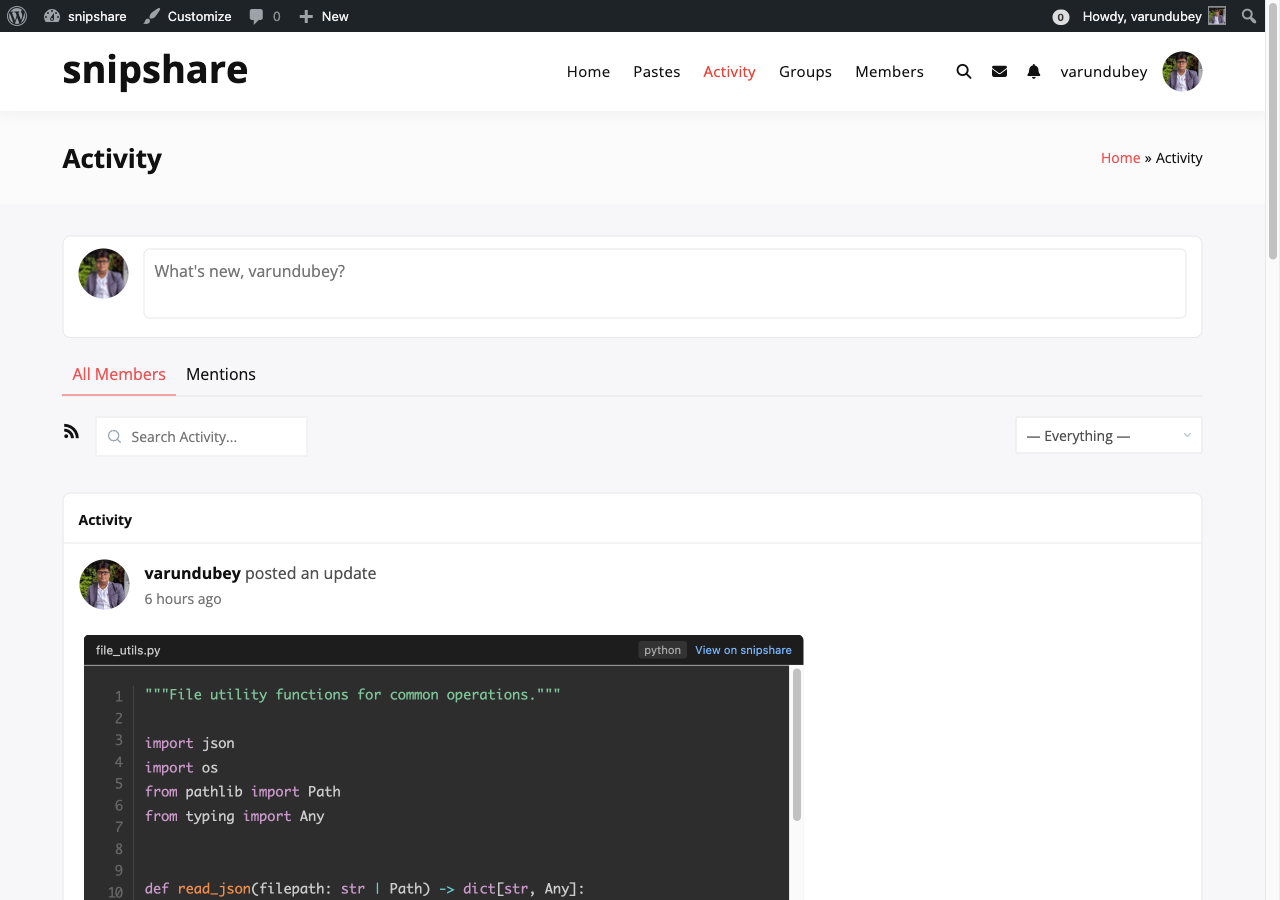
When BuddyPress is active, new public pastes automatically appear in the sitewide activity feed. Members can see each other's pastes, star favourites, and fork useful snippets — code sharing becomes a social activity.

Version History Built In

Every edit to a paste creates a versioned snapshot. The full diff between any two versions is viewable at /paste/{hash}/diff/{v1}...{v2}.
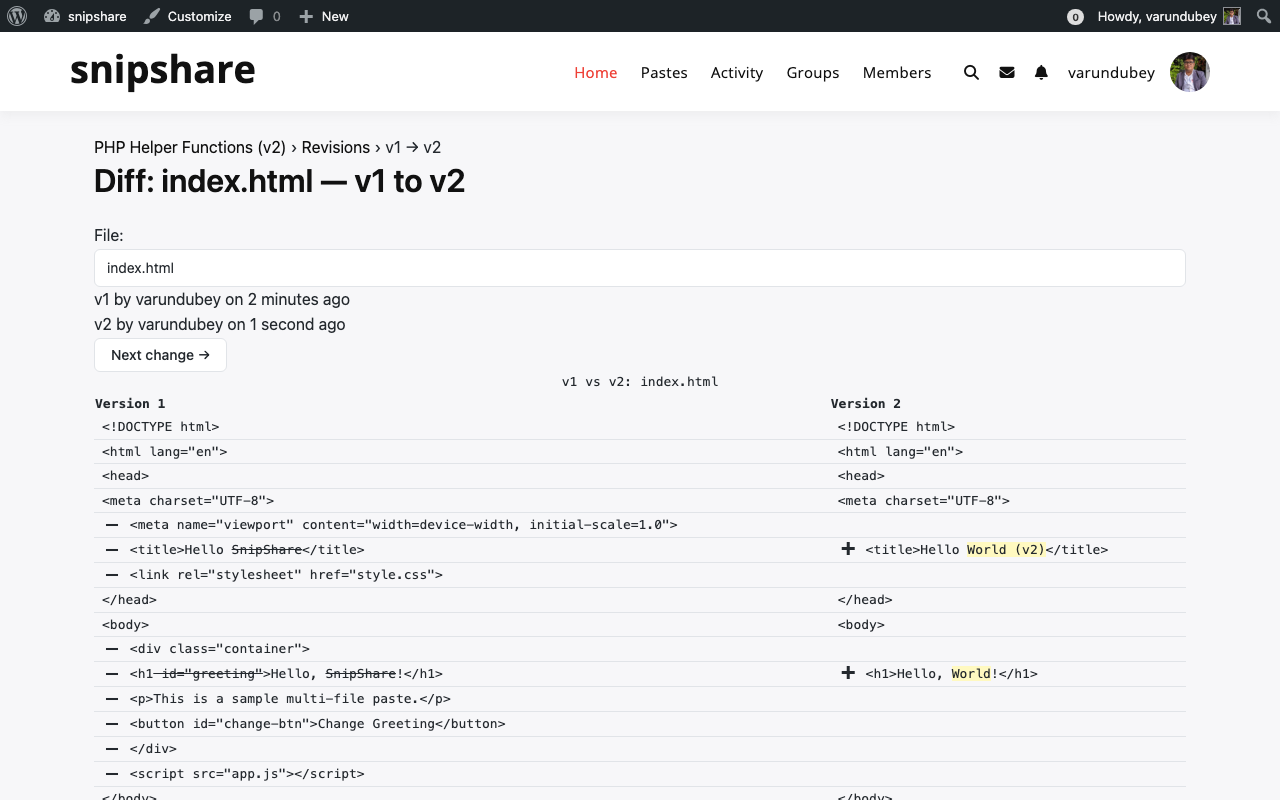
Diff view showing changes between versions

Flexible Privacy Controls

Public, unlisted, private, password-protected, and burn-after-read — five levels of visibility for every use case, from sharing a solution publicly to delivering a one-time secret.

Developer-Friendly

Full REST API, WordPress hooks and filters, oEmbed support, shortcode embedding, and BuddyPress/bbPress integration — all documented in the Developer Guide.


Feature Summary

Feature Details
Multi-file pastes Up to 10 files per paste (configurable)
Syntax highlighting 20+ languages via CodeMirror 6 (editor) and Prism.js (view)
Visibility levels Public, Unlisted, Private
Expiration Never, 1h, 1d, 1w, 1m
Password protection AES-encrypted; oEmbed blocked for locked pastes
Burn after read Single-view self-destruct
Tags Unlimited tags; browse by tag
Stars Per-user bookmarks with public star counts
Collections Named groups of pastes, public or private
Fork Clone any public paste into your account
Revision history Full per-file diff between any two versions
BuddyPress Activity feed, member profile tab, notifications
bbPress oEmbed previews, Insert Paste button
REST API Full CRUD + stars, forks, revisions, collections
oEmbed Embed any public paste in external sites
Shortcode [snipshare] for page-level embedding

Next Steps

Installation

This guide walks you through installing and activating SnipShare on your WordPress site.


Requirements

Before installing, confirm your server meets these minimums:

  • WordPress 6.0 or higher
  • PHP 7.4 or higher
  • MySQL 5.6 / MariaDB 10.1 or higher
  • PHP ZipArchive extension — required only for multi-file ZIP downloads (optional)

Optional integrations require:

  • BuddyPress (any recent version) for community features
  • bbPress (any recent version) for forum integration

Installation Steps

Option 1: Upload via WordPress Admin

  1. Download the snipshare.zip file from your wbcomdesigns.com account.
  2. In your WordPress admin, go to Plugins → Add New → Upload Plugin.
  3. Click Choose File, select snipshare.zip, and click Install Now.
  4. After installation completes, click Activate Plugin.

Option 2: FTP Upload

  1. Extract snipshare.zip to get the snipshare/ folder.
  2. Upload the entire snipshare/ folder to wp-content/plugins/ via FTP.
  3. In your WordPress admin, go to Plugins → Installed Plugins.
  4. Find SnipShare and click Activate.

What Happens on Activation

When SnipShare activates for the first time, it automatically:

  1. Creates 9 custom database tables — pastes, files, paste_meta, tags, paste_tags, revisions, collections, collection_pastes, stars, reports
  2. Creates a WordPress page titled "Pastes" with the [snipshare] page marker, published at /pastes/
  3. Flushes WordPress rewrite rules so all custom URLs work immediately
  4. Sets default settings in snipshare_settings
  5. Creates 5 sample pastes so you can explore the interface right away

Setup Wizard

After activation, SnipShare launches a first-run setup wizard with 4 steps:

Step 1: Welcome

Overview of what SnipShare does. Click Get Started to proceed.

Step 2: Sample Content

Confirm that sample pastes were created. You can choose to keep or skip them.

Step 3: Settings

Configure basic defaults — default visibility, expiration, max paste size, and editor theme. All settings can be changed later in SnipShare → Settings.

Step 4: Complete

Wizard complete. Links to the pastes archive and settings page.


After Setup

Once the wizard completes:

  • Visit /pastes/ to see the browse page with sample pastes
  • Go to SnipShare → Settings to configure all options
  • Go to SnipShare → Moderation if you want to enable content reporting
  • Enter your license key in SnipShare → Settings → License to activate auto-updates

Deactivation & Uninstall

Deactivating the plugin pauses functionality but preserves all data and settings.

Uninstalling (deleting from the Plugins page) removes all 9 database tables and all plugin options. This action is irreversible — export your data first if needed.

Requirements

SnipShare has minimal server requirements and works with any standard WordPress hosting environment.


WordPress & PHP

Requirement Minimum Recommended
WordPress 6.0 Latest stable
PHP 7.4 8.1 or higher
MySQL 5.6 8.0 or higher
MariaDB 10.1 10.6 or higher

PHP Extensions

Required

No non-standard PHP extensions are required for core functionality. All standard WordPress dependencies (PDO, curl, json, mbstring) are sufficient.

Optional

Extension Purpose
ZipArchive Multi-file paste downloads. Without this extension, multi-file pastes cannot be downloaded as ZIP archives. Single-file pastes download normally regardless.

Check whether ZipArchive is available on your server:

var_dump(class_exists('ZipArchive'));
// true = available, false = not available

Most managed WordPress hosts (WP Engine, Kinsta, SiteGround, etc.) have ZipArchive enabled by default.


WordPress Plugins (Optional)

SnipShare is fully functional without any additional plugins. The following are optional enhancements:

Plugin Integration
BuddyPress (any recent version) Activity stream, member profile tab, star/fork notifications
bbPress (any recent version) Auto-embed paste URLs in forum posts, Insert Paste button in reply forms

When BuddyPress or bbPress is active, SnipShare automatically detects them and enables the integration options in Settings → Integrations.


Server & Hosting

  • Permalink structure: SnipShare requires pretty permalinks (any structure other than Plain). Go to Settings → Permalinks and save if you experience 404 errors after activation.
  • allow_url_fopen or cURL: Required for EDD license activation (outbound HTTPS request to wbcomdesigns.com). Available on virtually all hosts.
  • PHP memory_limit: 64MB minimum; 128MB+ recommended for large paste sets.

Browser Support (Frontend)

SnipShare's Interactivity API frontend supports all modern browsers:

  • Chrome 90+
  • Firefox 88+
  • Safari 14+
  • Edge 90+

Internet Explorer is not supported.

Quick Start

After completing the setup wizard, you're ready to start sharing code. This guide covers your first steps.


Browse Existing Pastes

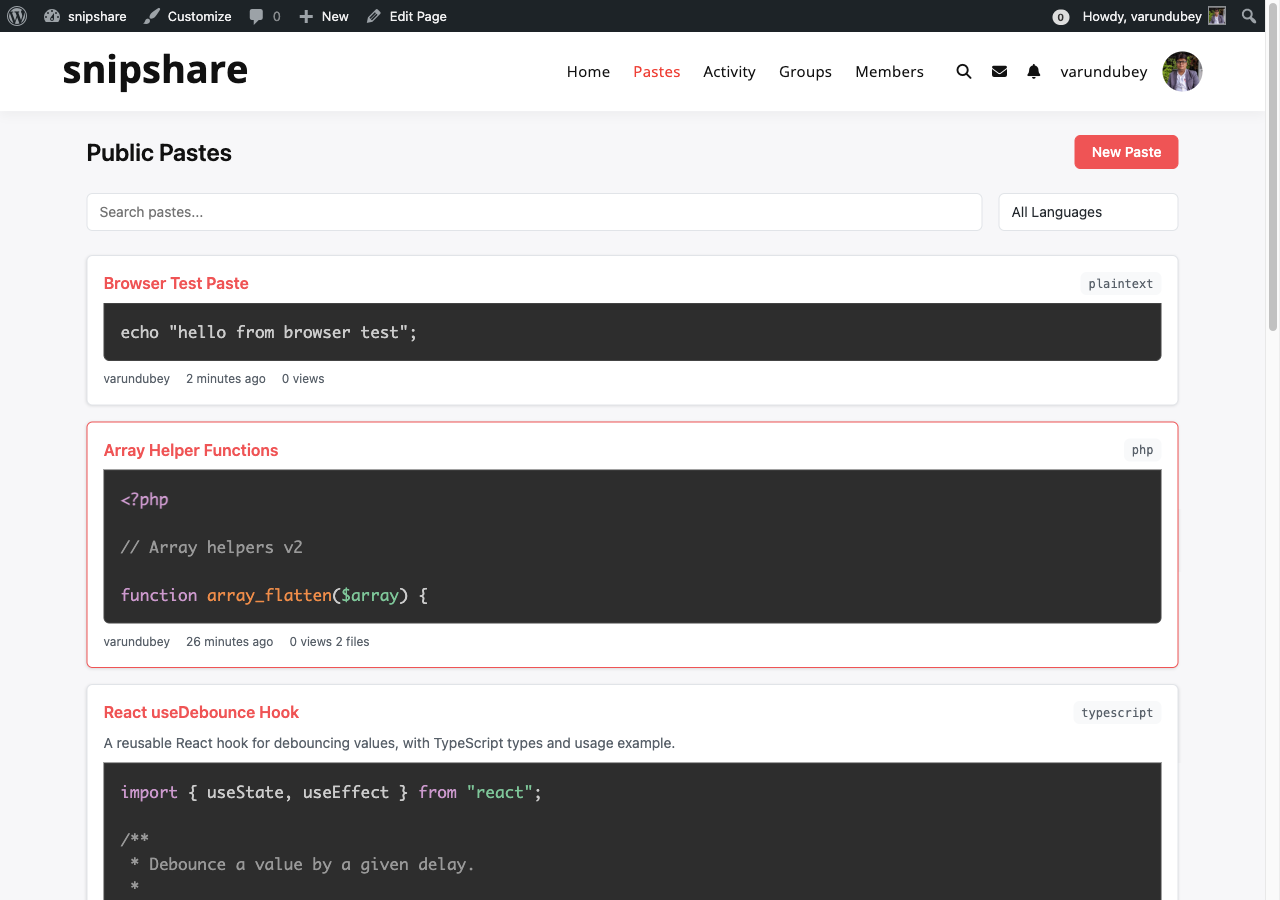
Visit /pastes/ on your site to see the public pastes archive.

Browse all pastes

The archive shows:

  • All public pastes from all users
  • Filter by language, tag, or search term
  • Sort by newest, most viewed, or most starred
  • Toggle between list and grid layout (configurable in Settings → Appearance)

Create Your First Paste

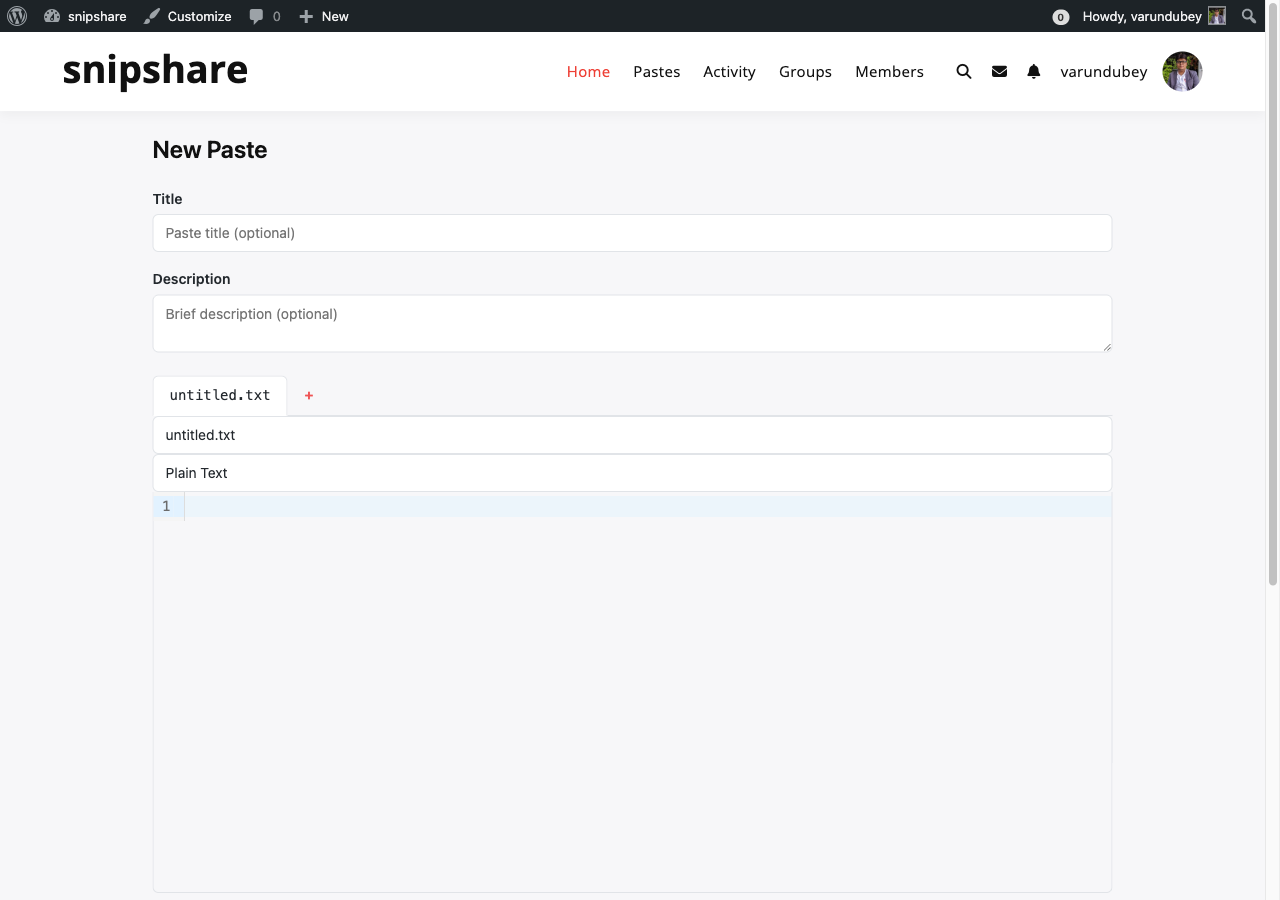
Go to /pastes/create/ or click the New Paste button in the archive header.

Create a new paste

Fill in the paste form:

  1. Title — Give your paste a descriptive name (optional but recommended)
  2. Description — Add context about what the code does
  3. Language — Select from 20+ languages for syntax highlighting. SnipShare auto-detects common file types.
  4. Code — Type or paste your code into the CodeMirror editor
  5. Add files — Click + Add File to create a multi-file paste (like a GitHub Gist)

Set options:

Option Description
Visibility Public (listed), Unlisted (link only), or Private (owner only)
Expiration Never, 1 Hour, 1 Day, 1 Week, or 1 Month
Password Optional password protection
Burn after read Paste deletes itself after the first view
Tags Comma-separated tags for discovery

Click Create Paste to publish.


What Happens Next

After creating a paste, you're taken to the single paste view at /paste/{hash}.

From there you can:

  • Share — copy the URL to share with others
  • Fork — clone the paste into your own account
  • Star — save it to your starred list
  • Download — get the files as a ZIP or individual download
  • Edit — modify the paste (creates a revision)
  • View raw — see plain text at /paste/{hash}/raw/

Next Steps

Frequently Asked Questions


General

What is SnipShare?

SnipShare is a WordPress plugin that adds a full code-sharing platform to your site. Members can create, share, and discover code snippets (called pastes) — similar to GitHub Gist or Pastebin, but hosted entirely on your own WordPress site.


Do I need BuddyPress to use SnipShare?

No. SnipShare works as a standalone plugin on any WordPress site. BuddyPress is optional — when active, it unlocks additional community features: pastes in activity feeds, a Pastes tab on member profiles, and paste-starred notifications.


Can visitors view pastes without logging in?

Yes. Public pastes are visible to everyone, including non-logged-in visitors. Unlisted pastes are visible to anyone with the direct link. Private and password-protected pastes require authentication or the correct password.


Can I disable paste creation for guests?

Yes. Paste creation always requires a logged-in account. Anonymous paste creation is not supported.


Does it work on multisite?

SnipShare is designed for single-site installs. Multisite is not officially tested or supported in v1.0.


Creating Pastes

How many files can a paste have?

Up to 10 by default. You can increase or decrease this limit in SnipShare → Settings → General → Max Files Per Paste (range: 1–50).


What languages are supported for syntax highlighting?

20+ languages including PHP, JavaScript, TypeScript, Python, HTML, CSS, SQL, Bash, JSON, YAML, Markdown, Go, Ruby, Rust, C, C++, Java, Swift, Kotlin, and plaintext. The full list is in the language selector dropdown when creating a paste.


Is there a size limit on pastes?

Yes. The default maximum combined content size is 100 KB per paste. You can adjust this in Settings → General → Max Paste Size. The minimum is 1 KB; there is no maximum enforced by the plugin (server memory limits apply).


What is "Burn After Read"?

When enabled on a paste, the paste is permanently deleted (status set to expired) after the first person views it. This is designed for one-time secrets or temporary code snippets. The paste owner is the first viewer — their own view triggers the deletion.

Requires Burn After Read to be enabled in Settings → General.


What happens when a paste expires?

Expired pastes are no longer accessible via their public URL — visitors see a "paste not found" message. The paste record still exists in the database with status expired and is visible to administrators in the admin pastes list. Expired pastes are not automatically deleted.


Can I create a paste without a title?

Yes. The title is optional. Untitled pastes appear in listings as "Untitled Paste" and are fully functional.


Editing & Versions

Does editing a paste change its URL?

No. The paste URL (its share_hash) never changes regardless of how many times you edit it.


How do revisions work?

Every time you save an edit, SnipShare creates a revision record for each changed file, incrementing the paste version number. You can view the full history at /paste/{hash}/revisions/ and compare any two versions with a side-by-side diff at /paste/{hash}/diff/{v1}...{v2}.

Diff view between versions


Can I revert to a previous version?

Not directly from the UI in v1.0. You can view any historical version and manually copy the content. A one-click revert feature is planned for a future release.


What is the difference between Fork and Edit?

  • Edit — modifies your own paste and creates a revision history
  • Fork — clones someone else's public paste into your own account as a new paste. You own the fork; it has its own URL and revision history. A link to the original is shown on the forked paste.

Sharing & Embedding

Can I embed a paste in another website?

Yes. SnipShare supports oEmbed — paste the URL of any public paste into an oEmbed-enabled site (WordPress, Notion, etc.) and it renders as an inline code viewer. See the oEmbed documentation.


Can I embed a paste on a WordPress page?

Yes. Use the [snipshare id="{hash}"] shortcode or paste the URL directly into the block editor — it resolves via oEmbed automatically. See the Shortcode Reference.


Is there a raw text view?

Yes. Every paste has a raw text URL:

  • All files: /paste/{hash}/raw/
  • Single file: /paste/{hash}/raw/{filename}

Raw URLs return plain text with no HTML — useful for curl, scripts, or direct download.


Can I download paste files?

Yes. Click Download on any paste to download a ZIP of all files, or download individual files from the raw URL. Multi-file ZIPs require the PHP ZipArchive extension on your server.


Administration

How do I limit who can create pastes?

By default, all logged-in users (subscribers and above) can create pastes. You can restrict this by adjusting the snipshare_create_paste ability via the WordPress Abilities API, or by implementing a PHP filter. See Permissions Settings and Hooks & Filters.


How does content reporting work?

Any logged-in user can report a paste using the Report button on the single paste view. Reports include a reason (spam, inappropriate, malicious, copyright, other) and optional details. Admins review reports in SnipShare → Moderation.


Can I bulk-delete pastes?

Yes. In SnipShare → All Pastes, use the checkboxes and the Bulk Actions → Trash dropdown to move multiple pastes to trash at once.


Will uninstalling delete all data?

Yes. Deleting the plugin from Plugins → Delete drops all 9 custom database tables and removes all plugin options. This is irreversible — export your data before uninstalling if needed. Deactivating (without deleting) preserves all data.


BuddyPress Integration

What does the BuddyPress integration add?

Three features (each individually toggleable in Settings → Integrations):

  1. Activity Stream — new public pastes are automatically posted to the sitewide BuddyPress activity feed
  2. Member Profile Tab — a "Pastes" tab on every member's profile showing their pastes and starred pastes
  3. Notifications — paste owners receive a BP notification when someone stars their paste

BuddyPress activity feed with paste


Do pastes show in group activity feeds?

No. In v1.0, paste activity is posted to the sitewide stream and the member's profile activity tab only, not to specific group feeds.


License & Updates

Where do I get my license key?

Log in to your account at wbcomdesigns.com, go to My Account → Purchases, find your SnipShare order, and copy the license key. Enter it in SnipShare → Settings → License and click Activate.


What happens if I don't activate my license?

The plugin works fully without an active license. The license key is only required for automatic updates delivered via the WordPress dashboard. Without it, you can still update manually by downloading the latest version from wbcomdesigns.com.


Can I use SnipShare on multiple sites?

That depends on your license type. Check your purchase details at wbcomdesigns.com for the number of site activations included.

Settings

Configure SnipShare via the admin settings panel

General Settings

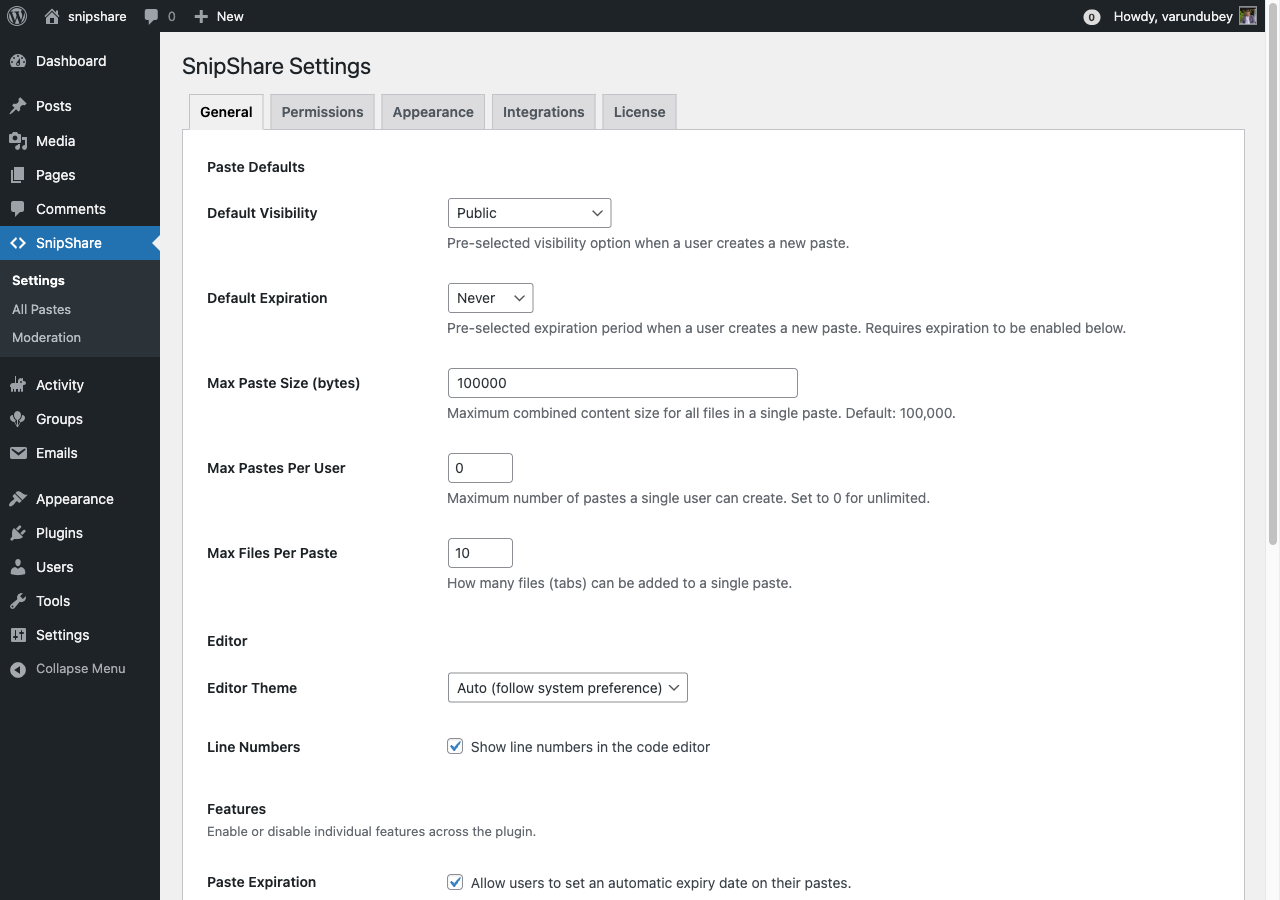
The General tab controls paste defaults, the code editor experience, and feature availability across the plugin.

Navigate to SnipShare → Settings → General to access these options.

SnipShare General Settings


Paste Defaults

These settings pre-populate the create paste form for all users. Users can override them per paste.

Default Visibility

Controls which visibility option is pre-selected on the create form.

Value Description
Public Paste appears in the archive and is browsable by anyone
Unlisted Only accessible via direct link; does not appear in archives
Private Only the paste owner can view it

Setting key: default_visibility — Default: public

Default Expiration

Pre-selects an expiration period on the create form. Requires Paste Expiration to be enabled in Feature Toggles.

Value Description
Never Paste does not expire
1 Hour Expires 1 hour after creation
1 Day Expires 24 hours after creation
1 Week Expires 7 days after creation
1 Month Expires 30 days after creation

Setting key: default_expiration — Default: never

Max Paste Size (bytes)

Maximum combined content size for all files in a single paste. Set in bytes (minimum 1,000; step 1,000).

Setting key: max_paste_size — Default: 100000 (100 KB)

Max Pastes Per User

Maximum number of pastes a single user can create. Set to 0 for unlimited.

Setting key: max_pastes_per_user — Default: 0 (unlimited)

Max Files Per Paste

Maximum number of file tabs allowed in a single paste. Range: 1–50.

Setting key: max_files_per_paste — Default: 10


Editor

Editor Theme

Controls the CodeMirror editor color scheme on the create/edit paste form.

Value Description
Light Always use light theme
Dark Always use dark theme
Auto Follow the user's system preference (prefers-color-scheme)

Setting key: editor_theme — Default: auto

Line Numbers

When checked, line numbers appear in the left gutter of the CodeMirror editor.

Setting key: line_numbers — Default: true


Features

Individual feature toggles let you enable or disable specific functionality across the plugin. All features are enabled by default.

Feature Setting Key Description
Paste Expiration enable_expiration Allow users to set an automatic expiry date. When disabled, the expiration field is hidden on the create form.
Paste Forking enable_forking Allow users to clone any public paste. When disabled, the Fork button is hidden.
Collections enable_collections Allow users to organise pastes into named collections.
Stars / Favourites enable_stars Allow users to star pastes to save them for later.
Burn After Read enable_burn Allow users to create pastes that auto-delete after the first view.
Password Protection enable_password Allow users to password-protect their pastes.
Tags enable_tags Allow users to add searchable tags.
Content Reporting enable_reporting Allow logged-in users to flag pastes for moderation review.

Disabling a feature hides its UI but does not remove existing data. Re-enabling restores the UI and existing data is still accessible.

Permissions Settings

The Permissions tab controls how many pastes users can create per hour, and shows the WordPress Abilities registered by SnipShare.

Navigate to SnipShare → Settings → Permissions.

Permissions Settings


Rate Limiting

Paste Rate Limit

Maximum number of new pastes a single user can create within a rolling 60-minute window. Applies to all non-administrator users.

  • Default: 20 pastes per hour
  • Range: 1–1000

When a user hits the rate limit, the REST API returns a 429 Too Many Requests response and the create form shows an error message.

Rate limiting uses WordPress transients stored per-user. Administrators bypass the rate limit entirely.


Registered Abilities

SnipShare registers 5 abilities with the WordPress Abilities API under the snipshare category. These control what logged-in users can do.

Ability Slug Label Description Default Role Requirement
snipshare/create-paste Create Pastes Submit new pastes to the platform subscriber (all logged-in users)
snipshare/fork-paste Fork Pastes Clone another user's public paste subscriber (all logged-in users)
snipshare/manage-paste Manage Own Pastes Edit and delete own pastes subscriber (all logged-in users)
snipshare/moderate Moderate Pastes Review reports, trash any paste editor and above
snipshare/create-collection Create Collections Create and manage snippet collections contributor and above

Default Role Mappings

Ability subscriber contributor author editor administrator
create-paste
fork-paste
manage-paste
moderate
create-collection

Customising Ability Assignments

Role-to-ability mappings can be adjusted via the WordPress Abilities API UI (if your WordPress version includes it): navigate to the Abilities management screen and adjust which roles hold each snipshare/* ability.

Developers can also override ability assignments via PHP — see Hooks & Filters in the Developer Guide.


Notes

  • Guest (non-logged-in) users cannot create, edit, delete, fork, or star pastes regardless of ability settings.
  • Paste visibility (public/unlisted/private) is enforced separately from ability checks.
  • The snipshare/moderate ability grants the user access to the Moderation admin page and the ability to trash any paste regardless of ownership.

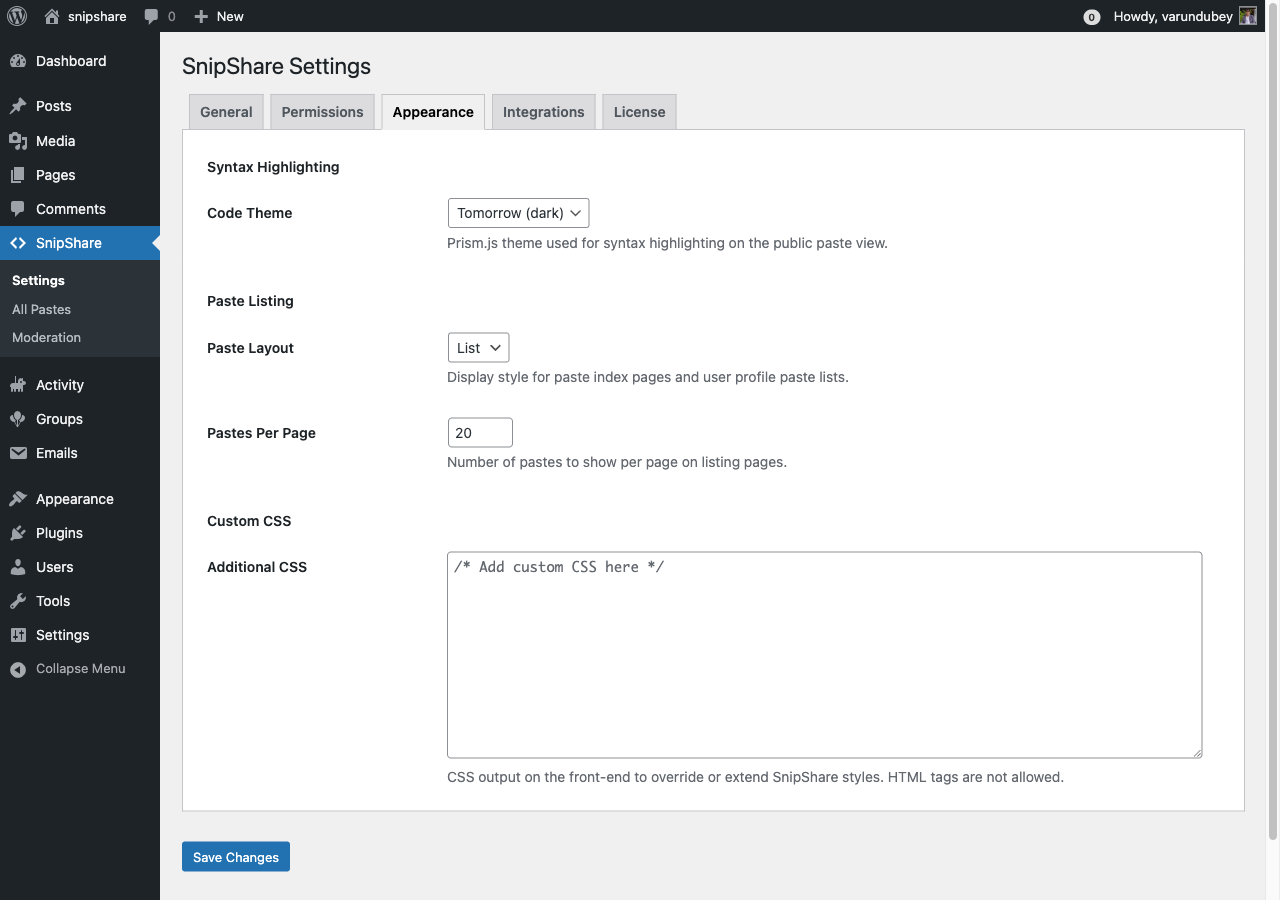
Appearance Settings

The Appearance tab controls how pastes are displayed to visitors — syntax highlighting theme, listing layout, pagination, and custom CSS.

Navigate to SnipShare → Settings → Appearance.

Appearance Settings


Syntax Highlighting

Code Theme

Selects the Prism.js theme used for syntax highlighting on all public paste view pages.

Theme Value Name Style
tomorrow Tomorrow Dark background, high contrast — default
okaidia Okaidia Dark, warm tones
twilight Twilight Dark, muted blue
dark Dark Dark, minimal
coy Coy Light, subtle shadows
solarizedlight Solarized Light Light, earthy tones

Setting key: prism_theme — Default: tomorrow

The selected theme applies globally to all paste view pages. Individual users cannot override it.


Paste Listing

Paste Layout

Controls the display style for paste index pages (archive, user profile, collection view).

Value Description
List Single-column list with title, language badge, meta, and a code preview snippet
Grid Multi-column card grid — useful for sites with shorter pastes

Setting key: paste_layout — Default: list

Pastes Per Page

Number of pastes to show per page on listing pages. Applies to:

  • /pastes/ archive
  • /pastes/tag/{slug}/ tag archive
  • /pastes/user/{username}/ profile pages
  • /pastes/collection/{user}/{slug}/ collection views

Setting key: pastes_per_page — Default: 20 — Range: 1–100


Custom CSS

Additional CSS

A free-form CSS textarea. Content is output inside a <style> tag on the front end — it applies to all SnipShare pages.

Use this for minor overrides without creating a child theme:

/* Example: widen the paste container */
.snipshare-wrap {
    max-width: 1200px;
}

/* Example: change the archive background */
.snipshare-archive {
    background: #f9f9f9;
}

Setting key: custom_css — Default: empty

HTML tags are stripped from this field for security. Only valid CSS is safe to enter here.

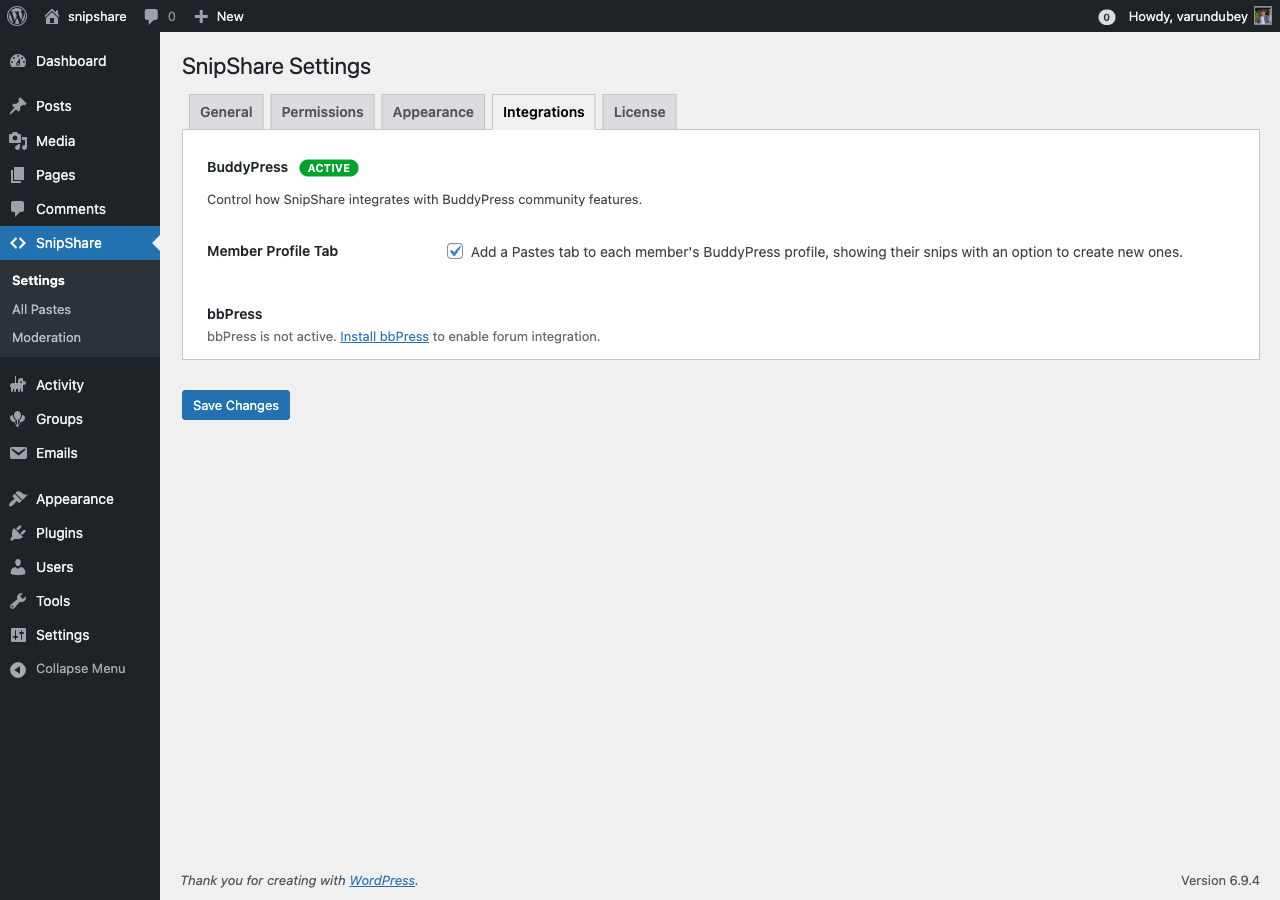
Integrations Settings

The Integrations tab controls how SnipShare connects with BuddyPress and bbPress. Options only appear when the respective plugin is active.

Navigate to SnipShare → Settings → Integrations.

Integrations Settings


BuddyPress

Requires BuddyPress to be installed and active. If BuddyPress is not detected, this section shows an installation prompt.

Member Profile Tab

When enabled, adds a Pastes navigation item to each member's BuddyPress profile at position 80.

The tab includes two sub-items:

  • My Pastes — shows the member's pastes (all statuses to the owner, public only to visitors)
  • Starred — shows pastes the member has starred

Setting key: bp_profile — Default: enabled

Activity Stream

When enabled, records a BuddyPress activity entry whenever a user creates a public paste.

Activity details:

  • Component: snipshare
  • Action type: new_paste
  • Content: Paste description (trimmed to 30 words)
  • Only public pastes are recorded — unlisted and private pastes are never posted to the activity stream
  • Guest pastes (user_id = 0) are skipped

Setting key: bp_activity — Default: enabled

Notifications

When enabled, sends a BuddyPress notification to a paste owner when:

  • Another user stars their paste (paste_starred action)
  • Another user forks their paste (paste_forked action)

Self-actions are never notified — starring or forking your own paste does not trigger a notification.

Setting key: bp_notifications — Default: enabled


bbPress

Requires bbPress to be installed and active. If bbPress is not detected, this section shows an installation prompt.

Paste Embeds

When enabled, paste URLs posted in bbPress topics and replies are automatically converted to inline code previews using the SnipShare oEmbed provider.

Paste a URL like https://yoursite.com/paste/abc123 into a topic — it renders as an embedded code viewer instead of a plain link.

Setting key: bbpress_embed — Default: enabled

Reply Toolbar Button

When enabled, an Insert Paste button appears above the submit area of bbPress reply and topic forms.

The button opens a dropdown that shows:

  1. The logged-in user's 10 most recent pastes (click to insert)
  2. A manual hash input field (type any hash and click Insert)
  3. A "Create new paste" link (opens in a new tab)

Clicking a paste inserts [snipshare hash="..."] at the cursor position in the bbPress textarea.

Setting key: bbpress_button — Default: enabled

Only visible to logged-in users.


No Integrations Available

If neither BuddyPress nor bbPress is active, the Integrations tab shows:

No integrations available. Install and activate BuddyPress or bbPress to unlock integration options.

SnipShare works fully without any integrations — these are opt-in enhancements.

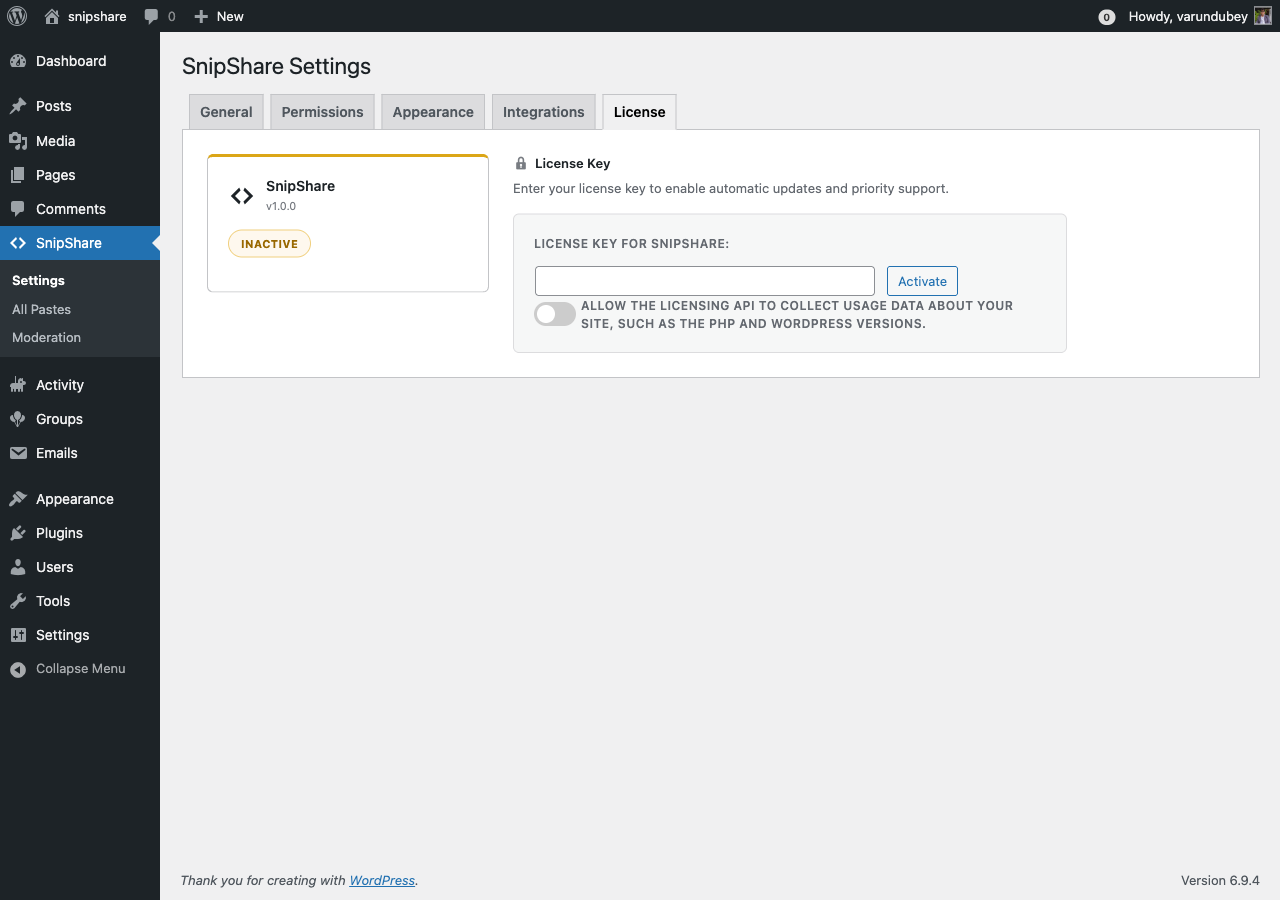
License

SnipShare uses EDD Software Licensing for license key management and automatic updates from wbcomdesigns.com.

Navigate to SnipShare → Settings → License.

License Settings


Entering Your License Key

  1. Log in to your account at wbcomdesigns.com.
  2. Go to My Account → Purchases and find your SnipShare order.
  3. Copy the license key.
  4. In your WordPress admin, go to SnipShare → Settings → License.
  5. Paste the key into the License Key field.
  6. Click Activate License.

SnipShare sends the key to wbcomdesigns.com for validation. An active internet connection is required.


License Statuses

Status Meaning
Active License is valid and this site is activated. Automatic updates are enabled.
Inactive Key entered but not yet activated on this site. Click Activate License.
Expired License period has ended. Renew at wbcomdesigns.com to restore updates.
Disabled License has been disabled. Contact support.
Revoked License was revoked (e.g., refund). Contact support.

Activating on Multiple Sites

Each license key can be activated on a limited number of sites depending on your purchase. If you need to move SnipShare to a different site:

  1. On the old site, go to SnipShare → Settings → License and click Deactivate License.
  2. On the new site, enter the same key and click Activate License.

Automatic Updates

With an active license:

  • WordPress shows SnipShare updates in Plugins → Installed Plugins like any plugin from the WordPress.org directory.
  • Updates include security patches, bug fixes, and new features.
  • Updates do not change your data or settings.

Without an active license, automatic updates are disabled. You can still manually download and install updates from your wbcomdesigns.com account.


Deactivating Your License

Click Deactivate License to remove this site from your license activation. This frees up an activation slot for another site. The plugin continues to work after deactivation — you just won't receive automatic updates.

User Guide

How to use SnipShare as a site member

Creating Pastes

Pastes are the core of SnipShare. A paste is a named, versioned collection of one or more code files — similar to GitHub Gist.


Getting to the Create Form

Three ways to reach the create page:

  • Navigate to /pastes/create/ directly
  • Click + New Paste on the pastes archive page
  • Click + Add Snip on your BuddyPress profile (when integration is enabled)

You must be logged in to create a paste.

Create paste form


Filling in the Form

Title

A descriptive name for your paste. Optional but strongly recommended — it's what appears in the archive and search results. Maximum 255 characters.

Description

A brief explanation of what the code does or why it exists. Shown below the title in listings. Optional.

Files (Code Editor)

Each paste has at least one file tab. The file tab shows:

  • Filename — e.g., index.php, styles.css. Used for the download filename and raw URL.
  • Language — Select from 20+ options for syntax highlighting. Common choices: PHP, JavaScript, TypeScript, Python, CSS, HTML, SQL, Bash, JSON, YAML, Markdown, plaintext.
  • Content — The CodeMirror 6 editor. Supports:
    • Syntax highlighting per selected language
    • Line numbers (if enabled in Settings)
    • Light/dark/auto theme (per Settings)
    • Standard keyboard shortcuts (Tab for indent, Ctrl+Z for undo)

Adding More Files

Click + Add File to add another file tab (up to the limit set in Settings → General). Each file has its own filename, language selector, and editor. Multi-file pastes are like GitHub Gists — all files are part of the same paste and share the same URL.

To remove a file tab, click the × on the tab. The paste must always have at least one file.


Paste Options

Visibility

Option Who can see it
Public Everyone; appears in the archive and tag listings
Unlisted Only people with the direct link; does not appear in any listing
Private Only the paste owner

Expiration

Set an automatic expiry time. After expiration, the paste's status changes to expired and it is no longer accessible.

Options: Never, 1 Hour, 1 Day, 1 Week, 1 Month

Requires Paste Expiration to be enabled in Settings → General.

Password Protection

Enter a password to lock the paste. Visitors must enter the correct password to view the content. Password-protected pastes are not exposed via oEmbed.

Requires Password Protection to be enabled in Settings → General.

Burn After Read

When checked, the paste is permanently deleted (status set to expired) after the first person views it. Use for one-time secrets or temporary code snippets.

Requires Burn After Read to be enabled in Settings → General.

Tags

Comma-separated tags. Tags are used for categorisation and discovery — e.g., /pastes/tag/php/. New tags are created automatically. Existing tags have their count incremented.

Requires Tags to be enabled in Settings → General.


After Creating

After submitting, you're taken to the single paste view.

Single paste view

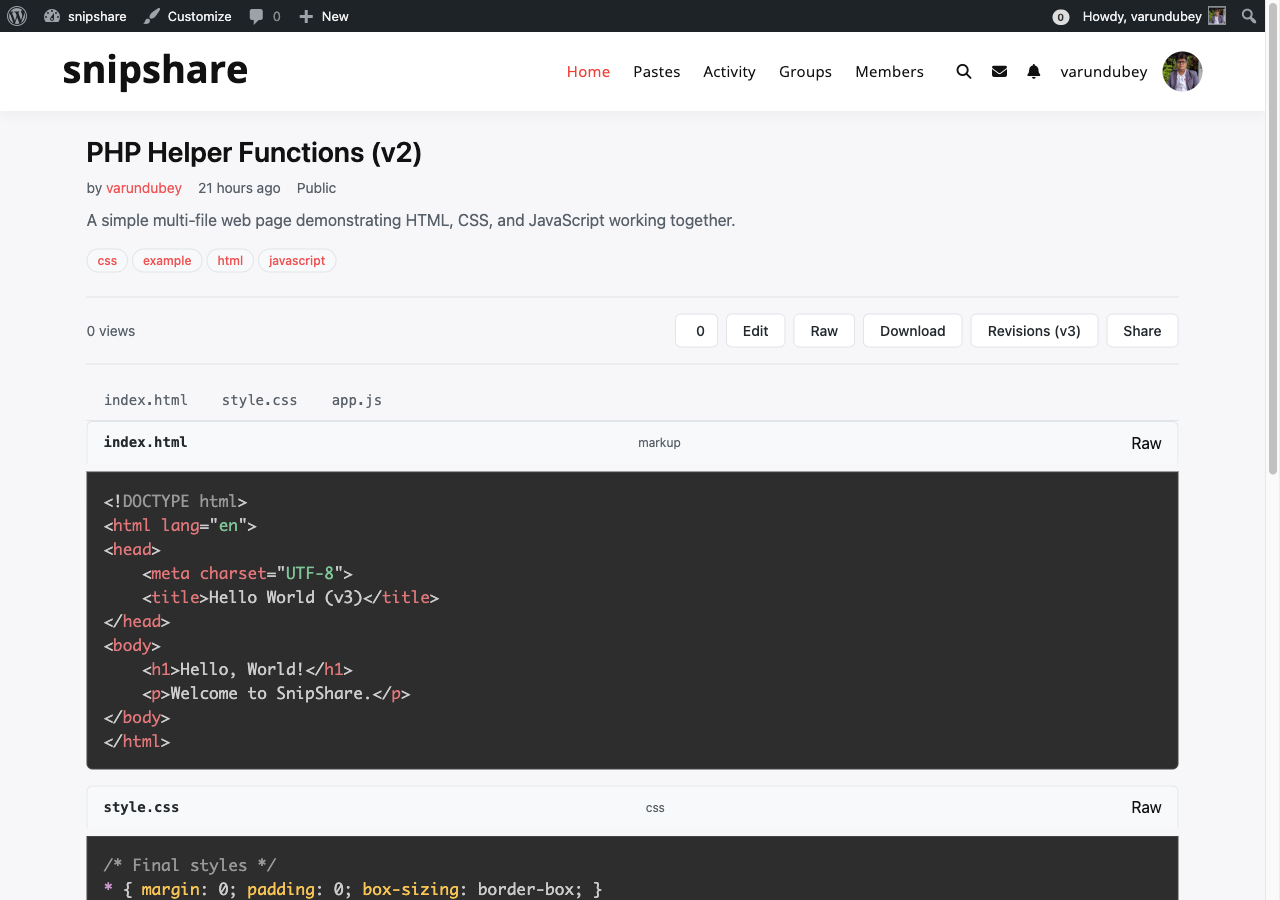
From here you can:

  • Copy the URL to share
  • View raw at /paste/{hash}/raw/
  • Download the files at /paste/{hash}/download/
  • Fork — clone into your own account
  • Star — save to your starred list
  • Edit — opens the edit form, creates revisions
  • Report — flag for moderation (if content reporting is enabled)

Limits

Limit Default Where to change
Max paste size 100 KB total Settings → General
Max files per paste 10 Settings → General
Max pastes per user Unlimited Settings → General
Rate limit 20 per hour Settings → Permissions

Managing Pastes

Once a paste is created, you can edit it, fork it, download it, view it as raw text, or delete it.


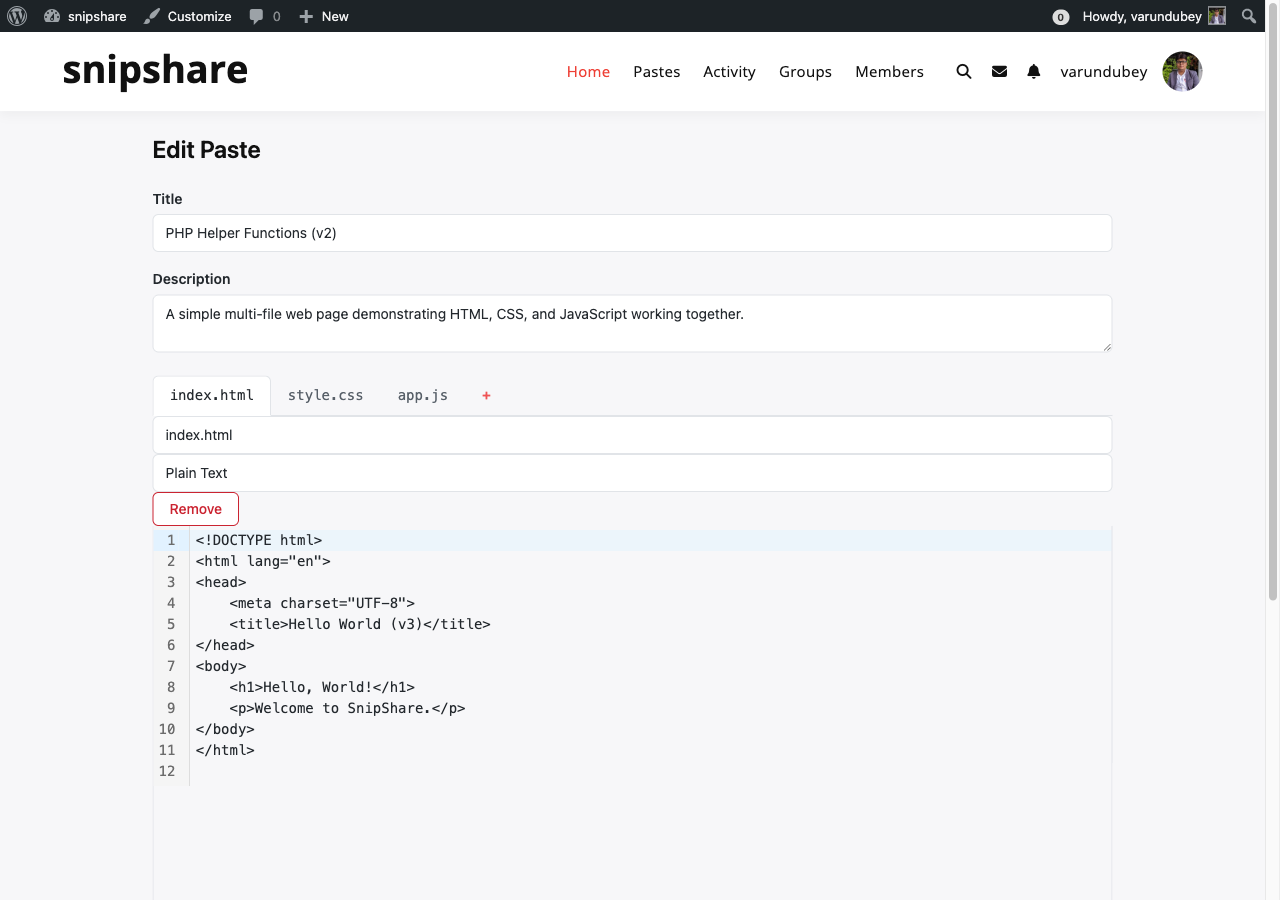
Editing a Paste

Only the paste owner (and moderators) can edit a paste.

To edit: Navigate to the paste page and click Edit, or go directly to /paste/{hash}/edit/.

Edit paste form

The edit form is identical to the create form. Changes you make:

  • Update the paste title, description, visibility, expiration, or tags
  • Edit file content or filename — every file you change generates a new revision (previous version is preserved in revision history)
  • Add new files — new file tabs can be added up to the max files limit
  • Remove files — file tabs can be deleted (at least one must remain)

After saving, the paste version number increments. Changed files get a new entry in the revisions table. Unchanged files are not affected.

An optional Change Note field (up to 500 characters) lets you describe what changed — this note appears in the revision history.


Viewing Revisions

Every time a paste is edited, per-file revision records are created. View the full history at:

/paste/{hash}/revisions/

The revision history shows each version with timestamp, author, and change note.

To compare two versions:

/paste/{hash}/diff/1...2

Replace 1 and 2 with the version numbers to compare. See Revision History for more.


Forking a Paste

Forking clones a paste (all its files) into your own account. The fork is a new, independent paste — changes to the fork don't affect the original.

To fork: Click the Fork button on any public paste page.

The forked paste:

  • Has parent_id set to the original paste's ID
  • Increments the original paste's fork_count
  • Fires a BuddyPress notification to the original paste owner (if notifications enabled)
  • Belongs to you — you can edit, delete, and manage it independently

Requires Paste Forking to be enabled in Settings → General, and the snipshare/fork-paste ability.


Downloading a Paste

Download buttons are available on the paste view page.

Paste type Download format
Single-file paste Original file with its natural filename
Multi-file paste ZIP archive named after the paste title

Direct download URLs:

/paste/{hash}/download/

Multi-file ZIP downloads require the PHP ZipArchive extension. See Requirements for details.


Raw View

View the raw, unformatted text content of a paste at:

/paste/{hash}/raw/

For multi-file pastes, files are concatenated with // filename.ext separators.

To view a specific file only:

/paste/{hash}/raw/{filename}

Raw URLs respect access control — password-protected and private pastes return 403 for unauthorized visitors.


Deleting a Paste

To delete: Click the Delete button on your paste. This moves the paste to the trash (status = trashed). Trashed pastes are no longer accessible at their URL.

Administrators can view and permanently delete trashed pastes from SnipShare → All Pastes in the admin.

Moderators (users with the snipshare/moderate ability) can trash any paste regardless of ownership.


Password-Protected Pastes

When visiting a password-protected paste, you see a password prompt. Enter the correct password to unlock the paste for your session.

  • The unlock is session-scoped — navigating away and returning requires re-entry
  • The shortcode [snipshare hash="..."] shows a locked placeholder for unverified sessions
  • oEmbed does not expose password-protected paste content

Collections

Collections let you organise pastes into named groups — like playlists or bookmarks for code. A collection can be public (shareable) or private (visible only to you).

Requires Collections to be enabled in Settings → General, and the snipshare/create-collection ability (contributor and above by default).


What Are Collections?

A collection is a curated list of pastes with a name, optional description, and a unique URL. You might create a collection called "PHP Utilities" to group all your helper functions, or "Interview Prep" to collect useful algorithm examples.

Collections belong to individual users and are accessible at a predictable URL:

/pastes/collection/{username}/{slug}/

For example: /pastes/collection/jane/php-utilities/

Each collection slug is scoped to its owner — two different users can each have a collection with the same slug without conflict.


Browsing a Collection

Public collections can be viewed by anyone with the link:

/pastes/collection/{username}/{slug}/

Collection view

The collection page shows:

  • Collection name and description
  • Number of pastes in the collection
  • List or grid of all pastes
  • Pagination (uses the Pastes Per Page setting)

Private collections are only visible to the collection owner.


Creating and Managing Collections

Note: Creating, editing, and managing collections is currently done via the REST API. There is no built-in UI for these actions yet.

If you'd like your members to be able to create and manage collections through the browser, ask your site developer to build a UI using the SnipShare REST API. See the REST API documentation for details.


Notes

  • Slugs are unique per user — you and another user can each have a collection with the same slug
  • A user can have unlimited collections
  • The paste count on each collection updates automatically when pastes are added or removed
  • Deleting a collection does not delete the pastes it contains

Stars and Tags

SnipShare provides two lightweight ways to organise and discover pastes: stars for bookmarking and tags for categorisation.


Stars

Stars are a personal bookmarking system. Star any public paste to save it to your starred list for easy retrieval later.

Requires Stars / Favourites to be enabled in Settings → General.

Starring a Paste

Single paste view showing Star and Fork buttons

On any public paste page, click the ⭐ Star button. The button toggles:

  • Star — adds to your starred list, increments the paste's star_count
  • Unstar — removes from your starred list, decrements star_count

The star count is visible on paste cards in listings and on the single paste view.

Viewing Starred Pastes

Your starred pastes appear on your user profile under the Starred tab:

/pastes/user/{username}/

Switch to the Starred tab to see all pastes you've starred.

BuddyPress Notification

When you star someone else's paste, SnipShare sends a BuddyPress notification to the paste owner:

{Your Name} starred your paste "{Paste Title}"

This requires BuddyPress and the bp_notifications setting to be enabled. You never receive a notification for starring your own paste.


Tags

Tags are site-wide labels for categorising pastes by technology, topic, or purpose. Tags are shared across all users.

Requires Tags to be enabled in Settings → General.

Adding Tags to a Paste

On the create or edit form, type tags in the Tags field as a comma-separated list:

php, wordpress, utilities, helper-functions

Tags are normalised to lowercase URL-safe slugs. New tags are created automatically; existing tags have their usage count incremented.

Browsing by Tag

All pastes tagged with a specific tag are accessible at:

/pastes/tag/{slug}/

For example: /pastes/tag/php/ shows all public pastes tagged with "php".

The tag archive supports the same filters and sorting as the main archive, and uses the same list/grid layout.

Notes

  • Tags have a UNIQUE constraint on their slug — the same tag is reused across all pastes
  • Removing all pastes from a tag does not automatically delete the tag record
  • Tag slugs are URL-safe: spaces become hyphens, special characters are stripped
  • There is no maximum number of tags per paste (subject to the platform's data limits)

Revision History

Every time a paste is edited, SnipShare saves a revision for each file that changed. Revisions let you see the full history of a paste and compare any two versions side-by-side.


How Revisions Work

When you save an edit:

  • Only files that changed get a new revision record — unchanged files are not duplicated
  • The paste's version counter increments
  • The new revision stores the full file content, filename, language, version number, change author, and an optional change note
  • The paste retains its original share_hash — the URL never changes

Viewing Revision History

Navigate to the revision list at:

/paste/{hash}/revisions/

This page shows a list of all revisions for the paste. Each entry displays:

  • Version number
  • Which file was revised
  • Author and timestamp
  • Change note (if provided)

Comparing Two Versions

View a diff between any two versions:

/paste/{hash}/diff/{v1}...{v2}

Example: /paste/abc123/diff/1...3 compares version 1 with version 3.

Paste diff view

The diff view shows:

  • Added lines in green
  • Removed lines in red
  • Unchanged context lines

Writing a Change Note

When editing a paste, you can optionally fill in a Change Note field (maximum 500 characters). This note is stored with the revision and appears in the revision history list.

Good change notes make it easy for you and collaborators to understand what changed and why:

Fixed null pointer in the helper function when $user is empty

Access Control

  • Owner can always view revisions and diffs for their own paste
  • Visitors can view revisions and diffs for public and unlisted pastes
  • Private paste revisions are only visible to the owner
  • Password-protected pastes require unlock before viewing revision history

Notes

  • Revisions are per-file — the same version number may correspond to different files within the same edit
  • Revisions are stored indefinitely and are not pruned automatically
  • Forking a paste does not carry over the revision history — the fork starts at version 1

User Profile

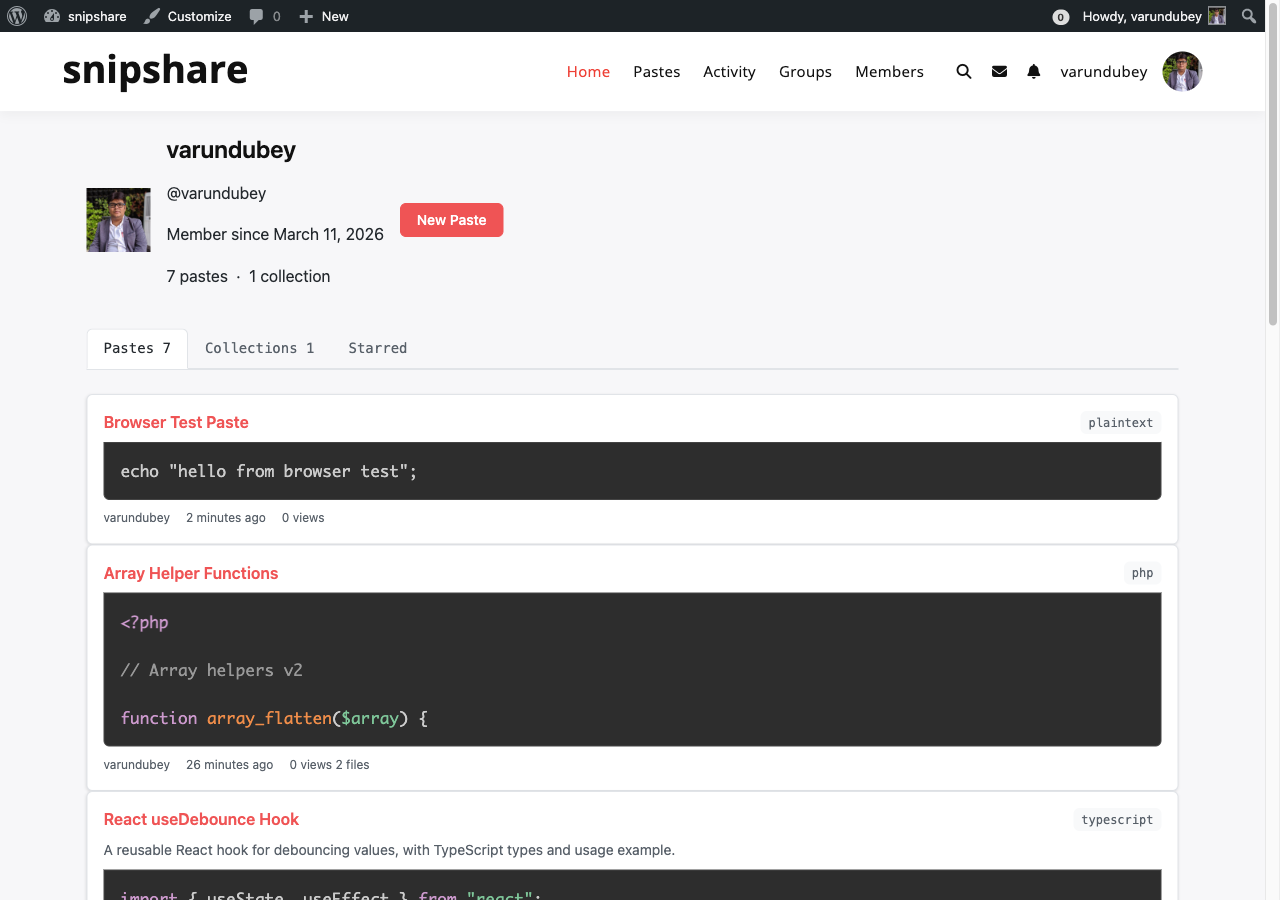
Each registered user has a profile page that lists their pastes, collections, and starred pastes.


Profile URL

/pastes/user/{username}/

Replace {username} with the user's WordPress login name.

Example: /pastes/user/admin/

User profile page


What's on the Profile Page

The profile shows three tabs:

Pastes Tab (default)

Lists pastes created by this user.

If you are viewing your own profile:

  • All pastes are visible — public, unlisted, and private
  • Expired and trashed pastes are hidden (active status only)
  • A + Add Snip button links to the create form

If you are viewing another user's profile:

  • Only public pastes are visible
  • Unlisted and private pastes are hidden

Collections Tab

Lists collections created by this user.

If you are viewing your own profile:

  • Both public and private collections are shown

If you are viewing another user's profile:

  • Only public collections are shown

Starred Tab

Lists pastes that this user has starred. Only active, public pastes are shown — the starred list never reveals unlisted or private pastes to other visitors.


Pagination

The profile uses the Pastes Per Page setting (default: 20) for all three tabs. Use the pagination controls at the bottom to navigate through pages.


BuddyPress Profile Tab

When BuddyPress is active and the Member Profile Tab setting is enabled, a Pastes tab appears in each member's BuddyPress profile at position 80.

The BuddyPress tab has two sub-tabs:

  • My Pastes — same paste list as the standalone profile page
  • Starred — same starred list

This lets community members share code directly from their BuddyPress profile without navigating to a separate URL.


Privacy Summary

Content Owner sees Other users see
Public pastes
Unlisted pastes
Private pastes
Public collections
Private collections
Starred pastes (public only)

Admin Guide

Managing SnipShare from the WordPress admin

Moderation

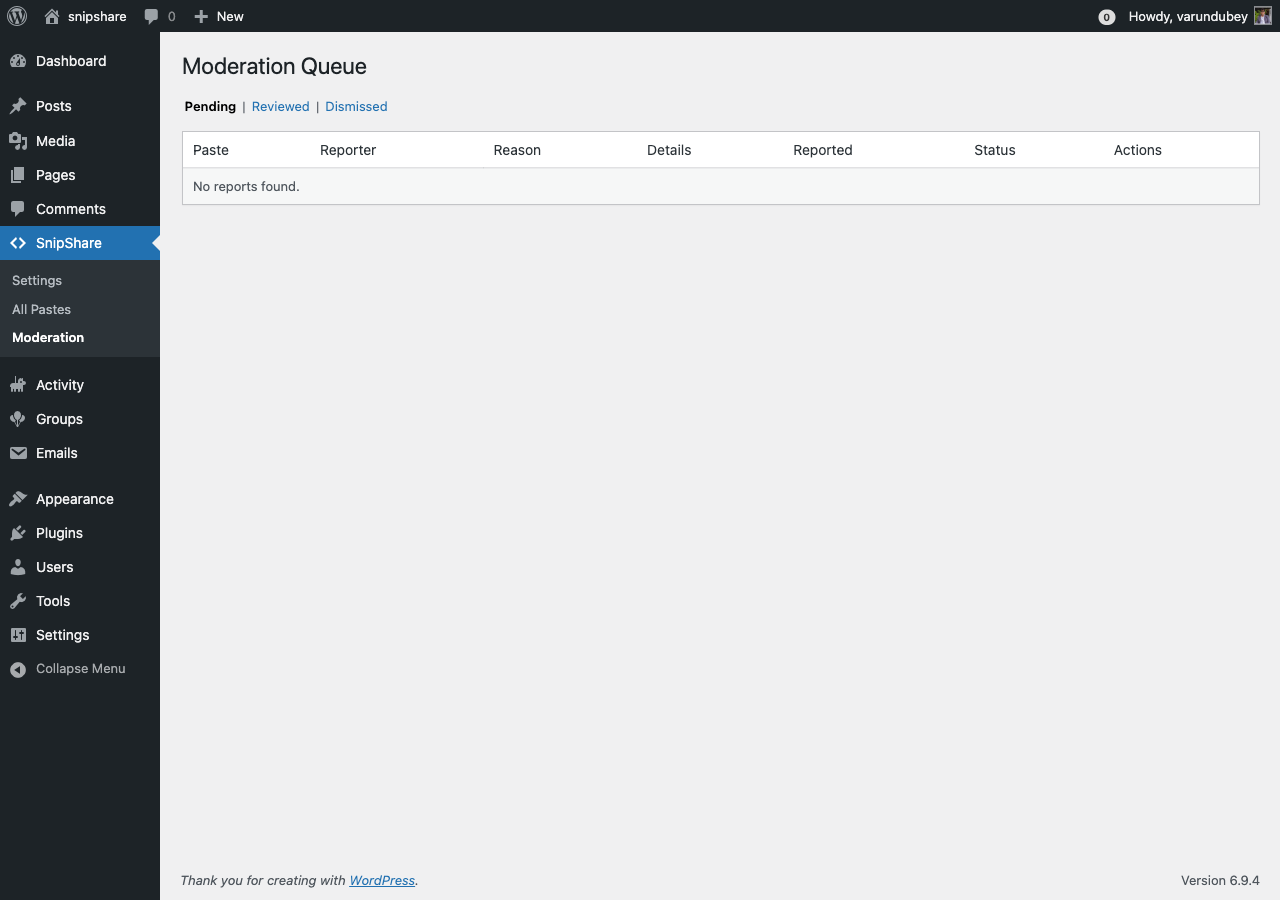
SnipShare includes a moderation queue where administrators and editors can review pastes that have been flagged by users.

Requires Content Reporting to be enabled in Settings → General, and the snipshare/moderate ability (editor and administrator roles by default).


Accessing the Moderation Queue

Go to SnipShare → Moderation in the WordPress admin.

Moderation queue

A badge on the Moderation menu item shows the number of pending reports.


Report Reasons

When a logged-in user reports a paste, they choose one of these reasons:

Reason Description
Spam Promotional or repetitive content
Inappropriate Offensive or unsuitable content
Malicious Potentially harmful code (malware, exploits)
Copyright Unauthorised use of copyrighted material
Other Any other reason (with optional details)

Users can also provide an optional explanation in a text field.


The Moderation Queue

The moderation page has three status tabs:

Tab Description
Pending New reports awaiting review
Reviewed Reports that have been actioned
Dismissed Reports that were closed without action

Each report card shows:

  • The reported paste (title, link, code preview)
  • Reporter username and timestamp
  • Report reason and details
  • Action buttons

Reviewing a Report

For each pending report you have two options:

Mark as Reviewed

Confirms you've reviewed the content. Optionally check Trash the paste to move it to trash status at the same time.

  • Changes report status to reviewed
  • Records your user ID in reviewed_by and the current timestamp in reviewed_at
  • Fires the snipshare_report_reviewed action

Dismiss

Closes the report without taking action (e.g., the report was unfounded).

  • Changes report status to dismissed
  • No action is taken on the paste

Who Can Moderate?

Users with the snipshare/moderate ability can:

  • Access the Moderation admin page
  • Review and dismiss reports via the admin UI
  • Trash any paste via the REST API regardless of ownership (PUT /wp-json/snipshare/v1/admin/pastes/{id}/status)
  • Access the admin reports endpoint (GET /wp-json/snipshare/v1/admin/reports)

By default, editors and administrators have this ability. See Permissions Settings for how to customise role assignments.


Via REST API

List Reports

GET /wp-json/snipshare/v1/admin/reports?status=pending
X-WP-Nonce: YOUR_NONCE

Requires the snipshare/moderate ability. Filter by ?status=pending, ?status=reviewed, or ?status=dismissed.

Review a Report

PUT /wp-json/snipshare/v1/admin/reports/{id}
X-WP-Nonce: YOUR_NONCE
Content-Type: application/json

{
  "status": "reviewed",
  "trash_paste": true
}

Force Paste Status

PUT /wp-json/snipshare/v1/admin/pastes/{id}/status
X-WP-Nonce: YOUR_NONCE
Content-Type: application/json

{ "status": "trashed" }

Admin Pastes

The All Pastes admin page gives administrators a full view of every paste on the site — including those created by any user, and those in any status.

Navigate to SnipShare → All Pastes in the WordPress admin.

All Pastes admin list


What You Can See

The admin pastes list shows all pastes from all users. Unlike the public archive which only shows public pastes, this screen includes:

  • Active pastes (public, unlisted, and private)
  • Expired pastes
  • Trashed pastes

Status Filters

Use the status tabs at the top of the list to filter by paste status:

Tab Shows
All Every paste regardless of status
Active Currently live pastes
Expired Pastes that have passed their expiry date
Trashed Pastes moved to trash

Column Overview

Column Description
Title Paste title with a link to the single paste view (opens frontend)
Author WordPress user who created the paste
Files Number of files in the paste
Visibility Public / Unlisted / Private
Views Total view count
Stars Total star count
Created Creation date and time

Columns are sortable by clicking the column header.


Search

Use the search box to find pastes by title. The search is a partial match — searching "auth" would match "Authentication Helper" and "OAuth examples".


Bulk Actions

Select multiple pastes using the checkboxes and apply:

Action Effect
Trash Moves selected pastes to trashed status
Delete Permanently Permanently deletes selected pastes and all associated files, revisions, tags, and stars

Permanent deletion cannot be undone. Use carefully.


Per-Row Actions

Hover over a paste row to see:

  • View — opens the paste on the frontend
  • Trash — moves to trash
  • Delete Permanently — permanently deletes (only shown for trashed pastes)

Notes

  • This page is visible only to users with the snipshare/moderate ability (editors and administrators by default)
  • Trashed pastes are not accessible via the public frontend — their URLs return 404
  • Expiration is handled automatically by the hourly cron job (snipshare_expire_pastes); expired pastes appear in the Expired tab

Developer Guide

REST API, hooks, shortcodes, and integration reference for developers

REST API Reference

SnipShare exposes a complete REST API under the snipshare/v1 namespace. All endpoints are accessible at /wp-json/snipshare/v1/.


Authentication

Method Use Case
WP Cookie + X-WP-Nonce header Logged-in users on the frontend. Get nonce via wp_rest_nonce() or wpApiSettings.nonce.
Application Passwords External apps, mobile clients, CLI tools. Create at WP Admin → Users → Edit User → Application Passwords.

Public endpoints (reading public pastes, tags, oEmbed) require no authentication.


Global Parameters

All list endpoints support these query parameters:

Parameter Description
page Page number (default: 1)
per_page Results per page (default: 10, max: 100)
orderby Sort field (e.g., created_at, star_count, view_count)
order asc or desc (default: desc)
_fields Comma-separated list of fields to include in response (sparse fieldsets)
_embed Include linked resources inline (author, files)

Pagination response headers: X-WP-Total (total items), X-WP-TotalPages (total pages).


Pastes

List Pastes

GET /wp-json/snipshare/v1/pastes

Returns public pastes. Supports additional filter params:

Param Description
language Filter by language slug
user Filter by WP user ID or username
tag Filter by tag slug
search Full-text search on title and description
status active (default)

Create Paste

POST /wp-json/snipshare/v1/pastes

Auth required. Request body (JSON):

{
  "title": "My helper",
  "description": "Useful PHP utility",
  "visibility": "public",
  "expiration": "never",
  "password": "",
  "burn_after_read": false,
  "tags": ["php", "utilities"],
  "files": [
    {
      "filename": "helper.php",
      "content": "<?php function foo() {}",
      "language": "php"
    }
  ]
}

Get Paste

GET /wp-json/snipshare/v1/pastes/{id}

Public for public/unlisted pastes. Requires auth for private pastes (owner only).

Update Paste

PUT /wp-json/snipshare/v1/pastes/{id}

Owner or moderator only. Same body shape as create. Each changed file generates a revision.

Delete Paste (Trash)

DELETE /wp-json/snipshare/v1/pastes/{id}

Owner or moderator only. Sets status to trashed.

Fork Paste

POST /wp-json/snipshare/v1/pastes/{id}/fork

Auth required. Clones all files into a new paste. Returns the new paste object.

Toggle Star

POST /wp-json/snipshare/v1/pastes/{id}/star

Auth required. Toggles star on/off. Response: { "starred": bool, "star_count": int }.

Report Paste

POST /wp-json/snipshare/v1/pastes/{id}/report

Auth required. Body: { "reason": "spam|inappropriate|malicious|copyright|other", "details": "optional text" }.

Unlock Password-Protected Paste

POST /wp-json/snipshare/v1/pastes/{id}/unlock

Body: { "password": "secret" }. Stores unlock in session. Returns 200 on success, 403 on wrong password.

List Revisions

GET /wp-json/snipshare/v1/pastes/{id}/revisions

Owner/moderator for private pastes, public for public/unlisted.

Get Diff

GET /wp-json/snipshare/v1/pastes/{id}/diff?from=1&to=3

Returns structured diff data per file.

Raw Content

GET /wp-json/snipshare/v1/pastes/{id}/raw
GET /wp-json/snipshare/v1/pastes/{id}/raw/{file_id}

Returns plain text. The /raw/{file_id} variant returns a single file's content.

Download

GET /wp-json/snipshare/v1/pastes/{id}/download

Returns single file or ZIP archive download.


Files

Add File to Paste

POST /wp-json/snipshare/v1/pastes/{id}/files

Owner only. Body: { "filename": "...", "content": "...", "language": "..." }.

Update File

PUT /wp-json/snipshare/v1/pastes/{id}/files/{fid}

Owner only. Body: any subset of filename, content, language.

Delete File

DELETE /wp-json/snipshare/v1/pastes/{id}/files/{fid}

Owner only. Paste must retain at least one file.


Collections

List My Collections

GET /wp-json/snipshare/v1/collections

Auth required. Returns the current user's collections.

Create Collection

POST /wp-json/snipshare/v1/collections

Body: { "name": "...", "slug": "...", "description": "...", "visibility": "public|private" }.

Get Collection

GET /wp-json/snipshare/v1/collections/{id}

Owner for private, public for public collections.

Update Collection

PUT /wp-json/snipshare/v1/collections/{id}

Owner only. Updatable fields: name, description, visibility.

Delete Collection

DELETE /wp-json/snipshare/v1/collections/{id}

Owner only. Pastes are not affected.

Add Paste to Collection

POST /wp-json/snipshare/v1/collections/{id}/pastes

Body: { "paste_id": 42 }.

Remove Paste from Collection

DELETE /wp-json/snipshare/v1/collections/{id}/pastes/{paste_id}

Tags

List All Tags

GET /wp-json/snipshare/v1/tags

Public. Returns tags sorted by count descending.

List Pastes by Tag

GET /wp-json/snipshare/v1/tags/{slug}/pastes

Public. Returns public pastes with this tag. Supports global list params.


Admin Endpoints

Require the snipshare/moderate ability.

List Reports

GET /wp-json/snipshare/v1/admin/reports?status=pending

Filter by status: pending, reviewed, dismissed.

Review Report

PUT /wp-json/snipshare/v1/admin/reports/{id}

Body: { "status": "reviewed|dismissed", "trash_paste": false }.

Force Paste Status

PUT /wp-json/snipshare/v1/admin/pastes/{id}/status

Body: { "status": "active|trashed|expired" }.


Embed

Get Embed Data

GET /wp-json/snipshare/v1/embed/{hash}

Public. Returns lightweight paste data for embedding. Private pastes return 404.


Error Responses

All errors follow the standard WP REST error format:

{
  "code": "rest_forbidden",
  "message": "You do not have permission to do that.",
  "data": { "status": 403 }
}

Common error codes: rest_forbidden (403), rest_not_found (404), rest_invalid_param (400), snipshare_rate_limit_exceeded (429).

Shortcode Reference

SnipShare provides a [snipshare] shortcode that embeds a syntax-highlighted code viewer inline in any WordPress post, page, or widget.


Basic Usage

[snipshare hash="abc123"]

Replace abc123 with the paste's share_hash (visible in the paste URL: /paste/abc123).


Attributes

Attribute Type Default Description
id integer 0 Paste ID (numeric). Alternative to hash.
hash string '' Paste share_hash. Alternative to id.
file string '' Filename to display for multi-file pastes. If omitted, all files are shown.
lines string '' Line range to display, e.g. 5-20. If omitted, all lines are shown.
theme string '' Prism.js theme class override. Reserved for future use.
height integer '' Maximum height in pixels. Adds vertical scrolling when content overflows.

Either id or hash must be provided.


Examples

Basic embed by hash

[snipshare hash="abc123"]

Embed by paste ID

[snipshare id="42"]

Show only one file from a multi-file paste

[snipshare hash="abc123" file="helper.php"]

Show only lines 10–25

[snipshare hash="abc123" lines="10-25"]

Limit display height with scroll

[snipshare hash="abc123" height="300"]

Combine options

[snipshare hash="abc123" file="index.js" lines="1-50" height="400"]

Output

The shortcode outputs a <div class="snipshare-embed"> containing:

  • A header bar with the paste title (linked to the paste page)
  • Per-file headers (only shown for multi-file pastes)
  • <pre> blocks with Prism.js syntax highlighting classes

Prism.js assets are enqueued only when the shortcode is rendered. The theme follows the Appearance → Code Theme setting.


Access Control

Paste type Shortcode output
Public Renders normally
Unlisted Renders normally (shortcode has the hash, so it can access it)
Private (owner viewing) Renders normally
Private (non-owner) Shows: "This paste is private."
Password-protected (unlocked) Renders normally
Password-protected (locked) Shows a locked placeholder with a link to the paste page
Not found / expired / trashed Shows: "Paste not found."

In bbPress

SnipShare shortcodes work natively inside bbPress topics and replies because bbPress runs do_shortcode() on its content by default. No extra configuration is needed.

The Insert Paste button (when enabled in Settings → Integrations) makes it easy for users to insert shortcodes without knowing the syntax.


Notes

  • The shortcode is self-closing — content between opening and closing tags is ignored
  • lines attribute uses 1-based line numbering (line 1 = first line)
  • When file does not match any filename in the paste, the first file is displayed instead
  • The height attribute applies a max-height CSS style with overflow-y: auto

oEmbed

SnipShare implements the oEmbed 1.0 specification as a provider. Any oEmbed-aware consumer — including WordPress itself, Slack, and other platforms — can embed SnipShare pastes automatically.


oEmbed Endpoint

GET /wp-json/snipshare/v1/oembed

Parameters

Parameter Type Default Description
url string Required The full URL of a paste page (e.g., https://yoursite.com/paste/abc123)
format string json Response format. Only json is supported.
maxwidth integer 600 Maximum iframe width in pixels. Clamped to 300–800.
maxheight integer 400 Requested maximum height. Ignored — height is calculated from paste content.

Example Request

curl "https://yoursite.com/wp-json/snipshare/v1/oembed?url=https%3A%2F%2Fyoursite.com%2Fpaste%2Fabc123&format=json"

Example Response

{
  "version": "1.0",
  "type": "rich",
  "provider_name": "My WordPress Site",
  "provider_url": "https://yoursite.com",
  "title": "My Paste Title",
  "author_name": "admin",
  "author_url": "https://yoursite.com/pastes/user/admin/",
  "html": "<div ...><iframe src=\"...\" ...></iframe><a ...>View paste →</a></div>",
  "width": 600,
  "height": 300
}

The html field contains an <iframe> pointing to the paste embed view (/paste/{hash}?embed=true) with a link beneath it.


Auto-Discovery

SnipShare injects an oEmbed discovery <link> tag into the <head> of every single paste page:

<link rel="alternate" type="application/json+oembed"
      href="https://yoursite.com/wp-json/snipshare/v1/oembed?url=...&format=json"
      title="SnipShare oEmbed" />

This lets any oEmbed-aware consumer (including WordPress) discover the endpoint automatically by reading the paste page — no manual provider registration needed.


Within WordPress

SnipShare registers itself as a WordPress oEmbed provider via wp_oembed_add_provider(). This means:

  • Pasting a paste URL on its own line in the WordPress block editor auto-embeds it as an inline code viewer
  • BuddyPress activity feed: paste URLs in activity posts are auto-embedded (when bp_init hook runs)
  • bbPress topics/replies: paste URLs are auto-embedded when Paste Embeds is enabled in Settings → Integrations

Embed View

The embed template (/paste/{hash}?embed=true) is a stripped-down page that renders just the code viewer — no site header, footer, or navigation. It is safe to use inside an <iframe> with the sandbox="allow-scripts allow-popups" attribute.

Height is calculated automatically based on the number of lines in the largest file, clamped between 150px and 500px.


Access Control

Paste type oEmbed behaviour
Public Exposed via oEmbed
Unlisted Exposed via oEmbed (URL-based access is intentional)
Private Returns 404 — private pastes are never exposed via oEmbed
Password-protected Returns 404 — protected pastes are not exposed via oEmbed
Expired / Trashed Returns 404

Notes

  • The endpoint is public — no authentication required
  • format=xml is not supported; the endpoint always returns JSON
  • maxwidth is clamped: minimum 300px, maximum 800px
  • The iframe uses sandbox="allow-scripts allow-popups" for security

Hooks & Filters

SnipShare provides 2 filters and 11 action hooks for customising paste behaviour and integrating with the paste lifecycle.


Filters

snipshare_before_create_paste

Fires immediately before a new paste is inserted into the database. Use this to validate, modify, or augment paste data.

Signature:

$data = apply_filters( 'snipshare_before_create_paste', $data );

Parameters:

Param Type Description
$data array Paste data array before INSERT. Keys: user_id, title, description, visibility, status, password_hash, burn_after_read, expires_at, share_hash, file_count

Return: Modified $data array.

Example — force all new pastes to be unlisted:

add_filter( 'snipshare_before_create_paste', function( $data ) {
    $data['visibility'] = 'unlisted';
    return $data;
} );

snipshare_paste_query_args

Fires inside SnipShare_Paste::query() before the SQL query is built. Use this to modify query arguments — add custom filters, override defaults, or restrict results.

Signature:

$args = apply_filters( 'snipshare_paste_query_args', $args );

Parameters:

Param Type Description
$args array Query args array. Keys: user_id, visibility, status, language, tag, search, per_page, page, orderby, order

Return: Modified $args array.

Example — exclude a specific user's pastes from all public queries:

add_filter( 'snipshare_paste_query_args', function( $args ) {
    // Exclude user ID 5 from all queries
    if ( empty( $args['user_id'] ) ) {
        $args['exclude_user'] = 5; // you'd also need to handle this in a custom query
    }
    return $args;
} );

Actions

snipshare_paste_created

Fires after a new paste is successfully inserted.

do_action( 'snipshare_paste_created', $paste_id, $data );
Param Type Description
$paste_id int ID of the newly created paste
$data array The raw data array passed to SnipShare_Paste::create()

Use case: Send notifications, update external indexes, trigger webhooks.


snipshare_paste_updated

Fires after a paste is successfully updated.

do_action( 'snipshare_paste_updated', $paste_id, $data );
Param Type Description
$paste_id int ID of the updated paste
$data array The data array passed to the update call

snipshare_paste_trashed

Fires after a paste's status is set to trashed.

do_action( 'snipshare_paste_trashed', $paste_id );

snipshare_paste_deleted

Fires after a paste is permanently deleted from the database.

do_action( 'snipshare_paste_deleted', $paste_id );

Note: At this point the paste row and all related records (files, revisions, tags, stars) have already been deleted.


snipshare_paste_forked

Fires after a paste is forked.

do_action( 'snipshare_paste_forked', $fork_id, $original_paste_id, $user_id );
Param Type Description
$fork_id int ID of the newly created fork
$original_paste_id int ID of the paste that was forked
$user_id int ID of the user who performed the fork

Use case: BuddyPress fork notification (built-in). Updating fork counts on external systems.


snipshare_paste_starred

Fires after a user stars a paste (toggle on).

do_action( 'snipshare_paste_starred', $paste_id, $user_id );

Use case: BuddyPress star notification (built-in). Gamification points.


snipshare_paste_unstarred

Fires after a user removes their star from a paste (toggle off).

do_action( 'snipshare_paste_unstarred', $paste_id, $user_id );

snipshare_paste_reported

Fires after a user submits a report.

do_action( 'snipshare_paste_reported', $report_id, $paste_id, $reporter_id );
Param Type Description
$report_id int ID of the new report record
$paste_id int ID of the reported paste
$reporter_id int WP user ID of the reporter

Use case: Email notification to admins when a new report is filed.

add_action( 'snipshare_paste_reported', function( $report_id, $paste_id, $reporter_id ) {
    wp_mail(
        get_option( 'admin_email' ),
        'New paste reported',
        "Paste ID {$paste_id} was reported. View it at: " . admin_url( 'admin.php?page=snipshare-moderation' )
    );
}, 10, 3 );

snipshare_report_reviewed

Fires after an admin reviews a report.

do_action( 'snipshare_report_reviewed', $report_id, $action );
Param Type Description
$report_id int ID of the reviewed report
$action string reviewed or dismissed

snipshare_collection_created

Fires after a new collection is created.

do_action( 'snipshare_collection_created', $collection_id, $data );

snipshare_paste_added_to_collection

Fires after a paste is added to a collection.

do_action( 'snipshare_paste_added_to_collection', $collection_id, $paste_id );

Template Actions

SnipShare also fires template hooks in all front-end templates for injecting custom content:

Hook Location
snipshare_before_archive Before paste archive content
snipshare_after_archive After paste archive content
snipshare_before_paste_loop Before paste loop in archive
snipshare_after_paste_loop After paste loop in archive
snipshare_before_paste_card Before each paste card (receives $paste)
snipshare_after_paste_card After each paste card (receives $paste)
snipshare_before_single_paste Before single paste view (receives $paste)
snipshare_after_single_paste After single paste view (receives $paste)
snipshare_before_paste_files Before file tabs on single view (receives $paste)
snipshare_after_paste_files After file tabs on single view (receives $paste)
snipshare_before_paste_form Before create/edit form
snipshare_after_paste_form After create/edit form
snipshare_paste_form_fields Inside form — add custom fields
snipshare_before_user_profile Before user profile content (receives $profile_user)
snipshare_after_user_profile After user profile content (receives $profile_user)
snipshare_before_collection Before collection view (receives $collection)
snipshare_after_collection After collection view (receives $collection)
snipshare_before_diff Before diff view (receives $paste)
snipshare_after_diff After diff view (receives $paste)
snipshare_before_embed Before embed view (receives $paste)
snipshare_after_embed After embed view (receives $paste)

BuddyPress Integration

SnipShare integrates with BuddyPress to bring code sharing into your community's activity feed, member profiles, and notification system.

Activation: Integration loads automatically when class_exists('BuddyPress') is true. No manual activation needed.

Configuration: All features are individually toggled in SnipShare → Settings → Integrations.


Feature 1: Activity Stream

When enabled (bp_activity setting), SnipShare records a BuddyPress activity item whenever a user creates a public paste.

Activity Details

Property Value
Component snipshare
Type new_paste
Action "{User} shared a new code paste: {Paste Title}"
Content Paste description (trimmed to 30 words)
Primary link Paste frontend URL
Item ID Paste ID

What is NOT recorded

  • Unlisted and private pastes
  • Forked pastes (handled separately)
  • Anonymous pastes (user_id = 0)

Filtering Activity Display

BuddyPress activity items from SnipShare appear in:

  • The sitewide activity stream
  • The member's profile activity tab

Users can filter to "Pastes" in the activity stream using the "Pastes" filter label registered with bp_activity_set_action().

oEmbed in Activity Feed

Paste URLs pasted into BuddyPress activity updates are automatically resolved to inline code viewers via the SnipShare oEmbed provider. This hooks into bp_get_activity_content_body to replace paste URLs with embedded iframes.

BuddyPress activity feed with embedded paste


Feature 2: Member Profile Tab

When enabled (bp_profile setting), a Pastes tab appears in each member's BuddyPress profile at navigation position 80.

Tab Structure

/members/{username}/pastes/            → My Pastes sub-tab (default)
/members/{username}/pastes/my-pastes/  → My Pastes
/members/{username}/pastes/starred/    → Starred pastes

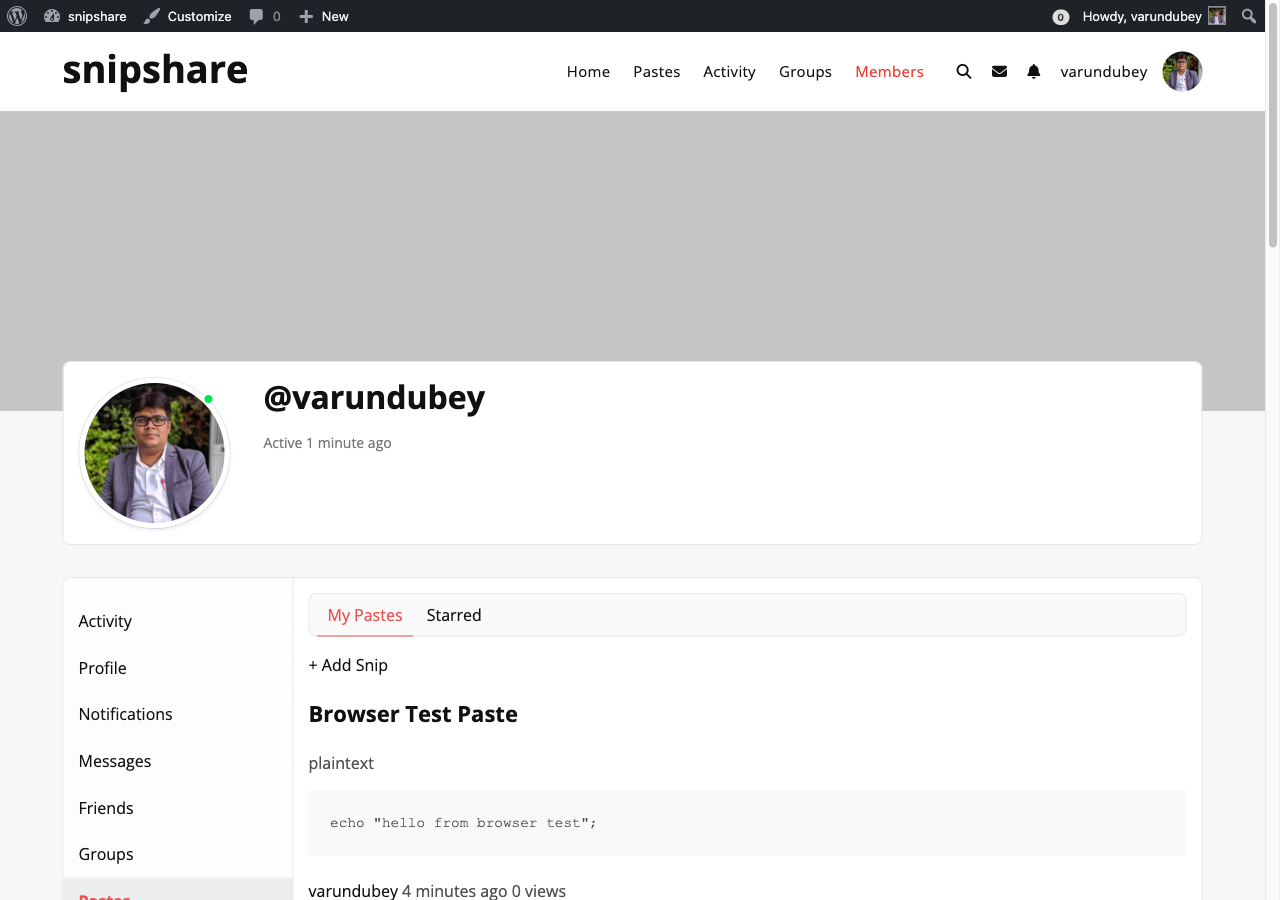
My Pastes Sub-tab

Displays the member's pastes:

  • Profile owner sees all statuses (public, unlisted, private) for active pastes
  • Other visitors see only public pastes
  • Profile owner sees a + Add Snip button linking to /pastes/create/

BuddyPress member profile Pastes tab

Starred Sub-tab

Displays pastes the member has starred. Only active, public pastes are shown to any visitor.

Customising the Position

To change the tab's position in the BP navigation:

add_action( 'bp_setup_nav', function() {
    // The tab is registered at position 80.
    // Override the position via bp_core_new_nav_item filters if needed.
}, 5 );

Feature 3: Notifications

When enabled (bp_notifications setting), SnipShare sends BuddyPress notifications to paste owners.

Notification Triggers

Event Notification
Another user stars your paste "{User} starred your paste "{Title}""
Another user forks your paste "{User} forked your paste "{Title}""

Self-notifications are never sent — starring or forking your own paste does not generate a notification.

Notification Format

Notifications appear in the BuddyPress notification dropdown as linked text. When clicked, they take the owner to the paste page.

Component Registration

SnipShare registers itself on the BuddyPress global object:

buddypress()->snipshare->notification_callback = array( $this, 'format_notification' );

Notification Actions

Two component actions are used:

  • paste_starred — fired when a paste is starred
  • paste_forked — fired when a paste is forked

These are stored in the bp_notifications table with:

  • component_name: snipshare
  • item_id: paste ID
  • secondary_item_id: user ID who triggered the action

Developer Notes

The BuddyPress integration class is SnipShare_BuddyPress (integrations/class-snipshare-buddypress.php). All hooks are registered externally by the loader:

$this->loader->add_action( 'bp_register_activity_actions', $bp, 'register_activity' );
$this->loader->add_action( 'bp_setup_nav', $bp, 'register_profile_tab' );
$this->loader->add_action( 'bp_setup_globals', $bp, 'register_notification' );
$this->loader->add_action( 'bp_init', $bp, 'enable_autoembed' );

Activity and notification recording is triggered by the snipshare_paste_created, snipshare_paste_starred, and snipshare_paste_forked action hooks from the core paste/star classes.

bbPress Integration

SnipShare integrates with bbPress to make it easy to share and embed code in forum discussions.

Activation: Integration loads automatically when function_exists('bbpress') or class_exists('bbPress') is true. No manual activation needed.

Configuration: Both features are individually toggled in SnipShare → Settings → Integrations.


Feature 1: Paste Embeds

When enabled (bbpress_embed setting), SnipShare paste URLs in bbPress topics and replies are automatically converted to inline code previews.

How It Works

SnipShare hooks into bbp_get_reply_content and bbp_get_topic_content to replace bare paste URLs with embedded code viewers:

add_filter( 'bbp_get_reply_content', array( 'SnipShare_Helpers', 'embed_paste_urls' ), 8 );
add_filter( 'bbp_get_topic_content', array( 'SnipShare_Helpers', 'embed_paste_urls' ), 8 );

The replacement uses the SnipShare_Helpers::embed_paste_urls() method, which resolves paste URLs anywhere in the content (inline or on their own line), unlike WP's standard autoembed which only matches URLs on their own paragraph.

Example

A forum reply containing:

Check out this helper function: https://yoursite.com/paste/abc123

Renders with the paste URL replaced by an inline code viewer iframe.

Access Control

Only public and unlisted pastes are embedded. Private pastes and password-protected pastes return 404 from the oEmbed endpoint and are not embedded.

Enabling/Disabling

Go to SnipShare → Settings → Integrations → bbPress → Paste Embeds and toggle the checkbox.


Feature 2: Insert Paste Button

When enabled (bbpress_button setting), an Insert Paste button appears above the submit area of bbPress reply and topic forms.

What the Button Does

Clicking Insert Paste opens a dropdown UI with:

  1. Recent pastes list — The logged-in user's 10 most recent active pastes, shown by title. Click any item to insert its shortcode.
  2. Manual hash input — Enter any paste hash and click Insert to insert a shortcode for a paste you know the hash of.
  3. "Create new paste" link — Opens /pastes/create/ in a new tab.

Selecting a paste inserts a [snipshare hash="abc123"] shortcode at the cursor position in the bbPress textarea.

Target Textareas

The button targets:

  • #bbp_reply_content — the reply form textarea
  • #bbp_topic_content — the new topic form textarea

Visibility

The Insert Paste button only appears for logged-in users. Guests do not see it.

Hooks

The button is rendered on:

bbp_theme_before_reply_form_submit_wrapper  // reply form
bbp_theme_before_topic_form_submit_wrapper  // new topic form

Shortcode in Forum Content

The [snipshare] shortcode works natively in bbPress topics and replies because bbPress runs do_shortcode() on its content by default. No extra configuration is needed.

The Insert Paste button automates shortcode insertion, but users can also type [snipshare hash="abc123"] manually.


Developer Notes

The bbPress integration class is SnipShare_bbPress (integrations/class-snipshare-bbpress.php). Hooks are registered by the loader:

$this->loader->add_action( 'bbp_theme_before_reply_form_submit_wrapper', $bbp, 'add_paste_button' );
$this->loader->add_action( 'bbp_theme_before_topic_form_submit_wrapper', $bbp, 'add_paste_button' );
$this->loader->add_action( 'bbp_init', $bbp, 'enable_autoembed' );

The JavaScript for the dropdown UI and shortcode insertion is inlined in the add_paste_button() output — no separate JS file is enqueued. The script is wrapped in an IIFE and attaches event listeners after DOMContentLoaded.

Something unclear? Open a support ticket →

Buy SnipShare