Wbcom Designs MediaShield Docs
Back to product Buy Now

Getting Started

What MediaShield is, how to install it, and how to protect your first video

Introduction to MediaShield

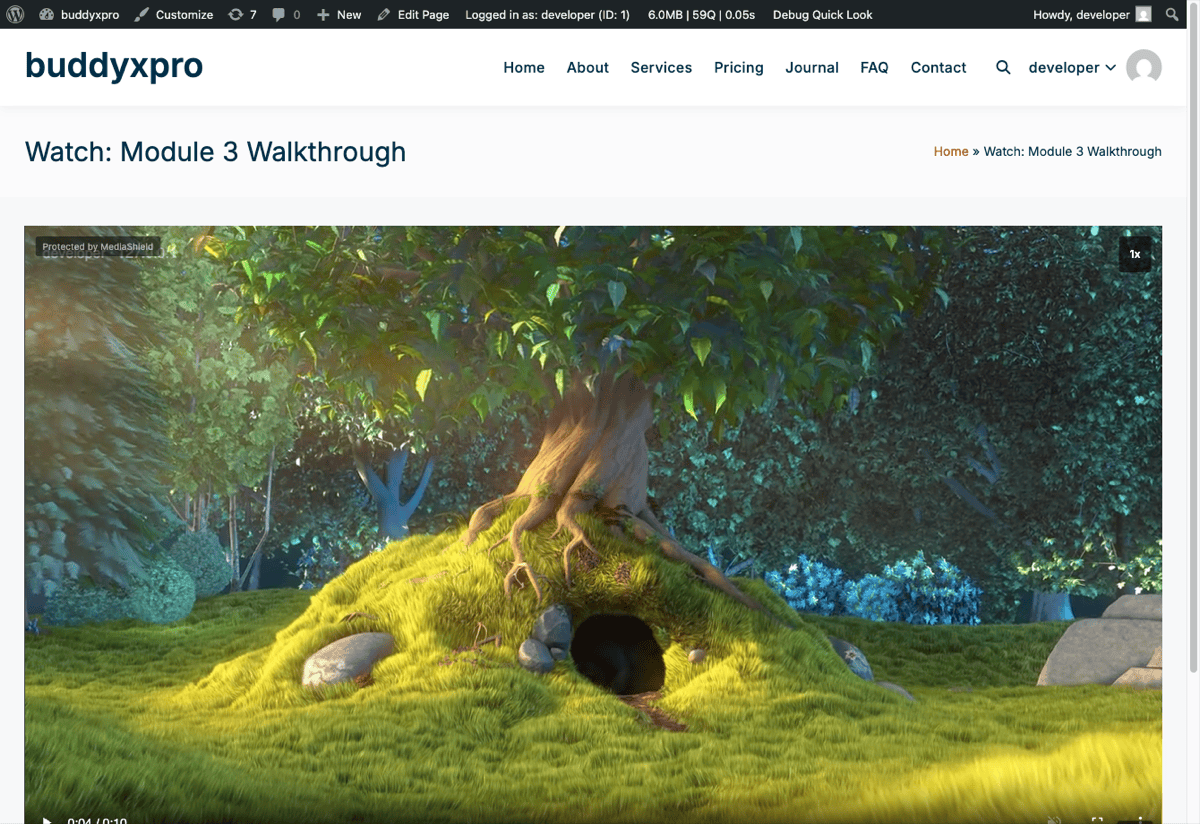
A protected video playing in the MediaShield player with the "Protected by MediaShield" badge visible A protected video in the frontend player. The dynamic watermark and "Protected by MediaShield" badge are visible during playback.
MediaShield is a WordPress plugin that adds a protection and analytics layer on top of your videos. Version 1.1.0.

It works with videos hosted on YouTube, Vimeo, Bunny Stream, Wistia, or your own server. Once a video is registered in MediaShield, the plugin wraps it in a protected player that adds:

  • A dynamic watermark showing the viewer's identity on every frame
  • Login and role-based access control
  • Concurrent stream limiting (one account, limited devices)
  • Session tracking: how long each viewer watched, how far they got, and which milestones they reached
  • Developer-tools detection and right-click blocking
  • Playlist support with autoplay and countdown

What MediaShield is for

MediaShield is built for online course creators, membership site owners, and anyone delivering video to a paying or gated audience on WordPress. The typical use case is a course or training library where you want to:

  1. Make sure only paying members can watch
  2. Know who watched what and for how long
  3. Be able to trace any leaked recording back to the viewer
  4. Limit account sharing

What MediaShield does not promise

No WordPress video plugin can block screen recording. MediaShield makes recordings traceable - not impossible to make. The dynamic watermark shows the viewer's name and IP address on every frame, so if content leaks, you know exactly who leaked it. This is the right model for WordPress-native video protection at this price point.

For a full explanation of the threat model and its limits, see the Protection Philosophy section.

Free vs Pro

The free plugin ships a complete protection and analytics layer. MediaShield Pro adds features that go beyond the baseline:

Feature Free Pro
Dynamic watermark (name + IP) Yes Yes, with 7 configurable fields
Login and role access control Yes Yes
Concurrent stream limit Yes Yes
Session tracking and milestones Yes Yes
Playlists Yes Yes
Analytics dashboard Yes Yes (plus heatmaps, realtime, and alerts)
Right-click and devtools protection Yes Yes
Platform API connections (Bunny, YouTube, Vimeo, Wistia) No Yes
ClearKey DRM for self-hosted video No Yes
LMS integrations (LearnDash, LifterLMS, TutorLMS) No Yes
Email gate (capture email before play) No Yes
Data export (CSV, PDF) No Yes
Suspicious activity alerts No Yes

Requirements

  • WordPress 6.5 or higher
  • PHP 8.1 or higher
  • A modern browser for the admin (Chrome, Firefox, Safari, Edge)

Where to go next

Installation

Requirements

  • WordPress 6.5 or higher
  • PHP 8.1 or higher
  • A modern browser for the admin (Chrome, Firefox, Safari, Edge)

Install from WordPress.org

  1. Go to Plugins > Add New in your WordPress admin.
  2. Search for "MediaShield".
  3. Click Install Now, then Activate.

That's it. After activation, MediaShield redirects you to the setup wizard.

Manual upload

  1. Download the mediashield ZIP from WordPress.org or your account.
  2. Go to Plugins > Add New > Upload Plugin.
  3. Choose the ZIP file and click Install Now.
  4. Click Activate Plugin.

Alternatively, unzip the file and upload the mediashield folder to /wp-content/plugins/ via FTP, then activate from Plugins.

What happens on activation

When MediaShield activates, it:

  • Creates 6 database tables for sessions, milestones, tags, and playlists
  • Seeds default settings
  • Registers the MediaShield admin menu (7 pages)
  • Redirects to the setup wizard on first activation

The 6 tables are created automatically. You don't need to manage them - they're cleaned up on uninstall.

After installation

After activation, you'll see MediaShield in the WordPress admin sidebar with seven sections:

Page Purpose
Dashboard Overview stats and activity chart
Videos Your video library
Playlists Grouped video sequences
Tags Tag dictionary for milestones
Students Per-user watch progress
Milestones Completion percentage settings
Settings All plugin configuration

The setup wizard launches automatically on first activation. Follow the Setup Wizard guide to complete initial configuration.

Upgrading

MediaShield includes an automatic migration system. When you update the plugin, database schema changes are applied on the next page load. No manual steps needed.

Uninstalling

  • Deactivating the plugin clears scheduled background jobs but preserves all data and settings.
  • Deleting the plugin (Plugins > Delete) drops all 6 tables, removes all MediaShield options, and cleans up role capabilities. If MediaShield Pro is still active, Pro data is preserved separately.

Setup Wizard

On first activation, MediaShield redirects you to a four-step setup wizard. The wizard lets you configure the essentials before adding any videos.

Each step auto-saves as you go. If you close the tab mid-wizard, your progress is kept. When you return, you'll land on the dashboard and can access the wizard from there until you click Finish.

Step 1 - General Settings

Configure the site-wide defaults:

Enable Protection - The master on/off switch for all MediaShield features. Leave this on.

Default Protection Level - The baseline for all videos that don't have a per-video override. Options:

  • None - No protection. Videos play as normal embeds.
  • Basic - Right-click disabled, source URL hidden.
  • Standard (recommended) - Everything in Basic, plus the dynamic watermark and developer-tools detection.
  • Strict - Everything in Standard, plus keyboard shortcut blocking and a fullscreen watermark.

Standard is the right starting point for most sites. You can override this per video.

Require Login - Forces viewers to log in before any video plays. Turn this off only if you want specific videos to be publicly viewable without an account.

Step 2 - Platform Selection

Tell MediaShield which video platforms you use. Options: Self-hosted, YouTube, Vimeo, Bunny Stream, Wistia.

The wizard just records your intended platforms. It does not connect to any external APIs at this step. Direct API connections to Bunny, YouTube, Vimeo, and Wistia (for browsing and importing video libraries) are available in Pro.

In the free plugin, MediaShield detects and wraps embeds from all five platforms automatically via output buffering, regardless of what you select here.

Step 3 - Watermark Settings

Configure the identity overlay that appears on top of every video for logged-in viewers:

Opacity - How visible the watermark is, as a percentage. 0% is invisible. 100% is fully solid. A value in the 30-50% range is visible enough to deter sharing without being distracting.

Color - The watermark text color. Use a color that contrasts with your typical video content.

Swap Interval - How often the watermark moves to a new position, in seconds. Shorter intervals make it harder to crop out of a recording.

The free watermark shows the viewer's display name and IP address. Pro adds 7 configurable fields including email, user ID, timestamp, and custom text.

Step 4 - First Video (Optional)

Optionally create your first video right in the wizard by pasting a URL. MediaShield detects the platform from the URL and creates a library entry automatically.

Supported URL formats:

  • YouTube: https://www.youtube.com/watch?v=...
  • Vimeo: https://vimeo.com/...
  • Self-hosted: any direct .mp4, .webm, or .m4v URL
  • Bunny Stream: your Bunny CDN embed URL
  • Wistia: your Wistia embed URL

If you skip this step, you can add videos any time from MediaShield > Videos.

After the wizard

Click Finish to complete setup and go to the dashboard. From here you can:

  • Add and manage videos from MediaShield > Videos
  • Fine-tune all settings from MediaShield > Settings
  • Watch analytics appear in MediaShield > Dashboard as viewers watch your content

Next: Add Your First Video

Add Your First Video

After completing the setup wizard, you're ready to register and embed your first protected video.

Step 1 - Create a video in the library

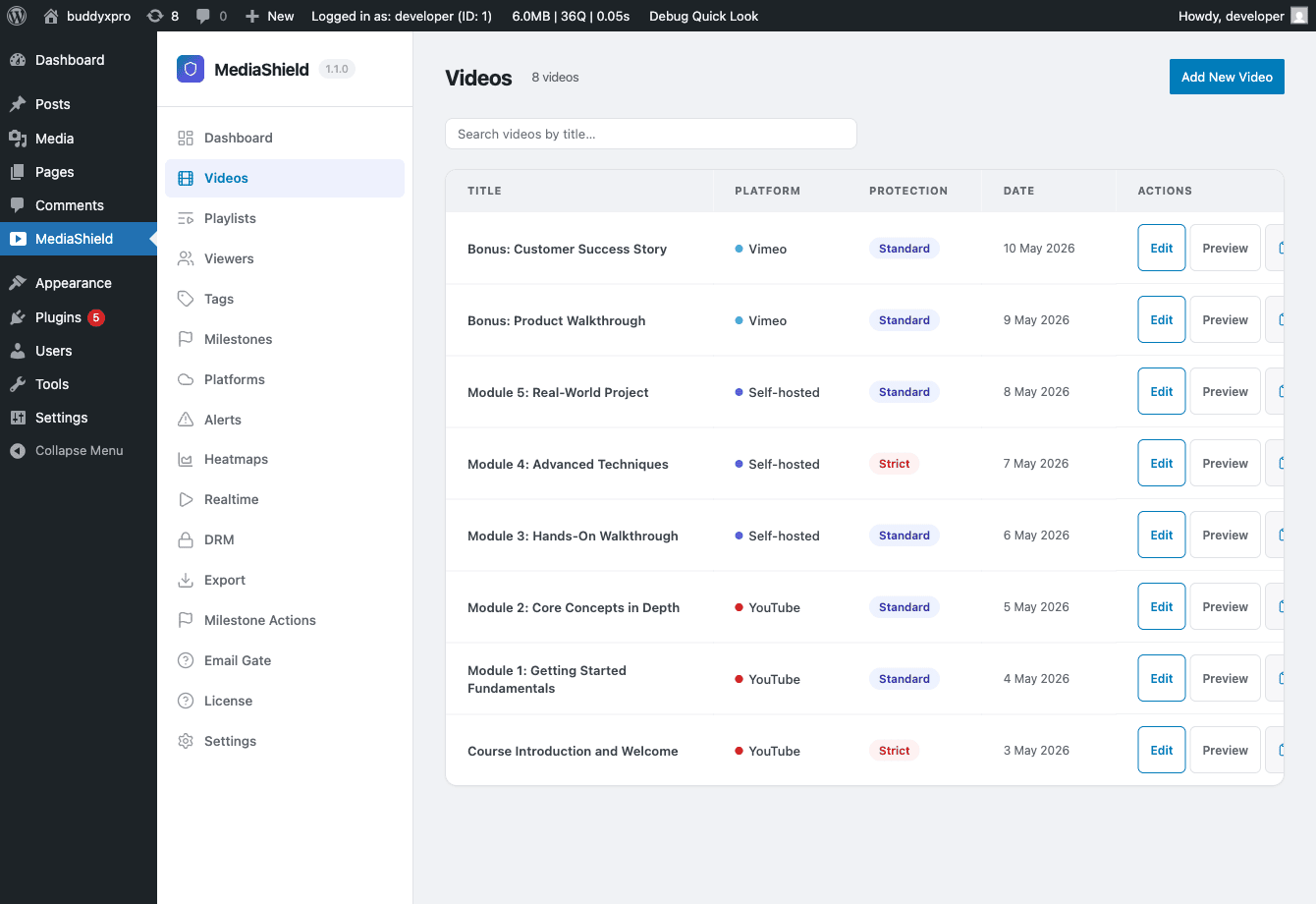
MediaShield Videos admin list showing 8 videos across YouTube, Vimeo, and self-hosted with Standard and Strict protection badges The Videos list in the MediaShield admin. Each row shows the platform, protection level badge, and video status.

Go to MediaShield > Videos and click Add New Video.

Fill in the fields:

Platform - Choose where the video is hosted: Self-hosted, YouTube, Vimeo, Bunny, or Wistia.

Source URL or Video ID - Paste the video URL. MediaShield extracts the platform's video identifier from the URL and stores it alongside the original URL.

Protection Level - Set a per-video override, or leave empty to use the site-wide default from Settings.

  • None - No protection for this video.
  • Basic - Right-click disabled, source URL hidden.
  • Standard - Basic plus dynamic watermark and developer-tools detection.
  • Strict - Standard plus keyboard shortcut blocking and a fullscreen watermark.

Access Role (optional) - Restrict playback to a specific WordPress role. Leave blank to allow all logged-in users.

Per-video player controls - Override global player defaults for this video: speed control, sticky player, keyboard shortcuts, playback resume, and end screen.

Click Save. The video is now in your library.

Note on platform API features: the free plugin plays embedded videos from YouTube, Vimeo, Wistia, and Bunny via their normal iframes, with the MediaShield wrapper around them. Browsing, importing, or uploading through a platform's own API requires MediaShield Pro.

Step 2 - Embed the video

Once the video is in your library, you have three ways to embed it on a page or post.

Block editor (Gutenberg)

In the block inserter, search for MediaShield Video. The block opens a video picker where you select the video you just created. You can also paste a fresh video URL directly into the block to create a library entry on the fly. The editor shows a live preview. The frontend output includes the player, watermark, session tracking, and the login overlay when required.

Shortcode

Drop this into post content, a page builder widget, or any text area:

[mediashield id=42]

Replace 42 with the ID number of your video. You can find the ID in the video list - it appears as the post ID in the edit URL. Invalid or unpublished IDs render nothing.

"My Videos" shortcode

Build a member dashboard or course completion page with:

[mediashield_my_videos]

This renders a grid of every video the current logged-in user has watched, with completion progress bars. It shows nothing for visitors who are not logged in.

Step 3 - Test the embed

Open the page in a browser where you are logged in. You should see:

  • The video player with the protection layer
  • A watermark overlay showing your display name and IP address (if protection level is Standard or higher)
  • The "Protected by MediaShield" badge (if enabled in Settings)

Watch the video for at least 30 seconds, then check MediaShield > Dashboard. You'll see the session counted and the activity chart updated.

Setting a thumbnail

Platform videos (YouTube, Vimeo, Wistia, Bunny) - MediaShield pulls the poster the platform generated and sets it as the WordPress Featured Image when the video is saved. Nothing to do.

Self-hosted videos - MediaShield does not auto-generate a thumbnail from your uploaded file. Set the Featured Image on the video edit screen manually. That image is used as the poster frame in the player, video lists, blocks, and playlists.

Next steps

Configuration

Protection, player, access control, and embed settings

Settings Overview

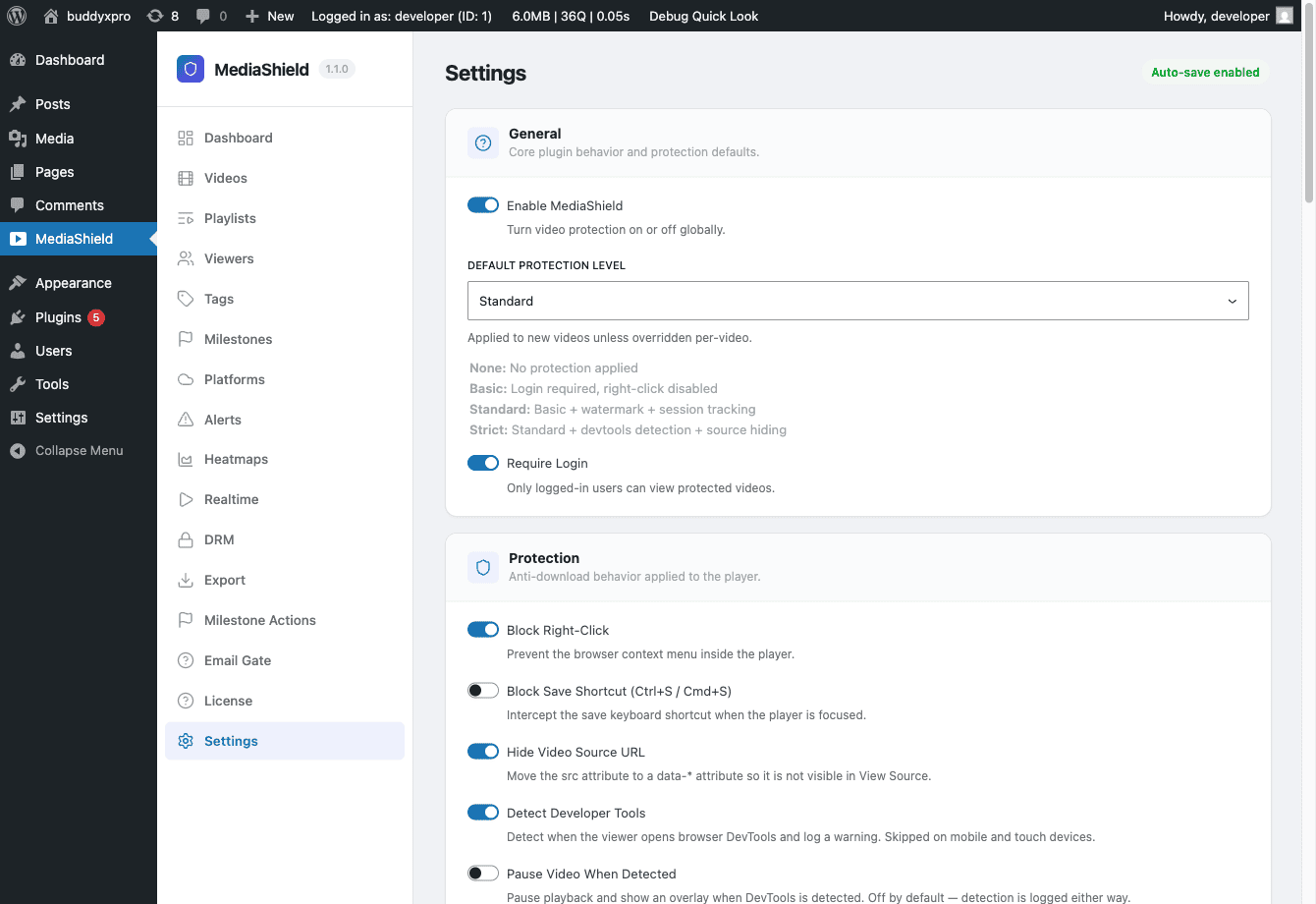
The MediaShield plugin Settings page showing General, Watermark, Access Control, and Player Controls sections The MediaShield Settings page. All options auto-save on change - no Save button required.
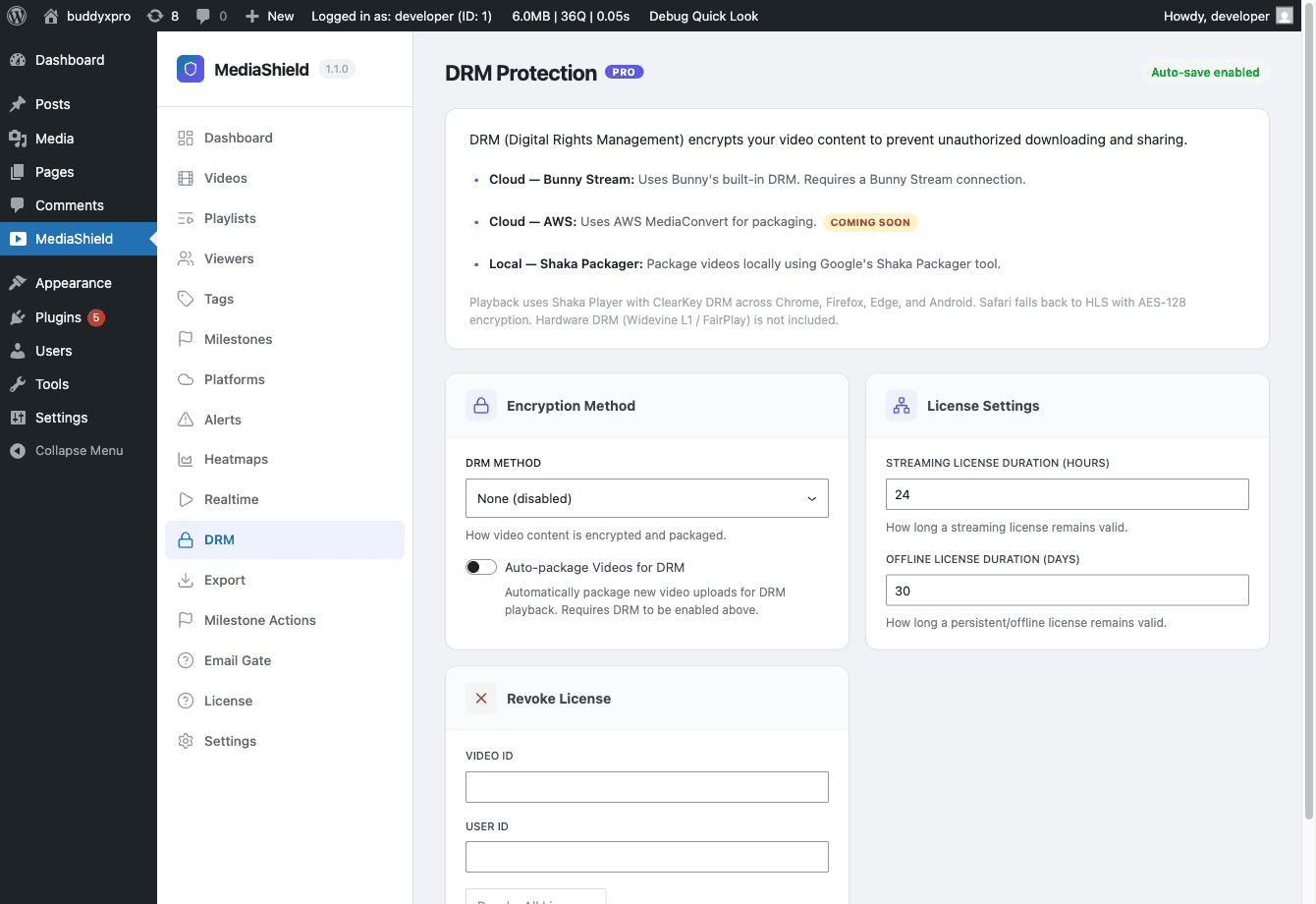
All MediaShield settings live under MediaShield > Settings. Changes auto-save as you make them - there is no Save button to click.

Settings are divided into sections:

Section What it controls
General Master switch, default protection level, login requirement, badge display
Watermark Overlay opacity, color, and position swap interval
Access Control Concurrent streams, allowed domains, login overlay text
Upload Maximum upload file size for self-hosted videos
Custom URL Patterns Additional video embed patterns for auto-detection
Player Controls Speed control, sticky player, keyboard shortcuts, resume, end screen
Protection Controls Right-click blocking, keyboard blocking, source hiding, developer-tools detection

General Settings

Enable MediaShield - The master on/off switch. When off, no protection runs and no sessions are tracked site-wide. Use this for maintenance, not as a permanent setting.

Default Protection Level - Baseline protection applied to any video that has no per-video override.

  • None - No protection.
  • Basic - Right-click disabled, source URL hidden from page source.
  • Standard - Basic plus dynamic watermark and developer-tools detection.
  • Strict - Standard plus keyboard shortcut blocking and a fullscreen watermark.

Require Login - Forces viewers to log in before any video plays. Turn this off only if you want some videos publicly viewable. Individual videos can override this via the Access Role setting.

Show Badge - Displays a "Protected by MediaShield" badge on the player. Toggle off for a cleaner look. Works in both free and Pro.

Watermark Settings

The watermark is a text overlay that appears on top of the video while it plays. It shows the viewer's display name and IP address so you can trace any leaked recording back to the source.

Opacity - How visible the overlay is (0-100%). Values around 30-50% are visible without being distracting.

Color - Watermark text color. Use a color that is readable against your typical video content.

Swap Interval - How often the watermark moves to a new position (seconds). Shorter intervals make the watermark harder to crop out consistently.

The free watermark shows display name and IP. Pro extends this to 7 configurable fields.

Access Control

Max Concurrent Streams - How many devices one account can use simultaneously. Default is 2. When a viewer tries to open a third stream, they see an error until they close another.

Allowed Domains - Comma-separated domains that may embed your videos. Leave empty to allow embeds from any domain. When a list is set, requests with a missing Referer header are denied by default.

Login Overlay Text - The message shown when a visitor tries to watch but is not logged in.

Login Button Text - The label on the login button in the overlay.

Access Denied Text - Shown when a logged-in user does not have the required role for a specific video.

Upload Settings

Max Upload Size - The largest file a user with upload permission can upload in one go. Default is 500 MB. Self-hosted videos are stored in your WordPress uploads folder in a protected subfolder.

Custom URL Patterns

Add extra URL patterns for MediaShield's automatic video detection. Use this when you embed videos from a host that MediaShield does not recognize automatically. Add one pattern per line.

Player Controls and Protection Controls

These are covered in detail in their own pages:

Protection Settings

The Protection Controls section of MediaShield > Settings governs the technical layer that runs in the browser while a video is playing.

Protection levels

Before tuning individual controls, set the right protection level. Levels are cumulative - each includes everything below it.

Level What it includes
None No protection. Videos play as normal embeds.
Basic Right-click disabled. Source URL hidden from page source.
Standard Everything in Basic, plus dynamic watermark and developer-tools detection.
Strict Everything in Standard, plus keyboard shortcut blocking and fullscreen watermark.

Set the default level under General Settings. Override it per video on the video edit screen.

Protection Controls settings

Block Right-Click - Disables the browser context menu over the player so viewers can't use "Save video as." Works at Basic level and above.

Block Keyboard Shortcuts - Disables common browser shortcuts like Ctrl+S (Save) and Ctrl+U (View Source) while the player is focused. Off by default. Enable on Strict sites.

Hide Source URL - Moves the raw video file address out of the visible page source. This is not a DRM boundary - a determined viewer can still find the URL with browser developer tools. It stops casual scraping, which is the right goal for this feature. Leave it on unless you have a specific reason not to.

Detect Developer Tools - Detects when a viewer opens browser developer tools while watching. Uses timing and size heuristics. On by default.

Pause on Developer Tools - Pauses the video automatically when developer tools are detected. Off by default. Enable if you want to interrupt playback as a deterrent.

Developer Tools Overlay Title - The heading shown on the overlay when developer tools are detected. Default: "Developer Tools Detected". Edit to match your site's tone.

Developer Tools Overlay Message - The body text below the heading on the overlay.

What protection cannot do

Developer-tools detection fires a mediashield_devtools_detected server-side action. Pro logs these as suspicious activity alerts. Free users can hook this action for custom logging.

Detection is disabled intentionally on touch devices and small screens (under 1024 px wide) to avoid false positives from on-screen keyboards and device orientation changes.

No combination of these settings blocks screen recording. A viewer can always record the screen with a phone camera or system screen recorder. The watermark makes any recording traceable - that is the correct deterrence model. For a full explanation, see the Protection Philosophy section.

Per-video overrides

Every protection level and player control can be overridden per video. Open the video edit screen and look for the protection and player sections. The per-video value wins over the global default.

Player Settings

The Player Controls section of MediaShield > Settings tunes how the video player behaves for viewers. Each control is a global default that you can override per video on the video edit screen.

Player Controls settings

Speed Control - Adds a 0.5x-2x playback speed selector to the player. On by default. Turn this on for course, training, or lecture content where students commonly adjust playback speed. Applies to self-hosted and Bunny Stream videos only. YouTube, Vimeo, and Wistia embeds use the host platform's own speed control.

Sticky Player - When a viewer scrolls past the video while it is playing, the player shrinks into a corner overlay so they can keep watching while reading content below. Off by default. Well suited for long-form tutorial pages and webinar replays. Avoid on pages with multiple players or very short videos, where the floating overlay may feel intrusive.

Keyboard Shortcuts - Allows viewers to use keyboard shortcuts while the player is focused: Space to play/pause, left/right arrows to seek 5 seconds, up/down for volume, M to mute, F for fullscreen. On by default. Turn off if your audience is non-technical and you're concerned about accidental key presses.

Resume Playback - Remembers where each viewer stopped and shows a "Resume from X:XX?" prompt the next time they open the same video. On by default. This is the single most impactful control for course content - students rarely finish a long lesson in one sitting.

End Screen - When the video ends, MediaShield shows a short call-to-action overlay with a message and a clickable button. Off by default. Use it to point viewers to the next lesson, an upsell, or a related video.

End Screen Text - The call-to-action message text. Used as the global fallback when a video doesn't set its own end screen text.

End Screen URL - The destination URL for the call-to-action button. Leave blank to disable the button.

Per-video overrides

Every Player Control can be set individually on each video via the video edit screen. The per-video value wins over the global default. This lets you keep speed control off site-wide and enable it for one specific course, for example.

Summary table

Setting Default Notes
Speed Control On Self-hosted and Bunny only
Sticky Player Off Best for long-form content
Keyboard Shortcuts On Disable for non-technical audiences
Resume Playback On Highly recommended for courses
End Screen Off Configure text and URL to enable
End Screen Text Empty Global fallback
End Screen URL Empty Global fallback

Access Control

MediaShield provides several layers of access control to determine who can watch your videos and under what conditions.

Login requirement

Require Login (Settings > General) forces all viewers to be logged in before any video plays. When a visitor hits a protected video without being logged in, they see a login overlay with configurable text and a button.

Customize the overlay at Settings > Access Control:

  • Login Overlay Text - the message shown to visitors. Default: "Please log in to watch this video."
  • Login Button Text - the button label. Default: "Log In."

Per-video role restriction

Each video in your library has an optional Access Role field. When set, only users with that WordPress role (or higher) can watch the video. Logged-in users who don't qualify see the Access Denied text.

Access Denied Text (Settings > Access Control) - the message shown when a logged-in user doesn't have the required role. Default: "You do not have access to this video."

Leave the Access Role field blank to allow all logged-in users.

Concurrent stream limits

Max Concurrent Streams - how many devices one account can actively watch on at the same time. Default is 2.

MediaShield tracks active sessions via heartbeat pings every 30 seconds. When a viewer tries to start a new session beyond the limit, the request is denied. The mediashield_concurrent_limit_reached action fires so you can hook additional logic (such as logging or alerting).

When a viewer closes a browser tab, MediaShield uses the browser's sendBeacon API to end the session immediately. If the beacon fails (browser crash, for example), the session is automatically expired after 5 minutes with no heartbeat.

Admins can revoke all active sessions for a specific user from MediaShield > Students. This immediately terminates every active stream for that account.

Domain whitelist

Allowed Domains - a comma-separated list of domains that may embed your videos. Leave empty to allow embeds from any domain.

When a domain list is set:

  • Requests from whitelisted domains are allowed
  • Requests from non-listed domains are denied
  • Requests with a missing Referer header are denied by default (can be changed with the mediashield_allow_empty_referer developer filter)

This prevents your video embeds from being placed on external sites without permission.

Membership and LMS integrations

MediaShield works alongside membership plugins and LMS platforms. The free plugin does not ship built-in integrations, but you can wire them via the mediashield_can_watch PHP filter.

The filter receives the current access decision, the video ID, and the user ID. Return a modified decision to allow or deny based on your own logic.

Examples of what you can gate on:

  • Active subscription status (MemberPress, Paid Memberships Pro, Restrict Content Pro)
  • LearnDash or LifterLMS course enrollment
  • Any custom membership or entitlement check

MediaShield Pro ships pre-built adapters for LearnDash, LifterLMS, and TutorLMS. Free users wire via the filter manually.

For the filter signature and examples, see the Developer Guide - Hooks and Filters.

Shortcodes and Blocks

MediaShield provides three shortcodes and three Gutenberg blocks for embedding video content. All three shortcodes have matching blocks.

Shortcodes

[mediashield] - Embed a single video

Renders a protected video player.

[mediashield id=42]
Attribute Required Description
id Yes The ID number of the video from your MediaShield video library

Find the video ID in the URL when editing the video (post=42), or in the Videos list.

If the ID is missing, invalid, or the video is unpublished, the shortcode renders nothing and skips loading assets.

[mediashield_playlist] - Embed a playlist

Renders a protected playlist player.

[mediashield_playlist id=15]
Attribute Required Description
id Yes The ID number of the playlist from your MediaShield library

Every video inside the playlist runs through the full protection layer, session tracking, and milestone detection.

[mediashield_my_videos] - User's watched videos

Renders a grid of every video the current logged-in user has watched, with completion progress bars.

[mediashield_my_videos]

No attributes. Shows nothing for visitors who are not logged in. Use this on a member dashboard or course completion page.

Gutenberg Blocks

All three blocks are available in the block inserter by searching for "MediaShield."

MediaShield Video block

Embeds a single protected video. In the block editor, it opens a video picker modal. You can also paste a video URL directly into the block to create a library entry on the fly. The editor shows a live preview.

Frontend output includes the player, watermark, session tracking, and the login overlay when required.

MediaShield Playlist block

Embeds a playlist. The block opens a playlist picker. Playlist features include autoplay with countdown, shuffle, loop, and per-video progress tracking.

MediaShield My Videos block

Displays the current logged-in user's watched video history with completion progress. No configuration options. Use it anywhere you want to show a viewer their watch history.

Using shortcodes in page builders

MediaShield works with Elementor, Beaver Builder, Divi, WPBakery, and any builder that supports shortcodes or raw HTML widgets. Place [mediashield id=X] in a text or shortcode widget.

For builders that render video via JavaScript after the page loads (which can sometimes run after the output buffer), use the block or shortcode method rather than pasting a raw video URL. That guarantees the protection wrapper is applied.

Asset loading

MediaShield loads its CSS and JavaScript only on pages that contain video content. Assets are not loaded on pages without videos, so there is no performance impact on unrelated pages.

Assets are loaded when:

  1. A [mediashield] shortcode is found in post content
  2. A MediaShield block is present on the page
  3. The output buffer detects a video or iframe element matching a known pattern

The output buffer detection covers standard <video> elements, YouTube iframes, Vimeo iframes, Bunny Stream iframes, Wistia inline embeds, and any custom URL patterns you've added in Settings.

Using MediaShield

Watermarks, analytics, milestones, playlists, and troubleshooting

Watermarks

The watermark is the core forensic tool in MediaShield. It renders the viewer's identity as a text overlay on top of every frame of the video while it plays.

What the watermark shows

In the free plugin, the watermark displays:

  • The viewer's WordPress display name
  • The viewer's IP address

These two fields together make any recording traceable. If a viewer records the video and shares it, you can look at any frame and identify who made the recording.

MediaShield Pro extends the watermark to 7 configurable fields: display name, email, IP address, user ID, timestamp, site name, and custom text.

How to configure the watermark

Go to MediaShield > Settings > Watermark:

Opacity - Controls how visible the overlay is. 0% is invisible, 100% is fully solid. A value around 30-50% is visible without being distracting during normal viewing.

Color - The watermark text color. Choose a color that is readable against your typical video content. If your videos tend to be dark, white works well. If they tend to be light, a dark color is better.

Swap Interval - How often the watermark moves to a new position on screen. Default is 30 seconds. Shorter intervals (10-15 seconds) make the watermark harder to crop out of a recording because it covers multiple areas of the frame over time.

How the watermark works technically

The watermark is a canvas element rendered on top of the video player container. It:

  • Positions itself at configurable intervals so it doesn't stay in one corner
  • Stays visible in fullscreen mode
  • Re-renders automatically if the DOM is modified (anti-tamper)
  • Pauses the video if the canvas element is removed from the DOM

The watermark is entirely client-side. No video re-encoding is required. It does not modify the source video file.

The watermark and protection levels

The watermark only renders on videos at Standard or Strict protection level. It does not appear at None or Basic.

To see the watermark:

  • Settings > General > Default Protection Level set to Standard or higher, OR
  • The individual video's Protection Level set to Standard or higher

Honest limits

The watermark does not prevent screen recording. Any viewer can record their screen. The watermark makes that recording traceable - not impossible to make.

The watermark can be cropped if a viewer is determined to remove it. However, because the watermark moves position every N seconds and covers different areas of the frame, a full crop that removes all traces would also crop the video content significantly. Most casual leakers don't bother.

If someone removes the canvas element via browser developer tools, the video pauses automatically (anti-tamper behavior). The session continues recording that the video was paused.

For the full reasoning on why forensic deterrence is the right model at this tier, see the Protection Philosophy section.

Revoking access when you catch a leak

If you identify a leak from watermark forensics:

  1. Go to MediaShield > Students
  2. Find the user
  3. Click Revoke All Sessions to immediately terminate all their active streams

You can then take further action (deactivate their account, pursue a refund reversal, etc.) outside of MediaShield.

Analytics and Milestones

The Dashboard

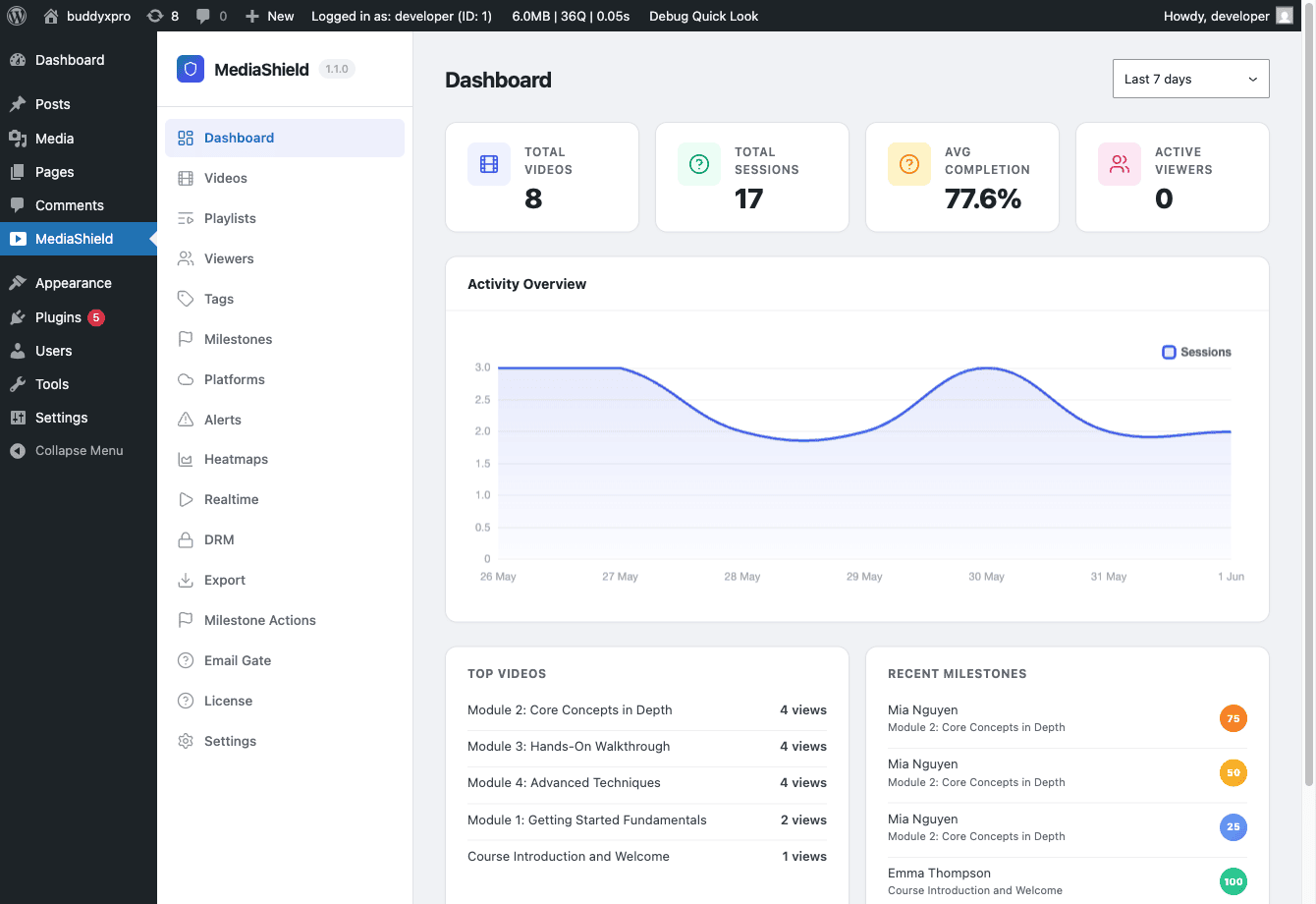
MediaShield admin dashboard showing 8 videos, 17 sessions, 77.6% average completion, an activity bar chart, Top Videos list, and Recent Milestones panel The MediaShield Dashboard. Stat cards, the daily activity chart, Top Videos, and Recent Milestones all filter by the selected date range.

Go to MediaShield > Dashboard to see your analytics overview.

The page has a date range filter at the top (Today / 7 days / 30 days / 90 days) that rescopes all data on the page. Daily counts respect your WordPress site timezone.

Stat cards

Four summary numbers at the top of the dashboard:

  • Total Videos - number of videos in your library
  • Total Sessions - number of watch sessions in the selected period
  • Avg Completion - average completion percentage across all sessions
  • Active Viewers - sessions with a heartbeat in the last 5 minutes (real-time)

Activity chart

A daily bar chart of session counts over the selected period.

Top Videos

Best-performing videos by session count for the active date range.

Recent Milestones

The most recent 25%, 50%, 75%, and 100% completions across all videos. Since version 1.1.0, this card filters by the same date range as the rest of the dashboard.

Per-User Analytics

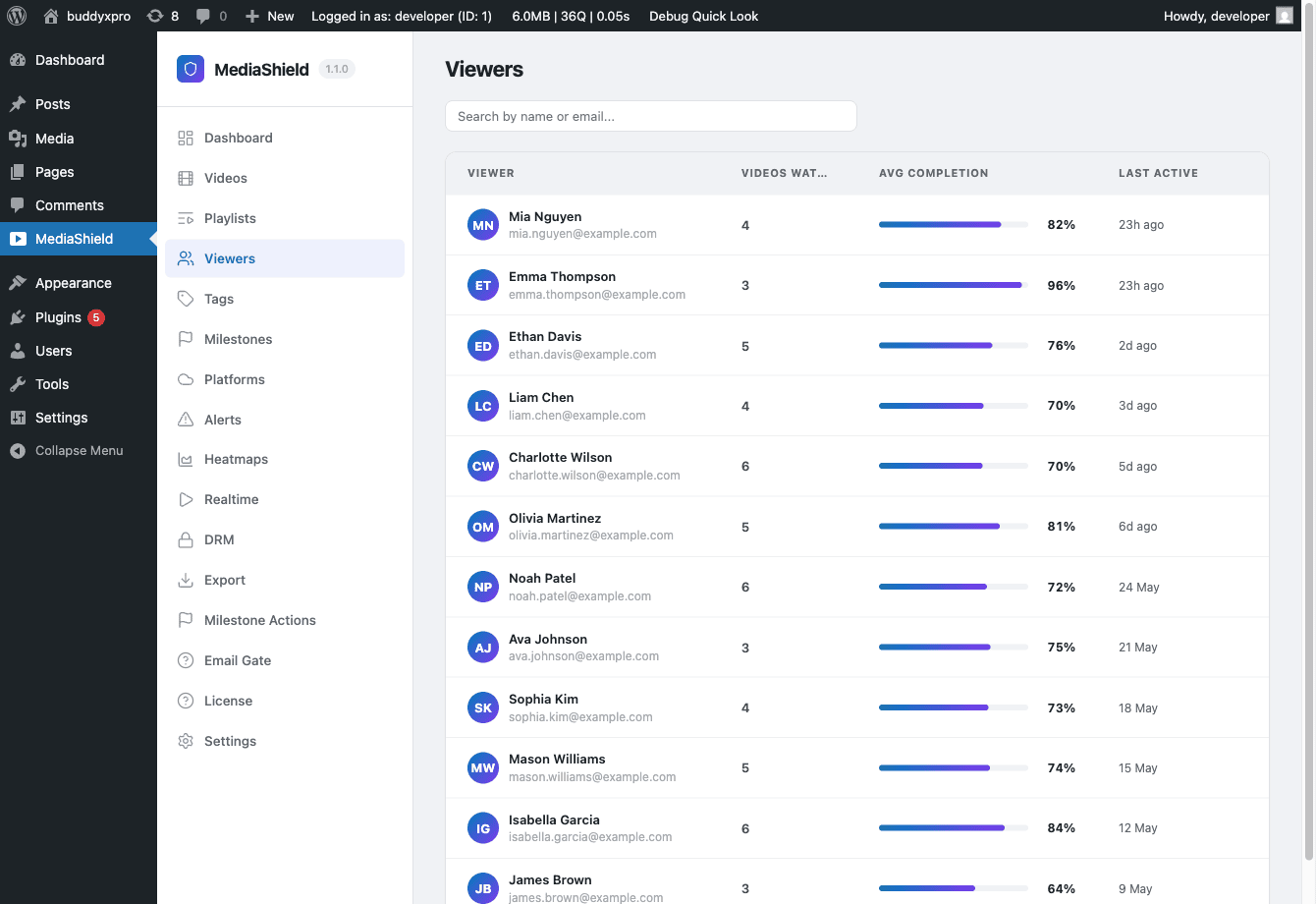
MediaShield Viewers page listing 12 students with completion progress bars and last-active timestamps The Viewers (Students) page. Each row shows a user's completion progress and last active time. Click any row to see full milestone history.

Go to MediaShield > Students to see per-user watch activity.

The Students page lists all users who have watched at least one video. Click any user to see:

  • Every video they have started
  • Their furthest position reached
  • Completion percentage
  • Milestone history (which percentages they hit and when)
  • IP address and device type

This is the page to open when a learner says their progress did not register.

From the Students page you can also Revoke All Sessions for a user, immediately terminating all their active video streams.

Milestones

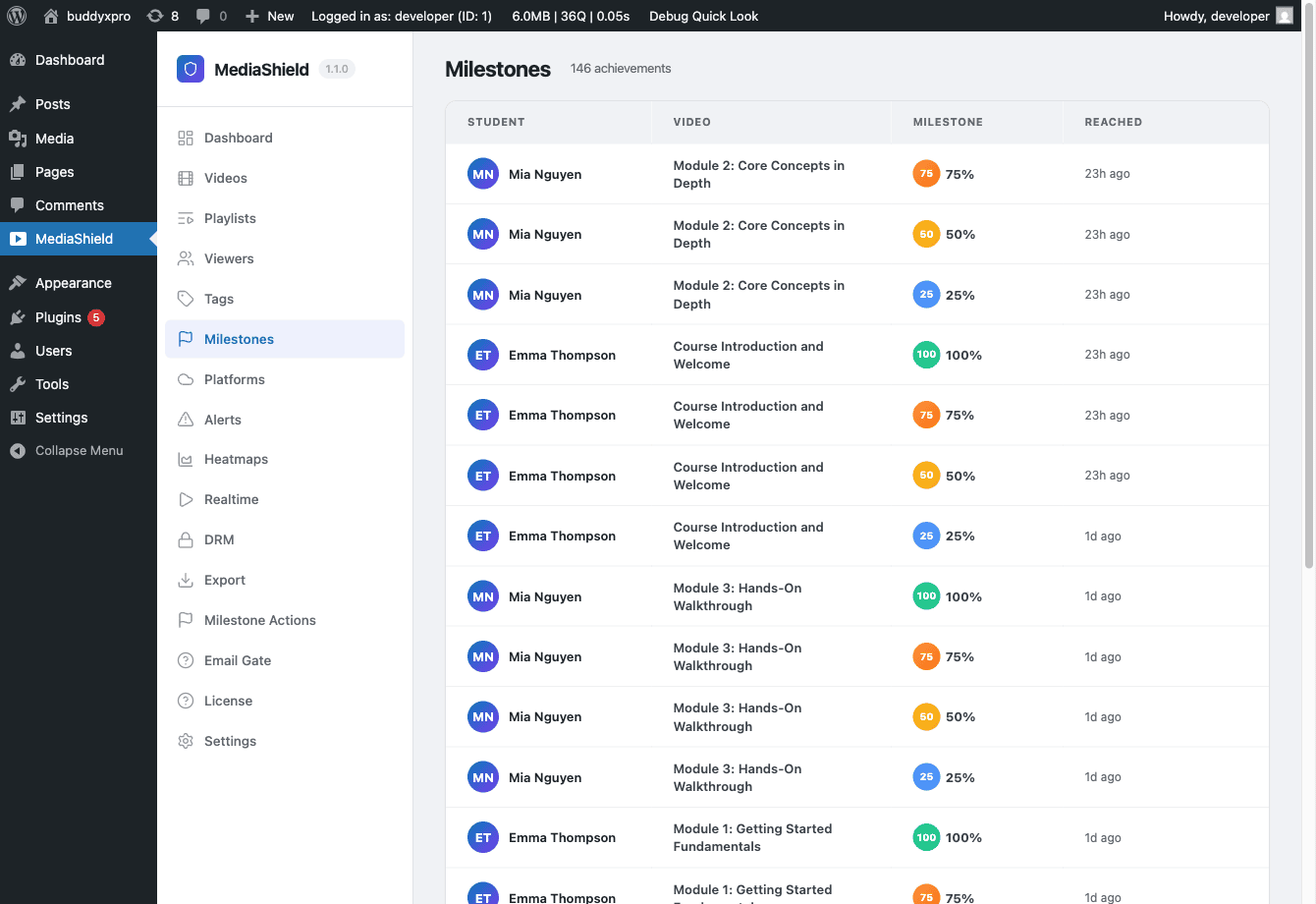
MediaShield Milestones admin page showing per-video completion counts at each threshold The Milestones page. Each video row shows how many viewers hit the 25%, 50%, 75%, and 100% thresholds.

Go to MediaShield > Milestones to manage milestone configuration.

MediaShield tracks four completion points per video: 25%, 50%, 75%, and 100%. When a viewer crosses one of these thresholds, a milestone is recorded.

The Milestones page shows:

  • Per-video completion counts at each threshold
  • Milestone tag assignments

Milestone tags

You can assign a tag to a specific video at a specific completion percentage. When a viewer reaches that milestone, the tag is automatically recorded in the Tags library and linked to that viewer's record.

Tags are managed under MediaShield > Tags.

Milestone hooks for custom integrations

The free plugin fires PHP actions when milestones are reached, so you can wire your own logic. For example, mark a LearnDash lesson complete when a video reaches 100%:

add_action( 'mediashield_milestone_100', function( $user_id, $video_id ) {
    // Your LMS integration code here
}, 10, 2 );

The mediashield_milestone_reached action fires for all percentages and passes the percentage as a parameter. There are also percentage-specific actions: mediashield_milestone_25, mediashield_milestone_50, mediashield_milestone_75, mediashield_milestone_100.

For the full action signatures, see the Developer Guide - Hooks and Filters.

Tags

Go to MediaShield > Tags to manage the tag dictionary.

Tags serve two purposes:

  1. Milestone tags - automatically applied to viewer records when a milestone is reached
  2. Manual tags - assign tags to videos for organization

From the Tags page you can edit tag names, slugs, and descriptions, and delete tags that are no longer in use.

What to expect on a fresh install

The dashboard shows real data only. There are no demo numbers. After installing, watch a video as a logged-in user for at least 30 seconds, then refresh the dashboard to see your first session counted.

Playlists

Playlists are groups of videos played in sequence. Use them for course modules, tutorial series, chapter sequences, or any content that has a natural order.

Playlists were introduced and are fully supported in version 1.1.0.

Creating a playlist

Go to MediaShield > Playlists and click Add New Playlist.

Give the playlist a title, then add videos using the video picker. You can drag and drop to set the order.

Playlist settings:

Autoplay - When on, the next video starts automatically when the current one ends.

Countdown - How many seconds to wait between videos when autoplay is on. Default is 5 seconds. A countdown overlay shows the viewer that the next video is about to start.

Loop - When the last video in the playlist ends, start from the first video again.

Shuffle - Play the videos in a random order instead of the set order.

Click Save when done.

Embedding a playlist

You have two options:

Shortcode

[mediashield_playlist id=15]

Replace 15 with your playlist's ID. The ID appears in the URL when editing the playlist (post=15).

Gutenberg block

In the block inserter, search for MediaShield Playlist. The block opens a playlist picker.

Both embedding methods produce identical output.

How playlists work with protection

Every video inside a playlist runs through the same protection layer as a standalone embed:

  • The watermark is applied per-video based on each video's protection level
  • Session tracking runs per video (each video in the playlist generates its own session record)
  • Milestones are tracked per video
  • Access control is checked per video - if a viewer doesn't have permission for one video in the playlist, that video is blocked but others continue to work

Playlist thumbnails

Set a Featured Image on the playlist post to use as the playlist thumbnail in any listing. Individual video thumbnails are shown in the playlist player according to each video's own Featured Image.

Reordering videos

Open the playlist edit screen and drag the videos into the desired order. Save. The new order takes effect immediately for all future playback.

Troubleshooting

Start with this checklist before investigating further. It covers the most common reports.

Quick diagnostic checklist

  • MediaShield is activated on the Plugins page
  • Settings > Enable MediaShield is ON
  • Protection level is not set to "None" (globally or per-video)
  • You're viewing a page that contains a video shortcode, block, or embed
  • Browser cache cleared (Ctrl+Shift+R or Cmd+Shift+R)
  • No JavaScript errors in the browser console (press F12, open Console tab)
  • No MediaShield errors in wp-content/debug.log

If all seven pass and you still have an issue, the sections below cover specific symptoms.

Videos aren't being detected or wrapped

Your video shows on the page but has no watermark, no badge, and no protection layer.

  1. Use a shortcode or block. If you pasted a raw YouTube URL into a post, MediaShield's output buffer wraps it - but only if output buffering isn't disabled by another plugin. Use [mediashield id=X] to guarantee wrapping.

  2. Page builder JavaScript timing. Some builders render videos via JavaScript after the output buffer runs. In that case, use the MediaShield Video block or [mediashield id=X] shortcode in the builder, not a raw iframe or URL.

  3. Custom embed format. Go to Settings > Custom URL Patterns and add a pattern that matches your iframe's src URL.

  4. Output buffer disabled. Rare, but some performance plugins disable output buffering. Check your plugin list for anything that modifies output buffering.

  5. Enable MediaShield is off. Check Settings > General > Enable MediaShield.

Watermark isn't showing

Video plays but no username or IP overlay appears.

  1. Protection level is Basic or None. Basic skips the watermark. Set to Standard or Strict globally (Settings > General) or on the individual video.

  2. Opacity is 0. Go to Settings > Watermark > Opacity. Set it to 30 or higher.

  3. User is not logged in. Without a logged-in user, the watermark shows "Guest" plus IP. If you expected a named watermark, confirm the viewer is logged in.

  4. Theme CSS conflict. In browser DevTools, look for an element with class ms-watermark-canvas inside the video container. If it exists but is invisible, your theme may be hiding canvas elements. Add this CSS to your theme:

.ms-protected-player .ms-watermark-canvas {
    display: block !important;
    position: absolute !important;
}

Session tracking isn't working

Videos play but the Dashboard shows zero sessions and milestones never fire.

  1. REST API is blocked. Visit /wp-json/mediashield/v1/ in your browser. You should see a JSON response. If you see a 404, a security plugin (such as iThemes Security or Wordfence) is blocking /wp-json/. Whitelist that path.

  2. Caching plugin is caching security tokens. This is the most common cause. Full-page caching serves the same nonce (one-time security token) to every visitor, so each new viewer's session start fails.

    Quick fixes by caching plugin:

    • LiteSpeed Cache: Settings > Cache > Do Not Cache URIs. Add /wp-json/mediashield/.
    • WP Rocket: REST API is excluded by default. Verify under Advanced Rules.
    • W3 Total Cache: Performance > Page Cache > Reject URIs. Add /wp-json/.
    • WP Super Cache: Advanced > Rejected URL Strings. Add /wp-json/.
    • Cloudflare APO: Add a Page Rule for *yoursite.com/wp-json/* set to Cache Level: Bypass.
  3. Ad blocker on the viewer's browser. Some strict privacy browsers block /wp-json/ requests. Advise viewers to whitelist your domain.

Dashboard shows no data

Stat cards all read 0. Chart is empty.

  1. No sessions yet. The dashboard shows real data only. Watch a video as a logged-in user for at least 30 seconds, then refresh.

  2. Date range filter. Check the period selector at the top of the dashboard. Make sure your test activity falls within the selected range.

"Log in to watch" overlay on public pages

Visitors see the login gate even on pages you intended to be public.

  1. Require Login is on globally. Settings > General > Require Login. Turn off if you want public viewing.

  2. Per-video override. Open the video edit screen and check the Access settings. Make sure it is not set to require login.

Self-hosted video returns 403

  1. Session not started. Self-hosted streaming requires an active session token. Check the Network tab in browser DevTools to confirm the session start request succeeded.

  2. Nginx configuration. If you use Nginx (not Apache), add a rule to deny direct access to the protected upload directory and let only the PHP proxy serve files. See the server configuration section in the developer guide.

  3. CDN caching the stream endpoint. The self-hosted stream endpoint should not be cached. If you use Cloudflare or another CDN, add a bypass rule for your stream URL.

Still stuck?

  1. Enable WordPress debug logging. Add to wp-config.php:
define( 'WP_DEBUG', true );
define( 'WP_DEBUG_LOG', true );
  1. Reproduce the issue.

  2. Open wp-content/debug.log and look for lines tagged with MediaShield or mediashield.

  3. Email support@wbcomdesigns.com with the relevant log lines and your environment: WordPress version, PHP version, active theme, active plugins.

For Pro customers, SLA is 48 business hours. For free users, the WordPress.org plugin forum is monitored.

Frequently Asked Questions

General

Which video platforms does MediaShield support?

Five platforms out of the box: Self-hosted (MP4, WebM, MOV, M4V files), YouTube, Vimeo, Bunny Stream, and Wistia. The free plugin detects and protects embeds from all five. Pro adds direct API connections for browsing, importing, and uploading through each platform's own API.

Does MediaShield work with page builders?

Yes. MediaShield uses output buffering to detect and wrap video embeds automatically regardless of how they're inserted. It works with Elementor, Beaver Builder, Divi, WPBakery, and any builder that outputs standard <video> or <iframe> elements. If your builder renders videos via JavaScript after page load, use the MediaShield block or shortcode directly instead of pasting a raw URL.

Does it work with LMS plugins?

Yes. MediaShield works alongside LearnDash, LifterLMS, Tutor LMS, Sensei, and others. The free plugin fires milestone actions that you can hook for LMS completion tracking. Pro ships pre-built adapters for LearnDash, LifterLMS, and TutorLMS.

Will MediaShield slow down my site?

No. MediaShield only loads its CSS and JavaScript on pages that contain video content. Session validation uses signed tokens so your site does not query the database on every check. Pages without videos have zero performance impact.

Does it work on mobile?

Yes. The watermark, player wrapping, session tracking, and playback all work on iOS Safari, Android Chrome, and modern mobile browsers. Developer-tools detection is intentionally disabled on devices under 1024 px wide to avoid false positives from on-screen keyboards and orientation changes.

How do I set a video thumbnail?

For platform videos (YouTube, Vimeo, Wistia, Bunny), the thumbnail is fetched automatically from the platform when the video is saved. For self-hosted videos, MediaShield does not auto-generate a thumbnail - set the Featured Image on the video edit screen manually.

Does it work with caching plugins?

Yes, with one configuration step: exclude /wp-json/mediashield/ from your cache. Most caching plugins handle REST API exclusion by default. Check your caching plugin's documentation. For Cloudflare, add a Page Rule to bypass cache for *yoursite.com/wp-json/*.

Does it work with Cloudflare or a CDN?

Yes. Admin and REST endpoints use WordPress authentication and are not cached by CDNs. Frontend assets are versioned and safe to cache. For self-hosted video streaming, add a bypass rule for the stream endpoint so the CDN does not interfere.

Video Protection

How does the watermark work?

MediaShield renders a canvas overlay on top of the video showing the viewer's display name and IP address. The watermark moves to a new position at configurable intervals, stays visible in fullscreen, and re-renders automatically if the DOM is modified.

Can viewers still screen-record my videos?

MediaShield makes screen recording traceable, not impossible. No web software can block screen recording. The dynamic watermark with the viewer's identity means any leaked recording can be traced back to who made it. For the full explanation of what protection can and cannot do, see the Protection Philosophy in the Introduction section.

What does developer-tools detection do?

When a viewer opens browser developer tools while watching, MediaShield detects it and can optionally pause the video. The event is logged and Pro adds it as a suspicious activity alert. This deters casual attempts to inspect video source URLs. Detection is disabled on mobile and small screens to avoid false positives.

Can I disable protection for a specific video?

Yes. Set the per-video Protection Level to "None" on the video edit screen. That video plays without any protection layer while all other videos keep their settings.

Sessions and Access

How do concurrent stream limits work?

Each user can watch on a set number of devices at once. Default is 2. MediaShield tracks active sessions via heartbeat pings every 30 seconds. When a viewer tries to start a stream beyond the limit, they see an error and need to close another video first. Sessions without a heartbeat for 5 minutes are automatically expired.

Can I revoke a user's access?

Yes. Admins can revoke all active sessions for a user from the Students admin page. This immediately terminates all their active video streams.

GDPR and Privacy

Is MediaShield GDPR compliant?

Yes. MediaShield registers with WordPress's built-in privacy tools. Personal Data Export returns all watch sessions, milestones, and tags for a user. Personal Data Erasure anonymizes IP addresses and user agents in watch sessions and deletes milestones and tag assignments.

What data does MediaShield collect?

For each watch session: user ID, video ID, IP address, user agent, device type, browser, session start time, last heartbeat, total watch time, furthest position, and completion percentage. All data is stored in your own WordPress database. Nothing is sent to external servers.

Pro and Licensing

What happens if my Pro license expires?

Your Pro features keep working. License status in MediaShield Pro controls update access only. When your license lapses, you stop receiving plugin updates, but every Pro feature continues working as configured. Renewal restores update access.

Can I white-label the watermark?

In the free plugin you can adjust opacity, color, and swap interval, but the watermark always shows display name and IP. Pro lets you choose from 7 fields and add custom text.

How do I remove the "Protected by MediaShield" badge?

Settings > General > Show Badge. Toggle it off. Works in both free and Pro.

What is the refund policy?

14-day money-back guarantee on MediaShield Pro. Email support@wbcomdesigns.com with your license key for a refund within 48 hours. The free plugin is GPL-licensed.

Developer Guide

Hooks, filters, REST API, database tables, and extension architecture

Developer Guide Overview

This section is for developers building integrations, add-ons, or custom code on top of MediaShield.

Version 1.1.0. Requires PHP 8.1 and WordPress 6.5.

What the developer guide covers

  • Hooks and Filters - every PHP action and filter the free plugin exposes, with parameters and examples
  • REST API - all endpoints under mediashield/v1, authentication, request and response formats
  • Database Tables - the 6 free plugin tables, their columns, indexes, and cleanup behavior
  • Extension Architecture - how to build an add-on, the filter chain order, upload driver contract, and how Pro extends the free plugin

Architecture summary

MediaShield uses a singleton bootstrap pattern. The entry point is mediashield.php, which loads the Composer autoloader and calls Plugin::instance() on plugins_loaded. The plugin fires mediashield_loaded when all internal hooks are registered - this is the correct hook for add-ons to initialize.

The PHP namespace is MediaShield\. Classes are PSR-4 autoloaded from includes/.

Key classes:

Class Role
Core\Plugin Singleton entry point, registers all hooks
Core\Settings Single source of truth for all free-plugin options
Access\AccessControl Runs the mediashield_can_watch filter chain
Access\SessionManager HMAC token generation and concurrent stream enforcement
Milestones\MilestoneTracker Detects 25/50/75/100% completion, fires milestone actions
Upload\UploadManager Upload driver registry via mediashield_upload_drivers filter
Player\Renderer Shared single-video player output (shortcode, block, single template)
Player\PlayerWrapper Output buffer scan for video elements

Custom Post Types

MediaShield registers two CPTs:

  • mediashield_video - individual protected videos. REST base: mediashield-videos.
  • mediashield_playlist - ordered groups of videos. REST base: mediashield-playlists.

Both CPTs support custom fields. The meta keys are documented in the full developer reference (docs/developer/post-meta-reference.md in the plugin repository).

Settings

All free-plugin options are defined in Core\Settings::schema(). Adding a new option requires updating that schema, bumping the DB version constant, and (if the value needs to reach the browser) referencing it in Settings::frontend_config().

JavaScript

The player stack uses vanilla JS for the frontend (no framework dependency):

  • player-wrapper.js - detects and wraps video elements with the protection container
  • watermark.js - renders the watermark canvas overlay
  • tracker.js - sends session heartbeats every 30 seconds
  • protection.js - handles right-click blocking, keyboard blocking, and devtools detection

The admin SPA is a React application with hash routing. Blocks are built with @wordpress/scripts.

Testing and CI

The plugin ships a local CI pipeline (bin/local-ci.sh) covering PHP lint, WPCS, PHPStan, architecture invariants, end-to-end customer journeys (Playwright), and a scale benchmark for hot-path query budgets. Run composer ci for the full gate.

Hooks and Filters

All hooks are in the mediashield namespace and fire from the free plugin core. This page documents the actions and filters available in version 1.1.0.

Actions

mediashield_loaded

Fires after the core plugin is fully initialized and all hooks are registered. Use this to initialize any code that depends on MediaShield being ready.

add_action( 'mediashield_loaded', function() {
    // Safe to use MediaShield APIs here.
} );

mediashield_session_started

Fires when a new watch session is created.

Parameters: $session_id (int), $video_id (int), $user_id (int), $ip (string)

add_action( 'mediashield_session_started', function( $session_id, $video_id, $user_id, $ip ) {
    // Log to external analytics, fire a webhook, etc.
}, 10, 4 );

mediashield_session_ended

Fires when a watch session is finalized.

Parameters: $session_id (int), $video_id (int), $user_id (int)


mediashield_concurrent_limit_reached

Fires when a user tries to start a stream beyond their allowed concurrent limit.

Parameters: $user_id (int), $video_id (int), $active_count (int), $max (int)


mediashield_user_access_revoked

Fires when an admin revokes all sessions for a user.

Parameters: $user_id (int), $count (int - number of sessions revoked)


mediashield_milestone_reached

Fires when any milestone percentage is reached for a user and video.

Parameters: $user_id (int), $video_id (int), $pct (int - 25, 50, 75, or 100), $session_id (int)

add_action( 'mediashield_milestone_reached', function( $user_id, $video_id, $pct, $session_id ) {
    if ( 100 === $pct ) {
        // Grant a certificate, update LMS progress, etc.
    }
}, 10, 4 );

mediashield_milestone_{pct}

Fires for a specific milestone percentage. Available: mediashield_milestone_25, mediashield_milestone_50, mediashield_milestone_75, mediashield_milestone_100.

Parameters: $user_id (int), $video_id (int)

add_action( 'mediashield_milestone_100', function( $user_id, $video_id ) {
    learndash_process_mark_complete( $user_id, $video_id );
}, 10, 2 );

mediashield_upload_started

Since 1.0.0. Fires just before an upload driver runs.

Parameters: $driver (string), $file_path (string), $options (array)


mediashield_upload_complete

Fires when an upload finishes successfully.

Parameters: $video_id (int), $driver_name (string), $result (array)


mediashield_upload_failed

Fires when an upload driver returns an error.

Parameters: $driver (string), $error (string), $options (array)


mediashield_before_player

Since 1.1.0. Fires immediately before the player container HTML is emitted. Use to enqueue per-video assets or print HTML above the player.

Parameters: $video_id (int)


mediashield_after_player

Since 1.1.0. Fires immediately after the player HTML is built and the mediashield_player_html filter has run.

Parameters: $video_id (int)


mediashield_devtools_detected

Since 1.1.0. Fires when the devtools beacon receives a detection event from the browser.

Parameters: $context (array with keys: user_id, ip, url, strategy, ua, screen, at)

strategy is size_delta or debugger_timing. at is a UTC MySQL timestamp.


mediashield_privacy_before_erase

Fires before MediaShield's GDPR eraser deletes or anonymizes rows for a given email. Use to roll your own removals into the GDPR receipt.

Parameters: $email (string), $user (WP_User or false), $page (int), $counters (stdClass, passed by reference)


Filters

mediashield_can_watch

The primary access control gate. Return the $result array unchanged to allow access. Return an array with allowed => false and a reason string to deny.

Parameters: $result (array {allowed: bool, reason: string}), $video_id (int), $user_id (int)

// Restrict to active subscribers.
add_filter( 'mediashield_can_watch', function( $result, $video_id, $user_id ) {
    if ( ! user_has_active_subscription( $user_id ) ) {
        return array(
            'allowed' => false,
            'reason'  => 'An active subscription is required.',
        );
    }
    return $result;
}, 10, 3 );

Priority chain: Free core runs at 10. If you add your own gate, use a priority outside 10-25 to avoid colliding with Pro's gates (email gate at 15, role access at 20, LMS adapters at 25).


mediashield_watermark_config

Customize the watermark overlay settings.

Parameters: $config (array with keys: opacity, color, text, swap_interval), $video_id (int), $user_id (int)


mediashield_upload_drivers

Register custom upload driver classes. Each class must implement MediaShield\Upload\Drivers\DriverInterface.

Parameters: $drivers (array, driver name => class name)

add_filter( 'mediashield_upload_drivers', function( $drivers ) {
    $drivers['s3'] = MyPlugin\Upload\S3Driver::class;
    return $drivers;
} );

mediashield_player_type

Override the player type for a video. Values: standard or drm.

Parameters: $type (string), $video_id (int)


mediashield_milestone_thresholds

Customize which completion percentages trigger milestones.

Parameters: $thresholds (array of ints, default [25, 50, 75, 100]), $video_id (int)


mediashield_settings_response

Filter the settings REST API GET response. Use to expose additional settings to the admin SPA.

Parameters: $settings (array)


mediashield_settings_update

Filter settings data before saving from the settings REST API PUT. Use to intercept and save your own settings keys.

Parameters: $data (array)


mediashield_trusted_ip_headers

Configure which HTTP headers are checked for client IP detection. Useful when behind a proxy or CDN.

Parameters: $headers (array of header name strings)

add_filter( 'mediashield_trusted_ip_headers', function( $headers ) {
    array_unshift( $headers, 'HTTP_CF_CONNECTING_IP' );
    return $headers;
} );

mediashield_enable_output_buffer

Control whether output buffering runs on the current request.

Parameters: $enabled (bool)

// Disable on WooCommerce checkout.
add_filter( 'mediashield_enable_output_buffer', function( $enabled ) {
    if ( function_exists( 'is_checkout' ) && is_checkout() ) {
        return false;
    }
    return $enabled;
} );

mediashield_player_html

Filter the final rendered player HTML.

Parameters: $html (string), $video_id (int), $atts (array)


mediashield_allow_empty_referer

Since 1.1.0. When the allowed-domain whitelist is active, controls whether requests with no Referer header are allowed. Default false (deny).

Parameters: $allow (bool)


mediashield_frontend_config

Since 1.1.0. Filter the frontend localized config payload before it is emitted as window.mediashieldConfig.

Parameters: $config (array)


mediashield_player_classes

Since 1.1.0. Filter the CSS classes on the player container element.

Parameters: $classes (array), $video_id (int)


mediashield_protection_config

Since 1.1.0. Filter the protection JavaScript config before it is passed to protection.js.

Parameters: $config (array with boolean and string keys for each protection feature)


mediashield_player_access_type

Since 1.1.0. Return a non-empty slug to emit as data-access-type on the player container. Pro uses this for the email gate.

Parameters: $access_type (string), $video_id (int)


mediashield_session_allow_anonymous_start

Since 1.1.0. Gates whether anonymous (logged-out) visitors can call POST /session/start for a given video. Defaults to true when the video has a non-empty _ms_access_type meta value.

Parameters: $allow (bool), $video_id (int), $access_type (string), $request (WP_REST_Request)


mediashield_shortcode_source_url

Since 1.1.0. Override the source URL resolved by the [mediashield] shortcode at render time.

Parameters: $source_url (string), $video_id (int), $atts (array)


mediashield_enqueue_frontend

Since 1.1.0. Return false to prevent the frontend player assets from registering.

Parameters: $register (bool)


mediashield_privacy_erase_result

Filter the final GDPR erasure result before WordPress processes it. Append messages or adjust counts.

Parameters: $result (array), $email (string), $user (WP_User or false), $page (int)


JavaScript Events

The frontend player wrapper dispatches DOM CustomEvents on window. Listen with window.addEventListener( name, handler ).

mediashield:access-denied

Since 1.1.0, this event is cancelable. Dispatched when POST /session/start returns 403 or a denial code. Call event.preventDefault() to suppress the default error overlay if you're rendering your own gate UI.

Detail: el (HTMLElement), videoId (number), reason (string - access_denied, email_gate_required, login_required, etc.)

REST API Reference

Free plugin - mediashield/v1

Base URL: /wp-json/mediashield/v1/

Authentication: standard WordPress REST API nonce via X-WP-Nonce header or cookie-based auth. All endpoints require manage_options unless noted.


Settings

Method Route Auth Description
GET /settings manage_options Retrieve all settings. Output filtered via mediashield_settings_response.
PUT /settings manage_options Update settings. Partial updates supported. Unknown keys are ignored.

PUT behavior: known keys are type-cast to their schema type. A value that fails validation (such as an invalid hex color or out-of-range protection level) causes that key to be skipped - the previously stored value is kept.


Tags

Method Route Auth Description
GET /tags manage_options List all tags.
POST /tags manage_options Create a tag. Body: { name, slug, description }.
GET /tags/{id} manage_options Get a single tag.
PUT /tags/{id} manage_options Update a tag.
DELETE /tags/{id} manage_options Delete a tag and remove all video-tag associations for it.
GET /videos/{video_id}/tags manage_options Tags assigned to a video.
POST /videos/{video_id}/tags manage_options Assign a tag to a video. Body: { tag_id }.
DELETE /videos/{video_id}/tags/{tag_id} manage_options Remove a tag from a video.

Sessions

Method Route Auth Description
POST /session/start logged_in (or anonymous when _ms_access_type is set - see mediashield_session_allow_anonymous_start) Start a watch session. Body: { video_id }. Returns HMAC session token.
POST /session/heartbeat logged_in Update position and progress. Body: { session_token, position, completion_pct }.
POST /session/end logged_in End session and finalize stats. Body: { session_token }.
POST /session/revoke-user manage_options Kill all active sessions for a user. Body: { user_id }.

Session tokens are HMAC-signed. Heartbeat interval: 30 seconds. Sessions without a heartbeat for 5 minutes are treated as expired.


Stream

Method Route Auth Description
GET /stream/{video_id} valid active session Authenticated streaming handoff for self-hosted videos. Returns a signed URL or proxies the file.

Playlists

Method Route Auth Description
GET /playlists/{playlist_id}/items manage_options List items in a playlist in sort order.
POST /playlists/{playlist_id}/items manage_options Add a video to a playlist. Body: { video_id }.
DELETE /playlists/{playlist_id}/items/{item_id} manage_options Remove a video from a playlist.
POST /playlists/{playlist_id}/items/reorder manage_options Reorder items. Body: { ordered_ids: [int] }.

Upload

Method Route Auth Description
POST /upload/init upload_mediashield capability Initialize an upload (chunked supported). Body: { filename, file_size, platform? }. Returns upload_id.
GET /upload/status/{upload_id} upload_mediashield capability Check upload progress. Returns { status, progress_pct }.

Upload status values: pending - uploading - processing - complete (or failed).

The upload_mediashield capability is separate from manage_options to allow instructors or content managers to upload videos without full admin access.


Analytics

Method Route Auth Description
GET /analytics/overview manage_options Dashboard summary. Date filter: ?period=7d|30d|90d. Includes total videos, sessions, avg completion, active viewers, activity chart, top videos, recent milestones. Daily counts use CONVERT_TZ() to respect the WP site timezone.
GET /videos/{id}/stats manage_options Per-video statistics.
GET /analytics/milestones manage_options Milestone completion data across all videos.
GET /analytics/users manage_options User engagement list.
GET /analytics/users/{user_id} manage_options Single user: every video watched, max position, completion percentage, milestone history.
GET /analytics/my-videos logged_in Current user's watched videos. No admin capability required.

Protection

Method Route Auth Description
POST /protection/devtools-event logged_in (beacon_permission) Beacon endpoint for client-side devtools detection events. Fires mediashield_devtools_detected action.

Wizard

Method Route Auth Description
POST /wizard/complete manage_options Mark the setup wizard as complete.

Database Tables

MediaShield creates 6 tables in the free plugin. All table names use the {$wpdb->prefix} prefix (typically wp_). Tables are created via dbDelta on activation and dropped on full uninstall (Plugins > Delete).


ms_tags

Tag taxonomy for milestone and manual video tags.

Column Type Notes
id int, PK, AUTO_INCREMENT
name varchar(255) Display name
slug varchar(255), UNIQUE URL-safe identifier
description text Optional description
created_by bigint WordPress user ID of creator
created_at datetime UTC creation timestamp

Indexes: PRIMARY (id), UNIQUE (slug).


ms_video_tags

Many-to-many join between videos and tags.

Column Type Notes
video_id bigint mediashield_video CPT post ID
tag_id int References ms_tags.id
tagged_by bigint WordPress user ID
tagged_at datetime UTC timestamp

Indexes: UNIQUE (video_id, tag_id).


ms_watch_sessions

Active and recent watch session records. The concurrent-stream limit check reads this table.

Column Type Notes
id bigint, PK, AUTO_INCREMENT
video_id bigint CPT post ID
user_id bigint WordPress user ID (0 for guests)
session_token varchar(64) HMAC-derived token for heartbeat authentication
ip_address varchar(45) IPv4 or IPv6
user_agent text
device_type varchar(20) desktop, mobile, or tablet
browser varchar(50)
started_at datetime UTC
last_heartbeat datetime Updated every 30 seconds
total_seconds int Running total of watched seconds
max_position int Furthest position reached (seconds)
completion_pct float 0-100
is_active tinyint(1) 1 while session is live

Indexes: PRIMARY (id), KEY on (user_id, is_active), KEY on (session_token, video_id).

Cleanup: The Cron\Cleanup job archives rows with last_heartbeat older than 5 minutes into ms_watch_sessions_archive and sets is_active = 0.


ms_watch_sessions_archive

Same schema as ms_watch_sessions. Receives rows moved from the active table by the cleanup job. Used for historical analytics queries.

No automatic pruning in the free plugin. Pro's export endpoints read both tables.


ms_milestones

Per-user milestone completion records.

Column Type Notes
id bigint, PK, AUTO_INCREMENT
video_id bigint CPT post ID
user_id bigint WordPress user ID
milestone_pct tinyint 25, 50, 75, or 100 (or custom via filter)
reached_at datetime UTC
session_id bigint References ms_watch_sessions.id

Indexes: PRIMARY (id), UNIQUE (video_id, user_id, milestone_pct).

The UNIQUE constraint prevents double-recording the same milestone. The MilestoneTracker class uses INSERT IGNORE to rely on this constraint.


ms_playlist_items

Ordered video items within a playlist CPT.

Column Type Notes
id bigint, PK, AUTO_INCREMENT
playlist_id bigint mediashield_playlist CPT post ID
video_id bigint mediashield_video CPT post ID
sort_order int Display order (ascending)
added_at datetime UTC

Indexes: PRIMARY (id), KEY on (playlist_id, sort_order).


Cron cleanup

Two scheduled jobs maintain the tables:

Session cleanup - runs on the WordPress cron schedule. Moves stale session rows (no heartbeat for 5 minutes) from ms_watch_sessions to ms_watch_sessions_archive and marks them inactive.

Cascade delete - runs when a video or playlist CPT is deleted. Removes associated rows from all related tables to prevent orphaned records.

The cron job is registered as a standard WordPress cron event via wp_schedule_event. WP-Cron fallback is supported for hosts that do not use a real system cron.

Extension Architecture

How to build add-ons and integrations on top of MediaShield.

Free / Pro contract

The free plugin is the base. Pro is a pure add-on: it never replaces free behavior, only extends through hooks. If Pro is deactivated, the free plugin continues working exactly as before.

The same contract applies to third-party add-ons. Build against the hooks - not against internal class methods or private APIs - and your add-on will survive free plugin updates.

Boot order

plugins_loaded
  - free: Migrator::run() -> Plugin::instance() -> do_action('mediashield_loaded')
                                                          - Pro or add-on: initialize here

Pro hooks into mediashield_loaded to initialize. This guarantees add-ons never initialize before the free plugin is ready. Use the same pattern for your own code.

The mediashield_can_watch filter chain

This is the primary access gate. It runs at session start to decide whether a viewer can watch a video.

Priority Component Decision
10 Free core (AccessControl) Login requirement, role check, domain whitelist
15 Pro: EmailGate Require email submission for email_gate access type
20 Pro: RoleAccess Per-video role restriction
25 Pro: LMS adapters LearnDash / LifterLMS / TutorLMS enrollment checks

Return shape: array{ allowed: bool, reason: string }. Custom callbacks must return the same shape. Choose a priority outside 10-25 or accept that Pro's gates may have already set the decision.

LMS adapters (since 1.1.0)

Pro registers LMS adapter classes via the mediashield_lms_adapters filter. Third-party plugins can register their own adapters the same way. Each adapter class must implement MediaShield\Pro\LMS\AdapterInterface.

add_filter( 'mediashield_lms_adapters', function( $adapters ) {
    $adapters['my_lms'] = MyPlugin\LMS\MyLMSAdapter::class;
    return $adapters;
} );

Admin SPA - adding pages

The admin SPA is a React app with hash routing. Add new pages via the mediashield_admin_routes JavaScript filter (a wp.hooks filter, not a PHP filter).

wp.hooks.addFilter( 'mediashield_admin_routes', 'my-addon', function( routes ) {
    routes.push( {
        path:      '/my-page',
        label:     'My Page',
        icon:      'dashicons-admin-generic',
        component: MyPageComponent,
    } );
    return routes;
} );

Your component loads data via wp.apiFetch using the mediashield/v1 REST endpoints.

SlotFill - injecting into existing pages

The admin SPA exposes named slot hooks via wp.hooks. Use these to inject panels or controls into existing admin pages without forking the free SPA code.

wp.hooks.addFilter( 'mediashield_video_editor_sidebar_panels', 'my-addon', function( panels ) {
    panels.push( MyCustomPanel );
    return panels;
} );

Available slot hooks are declared in src/admin/App.js. Check the current list before using undocumented slots - they may change between releases.

Settings REST extension

Add your own settings to the GET and PUT endpoints using filters:

// Expose your setting in the GET response.
add_filter( 'mediashield_settings_response', function( $settings ) {
    $settings['my_addon_setting'] = get_option( 'my_addon_setting', 'default' );
    return $settings;
} );

// Save your setting on PUT.
add_filter( 'mediashield_settings_update', function( $data ) {
    if ( isset( $data['my_addon_setting'] ) ) {
        update_option( 'my_addon_setting', sanitize_text_field( $data['my_addon_setting'] ) );
        unset( $data['my_addon_setting'] ); // Remove so free controller ignores it.
    }
    return $data;
} );

Unset your own keys from $data before returning from the update filter. The free SettingsController loops over the remaining keys - keys not in the free schema are silently ignored, but removing yours explicitly keeps the behavior unambiguous.

Upload driver contract

Register custom upload drivers for new hosting platforms:

add_filter( 'mediashield_upload_drivers', function( $drivers ) {
    $drivers['my_platform'] = MyPlugin\Upload\MyPlatformDriver::class;
    return $drivers;
} );

Each driver class must implement MediaShield\Upload\Drivers\DriverInterface:

interface DriverInterface {
    public function upload( string $file_path, array $options ): array;
    // Returns: [ 'success' => bool, 'url' => string, 'platform_video_id' => string, 'error' => string ]
}

The mediashield_upload_started, mediashield_upload_complete, and mediashield_upload_failed actions fire around the driver's upload() call regardless of which driver is active.

Player type extension

Override the player type for specific videos to trigger DRM playback:

add_filter( 'mediashield_player_type', function( $type, $video_id ) {
    if ( get_post_meta( $video_id, '_my_drm_enabled', true ) ) {
        return 'drm';
    }
    return $type;
}, 10, 2 );

The DRM player (Shaka Player) is enqueued only when the player type is drm. Free uses standard for all videos.

Privacy integration

If your add-on stores per-user data related to video watching, integrate with WordPress's GDPR tools via the MediaShield privacy hooks:

  • mediashield_privacy_before_erase - add your deletions to the erasure count
  • mediashield_privacy_erase_result - append messages to the erasure report

Both hooks are documented in Hooks and Filters.

Pro Features

Features unlocked by MediaShield Pro (requires the free MediaShield plugin active).

License Activation

What the License Does

Your license key unlocks automatic plugin updates and priority email support. It does not gate feature availability. Every Pro feature -- watermarks, email gate, DRM, heatmaps, realtime dashboard, platform imports, exports, LMS integration, weekly digest -- works on any site where Pro is activated, regardless of license status.

When your license expires, all features keep working. You stop receiving automatic updates until you renew.

Activating Your License

  1. Find your license key in your purchase confirmation email or in your Wbcom Designs account.
  2. Go to MediaShield > Settings and open the License tab.
  3. Paste your key into the license field and click Activate License.
  4. The tab will display "License active". Updates are now available.

Staging and Development Sites

The licensing system recognizes these environments and treats them as non-counting activations:

  • Hostnames containing staging, dev, test, or local.
  • Hostnames ending in .local, .test, or .localhost.
  • IP addresses such as 127.0.0.1.

You can run Pro on unlimited staging and local sites without consuming production activation slots.

Moving to a New Site

  1. Deactivate on the current site first: go to MediaShield > Settings > License and click Deactivate. This frees the slot immediately.
  2. Install Pro on the new site, paste the same key, and click Activate.

If you have lost access to the old site, email support@wbcomdesigns.com with your license key and purchase email address. Slots will be reset within 24 hours.

License Expiry

When your license expires:

  • All Pro features keep working.
  • Automatic updates stop.
  • Email support requires an active license.

You will receive renewal reminders at 30, 14, 7, and 1 day before expiry. Renew at any time from your account page. The renewal extends from the current expiry date, not from the renewal date.

Troubleshooting

"Invalid license key" -- Check for typos or trailing spaces. Paste directly from the purchase email. Confirm you have not exceeded your site limit.

"License activation failed" -- Confirm that allow_url_fopen is enabled in PHP and that your host allows outbound HTTPS to wbcomdesigns.com. Temporarily disable any plugins that block outgoing API calls.

License tab not visible -- Confirm both the free MediaShield plugin and MediaShield Pro are active. Clear any object cache (Redis, Memcached) -- license status is cached for 12 hours.

Support Contact

  • Email: support@wbcomdesigns.com
  • Response time: 48 business hours (Monday to Friday, IST).
  • An active license is required for new support tickets.

Platform Connections

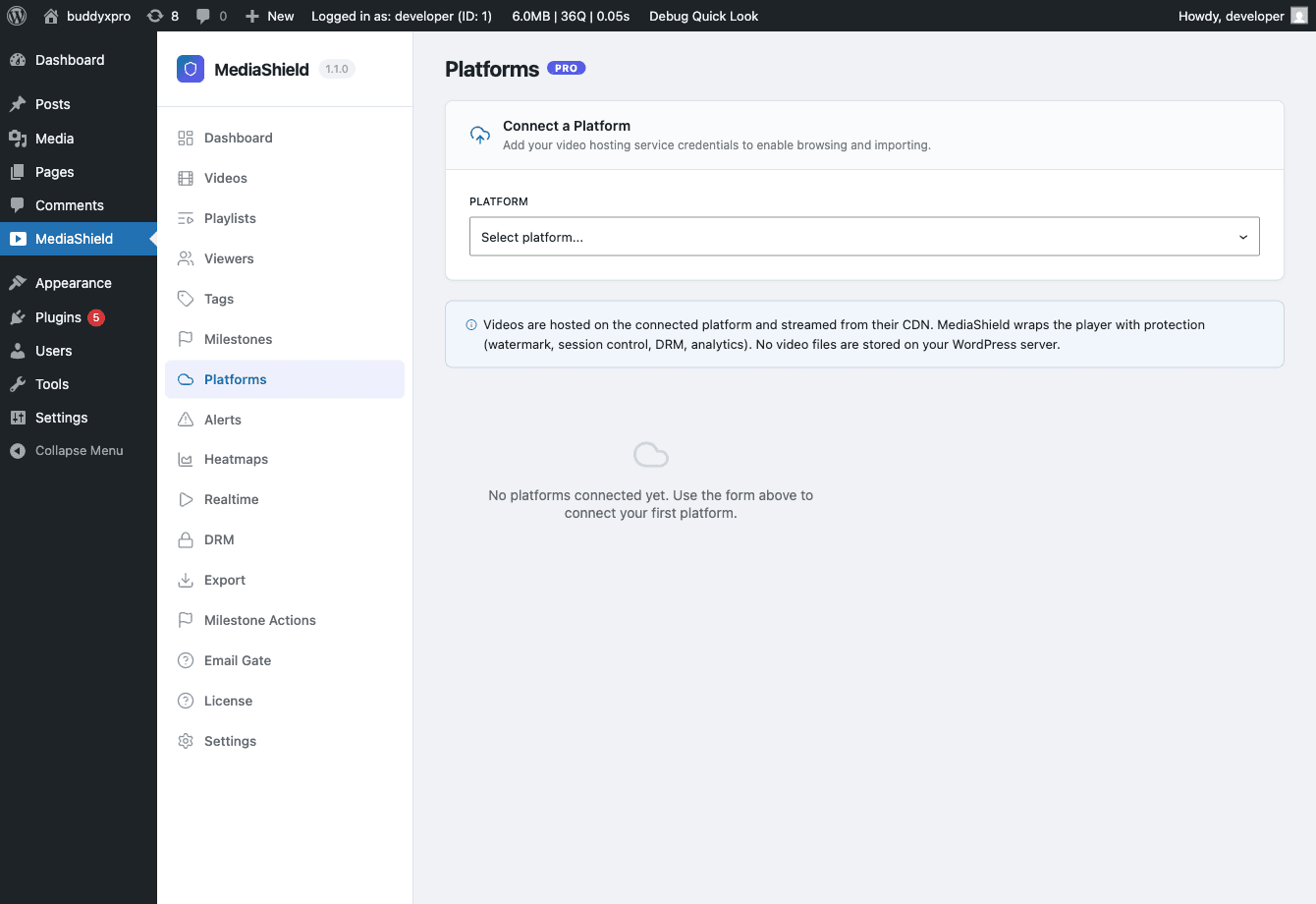
MediaShield Pro Platforms page with a "Connect a Platform" dialog showing available platform options The Platforms page. Click "Add Connection" to connect Bunny Stream, YouTube, Vimeo, or Wistia. Multiple connections per platform are supported.
Platform connections let you browse, import, and upload videos to Bunny Stream, YouTube, Vimeo, and Wistia directly from WordPress.

Supported Platforms

Platform Browse and Import Upload DRM Support
Bunny Stream Yes Yes (resumable) Yes (cloud)
Vimeo Yes Yes (resumable) No
YouTube Yes Yes No
Wistia Yes Yes No

Connecting a Platform

  1. Go to MediaShield > Platforms in your admin.
  2. Click Add Connection.
  3. Select the platform.
  4. Enter your API credentials (see below for each platform).
  5. Click Connect.

Credentials are encrypted with AES-256-CBC before storage. They are never readable in plaintext.

Bunny Stream

You need your Bunny.net API Key, Library ID, Pull Zone Hostname, and optionally a CDN Token Key (required if your Bunny library uses token authentication).

YouTube

You need a YouTube Data API v3 key (from Google Cloud Console) and your Channel ID (from YouTube Studio > Settings > Channel).

Vimeo

You need a Vimeo API v3 access token (from developer.vimeo.com > My Apps > Generate Token).

Wistia

You need a Wistia API token (from Account > Settings > API Access in the Wistia dashboard).

Multiple Connections

You can connect multiple libraries from the same platform -- for example, two separate Bunny Stream libraries for different course categories. Each connection is stored independently.

Browsing and Importing

  1. Go to MediaShield > Platforms and select a connected platform.
  2. Browse videos with thumbnails and metadata.
  3. Select one or more videos and click Import Selected.

Imported videos appear in your MediaShield video library. MediaShield copies the title and thumbnail from the platform automatically.

Uploading Videos

  1. From the video editor or the Platforms page, click Upload Video.
  2. Select the target platform connection.
  3. Choose a file (drag-and-drop supported).
  4. Monitor progress through stages: pending, uploading, processing, complete.

Frontend Upload for Users

Add [mediashield_upload] to any page to allow authorized users to upload videos. Users need the upload_mediashield capability. Connected platforms appear as upload targets in the form.

DRM Encryption

MediaShield Pro DRM settings page showing DRM method selection, packager path, and license duration options The DRM settings page. Choose between Bunny Stream cloud DRM or a local Shaka Packager installation, then set license durations for streaming and offline playback.

MediaShield Pro supports ClearKey DRM encryption -- software-based AES-128 content encryption that prevents direct video downloads and URL scraping. It does not block screen recording.

DRM Methods

Method Setup effort Infrastructure
Bunny Stream (cloud) Low Bunny.net handles packaging
Local packager Medium Shaka Packager CLI on your server

AWS MediaConvert support is on the roadmap and is not included in version 1.1.0.

Setting Up Bunny Stream DRM

  1. Enable DRM on your Bunny Stream library.
  2. Connect Bunny Stream in MediaShield (MediaShield > Platforms).
  3. Go to MediaShield > DRM and set DRM Method to "Bunny Stream (Cloud)".
  4. Save settings.

Videos uploaded to Bunny are automatically DRM-packaged. The player switches to DRM mode for authenticated viewers.

Setting Up Local DRM (Shaka Packager)

  1. Install Shaka Packager on your server:
    chmod +x packager && sudo mv packager /usr/local/bin/
    
  2. Go to MediaShield > DRM and set DRM Method to "Local Packager".
  3. Set the packager binary path (default: packager).
  4. Optionally enable Auto-Package to DRM-wrap new uploads automatically.
  5. Save settings.

To package existing videos: open the video editor and click Package with DRM.

License Types

Type Default Duration Use
Streaming 24 hours Standard web playback
Persistent 30 days PWA offline playback

PWA Offline Playback

When DRM and offline support are enabled, a "Save for Offline" button appears on the player. Viewers can save the encrypted video and play it without an internet connection for up to 30 days. Admins can revoke offline access at any time from the DRM admin page.

Browser Support

Browser ClearKey DRM
Chrome (desktop and Android) Supported
Firefox Supported
Edge Supported
Safari Not supported (standard protection applies)
iOS Safari Not supported (standard protection applies)

What ClearKey Does and Does Not Protect

ClearKey stops direct downloads and URL scraping. It does not block screen recording. For the full comparison with hardware-backed DRM options, see the DRM types guide in the full documentation.

Analytics

MediaShield Pro adds heatmaps, realtime monitoring, suspicious activity detection, and data export to the free plugin's basic analytics.

Playback Heatmaps

MediaShield Pro heatmap page showing a Playback Engagement bar chart and a Device Breakdown table below it The heatmap for a single video. The bar chart shows engagement at each 10-second position bucket; the Device Breakdown table shows desktop, mobile, and tablet splits.
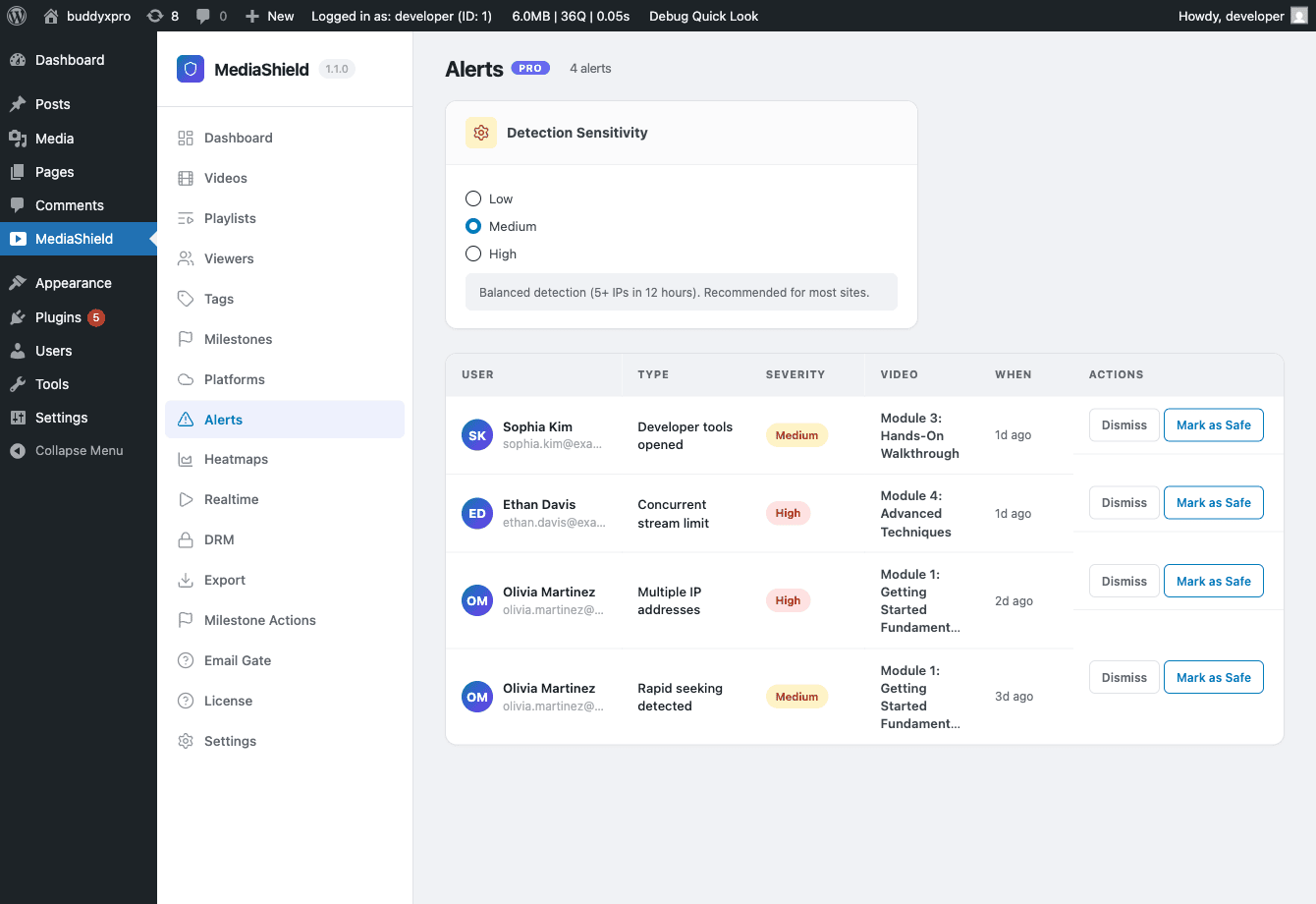
Heatmaps show where viewers are watching, re-watching, or dropping off. MediaShield aggregates playback events into 10-second position buckets and displays them as a bar chart.

  • High bars -- frequently watched segments.
  • Steep drops -- where viewers stop watching.
  • Spikes after drops -- sections viewers seek back to.

The heatmap page also shows a device breakdown (desktop, mobile, tablet) so you can optimize your player layout for your actual audience.

Heatmap data aggregates hourly via a background job. The chart may lag up to one hour behind live data.

Realtime Dashboard

Located at MediaShield > Realtime, the dashboard shows all active sessions (last heartbeat within 5 minutes) with 15-second auto-refresh. Each row shows the viewer, video, device type, browser, watch duration, and completion percentage.

Suspicious Activity Detection

MediaShield Pro Suspicious Activity Alerts page listing 4 alerts with user, alert type, severity, and video columns, plus a Detection Sensitivity selector The Alerts page. Each row shows who triggered the alert, what type it was, its severity level, and which video was playing. Use Dismiss or Safe User to resolve.
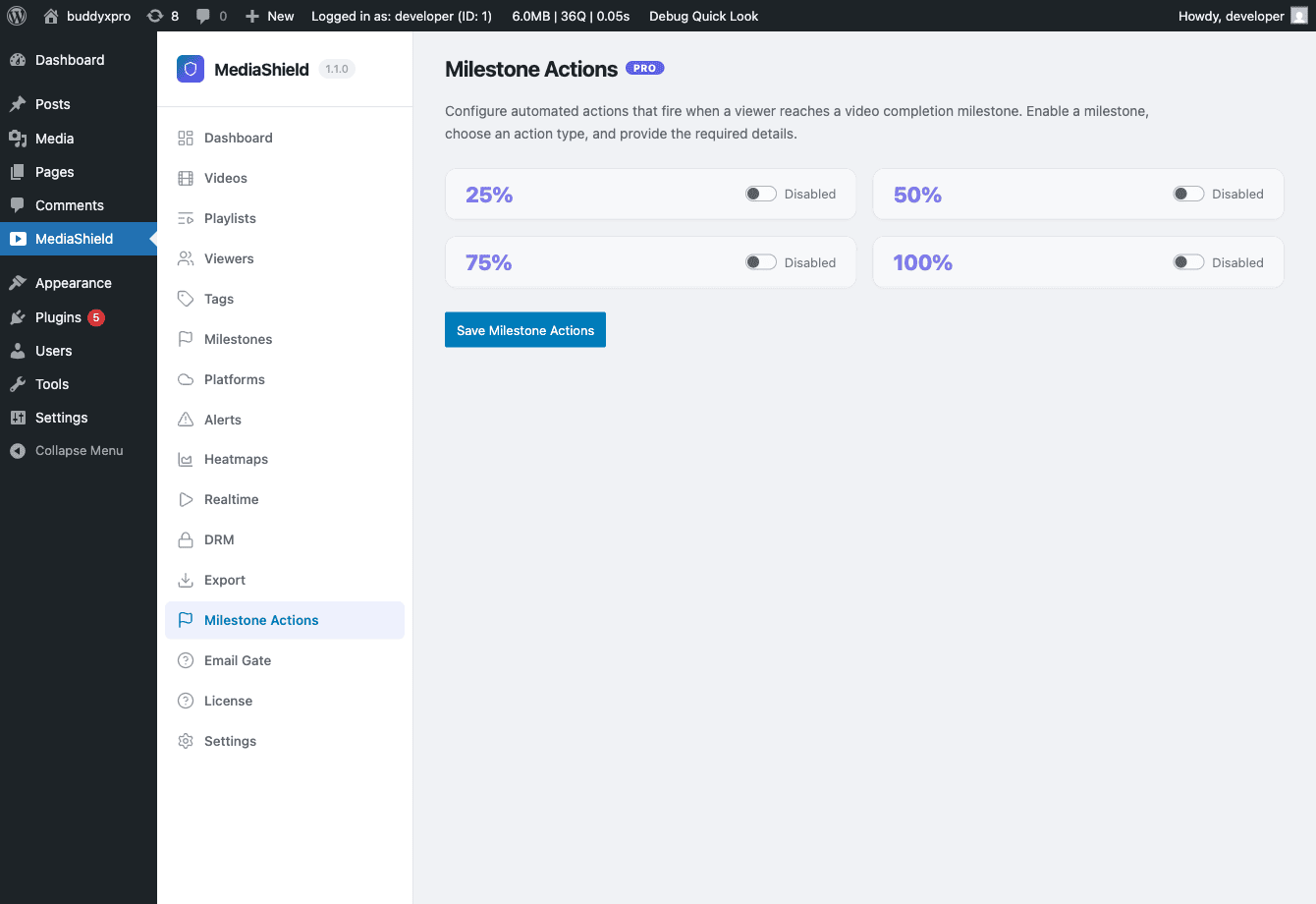
MediaShield Pro monitors viewing patterns and flags suspicious behavior:

Alert Type What it detects
Multi-device One account watching from multiple IP addresses
Developer tools Viewer opened browser developer tools
Rapid seeking Multiple seek events in a short window
Concurrent stream limit More simultaneous streams than configured
VPN or proxy Viewer may be masking their location

Sensitivity levels (MediaShield > Settings > Suspicious Activity):

Level Behavior
Low Multi-device with 3 or more IPs
Medium Multi-device with 2 or more IPs, plus rapid seeking
High All types flagged aggressively

Managing alerts (MediaShield > Alerts):

  • Dismiss -- mark as reviewed. Dismissed alerts are removed after 90 days.
  • Safe User -- whitelist a user to suppress future alerts and dismiss outstanding ones.

Data Export

CSV Export

Go to MediaShield > Export and choose an export type:

  • Watch sessions
  • Milestones
  • Users

Set a date range and click Download. Limit: 50,000 rows per export.

PDF Reports

Click Generate PDF Report at MediaShield > Export. The report generates in the background and you receive an email with a download link when ready (link valid 24 hours). The report includes overview stats, top 10 videos, completion rates, user engagement, and alerts summary.

Weekly Digest Email

An automated weekly email sent to the site admin address (configurable). Contains total views, completions, average completion rate, top 5 videos, and unresolved alert count.

Configure at MediaShield > Settings > Weekly Digest.

Email Gate

MediaShield Pro Email Gate settings page showing the enable toggle, webhook URL field, cookie duration, and data retention settings Email Gate settings. Enable the gate site-wide or per video, set the webhook URL for CRM pushes, and configure how long the cookie and captured data are retained.

Email Gate shows a small email capture form in front of a protected video. The visitor enters their email, agrees to your privacy policy, and the video unlocks. You keep the email, exportable on demand.

How It Works for Visitors

  1. A visitor lands on a page with a gated video.
  2. An overlay appears over the video with an email field, a consent checkbox, and a "Watch Video" button.
  3. The visitor fills in the form and clicks the button.
  4. The overlay disappears and the video plays.
  5. A cookie is set (default 7 days). The visitor can return to any gated video for 7 days without seeing the form again.

Logged-in users always skip the gate.

Enabling the Gate

Site-wide

Go to MediaShield > Settings > Email Gate and enable Enable Email Gate. This gates every protected video on your site for anonymous visitors.

Per Video (since 1.1.0)

For individual videos only, edit the video at MediaShield > Videos > Edit Video, find the Email Gate panel in the sidebar, and tick the checkbox. That single video shows the gate, regardless of the site-wide setting.

What Gets Captured

Each submission stores the email address, the video it was for, the submission timestamp, the visitor's IP address, and the consent checkbox status with the exact consent wording shown.

Download all captures: MediaShield > Export > CSV Export > Email Captures.

Webhook Integration

Paste a webhook URL into the Email Gate settings to push captures to a CRM or automation platform in real time. MediaShield POSTs each capture as JSON with the email, video ID, video title, and timestamp. Use the Send Test Webhook button to verify the URL.

GDPR

  • Export requests: MediaShield's Pro GDPR exporter surfaces all email captures associated with a user's email address when they request a data export via Tools > Export Personal Data.
  • Erase requests: All matching captures are deleted when a user requests erasure via Tools > Erase Personal Data.
  • Retention: captures are automatically deleted after the configured retention period (default 12 months). Set the retention period in the Email Gate settings.

LMS Integration

MediaShield Pro integrates with LearnDash, Tutor LMS, and LifterLMS to automatically complete lessons when a student finishes a linked video, and to restrict video access to enrolled students.

Supported LMS Plugins

  • LearnDash (verified with v5.0.4)
  • Tutor LMS
  • LifterLMS

Linking a Video to a Lesson

  1. Open a video at MediaShield > Videos > Edit Video.
  2. Find the LMS panel in the sidebar.
  3. Select your LMS and choose the lesson.
  4. Set the Completion Threshold (50-100%, default 100%).
  5. Optionally enable Enrollment Access Gate.
  6. Click Update.

To show the player inside the lesson, add the shortcode displayed in the LMS panel to your lesson content:

[mediashield id=N]

Linking controls access and completion -- it does not automatically embed the player in the lesson.

Auto-Completion

When a student reaches the completion threshold, MediaShield marks the linked lesson as complete in the LMS. Completion is recorded once per student per lesson.

Enrollment Access Gate

When enabled, students who are not enrolled in the course containing the linked lesson are blocked from watching the video.

Playlist Funnel

The analytics section includes a playlist funnel view showing drop-off between videos in a playlist. Use this alongside LMS data to identify which lessons are losing students.

Milestone Actions

MediaShield Pro Milestone Actions configuration page showing action rows with milestone percentage, action type, and target fields The Milestone Actions config panel. Each row maps a completion percentage to an action - webhook, email, or user tag. Actions can be scoped to a single video or all videos.

Milestone Actions let you trigger automated responses when a viewer reaches a completion percentage in a video. The free plugin tracks milestones (25, 50, 75, 100%) and fires a hook at each one. MediaShield Pro adds configurable actions that fire automatically when those hooks trigger.

Available Actions

Action What it does
Fire webhook POST a payload to a URL of your choice
Send email Send a notification email to an address you specify
Tag user Assign a tag or role to the viewer (CRM-ready)

Configuring Milestone Actions

  1. Go to MediaShield > Milestones in the admin.
  2. Click Add Action.
  3. Choose the milestone percentage (25, 50, 75, or 100%).
  4. Select the action type (webhook, email, or tag).
  5. Fill in the action details.
  6. Save.

Actions can be scoped to a specific video or applied globally to all videos.

Testing Actions

Use the Test Action button next to any configured action to trigger it immediately for a test user. This lets you verify a webhook URL or email address is working before real viewers trigger it.

Use Cases

  • Fire a Zapier webhook at 100% completion to enroll the viewer in a follow-up email sequence.
  • Send the admin an email when a key lesson is completed.
  • Tag the user in your CRM at the 50% milestone to indicate engagement.
  • Trigger an LMS-adjacent custom action via webhook.

LMS and Milestone Actions

When a video is linked to an LMS lesson, the LMS auto-completion behavior and milestone actions both respond to the same completion event. They are independent -- both can fire at the same milestone.

Data Export

MediaShield Pro Export page showing CSV export type selector with date range fields and a Generate PDF Report button The Export page. Choose a CSV export type, set the date range, and download immediately - or generate an async PDF report sent to your email when ready.

MediaShield Pro provides two export options for your video analytics and viewer data: CSV download and async PDF reports.

CSV Export

Download watch data as a spreadsheet with date range filtering.

Available export types:

  • Watch sessions -- all session records including device, browser, completion percentage, and duration.
  • Milestones -- every completion milestone record across all users and videos.
  • Users -- per-user aggregated statistics.
  • Email captures -- every email gate submission.

How to export:

  1. Go to MediaShield > Export.
  2. Choose the export type.
  3. Set a start and end date.
  4. Click Download.

The CSV file downloads immediately. The row limit is 50,000 rows per export. For larger date ranges, split the export into multiple smaller date ranges.

PDF Reports

Generate a comprehensive analytics PDF report.

Report contents:

  • Overview stats (total views, unique viewers, average completion rate).
  • Top 10 videos by view count.
  • Completion rate chart.
  • User engagement summary.
  • Activity alerts summary.

How to generate:

  1. Go to MediaShield > Export.
  2. Click Generate PDF Report.
  3. MediaShield queues the report as a background job.
  4. You receive an email with a download link when the report is ready (usually within a few minutes). The link is valid for 24 hours.

GDPR and Exports

All export data is governed by your site's privacy policy. Email captures support WordPress GDPR export and erasure requests automatically -- no manual queries needed. See the Email Gate documentation for details.

Pro Developer Guide

Hooks, REST endpoints, and database tables added by MediaShield Pro.

Developer Overview

This section is for developers extending or integrating MediaShield Pro. For site-owner documentation, see Getting Started.

Key Facts

Item Value
PHP namespace MediaShieldPro\
REST namespace mediashield-pro/v1
Text domain mediashield-pro
Free plugin required MediaShield 1.1.0+

How Pro Extends Free

MediaShield Pro extends the free plugin exclusively through WordPress hooks and filters. It never:

  • Registers routes under mediashield/v1 (free's REST namespace).
  • Reads free-owned options directly.
  • Adds admin pages of its own -- it injects into free's React admin SPA via the mediashield_admin_routes JS filter and wp.hooks SlotFill.

Boot Sequence

Pro hooks into mediashield_loaded (fired by the free plugin when it is fully initialized) and bootstraps only after that action fires:

plugins_loaded
  free plugin initializes -> fires mediashield_loaded
                                    |
                             Pro plugin initializes
                             registers REST, hooks, subsystems
                             fires mediashield_pro_loaded

Subsystems

Subsystem Purpose
DRM ClearKey license issuance, Shaka Packager integration, offline support
LMS Auto-completion and enrollment gating for LearnDash, Tutor LMS, LifterLMS
Access Email-capture gate, role-based access
Watermark Advanced watermark configuration (7 fields)
Milestones Webhook, email, and tag actions on milestone events
Export Synchronous CSV streaming and async PDF reports
Licensing Pro license validation
Reports Weekly engagement digest email
Privacy GDPR exporter and eraser for Pro-owned tables

Access Control Priority Stack

mediashield_can_watch is the primary access gate. The full stack:

Priority Subscriber Decision
10 Free Access\AccessControl Login gate, domain whitelist
15 Pro Access\EmailGate Email gate for email_gate access type
20 Pro Access\RoleAccess Per-video role restriction
25 Pro LMS adapters Enrollment and course-progress gates

Pick a priority outside 10-25 for custom callbacks.

Full Reference

Hooks and Filters Reference

All Pro-fired hooks use the mediashield_pro_* prefix. Hooks without that prefix are pre-contract hooks that will be renamed with do_action_deprecated() shims in a future release.

Actions Fired by Pro

mediashield_pro_loaded

Fired when Pro is fully initialized.

add_action( 'mediashield_pro_loaded', function() {
    // Pro is ready
} );

mediashield_pro_email_captured

Fires after a visitor submits the email gate form and the capture is saved.

add_action( 'mediashield_pro_email_captured', function( $email, $video_id, $name ) {
    my_crm_subscribe( $email, [ 'video_id' => $video_id ] );
}, 10, 3 );

Parameters: $email (string), $video_id (int), $name (string, empty when name collection is off).

Back-compat: mediashield_email_captured fires as a deprecated shim. Migrate new code to the prefixed name.

mediashield_pro_email_gate_webhook_sent

Fires after the email gate webhook POST completes, on success or failure.

add_action( 'mediashield_pro_email_gate_webhook_sent', function( $email, $video_id, $webhook_url, $response ) {
    if ( is_wp_error( $response ) ) {
        error_log( 'Webhook failed: ' . $response->get_error_message() );
    }
}, 10, 4 );

mediashield_pro_privacy_before_erase

Fires before Pro's GDPR eraser runs. Mutate $counters by reference to include your own removals.

add_action( 'mediashield_pro_privacy_before_erase', function( $email, $user, $page, $counters ) {
    if ( $user ) {
        $counters->items_removed += my_addon_delete( $user->ID );
    }
}, 10, 4 );

Filters Provided by Pro

mediashield_pro_privacy_erase_result

Filter the final GDPR erase result array before it is returned to WordPress.

add_filter( 'mediashield_pro_privacy_erase_result', function( $result, $email, $user, $page ) {
    $result['messages'][] = 'Synced with CRM.';
    return $result;
}, 10, 4 );

mediashield_pro_render_linked_lesson_video

Control whether Pro auto-prepends the linked video to an LMS lesson's content. Return false to suppress when your theme handles rendering.

add_filter( 'mediashield_pro_render_linked_lesson_video', function( $render, $video_id, $post_id ) {
    if ( 'my-theme' === get_template() ) {
        return false;
    }
    return $render;
}, 10, 3 );

mediashield_pro_license_valid

Override the license check result. Use in local development to bypass the outbound license check.

add_filter( 'mediashield_pro_license_valid', '__return_true' );

mediashield_lms_adapters

Register a custom LMS adapter class implementing MediaShieldPro\LMS\AdapterInterface.

add_filter( 'mediashield_lms_adapters', function( $adapters ) {
    $adapters['my_lms'] = MyPlugin\LMS\MyLMSAdapter::class;
    return $adapters;
} );

Free Hooks That Pro Consumes

Free hook Pro subscriber Priority Purpose
mediashield_can_watch EmailGate 15 Email gate check
mediashield_can_watch RoleAccess 20 Role restriction
mediashield_can_watch LMS adapters 25 Enrollment gates
mediashield_settings_response ProSettings, DRMSettings, AdvancedConfig 10 Inject Pro settings into GET /settings
mediashield_settings_update ProSettings, DRMSettings, AdvancedConfig 10 Save Pro settings on PUT /settings
mediashield_player_type Core\Plugin 10 Override to 'drm' for DRM videos
mediashield_upload_drivers Core\Plugin 10 Register Bunny, YouTube, Vimeo, Wistia drivers
mediashield_watermark_config Watermark\AdvancedConfig 10 Extend with 7 configurable fields
mediashield_milestone_reached AdvancedActions - Fire webhook, email, tag on milestone
mediashield_milestone_reached LMS adapters - Auto-complete linked lesson
mediashield_session_started SuspiciousActivity - Multi-IP detection
mediashield_devtools_detected SuspiciousActivity - Log devtools detection
mediashield_privacy_before_erase ProPrivacyEraser - Run Pro GDPR eraser after free

REST API

Base URL: /wp-json/mediashield-pro/v1/

All endpoints require manage_options unless noted. Authentication uses the X-WP-Nonce header with a wp_rest nonce.

Platforms

Method Route Description
GET /platforms List platform connections (credentials redacted)
POST /platforms Create a connection
DELETE /platforms/{id} Remove a connection

DRM

Method Route Permission Description
POST /drm/license logged_in Issue a streaming license (24 h default)
POST /drm/offline logged_in Issue a persistent offline license (30 d default)
POST /drm/revoke manage_options Revoke all licenses for a user+video pair

Platform Browsing and Import

Method Route Description
GET /bunny/videos List Bunny Stream library videos
POST /bunny/import Import Bunny videos into MediaShield
GET /bunny/collections List Bunny collections
POST /bunny/webhook Receive Bunny encoding callbacks (public, signature verified)
GET /youtube/videos List YouTube channel videos
POST /youtube/import Import YouTube videos
GET /youtube/playlists List YouTube playlists
GET /vimeo/videos List Vimeo account videos
POST /vimeo/import Import Vimeo videos
GET /vimeo/folders List Vimeo folders
GET /wistia/videos List Wistia project videos
POST /wistia/import Import Wistia videos
GET /wistia/projects List Wistia projects

Analytics

Method Route Description
GET /analytics/heatmap/{video_id} 10-second bucket heatmap data (from ms_heatmap_cache)
GET /analytics/playlist-funnel/{playlist_id} Drop-off analysis for a playlist
GET /analytics/device-breakdown Device and browser distribution
GET /realtime/viewers Active sessions (last heartbeat within 5 minutes)
GET /analytics/suspicious Paginated activity alerts
PATCH /analytics/suspicious/{id}/dismiss Dismiss an alert
POST /analytics/suspicious/safe-user Whitelist a user

Milestones

Method Route Description
GET /milestones/config Retrieve milestone action configuration
POST /milestones/test-action Trigger a milestone action in test mode

Export

Method Route Description
GET /export/csv/{type} Stream CSV. {type}: watch_sessions, milestones, users. Max 50,000 rows. Requires _wpnonce.
POST /export/pdf/report Queue async PDF report. Returns { job_id }.
GET /export/status/{job_id} Check PDF job status

Email Gate

Method Route Permission Description
POST /email-gate/submit Public Receive email gate form submission (CAPTCHA + rate limiting)
POST /email-gate/test-webhook manage_options Send test POST to configured webhook URL

Reports

Method Route Description
POST /digest/send-test Send a test weekly digest email

All Pro routes use the mediashield-pro/v1 namespace exclusively. No Pro routes are registered under mediashield/v1.

Database Tables

MediaShield Pro owns 8 database tables. All use the {$wpdb->prefix} prefix (typically wp_), InnoDB engine, and utf8mb4 charset. Tables are created on activation and dropped on plugin deletion.

ms_playback_events

Granular playback event log. Input for heatmap aggregation.

Column Type Notes
id bigint PK
session_id bigint FK to ms_watch_sessions.id (free table)
video_id bigint CPT post ID
user_id bigint
event_type varchar(20) play, pause, seek, buffer, complete
position int Seconds from video start
created_at datetime UTC

ms_platform_connections

Encrypted API credentials for external platforms.

Column Type Notes
id bigint PK
platform varchar(50) bunny, youtube, vimeo, wistia
label varchar(255) Admin display name
api_key text Encrypted (AES-256-CBC)
extra_config longtext JSON Platform-specific fields
created_at datetime UTC

ms_upload_queue

Upload job tracking.

Column Type Notes
id bigint PK
video_id bigint CPT post ID
platform varchar(50) Target platform
platform_connection_id bigint FK to ms_platform_connections.id
status varchar(20) pending, uploading, processing, complete, failed
progress_pct int 0-100
error_message text Set on failure
created_at / updated_at datetime UTC

ms_activity_alerts

Suspicious viewing pattern alerts.

Column Type Notes
id bigint PK
user_id bigint
video_id bigint 0 for site-wide alerts
alert_type varchar(30) multi_ip, devtools, rapid_seek, concurrent_stream, vpn_detected
context longtext JSON Alert-specific data
dismissed_at datetime NULL = active
created_at datetime UTC

Retention: dismissed alerts older than 90 days are removed by a daily background job.

ms_drm_licenses

DRM license records.

Column Type Notes
id bigint PK
user_id bigint
video_id bigint
key_id varchar(64) References ms_drm_keys
license_type varchar(20) streaming or persistent
issued_at datetime UTC
expires_at datetime UTC
revoked_at datetime NULL unless revoked

ms_heatmap_cache

Pre-aggregated heatmap data per video.

Column Type Notes
id bigint PK
video_id bigint
bucket_start int 10-second bucket start position in seconds
view_count int Playback events in this bucket
avg_duration float Average seconds in bucket
last_updated datetime UTC

Index: UNIQUE (video_id, bucket_start). Updated hourly by background job.

ms_drm_keys

Encrypted content keys for DRM-packaged videos.

Column Type Notes
id bigint PK
video_id bigint UNIQUE One key per video
key_id varchar(64) Hex key ID
content_key text AES-128 key encrypted at rest (AES-256-CBC)
created_at datetime UTC

ms_email_captures

Email gate submissions.

Column Type Notes
id bigint PK
email varchar(255)
video_id bigint
ip_address varchar(45)
consent tinyint(1) 1 = ticked
consent_text text Exact wording shown at submission time
created_at datetime UTC

Retention: rows older than ms_email_retention_months option (default 12 months) are deleted daily.

Something unclear? Open a support ticket →

Buy MediaShield