Wbcom Designs Jetonomy Docs
← Back to product Buy Now

Getting Started

Install, configure, and launch your community in minutes.

Get Jetonomy running on your WordPress site in under five minutes. This guide covers system requirements, how to install, and what happens the moment you activate.

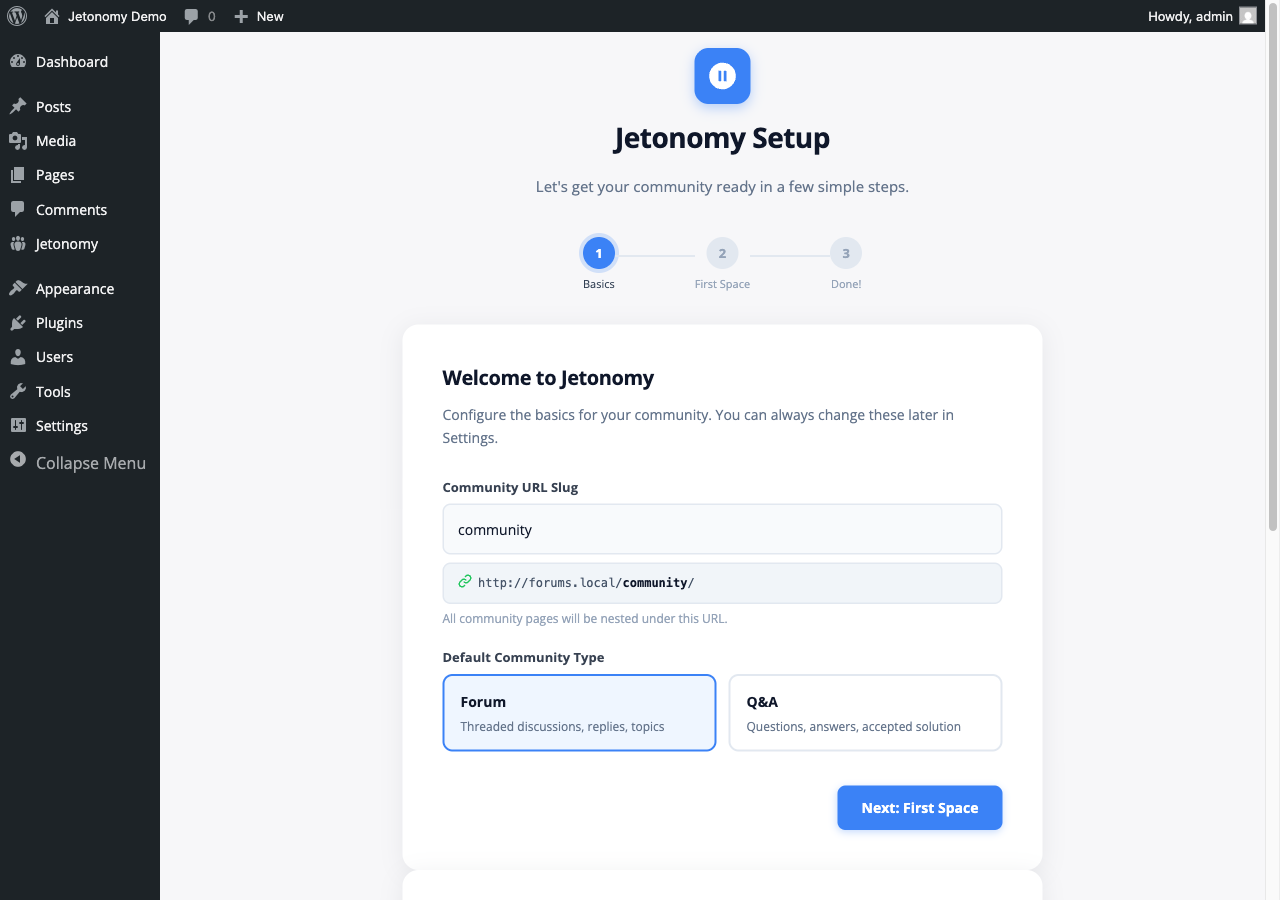
Jetonomy setup wizard guiding you through initial configuration

What You Will Learn

  • Whether your server meets the requirements
  • Three ways to install Jetonomy
  • What Jetonomy sets up automatically on first activation

Requirements

Jetonomy requires a modern WordPress stack. Check these before installing.

Requirement Minimum
WordPress 6.7 or higher
PHP 8.1 or higher
MySQL 5.7 or higher (or MariaDB 10.4+)
Browser Any modern browser (Chrome, Firefox, Safari, Edge)

Jetonomy works with any WordPress theme. For the best visual result with zero extra configuration, use BuddyX.

Note: Jetonomy does not use WordPress custom post types. It stores all community data in its own optimized database tables (wp_jt_*). This is intentional — it gives your community the query performance and scalability that CPT-based plugins cannot match.

Installation

Method 1: WordPress Admin (Recommended)

  1. Go to Plugins → Add New Plugin in your WordPress admin.
  2. Search for Jetonomy.
  3. Click Install Now, then Activate.

Method 2: Upload a ZIP File

  1. Download the Jetonomy ZIP from jetonomy.com or wordpress.org.
  2. Go to Plugins → Add New Plugin → Upload Plugin.
  3. Choose the ZIP file and click Install Now, then Activate.

Method 3: WP-CLI

wp plugin install jetonomy --activate

What Happens on Activation

Jetonomy sets everything up automatically the first time you activate it. You do not need to run any SQL or configure anything manually.

Database tables created (22 total):

Jetonomy creates 22 custom tables under the wp_jt_ prefix — one for each data entity: categories, spaces, posts, replies, votes, user profiles, notifications, subscriptions, tags, moderation flags, revisions, invite links, and more.

WordPress capabilities registered:

Jetonomy registers 20 custom capabilities (jetonomy_read, jetonomy_create_posts, jetonomy_moderate, and others) and maps them to your existing WordPress roles automatically.

Permalink rules flushed:

Your community URLs (e.g. yoursite.com/community/) are registered and rewrite rules are flushed immediately. No manual permalink reset needed.

Cron jobs scheduled:

Two background jobs are scheduled via WP-Cron:

  • Trust level evaluation — runs every 12 hours to promote members who have earned higher trust levels.
  • Notification digests — runs daily and weekly (Jetonomy Pro).

After activation, you will see a blue notice at the top of your dashboard:

Your community is almost ready. Run the setup wizard to get started.

Click that notice to launch the setup wizard and go live.

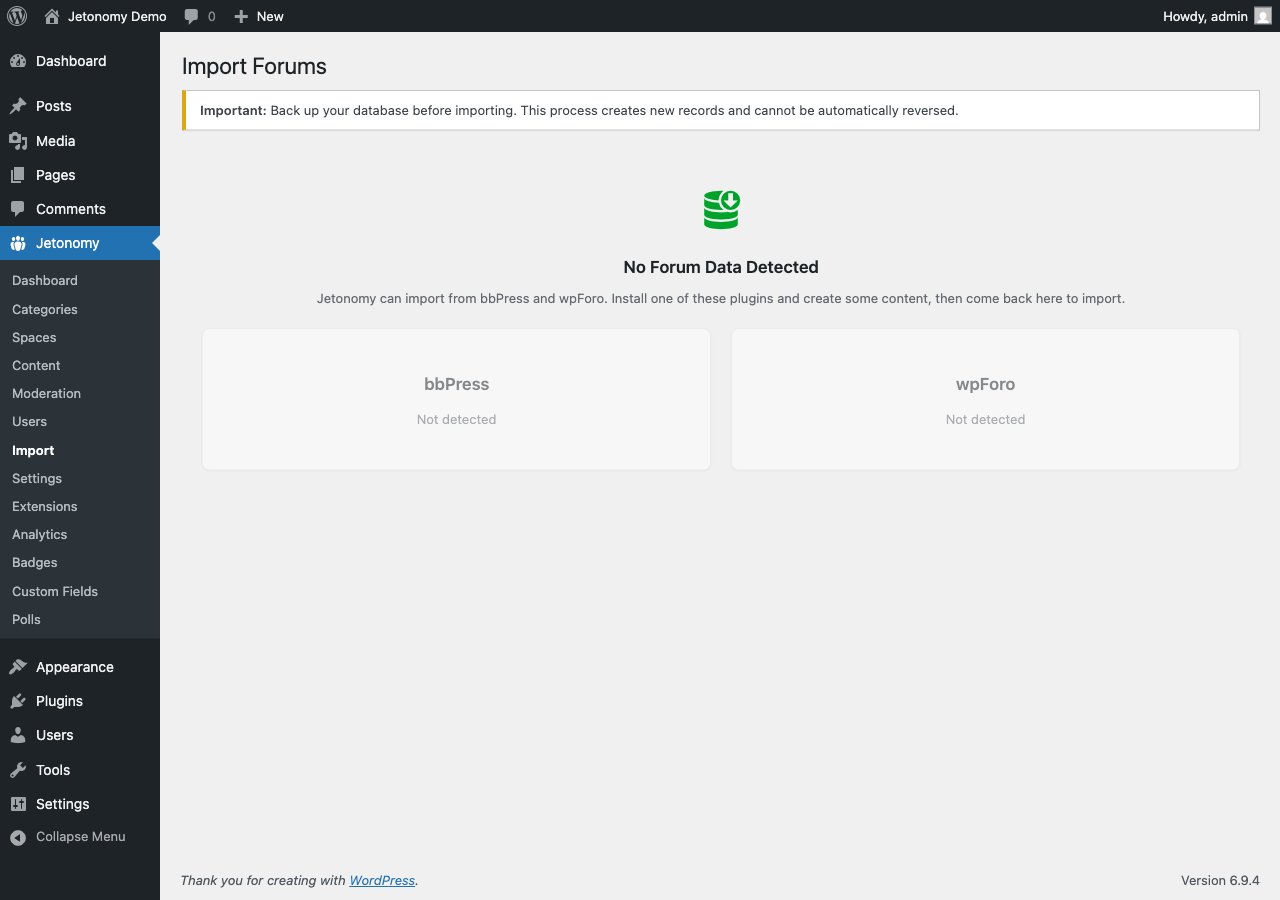
Tip: If you are migrating from bbPress, wpForo, or Asgaros Forum, activate Jetonomy first to complete setup, then use the importer at Jetonomy → Import. Your existing data is never touched until you explicitly start an import.

Uninstalling

If you deactivate Jetonomy, your data is preserved. Only a full uninstall (delete) removes the wp_jt_* tables, all plugin options, and all registered capabilities — giving you a clean removal with no database debris.

What's Next?

Run the three-step setup wizard to choose your community URL, create your first space, and go live.

Run the Setup Wizard →

After you activate Jetonomy, a three-step wizard walks you through the only decisions you need to make before your community goes live. The whole process takes about two minutes.

Jetonomy setup wizard with step-by-step configuration

What You Will Learn

  • How to set your community URL slug
  • How to choose between creating your first space manually or loading demo data
  • What the wizard does — and what you can always change later

Opening the Wizard

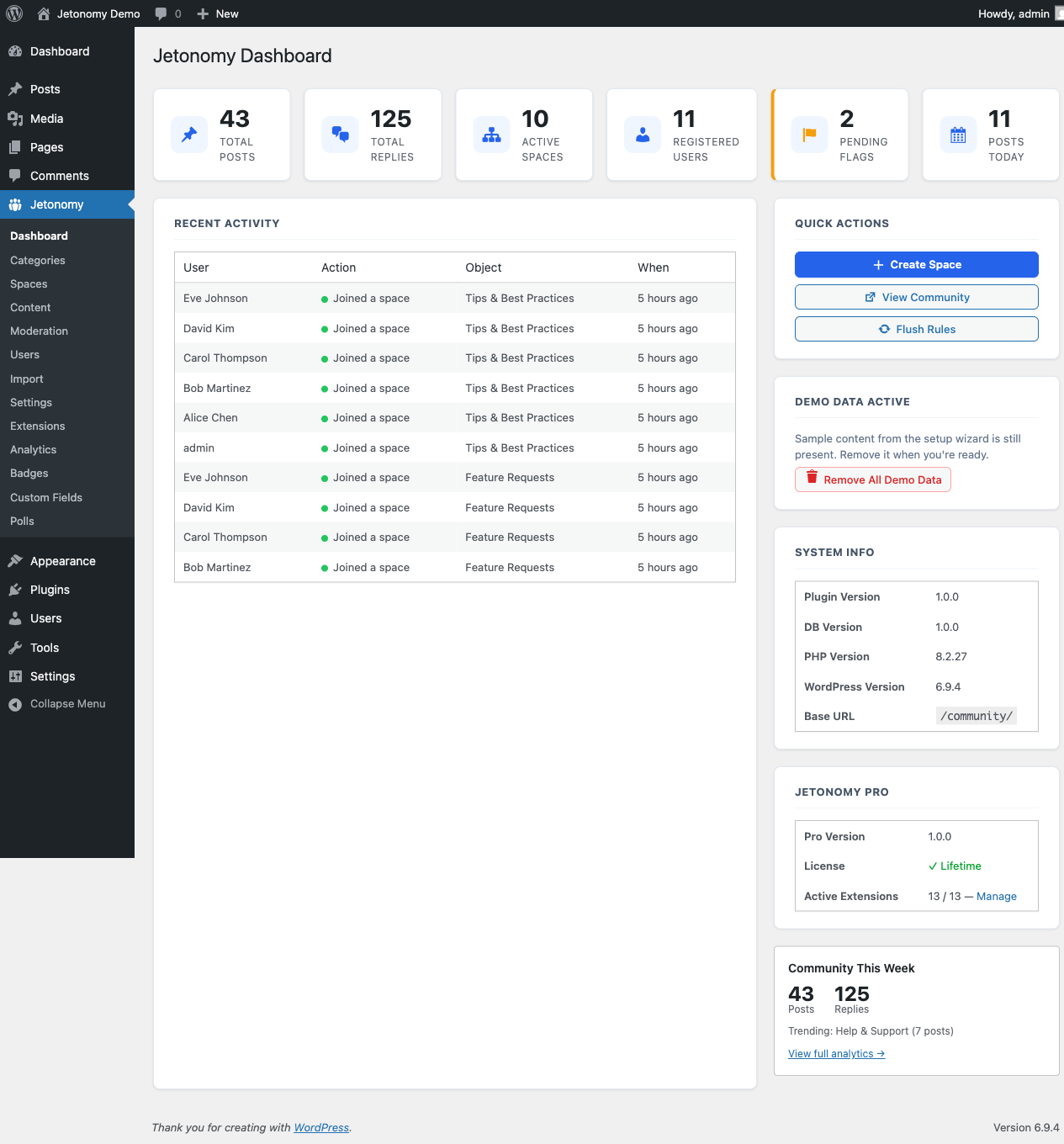
Click the blue notice at the top of your WordPress dashboard, or go to Jetonomy → Dashboard and click Launch Setup Wizard.

The wizard runs in a full-screen overlay. You can close it at any time — your progress is saved, and you can return to finish it later.

Step 1: Community URL

Choose the slug where your community will live on your site.

The default is community, which gives you yoursite.com/community/. You can change this to anything that fits your site — forum, hub, members, discuss, or your brand name.

Example slug Resulting URL
community yoursite.com/community/
forum yoursite.com/forum/
hub yoursite.com/hub/

Default space type: Also on this screen, choose the default type for new spaces you create. Your options are:

  • Forum — open-ended threaded discussion
  • Q&A — questions with votable answers; the best answer can be marked accepted

You can create spaces of any type regardless of what you choose here. This setting just controls the default when you click "Add Space" later.

Tip: You can change your community URL slug later in Jetonomy → Settings → General. Jetonomy automatically flushes permalink rules when you save.

Step 2: First Space

This step gets real content into your community so it is ready to share the moment you finish. You have two paths — choose the one that fits where you are right now.

Path A: Create Your First Space

Choose this if you are setting up a production site and want to start with your own content.

  1. Enter a name for your first space (e.g., "General Discussion").
  2. Choose its type: Forum, Q&A, or Ideas.
  3. Set a join policy: Open (anyone can join), Request to join (members need approval), or Invite only.
  4. Click Create Space.

Your space is created and visible immediately after you finish the wizard.

Path B: Load Sample Data

Choose this if you want to explore Jetonomy's features before committing to a structure.

Jetonomy seeds your site with:

  • 2 categories — "Product Support" and "Community"
  • 5 spaces — one of each type (Forum, Q&A, Ideas) plus two extras with varied content
  • Demo users with realistic avatars, trust level badges, and posting history
  • Sample posts and replies — enough content to see voting, accepted answers, tags, and notifications working in context

This lets you experience the full community interface as a regular member would see it, without writing any content yourself.

When you are ready to go live, click Remove Demo Data on the Jetonomy dashboard. Every demo post, reply, space, category, and user record is deleted in a single operation. Your real content — if you have added any alongside the demo data — is preserved.

Note: Demo data is tracked internally via a jetonomy_demo_data record. Removal is precise and does not affect any content you created yourself.

Step 3: Done

The final screen confirms your community is live and gives you two quick links:

  • Visit your community — opens yoursite.com/community/ in a new tab so you can see the frontend immediately.
  • Go to admin dashboard — takes you to Jetonomy → Dashboard where you can manage spaces, moderate content, and configure settings.

Everything you configured in the wizard can be changed later:

Setting Where to change it
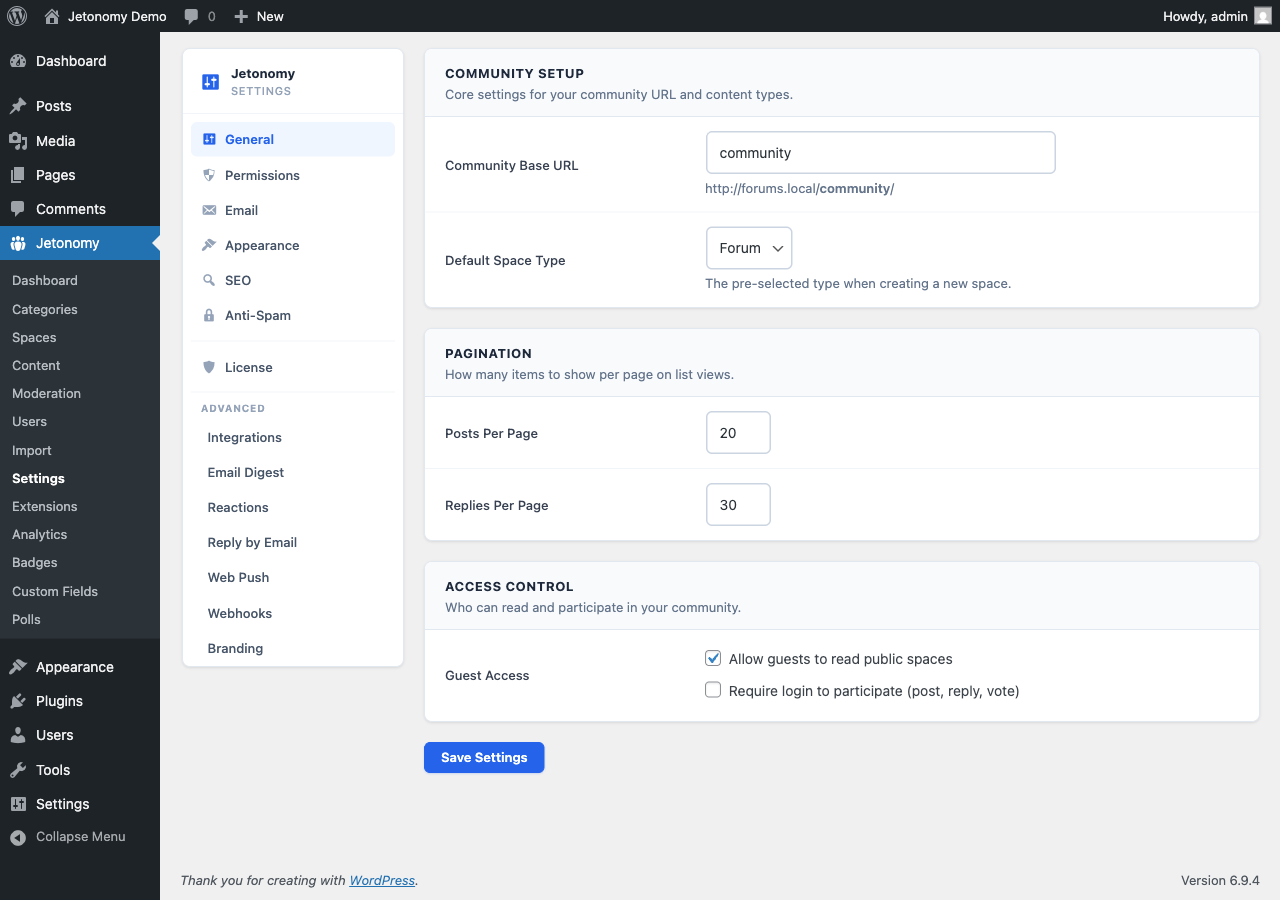
Community URL slug Jetonomy → Settings → General
Default space type Jetonomy → Settings → Spaces
Space name, type, join policy Jetonomy → Spaces → Edit
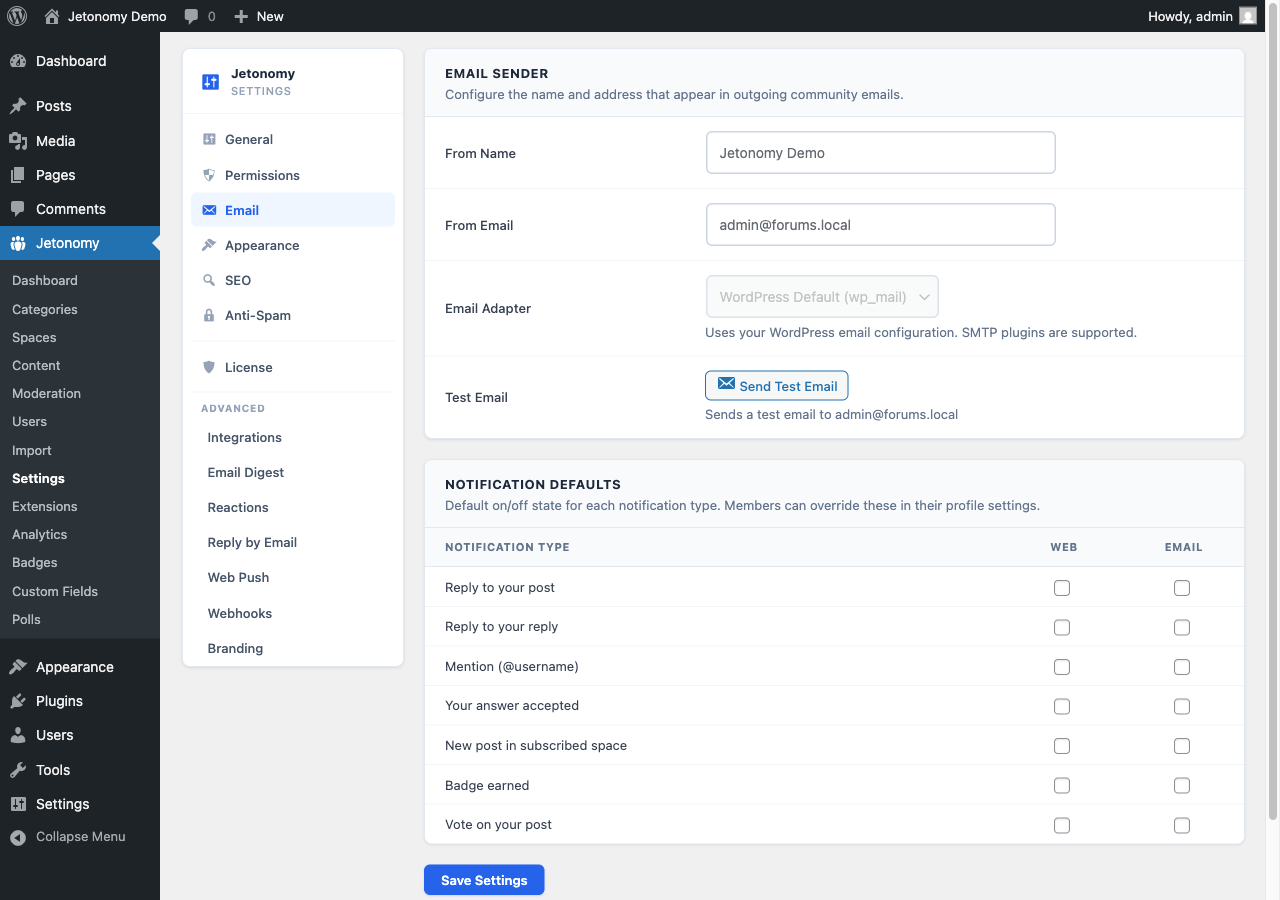
Email notifications Jetonomy → Settings → Notifications

What's Next?

Your community is live. Now learn what to do in the first hour — create categories, set up your real spaces, and invite your first members.

Your First Community →

Your community is installed and the wizard is complete. This guide walks you through what to do next — from organizing your spaces to inviting your first members — so your community is genuinely ready for people on day one.

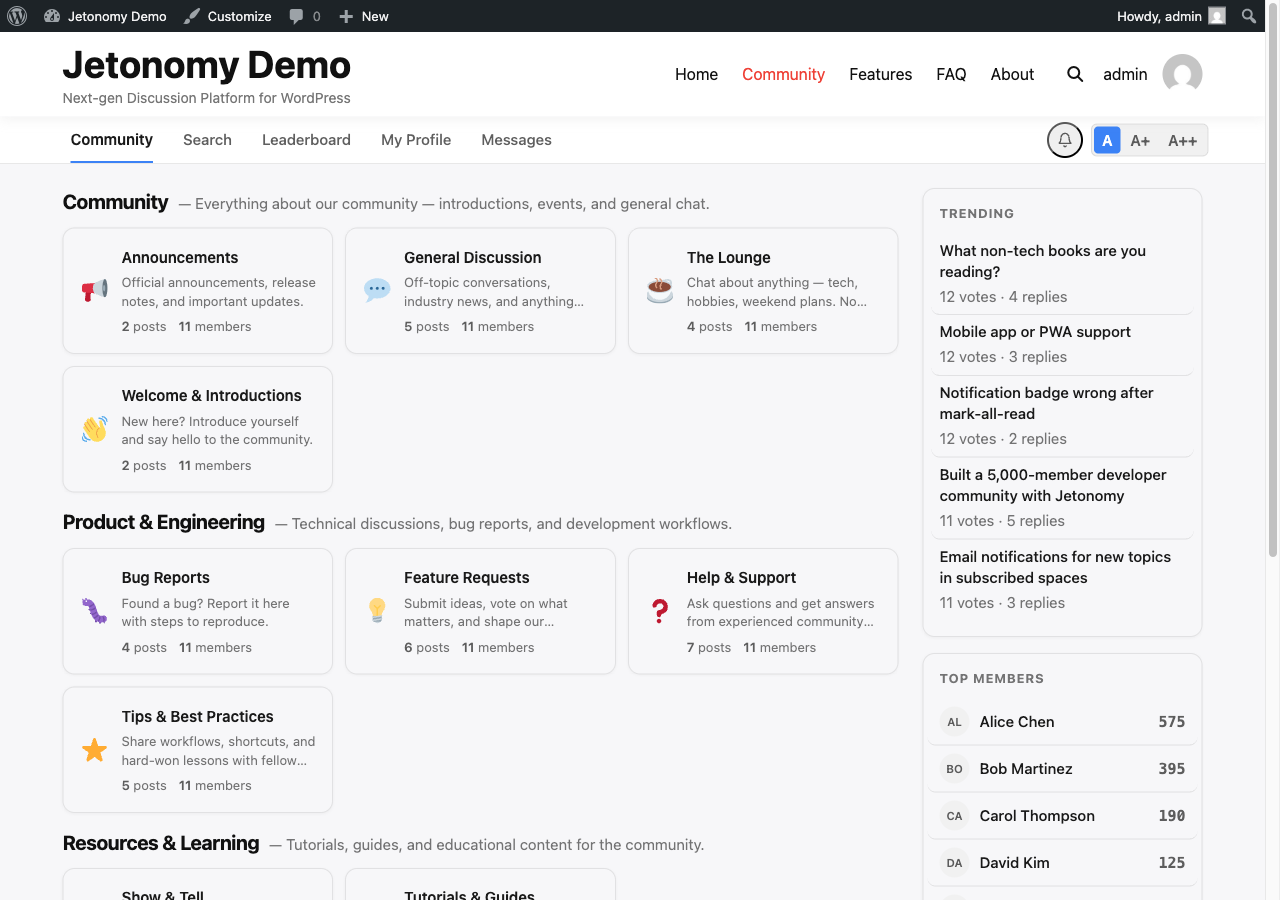
Community home page showing spaces organized by category

What You Will Learn

  • How to organize spaces with categories
  • How to create your first real space and choose the right type
  • How to invite members with a shareable link
  • How to customize the look and feel
  • How to import from bbPress or wpForo if you are migrating
  • What the community frontend looks like for your members

Create Categories to Organize Your Spaces

Categories are the top-level groupings in your community. Every space belongs to a category. Before you create more spaces, take a moment to plan your category structure — it is much easier to do now than to reorganize later.

To create a category:

  1. Go to Jetonomy → Categories.
  2. Enter a name and optional description in the form on the left.
  3. Click Add Category.

Your category appears in the table on the right. Drag rows to reorder them — the order here is the order your members see on the community home page.

Tip: Start with two to four broad categories. You can always add more later. Common patterns: "Support / General / Announcements" for a product community, or "Ideas / Questions / Showcase" for a creator community.

Create Your First Real Space

A space is where discussions happen. Each space has a type that shapes how members interact with content.

Choosing a Space Type

Type Best for Key feature
Forum General discussion, announcements, support Threaded replies, newest/popular sort
Q&A Technical help, knowledge bases Votable answers, accepted answer highlight
Ideas Feature requests, roadmaps Status tracking (Under Review, Planned, Shipped)

To create a space:

  1. Go to Jetonomy → Spaces → Add Space.
  2. Enter a name and optional description.
  3. Choose the space type.
  4. Set visibility: Public (anyone can see it), Private (members only see content), or Hidden (not listed — invite only).
  5. Set the join policy: Open, Request to join, or Invite only.
  6. Click Save Space.

Your space is immediately available on the community frontend under its category.

Invite Members

You do not need to wait for members to discover your community organically. Jetonomy gives you a direct invite link you can share anywhere.

Generate an Invite Link

  1. Go to Jetonomy → Spaces and click on your space.
  2. Click Members in the space navigation.
  3. Click Generate Invite Link.
  4. Set an expiry date, or leave it open with no expiry.
  5. Copy the link and share it — email, Slack, social media, anywhere.

When someone visits the link, they are added to the space immediately after logging in or creating a WordPress account.

Note: Invite links work for any WordPress user registration flow you have configured. If you allow open registration, new members can sign up and join in one step.

Existing WordPress Users

Anyone who already has an account on your WordPress site can visit yoursite.com/community/ and join public spaces by clicking Join Space. Their existing avatar, display name, and email are used automatically.

Customize the Appearance

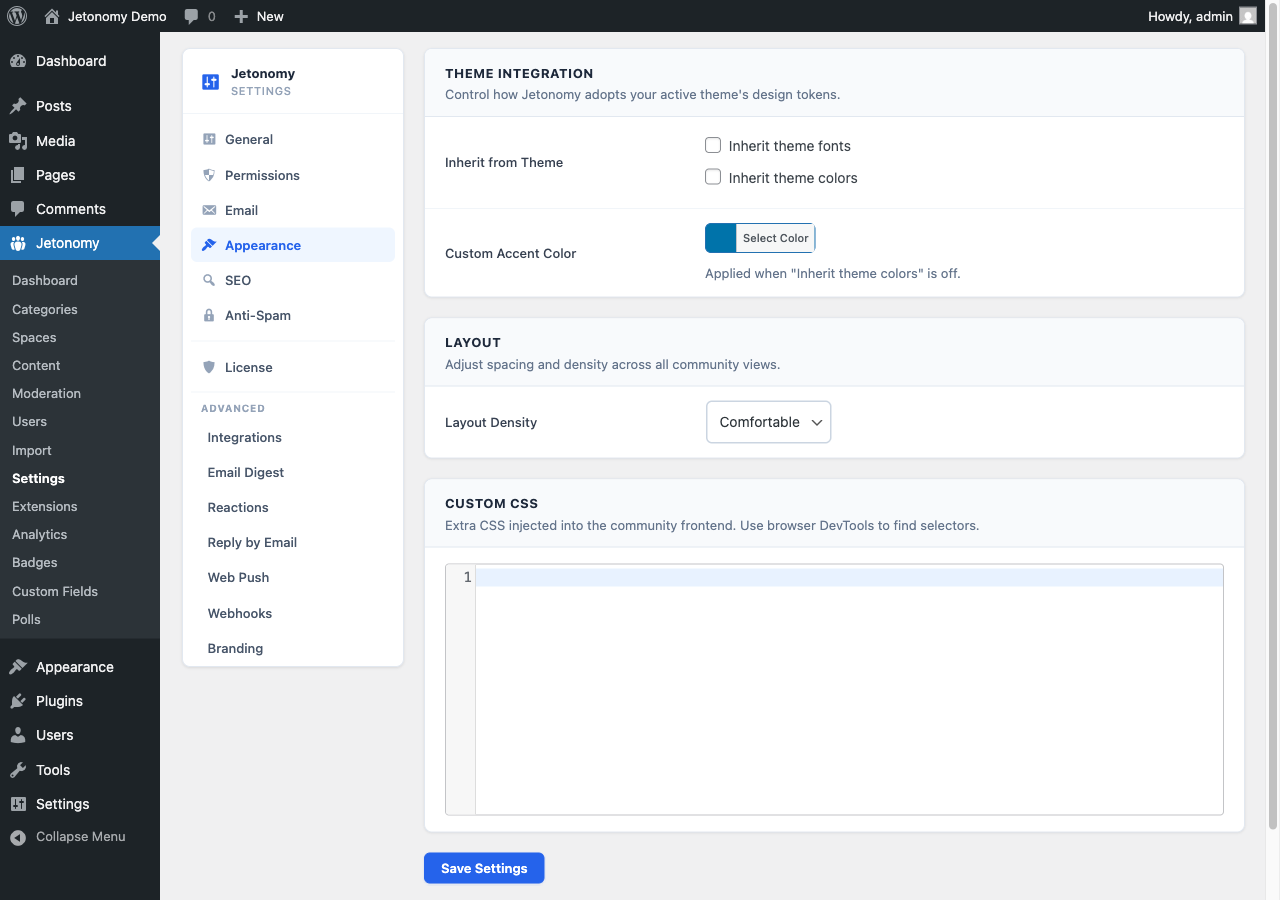
Jetonomy inherits your theme's fonts, colors, and border radius automatically via WordPress theme tokens. If you are using BuddyX, this integration is immediate — Jetonomy reads BuddyX's design tokens and matches your brand without any manual work.

To adjust further:

  • Go to Jetonomy → Settings and explore the General and Advanced tabs.
  • To override specific templates, create a jetonomy/ folder inside your active theme directory and drop in any template file from wp-content/plugins/jetonomy/templates/. Jetonomy always checks your theme folder first.

Tip: You do not need to copy all templates — only override the ones you want to change. Unmodified templates are served directly from the plugin.

Importing from bbPress, wpForo, or Asgaros

If you are migrating an existing community, Jetonomy includes a built-in importer for three sources.

  1. Go to Jetonomy → Import.
  2. Select your source plugin: bbPress, wpForo, or Asgaros Forum.
  3. Jetonomy auto-detects your existing data and shows a summary — for example, "Found: 12 forums, 3,847 topics, 28,419 replies."
  4. Run a Dry Run first to check for any mapping issues.
  5. Click Start Import when you are ready.

Imports run in background batches. You can close your browser and come back — the import continues via WP-Cron and resumes from where it left off if interrupted.

What gets migrated:

Source Jetonomy
Forums Categories + Spaces
Topics Posts
Replies Replies
Users WordPress users + Jetonomy profiles

The Community Frontend: A Quick Tour

Once you have content, here is what your members will see.

Community Home (/community/)

The home page lists all categories with their spaces. Each space card shows the post count, member count, and a recent activity indicator. Members can sort by activity or browse by category.

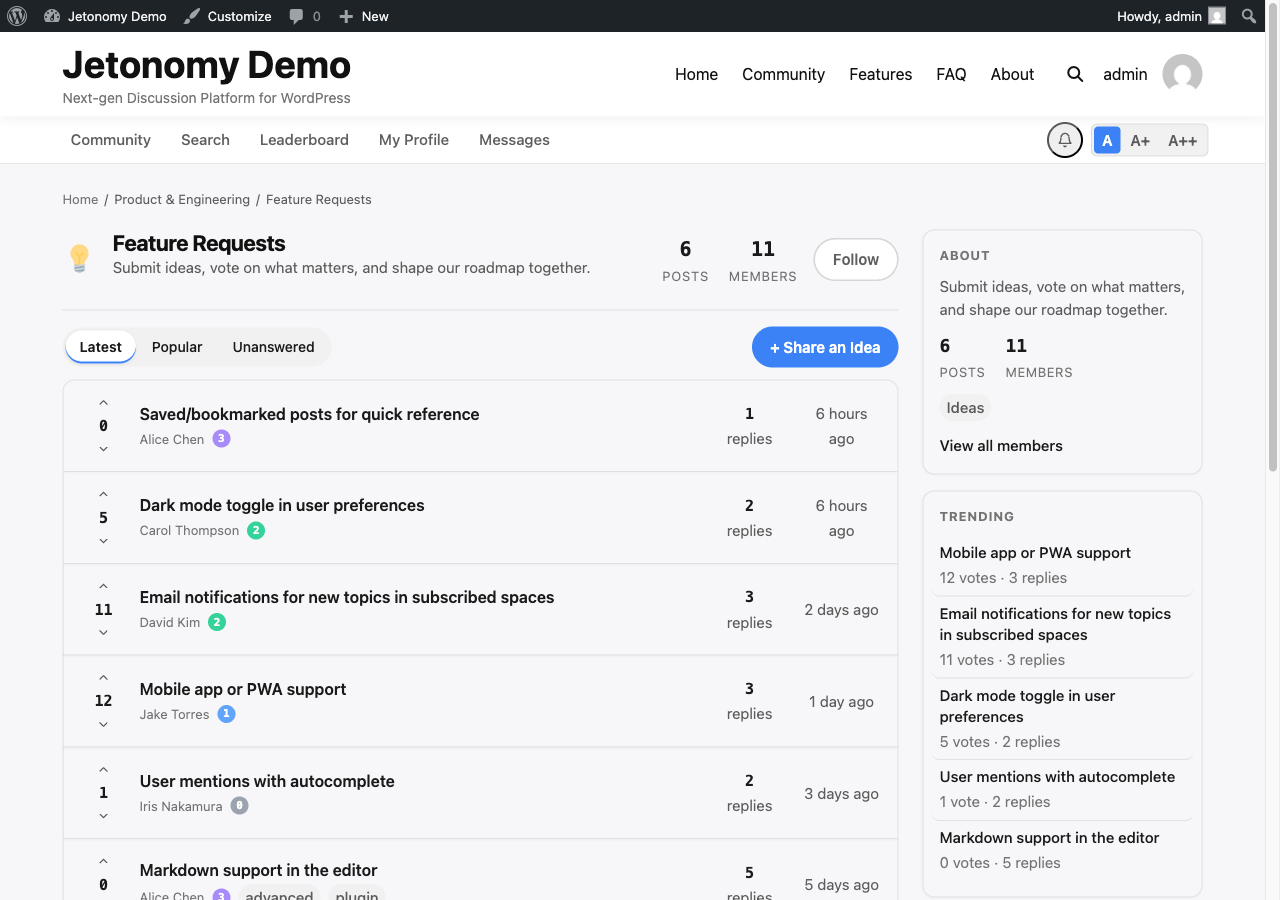
Space Listing (/community/s/space-slug/)

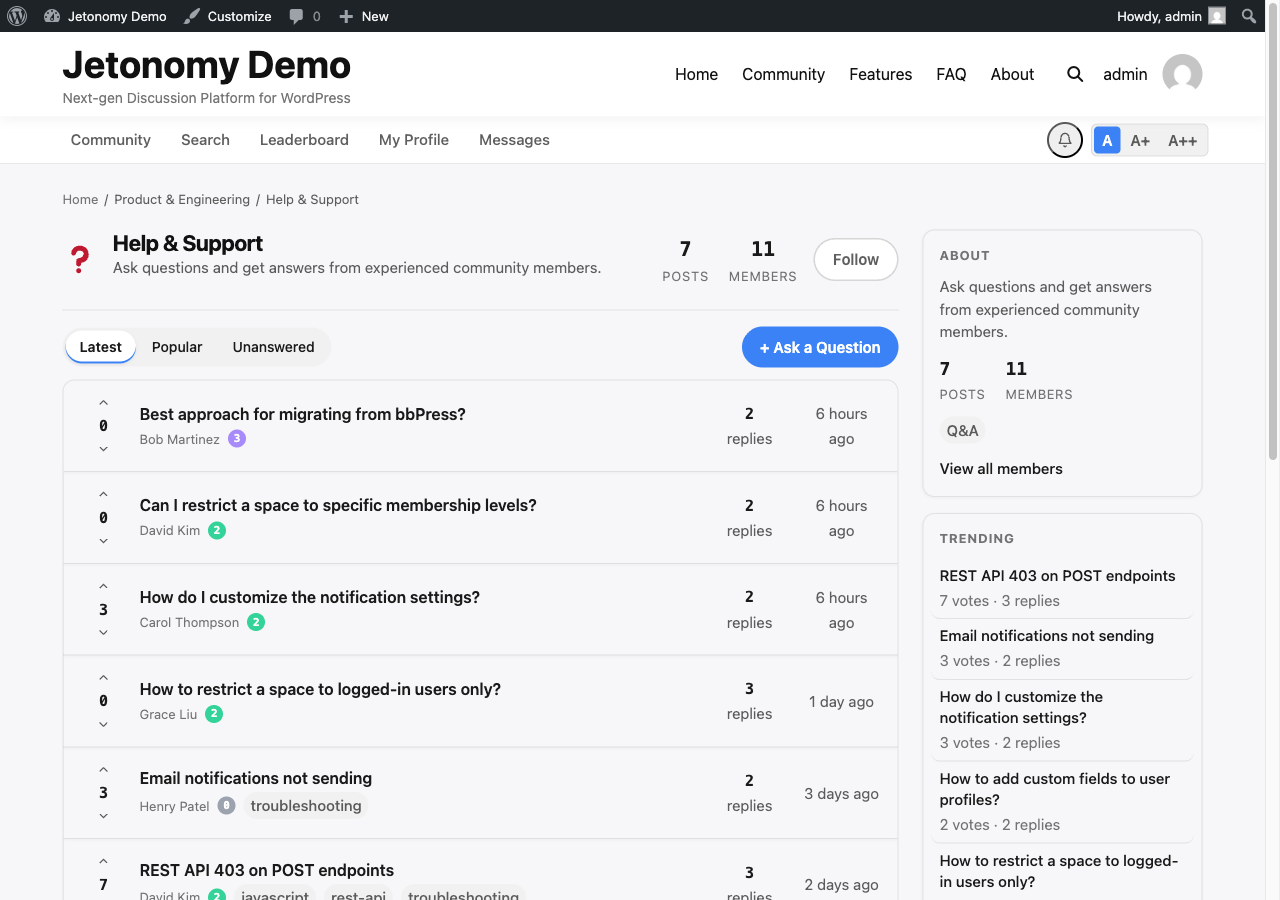
Inside a space, members see a topic list with vote scores, reply counts, author avatars, tags, and time. They can filter by Latest, Popular, or Unanswered. A New Post button appears in the top right for members who have permission to post.

Single Topic (/community/s/space-slug/t/topic-slug/)

The topic view shows the full post, vote buttons, and all replies. Replies are threaded up to three levels deep. For busy topics with many replies, Jetonomy loads the first 10 and last 10 replies by default, with a gap-loader button in between to fetch more. This keeps page load fast regardless of reply count.

In Q&A spaces, the accepted answer is pinned to the top and highlighted with a green checkmark.

Sidebar

The community sidebar (where the theme layout places it) shows active members, trending tags, and recent activity. The exact sidebar layout depends on your theme.

Note: All community pages are server-side rendered. There are no JavaScript-only pages — every URL is indexable by search engines out of the box.

What's Next?

Now that your community is live and populated, learn how to organize it further with spaces and categories — including sub-spaces, visibility rules, and per-space permissions.

Spaces and Categories →

Spaces & Categories

Organize your community into discussion spaces.

Spaces are the discussion areas inside your community — each one has its own topic listing, member list, and settings. This guide shows you how to create, configure, and manage them.

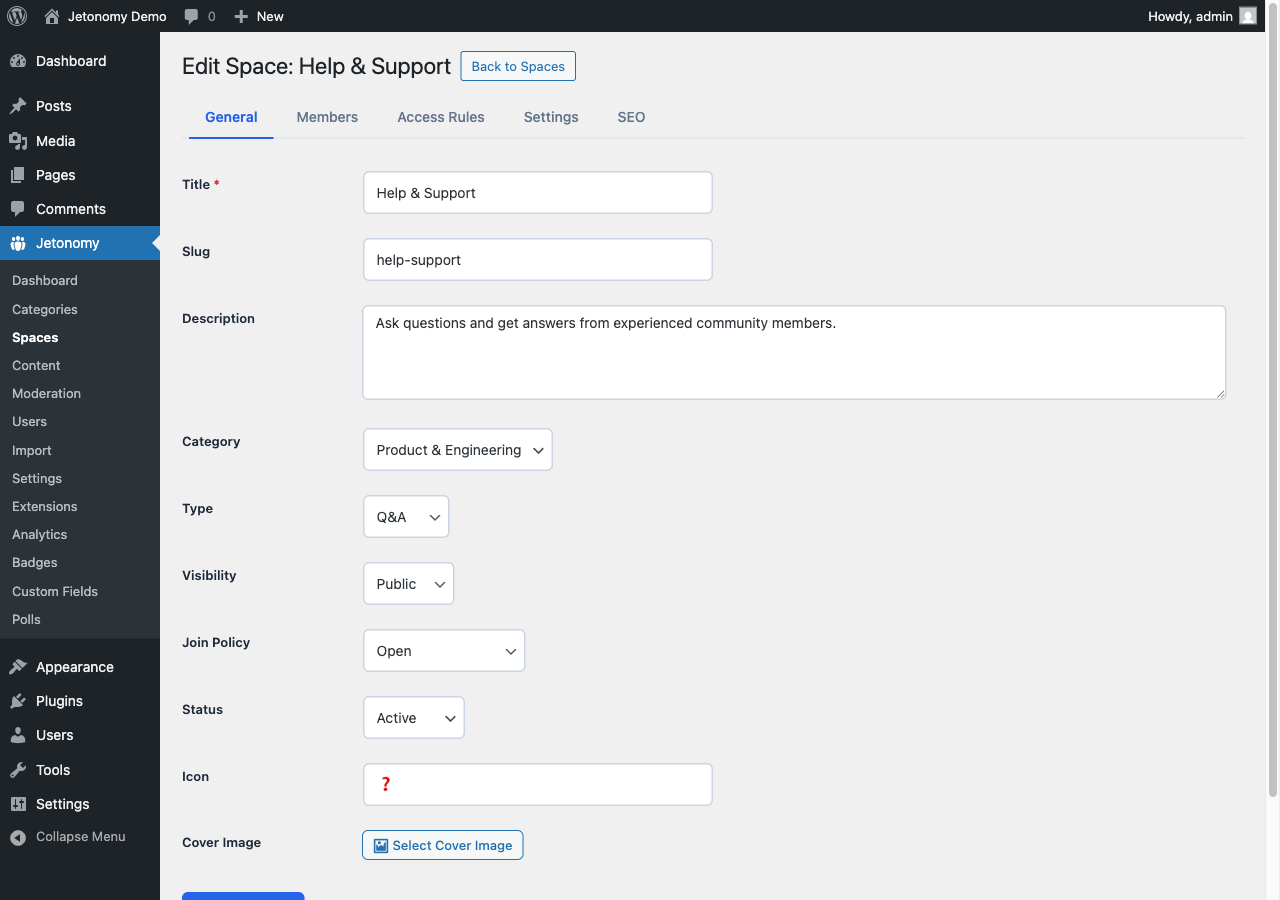
Admin space editor with name, description, and settings fields

What You Will Learn

  • What spaces are and how they relate to categories
  • Every field on the space creation form
  • How the space header looks on the frontend
  • How to edit and archive an existing space

What Is a Space?

A space is a focused discussion area organized around a single topic or purpose. Examples: a "General Discussion" space, a "Product Feedback" space, a "Help & Support" space.

Every space belongs to a category. Categories are the top-level groupings (like tabs or sections) that members see on the community home page. A space without a category will not appear in the community navigation.

Tip: Plan your space structure before creating anything. Too many spaces fragment your community early. Start with three to five and add more as demand grows.

Creating a Space

Go to Jetonomy → Spaces in your WordPress admin and click Add New Space.

Basic Information

Title — The name members see in listings, the space header, and breadcrumbs. Keep it short and descriptive.

Slug — The URL-safe identifier for this space. Jetonomy auto-generates a slug from the title. The final URL will be /community/s/your-slug/. You can change the slug, but doing so after posts exist will break any existing links.

Description — A short sentence or two explaining what this space is for. This appears in the space header below the title and in category listing cards. It also populates the meta description for search engines.

Icon — A single emoji that represents the space. It appears in the space header and on category listing cards alongside the title. Choose something that works in monochrome — it will be displayed at small sizes on mobile.

Category — Select which category this space belongs to. A space must be assigned to a category to appear on the community home page.

Space Configuration

Type — Choose Forum, Q&A, or Ideas. This controls how posts and replies behave. See Space Types for a full explanation of each.

Visibility — Controls who can see the space and its content. Options: Public, Private, or Hidden. See Membership & Join Policies for details.

Join Policy — Controls how members gain access. Options: Open, Approval Required, or Invite Only.

Click Save Space to publish it immediately.

The Space Header (Frontend)

Every space has a header at the top of /community/s/your-slug/ showing:

  • The emoji icon at large size
  • The space title and description
  • A stat bar with total post count, member count, and last activity time
  • A Follow button for logged-in users (subscribes them to new post notifications)
  • A Join button when the space requires membership

Members who have already joined see the Join button replaced with their role badge (Member, Moderator, or Admin).

Editing a Space

Go to Jetonomy → Spaces, find the space in the list, and click Edit. All fields are editable, including the type and visibility settings.

Note: Changing the space type after content exists does not reformat old posts. Existing posts keep their original structure. Only new posts use the new type's behavior.

Archiving a Space

To archive a space, open it for editing and set its Status to Archived. An archived space becomes read-only — members can read existing posts and replies, but cannot create new ones. The space remains visible in listings with a clear "Archived" label.

Archived spaces do not count toward activity stats on the community home page.

To permanently remove a space, click Delete in the space list. This action also deletes all posts, replies, votes, and member records inside that space. It cannot be undone.

What's Next?

Learn how each space type changes the way posts and replies behave.

Space Types →

The space type you choose determines how posts are structured, how replies work, and what extra features appear. Pick the right type and your community will feel purpose-built — pick the wrong one and members will feel like they are fighting the interface.

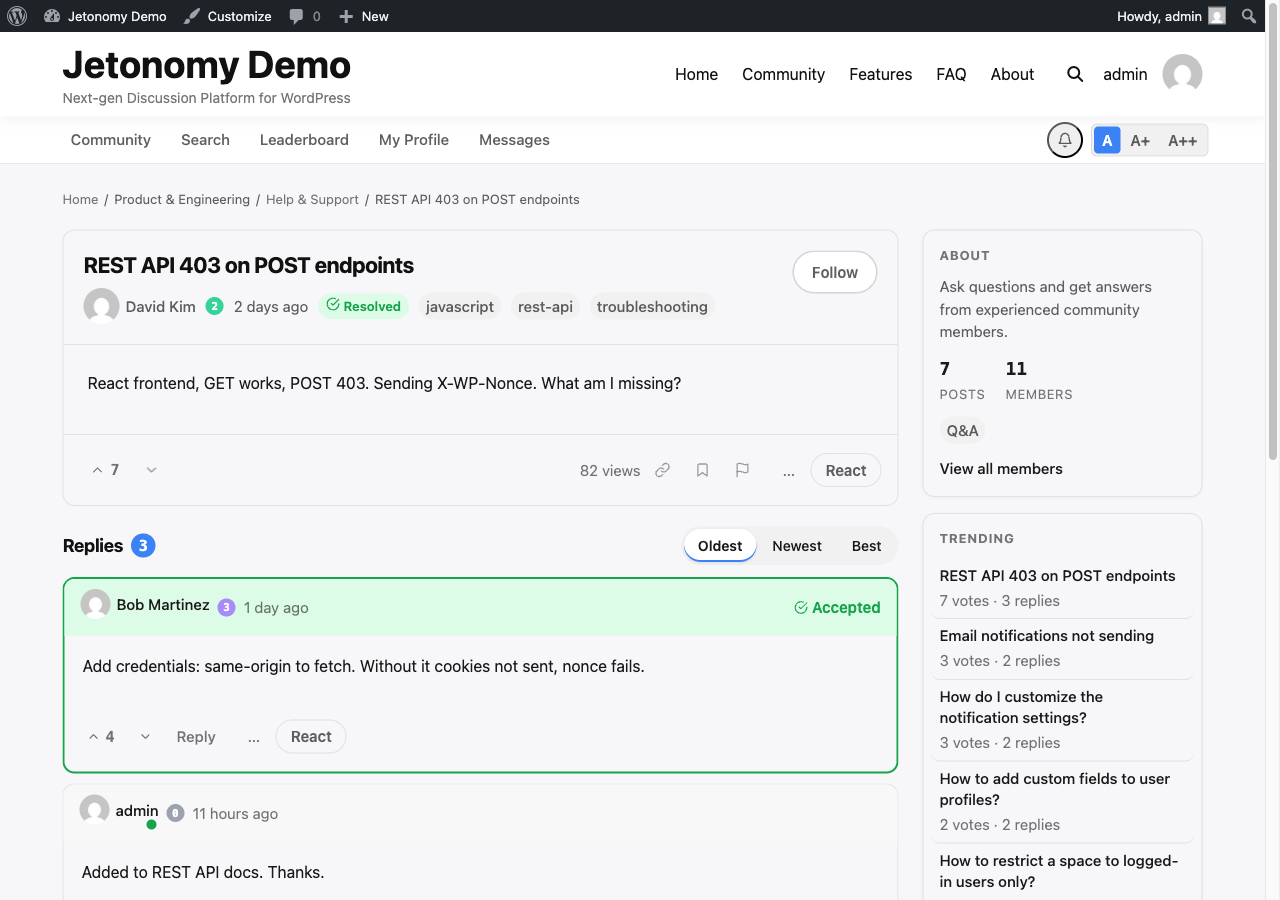
Q&A space showing questions with accepted answers and vote counts

What You Will Learn

  • What each space type is designed for
  • How posts and replies behave differently per type
  • The unique features each type unlocks
  • How to change a space type after creation

The Four Space Types

Forum

Forum is the default type. It is the right choice for general discussion, support, announcements, or any conversation without a single "correct" answer.

How it works:

  • Members post a topic with a title and rich content.
  • Replies thread up to three levels deep (reply to a reply to a reply).
  • Votes on replies surface the best contributions via the Best sort, but no reply is formally "accepted."
  • Topics can be sorted by Newest, Oldest, or Best on the space listing page.

Use Forum for: support channels, general discussion, community announcements, staff Q&A sessions.

Q&A

Q&A is built for questions that have a definitive best answer. It follows the model made popular by Stack Overflow — the person who asked the question marks one reply as the accepted answer.

How it works:

  • Every post is a question. The title should be phrased as a question.
  • Replies are answers. Each answer is voted on independently.
  • The post author sees an Accept button on every reply. Clicking it marks that reply as the accepted answer and pins it to the top of the reply list, regardless of sort order.
  • The accepted answer author earns a reputation bonus (+15 points).
  • The post listing shows an "Answered" badge on topics with an accepted answer, making it easy to filter for unresolved questions.

Use Q&A for: help & support, how-to guides, technical documentation requests, troubleshooting.

Tip: The Unanswered filter on the space listing page shows only topics with no accepted answer. This is a powerful tool for community moderators and support teams tracking open questions.

Ideas

Ideas is built for feature requests, product feedback, and roadmap voting. Each idea has a status that you control, and members vote to indicate demand.

How it works:

  • Members submit ideas with a title and description.
  • Other members upvote (or downvote) to signal interest. Vote score drives the default sort order.
  • Each idea has an Idea Status that the space moderator or admin updates manually:
Status Meaning
Submitted Just received, not yet reviewed
Under Review The team is evaluating it
Planned On the roadmap
In Progress Being built
Completed Shipped
Declined Will not be implemented
  • Status updates appear in the reply thread as a system activity entry, so members can see when an idea's status changed.
  • The space listing page has a filter bar showing counts per status, making it easy to browse the roadmap.

Use Ideas for: product feedback boards, feature request trackers, community roadmaps, vote-to-prioritize workflows.

Tip: Set the space icon to a lightbulb emoji and name it something like "Ideas & Feedback" to set the right expectation before members click through.

Social Feed

Social Feed is designed for short-form status updates — brief posts without a required title. It behaves more like an activity stream than a traditional forum.

How it works:

  • The post title field is optional. Members can post a standalone message, image, or link.
  • Posts appear in a card-style feed sorted chronologically by default.
  • Replies work the same as Forum type — threaded, up to three levels deep.
  • Voting is available but the feed sort does not default to Best — it defaults to Latest.

Use Social Feed for: member introductions, community announcements, daily check-ins, open-ended community updates.

Note: Social Feed is available in Jetonomy 1.0. Advanced social features including @mentions in feeds and rich link previews are planned for version 1.1.

Changing the Space Type

You can change the type of an existing space at any time. Open the space for editing in Jetonomy → Spaces and update the Type field.

The change takes effect immediately for all new posts. Existing posts keep their original structure — a Q&A post does not lose its accepted answer, and an Ideas post does not lose its status history.

If you change a Q&A space to Forum, the Accept button disappears from the UI but existing accepted answers remain stored in the database.

What's Next?

Learn how to control who can see your spaces and how members join them.

Membership & Join Policies →

Every space has two independent controls: who can see it (visibility) and how members get in (join policy). Combining them gives you precise control over every access scenario — from fully public forums to invite-only private communities.

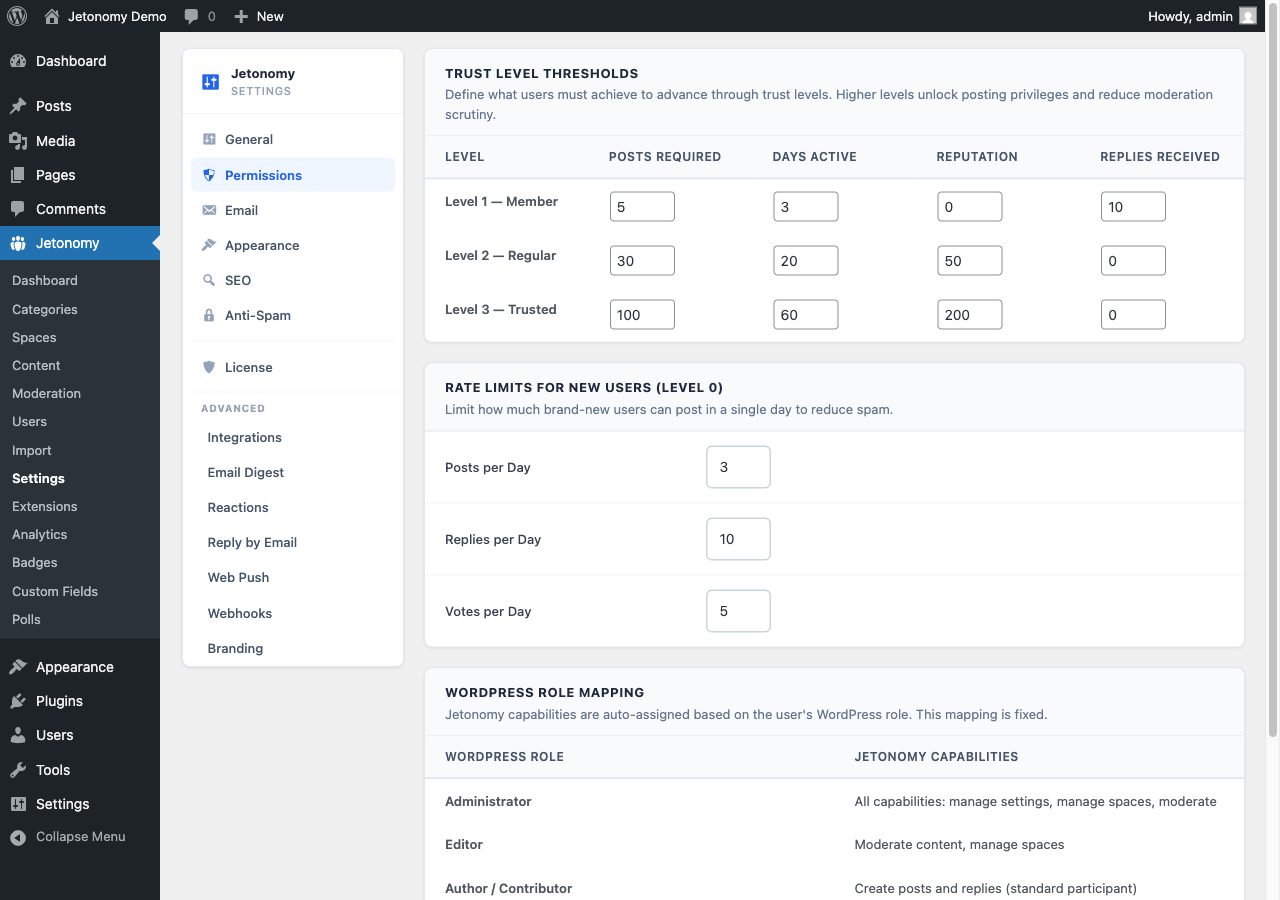
Permissions settings panel with trust level thresholds and rate limits

What You Will Learn

  • The three visibility levels and when to use each
  • The three join policies and how they differ
  • Per-space posting restrictions
  • Space member roles and what each can do
  • How to combine visibility and join policy for common use cases

Visibility Levels

Visibility controls whether the space appears in listings and whether non-members can read its content.

Public

The space appears on the community home page, in search results, and in category listings. Any visitor — including users who are not logged in — can read all posts and replies.

Members still need to join (or be approved) before they can post or reply, depending on your join policy.

Use Public when you want maximum reach and SEO value. Most community spaces should start here.

Private

The space appears in listings and search results, so members can discover it. However, only approved members can read the content. Non-members see the space name and description, then a "Request to Join" prompt.

Use Private for paid membership communities, internal team discussions, or beta program spaces where content should be gated but the space itself should be findable.

Hidden

The space does not appear in any listing, search result, or category navigation. Only members who have already joined — and admins — can see it.

Members can only reach a hidden space via a direct link or an invite link you share with them.

Use Hidden for admin-only spaces, private moderator discussion boards, or early access groups where you control every invitation.

Note: WP Admins and space admins can always see hidden spaces in the admin panel, regardless of their membership status.

Join Policies

Join policy controls how members gain access to the space. It works in combination with visibility.

Open

Any logged-in user can join instantly by clicking the Join button on the space header. There is no approval step.

Members who join an Open space can post and reply immediately (subject to your per-space posting restrictions).

Use Open for general discussion spaces, community-wide help channels, and any space where you want minimal friction.

Approval Required

When a user clicks Join, they submit a join request. The request goes to the space moderators and admins for review.

Moderators see pending requests in Jetonomy → Moderation → Join Requests. They can approve or decline each request. The user gets a notification when their request is reviewed.

Approved members can then post and reply immediately.

Use Approval Required when you want to vet members before they can participate — for example, a verified customer support channel or a professional community with admission criteria.

Invite Only

No join button is shown to non-members. Members can only enter via an invite link generated by a space moderator or admin.

To create an invite link, open the space in the admin panel and go to the Invite Links section. Each link has a configurable usage limit and optional expiry date. You can see how many times each link has been used.

Anyone who visits a valid invite link is automatically added as a member — no approval step required.

Use Invite Only for private groups, course cohorts, or closed communities where every member should be explicitly invited.

Per-Space Posting Restrictions

Beyond join policy, each space has two additional settings that control what members can do once inside:

Who Can Post — Controls who can create new topics in this space.

Setting Effect
Anyone (members) All members can post
Members with trust level 1+ New members (trust level 0) cannot post
Moderators only Only space moderators and admins can post

Who Can Reply — Controls who can reply to existing topics.

Setting Effect
Anyone (members) All members can reply
Members with trust level 1+ New members cannot reply
Moderators only Only space moderators and admins can reply

These settings let you create announcement-only spaces (post and reply both set to Moderators only), or read-heavy Q&A spaces where only trusted members can contribute.

Space Member Roles

Every member of a space has one of three roles:

Member — Can read, post, and reply within the space's configured restrictions. Can vote, follow, and bookmark topics.

Moderator — All member abilities plus: approve pending posts, pin topics, close topics, move topics, delete posts and replies, manage join requests, create invite links, and review flagged content within the space.

Admin — All moderator abilities plus: change space settings, assign moderator and admin roles to other members, manage access rules, and archive or delete the space.

Note: WordPress site admins can perform all admin-level actions on any space, regardless of their space role.

Common Visibility + Join Policy Combinations

Goal Visibility Join Policy
Public community forum Public Open
Paid membership forum Private Approval Required
Team-only internal channel Hidden Invite Only
Verified customer support Public Approval Required
Early access beta group Hidden Invite Only
Course community Private Open (link-gated via Invite Only)

What's Next?

See every per-space setting in one place, including how they override global defaults.

Space Settings →

Each space can override the global Jetonomy defaults with its own settings. This page is a complete reference for every per-space option, how it interacts with global settings, and how invite links work.

Admin space editor showing per-space configuration options

What You Will Learn

  • Every per-space setting and what it controls
  • How per-space settings override global defaults
  • How to require moderator approval before posts go live
  • How to create, share, and track invite links

Accessing Space Settings

Go to Jetonomy → Spaces in your WordPress admin, find the space, and click Edit. The settings panel is on the right side of the edit screen.

Per-Space Settings Reference

Posts Per Page

Default: Inherits from global setting (default: 20)

Overrides how many topics appear per page on this space's listing. Set a lower number for low-traffic spaces with long post titles. Set a higher number for high-activity spaces where members scan quickly.

Valid range: 5 to 100.

Require Post Approval

Default: Off

When enabled, every new post submitted by a non-moderator is held in a pending state and does not appear publicly until a moderator approves it.

Moderators and space admins can see pending posts immediately in the space listing with a "Pending" label. They can approve, reject, or mark the post as spam from the topic view or from Jetonomy → Moderation.

The post author receives a notification when their post is approved or rejected.

Tip: Enable this for your early community days when you want to review every submission, then turn it off once you trust your membership base.

Allow Voting

Default: On (inherits from global)

Controls whether upvote and downvote buttons appear on posts and replies in this space. Disabling voting also removes vote scores from the space's topic listing.

In Q&A spaces, voting is always available on replies regardless of this setting — otherwise the Best sort and accepted-answer workflow cannot function correctly.

In Ideas spaces, voting cannot be disabled because it is the core mechanism for prioritizing ideas.

Who Can Post

Default: Anyone (members)

See Membership & Join Policies for the full option set. The per-space value overrides the global default for this space only.

Who Can Reply

Default: Anyone (members)

Controls who can add replies to topics in this space. Overrides the global default for this space only.

How Per-Space Settings Override Global Settings

Jetonomy uses a two-layer settings system:

  1. Global settings — Set at Jetonomy → Settings → Community. These are the defaults that apply to every space.
  2. Per-space settings — Set on individual spaces. When a per-space value is configured, it takes precedence over the global value for that space only.

If you leave a per-space setting at "Inherit from global," any future changes to the global setting will automatically apply to that space. If you explicitly set a per-space value, global changes do not affect it.

This means you can configure a sensible default globally and only override the spaces that need different behavior — instead of configuring every space individually.

Access Rules for Membership-Gated Spaces

For Private and Hidden spaces, you can restrict access based on external membership status — not just whether someone has joined the space.

Go to the Access Rules tab on the space edit screen to add rules.

Each rule has three parts:

Rule Type — What to check:

Type What it checks
Logged In User is authenticated
WordPress Role User has a specific WP role (e.g. Editor)
Capability User has a specific WP capability
Trust Level User's Jetonomy trust level (0–5)
MemberPress User has an active MemberPress membership
Paid Memberships Pro User has an active PMPro level

Access Grant — What to allow:

Grant Effect
Read Can view posts and replies, cannot participate
Participate Can read, post, and reply
Full All participate abilities plus moderator actions

Auto-Assign Role — Optionally assign the member a space role (Member, Moderator, Admin) automatically when the access rule is satisfied. This is useful when you want MemberPress Gold members to automatically become space moderators.

Multiple rules can be stacked. Jetonomy grants the highest matching permission level.

Note: MemberPress and Paid Memberships Pro adapters are available in Jetonomy free. WooCommerce Memberships, Restrict Content Pro, and LearnDash adapters require Jetonomy Pro.

Invite Links

Invite links let you bring specific people into a space without opening up general membership.

Creating an Invite Link

  1. Open the space for editing and go to the Invite Links section.
  2. Click Create Invite Link.
  3. Set an optional Usage Limit (how many people can use this link before it expires).
  4. Set an optional Expiry Date.
  5. Click Generate.

Jetonomy generates a unique URL: /community/invite/abc123def/

Sharing an Invite Link

Copy the link from the Invite Links table and share it however you prefer — email, Slack, a membership welcome email, etc.

When someone visits the link, they are prompted to log in if they are not already. After logging in, they are automatically added to the space as a Member.

Tracking Usage

The Invite Links table shows each link's current usage count against its limit. Links that have reached their usage limit are automatically deactivated but remain in the table for your records.

You can manually deactivate or delete any invite link at any time.

What's Next?

Learn how to create topics and posts inside your spaces.

Creating Topics →

Discussions & Topics

Create topics, reply, vote, and manage conversations.

A topic is the primary unit of discussion in Jetonomy — every conversation, question, idea, or update starts here. This guide walks through everything that happens from the moment a member clicks "New Post" to when their topic goes live.

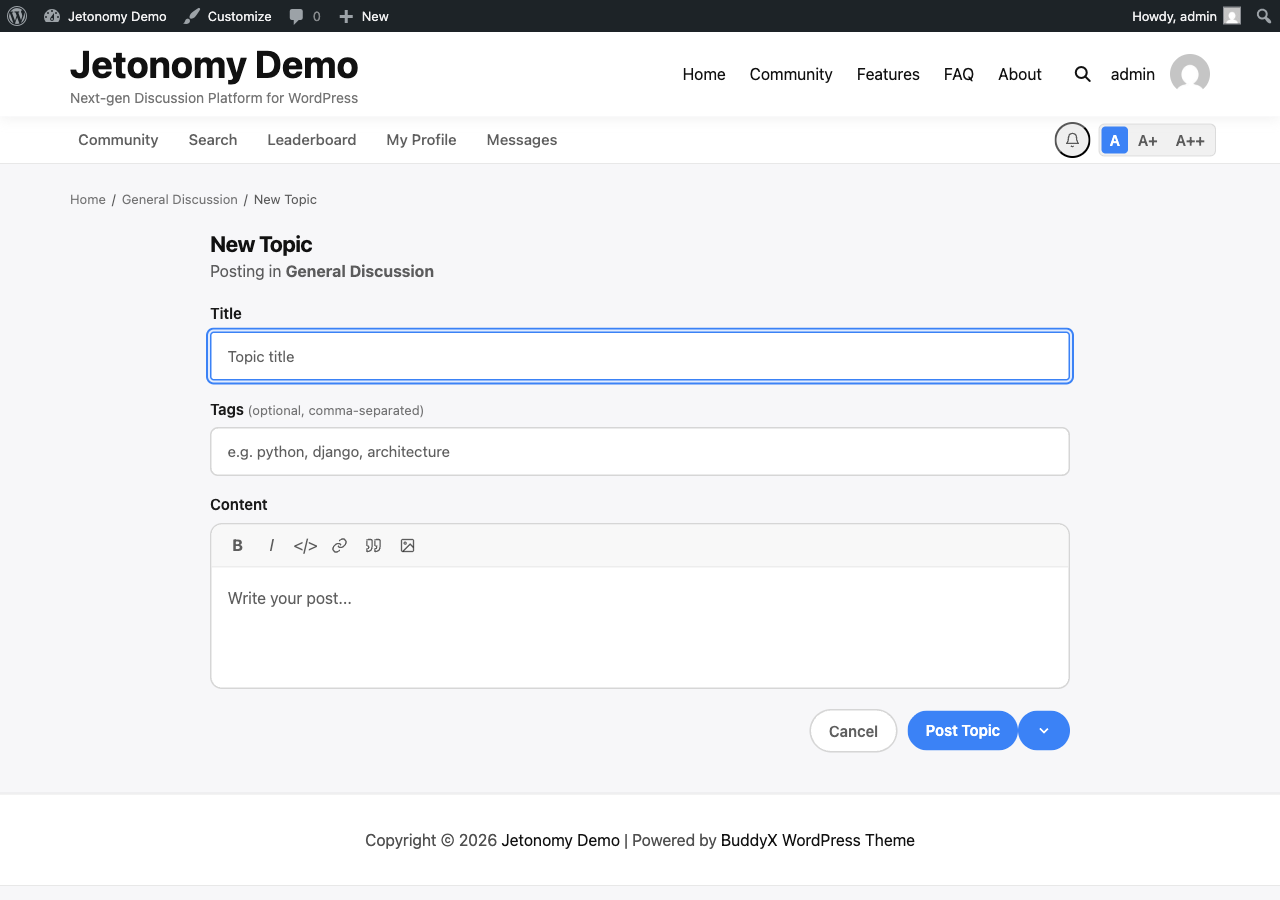
New post form with title, content editor, tags, and publish options

What You Will Learn

  • How to open the new post form in a space
  • Every field in the post composer and what it does
  • How Markdown formatting works in the content editor
  • How content moderation and rate limiting affect new members
  • Whether posts publish immediately or wait for approval

Opening the New Post Form

Members can start a new topic in three ways:

  1. Navigate to a space and click the New Post button in the space header.
  2. Visit the direct URL: /community/s/your-space-slug/new/
  3. Click + New from any page in the community — this opens a space picker first, then the form.

The new post form is always scoped to a specific space. If a member arrives via the generic + New button, they choose a space before the form loads. This ensures every topic lands in the right place.

The Post Composer

Title

The title field is required for Forum, Q&A, and Ideas spaces. Write a clear, specific title that tells members exactly what the topic is about before they click it.

Good: "How do I set up automatic email digests for my space?" Weak: "Help with emails"

For Q&A spaces, phrase the title as a question — it helps other members find answers when searching.

The title field is optional for Social Feed spaces, where short-form posts without titles are common.

Content

The content field supports rich text via a Markdown toolbar. You do not need to know Markdown syntax — the toolbar buttons handle formatting for you.

Toolbar options:

Button What it does
B Bold text
I Italic text
< > Inline code
Link Insert a hyperlink
Quote Block quote
Image Upload an image from your device
Code block Multi-line code with syntax highlighting

You can also type Markdown directly if you prefer:

  • **bold**bold
  • *italic*italic
  • `code`code
  • > quote → block quote

Images are uploaded to the WordPress media library. Each image is inserted as a standard <img> tag in the content. There is no separate file attachment field — all media goes inline.

Tags

Add up to five tags to help members find your topic through search and tag filtering. Type a tag name and press Enter. Jetonomy auto-suggests existing tags as you type — reusing existing tags is better than creating near-duplicates.

Tags are space-scoped by default. A "bug" tag in your Support space and a "bug" tag in your Dev space are the same tag in the database, but the tag page at /community/tag/bug/ will show posts from all spaces.

Post Type Is Derived Automatically

You do not select the post type — Jetonomy determines it from the space type:

Space type Post type
Forum Discussion
Q&A Question
Ideas Idea
Social Feed Update

The composer adapts its UI accordingly. Q&A spaces show a hint to "phrase as a question." Ideas spaces show the Idea Status selector (visible to moderators). Social Feed spaces make the title optional and show a shorter, Twitter-style composer.

Content Moderation Checks

Before a post is saved, Jetonomy runs three checks:

Rate limiting — New members (Trust Level 0) can submit a maximum of 3 posts per day and 10 replies per day. If a member has hit their limit, the submit button shows an error and the post is not saved. Rate limits reset at midnight UTC. Members at Trust Level 1 and above have higher or no limits, depending on your global settings.

Require post approval — If the space has "Require Post Approval" enabled, the post is saved with a Pending status. It is not visible to other members until a moderator approves it. The submitter sees a confirmation: "Your post has been submitted and is awaiting approval."

Auto-moderation rules (Jetonomy Pro) — If Pro auto-moderation rules are configured, Jetonomy checks the content against those rules before saving. Depending on the rule configuration, the post may be flagged, held, blocked, or marked as spam automatically.

Note: WP Admins and space moderators bypass rate limiting and approval requirements. Their posts always publish immediately.

After Publishing

When a topic publishes successfully:

  • It appears at the top of the space listing under the Latest sort.
  • The author is automatically subscribed to the topic and will receive notifications for new replies.
  • The space's post count increments immediately.
  • Search indexes are updated on the next cron run (typically within a few minutes).

If the topic is pending approval, it does not appear in the listing, does not increment the post count, and the author's subscription is created but held until approval.

What's Next?

Learn how replies work, how threading is structured, and how to accept answers in Q&A spaces.

Replies & Threading →

Replies are where conversations happen. Jetonomy's reply system supports threaded discussions, multiple sort orders, accepted answers in Q&A spaces, and efficient loading for threads with hundreds of contributions.

Single topic page with threaded replies and voting controls

What You Will Learn

  • How to add a reply to a topic
  • How threaded replies work and how deep they go
  • How to sort replies and what each sort does
  • How accepted answers work in Q&A spaces
  • How to edit your own replies
  • How Jetonomy handles large threads efficiently

The Reply Composer

The reply composer appears at the bottom of every topic page. Click into the text area to expand the full Markdown toolbar — the same formatting options available in the post composer (bold, italic, inline code, links, block quotes, image upload, code blocks).

Click Reply to submit. The reply appears immediately without a page reload.

If the space has "Require Post Approval" enabled, your reply is held for moderator review before appearing to other members. A confirmation message tells you it is pending.

Threading: Replies to Replies

You can reply to any existing reply by clicking the Reply link that appears when you hover over a reply. This creates a threaded sub-reply nested visually under the parent.

Jetonomy supports three levels of nesting:

Reply (level 1)
  └─ Reply to reply (level 2)
       └─ Reply to reply to reply (level 3)

At level 3, no further nesting is allowed. Members can still reply to a level-3 comment — that reply is added at level 3 as well, keeping the conversation readable.

Threaded replies let you have multiple parallel conversations inside the same topic without them colliding. A question inside a reply gets its own sub-thread. The main discussion continues underneath.

Sorting Replies

Use the sort controls at the top of the reply list to change the order:

Oldest first — Replies appear in chronological order, oldest at the top. Best for reading a long discussion from the beginning. This is the default for Forum spaces.

Newest first — Most recent replies appear at the top. Best for active topics where you want to see the latest contributions without scrolling.

Best — Replies are ranked by net vote score (upvotes minus downvotes), highest at the top. Best for Q&A spaces or any topic where you want the most useful contributions visible first. Within the same vote score, older replies rank first.

Sort preference is stored per-session — if you change it on one topic, it persists as you navigate between topics in the same session.

Accepted Answers in Q&A Spaces

In Q&A spaces, the topic author can mark one reply as the accepted answer. This signals to other members that the question has been solved.

How to accept an answer:

  1. Open your question (you must be the post author).
  2. Find the reply that best answers your question.
  3. Click the Accept button (the checkmark icon below the reply's vote controls).
  4. The reply is immediately pinned to the top of the reply list, above all other replies and sort orders.

The accepted reply is highlighted with a green "Accepted Answer" badge. The reply author receives a notification and a +15 reputation bonus.

You can change the accepted answer at any time by clicking Accept on a different reply. The previous acceptance is removed.

Tip: Space moderators can also accept answers on any Q&A topic in their space — useful for resolving unanswered questions on behalf of absent authors.

Editing Your Own Replies

Click the ... menu on any reply you authored and select Edit. The reply text becomes an inline editor — you make changes and click Save. No page reload.

Edits are tracked as revisions internally. Moderators can view reply revision history from the moderation panel.

You can edit a reply at any time after posting. There is no edit window.

If a moderator edits your reply, the reply gets an "Edited by moderator" label.

How Jetonomy Handles Large Threads

For topics with many replies, Jetonomy uses cursor-based pagination to load replies in batches.

The first time you open a topic, you see the first batch of top-level replies (default: 20). A Load more replies button appears at the bottom if more exist. Clicking it loads the next batch without reloading the page.

For very high-traffic topics — those with hundreds of top-level replies — Jetonomy uses a smart loading strategy: it loads the first 10 replies and the last 10 replies, with a collapsed gap in the middle showing how many replies are hidden. You can click the gap to load replies from that range.

Threaded sub-replies follow the same pattern. A thread deeper than a few replies shows a "Show X more replies" link inline.

Note: New reply notifications appear as a sticky banner at the bottom of the page when other members post while you are reading. Click the banner to load the new replies without losing your scroll position.

What's Next?

Learn how upvotes and downvotes work, how they affect reputation, and how they power the Popular sort and trending sidebar.

Voting & Reputation →

Voting is the engine behind Jetonomy's quality signals. It surfaces the best content, rewards helpful members, and gives you a community where the most useful posts rise to the top naturally — without moderator intervention.

Topic page showing upvote and downvote buttons with vote scores on replies

What You Will Learn

  • How to vote on topics and replies
  • How vote scores appear in listings and on reply cards
  • How votes translate into reputation points
  • How votes power the Popular sort and trending sidebar
  • The one-vote-per-item rule and how to undo a vote

Voting on Topics and Replies

Every topic and every reply has an upvote button (thumbs up) and a downvote button (thumbs down). The net vote score — upvotes minus downvotes — is displayed between them.

To vote: Click the upvote or downvote button. The score updates instantly. No page reload.

To undo a vote: Click the same button again. The vote is removed and the score returns to its previous value.

To change your vote direction: Click the opposite button. Jetonomy removes your previous vote and applies the new one in a single action. The score adjusts correctly.

You must be logged in to vote. If you click a vote button while logged out, Jetonomy redirects you to the login page and returns you to the same topic afterward.

Note: You cannot vote on your own posts or replies. The vote buttons are visible but disabled with a tooltip explaining why.

Where Vote Scores Appear

Topic listing page — Each topic card shows the net vote score. This is how members quickly identify high-quality discussions without opening them.

Single topic page — The topic's vote score appears prominently alongside the title.

Reply cards — Every reply in a thread shows its vote score. In Q&A spaces, this score directly determines the Best sort order, making it easy to find the most helpful answer.

Vote scores are updated in real time as you vote — you never need to reload the page to see the current score.

How Votes Affect Reputation

When you receive votes on your content, your Jetonomy reputation score changes. Reputation is displayed on your public profile and powers your trust level progression.

Event Reputation change
Your post is upvoted +10
Your reply is upvoted +5
Your reply is accepted as an answer (Q&A) +15
Your post or reply is downvoted -2
Your post is deleted by a moderator -20

Reputation is calculated and stored in real time. There is no batch processing — the moment someone votes on your content, your reputation score updates.

Casting a downvote does not cost you any reputation points. Downvotes are free for voters.

How Votes Power Content Discovery

Votes are not just cosmetic — they feed two core discovery features:

Popular sort — On the space listing page, the Popular sort orders topics by their net vote score. High-vote topics stay visible longer. New topics start at zero and rise based on community reaction.

Trending sidebar — The community home page and individual space pages show a trending sidebar highlighting the topics with the highest recent vote velocity — meaning they received the most votes in a short window. A post with 20 upvotes in 2 hours outranks one with 100 upvotes spread over a month.

In Ideas spaces, vote scores are the primary ranking signal on the roadmap view — ideas with the most votes appear first, giving product teams a clear priority signal.

The One Vote Per Item Rule

Each member can cast exactly one vote per post and one vote per reply. The database enforces this with a unique constraint — there is no way to vote twice on the same item.

Toggling (undoing) and changing direction both work correctly within this constraint. At any moment, your vote on a given item is either +1, -1, or nothing.

If you vote on a topic in the listing view, then open the topic and vote again — you are interacting with the same vote record. The second click undoes the first vote.

What's Next?

Learn how to bookmark topics for quick access and how to follow spaces to get notified about new posts.

Bookmarks & Following →

Bookmarks and following are how members stay connected to the content they care about. Bookmarks are a personal reading list. Following a space is a subscription to that space's activity. Together they make sure your community members never lose track of an important discussion.

Topic page with bookmark, follow, and share action buttons

What You Will Learn

  • How to bookmark a topic and access your bookmarks later
  • How to follow a space and what that means for notifications
  • How auto-subscription works when you post or reply
  • How to manage your subscriptions and turn off notifications

Bookmarking Topics

How to Bookmark

Open any topic and click the bookmark icon in the topic action bar (next to the share and report buttons). The icon fills to indicate the bookmark is saved. Click it again to remove the bookmark.

Bookmarking is instant and does not require a page reload. There is no confirmation dialog.

Accessing Your Bookmarks

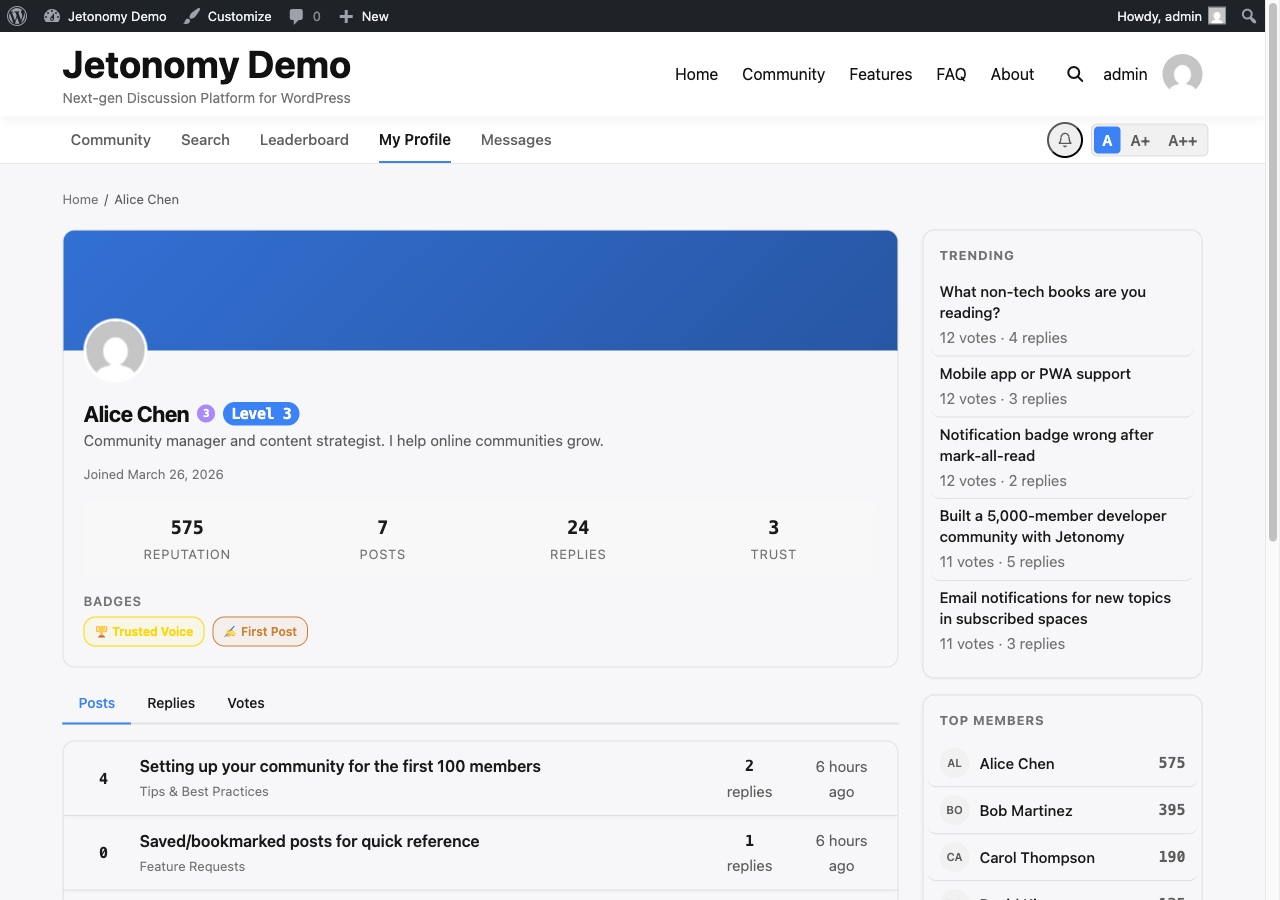
Go to your profile at /community/u/your-username/ and open the Bookmarks tab. This page lists every topic you have bookmarked, in the order you bookmarked them (most recent first).

Each item in the list shows the topic title, the space it belongs to, the author, and when it was posted. Click any item to go directly to the topic.

Bookmarks are private. Other members cannot see your bookmark list.

Tip: Use bookmarks as a reading queue — bookmark topics you want to read later, then clear them as you go. The Bookmarks tab gives you a clean list without any algorithm reordering it.

Following Spaces

How to Follow

Visit any space and click the Follow button in the space header. The button changes to Following immediately.

Following a space subscribes you to new post notifications from that space. Every time a new topic is published in a space you follow, you receive a notification in your notification bell.

Unfollowing

Click Following in the space header to toggle it off. The button returns to Follow and you stop receiving new post notifications from that space.

Following a space does not make you a member of the space. In Open spaces, you can follow without joining — you will receive notifications but you will not be listed as a member and cannot post until you join.

What You Get Notified About

When you follow a space, you receive notifications for:

  • Every new topic published in that space (including by authors you do not know)

You do not receive notifications for replies to topics in followed spaces unless you are also subscribed to those individual topics. Following is space-level; subscriptions are topic-level.

Topic Auto-Subscription

When You Create a Topic

When you publish a new topic, you are automatically subscribed to it. You will receive notifications for:

  • Every new reply to your topic (including threaded sub-replies)
  • When your topic is answered and accepted (Q&A spaces)
  • When your topic's idea status changes (Ideas spaces)

When You Reply to a Topic

When you post a reply to any topic, you are automatically subscribed to that topic. You will receive the same notifications as if you had subscribed manually.

Unsubscribing from a Topic

Open the topic and click the ... menu at the top of the page, then select Unsubscribe. You will stop receiving notifications for new replies on that topic.

You can re-subscribe at any time using the same menu.

Managing All Your Subscriptions

Go to your profile's Settings page at /community/u/your-username/edit/ and open the Notifications section.

Here you can:

  • See a list of all spaces you follow with a one-click unfollow option
  • See topics you are subscribed to (the list shows the 20 most recent)
  • Set your notification preference for email delivery (immediate, daily digest, or never)

Note: Daily and weekly email digests are a Jetonomy Pro feature. In the free plugin, email notifications are sent immediately for each event or not at all — based on your notification settings.

What's Next?

Learn how to save work-in-progress posts as drafts and schedule topics for future publication.

Drafts & Scheduled Posts →

Not every post is ready to publish the moment you start writing it. Drafts let you save work-in-progress posts and come back to them later. Scheduled posts let you write now and publish at a specific date and time automatically.

Post composer with draft and schedule publishing options

What You Will Learn

  • How to save a post as a draft
  • Where to find and manage your drafts
  • How to schedule a post for future publication
  • How the draft/schedule split-button UI works
  • How scheduled posts are published and what happens if the window is missed

Saving a Draft

When you are composing a new topic and want to save your progress without publishing:

  1. Write your title and content as usual.
  2. Click the arrow next to the main Post button to expand the split-button menu.
  3. Select Save as Draft.

Your draft is saved immediately and you are returned to the space listing. No notification is sent to other members. The topic does not appear in the space listing.

Tip: You can also save a draft at any time during composition by pressing Ctrl+S (Windows/Linux) or Cmd+S (Mac). The draft saves silently in the background without closing the composer.

Finding Your Drafts

Go to your profile at /community/u/your-username/ and open the Drafts tab.

Your drafts are listed in order of last-modified time, most recent first. Each draft shows:

  • The post title (or "Untitled Draft" if you have not written a title yet)
  • The space it is intended for
  • When you last saved it

Click any draft to reopen the full composer with your saved content. Make your changes, then publish or save again.

Drafts are private. Only you and site admins can see your drafts.

Drafts and Post Counts

Draft posts do not count toward any community statistics until they are published:

  • They do not increment the space's post count.
  • They do not appear in the space listing.
  • They do not appear in search results.
  • They do not appear on your public profile's Posts tab.

The moment a draft is published — either manually or via scheduled publishing — all of the above update immediately.

Scheduling a Post

You can schedule a post to publish automatically at a specific future date and time:

  1. Write your title and content.
  2. Click the arrow next to the Post button to expand the split-button menu.
  3. Select Schedule.
  4. A date and time picker appears. Choose when you want the post to go live.
  5. Click Schedule Post.

The post is saved with a Scheduled status. It does not appear publicly until the scheduled time.

Scheduled posts appear in your Drafts tab with a "Scheduled" label and the publish date/time displayed. You can click into a scheduled post to edit the content or change the publish time at any point before it goes live.

To cancel a scheduled post and convert it back to a draft, open it and click Unschedule.

How Scheduled Publishing Works

Jetonomy checks for scheduled posts using WordPress Cron (WP-Cron). The check runs every hour.

This means a post scheduled for 9:00 AM may publish at any point between 9:00 AM and 10:00 AM, depending on when the next site visitor triggers a cron run.

Note: If your site uses a server-side cron (via crontab) instead of WP-Cron, scheduled posts will publish more precisely — within one minute of the scheduled time. Ask your host or developer to configure a real cron job if timing precision matters for your community.

If a post's scheduled time is missed — for example, because WP-Cron did not run during a low-traffic period — Jetonomy will publish it the next time cron runs. It never silently drops a scheduled post.

The Split-Button UI

The publish button in the post composer is a split button:

  • Left side: The primary action (defaults to Post Now for new posts, Update for existing drafts).
  • Right side (arrow): Opens the options menu with Save as Draft, Schedule, and any other contextual actions.

The left side updates based on context. When you are editing a draft, the left side shows Publish Now and the right side shows options to reschedule or keep as draft.

What's Next?

Learn the full set of moderation tools available to space moderators — moving, merging, splitting, pinning, closing, and deleting topics.

Topic Management →

Space moderators have a full toolkit for organizing, curating, and controlling discussions. Every action in this guide requires moderator permission on the space where the topic lives — or site-wide admin access.

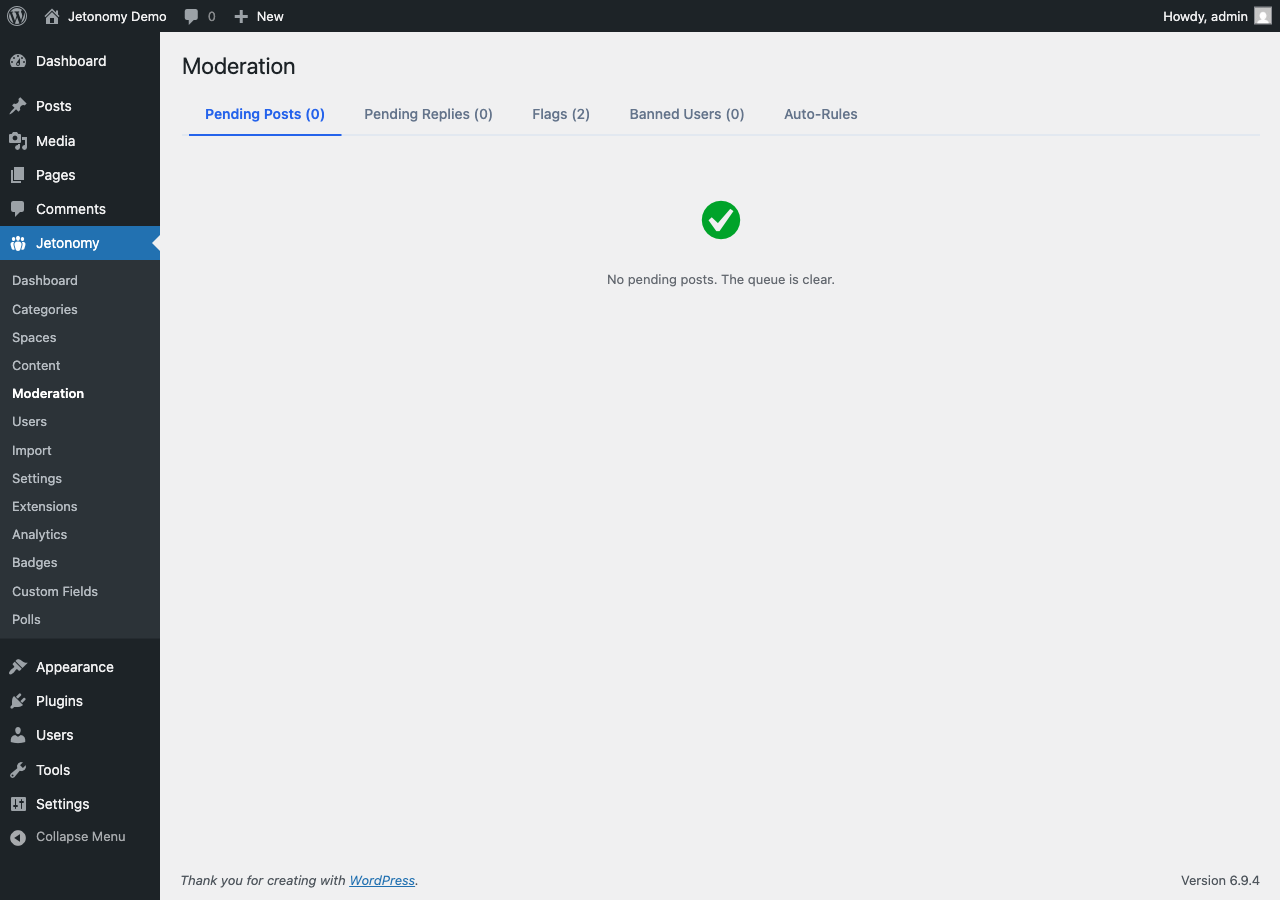
Admin moderation panel with content review and bulk action controls

What You Will Learn

  • How to move a topic to a different space
  • How to merge duplicate topics
  • How to split a reply into a new topic
  • How to pin and unpin topics
  • How to close and reopen topics
  • How to delete topics

Who Can Use These Tools

All moderation actions described here require one of the following:

  • Space Moderator role in the space where the topic lives
  • Space Admin role in that space
  • WordPress Administrator (can moderate any space)

Regular members do not see moderation options in the menus, even if they are the topic author. Topic authors can edit and delete their own posts, but not pin, close, move, merge, or split them.

Moving a Topic to a Different Space

Use this when a topic was posted in the wrong space — for example, a bug report in a General Discussion space that belongs in a Support space.

  1. Open the topic.
  2. Click the ... menu at the top right of the topic.
  3. Select Move Topic.
  4. A modal appears with a searchable space picker. Type to filter spaces by name.
  5. Select the destination space.
  6. Click Move.

The topic disappears from the original space immediately and appears at the top of the destination space's listing. Its URL changes to reflect the new space slug. The old URL redirects to the new one automatically.

All replies, votes, bookmarks, and subscriptions move with the topic. Nothing is lost.

Tip: If you move a Q&A topic from a Q&A space into a Forum space, the accepted answer marking is preserved in the database, but the "Accepted" badge may not render in the Forum space depending on your display settings.

Merging Duplicate Topics

Use this when two members post the same question or idea in the same space. Merging moves all replies from the source topic into the target topic and deletes the source.

  1. Open the topic you want to remove (the duplicate).
  2. Click the ... menu and select Merge Topic.
  3. A modal appears with a search field. Search for the target topic by title.
  4. Select the target topic.
  5. Click Merge.

All replies from the duplicate are appended to the target topic's reply list in chronological order. The source topic is permanently deleted — it is not moved to trash. A moderator note is added to the target topic indicating that replies were merged from another topic.

Warning: Merging cannot be undone. Verify you have selected the correct target topic before confirming.

Splitting a Reply Into a New Topic

Use this when a reply inside a topic starts a new conversation that deserves its own thread.

  1. Find the reply you want to split.
  2. Click the ... menu on that reply.
  3. Select Split to New Topic.
  4. A modal appears asking for the new topic title.
  5. Enter the title and click Split.

Jetonomy creates a new topic in the same space with your chosen title. The selected reply becomes the first post content of the new topic. All sub-replies (direct children of that reply) move with it.

The original reply is removed from the source topic. A moderator note appears in the source topic: "A reply was split into a new topic: [title with link]."

Pinning and Unpinning Topics

Pinned topics appear at the top of the space listing, above all other topics, regardless of sort order. Use pinning for announcements, community rules, or important reference threads.

  1. Open the topic.
  2. Click the ... menu and select Pin Topic.

The topic moves to the top of the listing immediately and shows a pin icon to indicate its status.

To unpin, open the same menu and select Unpin Topic.

There is no limit to the number of pinned topics per space, but use pinning sparingly. Too many pinned topics reduce their signal value and push regular content below the fold.

Closing Topics

Closing a topic prevents new replies while keeping all existing content visible and readable. Use this when a question has been answered, a discussion has run its course, or a thread is becoming unproductive.

  1. Open the topic.
  2. Click the ... menu and select Close Topic.

Closed topics show a banner: "This topic is closed. No new replies can be added."

The reply composer is hidden for regular members. Moderators and admins can still reply to closed topics.

To reopen a topic, click the ... menu and select Reopen Topic.

Deleting Topics

Deleting a topic moves it to trash. It disappears from the space listing and is no longer accessible to members. The space's post count decrements.

  1. Open the topic.
  2. Click the ... menu and select Delete Topic.
  3. Confirm the deletion in the prompt.

Deleted topics can be recovered by a site admin from Jetonomy → Content in the WordPress admin — filter by status "Trash" to find them. A trashed topic can be restored or permanently deleted.

Permanent deletion removes the topic, all replies, all votes, all bookmarks, and all associated notifications from the database. It cannot be undone.

Note: When you delete a topic, the topic author's reputation is reduced by 20 points to reflect the removed content.

What's Next?

Return to the Spaces & Categories section to learn about managing space membership and access rules.

Membership & Join Policies →

Search & Discovery

Find content with full-text search, tags, and filters.

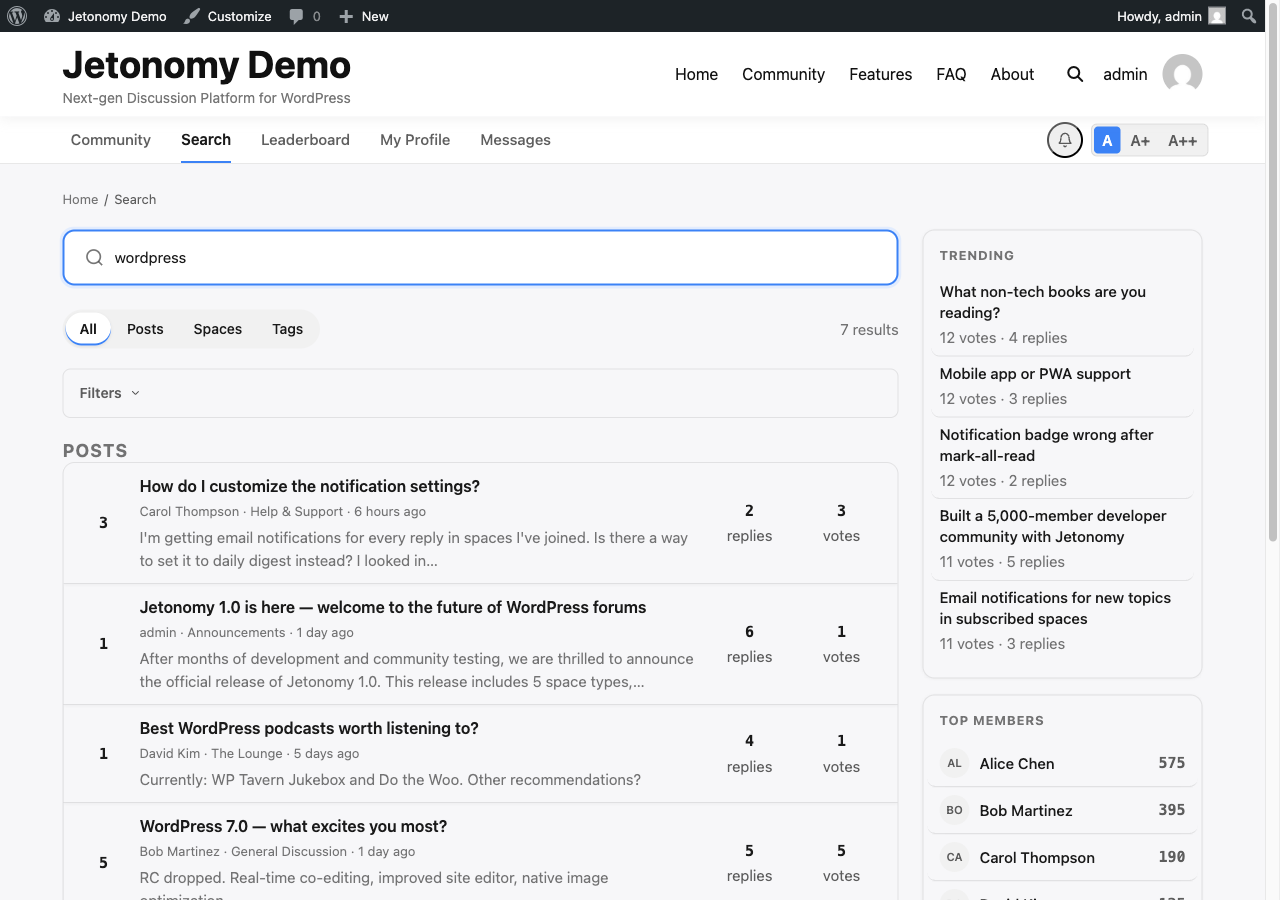
Jetonomy's search finds content across your entire community in real time — topics, replies, spaces, and tags — and lets you narrow results with powerful filters so members always land on exactly what they need.

What You Will Learn

  • How to run a full-text search from anywhere in the community
  • What the filter pills do and how to use them
  • How advanced filters refine results by date, author, tag, and sort order
  • How to show and hide the filter bar
  • How developers can extend search filters with a custom hook

Running a Search

The search bar sits in the community navigation, visible on every page. Type any keyword and press Enter or click the search icon. Jetonomy searches across:

  • Topic titles and content
  • Reply content
  • Space names and descriptions
  • Tag names

Results appear on the search results page at /community/search/. Each result card shows the content type, the space it belongs to, the author, the date, and a short excerpt with your search term highlighted.

Search results page

Tip: Phrase searches work well in Jetonomy. Wrap your query in quotes — "email digest" — to find that exact phrase rather than posts containing both words separately.

Filter Pills

At the top of the results page, four filter pills let you narrow by content type instantly:

Pill Shows
All Every matching result
Posts Topic results only
Spaces Space results only
Tags Tag results only

Click any pill to filter. The URL updates so you can share a filtered search link with your team.

Advanced Filters

Click the Filters button to expand the advanced filter bar. These filters stack — you can combine them in any combination.

Date Range

Choose a preset (Last 7 days, Last 30 days, Last year) or set a custom From / To date. Jetonomy filters by the post's original publish date, not its last reply date.

Author

Type a username to filter results to a specific author. Jetonomy auto-suggests matching members as you type. This is useful for reviewing a particular member's contributions or finding your own older posts.

Tag

Type a tag name to restrict results to posts that carry that tag. Combining author and tag filters is a fast way to find all posts by a specific member on a specific topic.

Sort Order

Option Orders by
Relevance Full-text match score (default)
Newest Most recently published first
Most Voted Highest net vote score first

Relevance is the default because it surfaces the best textual match. Switch to Newest when you know you are looking for a recent discussion. Switch to Most Voted when you want the community's highest-rated answer on a topic.

Collapsing the Filter Bar

Click Filters again to collapse the bar. Your active filters remain applied — the pill count badge on the Filters button shows how many filters are currently active.

For Developers: Extending Search Filters

The jetonomy_search_filters hook lets you add custom filter parameters to the search query. This is how Pro extensions like analytics-based filtering hook into the search pipeline.

add_filter( 'jetonomy_search_filters', function( $filters, $query_args ) {
    // Add a custom filter to restrict to a specific space.
    if ( ! empty( $_GET['space_id'] ) ) {
        $filters['space_id'] = absint( $_GET['space_id'] );
    }
    return $filters;
}, 10, 2 );

See the Hooks Reference for the full parameter list.

What's Next?

Learn how tags work across spaces and how members can browse tag pages to find related content.

Tags →

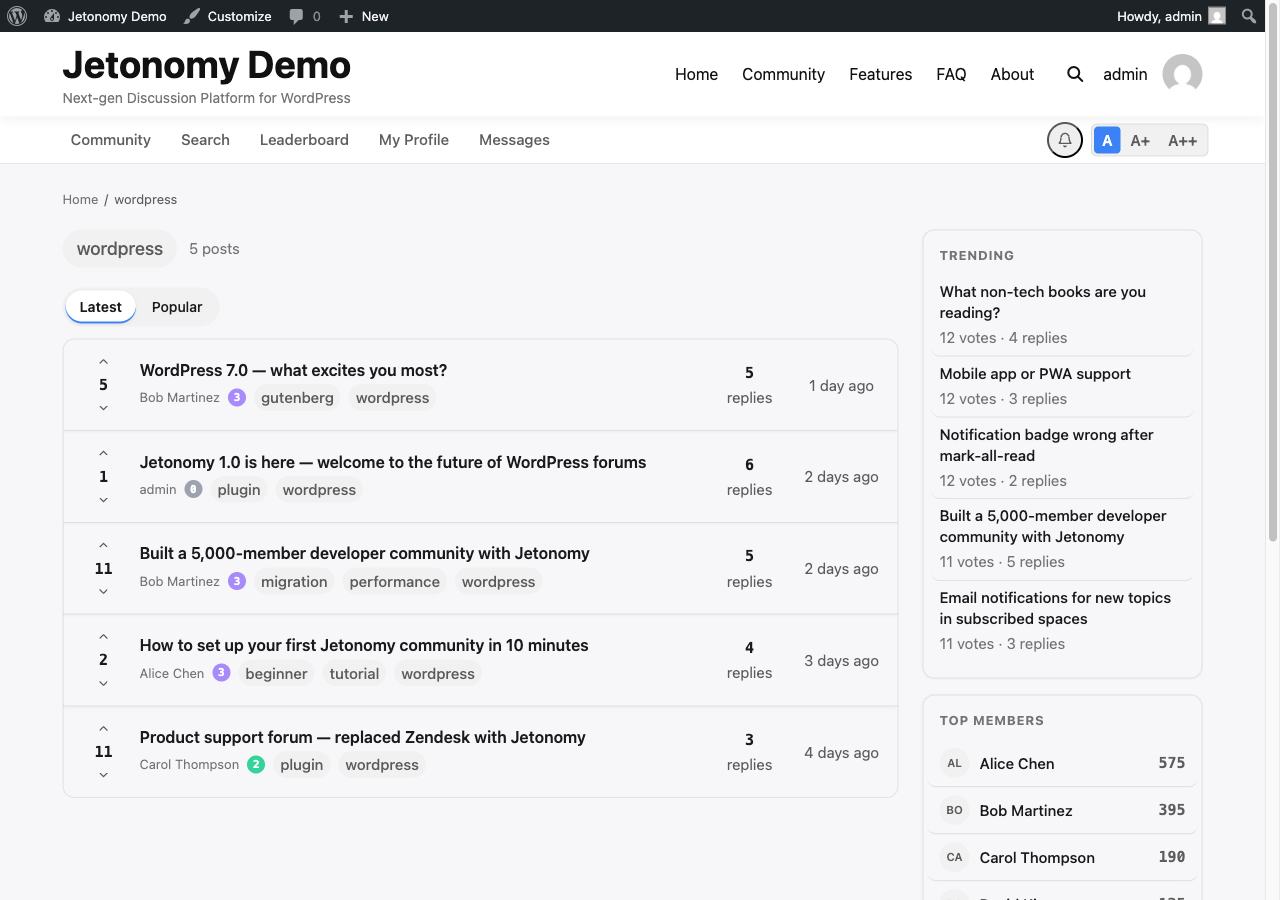
Tags connect related discussions across your entire community. A member searching for help with "payments" can click the payments tag and instantly see every relevant topic — no matter which space it lives in.

Tag page listing all topics associated with a specific tag

What You Will Learn

  • How to add tags when creating a topic
  • How tag pills work on topic listings
  • How tag pages bring together content from multiple spaces
  • How the Popular Tags sidebar widget helps members discover content
  • Why consistent tagging improves search and community quality

Adding Tags to a Topic

When creating or editing a topic, the Tags field appears below the content editor. Type a tag name and press Enter or comma to add it. You can add up to five tags per topic.

As you type, Jetonomy shows a live dropdown of existing tags that match your input. Select an existing tag whenever possible — reusing tags makes the tag page more useful for everyone who follows that topic.

To remove a tag, click the X on its pill in the field.

Tip: In Q&A spaces, good tags are the fastest route to an answer. A question tagged with "payments" and "stripe" will appear on both tag pages, doubling its chance of being seen by someone who can help.

Tag Pills on Topic Listings

Every topic card in a space listing shows its tags as small pills below the title. Clicking a tag pill takes you directly to that tag's page — you do not leave the flow to reach it.

Tags in listings are a fast way to browse by topic without running a search. If a space covers multiple subjects, tag pills help members navigate without scrolling through unrelated posts.

Tag Pages

Every tag has a dedicated page at /community/tag/tag-slug/. The tag page shows all published topics across all spaces that carry that tag, sorted by newest by default.

Members can switch the sort order to Most Voted to find the best content on that topic, or use the date filter to narrow to recent discussions.

Tag pages are publicly accessible by default. If your community is private, tag pages respect the space access rules — topics in private spaces are not shown on tag pages to members who do not have access to those spaces.

Popular Tags Sidebar Widget

The Popular Tags widget lists the tags used most frequently across your community. Add it to your sidebar from Appearance → Widgets and select the Jetonomy: Popular Tags widget.

Configuration options:

Option Default Description
Title Popular Tags Widget heading text
Count 10 Number of tags to display
Show count Yes Display the number of posts per tag

The widget refreshes its data hourly via WordPress transients so it does not run a query on every page load.

How Tags Improve Your Community

Tags work across space boundaries. A tag named "onboarding" can tie together a tutorial in your Guides space, a question in your Q&A space, and a feature idea in your Ideas space. Members following that tag see the full picture regardless of which space each post lives in.

Encouraging consistent tag use — especially in high-traffic spaces — pays dividends in search quality. Jetonomy's full-text search treats tags as a search signal, so well-tagged posts surface higher in relevant queries.

Note: Tags are shared across all spaces. There is one global tag namespace. A tag created in your Support space appears on the same tag page as the same tag used in your Ideas space.

What's Next?

Learn how Jetonomy's trust system automatically identifies your most reliable members and gives them more capabilities over time.

Trust Levels & Reputation →

Moderation & Trust

Keep your community safe with trust levels and moderation tools.

Jetonomy's trust system automatically promotes reliable members to higher privilege levels as they earn reputation — so you spend less time manually managing who can do what, and your most active members get recognized for their contributions.

Permissions settings with trust level thresholds and promotion rules

What You Will Learn

  • What the six trust levels are and what each one unlocks
  • How members earn reputation points
  • How automatic promotion works
  • How to adjust thresholds in your admin settings
  • How trust badges appear on member avatars

The Six Trust Levels

Jetonomy has six trust levels, numbered 0 through 5. Every new member starts at Trust Level 0 and rises as they earn reputation and meet the configured thresholds.

Level Name Default Threshold
TL0 New Member Automatic on signup
TL1 Basic Member 50 reputation
TL2 Member 200 reputation
TL3 Regular 500 reputation
TL4 Leader 1,000 reputation
TL5 Trusted 2,500 reputation

What Each Level Unlocks

Trust levels expand what a member can do without moderator intervention.

Capability TL0 TL1 TL2 TL3 TL4 TL5
Create topics Yes Yes Yes Yes Yes Yes
Post replies Yes Yes Yes Yes Yes Yes
Upload images No Yes Yes Yes Yes Yes
Flag content Yes Yes Yes Yes Yes Yes
Skip CAPTCHA No No Yes Yes Yes Yes
Edit own posts Yes Yes Yes Yes Yes Yes
Daily post limit lifted No No Yes Yes Yes Yes
Rate limit lifted No No Yes Yes Yes Yes

Space moderators and WordPress admins always have full capabilities regardless of trust level.

How Members Earn Reputation

Reputation is updated in real time whenever a qualifying event occurs.

Event Points
Your topic is upvoted +10
Your reply is upvoted +5
Your reply is accepted as an answer (Q&A) +15
Your topic or reply is downvoted -2
A moderator deletes your content -20

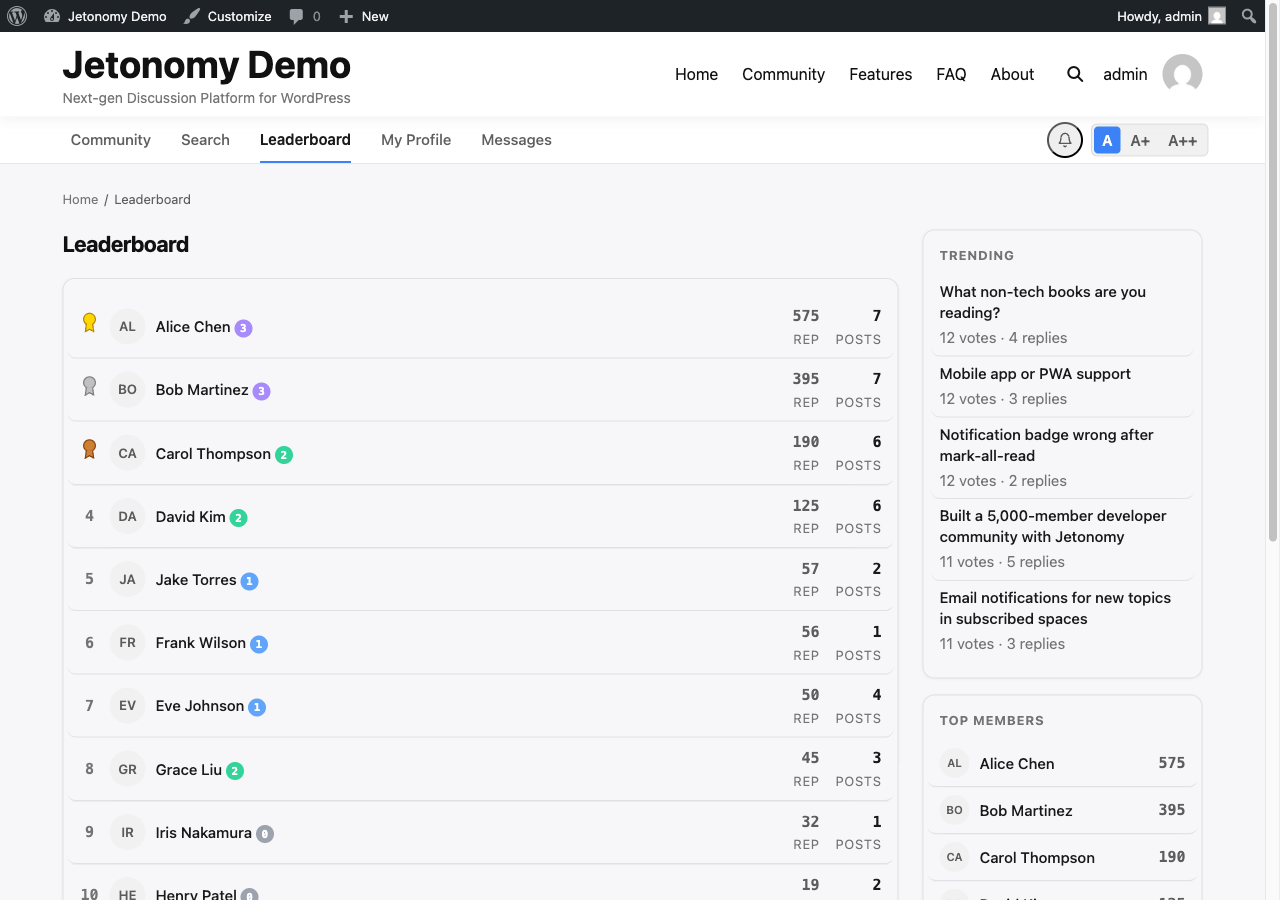
Reputation points accumulate on your public profile. The leaderboard ranks members by reputation score — see the Leaderboard doc for details.

Automatic Promotion

A cron job runs twice daily to evaluate all members against the current trust level thresholds. Any member whose reputation meets or exceeds the next threshold is automatically promoted.

Promotion is silent — members are not notified by default. You can add a welcome notification using the jetonomy_trust_level_changed action hook if you want to acknowledge promotions.

Demotion works the same way. If a member's reputation falls below a threshold (for example, because posts were deleted), they are automatically moved back to the appropriate level on the next cron run.

Tip: You can trigger an immediate re-evaluation for a specific user from Jetonomy → Users in the WordPress admin. Find the user and click Recalculate Trust Level.

Configuring Thresholds

Go to Jetonomy → Settings → Permissions to adjust the reputation threshold for each trust level. Changes take effect on the next cron run — or immediately if you run a manual recalculation.

Lower thresholds make promotion faster and more accessible. Higher thresholds make higher trust levels a meaningful achievement. There is no right answer — tune these to the pace and size of your community.

Note: Setting a threshold to 0 makes that trust level automatic for all members who meet all lower thresholds. Use this carefully — it effectively grants TL capabilities to your entire community.

Trust Badges on Avatars

Each trust level has a colored badge that appears on a member's avatar across topic listings, reply cards, and their profile page. The badge uses the data-jt-tl attribute so you can restyle it in your theme using CSS if needed.

Level Badge Color
TL0 Grey
TL1 Blue
TL2 Green
TL3 Teal
TL4 Purple
TL5 Gold

Why Trust-Based Moderation Beats Manual Role Assignment

In a traditional forum, you manually decide who is a "trusted" member. That does not scale. With Jetonomy's trust system, your community self-selects. Members who contribute quality content earn their way to higher levels automatically. You only need to intervene in edge cases — banning bad actors or manually elevating a known expert to a higher level.

What's Next?

Learn how members can flag content for review and how flagged content reaches the moderation queue.

Flagging & Reporting Content →

Flagging lets any logged-in member report content that breaks your community rules. It is the first step in the moderation pipeline — members surface problems, and your moderators review and act.

Admin moderation dashboard showing flagged content awaiting review

What You Will Learn

  • How to flag a topic or reply
  • What information a flag captures
  • Who can flag content and what the restrictions are
  • What happens to flagged content before a moderator reviews it
  • How flags flow into the moderation queue

How to Flag Content

Every topic and every reply has a ... (more actions) menu. Open it and click Report. A small modal appears asking for a reason. Type a brief description of the problem — for example, "This contains spam links" or "This is abusive toward another member" — and click Submit Report.

The flag is saved immediately. You receive a confirmation message and the modal closes.

Tip: A good flag reason helps moderators act faster. "Spam" alone works, but "Contains a link to a commercial site unrelated to this community" gives the moderator everything they need without having to investigate.

Who Can Flag Content

Any logged-in member can flag a topic or reply, regardless of their trust level. There is one restriction: you cannot flag your own content.

The flag button is not visible to guests (logged-out visitors). If you want guests to be able to report content, you will need a custom solution — the built-in flagging system requires authentication.

There is no daily limit on flags per member. A member who finds multiple pieces of problematic content can flag all of them.

What a Flag Captures

When a flag is submitted, Jetonomy records:

  • The content being flagged (post or reply, with its ID)
  • The member who submitted the flag
  • The reason text they entered
  • The timestamp

Moderators see all of this information when they review the flag in the moderation queue.

What Happens to Flagged Content

Flagging alone does not change the visibility of a post or reply. The content stays live and readable by all members until a moderator reviews it and takes action. This is intentional — hiding content automatically on a single flag would allow abuse of the flagging system.

A moderator can then approve the flag (confirming the content breaks the rules) and take action, or dismiss the flag (marking it unfounded). See the Moderation Queue guide for the full review workflow.

Note: If the same piece of content receives multiple flags from different members, all flags are grouped under that content item in the moderation queue. Moderators see the total flag count and each individual reason.

Preventing Flag Abuse

Jetonomy does not currently auto-penalize members who submit flags that moderators consistently dismiss. If you have a member who is abusing the flagging system, handle it by adjusting their trust level or banning them from Jetonomy → Users in the WordPress admin.

What's Next?

See how flagged content and posts pending approval appear in the moderation queue, and learn how moderators take action.

Moderation Queue →

The moderation queue is your single dashboard for everything that needs human review — posts waiting for approval, flagged content, and items caught by spam filters. You can action everything from one page without digging through individual topics.

Admin moderation queue with pending items and bulk action controls

What You Will Learn

  • How to access the moderation queue
  • What types of content appear in the queue
  • What actions you can take on each item
  • How to use bulk actions for efficiency
  • How per-space moderation differs from global moderation
  • How Akismet-held content appears in the queue

Accessing the Moderation Queue

Go to Jetonomy → Moderation in your WordPress admin. The page is also accessible from the frontend at /community/mod/ — WordPress Administrators and users with the jetonomy_moderate capability can access both routes.

The queue shows a count badge on the admin menu item whenever there are items waiting for review.

What Appears in the Queue

The queue has two sections:

Pending Posts

These are topics and replies that were submitted in a space with Require Post Approval enabled. They are not visible to other community members until a moderator approves them.

Each pending item shows the full content, the author, the space it was submitted to, and how long it has been waiting. Items are ordered oldest first so nothing sits in the queue unnoticed.

Flagged Content

These are live topics and replies that members have flagged for review. Flagged content stays visible in the community until a moderator acts. Each item shows the content, the flag reason(s), how many unique members flagged it, and the timestamp of the most recent flag.

Available Actions

For each item in the queue, you can take one of three actions:

Action What it does
Approve Publishes a pending post, or resolves a flag as "Valid" and leaves the content live
Mark as Spam Marks the content as spam and moves it to trash; updates Akismet's spam training if Akismet is active
Trash Moves the content to trash without marking it as spam

For flagged content, Approve resolves the flag as dismissed — meaning the flag was unfounded and the content is fine. The content stays live. Use Trash or Mark as Spam to remove content where the flag was legitimate.

Tip: Use Mark as Spam rather than Trash when content is clearly commercial spam. This trains Akismet for your site, making future auto-detection more accurate.

Bulk Actions

Check the checkbox on multiple queue items, then choose an action from the Bulk Action dropdown and click Apply. All three actions — Approve, Mark as Spam, Trash — are available as bulk actions.

Bulk actions are the fastest way to clear a backlog. If you have 40 flagged items from a spam attack, select all and bulk-trash them in one click.

Per-Space vs Global Moderation

The queue shows content from all spaces by default. Use the Space filter dropdown at the top of the queue to narrow to a single space. This is useful when you have dedicated space moderators — a moderator for your Support space only needs to see Support space items.

Space moderators who do not have global admin access see only their own spaces' items when they visit /community/mod/. They do not see content from spaces they do not moderate.

Akismet Integration

If the Akismet Anti-Spam plugin is active and configured on your site, Jetonomy automatically passes new posts and replies through Akismet before saving them. If Akismet marks content as spam:

  • The post or reply is saved with a Spam status (not Pending)
  • It does not appear in the community
  • It appears in the moderation queue under a "Spam" filter tab

You can review Akismet-held items and restore any that were incorrectly caught by clicking Not Spam. This action publishes the content and updates Akismet's model.

Note: Akismet integration requires the Akismet plugin to be installed, activated, and connected with a valid API key. Jetonomy does not bundle Akismet — it integrates with it automatically when present.

What's Next?

Learn about Jetonomy's built-in anti-spam tools — reCAPTCHA, Turnstile, and rate limiting — that reduce how much reaches the moderation queue in the first place.

Anti-Spam Protection →

Spam is the fastest way to kill a community's quality. Jetonomy has multiple layers of protection that work silently in the background — your real members never know they are there.

Anti-spam settings with CAPTCHA provider selection and API key fields

What You Will Learn

  • How to enable reCAPTCHA v3 or Cloudflare Turnstile
  • Where to enter your API keys in the admin settings
  • How trusted members are automatically exempted from CAPTCHA
  • How Akismet integration catches spam that passes CAPTCHA
  • How rate limiting protects against new-member spam floods

Choosing a CAPTCHA Provider

Go to Jetonomy → Settings → Anti-Spam to configure your CAPTCHA provider.

Jetonomy supports two providers:

Provider Type User friction
Google reCAPTCHA v3 Score-based, invisible None — runs in background
Cloudflare Turnstile Challenge-based, invisible None — usually auto-passes

Both are invisible to real users. reCAPTCHA v3 assigns a bot-likelihood score and blocks low-scoring submissions. Cloudflare Turnstile analyzes browser signals and shows a challenge only when it cannot verify the user automatically.

Choose Cloudflare Turnstile if your community has members who are privacy-conscious or who block Google services. Both providers have free tiers sufficient for most communities.

Setting Up reCAPTCHA v3

  1. Go to google.com/recaptcha and create a v3 site.
  2. Add your domain to the allowed domains list.
  3. Copy the Site Key and Secret Key.
  4. In Jetonomy → Settings → Anti-Spam, select reCAPTCHA v3, paste both keys, and click Save.

Setting Up Cloudflare Turnstile

  1. Log in to your Cloudflare dashboard and go to Turnstile.
  2. Add a site and set the widget mode to Invisible.
  3. Copy the Site Key and Secret Key.
  4. In Jetonomy → Settings → Anti-Spam, select Cloudflare Turnstile, paste both keys, and click Save.

Note: After saving, Jetonomy automatically loads the CAPTCHA script on the post and reply forms. You do not need to add any code to your theme.

Trusted Members Skip CAPTCHA

Members at Trust Level 2 and above never see or trigger a CAPTCHA check. Jetonomy bypasses the verification entirely for them — the API call is never made.

This means your most active, trusted members post without any friction while new accounts get verified. As members earn reputation and cross the TL2 threshold, they transition out of CAPTCHA checks automatically.

Akismet Integration

If the Akismet plugin is active on your site, Jetonomy sends every new post and reply through Akismet's spam detection API as a second layer of protection. Content that passes CAPTCHA but that Akismet marks as spam is held in the moderation queue rather than published.

See the Moderation Queue guide for how to review Akismet-held content.

Akismet and CAPTCHA work independently. You can run both at the same time for maximum protection, or use either one alone.

Rate Limiting for New Members

Trust Level 0 members (brand-new accounts) are subject to posting rate limits regardless of CAPTCHA:

Content type Default limit
Topics per day 3
Replies per day 10

Limits reset after 24 hours. Members at Trust Level 1 and above are exempt from all rate limits.

You can adjust the default thresholds at Jetonomy → Settings → Permissions. Setting a limit to 0 disables it for that trust level.

Tip: Rate limiting is your best defense against coordinated spam from many new accounts. Even if a bot farm passes CAPTCHA, each account can only post 3 topics before hitting the daily limit.

What's Next?

Learn how in-app notifications keep your members engaged and informed about replies, mentions, and votes.

Notifications →

Notifications & Email

Stay informed with in-app and email notifications.

Notifications keep your community members in the loop without requiring them to check back manually. Every relevant activity — replies, mentions, votes — surfaces instantly in the notification bell so members always know when something needs their attention.

Notifications panel showing recent activity alerts and unread count

What You Will Learn

  • How the notification bell works and where it appears
  • Every notification type and when each one fires
  • How to mark notifications as read
  • How to view the full notifications history
  • Where members set their personal notification preferences

The Notification Bell

The notification bell icon appears in the community navigation bar on every page. When you have unread notifications, a red badge shows the count. The count updates automatically — you do not need to refresh the page.

Click the bell to open a dropdown showing your most recent notifications. The dropdown lazy-loads its content when you click, keeping page load times fast.

Each notification in the dropdown shows:

  • The notification type (icon)
  • A summary of what happened (for example, "Sarah replied to your topic")
  • The time it occurred
  • A direct link to the relevant content

Clicking a notification in the dropdown marks it as read and navigates you to the relevant topic, reply, or profile.

Notification Types

Jetonomy fires a notification for each of the following events:

Event Who receives it
Someone replies to your topic Topic author
Someone replies to your reply (threaded) Reply author
Someone mentions you with @username Mentioned member
Your reply is accepted as an answer (Q&A) Reply author
A new topic is posted in a space you follow All followers of that space
Your topic or reply receives an upvote Content author
Your topic or reply receives a downvote Content author

Upvote and downvote notifications can be turned off per-member if members prefer not to see them. See the Preferences section below.

Marking Notifications as Read

Mark one as read: Click any notification in the dropdown — navigating to it marks it read automatically.

Mark all as read: Click the Mark all as read link at the top of the dropdown. All notifications are cleared in a single action. The badge disappears immediately.

Unread notifications are highlighted with a subtle background tint in the dropdown so you can spot them at a glance.

The Full Notifications Page

The dropdown shows your most recent notifications — roughly the last 10 to 20 items depending on screen size. To see your full notification history, click See all notifications at the bottom of the dropdown or navigate directly to /community/notifications/.

The full page lists every notification you have received, paginated in groups of 25. You can filter by read / unread status. Notifications older than 90 days are automatically cleaned up from the database by a background cron job.

Per-User Notification Preferences

Each member can control which notification types they receive. Go to Profile → Edit Profile → Notifications (at /community/u/your-username/edit/).

Options are:

  • In-app notifications on/off per type
  • Email notifications on/off per type (see Email Notifications for the full email guide)

Members cannot disable notifications for direct mentions — the @mention notification is always delivered to ensure important communications reach their target.

Note: Administrators can set the default notification preferences that new members start with. Go to Jetonomy → Settings → Email to configure the defaults applied at signup.

What's Next?

Learn how to configure email notification delivery, set community-wide defaults, and understand which notification types support email.

Email Notifications →

Email notifications bring members back to your community even when they are not actively browsing. Jetonomy sends a notification email for every in-app event type, and both you and your members have control over which emails are delivered.

Admin email settings with notification toggles and sender configuration

What You Will Learn

  • Which notification types send email
  • How to configure default email settings for new members
  • How members control their own email preferences
  • How one-click unsubscribe links work
  • How Jetonomy sends email and how to use your own SMTP provider
  • What email digest options are available in Jetonomy Pro

Which Notification Types Send Email

Every notification type that appears in the in-app bell can also send an email. The email mirrors the in-app notification — it names the event, shows a short excerpt of the content, and includes a direct link back to the relevant topic or reply.

Notification type Email sent by default
Reply to your topic Yes
Reply to your reply Yes
@mention Yes
Answer accepted (Q&A) Yes
New post in followed space No
Upvote on your content No
Downvote on your content No

The defaults above are what Jetonomy applies when a new member signs up. You can change these defaults in Jetonomy → Settings → Email.

Tip: "New post in followed space" email is off by default because members who follow many active spaces would receive a high volume of email. Let members opt in rather than having to opt out.

Configuring Default Settings

Go to Jetonomy → Settings → Email to set the community-wide defaults.

Setting Default Description
Email notifications enabled Yes Master switch — turns off all notification email for the site
Default: reply notifications Yes Whether new members receive reply emails by default
Default: mention notifications Yes Whether new members receive mention emails by default
Default: followed space notifications No Whether new members receive followed-space emails by default
Default: vote notifications No Whether new members receive vote emails by default
From name Your site name The sender name that appears in email clients
From email WordPress admin email The sender address for notification emails

Changes to defaults apply only to new members who sign up after the change. Existing members keep their current preferences.

How Members Control Their Preferences

Each member can override the defaults from their profile settings at /community/u/their-username/edit/ under the Notifications tab. Every notification type has a separate toggle for in-app and email delivery.

Members can disable all notification emails at once with the Pause all email toggle. This is the equivalent of a temporary snooze — all preferences are preserved so they can turn email back on later.

One-Click Unsubscribe

Every notification email sent by Jetonomy includes an unsubscribe link in the footer. Clicking it takes the member to a confirmation page where they can unsubscribe from that specific notification type or from all notification emails in one click.

No login is required to unsubscribe — the link contains a signed token that authenticates the action. This keeps unsubscribe rates low and means members who receive an email do not need to remember their password to opt out.

How Jetonomy Sends Email

Jetonomy uses WordPress's wp_mail() function to send all notification emails. This means it automatically works with any SMTP plugin you have installed — WP Mail SMTP, FluentSMTP, Postmark, Mailgun, or any other wp_mail compatible provider.

No additional configuration is needed in Jetonomy when you add an SMTP plugin — it just works.

Note: If you send high volumes of notification email, use a dedicated transactional email provider (Postmark, Mailgun, Sendgrid) rather than your hosting server's mail. Dedicated providers give you delivery tracking, bounce handling, and higher sending limits.

Email Digest (Jetonomy Pro)

PRO — This feature requires Jetonomy Pro.

The Email Digest feature bundles all notifications from a configurable time window into a single summary email. Members can choose daily or weekly digests instead of receiving individual emails for each event. This dramatically reduces email volume for active community members while keeping them informed.

What's Next?

Learn how member profiles work, what stats are displayed, and how members can edit their own information.

User Profiles →

User Profiles & Leaderboard

Member profiles, reputation, and community rankings.

Every member in your community has a public profile page that shows who they are, how much they contribute, and what they have been up to. Profiles build trust between members and give contributors the recognition they have earned.

What You Will Learn

  • What a member profile page shows
  • How online status works on profiles
  • Which tabs are available and who can see each one
  • How members edit their own profile
  • Where reputation and trust level appear

The Profile Page

Every member has a profile page at /community/u/their-username/. Anyone can visit this page — no login is required unless your community is set to private.

User profile page

Header Section

The profile header shows:

  • Avatar — pulled from WordPress Gravatar by default. Members can upload a custom avatar if your theme supports it.
  • Display name — the name shown across all community activity
  • Username — the login handle used in @mentions and the profile URL
  • Bio — a short text description the member writes themselves
  • Join date — when the member's account was created
  • Online status — a green dot appears if the member was active in the last 5 minutes (see Online Status)

Stats Bar

Below the header, four stats appear at a glance:

Stat What it shows
Reputation Total reputation score earned
Posts Number of published topics
Replies Number of published replies
Trust Level Current trust level badge and name

The reputation score links to the leaderboard. The trust level badge uses the same color coding as it does on reply cards — grey for TL0, scaling up to gold for TL5.

Profile Tabs

Posts

Lists every topic the member has published, paginated 20 per page, sorted newest first. Each item shows the topic title, the space it belongs to, the vote score, and the reply count.

Replies

Lists every reply the member has posted across all spaces, paginated 20 per page, newest first. Each item shows the reply excerpt, the topic it belongs to, and the vote score.

Votes

Shows the content this member has voted on. The tab is visible to the member themselves and to WordPress Administrators. Other members cannot see this tab — voting is semi-private.

Drafts

Shows unpublished draft topics saved by this member. This tab is visible only to the profile owner and WordPress Administrators. Drafts are never exposed publicly.

Tip: Encourage active members to complete their bio. Profiles with a bio and a recognizable avatar get more replies — other members feel more comfortable engaging when they know who they are talking to.

Editing a Profile

Members can edit their own profile at /community/u/their-username/edit/. This page is accessible from the Edit Profile button on the profile page header.

Editable fields:

  • Display name
  • Bio
  • Notification preferences (email and in-app toggles per type)

WordPress Administrators can edit any member's profile from the standard WordPress Users admin as well.

What's Next?

See how your top contributors rank against each other on the community leaderboard.

Leaderboard →

The leaderboard turns quality participation into something visible and worth competing for. Your top contributors are recognized publicly, which encourages every member to engage more thoughtfully.

What You Will Learn

  • How to find the leaderboard page
  • What information is displayed for each member
  • How the top 3 medal positions work
  • How to add the leaderboard sidebar widget
  • Why public recognition improves community quality

The Leaderboard Page

The community leaderboard is available at /community/leaderboard/. Any member — and guests, if your community is public — can view it. No login is required.

Leaderboard page

Members are ranked by total reputation score, highest first. The leaderboard updates in real time as reputation changes — there is no daily cache delay between earning reputation and appearing in the rankings.

What Each Row Shows

Every row on the leaderboard displays:

Column Description
Rank Position number (1, 2, 3...)
Avatar Member's profile picture with online status dot
Name Display name, linked to their profile page
Trust badge Colored trust level badge
Reputation Total reputation score
Posts Total published topic count

Clicking a member's name or avatar goes directly to their profile page.

Top 3 Medal Positions

The first three positions on the leaderboard display a medal icon next to the rank number:

Position Medal
1st place Gold medal
2nd place Silver medal
3rd place Bronze medal

Medal icons draw the eye immediately when someone opens the leaderboard page. Being in the top 3 is a genuine achievement that members notice and compete for.

The Leaderboard Sidebar Widget

Add the Jetonomy: Top Members widget to any sidebar from Appearance → Widgets. The widget shows the top 5 members by reputation with their avatars and scores — a compact preview of the leaderboard without requiring members to visit the full page.

Configuration options:

Option Default Description
Title Top Members Widget heading text
Count 5 Number of members to show (max 10)

The widget data is cached for 5 minutes to keep database queries low on high-traffic sites.

Why the Leaderboard Improves Community Quality

Recognition is a powerful motivator. When members see their name on the leaderboard, they are more likely to write detailed answers, respond helpfully to new members, and keep coming back. Members who are close to moving up a rank are especially motivated — the leaderboard creates natural competition without requiring badges, gamification plugins, or manual awards.

Tip: Reference the leaderboard in your community welcome message or newsletter. "See who our top contributors are this month" gives members a reason to engage and something to aspire to.

What's Next?

Learn how the online status green dot works — when it shows, where it appears, and how Jetonomy tracks it efficiently.

Online Status →

The online status green dot shows which members are currently active in your community. It makes conversations feel more live and helps members know when is a good time to expect a quick reply.

User profile page showing avatar with online status indicator

What You Will Learn

  • When the green dot appears on a member's avatar
  • Where online status is displayed across the community
  • Where it is intentionally not shown and why
  • How Jetonomy tracks activity without overloading the database
  • That no setup is needed — it works automatically

When the Green Dot Appears

A green dot appears on a member's avatar when they have been active in the community within the last 5 minutes. Active means any authenticated page load or interaction — visiting a topic, posting a reply, casting a vote, or navigating between pages.

After 5 minutes of inactivity, the dot disappears automatically on the next page load that renders it.

There is no manual "appear offline" or "appear online" toggle. Online status reflects real activity.

Where Online Status Appears

The green dot is shown in these locations:

Location Shown
Reply cards (author avatar) Yes
Member profile page (header avatar) Yes
Sidebar Top Members widget Yes
Topic listing rows (author credit) No
Search results (author credit) No

Why Not on Topic Listing Rows

Topic listing pages can show dozens of topics, each by a different author. Rendering the online status for every author on that page would require checking multiple records in a single request — potentially 20 to 50 lookups per page view on an active community.

Jetonomy deliberately omits the online dot from listing rows to keep those pages fast. The detail-level contexts (reply cards, profiles, widgets) are the right place for presence information because you are already focused on a specific member.

How Activity Tracking Works

When a logged-in member loads any community page, Jetonomy records a timestamp on their user record. To prevent a database write on every single page view, updates are rate-limited: Jetonomy writes the timestamp at most once per minute per member.

If a member loads 10 pages in 30 seconds, Jetonomy writes to the database once. This keeps the wp_jt_user_profiles table write volume proportional to the number of unique active members, not the total number of page views.

The online status check itself (reading whether a member is active) is cached for 60 seconds using WordPress transients. On a page with 10 reply cards by different authors, Jetonomy makes at most a small batch of cache reads rather than 10 individual queries.

No Setup Required

Online status is automatic. There is no setting to enable, no API key to configure, and no JavaScript polling. It works the moment Jetonomy is activated.

Note: Online status is only tracked for logged-in members. Guests who browse your community are not tracked and do not show an online indicator.

What's Next?

Go back to explore other sections, or return to the main community setup guide.

User Profiles → | Leaderboard →

Pro Features

Premium extensions: reactions, messaging, polls, badges, analytics, and more.

Add expressive emoji reactions to every post and reply — so members can respond instantly without writing a full reply.

PRO — This feature requires Jetonomy Pro.

Reaction chips below a community post

What You Will Learn

  • How to enable Reactions for your community
  • How to customize which emojis appear per space
  • How members react to and change their reaction on a post
  • How to read reaction counts from the REST API

Why Reactions Matter

A quick reaction lowers the bar for engagement. Members who would never write a reply will tap a rocket emoji or a heart. That micro-engagement adds up — you get richer signal on your best content and members feel heard without the pressure of composing a response.

How It Works

Every post and every reply in your community shows a reaction strip. Members click any emoji to react. Clicking a different emoji replaces the previous one — each member can hold exactly one reaction per piece of content at a time. Clicking the same emoji again removes the reaction entirely.

The reaction counts are displayed as chips directly below the post body. Each chip shows the emoji and the total count. Hovering a chip reveals the names of recent reactors.

Reaction strip showing six emoji options

Enabling Reactions

  1. Go to Jetonomy → Extensions in your WordPress admin.
  2. Find Reactions and click Enable.
  3. Reactions appear on all posts and replies immediately — no page-level configuration needed.

Tip: Enabling Reactions does not affect any existing posts. Historical content simply starts with zero reactions.

Default Emoji Set

Jetonomy ships with six Fluent 3D emojis (Microsoft, MIT licensed) out of the box:

Emoji Label Use case
Like Thumbs up General agreement
Love Heart Enthusiasm, appreciation
Thinking Thinking face Interesting, thought-provoking
Celebrate Party popper Wins, announcements
Rocket Rocket Fast, shipped, love it
Sad Sad face Empathy, condolences

All six are enabled globally by default. You can adjust which ones appear per space.

Per-Space Customization

Different spaces have different tones. A Support space might not need a Celebrate emoji, and a General Chat space might not need Sad.

  1. Go to Jetonomy → Spaces and open the space you want to customize.
  2. Open the Reactions tab in the space settings panel.
  3. Toggle individual emojis on or off for this space.
  4. Save. The change takes effect immediately for all posts in that space.

Space settings panel — Reactions tab

REST API

The Reactions extension adds four endpoints under jetonomy/v1:

Method Endpoint Description
GET /reactions/{type}/{id} Get all reactions for a post or reply
POST /reactions/{type}/{id} Add or replace your reaction
DELETE /reactions/{type}/{id} Remove your reaction
GET /reactions/summary/{type}/{id} Aggregated counts by emoji

{type} is either post or reply. {id} is the numeric ID of the item.

Example — add a reaction:

POST /wp-json/jetonomy/v1/reactions/post/42
{
  "emoji": "rocket"
}

Example — get reaction summary:

GET /wp-json/jetonomy/v1/reactions/summary/post/42

{
  "like": 14,
  "love": 6,
  "rocket": 23,
  "celebrate": 2
}

All reaction endpoints require the user to be logged in. Reading summaries is open to any authenticated user; adding and removing reactions requires jetonomy_create_posts capability.

What's Next?

Allow members to message each other privately, without leaving your community.

Private Messaging →

Let members send direct messages to each other — one-on-one or in small groups — without leaving your community.

PRO — This feature requires Jetonomy Pro.

Messages inbox showing conversation list

What You Will Learn

  • How to enable Private Messaging
  • How members start conversations and send messages
  • How unread counts and notifications work
  • How to block users from messaging you
  • How to use the REST API for conversations and messages

Why Private Messaging Matters

When members can message each other directly, your community becomes a platform — not just a forum. It reduces off-site communication, keeps relationships within your ecosystem, and gives you a richer, stickier product.

How It Works

Private Messaging adds a dedicated inbox at /community/messages/. Members can start a new conversation with any other member, or create a group conversation with up to 20 participants. Each conversation is a persistent thread — messages appear in chronological order, and new messages are loaded automatically via polling.

Single conversation thread view

Enabling Private Messaging

  1. Go to Jetonomy → Extensions in your WordPress admin.
  2. Find Private Messaging and click Enable.
  3. A Messages link appears automatically in the community navigation bar.

No additional configuration is required to go live.

Starting a Conversation

Members start a new conversation in two ways:

  • Click New Message from the Messages inbox at /community/messages/.
  • Click the Message button on any member's profile page.

Both methods open a composer. Members type the recipient's name (autocomplete searches by display name and username), write their first message, and hit Send. The conversation thread opens immediately.

For group conversations, members add multiple recipients before sending. The group conversation shows all participants' avatars at the top of the thread.

Unread Counts and Notifications

A red badge on the Messages nav icon shows the total number of unread conversations. The count updates every 30 seconds via polling. It drops to zero when a member opens and reads the conversation.

Jetonomy also sends a notification to the recipient's bell icon when a new message arrives. Members who have email notifications enabled for private messages receive an email notification as well.

Tip: Members control their messaging email notifications in Profile → Notification Settings. Admins cannot override individual user preferences.

Blocking Users

Any member can block another from sending them messages:

  1. Open a conversation with the person.
  2. Click the ··· menu in the thread header.
  3. Select Block [username].

Blocked users cannot send new messages to the member who blocked them. Existing conversation history is preserved but no new messages are delivered. The blocked user sees a generic "Unable to send message" error — they are not told they are blocked.

Admins can view and clear blocks in Jetonomy → Users → [username] → Messaging.

REST API

Private Messaging adds endpoints under jetonomy/v1:

Method Endpoint Description
GET /conversations List your conversations (paginated)
POST /conversations Start a new conversation
GET /conversations/{id} Get conversation details and participant list
GET /conversations/{id}/messages List messages (cursor-based pagination)
POST /conversations/{id}/messages Send a message
POST /conversations/{id}/read Mark conversation as read
DELETE /conversations/{id} Leave a conversation
POST /blocks Block a user from messaging you
DELETE /blocks/{user_id} Unblock a user

All endpoints require authentication. The jetonomy_send_messages capability controls who can start conversations — by default all Trust Level 1+ members.

Example — start a conversation:

POST /wp-json/jetonomy/v1/conversations
{
  "recipients": [45, 67],
  "message": "Hey, wanted to follow up on your question about onboarding."
}

Example — get messages with cursor pagination:

GET /wp-json/jetonomy/v1/conversations/12/messages?after=msg_abc123&per_page=20

What's Next?

Add polls to any topic to gather community input and drive decisions.

Polls →

Attach a poll to any topic and let your community vote — perfect for decisions, feedback, and feature prioritization.

PRO — This feature requires Jetonomy Pro.

Poll attached to a community post with percentage bars

What You Will Learn

  • How to enable Polls
  • How to attach a poll when creating or editing a topic
  • How members vote, change their vote, and remove it
  • How poll results are displayed
  • How poll creators close a poll

Why Polls Matter

Asking a question in text is passive. Attaching a poll turns the same question into an action — members click an option in seconds instead of writing a response. You get quantified signal, higher engagement on that post, and a result the whole community can see at a glance.

Enabling Polls

  1. Go to Jetonomy → Extensions in your WordPress admin.
  2. Find Polls and click Enable.
  3. A + Add Poll button appears at the bottom of the post composer.

Creating a Poll

When writing a new topic, click + Add Poll beneath the content editor.

The poll builder lets you:

  • Write up to 10 options (minimum 2 required).
  • Choose Single choice (members pick one) or Multiple choice (members pick several).
  • Optionally set a Close date — the poll stops accepting votes automatically at that date and time.

Poll builder in the post composer

The poll is attached to the topic and saved together when you click Post. You cannot attach a poll to a reply — only to top-level topics.

Tip: You can add or remove a poll from an existing topic by editing the post. Removing a poll permanently deletes all votes cast on it.

How Members Vote

The poll appears below the post body, before any replies. Each option is displayed as a labeled button.

  • Single choice — clicking an option records your vote immediately. You see the results as percentage bars as soon as you vote.
  • Multiple choice — checkboxes appear. Select all the options you want and click Vote.

After voting, members can change their vote by clicking a different option. Clicking your current selection a second time removes your vote entirely.

Members who have not voted see the options. Members who have voted see the live results. This design keeps undecided members from being anchored by early results.

Reading Results

Results display as horizontal percentage bars with the option label, the percentage, and the raw vote count. Bars fill in proportion to the leading option.

Poll results with percentage bars and vote counts

The total vote count appears below the bar chart. If the poll has a close date, a countdown shows how much time remains.

Closing a Poll

The topic author and any space moderator can close a poll at any time:

  1. Open the topic.
  2. Click the ··· menu on the poll card.
  3. Select Close Poll.

Once closed, the poll shows a Closed badge and no further votes are accepted. Existing results remain visible. A closed poll can be re-opened by the same users using the same menu.

Note: If you set a close date and later want to extend it, edit the post and update the date in the poll settings.

What's Next?

Collect structured information about your members with custom profile fields.

Custom Profile Fields →

Add structured fields to member profiles — collect the information that matters to your specific community.

PRO — This feature requires Jetonomy Pro.

Custom fields displayed on a member profile page

What You Will Learn

  • How to create and manage custom profile fields
  • Which field types are available
  • How to set visibility and required status
  • How members fill in their fields
  • How to read and update field values via the REST API

Why Custom Fields Matter

A generic WordPress profile has a bio and a website URL. That is not enough for most communities. A developer community needs a GitHub handle. A healthcare community needs a specialty. A SaaS community needs a company name. Custom Fields lets you define exactly the information that makes members useful and findable in your community.

Enabling Custom Fields

  1. Go to Jetonomy → Extensions in your WordPress admin.
  2. Find Custom Fields and click Enable.
  3. A Custom Fields item appears under the Jetonomy admin menu.

Creating a Field

  1. Go to Jetonomy → Custom Fields.
  2. Click Add Field.
  3. Fill in the field settings:
Setting Description
Label Displayed on the profile and in the edit form
Field Key Unique slug used in the REST API (auto-generated, editable)
Type See field types below
Required If on, members cannot save their profile without filling this in
Visibility Who can see the field value
Description Optional helper text shown below the input
  1. Click Save Field.

Custom Fields admin list with Add Field form

Field Types

Type Best for
Text Short single-line answers (job title, company, username)
Textarea Longer free-form text (bio supplement, expertise description)
Select Predefined options (country, role, industry)
Checkbox Yes/no toggle (newsletter opt-in, open to work)
URL Website, GitHub, LinkedIn, portfolio links

For the Select type, you define the options in the field editor — one per line. The member sees a dropdown.

Visibility Options

Each field has one of three visibility settings:

Visibility Who sees the value
Public Anyone, including logged-out visitors
Members only Logged-in community members
Private Only the member themselves and admins

Private fields are still editable by the member but do not appear on their public profile. They are accessible to admins via the admin Users page.

How Members Fill In Fields

Members edit their custom fields at /community/u/{username}/edit/ under the Profile Details section. Required fields show a red asterisk. Saving the profile validates all required fields before updating.

Tip: Guide members to complete their profiles right after joining by linking to the edit profile page in your welcome notification or email digest.

REST API

Custom Fields adds field-aware parameters to the existing profile endpoints:

Method Endpoint Description
GET /users/{id} Profile response now includes custom_fields object
PATCH /users/{id} Pass custom_fields: { field_key: value } to update
GET /custom-fields List all defined fields and their settings

Example — read a profile with custom fields:

GET /wp-json/jetonomy/v1/users/45

{
  "id": 45,
  "name": "Priya Sharma",
  "custom_fields": {
    "company": "Acme Corp",
    "github_username": "priyasharma",
    "open_to_work": true
  }
}

Example — update custom fields:

PATCH /wp-json/jetonomy/v1/users/45
{
  "custom_fields": {
    "company": "New Horizons Ltd"
  }
}

Members can only update their own fields. Admins can update any member's fields.

What's Next?

Recognize and reward your most engaged members with custom badges.

Custom Badges →

Design your own badges, set the conditions that earn them, and watch members compete to collect them.

PRO — This feature requires Jetonomy Pro.

Badges displayed on a member profile page

What You Will Learn

  • How to create a badge with a name, icon, and tier
  • How to set auto-award conditions
  • How to award badges manually as an admin
  • How badges display on member profiles

Why Custom Badges Matter

Trust levels and reputation points are invisible to casual members. Badges are visible, collectible, and shareable — they give members a concrete goal to aim for. A "100 Posts" badge tells the community this member is active. A "Top Answerer" badge signals expertise. Badges convert passive lurkers into active contributors.

Enabling Custom Badges

  1. Go to Jetonomy → Extensions in your WordPress admin.
  2. Find Custom Badges and click Enable.
  3. A Badges item appears under the Jetonomy admin menu.

Creating a Badge

  1. Go to Jetonomy → Badges.
  2. Click Create Badge.
  3. Fill in the badge details:
Field Description
Name Displayed on the badge and in the award notification
Description One sentence explaining how to earn it
Icon Upload a 64×64 PNG or SVG icon
Tier Bronze, Silver, or Gold — controls the border color on profile
  1. Set the award conditions (see below).
  2. Click Save Badge.

Badge editor with tier selector and criteria settings

Award Conditions

Auto-Award

Auto-awarded badges evaluate all members on a regular schedule and grant the badge automatically when the conditions are met. Choose from built-in criteria:

Criteria Example threshold
Total posts 10, 50, 100, 500 posts
Accepted answers 5, 25, 50 accepted answers
Total replies 25, 100, 250 replies
Upvotes received 10, 50, 200 upvotes on any content
Days as member 30, 180, 365 days since joining

Set the threshold for each criteria you want to use. You can combine multiple criteria — the member must satisfy all of them to earn the badge.

Note: Auto-evaluation runs once every 12 hours via WP-Cron, aligned with the trust level evaluation job. There is no manual "evaluate now" button, but you can trigger evaluation by going to Jetonomy → Badges → Run Evaluation.

Manual Award

Some badges should not be automated — "Staff Pick", "Most Helpful in July", or "Community Founder" are judgment calls. For these, leave all auto-award criteria blank and award manually:

  1. Go to Jetonomy → Users and open the member's profile.
  2. Click Award Badge.
  3. Select the badge from the list and add an optional private note.
  4. Click Award.

The member receives a notification immediately and the badge appears on their profile.

Badge Tiers

Badges have three visual tiers that appear as border colors on the badge icon:

Tier Color Suggested use
Bronze Warm bronze Entry-level milestones (first post, 7-day streak)
Silver Cool silver Mid-tier milestones (100 posts, 10 accepted answers)
Gold Bright gold Elite milestones (500 posts, Top Contributor of the year)

Tiers are visual only — they do not affect permissions or trust levels.

Badge Display

Badges appear on member profile pages in a dedicated Badges section. Members who have earned no badges see an empty state that lists a few featured badges to work toward — this passively encourages engagement.

The three most recently earned badges also appear in the member's hover card, which pops up when anyone hovers their username throughout the community.

What's Next?

Get a data-driven view of your community's health with the Analytics Dashboard.

Analytics Dashboard →

Understand what your community is doing, where it is growing, and who is driving it — all from a single admin dashboard.

PRO — This feature requires Jetonomy Pro.

Analytics dashboard showing charts and top contributor table

What You Will Learn

  • How to access the Analytics dashboard
  • Which metrics are tracked and what they mean
  • How to use the date range filter
  • How to export data as CSV

Why Analytics Matter

You cannot grow what you cannot measure. The Analytics dashboard turns raw community activity into actionable metrics — so you know which spaces need attention, who your power users are, and whether engagement is trending up or down before it becomes a problem.

Enabling Analytics

  1. Go to Jetonomy → Extensions in your WordPress admin.
  2. Find Analytics and click Enable.
  3. An Analytics item appears under the Jetonomy admin menu.

Analytics begin recording from the moment you enable the extension. Historical data before activation is not backfilled.

Navigating the Dashboard

Go to Jetonomy → Analytics. The dashboard opens on the last 30 days by default.

Date Range Filter

Use the date range picker at the top right to select any custom range. Preset shortcuts:

  • Last 7 days
  • Last 30 days
  • Last 90 days
  • This month
  • Last month

All charts and tables update instantly when you change the range.

Date range picker on the analytics page

Overview Metrics

The top row shows four headline numbers for your selected range:

Metric What it means
Total Posts New topics created in the period
Total Replies New replies created in the period
Active Members Unique members who posted, replied, or voted
Growth Rate Percentage change vs the previous equal-length period

Below the headline row, a line chart shows daily post and reply volume over the selected range. Spikes are easy to spot — hover any point to see the exact date and count.

Top Spaces

A ranked table shows your most active spaces sorted by total posts + replies in the period. Columns include post count, reply count, unique contributors, and engagement rate (replies per post).

Use this view to find spaces that are thriving — and spaces that have gone quiet and may need a prompt or a featured topic.

Top Contributors

A ranked table of your most active members sorted by total contributions (posts + replies + accepted answers). Each row shows the member's avatar, display name, trust level, and contribution breakdown.

Tip: Use this list to identify members to invite into a moderator role, feature in a community spotlight, or send a personal thank-you.

Engagement Metrics

The engagement section shows:

Metric What it means
Avg. replies per post How much discussion each new topic generates
Vote activity Total upvotes and downvotes cast
Accepted answers Q&A spaces only — rate of questions getting resolved
New member joins Community growth over the period

Moderation Stats

The moderation section shows flagged content volume, auto-moderation rule triggers (if Advanced Moderation is enabled), and moderator response time. A high flag volume combined with slow response time signals you need more moderators.

CSV Export

Click Export CSV in the top right of any table to download a full data export for the current date range. Exports include all rows — not just the visible page.

Exported files are compatible with Excel, Google Sheets, and any BI tool. Column headers match the on-screen labels exactly.

What's Next?

Reduce your moderation workload by automating common moderation decisions.

Advanced Moderation Rules →

Define rules that catch bad content automatically — before it ever appears in your community.

PRO — This feature requires Jetonomy Pro.

Advanced moderation rules list in the admin panel

What You Will Learn

  • How to enable Advanced Moderation Rules
  • How to create keyword, regex, link-limit, and spam-score rules
  • What actions each rule can take on matched content
  • How to scope rules to a specific space or apply them globally
  • How to read rule trigger statistics

Why Auto-Moderation Matters

Manual moderation does not scale. A single moderator reviewing every post works fine at 10 posts per day — it fails at 1,000. Auto-moderation rules handle the obvious cases automatically so your human moderators can focus on edge cases that require judgment.

Advanced Moderation complements the free trust level system. New members with Trust Level 0 are already rate-limited. Auto-moderation rules add a content layer on top of that.

Enabling Advanced Moderation

  1. Go to Jetonomy → Extensions in your WordPress admin.
  2. Find Advanced Moderation and click Enable.
  3. A Moderation Rules tab appears under Jetonomy → Moderation.

Creating a Rule

  1. Go to Jetonomy → Moderation → Rules.
  2. Click Add Rule.
  3. Configure the rule:
Setting Description
Name Internal label — members never see this
Pattern type Keyword, Regex, Link limit, or Spam score
Pattern The word, phrase, regex, or threshold to match
Action What happens when the rule triggers
Scope Global (all spaces) or a specific space
Active Enable or disable the rule without deleting it
  1. Click Save Rule.

Rule editor form

Pattern Types

Keyword

Matches any post or reply body that contains the exact word or phrase (case-insensitive). Use comma-separated values to match any of several words with a single rule.

Example: buy now, click here, limited offer

Regex

Full regular expression matched against the post body. Use this for patterns a keyword list cannot capture — phone number patterns, URL shortener patterns, or obfuscated spam.

Example: \b(\+?1[-.\s]?)?\(?\d{3}\)?[-.\s]?\d{3}[-.\s]?\d{4}\b

Note: Regex patterns are evaluated server-side using PHP preg_match(). Test your regex at regex101.com before adding it to a live rule.

Link Limit

Triggers when a post or reply contains more than a set number of links. New spammers often post content with 5–10 outbound links. A limit of 3 catches most of these while allowing legitimate "here are some resources" posts.

Spam Score

Jetonomy calculates a spam probability score (0–100) for each post based on content patterns, account age, and posting frequency. Set a threshold — any post above that score triggers the rule.

A threshold of 80 is a good starting point. Lower it only if you are seeing spam slip through.

Rule Actions

Action What happens
Flag Content publishes normally and is added to the mod queue with a flag
Hold Content is held as Pending and does not appear until a moderator approves it
Block The post is rejected and the member sees an error message
Spam Content is marked as spam and hidden immediately

Choose the least restrictive action that solves the problem. Use Flag for borderline content, Hold for likely-bad content, and Block or Spam for clearly harmful content.

Rule Scope

Global rules apply to every post and reply across all spaces. Use these for site-wide policies — prohibited words, adult content, competitor spam.

Space-scoped rules apply only within a specific space. Use these for space-specific norms — a Support space might block all links to prevent fishing attacks, while General Chat allows them freely.

Rule Statistics

The rules list shows a Triggered count for each rule — how many times it has fired since the rule was created. Click a rule to see a breakdown by action, by space, and a timeline chart.

Use this data to tune your rules. A rule that triggers 500 times in a week and sends everything to Spam probably needs a higher threshold — it is catching legitimate content.

What's Next?

Re-engage members who have not visited recently with automated email digests.

Email Digest →

Send a curated summary of community activity to members' inboxes — daily or weekly — so they never feel out of the loop.

PRO — This feature requires Jetonomy Pro.

Email digest preview showing top posts from the week

What You Will Learn

  • How to enable and configure the Email Digest
  • What content appears in each digest
  • How members control their digest frequency
  • How to send a test digest as an admin

Why Email Digest Matters

Most community members are not daily visitors. They join, participate a few times, and drift away — not because they lost interest, but because they forgot. A well-timed email digest brings them back. It shows them what they missed and gives them a reason to click.

Enabling Email Digest

  1. Go to Jetonomy → Extensions in your WordPress admin.
  2. Find Email Digest and click Enable.
  3. Go to Jetonomy → Settings → Email Digest to configure sending times and content rules.

Configuring the Digest

Send Schedule

Set when the digests go out:

Digest type Default send time
Daily 8:00 AM (site timezone)
Weekly Monday, 8:00 AM (site timezone)

You can change both send times in the Email Digest settings. Times use the timezone set in Settings → General → Timezone in WordPress.

Digest Content

The digest compiles:

  • Top posts — the most-upvoted new topics since the last digest
  • Active discussions — posts with the most replies in the period
  • Spaces you follow — activity in spaces the member has joined or bookmarked
  • Replies to your topics — new replies on topics the member created or commented on

You can toggle each content section on or off in the digest settings. At least one section must remain on.

Email Digest settings panel

Tip: Keeping "Replies to your topics" on is the single most effective setting. Members always care more about activity on their own posts than about the broader community.

Member Notification Preferences

Each member controls their own digest frequency from Profile → Notification Settings → Email:

Option What it means
Instant Individual emails per event (free behavior)
Daily digest One email per day summarizing activity
Weekly digest One email per week summarizing activity
None No community emails

Members who select Daily or Weekly stop receiving per-event notification emails. The digest replaces them — they are not sent in addition to them.

New members default to Daily digest. You can change this default in the Email Digest settings.

Admin Test Send

Before going live, send yourself a test digest to check formatting and content:

  1. Go to Jetonomy → Settings → Email Digest.
  2. Scroll to the Test Send section.
  3. Enter an email address (pre-filled with your admin email).
  4. Click Send Test Digest.

The test digest uses real community data from the last 7 days. If your community is new and has little activity, the digest may look sparse — that is expected.

Digest Statistics

The Email Digest settings page shows send statistics for the last 90 days:

Stat Description
Digests sent Total number of emails delivered
Preference breakdown How many members are on daily vs weekly vs none

Open rates and click rates are available if you use a supported ESP adapter (SendGrid, Mailgun, SES, or Postmark) — basic wp_mail delivery does not provide tracking data.

What's Next?

Connect your community to external tools like Slack, CRMs, and Zapier using outbound webhooks.

Outbound Webhooks →

Automatically send community events to any external URL — connect Jetonomy to Slack, Zapier, your CRM, or any custom pipeline.

PRO — This feature requires Jetonomy Pro.

Webhook management page listing configured endpoints

What You Will Learn

  • How to create and manage webhook endpoints
  • Which community events you can subscribe to
  • How to test a webhook before going live
  • How to read the delivery log to debug failures

Why Webhooks Matter

Jetonomy lives inside WordPress — but your business does not. Your team lives in Slack. Your sales data lives in a CRM. Your analytics live in a data warehouse. Webhooks close that gap. Every time something happens in your community, Jetonomy can push that data wherever you need it — in real time, with zero polling.

Enabling Webhooks

  1. Go to Jetonomy → Extensions in your WordPress admin.
  2. Find Outbound Webhooks and click Enable.
  3. A Webhooks item appears under the Jetonomy admin menu.

Creating a Webhook

  1. Go to Jetonomy → Webhooks.
  2. Click Add Webhook.
  3. Fill in the endpoint settings:
Setting Description
URL The HTTPS endpoint that will receive the POST request
Events Which community events trigger this webhook
Secret Optional signing secret for verifying payload authenticity
Active Toggle the webhook on or off without deleting it
  1. Click Save Webhook.

Webhook editor with URL, events, and secret fields

Available Events

Subscribe to any combination of these events:

Event Fires when...
post.created A new topic is published
post.updated A topic is edited
post.deleted A topic is deleted or trashed
reply.created A new reply is posted
reply.updated A reply is edited
vote.cast A member votes on a post or reply
answer.accepted A Q&A answer is accepted
member.joined A new user joins the community
member.banned A member is banned
flag.created Content is flagged by a member
moderation.action A moderator approves, spams, or trashes content

You can create multiple webhooks pointing to different URLs with different event subsets — for example, one webhook for Slack (post events only) and one for your CRM (member events only).

Payload Format

Every webhook delivers a JSON body with this structure:

{
  "event": "post.created",
  "timestamp": "2026-03-26T08:14:32Z",
  "site_url": "https://yoursite.com",
  "data": {
    "post_id": 1024,
    "title": "How do I reset my password?",
    "author_id": 45,
    "author_name": "Priya Sharma",
    "space_id": 3,
    "space_slug": "support",
    "url": "https://yoursite.com/community/s/support/t/how-do-i-reset-my-password/"
  }
}

The data object varies by event type. All events include event, timestamp, and site_url.

Verifying Payloads

If you set a secret, Jetonomy includes an X-Jetonomy-Signature header with each request. The value is an HMAC-SHA256 signature of the raw request body, signed with your secret.

Verify on your server:

$signature = hash_hmac( 'sha256', $raw_body, $your_secret );
$expected   = 'sha256=' . $signature;
$received   = $_SERVER['HTTP_X_JETONOMY_SIGNATURE'];

if ( ! hash_equals( $expected, $received ) ) {
    http_response_code( 401 );
    exit;
}

Testing a Webhook

Before you point a webhook at a production system, send a test:

  1. Open the webhook in Jetonomy → Webhooks.
  2. Click Send Test.
  3. Jetonomy sends a sample ping event to your URL and shows the HTTP response code and body inline.

Use a tool like webhook.site to inspect the full request during development.

Delivery Log

Every delivery attempt is logged. Go to Jetonomy → Webhooks → [webhook name] → Delivery Log to see:

  • Timestamp of each attempt
  • HTTP response code
  • Response body (first 500 characters)
  • Whether the delivery succeeded or failed

Failed deliveries are retried up to three times with exponential backoff (5 min, 30 min, 2 hrs). After the third failure, the delivery is marked as permanently failed and no further retries are attempted.

Tip: If you see consistent failures, check that your endpoint returns a 2xx response within 10 seconds. Jetonomy times out at 10 seconds and treats the delivery as failed.

Use Case Examples

  • Slack notifications — Post a message to a Slack channel whenever a new topic is created in your community.
  • CRM sync — Push member.joined events to HubSpot or Salesforce to trigger a welcome sequence.
  • Zapier — Connect any event to thousands of apps via a Zapier webhook trigger — no custom code needed.
  • Analytics pipeline — Stream all events to a data warehouse like BigQuery or Amplitude for long-term retention and custom analysis.

What's Next?

Send browser push notifications to members even when they are not on your site.

Web Push Notifications →

Reach members with browser push notifications — even when they have closed your site.

PRO — This feature requires Jetonomy Pro.

Browser push notification appearing on a desktop screen

What You Will Learn

  • How to generate VAPID keys and enable Web Push
  • How members subscribe to push notifications
  • Which events trigger a push notification
  • Which browsers are supported

Why Web Push Matters

Email notifications have open rates around 20–30%. Browser push notifications have open rates above 60% because they appear immediately on the member's screen — no inbox, no subject line, no waiting. For time-sensitive events like a reply to your question or a mention from a teammate, push gets the message there instantly.

Enabling Web Push

Web Push requires a VAPID key pair to authenticate your server with browsers.

  1. Go to Jetonomy → Settings → Web Push.
  2. Click Generate VAPID Keys. Jetonomy creates a public/private key pair and stores them in your WordPress options table.
  3. Toggle Enable Web Push to on.
  4. Click Save.

Important: VAPID keys are generated once. If you regenerate them, all existing push subscriptions are invalidated and members must subscribe again. Only regenerate if you believe your private key has been compromised.

Web Push settings page with VAPID key fields and enable toggle

Service Worker Registration

Jetonomy automatically registers a service worker (/community/sw.js) on every community page. You do not need to create or configure the service worker — this happens at extension activation.

The service worker handles:

  • Receiving push messages from the Jetonomy server
  • Displaying the browser notification
  • Opening the correct URL when the notification is clicked

Member Subscription

The first time a logged-in member visits any community page after you enable Web Push, a Enable push notifications prompt appears at the top of the page. Clicking Enable triggers the browser's native permission dialog.

Members who grant permission are subscribed automatically. Their subscription is stored in the Jetonomy database and associated with their account.

Members can unsubscribe at any time from Profile → Notification Settings → Push Notifications → Off.

Note: The browser permission prompt can only be triggered by a user action (a click). Jetonomy waits for the member to interact with the prompt banner before requesting permission — it never requests permission automatically on page load.

Notification Events

Push notifications are sent for the same events that trigger bell notifications, based on each member's preferences:

Event Who receives a push
New reply on your topic Topic author
New reply in a topic you follow Followers
You are mentioned Mentioned member
Your answer is accepted Answer author
New message received Message recipient (Private Messaging Pro)
Badge awarded Badge recipient

Members control which of these events trigger a push in Profile → Notification Settings.

Browser Support

Web Push works on all major modern browsers without any app installation:

Browser Desktop Mobile
Chrome Yes Yes (Android)
Edge Yes Yes (Android)
Firefox Yes Limited
Safari Yes (macOS 13+) Yes (iOS 16.4+)

Tip: Safari on iOS requires members to add your site to their Home Screen before push notifications work. This is an Apple platform limitation — not a Jetonomy limitation.

What's Next?

Let members reply to community topics directly from their email client.

Reply by Email →

Let members reply to community discussions directly from their email client — no login required for that one reply.

PRO — This feature requires Jetonomy Pro.

Email notification showing a reply button that posts back to the community

What You Will Learn

  • How Reply by Email works end to end
  • How to configure the inbound email endpoint
  • How emails are parsed and turned into replies
  • How to test the feature and handle parsing errors

Why Reply by Email Matters

Every step between "I got a notification" and "I posted a reply" loses members. Reply by Email removes all those steps. The member reads the notification in their inbox, types a reply directly, hits Send, and the reply appears in the community — without opening a browser or logging in. Removing that friction increases reply volume noticeably.

How It Works

  1. Jetonomy sends a notification email for a new reply or mention.
  2. The email contains a Reply to this post call to action with a unique reply-to address.
  3. The member replies to that email.
  4. The inbound email is delivered to your configured endpoint.
  5. Jetonomy parses the email, strips quoted content, and creates a community reply attributed to that member.

Each reply-to address is unique to the member and the topic — it encodes an authentication token so no login is required.

Configuration

Reply by Email requires an inbound email endpoint — a URL that receives incoming emails from your email provider. Most email providers (SendGrid Inbound Parse, Mailgun Inbound Routes, Postmark Inbound, or Amazon SES with SNS) can forward inbound email as an HTTP POST to a URL.

Step 1: Get Your Inbound Endpoint URL

  1. Go to Jetonomy → Settings → Reply by Email.
  2. Copy the Inbound Endpoint URL. It looks like:
https://yoursite.com/wp-json/jetonomy/v1/email/inbound

Step 2: Configure Your Email Provider

Point your email provider's inbound parsing feature at the Jetonomy endpoint URL. The exact steps vary by provider — follow your provider's documentation for "inbound email parsing" or "inbound routing."

Set up a dedicated inbound domain or subdomain for replies. Example: reply.yoursite.com. Your provider resolves inbound mail sent to *@reply.yoursite.com and forwards the parsed payload to your Jetonomy endpoint.

Step 3: Enter Your Reply Domain

Back in Jetonomy → Settings → Reply by Email, enter the reply domain (e.g. reply.yoursite.com) and click Save.

Jetonomy now generates per-user, per-topic reply addresses using that domain.

Reply by Email settings showing inbound URL and reply domain fields

Email Parsing

Jetonomy parses the incoming email using these rules:

  1. Strip quoted content — Lines that begin with > (standard email quoting) are removed. The reply contains only the new text the member typed.
  2. Plain text preferred — If the email has a plain text part, Jetonomy uses that. If not, it strips HTML and uses the text content.
  3. Basic formatting preserved — Line breaks are preserved. Links in the plain text body are converted to Markdown links.
  4. Attachments ignored — Image and file attachments in reply emails are not processed in v1.0.

The parsed reply text goes through the same wp_kses_post sanitization as any other reply before it is saved.

Parsing Rules Configuration

You can adjust how Jetonomy handles edge cases:

Setting Default Description
Min reply length 5 characters Rejects replies shorter than this (catches accidental sends)
Max reply length 10,000 characters Truncates anything longer
Strip signatures On Removes common signature separators (-- , Sent from my iPhone, etc.)

Security

Each reply-to address contains a signed token that ties the email address to a specific WordPress user and topic. Jetonomy verifies the token before creating any reply. An attacker who intercepts or guesses a reply address cannot post as another member — the token is cryptographically bound to the user ID.

Tokens expire after 30 days. Notification emails older than 30 days cannot be replied to by email.

Testing Reply by Email

  1. Go to Jetonomy → Settings → Reply by Email.
  2. Click Send Test Email to send a sample notification to your admin email address.
  3. Reply to that email with any text.
  4. Return to the admin and click Check Last Inbound to see the parsed result.

What's Next?

Remove all Jetonomy branding and present the community as entirely your own.

White Label & Branding →

Remove all Jetonomy branding and present your community as entirely your own product.

PRO — This feature requires Jetonomy Pro.

Community frontend with custom logo and brand colors — no Jetonomy attribution

What You Will Learn

  • How to enable White Label
  • How to remove Jetonomy branding from the frontend and admin
  • How to set a custom admin menu label and icon
  • How to control branding for headless or REST API clients

Why White Label Matters

You built your community. Your members know your brand — not the plugin powering it. White Label means your community looks like yours from every angle: the frontend pages, the admin sidebar, and the REST API responses. This is especially important for agencies delivering client projects and for SaaS products embedding community features under their own brand.

Enabling White Label

  1. Go to Jetonomy → Extensions in your WordPress admin.
  2. Find White Label and click Enable.
  3. A Branding tab appears under Jetonomy → Settings.

Removing Frontend Branding

Go to Jetonomy → Settings → Branding.

Setting Default What it controls
"Powered by Jetonomy" footer Shown Remove the attribution link from the community footer
Jetonomy logo in community nav Shown Replace with your own logo or hide entirely
HTML data-plugin attribute jetonomy Change or remove the attribute on the .jt-app wrapper
Custom CSS injection Empty Add CSS that loads on every community page

Upload your own logo (SVG or PNG, max 400×100 px) to replace the Jetonomy logo in the community navigation bar. Leave the logo field blank to show no logo at all.

White Label branding settings panel

Tip: Use the Custom CSS injection field to apply brand-specific color overrides without editing any theme files. The CSS injects after Jetonomy's own stylesheet so your values always win.

Admin Menu Customization

By default, the Jetonomy admin menu item is labeled "Jetonomy" with the Jetonomy logo icon.

In Jetonomy → Settings → Branding → Admin Menu:

  • Menu label — Change to any string (e.g. "Community", "Forum", "My Community").
  • Menu icon — Enter any Dashicons class (e.g. dashicons-groups) or leave blank to use the default.

The label change applies to the top-level menu item and the browser window title on all Jetonomy admin pages.

WordPress admin sidebar showing custom menu label and icon

REST API Branding

By default, Jetonomy's REST API responses include a powered_by key in the root namespace response:

GET /wp-json/jetonomy/v1/

{
  "name": "Jetonomy API",
  "powered_by": "Jetonomy"
}

With White Label enabled, you can override both the name and powered_by values in Settings → Branding → REST API Label. Set them to your product name, or leave them blank to omit those fields entirely from the response.

This is particularly useful for headless community builds where the REST API is consumed by a custom frontend — clients see your brand name, not Jetonomy's.

Email Branding

White Label also affects transactional emails and digests. In Settings → Branding → Email:

  • From name — Defaults to your site name. Change to any value.
  • Email footer — Replaces the default Jetonomy email footer with your own text or HTML.
  • Logo in emails — Upload a logo displayed at the top of notification emails.

What's Next?

You have covered all 12 Pro features. Return to the beginning of the Pro section to explore Emoji Reactions and other extensions.

Emoji Reactions →

Integrations

Connect with membership plugins, themes, and third-party services.

Connect MemberPress membership levels to Jetonomy spaces — so paying members automatically land in the right discussion areas the moment their subscription activates.

Jetonomy admin settings panel for configuring integrations

What You Will Learn

  • How Jetonomy detects and communicates with MemberPress
  • How to gate a space by membership level using Access Rules
  • What happens when a membership activates or expires
  • How to test the integration before going live

How Detection Works

Jetonomy checks for MemberPress automatically on every page load. No configuration needed. When MemberPress is active, the MemberPress adapter registers itself with Jetonomy's Adapter Registry and enables the Access Rules UI inside each space's settings.

Note: If you activate MemberPress after Jetonomy, navigate to Jetonomy → Settings and save once. This triggers adapter re-registration.

Setting Up an Access Rule

  1. Go to Jetonomy → Spaces and open the space you want to gate.
  2. Click the Access Rules tab in the space settings panel.
  3. Click Add Rule.
  4. Set Rule Type to MemberPress Level.
  5. Select the membership level from the dropdown.
  6. Choose the access action: Grant or Revoke.
  7. Click Save Space.

Members who hold the selected level gain access to this space. Members without it see the space as locked (or hidden, depending on your space visibility setting).

Tip: Combine multiple rules if you want to grant access to more than one membership level. Each rule is evaluated independently — a member passes if they match any Grant rule.

Auto-Join and Auto-Leave

When a MemberPress membership activates, Jetonomy automatically adds the member to any spaces whose Access Rules grant that level. They receive a welcome notification in the community.

When a membership expires, cancels, or is paused, Jetonomy fires jetonomy_membership_deactivated and removes the member from any spaces gated exclusively to that level. Their posts and replies remain intact.

This is handled by the MemberPress_Adapter class, which hooks into MemberPress's mepr-event-transaction-completed and mepr-event-subscription-expired events.

Visibility Behavior

Space Visibility Non-member sees...
Public Space listed, content visible, locked from posting
Private Space listed with lock icon, content hidden
Hidden Space not listed at all

Developer Hook

Both membership events fire the Jetonomy standard hooks you can use in your own code:

// Fires when a MemberPress membership activates.
add_action( 'jetonomy_membership_activated', function( int $user_id, string $level_id, string $adapter ) {
    // $adapter will be 'memberpress'
    if ( 'memberpress' === $adapter ) {
        // Custom logic here.
    }
}, 10, 3 );

Troubleshooting

Access rules dropdown is empty — MemberPress may not be active. Check Plugins → Installed Plugins and confirm MemberPress is activated.

Member not joining on activation — Ensure the membership level ID in the Access Rule exactly matches the level in MemberPress. Level IDs are numeric; check the MemberPress level edit URL for the ID.

Member still has access after expiry — Check whether the member holds a second membership level that also grants access to the space.

What's Next?

Learn how to gate spaces using Paid Memberships Pro, which follows the same pattern.

Paid Memberships Pro Integration →

Gate Jetonomy spaces by Paid Memberships Pro subscription level — with automatic access granted on activation and revoked on cancellation or expiry.

Jetonomy admin settings showing integration configuration options

What You Will Learn

  • How Jetonomy detects Paid Memberships Pro (PMPro)
  • How to set up an Access Rule tied to a PMPro level
  • What triggers the auto-join and auto-leave behavior
  • The hook names you can use for custom logic

How Detection Works

Jetonomy detects PMPro automatically when the plugin is active. The PMPro adapter registers with Jetonomy's Adapter Registry and unlocks the Access Rules tab in space settings. No manual connection step is required.

Note: If you activate PMPro after Jetonomy is already running, go to Jetonomy → Settings and save the page once to trigger adapter re-registration.

Setting Up an Access Rule

  1. Go to Jetonomy → Spaces and open the space you want to gate.
  2. Open the Access Rules tab in the space settings panel.
  3. Click Add Rule.
  4. Set Rule Type to Paid Memberships Pro Level.
  5. Select the PMPro membership level from the dropdown.
  6. Set the action to Grant or Revoke.
  7. Save the space.

Members who hold the selected PMPro level gain access to the space immediately. You can stack multiple rules — access is granted if the member matches any active Grant rule.

Tip: Use a Revoke rule to exclude a specific level from a space, even if that level is granted access by a broader rule.

Auto-Join and Auto-Leave

On activation — when a member's PMPro level activates, Jetonomy adds them to any spaces where that level is in an Access Rule. The hook jetonomy_membership_activated fires with $adapter = 'pmpro'.

On cancellation or expiry — when a PMPro level expires or is manually cancelled, Jetonomy removes the member from gated spaces. The hook jetonomy_membership_deactivated fires with $adapter = 'pmpro'.

The adapter hooks into PMPro's pmpro_after_change_membership_level action to detect both events.

Visibility Behavior

Space Visibility Non-member sees...
Public Space listed, content readable, posting locked
Private Space listed with lock icon, content hidden
Hidden Space not listed at all

Developer Hook

// Fires when a PMPro membership deactivates.
add_action( 'jetonomy_membership_deactivated', function( int $user_id, string $level_id, string $adapter ) {
    if ( 'pmpro' === $adapter ) {
        // Remove user from any related external system.
        my_crm_remove_access( $user_id, $level_id );
    }
}, 10, 3 );

Troubleshooting

Level dropdown is empty in Access Rules — Confirm PMPro is active and that you have at least one membership level created in Memberships → Membership Levels.

Member not removed on cancellation — PMPro has several cancellation states (expired, admin-cancelled, non-renewing). Jetonomy listens to all of them via pmpro_after_change_membership_level where the new level is 0.

Multiple levels, unexpected access — If a user holds more than one PMPro level, Jetonomy evaluates all rules. Access persists as long as any single Grant rule still matches an active level.

What's Next?

Gate spaces using a WooCommerce product purchase or subscription — available in Jetonomy Pro.

WooCommerce Integration →

Gate Jetonomy spaces by WooCommerce product purchase or active WooCommerce Subscription — so customers unlock discussion areas the moment they buy.

Jetonomy admin settings for WooCommerce integration setup

PRO — This feature requires Jetonomy Pro.

What You Will Learn

  • Which WooCommerce products Jetonomy Pro supports as access gates
  • How to set up an Access Rule tied to a product or subscription
  • How access activates on purchase and revokes on refund or subscription expiry
  • How to combine product gates with membership-level gates

Supported Product Types

Product Type Supported Notes
Simple product Yes Access granted on order complete, permanent
Variable product Yes Gate by parent product — any variation grants access
WooCommerce Subscriptions Yes Access active while subscription is active; revoked on pause, cancel, or expiry
Grouped product No Gate individual products within the group instead

Note: WooCommerce Subscriptions (the WooCommerce.com extension) is required for subscription-based gating. Simple product gating works with WooCommerce alone.

Setting Up an Access Rule

  1. Install and activate Jetonomy Pro and ensure WooCommerce is active.
  2. Go to Jetonomy → Spaces and open the space you want to gate.
  3. Click the Access Rules tab.
  4. Click Add Rule.
  5. Set Rule Type to WooCommerce Product.
  6. Search for and select the product by name.
  7. Set the action to Grant.
  8. Save the space.

The Access Rule takes effect immediately. Members who have already purchased the product are granted access in the background within a few seconds of saving.

Tip: You can add multiple product rules to a single space. Access is granted if the member has purchased any one of the listed products.

Auto-Activate on Purchase

When a customer's order status reaches Completed, Jetonomy Pro adds them to any spaces that grant access on that product. They receive a Jetonomy notification welcoming them to the space.

If you use WooCommerce Subscriptions, Jetonomy Pro also listens to subscription status changes:

Subscription Status Access
Active Granted
On-hold Revoked
Cancelled Revoked
Expired Revoked
Pending-cancel Retained until expiry date

Auto-Revoke on Refund

When an order is refunded, Jetonomy Pro removes the customer from any spaces gated to that product. The order status transition to Refunded triggers the revocation.

Note: A partial refund does not revoke access. Only a full refund (entire order) triggers the remove. If you need partial-refund gating, use WooCommerce Subscriptions and cancel the subscription manually.

Combining with Other Rules

WooCommerce rules stack with MemberPress, PMPro, and trust-level rules in the same space. A member gains access if they satisfy any Grant rule — regardless of which rule type it is.

Example: gate a "Premium VIP" space to either MemberPress VIP level OR a specific WooCommerce product purchase. Members who qualify through either path are both added automatically.

Troubleshooting

Rule Type dropdown does not show WooCommerce Product — Confirm Jetonomy Pro is active and WooCommerce is active. Navigate to Jetonomy → Extensions and check that the WooCommerce integration is listed.

Subscription product not gating correctly — Confirm WooCommerce Subscriptions (by WooCommerce.com) is installed and active. WooCommerce Memberships (a separate product) is not required.

Member not removed after refund — Verify the order status actually moved to Refunded, not just to Cancelled or On-Hold. Only a full Refunded status triggers access revocation.

What's Next?

Gate spaces by LearnDash course or group enrollment — so students get discussion access automatically when they enroll.

LearnDash Integration →

Connect LearnDash course and group enrollment to Jetonomy spaces — so students get dedicated discussion areas automatically when they enroll, and lose access when they un-enroll.

Jetonomy admin settings for LearnDash integration configuration

PRO — This feature requires Jetonomy Pro.

What You Will Learn

  • How to gate a Jetonomy space by LearnDash course enrollment
  • How to gate a space by LearnDash group membership
  • How instructors moderate their course discussion spaces
  • What happens when a student un-enrolls

How Detection Works

Jetonomy Pro detects LearnDash automatically when both plugins are active. The LearnDash adapter registers with the Adapter Registry and adds two new Rule Types to the Access Rules tab: LearnDash Course and LearnDash Group.

Gating a Space by Course Enrollment

  1. Go to Jetonomy → Spaces and open the discussion space for your course.
  2. Open the Access Rules tab.
  3. Click Add Rule → set Rule Type to LearnDash Course.
  4. Select the course from the dropdown.
  5. Set the action to Grant.
  6. Save the space.

Students who enroll in the selected course are added to the space automatically. Students who complete or un-enroll from the course are removed.

Tip: Create one Jetonomy space per course and name it to match — for example "Photography Fundamentals — Discussion". Members immediately understand where they are.

Gating a Space by LearnDash Group

  1. Add a rule with Rule Type LearnDash Group.
  2. Select the group from the dropdown.
  3. Set the action to Grant and save.

Group-gated spaces work well for cohort-based or team learning scenarios. All members of the LearnDash group — including group leaders — gain access.

Instructor Moderation

When a WordPress user is assigned as a Course Instructor or Group Leader in LearnDash, Jetonomy Pro automatically assigns them the Moderator role in the linked Jetonomy space. They can approve, trash, or spam posts within their space, but cannot access the global Jetonomy moderation queue.

Note: Instructor role mapping requires the user to be assigned as instructor in LearnDash before the space access rule is created. If you add the instructor after, re-save the Access Rule to trigger the role sync.

Enrollment and Un-enrollment Events

LearnDash Event Jetonomy Action
Student enrolls in course Added to linked spaces as Member
Student completes course Access retained (configurable)
Student un-enrolls or is removed Removed from linked spaces
Group leader assigned Added to linked spaces as Moderator
Group leader removed Demoted to Member or removed

Note: By default, course completion does not revoke access. Students keep access to their discussion space after finishing the course. You can change this by adding a second Revoke rule on the same course — or by using WooCommerce Subscriptions with a subscription-per-course model.

Typical Setup for a Course Community

A common setup for course-based communities:

  • One Private space per course, gated to that course's enrollment
  • One Public space for general Q&A open to all students
  • One Hidden space per instructor cohort, gated to a LearnDash Group

This keeps course discussions focused while giving students a shared general community area.

Troubleshooting

LearnDash Course/Group does not appear in Rule Type dropdown — Confirm Jetonomy Pro is active and LearnDash is active. Check Jetonomy → Extensions to see the LearnDash integration status.

Instructor not getting moderator role — Ensure the WordPress user is assigned as Course Instructor in LearnDash's course settings, not just as a WordPress Editor or Administrator. Re-save the access rule after assigning the instructor role.

Students still have access after un-enrolling — Confirm the LearnDash un-enrollment uses the standard learndash_user_course_access_removed action. Custom enrollment plugins that bypass this action will not trigger Jetonomy's removal logic.

What's Next?

Learn how to gate spaces using Restrict Content Pro subscriptions.

Restrict Content Pro Integration →

Gate Jetonomy spaces by Restrict Content Pro subscription level — with automatic access on activation and automatic removal on expiry or cancellation.

Jetonomy admin settings for Restrict Content Pro integration

PRO — This feature requires Jetonomy Pro.

What You Will Learn

  • How Jetonomy Pro detects Restrict Content Pro (RCP)
  • How to create an Access Rule tied to an RCP subscription level
  • What membership events trigger auto-join and auto-leave
  • How to handle free and paid RCP levels differently

How Detection Works

Jetonomy Pro detects Restrict Content Pro automatically when both plugins are active. The RCP adapter registers with the Adapter Registry and adds Restrict Content Pro Level as a Rule Type in the Access Rules tab for every space.

Note: Jetonomy Pro supports Restrict Content Pro version 3.x and above. If you are on an older version, update RCP first.

Setting Up an Access Rule

  1. Go to Jetonomy → Spaces and open the space you want to gate.
  2. Click the Access Rules tab.
  3. Click Add Rule → set Rule Type to Restrict Content Pro Level.
  4. Select the subscription level from the dropdown.
  5. Set the action to Grant.
  6. Save the space.

Members with an active subscription to the selected level gain access immediately. You can add multiple rules to grant access across more than one RCP level.

Tip: RCP supports free membership levels. You can use a free level as a gate to require a (free) registration before members can post — while still keeping the community open to anyone willing to sign up.

Auto-Join on Activation

When a member's RCP subscription status becomes active, Jetonomy Pro adds them to any spaces that grant that subscription level. The standard Jetonomy hook fires:

add_action( 'jetonomy_membership_activated', function( int $user_id, string $level_id, string $adapter ) {
    // $adapter is 'rcp' for Restrict Content Pro events.
}, 10, 3 );

Auto-Leave on Expiry or Cancellation

When an RCP subscription expires, is cancelled, or is set to pending, Jetonomy Pro removes the member from any spaces gated exclusively to that level. The hook jetonomy_membership_deactivated fires with $adapter = 'rcp'.

RCP Status Access
Active Granted
Pending Revoked
Expired Revoked
Cancelled Revoked
Disabled Revoked

Combining with Other Adapters

RCP rules stack with all other Access Rule types in Jetonomy. A member gains access to a space if they satisfy any single Grant rule — whether it comes from RCP, MemberPress, WooCommerce, or trust level.

Troubleshooting

RCP Level not appearing in Rule Type dropdown — Confirm Jetonomy Pro is active and Restrict Content Pro is active. Check that at least one subscription level exists in Restrict Content → Subscription Levels.

Member not removed after subscription expires — RCP can be configured to change status on expiry, grace periods, or manual review. Jetonomy listens to the rcp_set_status action. If a custom RCP workflow bypasses this action, auto-removal will not fire.

Access still active after cancellation — Check whether the user holds a second active RCP subscription that also grants access to the space via a separate rule.

What's Next?

Learn how Jetonomy integrates with BuddyNext for a unified community hub experience.

BuddyNext Integration →

When BuddyNext is active alongside Jetonomy, the two plugins integrate automatically — sharing navigation, design tokens, and community surfaces without any configuration.

Jetonomy admin settings showing BuddyNext integration status

What You Will Learn

  • What the BuddyNext integration enables
  • How shared navigation and design tokens work
  • How Jetonomy surfaces in BuddyNext's community hub
  • What you need to do (spoiler: nothing)

Auto-Detection

Jetonomy checks for BuddyNext on every load via the buddynext_loaded action. When detected, the integration layer activates automatically. There are no settings to configure and no toggles to enable.

Note: The integration activates only when BuddyNext 1.0 or higher is active and the BuddyNext community hub feature is enabled.

Shared Design Tokens

BuddyNext's TokenService injects CSS custom properties (--brand, --bg, --text-1, --green, --amber, --red, --r-md, --font-body, --font-display) into the page. Jetonomy's CSS inherits these automatically through its --jt-* token cascade:

--jt-accent: var(--brand, var(--wp--preset--color--primary, #3B82F6));
--jt-bg:     var(--bg,    var(--wp--preset--color--base,    #ffffff));
--jt-font:   var(--font-body, var(--wp--preset--font-family--body, inherit));

This means Jetonomy matches the BuddyNext visual style without you writing a single line of CSS. Accent color, typography, border radius, and dark mode all flow through automatically.

Forum Tab in BuddyNext Spaces

When BuddyNext community spaces are active, Jetonomy adds a Forum tab to each BuddyNext space. The tab links to the corresponding Jetonomy space, filtered to show only posts from that community space.

BuddyNext uses the jetonomy_template_map filter to register the forum tab route. This integration is non-destructive — if a BuddyNext space has no linked Jetonomy space, the Forum tab does not appear.

Unified Navigation

Jetonomy's community header navigation respects BuddyNext's active navigation state. When a user is inside a BuddyNext community, the Jetonomy breadcrumb trail includes the BuddyNext community name as the first crumb.

The jetonomy_profile_url filter is also overridden automatically: user profile links inside Jetonomy point to BuddyNext member profiles instead of Jetonomy's built-in /community/u/ pages.

Dark Mode

BuddyNext's dark mode toggle sets data-theme="dark" on the document root. Jetonomy's dark mode overrides live in .jt-dark .jt-app and respond to this same attribute — so toggling dark mode in BuddyNext also applies to Jetonomy community pages instantly.

Developer Notes

If you are building a custom BuddyNext integration, the BuddyNext bridge code lives in includes/adapters/class-buddynext-bridge.php in the Jetonomy plugin. You can hook into:

// Fires after BuddyNext integration initializes.
do_action( 'jetonomy_buddynext_ready' );

Use this hook to register additional tab mappings or extend the forum tab with custom fields.

Troubleshooting

Forum tab not appearing in BuddyNext spaces — Confirm BuddyNext's community spaces feature is active (not just the plugin). Also confirm the BuddyNext space has a linked Jetonomy space configured in its space settings.

Design tokens not matching — BuddyNext's TokenService may not be firing on community pages. Check the BuddyNext community page template and ensure buddynext_loaded action fires before the wp_head hook.

What's Next?

Learn how Jetonomy adapts to any WordPress theme via CSS custom properties and template overrides.

Theme Compatibility →

Jetonomy works with any WordPress theme. Its CSS inherits from your theme's design tokens automatically, so the community looks native — not bolted on.

Community home page adapting to the active WordPress theme

What You Will Learn

  • How Jetonomy adapts its visual style to your active theme
  • What zero-config means with BuddyX
  • How to override community templates from your theme
  • How to control design tokens for fine-grained customization

How Theme Adaptation Works

Jetonomy reads WordPress theme.json values through CSS custom properties. Every --jt-* token in Jetonomy's CSS resolves first to a WordPress preset token (--wp--preset--color--primary, --wp--preset--font-family--body, etc.), with a hardcoded fallback last:

--jt-accent: var(--brand, var(--wp--preset--color--primary, #3B82F6));
--jt-text:   var(--text-1, var(--wp--preset--color--contrast, #1a1a1a));
--jt-font:   var(--font-body, var(--wp--preset--font-family--body, inherit));
--jt-radius: var(--r-md, var(--wp--custom--border-radius, 8px));

If your theme defines these standard WP preset tokens, Jetonomy adopts the theme's colors, typography, and spacing without you writing any CSS.

Best With BuddyX

BuddyX is Jetonomy's reference theme. With BuddyX active, Jetonomy requires zero configuration — colors, fonts, border radius, hover states, and dark mode all match the theme perfectly out of the box.

Tip: If you are building a new community site from scratch, start with BuddyX. You can always switch themes later — Jetonomy will adapt.

Using Other Themes

Jetonomy works with any well-built WordPress theme. Compatibility level depends on how fully the theme uses theme.json:

Theme Type Expected Result
Modern block theme (theme.json) Excellent — tokens inherit fully
Classic theme with CSS variables Good — accent and font tokens pick up if variable names match
Classic theme without CSS variables Functional — Jetonomy falls back to its own neutral defaults

For classic themes, you can override the --jt-accent token in your theme's style.css or via Jetonomy → Settings → Appearance → Custom CSS.

Dark Mode

Jetonomy supports dark mode natively. If your theme sets data-theme="dark" or a .dark class on the <html> or <body> element, Jetonomy's dark overrides activate automatically via the .jt-dark .jt-app CSS selector.

BuddyX and BuddyNext set data-theme="dark" — so dark mode is seamless. For other themes, add a small bridge if their dark mode uses a different selector:

/* In your theme's style.css — bridge for custom dark mode selector */
.my-theme-dark .jt-app { --jt-bg: #121212; --jt-text: #f0f0f0; }

Template Overrides

Jetonomy's frontend is powered by PHP templates. Every template can be overridden in your theme without touching plugin files.

Create a jetonomy/ folder inside your theme and copy any template file from wp-content/plugins/jetonomy/templates/ into it. Jetonomy's template loader checks the theme directory first.

Override directory structure:

your-theme/
└── jetonomy/
    ├── views/
    │   ├── community-home.php
    │   ├── space.php
    │   ├── single-post.php
    │   └── user-profile.php
    └── partials/
        ├── header.php
        └── reply-card.php

Note: When you override a template, you own it. Future Jetonomy updates will not touch your override. Check the plugin's template changelog after each update to merge any changes manually.

Customizing Design Tokens Without Template Overrides

For small visual adjustments, use the Custom CSS field in Jetonomy → Settings → Appearance. You can re-define any --jt-* token at the .jt-app scope:

.jt-app {
    --jt-accent: #e11d48;
    --jt-radius: 4px;
}

This approach is update-safe and does not require template overrides.

Available --jt-* Tokens

Category Tokens
Typography --jt-font, --jt-font-heading, --jt-font-mono
Accent --jt-accent, --jt-accent-hover, --jt-accent-light, --jt-accent-muted
Text --jt-text, --jt-text-secondary, --jt-text-tertiary
Background --jt-bg, --jt-bg-subtle, --jt-bg-muted, --jt-bg-hover
Border --jt-border, --jt-border-strong
Semantic --jt-success, --jt-warn, --jt-danger and their -light variants
Radius --jt-radius, --jt-radius-sm, --jt-radius-lg, --jt-radius-full

What's Next?

Configure your community's global settings — URL slug, pagination, and access defaults.

General Settings →

Admin Settings

Configure every aspect of your Jetonomy community.

The General settings tab is the first place to go after installation. It controls your community URL, pagination defaults, and who can read or participate.

What You Will Learn

  • How to change your community's base URL slug
  • What the default space type setting controls
  • How to configure pagination for posts and replies
  • How guest access and login requirements work

General settings

Go to Jetonomy → Settings to access these options. All changes take effect on save.

Community Base URL

Setting: base_slug Default: community Location: General tab → Community URL section

This is the URL prefix for all Jetonomy pages on your site. With the default value, your community home is at yoursite.com/community/. Spaces live at yoursite.com/community/s/space-name/, and so on.

You can change this to any URL-safe string — for example forum, hub, or discuss. Jetonomy automatically flushes rewrite rules when you change the base URL and save settings.

Warning: Changing the base URL after your community has content will break all existing links. If you must change it on a live site, set up 301 redirects from the old slug to the new one.

Default Space Type

Setting: default_space_type Default: forum Options: Forum, Q&A, Ideas

When you create a new space in the admin, this setting pre-fills the Type dropdown. It is a convenience setting only — you can always change the type on any individual space. It does not affect existing spaces.

Choose the type that best matches the primary purpose of your community:

  • Forum — open discussion, replies sorted by date
  • Q&A — questions and answers, accepted answers float to top
  • Ideas — feature requests and votes, status workflow

Posts Per Page

Setting: posts_per_page Default: 20 Location: General tab → Pagination section

Controls how many posts appear per page in space listings and search results. A lower number is faster on large communities; a higher number reduces clicks for users who prefer scrolling.

Tip: For communities with 10,000+ posts per space, keep this at 20 or lower. Higher values increase page load time and database query time proportionally.

Replies Per Page

Setting: replies_per_page Default: 20 Location: General tab → Pagination section

Controls how many replies load per page inside a single post view. Pagination starts at the oldest replies and works forward. Members can jump to the last page to see the most recent replies.

Guest Access

Setting: guest_read Default: true (on) Location: General tab → Access section

When enabled, logged-out visitors can read all public spaces and posts without signing in. They see a prompt to log in when they try to vote, reply, or follow a space.

Turn this off if your community is members-only and you do not want any content visible to search engines or unregistered visitors.

Require Login to Participate

Setting: require_login Default: true (on) Location: General tab → Access section

When enabled, any action that writes data — posting, replying, voting, following — requires the user to be logged in. Guests are redirected to the WordPress login page.

This is always recommended on. Disable it only if you are running a very specific open-participation setup where anonymous contributions make sense.

Note: Even with guest access enabled, anonymous posting is not supported. "Guest access" means read-only browsing for logged-out visitors.

What's Next?

Configure trust level thresholds and rate limits to control who can do what in your community.

Permission Settings →

The Permissions tab controls how quickly members earn trust in your community and how much they can do before you have had a chance to evaluate their behavior.

Permissions settings panel with trust level thresholds and rate limits

What You Will Learn

  • What Jetonomy's trust level system is and how it auto-promotes members
  • How to configure the thresholds for each trust level
  • What each trust level unlocks
  • How to adjust rate limits to match your community's size and risk tolerance

Go to Jetonomy → Settings → Permissions to access these settings.

The Trust Level System

Jetonomy uses six trust levels (0 through 5) to gradually extend posting privileges to members as they demonstrate good behavior. Levels 0 through 3 are earned automatically by the background cron job. Levels 4 and 5 are granted manually by moderators or admins.

Level Name Earned By
0 New Member Default on registration
1 Basic Automatic — light activity
2 Member Automatic — consistent participation
3 Regular Automatic — high engagement and reputation
4 Trusted Manual — granted by moderator or admin
5 Leader Manual — granted by admin only

The cron job runs every 12 hours and re-evaluates every member against the configured thresholds. Demotion is also possible — if a member is muted or receives too many spam flags, their trust level can drop.

Trust Level Thresholds

Setting: trust_thresholds Location: Permissions tab → Trust Levels section

Each auto-promotion level (1, 2, and 3) has a configurable set of thresholds. A member must meet all thresholds for a level to be promoted to it.

Threshold Description Configurable
min_posts Minimum posts created Yes
min_days Minimum days since registration Yes
min_visits Minimum session visits Yes
min_reputation Minimum reputation score Yes
max_flags Maximum accepted spam flags before block Yes

Default thresholds (Level 1 example):

Threshold Default Value
min_posts 1
min_days 1
min_visits 3
min_reputation 0

For small communities (under 200 members), lower the thresholds. Members can feel stuck if Level 1 requirements take weeks to meet. For larger communities, raise the thresholds to protect against spam waves.

Tip: Start with low thresholds and tighten them if you see abuse. It is easier to tighten later than to manually promote members who are stuck at Level 0.

What Each Trust Level Unlocks

Ability Level Required
Read public spaces 0 (any visitor)
Create posts 0
Reply to posts 0
Add images to posts 1
Include external links 1
Use @mentions 1
Follow spaces 0
Vote on posts and replies 0
Flag content for moderation 1
Edit own posts 0
Delete own posts 1
Access invite links 1
Create invite links 2
Skip anti-spam checks 2
Moderate content (space moderator) Assigned by admin

Note: The anti-spam exemption at Level 2 is important. Members who have earned Level 2 are trusted enough to skip reCAPTCHA and Turnstile checks entirely. This keeps the experience smooth for your most active members.

Rate Limits

Setting: rate_limits Location: Permissions tab → Rate Limits section

Rate limits cap how many actions a member can take in a given time window. They protect your community from spam bursts and accidental double-submissions.

Action Default Limit Window
Create post 3 per day
Create reply 10 per day
Vote 5 per day

Trust Level 1+ members are exempt from all rate limits.

For high-traffic communities, raise these limits. For communities experiencing spam problems, lower them. Changes take effect immediately — no cache flush needed.

Adjusting for Community Size

Small community (under 500 members):

  • Lower all trust thresholds significantly — active members should reach Level 2 within a week
  • Keep rate limits at defaults — spam volume is low
  • Consider setting min_days to 0 for Level 1 to avoid frustrating early adopters

Large community (10,000+ members):

  • Keep thresholds at defaults or raise them — organic promotion still happens, just slower
  • Raise max_flags threshold at Level 0 to prevent easy reputational attacks
  • Lower post rate limits if you see spam bursts

What's Next?

Configure which notification types are enabled by default and set your community email identity.

Email Settings →

The Email settings tab controls which notification emails Jetonomy sends, what name and address they come from, and how to test your email configuration.

Email settings with From name, From address, and notification type toggles

What You Will Learn

  • Which notification types can be toggled on or off
  • How to set your community's From name and From address
  • How to send a test email to confirm delivery
  • How to connect an SMTP plugin for reliable email delivery

Go to Jetonomy → Settings → Email to access these settings.

How Jetonomy Sends Email

Jetonomy uses WordPress's built-in wp_mail() function for all outgoing notifications. This means it is immediately compatible with any SMTP plugin you already use — WP Mail SMTP, FluentSMTP, Postman, or any other. No extra configuration in Jetonomy is needed; just configure your SMTP plugin and Jetonomy benefits automatically.

Tip: On production sites, always use an SMTP plugin with a transactional email service (Mailgun, Postmark, SendGrid, SES). The default PHP mail() delivery is unreliable and frequently lands in spam.

From Name

Setting: email_from_name Default: Your WordPress site name Location: Email tab → Sender section

This is the display name that appears in the From field of every Jetonomy notification email. Use your community or product name — something members will recognize immediately in their inbox.

From Address

Setting: email_from_email Default: WordPress admin email Location: Email tab → Sender section

This is the email address that appears in the From field. Use a dedicated address such as community@yoursite.com or noreply@yoursite.com.

Warning: The From address must be a verified sender with your email service provider. Using an unverified address causes high bounce rates and spam scoring. If you use Gmail SMTP, the From address must match your Google account.

Notification Toggles

Setting: notification_defaults Location: Email tab → Notification Types section

Each notification type has an independent toggle for both web (in-app bell) and email delivery. The defaults shown here are the site-wide defaults. Individual members can override their own preferences from their notification settings page.

Notification Type Web Default Email Default
Reply to your post On On
Reply to a reply you made On Off
@mention On On
Accepted answer (Q&A) On On
Vote on your post On Off
Badge earned On Off
New post in followed space On Off

Turning off a type at the site level disables it globally — individual members cannot re-enable a type you have disabled here. Use this to prevent email overload from noisy notification types.

Note: Vote and badge notifications default to web-only because they can occur frequently. Email for every vote would quickly train members to ignore your community emails entirely.

Test Email

Location: Email tab → bottom of page → Send Test Email button

Click Send Test Email to send a test message to the WordPress admin email address. The test email confirms that wp_mail() is working and that your From name and address are applying correctly.

If the test email does not arrive within a few minutes, check:

  1. Your SMTP plugin's log for send errors
  2. Your spam folder
  3. That the From address is verified with your email provider

Email and Jetonomy Pro

Jetonomy Pro adds two additional email capabilities:

  • Email Digest — daily and weekly summary emails that bundle multiple notifications into one. Members set their preference per notification type.
  • ESP Adapters — native integrations for SendGrid, Mailgun, Amazon SES, and Postmark that bypass wp_mail() for higher throughput and detailed delivery analytics.

Both are managed via Jetonomy → Extensions after installing Jetonomy Pro.

What's Next?

Control the visual appearance of your community — accent color, font inheritance, layout density, and custom CSS.

Appearance Settings →

The Appearance settings tab gives you direct control over the visual style of your community — from a single accent color override to a full custom CSS field.

Appearance settings with accent color picker, font options, and layout density controls

What You Will Learn

  • How to set a custom accent color
  • What the font and color inheritance toggles do
  • How layout density affects the community UI
  • How to use the custom CSS field safely

Go to Jetonomy → Settings → Appearance to access these settings.

How Jetonomy's Visual System Works

Jetonomy uses CSS custom properties (--jt-* tokens) throughout its stylesheet. Every color, font, radius, and spacing value references a token. By default, those tokens inherit from your active theme's theme.json values automatically.

The Appearance tab gives you a set of override controls on top of that inheritance layer. You can use them without writing any CSS.

Accent Color

Setting: accent_color Default: Inherited from theme (--wp--preset--color--primary) Location: Appearance tab → Colors section

The accent color drives buttons, links, vote arrows, trust-level highlights, and other interactive elements. Leave this blank to inherit from your theme. Set a specific hex value to override the theme's primary color just for Jetonomy.

This value is injected as --jt-accent on the .jt-app element at runtime, so it overrides the theme-inherited value.

Tip: Use a color that has at least a 4.5:1 contrast ratio against white (WCAG AA). The community UI places accent colors on white backgrounds frequently.

Inherit Fonts from Theme

Setting: inherit_fonts Default: On Location: Appearance tab → Typography section

When on, Jetonomy uses --jt-font: inherit — the community adopts whatever font your theme sets on the body element. This is the correct setting for most sites.

Turn this off only if you want Jetonomy to use a specific font independent of your theme. In that case, define --jt-font in the Custom CSS field.

Inherit Colors from Theme

Setting: inherit_colors Default: On Location: Appearance tab → Colors section

When on, the --jt-accent token pulls from --wp--preset--color--primary in your theme.json. This means the accent color stays in sync with theme updates automatically.

Turn this off if you have set a custom accent color above and do not want theme updates to override it.

Layout Density

Setting: layout_density Default: comfortable Options: Comfortable, Compact Location: Appearance tab → Layout section

Comfortable — Standard spacing between post cards, reply cards, and interface elements. Best for general communities and long-form discussion.

Compact — Reduced padding and tighter spacing. Fits more content on screen at once. Best for high-volume spaces where members scan many posts quickly.

When you change this setting, Jetonomy adds data-jt-density="compact" (or "comfortable") to the .jt-app wrapper element. CSS rules keyed to this attribute apply the appropriate spacing.

Custom CSS

Setting: custom_css Default: Empty Location: Appearance tab → Custom CSS section

The Custom CSS field accepts any valid CSS. Jetonomy outputs this CSS as an inline style block at the end of the <head> on all community pages, scoped after the main jetonomy.css stylesheet.

Use this field to override --jt-* tokens, adjust component styles, or add community-specific visual tweaks:

/* Override accent color and border radius */
.jt-app {
    --jt-accent: #7c3aed;
    --jt-radius: 12px;
}

/* Increase heading size in post titles */
.jt-post-title {
    font-size: 1.25rem;
}

Note: Custom CSS is output as-is — no minification, no scoping, no sandboxing. Write only CSS you control. If you enter invalid CSS here, it may break parts of the community UI.

Tip: For larger CSS customizations, consider using a child theme's style.css or a dedicated CSS plugin instead of this field. The Custom CSS field is best for quick, targeted overrides.

What's Next?

Configure how Jetonomy appears in search engines — XML sitemaps, schema markup, and meta title patterns.

SEO Settings →

The SEO settings tab controls how Jetonomy pages appear in search engines — XML sitemaps, structured data, meta title patterns, and robots directives for specific page types.

SEO settings with sitemap toggle, meta title patterns, and robots directives

What You Will Learn

  • How Jetonomy generates SEO-friendly URLs for community pages
  • How to enable or disable the XML sitemap
  • How schema markup works for forum content
  • How to configure meta title patterns
  • How to exclude certain page types from search engine indexing

Go to Jetonomy → Settings → SEO to access these settings.

How Jetonomy Generates URLs

Every Jetonomy page has a clean, human-readable URL structured around your community base slug:

Page Type URL Pattern
Community home /community/
Category /community/category/slug/
Space /community/s/slug/
Post /community/s/space-slug/t/post-slug/
User profile /community/u/username/
Tag /community/tag/slug/
Search /community/search/

Post slugs are auto-generated from the post title, truncated at 60 characters, and deduplicated with a numeric suffix if needed. All URLs use standard WordPress rewrite rules and are compatible with all SEO plugins.

XML Sitemap

Setting: seo_sitemap Default: On Location: SEO tab → Sitemap section

When enabled, Jetonomy registers a custom sitemap provider with WordPress's built-in sitemap API. Community pages appear at /wp-sitemap.xml alongside your regular WordPress content.

The sitemap includes:

  • All public spaces
  • All public posts (paginated if over 2,000)
  • User profile pages

Private, hidden, and archived spaces are excluded. Draft and scheduled posts are excluded.

Tip: Check Settings → Reading → Search engine visibility is not set to "Discourage search engines" or your sitemap will be disregarded.

Schema Markup

Setting: seo_schema Default: On Location: SEO tab → Structured Data section

When enabled, Jetonomy outputs JSON-LD structured data on community pages. This helps search engines understand your content and can improve how your pages appear in search results.

Page Type Schema Type
Community home WebSite + BreadcrumbList
Space DiscussionForumPosting (as container)
Single post DiscussionForumPosting
Post with replies DiscussionForumPosting + Comment
User profile Person

The DiscussionForumPosting type is the W3C-recognized schema for forum content. Google uses it to display rich results for Q&A content in particular.

Meta Title Patterns

Settings: seo_post_title, seo_space_title Location: SEO tab → Title Patterns section

These patterns control the <title> tag on Jetonomy pages. Use the available tokens to build the pattern you want.

Available tokens:

Token Output
{post_title} The post title
{space_name} The space name
{site_name} Your WordPress site name
{page_number} Current page number (reply pagination)

Default post title pattern: {post_title} — {space_name} | {site_name}

Default space title pattern: {space_name} | {site_name}

Tip: Keep titles under 60 characters to avoid truncation in search results. The {site_name} suffix is good for brand recognition but costs characters. For long space names, consider omitting {site_name}.

Noindex Controls

Settings: seo_noindex_profiles, seo_noindex_search Default: Off for profiles, On for search Location: SEO tab → Robots section

Noindex user profiles — When enabled, Jetonomy adds <meta name="robots" content="noindex"> to all /community/u/*/ pages. Enable this if you prefer profiles not to appear in search results (common for privacy-sensitive communities).

Noindex search results — When enabled, the /community/search/ page is excluded from indexing. This is on by default because search results pages provide minimal SEO value and can create duplicate-content signals.

Open Graph and Twitter Card Tags

Jetonomy outputs Open Graph and Twitter Card meta tags automatically on all public community pages. No setting is needed. These tags control how your posts appear when shared on social media:

  • og:title — the post or space title
  • og:description — the post excerpt (first 160 characters of body text)
  • og:typearticle for posts, website for other pages
  • og:url — the canonical URL
  • twitter:cardsummary (or summary_large_image if a post has an image attachment)

Note: If you use an SEO plugin like Yoast SEO, RankMath, or The SEO Framework, its OG tags may override Jetonomy's. This is fine — SEO plugin output takes priority via standard WordPress wp_head hook priority ordering.

What's Next?

Set up anti-spam protection to keep your community clean without frustrating legitimate members.

Anti-Spam Settings →

The Anti-Spam tab lets you add invisible bot protection to post and reply submission — without disrupting the experience for legitimate members.

Anti-spam settings with provider selection, API keys, and score threshold

What You Will Learn

  • Which anti-spam providers Jetonomy supports
  • How to add your API keys and enable protection
  • How the score threshold works for reCAPTCHA v3
  • Which members are automatically exempt from checks

Go to Jetonomy → Settings → Anti-Spam to access these settings.

How It Works

Anti-spam checks run server-side before a post or reply is saved. When a submission fails the check, Jetonomy blocks the save and returns an error to the user. The check is invisible to legitimate members — no checkbox to tick, no image to identify.

Members at Trust Level 2 or above are exempt from all anti-spam checks. Admins are always exempt. This ensures your most active, trusted members never encounter friction.

Choosing a Provider

Setting: antispam_provider Default: None Options: None, Google reCAPTCHA v3, Cloudflare Turnstile

Provider How It Works User Visibility
None No spam protection
Google reCAPTCHA v3 Score-based, no user interaction Invisible (small badge)
Cloudflare Turnstile Smart challenge, no image puzzle Invisible (small badge)

Google reCAPTCHA v3 assigns a risk score (0.0 to 1.0) to each submission. You set a threshold — submissions below it are blocked.

Cloudflare Turnstile is GDPR-friendlier than reCAPTCHA and does not show a challenge unless it detects suspicious behavior. It is a good default for EU communities.

Tip: If you are seeing bot spam despite having anti-spam enabled, also check your Trust Level 0 rate limits in the Permissions tab. Combining low rate limits with Turnstile stops most automated spam without any user friction.

Google reCAPTCHA v3

  1. Go to google.com/recaptcha/admin and create a new site.
  2. Select reCAPTCHA v3 as the type.
  3. Add your domain to the allowed domains list.
  4. Copy the Site Key and Secret Key.
  5. Paste them into the corresponding fields in Jetonomy → Settings → Anti-Spam.
  6. Set the Score Threshold (see below).
  7. Save settings.

Score Threshold (reCAPTCHA v3 Only)

Setting: recaptcha_score_threshold Default: 0.5 Range: 0.1 to 0.9

Google's reCAPTCHA v3 returns a score between 0.0 (likely bot) and 1.0 (likely human). Jetonomy blocks any submission with a score below your threshold.

Threshold Effect
0.3 Block only very confident bots. May let some spam through.
0.5 Balanced default. Blocks most bots, rarely affects humans.
0.7 Strict. May occasionally block mobile users or VPN users.

Start at 0.5. If you see false positives (legitimate members getting blocked), lower to 0.4. If spam is still getting through, raise to 0.6.

Cloudflare Turnstile

  1. Go to dash.cloudflare.comTurnstile and add a new site.
  2. Select Invisible as the widget mode.
  3. Add your domain to the allowed hostnames list.
  4. Copy the Site Key and Secret Key.
  5. Paste them into Jetonomy → Settings → Anti-Spam.
  6. Save settings.

There is no score threshold for Turnstile — Cloudflare handles the risk scoring internally. A submission either passes or fails.

Note: Turnstile requires your domain to be exactly correct in the Cloudflare dashboard. www.yoursite.com and yoursite.com are treated as different hostnames.

Trust Level Exemptions

Members at Trust Level 2 or above are never shown a challenge and their submissions never go through the anti-spam check. The check is skipped entirely on the server side.

This is intentional. Trust Level 2 requires consistent participation over time — members who earn it are clearly not bots.

WordPress admins (manage_options capability) are also always exempt, regardless of trust level.

Testing Your Setup

  1. Log out of WordPress completely.
  2. Go to any space on your community.
  3. Try to create a post or reply.
  4. If protection is working, the submission should complete (legitimate human request) and no error should appear.

To test blocking, lower the reCAPTCHA threshold to 0.9 temporarily and try submitting. If the error message appears, your integration is working correctly. Reset to 0.5 afterward.

What's Next?

Migrate your existing community data from bbPress or wpForo into Jetonomy.

Importing from bbPress →

Migration

Import from bbPress, wpForo, and other forum plugins.

Move your existing bbPress community into Jetonomy — forums, topics, replies, user data, and vote history — using the built-in importer.

Import tool interface with source selection and progress tracking

What You Will Learn

  • What data the bbPress importer brings over and what it leaves behind
  • How to prepare your site before running the import
  • How to start the import, monitor progress, and resume if it stops
  • How to use the dry-run option to estimate time and check for issues
  • What to verify after the import completes

What Gets Imported

bbPress Data Imported As Notes
Forums Jetonomy Spaces Forum description → space description
Topics Jetonomy Posts Topic title + content preserved
Replies Jetonomy Replies Threaded up to 3 levels; deeper threads flattened
Tags Jetonomy Tags Applied to posts
User accounts Linked to existing WP users Matched by user ID
User activity counts Reputation score Approximate mapping
Votes (if present) Jetonomy votes Only if bbPress vote plugin data is in standard tables
Forum moderators Space Moderator role Matched to WP users by ID
Sticky topics Pinned posts Preserved

Not imported:

  • bbPress subscriptions (replaced by Jetonomy follow/subscribe)
  • bbPress private messages (import to Jetonomy Pro private messaging separately)
  • Custom bbPress meta fields (use the jetonomy_importers filter to extend)
  • Forum avatars (WordPress avatars carry over via Gravatar/WP user accounts)

Pre-Import Checklist

Complete these steps before starting the import:

  1. Back up your database. The importer does not modify bbPress tables, but a backup is essential.
  2. Activate Jetonomy and complete the setup wizard. Your community base URL should be set.
  3. Keep bbPress active during the import. The importer reads directly from bbPress tables.
  4. Set your server timeout high. Large imports (100,000+ records) take time. Increase max_execution_time in php.ini or use WP-CLI (recommended for large sites).
  5. Disable other heavy plugins during import if your server is resource-constrained.

Tip: For large communities (10,000+ topics), run the import via WP-CLI to avoid browser timeouts entirely. See the WP-CLI section below.

Running the Import

  1. Go to Jetonomy → Import in your WordPress admin.
  2. Select bbPress as the source.
  3. (Optional) Enable Dry Run to preview results without writing any data.
  4. Click Start Import.

The importer processes records in batches of 50. A progress bar shows completion percentage, current batch, and estimated time remaining.

Do not close the browser tab while the import is running. If the page refreshes or you navigate away, the import will pause — but can be resumed (see below).

Dry-Run Mode

Enable Dry Run before your first real import. In dry-run mode, Jetonomy reads all your bbPress data, validates it, and reports:

  • Total record counts (forums, topics, replies, users)
  • Estimated import time
  • Any data integrity issues (orphaned topics, missing user accounts, encoding problems)
  • A preview of the first 10 forum-to-space mappings

Dry-run mode makes no database writes. Run it as many times as you need.

Estimated Import Times

Community Size Topics + Replies Estimated Time
Small Under 10,000 2–5 minutes
Medium 10,000–100,000 10–40 minutes
Large 100,000–500,000 1–4 hours
Very large 500,000+ Use WP-CLI

These are estimates for a typical shared hosting server. Dedicated servers will be significantly faster.

Resuming a Paused Import

If the import stops (browser closed, timeout, server restart), return to Jetonomy → Import. The importer stores its progress in the database. Click Resume Import to continue from the last completed batch.

You can safely resume multiple times. Records that were already imported are skipped.

Running via WP-CLI

For large communities, WP-CLI is more reliable than the browser-based importer:

wp --path="/path/to/wordpress" jetonomy import run --source=bbpress

Optional flags:

# Dry run
wp jetonomy import run --source=bbpress --dry-run

# Set batch size (default 50)
wp jetonomy import run --source=bbpress --batch-size=100

# Resume from a specific batch offset
wp jetonomy import run --source=bbpress --offset=500

WP-CLI runs without a timeout limit and outputs a progress line for each batch.

Post-Import Checklist

After the import completes, verify the following:

  • Navigate to your community home — spaces should match your old bbPress forums
  • Open several posts and confirm content and replies are intact
  • Check that user profiles show post counts
  • Verify that moderators have the Moderator role in their respective spaces
  • Test creating a new post as a regular user
  • Visit Jetonomy → Settings → Permalinks and click Save to flush rewrite rules
  • If you used bbPress shortcodes on pages, remove or replace them — they will output raw shortcode text now that bbPress is still active

Note: After a successful import, you can deactivate bbPress. Your community data is now in Jetonomy's tables and bbPress is no longer needed.

What's Next?

Migrating from wpForo? The process is similar with a few wpForo-specific field mappings.

Importing from wpForo →

Move your existing wpForo community into Jetonomy — forums, topics, replies, user profiles, and reputation data — using the built-in wpForo importer.

Import tool with wpForo source selected and migration progress

What You Will Learn

  • What the wpForo importer brings over and how wpForo structures map to Jetonomy
  • How to prepare your site before running the import
  • How to start, monitor, and resume the import
  • How wpForo-specific fields (reputation, badges, user roles) are handled
  • What to verify after the import

What Gets Imported

wpForo Data Imported As Notes
Forums Jetonomy Spaces Forum name, slug, description preserved
Sub-forums Jetonomy Sub-spaces Nested up to 2 levels
Topics Jetonomy Posts Title and first post content preserved
Replies (posts) Jetonomy Replies Threaded up to 3 levels; deeper threads flattened
Tags Jetonomy Tags Applied to corresponding posts
User accounts Linked to existing WP users Matched by WP user ID
User reputation Reputation score wpForo points mapped to Jetonomy score (1:1)
User roles (Moderator) Space Moderator role Per-forum moderator assignments preserved
Liked posts Vote score wpForo likes mapped to upvotes
Pinned topics Pinned posts Preserved
Closed topics Closed posts Preserved

Not imported:

  • wpForo private conversations (different data structure; import to Jetonomy Pro private messaging separately)
  • wpForo groups and group memberships (map manually to Jetonomy spaces)
  • wpForo custom user groups beyond standard roles
  • Embedded wpForo media that uses shortcodes instead of standard <img> tags

wpForo Data Structure Differences

wpForo and Jetonomy structure their data differently in a few key areas:

Forums and categories — wpForo uses a single hierarchical boards table for both forums and categories. Jetonomy separates categories (top-level groups) from spaces (discussion areas). The importer creates Jetonomy categories from wpForo's top-level boards and spaces from second-level boards.

Post structure — In wpForo, the first "post" of a topic is a reply in the same table. In Jetonomy, topics and replies are separate entities. The importer promotes the first wpForo post as the Jetonomy post body and imports subsequent posts as replies.

Reputation — wpForo tracks reputation as a single integer. Jetonomy maps it directly as the starting reputation score. Trust levels are re-evaluated by the cron job after import based on your configured thresholds.

Pre-Import Checklist

  1. Back up your database. The importer reads but never modifies wpForo tables, but a backup protects against any edge cases.
  2. Activate Jetonomy and complete the setup wizard.
  3. Keep wpForo active during the import — the importer reads from wpForo's live tables.
  4. Check your wpForo table prefix. If wpForo uses a custom prefix, confirm it in wpforo_boards — the importer auto-detects it.
  5. Disable wpForo page caching if active, to avoid stale data during the import process.

Tip: If you have over 50,000 topics, use WP-CLI to run the import. Browser-based imports on large databases can time out on shared hosting.

Running the Import

  1. Go to Jetonomy → Import in your WordPress admin.
  2. Select wpForo as the source.
  3. (Optional) Enable Dry Run to preview the import before writing any data.
  4. Click Start Import.

The importer processes in batches of 50 records. A progress indicator shows total records, completed batches, and estimated time remaining.

Dry-Run Mode

Run a dry run before your first import. It analyzes your wpForo database and reports:

  • Board hierarchy and how it maps to Jetonomy categories and spaces
  • Total topic, reply, and user counts
  • Estimated import duration
  • Any encoding issues or records with missing user references
  • A preview of the first 10 forum-to-space mappings

No data is written during a dry run. Run it as many times as needed.

Estimated Import Times

Community Size Topics + Replies Estimated Time
Small Under 10,000 2–5 minutes
Medium 10,000–100,000 10–40 minutes
Large 100,000–500,000 1–4 hours
Very large 500,000+ Use WP-CLI

Resuming a Paused Import

If the import pauses (due to a timeout, server restart, or closed browser), return to Jetonomy → Import and click Resume Import. Progress is stored in the database. Already-imported records are skipped automatically.

Running via WP-CLI

wp --path="/path/to/wordpress" jetonomy import run --source=wpforo

Optional flags:

# Dry run
wp jetonomy import run --source=wpforo --dry-run

# Set batch size (default 50; larger batches are faster on good servers)
wp jetonomy import run --source=wpforo --batch-size=100

# Resume from a specific batch offset
wp jetonomy import run --source=wpforo --offset=200

Handling wpForo's Custom Post Formats

wpForo supports "post types" (Normal, Question/Answer, Debate). The importer maps them to Jetonomy space types:

wpForo Board Type Jetonomy Space Type
Standard Forum
Q&A Q&A
Debate Forum (closest match)

If you had a mix of types in a single wpForo board, the importer uses the board's configured type as the Jetonomy space type.

Post-Import Checklist

After the import completes:

  • Visit your community home and confirm spaces match your old wpForo boards
  • Open several posts from different spaces and verify content is intact
  • Check that Q&A spaces show accepted answers correctly
  • Verify user reputation scores on a few known high-reputation members
  • Confirm that forum moderators have the Moderator role in their spaces
  • Go to Settings → Permalinks and click Save to flush rewrite rules
  • Remove or update any wpForo shortcodes on pages and widgets
  • Consider deactivating wpForo after confirming the import — it is no longer needed

Note: If your wpForo installation used a third-party plugin for member ratings or post reactions, those values are not included in the standard import. You can extend the importer using the jetonomy_importers filter.

What's Next?

Now that your community is live, configure who can read it and how members earn trust.

General Settings →

Why Jetonomy

How Jetonomy compares to bbPress, wpForo, and other solutions.

How Jetonomy compares to bbPress — and why communities are switching to a modern forum experience.

Jetonomy community home page with modern UI and space listings

What You Will Learn

  • Key differences between Jetonomy and bbPress
  • Where Jetonomy excels for growing communities
  • What bbPress still does well

Feature Comparison

Feature bbPress Jetonomy
Data storage WordPress custom post types Custom database tables (22 tables)
Threaded replies 1 level 3 levels
Voting Not built-in (requires add-on) Built-in upvote/downvote
Q&A with accepted answers Not available Built-in (per-space type)
Idea boards Not available Built-in with status workflow
Trust levels Not available 6-level auto-promotion system
Full-text search WordPress default search FULLTEXT index with filters
Real-time interactions Page reload required WordPress Interactivity API
Moderation queue Basic Flag system + queue + auto-rules (Pro)
Anti-spam Akismet only Akismet + reCAPTCHA + Turnstile
REST API Limited 61+ endpoints
Private messaging Not built-in Built-in (Pro)
Polls Not built-in Built-in (Pro)
Analytics Not available Dashboard with export (Pro)
Migration N/A Built-in bbPress importer

Where Jetonomy Excels

Performance at Scale

bbPress stores every topic and reply as a WordPress post. On sites with 10,000+ topics, this bloats the wp_posts and wp_postmeta tables, slowing down your entire WordPress installation — not just the forum.

Jetonomy uses its own database tables with proper indexes and cursor-based pagination. Your forum can grow to tens of thousands of topics without affecting the rest of your site.

Self-Moderating Community

bbPress relies entirely on WordPress roles. You either trust someone to moderate or you do not. There is no middle ground.

Jetonomy's trust level system automatically promotes members as they contribute. New users start restricted. Active, helpful members gradually earn the ability to edit, moderate, and manage — without any manual role changes.

Modern User Experience

bbPress was designed before mobile-first became standard. Jetonomy is built with responsive CSS custom properties that adapt to any theme, inline editing, instant voting, and real-time notifications — all without page reloads.

Where bbPress Still Works

bbPress is a good choice if you need a simple, lightweight forum with minimal features and your community will stay small (under 1,000 topics). It has been around since 2011 and has a large ecosystem of third-party add-ons.

If you are already running bbPress and considering a switch, Jetonomy includes a built-in bbPress importer that migrates all your forums, topics, replies, and user data.

What's Next?

How Jetonomy compares to wpForo — two modern forum plugins with different approaches.

Jetonomy community home page showcasing the modern forum interface

What You Will Learn

  • Key architectural differences between Jetonomy and wpForo
  • Feature comparison across both plugins
  • Which plugin fits your use case

Feature Comparison

Feature wpForo Jetonomy
Data storage Custom tables Custom tables
Forum layouts 4 built-in layouts 4 space types (forum, Q&A, ideas, feed)
Threaded replies Flat + nested option 3-level threading
Voting Likes only Upvote/downvote with reputation
Trust system Manual user groups Auto-promoting trust levels (0-5)
Q&A mode Basic question/answer Full Q&A with accepted answers
Idea boards Not built-in Built-in with status workflow
Real-time UI Page reload WordPress Interactivity API
Search Built-in search FULLTEXT with advanced filters
Anti-spam reCAPTCHA v2 reCAPTCHA v3 + Turnstile (invisible)
Topic management Move topics Move + merge + split
Draft posts Not available Save as draft + scheduling
REST API Limited 61+ endpoints (74+ with Pro)
Theme integration Custom styling CSS custom properties via theme.json
Membership gating Built-in groups Adapter system (MemberPress, PMPro, WooCommerce, LearnDash)
Analytics Basic stats Full dashboard with export (Pro)
Migration N/A Built-in wpForo importer

Where Jetonomy Stands Out

WordPress-Native Architecture

wpForo was originally built as a standalone forum that happens to run inside WordPress. Jetonomy was built WordPress-first — it uses the Interactivity API, theme.json design tokens, wp_cache, WP-Cron, and the WordPress REST API as its foundation.

This means Jetonomy integrates more deeply with WordPress features like block themes, site editing, and the Abilities API.

Trust Over Roles

wpForo uses manual user groups (similar to WordPress roles). You create groups, assign permissions, and manually move users between groups.

Jetonomy automates this entirely. New members start restricted and earn trust through participation. The community moderates itself as members advance through trust levels. You configure the thresholds once and the system handles promotions automatically.

Invisible Anti-Spam

wpForo supports reCAPTCHA v2 — the "I'm not a robot" checkbox that interrupts every user. Jetonomy uses reCAPTCHA v3 and Cloudflare Turnstile, both invisible. Members never see a CAPTCHA, and trusted members (Trust Level 2+) are completely exempt.

Adapter-Based Integrations

wpForo has built-in membership gating but requires wpForo-specific extensions for each membership plugin. Jetonomy uses a universal adapter pattern — MemberPress and PMPro work out of the box in free, and Pro adds WooCommerce, LearnDash, and Restrict Content Pro. Custom adapters can be built for any membership system.

Where wpForo Works Well

wpForo is a mature product with a large installed base. It offers built-in user groups, a forum-specific SEO system, and multiple layout options. If you need a traditional forum with minimal configuration, wpForo is a solid choice.

If you are running wpForo and want to migrate, Jetonomy includes a built-in wpForo importer.

What's Next?

How Jetonomy is built to handle communities of any size — from 10 members to 100,000+.

Space page with sidebar showing topic listings and member activity

What You Will Learn

  • Why custom database tables matter for performance
  • How cursor-based pagination prevents slowdowns
  • Caching strategies that keep page loads fast
  • Real-world performance benchmarks

The Problem with CPT-Based Forums

Most WordPress forum plugins (including bbPress) store every topic and reply as a row in wp_posts, with metadata in wp_postmeta. This approach works for small forums but creates serious problems as you grow:

  • Table bloat: 10,000 topics with 50,000 replies means 60,000 extra rows in wp_posts — slowing down every WordPress query, not just forum queries.
  • Meta queries: Fetching vote counts, view counts, or sticky status requires JOIN operations against wp_postmeta — one of the slowest query patterns in WordPress.
  • No proper indexes: wp_posts was designed for blog posts, not forums. It lacks indexes for common forum queries like "sort by vote score" or "filter by space."

How Jetonomy Solves This

Custom Database Tables

Jetonomy stores all community data in 22 dedicated tables with the wp_jt_ prefix. Each table has purpose-built columns and indexes:

  • Posts table: vote_score, reply_count, view_count, last_reply_at are real columns — not meta. Sorting by popularity is a simple ORDER BY vote_score DESC with an index hit.
  • Replies table: Indexed by post_id and parent_id for fast threaded reply loading.
  • Votes table: Composite key on (user_id, object_type, object_id) — checking "did this user vote?" is a single index lookup.

Your WordPress wp_posts table stays clean. Your forum can grow without slowing down the rest of your site.

Cursor-Based Pagination

Traditional pagination uses LIMIT/OFFSET. On page 500 of a 10,000-topic space, the database must scan and skip 9,980 rows before returning 20. This gets slower as your community grows.

Jetonomy uses cursor-based pagination: "give me 20 topics after ID 9980." The database uses the primary key index to jump directly to the right position. Page 500 loads as fast as page 1.

Smart Reply Loading

A topic with 400 replies does not load all 400 at once. Jetonomy loads the first 10 and last 10 replies, with a "load more" gap in between. Members see the opening conversation and the latest activity immediately.

When they click the gap, only the missing replies are fetched via the REST API — no full page reload.

Built-In Caching

Jetonomy uses WordPress object cache (wp_cache) throughout:

  • Permission checks: Cached for 60 seconds per user per space. A page with 30 replies does not run 30 permission queries.
  • Online status: Cached for 60 seconds. Showing green dots on 30 reply avatars requires 0 extra database queries.
  • Last seen tracking: Rate-limited to 1 database write per user per minute, not per page view.

If you run an object cache plugin (Redis, Memcached), Jetonomy benefits automatically.

Denormalized Counters

Jetonomy does not run COUNT(*) queries to show "42 replies" on a topic card. The reply_count column is updated incrementally when replies are created or deleted. Displaying a list of 20 topics with accurate counts requires zero extra queries.

Real-World Performance

Community Size Page Load (no cache) Page Load (Redis)
100 topics, 500 replies ~120ms ~80ms
1,000 topics, 5,000 replies ~180ms ~100ms
10,000 topics, 50,000 replies ~350ms ~150ms
50,000 topics, 200,000 replies ~500ms ~200ms

These are topic listing page loads (20 topics per page) on a standard VPS (2 CPU, 4GB RAM, SSD). Single topic pages with 30 replies load in similar times.

Tip: For the best performance on communities with 5,000+ members, enable an object cache plugin like WP Redis or W3 Total Cache with Memcached.

What You Can Do

For Small Communities (under 1,000 members)

No special configuration needed. Jetonomy works well on shared hosting with default settings.

For Medium Communities (1,000–10,000 members)

  • Enable object caching (Redis or Memcached)
  • Set posts per page to 20–30 (default)
  • Use a CDN for static assets

For Large Communities (10,000+ members)

  • Object caching required
  • Consider a VPS or managed WordPress host
  • Monitor with Query Monitor plugin
  • Review trust level thresholds — fewer moderators means fewer permission lookups

What's Next?

Developer Guide

REST API, hooks, template overrides, and extending Jetonomy.

Jetonomy exposes a full REST API under the jetonomy/v1 namespace — 61 endpoints in the free plugin, plus 13 additional endpoints when Jetonomy Pro is active. All endpoints return JSON and integrate with WordPress nonce authentication via the wp_rest nonce.

Base URL: https://example.com/wp-json/jetonomy/v1/

Authentication

Public endpoints (marked Public below) return data without authentication. Write operations and moderation endpoints require a logged-in user and the X-WP-Nonce header:

const nonce = window.wpApiSettings?.nonce
           ?? jetonomyState?.nonce;  // Injected via wp_interactivity_state()

fetch( '/wp-json/jetonomy/v1/spaces/1/posts', {
    method: 'POST',
    headers: {
        'Content-Type': 'application/json',
        'X-WP-Nonce': nonce,
    },
    body: JSON.stringify({ title: 'My topic', content: '<p>Hello</p>' }),
} );

The Interactivity API store exposes apiBase and _nonce in the jetonomy namespace so the bundled frontend needs no extra configuration.


Categories

Manage the top-level taxonomy that groups Spaces.

Method Route Auth Description
GET /categories Public List all categories
POST /categories manage_options Create a category
GET /categories/{id} Public Get a single category
PATCH /categories/{id} manage_options Update a category
DELETE /categories/{id} manage_options Delete a category

GET /categories — example

const res  = await fetch( '/wp-json/jetonomy/v1/categories' );
const data = await res.json();
// data.data → array of category objects
// { id, name, slug, description, position, space_count }

Spaces

Spaces are the primary containers for posts (equivalent to forums or boards).

Method Route Auth Description
GET /spaces Public List spaces (paginated)
POST /spaces manage_options Create a space
GET /spaces/{id} Public Get a single space
PATCH /spaces/{id} Moderator / Admin Update space settings
DELETE /spaces/{id} manage_options Delete a space
GET /spaces/{id}/members Public / Members only if private List space members
POST /spaces/{id}/members Logged in Join a space
PATCH /spaces/{id}/members/{user_id} Moderator / Admin Change a member's role
DELETE /spaces/{id}/members/{user_id} Moderator / Admin Remove a member
POST /spaces/{id}/invite Moderator / Admin Generate an invite link
GET /invite/{token} Public Resolve an invite token

GET /spaces — parameters

Parameter Type Default Description
page int 1 Page number
per_page int 20 Results per page (max 100)
category_id int Filter by category
search string Search by title
orderby string position position, title, member_count, post_count
const res  = await fetch( '/wp-json/jetonomy/v1/spaces?per_page=10&category_id=3' );
const data = await res.json();
// data.data → array of space objects
// data.meta → { total, pages, page }

Posts

Posts are individual discussion threads (topics) inside a Space.

Method Route Auth Description
GET /spaces/{space_id}/posts Public List posts in a space
POST /spaces/{space_id}/posts Logged in Create a post
GET /posts/{id} Public Get a single post
PATCH /posts/{id} Author / Moderator Update a post
DELETE /posts/{id} Author / Moderator Delete a post
POST /posts/{id}/close Moderator / Admin Toggle closed status
POST /posts/{id}/pin Moderator / Admin Toggle pinned status
POST /posts/{id}/move Moderator / Admin Move to another space
POST /posts/{id}/merge Moderator / Admin Merge into another post
GET /posts/drafts Logged in List current user's drafts
GET /link-preview Public Fetch OG metadata for a URL

GET /spaces/{space_id}/posts — parameters

Parameter Type Default Description
page int 1 Page number
per_page int 20 Max 100
sort string latest latest, oldest, votes, replies
type string Filter by post type (discussion, question, idea)
tag string Filter by tag slug
status string publish publish, draft (author/mod only)

POST /spaces/{space_id}/posts — body

await fetch( `/wp-json/jetonomy/v1/spaces/${spaceId}/posts`, {
    method: 'POST',
    headers: { 'Content-Type': 'application/json', 'X-WP-Nonce': nonce },
    body: JSON.stringify({
        title:   'How do I configure caching?',
        content: '<p>Looking for recommendations...</p>',
        type:    'question',     // discussion | question | idea
        tags:    ['caching', 'performance'],
        status:  'publish',      // or 'draft'
    }),
} );

POST /posts/{id}/move — body

{ target_space_id: 42 }

POST /posts/{id}/merge — body

{ target_post_id: 17 }

GET /link-preview — parameters

Parameter Type Required Description
url string Yes URL to fetch OG data for

Response: { title, description, image, domain }


Replies

Replies are threaded responses to a Post.

Method Route Auth Description
GET /posts/{post_id}/replies Public List replies on a post
POST /posts/{post_id}/replies Logged in Create a reply
GET /replies/{id} Public Get a single reply
PATCH /replies/{id} Author / Moderator Update a reply
DELETE /replies/{id} Author / Moderator Delete a reply
POST /replies/{id}/accept Post author / Moderator Accept as answer

GET /posts/{post_id}/replies — parameters

Parameter Type Default Description
page int 1 Page number
per_page int 30 Max 100
sort string oldest oldest, newest, best

POST /replies/{id}/accept

Marks this reply as the accepted answer. Only the original post author or a moderator can call this. Fires the jetonomy_reply_accepted action hook and awards +15 reputation to the reply author.

await fetch( `/wp-json/jetonomy/v1/replies/${replyId}/accept`, {
    method: 'POST',
    headers: { 'X-WP-Nonce': nonce },
} );

Votes

Votes record up/down signals on Posts and Replies. Calling the endpoint again with the same direction removes the vote (toggle).

Method Route Auth Description
POST /posts/{id}/vote Logged in Cast or toggle a post vote
POST /replies/{id}/vote Logged in Cast or toggle a reply vote

Body for both vote endpoints

{ direction: 'up' }  // or 'down'

Response includes vote_score (current net score) and user_vote (the caller's current vote direction or null).


Search

Full-text search across Posts, Replies, Spaces, and Tags. Uses MySQL FULLTEXT with Boolean Mode by default. Swap to a custom search adapter (Meilisearch, Algolia, etc.) via the Adapter System — see 05-adapters.md.

Method Route Auth Description
GET /search Public Search across content types

Parameters

Parameter Type Required Default Description
q string Yes Query string (min 2 chars)
type string post post, reply, space, tag, all
space_id int Restrict to a specific space
date_from string ISO date YYYY-MM-DD
date_to string ISO date YYYY-MM-DD
author_id int Filter by author's WP user ID
tag string Filter by tag slug
sort string relevance relevance, newest, votes

Using type=all returns a grouped response with posts, spaces, and tags keys.

const params = new URLSearchParams({
    q:        'caching strategies',
    type:     'post',
    space_id: 5,
    sort:     'votes',
} );

const res  = await fetch( `/wp-json/jetonomy/v1/search?${params}` );
const data = await res.json();
// data.data → array of matching post objects
// data.meta → { total, has_more }

Tags

Method Route Auth Description
GET /tags Public List all global tags
POST /tags Logged in (trust level 1+) Create a tag
GET /space-tags Public List tags filtered to a space

GET /space-tags — parameters

Parameter Type Description
space_id int Required. Filter tags by space.

Notifications

Method Route Auth Description
GET /notifications Logged in List notifications for current user
GET /notifications/unread-count Logged in Get unread count (cached 30s)
POST /notifications/mark-all-read Logged in Mark all notifications read
PATCH /notifications/{id} Logged in Mark a single notification read

GET /notifications — parameters

Parameter Type Default Description
per_page int 20 Max 50
unread_only bool false Return only unread notifications

Subscriptions

Subscriptions track which Spaces or Posts a user follows for new-content notifications.

Method Route Auth Description
GET /subscriptions Logged in List current user's subscriptions
DELETE /subscriptions/{id} Logged in Remove a subscription

To create a subscription, use the POST /spaces/{id}/members endpoint (joining a space auto-subscribes you) or the follow/unfollow UI action in the frontend which calls this API internally.


Moderation

All moderation endpoints require the jetonomy_moderate capability (granted to admins, editors, and users with Moderator role by default).

Method Route Auth Description
GET /moderation/queue Moderator List items pending review
POST /moderation/approve/{type}/{id} Moderator Approve a flagged item
POST /moderation/spam/{type}/{id} Moderator Mark as spam
POST /moderation/trash/{type}/{id} Moderator Send to trash
POST /flags Logged in Submit a flag on a post or reply
GET /moderation/flags Moderator List all open flags
POST /moderation/flags/{id}/resolve Moderator Resolve a flag
POST /moderation/ban Moderator Ban a user
DELETE /moderation/ban/{id} Moderator Remove a ban

{type} in approve/spam/trash routes is either post or reply.

POST /flags — body

{
    object_type: 'post',   // or 'reply'
    object_id:   42,
    reason:      'spam',   // spam | off-topic | inappropriate | other
}

POST /moderation/ban — body

{
    user_id:  123,
    reason:   'Repeated spam',
    duration: 7,           // days — omit for permanent ban
}

Leaderboards

Method Route Auth Description
GET /leaderboards Public Get top contributors

Parameters

Parameter Type Default Description
period string week week, month, all-time
per_page int 10 Max 50
space_id int Restrict to a space

Users

Method Route Auth Description
GET /users/me Logged in Get the current user's profile
GET /users/{id} Public Get a user's public profile
PATCH /users/{id} Owner / Admin Update a user profile
GET /users/by-login/{login} Public Look up a user by login slug
GET /users/{id}/posts Public List posts by this user

PATCH /users/{id} — updatable fields

{
    bio:         'Forum moderator and PHP developer.',
    website:     'https://example.com',
    location:    'Berlin',
    twitter:     'janedoe',
    github:      'janedoe',
    avatar_url:  'https://example.com/avatar.jpg',
}

Updates (Polling)

The Updates endpoint powers the "N new replies" banner in single-post view. It is polled periodically by the Interactivity API store.

Method Route Auth Description
GET /updates Public Check for new activity since a timestamp

Parameters

Parameter Type Description
since string ISO 8601 timestamp — returns items created after this
post_id int If provided, returns new reply count for that post

Pro Endpoints

The following endpoints are available only when Jetonomy Pro is active and the relevant extension is enabled.

Private Messaging (private-messaging extension)

Method Route Auth Description
GET /conversations Logged in List conversations
POST /conversations Trust Level 1+ Start a new conversation
GET /conversations/{id} Participant Get conversation details
PATCH /conversations/{id} Participant Mute/unmute a conversation
GET /conversations/{id}/messages Participant List messages (paginated)
POST /conversations/{id}/messages Participant + TL 1+ Send a message
GET /conversations/unread-count Logged in Unread message count (30s cache)

POST /conversations — body

{
    participants: [4, 17],          // WP user IDs
    title:        'Project sync',   // Optional for group conversations
    message:      'Hey, quick question...',
}

Analytics (analytics extension)

All analytics endpoints require the jetonomy_view_analytics capability.

Method Route Description
GET /analytics/overview Daily series + period comparison
GET /analytics/top-spaces Ranked by period activity
GET /analytics/top-contributors Ranked by posts + replies
GET /analytics/engagement Engagement rate, avg reply time, unanswered %
GET /analytics/moderation Flags, bans, spam actions
GET /analytics/export CSV download

Analytics parameters (all endpoints)

Parameter Type Default Description
range string 30d 7d, 30d, 90d, custom
start string ISO date (required when range=custom)
end string ISO date (required when range=custom)
const res  = await fetch(
    '/wp-json/jetonomy/v1/analytics/overview?range=30d',
    { headers: { 'X-WP-Nonce': nonce } }
);
const data = await res.json();

Error Responses

All errors follow the standard WP REST API format:

{
  "code":    "rest_forbidden",
  "message": "You are not allowed to do this.",
  "data":    { "status": 403 }
}

Common error codes:

Code HTTP Meaning
rest_forbidden 403 Missing capability or nonce
rest_not_found 404 Resource does not exist
validation_error 422 Invalid or missing parameters
rate_limited 429 Too many requests from this user

What's Next?

Jetonomy exposes 47 hooks in the free plugin and 8 additional hooks in Jetonomy Pro. Every hook follows the jetonomy_ prefix convention. Use them in your theme's functions.php, a site-specific mu-plugin, or a companion plugin.

Hook naming prefix: jetonomy_ Namespace: Jetonomy\


Content Hooks

These hooks fire around the full lifecycle of posts and replies.


jetonomy_after_create_post

Fires immediately after a new post is saved successfully.

Parameters

Parameter Type Description
$post_id int ID of the newly created post
$space_id int ID of the space the post was created in

Source: includes/api/class-posts-controller.php, includes/class-abilities.php

add_action( 'jetonomy_after_create_post', function( int $post_id, int $space_id ) {
    // Push an event to your analytics pipeline.
    my_analytics_track( 'forum_post_created', [
        'post_id'  => $post_id,
        'space_id' => $space_id,
        'user_id'  => get_current_user_id(),
    ] );
}, 10, 2 );

jetonomy_after_create_reply

Fires immediately after a new reply is saved successfully. The built-in Notifier also listens to this hook to dispatch reply notifications.

Parameters

Parameter Type Description
$reply_id int ID of the newly created reply
$post_id int ID of the post being replied to

Source: includes/api/class-replies-controller.php, includes/class-abilities.php

add_action( 'jetonomy_after_create_reply', function( int $reply_id, int $post_id ) {
    // Award XP in your gamification plugin.
    my_gamification_award_xp( get_current_user_id(), 5, 'reply_created' );
}, 10, 2 );

jetonomy_post_updated

Fires after a post is updated.

Parameters

Parameter Type Description
$post_id int ID of the updated post

Source: includes/api/class-posts-controller.php

add_action( 'jetonomy_post_updated', function( int $post_id ) {
    // Bust an external cache when a post changes.
    my_cdn_purge( 'post', $post_id );
} );

jetonomy_post_deleted

Fires after a post is permanently deleted (not trashed).

Parameters

Parameter Type Description
$post_id int ID of the deleted post

Source: includes/api/class-posts-controller.php


jetonomy_reply_updated

Fires after a reply is updated.

Parameters

Parameter Type Description
$reply_id int ID of the updated reply

Source: includes/api/class-replies-controller.php


jetonomy_reply_deleted

Fires after a reply is permanently deleted.

Parameters

Parameter Type Description
$reply_id int ID of the deleted reply

Source: includes/api/class-replies-controller.php


jetonomy_reply_accepted

Fires after a reply is marked as the accepted answer. The free plugin uses this to award +15 reputation to the reply author.

Parameters

Parameter Type Description
$reply_id int ID of the accepted reply
$post_id int ID of the parent post

Source: includes/api/class-replies-controller.php

add_action( 'jetonomy_reply_accepted', function( int $reply_id, int $post_id ) {
    // Grant a badge for having a reply accepted.
    my_badges_award( get_current_user_id(), 'answer-accepted' );
}, 10, 2 );

Voting

jetonomy_after_vote

Fires after a vote is cast or changed on a post or reply.

Parameters

Parameter Type Description
$object_type string 'post' or 'reply'
$object_id int ID of the voted-on item
$direction string 'up', 'down', or 'none' (vote removed)
$user_id int The voting user's WP ID

Source: includes/api/class-votes-controller.php, includes/class-abilities.php

add_action( 'jetonomy_after_vote', function( string $type, int $id, string $direction, int $user_id ) {
    if ( 'up' === $direction && 'post' === $type ) {
        // Award XP to the post author for receiving an upvote.
        $post = \Jetonomy\Models\Post::find( $id );
        if ( $post ) {
            my_xp_award( (int) $post->author_id, 2, 'post_upvoted' );
        }
    }
}, 10, 4 );

Moderation

jetonomy_content_moderated

Fires when a moderator takes an action on a post or reply — approve, spam, or trash.

Parameters

Parameter Type Description
$action string 'approve', 'spam', or 'trash'
$object_type string 'post' or 'reply'
$object_id int ID of the moderated item
$moderator_id int WP user ID of the moderator

Source: includes/api/class-moderation-controller.php, includes/admin/class-admin.php

add_action( 'jetonomy_content_moderated', function( string $action, string $type, int $id, int $mod_id ) {
    if ( 'spam' === $action ) {
        my_spam_log( $type, $id, $mod_id );
    }
}, 10, 4 );

Trust & Reputation

jetonomy_trust_level_changed

Fires when a user's trust level is recalculated and changes. Runs from the daily cron job and the wp jetonomy recalculate-trust WP-CLI command.

Parameters

Parameter Type Description
$user_id int WP user ID
$old_level int Previous trust level (0–5)
$new_level int New trust level (0–5)

Source: includes/class-cron.php, includes/class-cli.php

add_action( 'jetonomy_trust_level_changed', function( int $user_id, int $old, int $new ) {
    if ( $new > $old ) {
        // Grant a WP capability when a user reaches Trust Level 3.
        if ( 3 === $new ) {
            $user = get_user_by( 'ID', $user_id );
            $user->add_cap( 'my_plugin_advanced_features' );
        }
    }
}, 10, 3 );

jetonomy_reputation_changed

Fires whenever a user's reputation score changes.

Parameters

Parameter Type Description
$user_id int WP user ID
$delta int Points added (positive) or removed (negative)
$reason string Machine-readable reason slug (e.g. 'post_upvoted', 'reply_accepted')

Source: includes/trust/class-reputation.php

add_action( 'jetonomy_reputation_changed', function( int $user_id, int $delta, string $reason ) {
    // Sync reputation to BuddyPress profile.
    bp_update_user_meta( $user_id, 'jetonomy_rep', \Jetonomy\Models\UserProfile::get_reputation( $user_id ) );
}, 10, 3 );

Notifications

jetonomy_notification_created

Fires after a notification is created and stored.

Parameters

Parameter Type Description
$notification_id int ID of the new notification record
$user_id int Recipient WP user ID
$type string Notification type slug (e.g. 'reply', 'mention', 'accepted')

Source: includes/notifications/class-notifier.php

add_action( 'jetonomy_notification_created', function( int $notif_id, int $user_id, string $type ) {
    // Forward notifications to a mobile push service.
    if ( 'mention' === $type ) {
        my_push_service_notify( $user_id, 'You were mentioned in a discussion.' );
    }
}, 10, 3 );

Spaces

jetonomy_user_joined_space

Fires after a user successfully joins a space.

Parameters

Parameter Type Description
$user_id int WP user ID of the new member
$space_id int ID of the space joined

Source: includes/models/class-space-member.php

add_action( 'jetonomy_user_joined_space', function( int $user_id, int $space_id ) {
    // Auto-subscribe the user to a MailChimp list tied to this space.
    my_mailchimp_subscribe( $user_id, "space_{$space_id}" );
}, 10, 2 );

Membership

These hooks fire from both the MemberPress and PMPro adapters.

jetonomy_membership_activated

Fires when a user's membership subscription becomes active.

Parameters

Parameter Type Description
$user_id int WP user ID
$level_id string Membership level identifier
$adapter string Adapter identifier (e.g. 'memberpress', 'pmpro', 'woocommerce')

Source: includes/adapters/class-member-press-adapter.php, class-pmpro-adapter.php


jetonomy_membership_deactivated

Fires when a user's membership expires or is cancelled.

Parameters

Parameter Type Description
$user_id int WP user ID
$level_id string Membership level identifier
$adapter string Adapter identifier (e.g. 'memberpress', 'pmpro', 'woocommerce')

Source: includes/adapters/class-member-press-adapter.php, class-pmpro-adapter.php

add_action( 'jetonomy_membership_deactivated', function( int $user_id, string $level_id, string $adapter ) {
    // Revoke access to private spaces when membership lapses.
    $private_spaces = \Jetonomy\Models\Space::get_by_membership_level( $level_id );
    foreach ( $private_spaces as $space ) {
        \Jetonomy\Models\SpaceMember::remove( $user_id, $space->id );
    }
}, 10, 3 );

Topic Management

jetonomy_post_merged

Fires after two posts are merged (all replies moved to the target, source deleted).

Parameters

Parameter Type Description
$source_post_id int The post that was merged and deleted
$target_post_id int The post that received the replies

jetonomy_reply_split

Fires after a reply is split into a new standalone post.

Parameters

Parameter Type Description
$new_post_id int ID of the newly created post
$original_reply_id int ID of the reply that was split out

Template Hooks

These hooks fire inside the PHP templates and let you inject content without overriding template files.

jetonomy_before_content

Fires inside the .jt-app wrapper, before the header partial and content container. Bridge plugins (such as BuddyNext) use this to inject a community subnav in place of the default Jetonomy community nav.

Parameters

Parameter Type Description
$data array Route data: ['route' => string, 'slug' => string]

Source: includes/class-template-loader.php

add_action( 'jetonomy_before_content', function( array $data ) {
    echo '<div class="my-subnav">Custom nav here</div>';
} );

jetonomy_after_content

Fires after the main .container closes, before the .jt-app wrapper closes.

Parameters

Parameter Type Description
$data array Route data

jetonomy_new_post_fields

Fires inside the new-post form, after the built-in fields. Use this to inject custom form fields (e.g. for Pro custom fields extension).

Source: templates/views/new-post.php

add_action( 'jetonomy_new_post_fields', function() {
    // Render an additional "Estimated time" field.
    echo '<label for="jt-estimated-time">' . esc_html__( 'Estimated time (hours)', 'my-plugin' ) . '</label>';
    echo '<input type="number" id="jt-estimated-time" name="estimated_time" min="0" />';
} );

jetonomy_post_meta_fields

Fires inside the single-post view, after the post meta line.

Source: templates/views/single-post.php


jetonomy_post_actions

Fires inside the single-post view, inside the post action toolbar.

Source: templates/views/single-post.php


jetonomy_reply_actions

Fires inside the reply card, inside the reply action row.

Source: templates/partials/reply-card.php


jetonomy_profile_after_stats

Fires on user profile pages, after the reputation/trust stats block.

Source: templates/views/user-profile.php


jetonomy_profile_display_fields

Fires on user profile pages in the display (read-only) section. Use this to render extra profile fields.

Source: templates/views/user-profile.php

add_action( 'jetonomy_profile_display_fields', function() {
    $user_id = get_queried_object_id(); // or extract from the URL
    $company = get_user_meta( $user_id, 'company', true );
    if ( $company ) {
        printf( '<p class="jt-profile-field"><strong>%s</strong> %s</p>',
            esc_html__( 'Company:', 'my-plugin' ),
            esc_html( $company )
        );
    }
} );

jetonomy_profile_edit_fields

Fires inside the edit-profile form. Pair with jetonomy_profile_display_fields and a custom save_post / REST action to persist data.

Source: templates/views/edit-profile.php


jetonomy_header_nav_items

Fires inside the community header, after the built-in nav items. Add extra navigation links here.

Source: templates/partials/header.php

add_action( 'jetonomy_header_nav_items', function() {
    echo '<a href="/community/events/" class="jt-nav-link">Events</a>';
} );

Admin Extension Hooks

Use these to add content to the Jetonomy admin pages without overriding core admin files.

Hook Parameters Where it fires
jetonomy_admin_dashboard_widgets none Dashboard page — add custom stat cards
jetonomy_admin_dashboard_after_stats none Dashboard — below the stats row
jetonomy_admin_settings_tabs none Settings page — register new tab nav items
jetonomy_admin_settings_tab_content $active_tab (string) Settings page — render tab content
jetonomy_admin_moderation_tabs none Moderation page — extra tab nav items
jetonomy_admin_moderation_tab_content $active_tab (string) Moderation page — render tab content
jetonomy_admin_space_edit_tabs $space_id (int) Space edit page — extra tab nav items
jetonomy_admin_space_edit_tab_content $active_tab (string), $space_id (int) Space edit page — render tab content
jetonomy_admin_render_extensions none Admin — Extensions tab placeholder
jetonomy_admin_render_license none Admin — License tab placeholder

Example: adding a Settings tab

// Register the tab nav item.
add_action( 'jetonomy_admin_settings_tabs', function() {
    $active = $_GET['tab'] ?? 'general';
    $class  = 'my-custom' === $active ? 'nav-tab-active' : '';
    printf(
        '<a href="?page=jetonomy-settings&tab=my-custom" class="nav-tab %s">%s</a>',
        esc_attr( $class ),
        esc_html__( 'My Settings', 'my-plugin' )
    );
} );

// Render the tab content.
add_action( 'jetonomy_admin_settings_tab_content', function( string $active_tab ) {
    if ( 'my-custom' !== $active_tab ) {
        return;
    }
    echo '<div class="jt-settings-card">';
    echo '<div class="jt-settings-card__head">';
    echo '<p class="jt-settings-card__title">My Settings</p>';
    echo '</div>';
    // Your settings form here.
    echo '</div>';
} );

Filter Hooks

jetonomy_template_map

Filters the route-to-template map used by Template_Loader. Pass an absolute path to override an existing template or add a completely new route. See Template Overrides for the complete guide.

Parameters

Parameter Type Description
$map array ['route' => 'relative/path.php']

Return: array Modified map

add_filter( 'jetonomy_template_map', function( array $map ): array {
    // Register a new 'events' route resolved against the Pro plugin directory.
    $map['events'] = MYPLUGIN_DIR . 'templates/events.php';
    return $map;
} );

jetonomy_check_content

Filters content before it is saved as a post or reply. Return a WP_Error to reject the content with a message shown to the user.

Parameters

Parameter Type Description
$result true|WP_Error Pass through or return a WP_Error to block
$content string The sanitized HTML content string
$user_id int Author's WP user ID

Return: true|WP_Error

Source: includes/api/class-posts-controller.php, class-replies-controller.php

add_filter( 'jetonomy_check_content', function( $result, string $content, int $user_id ) {
    // Block posts containing a forbidden phrase.
    if ( str_contains( strtolower( $content ), 'buy cheap followers' ) ) {
        return new WP_Error( 'spam_blocked', __( 'This content was flagged as spam.', 'my-plugin' ) );
    }
    return $result;
}, 10, 3 );

jetonomy_after_post_content

Filters output rendered after the main post content area in single-post view. Return an HTML string.

Parameters

Parameter Type Description
$html string HTML to render after post content (empty by default)
$post \Jetonomy\Models\Post The current post object

Return: string

Source: templates/views/single-post.php

add_filter( 'jetonomy_after_post_content', function( string $html, $post ): string {
    $html .= '<div class="my-related-posts">' . my_get_related_posts( $post->id ) . '</div>';
    return $html;
}, 10, 2 );

jetonomy_notification_email_headers

Filters the email headers array passed to wp_mail() for all Jetonomy notifications.

Parameters

Parameter Type Description
$headers array Array of mail headers

Return: array

Source: includes/adapters/class-wp-mail-adapter.php

add_filter( 'jetonomy_notification_email_headers', function( array $headers ): array {
    $headers[] = 'Reply-To: noreply@example.com';
    return $headers;
} );

jetonomy_profile_url

Filters the public URL for a user's community profile.

Parameters

Parameter Type Description
$url string Default profile URL (e.g. /community/u/janedoe/)
$user_id int WP user ID

Return: string

Source: includes/functions.php

add_filter( 'jetonomy_profile_url', function( string $url, int $user_id ): string {
    // Point profile links to a BuddyPress profile instead.
    $bp_url = bp_core_get_user_domain( $user_id );
    return $bp_url ?: $url;
}, 10, 2 );

jetonomy_admin_menu_label

Filters the top-level admin menu label.

Return: string

add_filter( 'jetonomy_admin_menu_label', fn() => 'Forum' );

jetonomy_admin_menu_icon

Filters the Dashicons icon for the admin menu item.

Return: string (Dashicons class, e.g. 'dashicons-format-chat')


jetonomy_show_community_nav

Filters whether the built-in community nav bar is displayed. Return false to hide it (useful when a bridge plugin provides its own nav).

Parameters

Parameter Type Description
$show bool true by default

Return: bool


jetonomy_importers

Filters the list of registered importers shown in the Import tool.

Parameters

Parameter Type Description
$importers array ['id' => Importer_Instance]

Return: array

Source: includes/import/class-import-manager.php

add_filter( 'jetonomy_importers', function( array $importers ): array {
    $importers['my-forum'] = new My_Forum_Importer();
    return $importers;
} );

jetonomy_search_query_args

Fires inside the Search controller before the SQL is built. Use this to modify search parameters.

Parameters

Parameter Type Description
$args array Keys: q, space_id, date_from, date_to, author_id, tag_slug, sort

Return: array

Source: includes/api/class-search-controller.php


Pro Hooks

These hooks are available only when Jetonomy Pro is active. Pro injects into core admin via the standard admin hooks (jetonomy_admin_dashboard_widgets, jetonomy_admin_settings_tabs) and registers its own extension lifecycle events.

Hook Type Description
jetonomy_pro_extension_booted action Fires after a Pro extension's boot() runs. Params: $extension_id (string)
jetonomy_pro_extension_enabled action Fires when an extension is toggled on in admin. Params: $extension_id (string)
jetonomy_pro_extension_disabled action Fires when an extension is toggled off. Params: $extension_id (string)
jetonomy_pro_message_sent action Fires after a private message is sent. Params: $message_id (int), $conversation_id (int), $sender_id (int)
jetonomy_pro_reaction_added action Fires when a reaction is added. Params: $object_type (string), $object_id (int), $emoji (string), $user_id (int)
jetonomy_pro_poll_vote_cast action Fires when a poll vote is cast. Params: $poll_id (int), $option_id (int), $user_id (int)
jetonomy_pro_webhook_sent action Fires after a webhook is dispatched. Params: $webhook_id (int), $event (string), $response_code (int)
jetonomy_pro_digest_sent action Fires after an email digest is sent. Params: $user_id (int), $frequency (string)

What's Next?

Jetonomy's template system is designed to be overridden without touching plugin files. Place your custom templates in your theme and they will be loaded automatically — no hooks, no filters required for simple overrides.


How It Works

When Jetonomy loads a template, Template_Loader checks your active theme directory first. If a matching file exists there, it loads that file instead of the plugin's copy. This means your overrides survive plugin updates.

Resolution order:

  1. {your-theme}/jetonomy/{relative-path} — checked first
  2. {jetonomy-plugin}/templates/{relative-path} — fallback default

The {relative-path} is always the same path the plugin uses internally — for example, views/home.php or partials/reply-card.php.


Directory Structure

Create the following folder structure in your active theme:

your-theme/
└── jetonomy/
    ├── views/
    │   ├── home.php
    │   ├── category.php
    │   ├── space.php
    │   ├── space-members.php
    │   ├── space-roadmap.php
    │   ├── single-post.php
    │   ├── new-post.php
    │   ├── user-profile.php
    │   ├── edit-profile.php
    │   ├── leaderboard.php
    │   ├── notifications.php
    │   ├── moderation.php
    │   ├── search.php
    │   ├── tag.php
    │   └── invite.php
    └── partials/
        ├── avatar.php
        ├── breadcrumb.php
        ├── composer.php
        ├── header.php
        ├── pagination.php
        ├── post-card.php
        ├── reply-card.php
        └── sidebar.php

You do not need to copy all of these. Only create the files you want to customize — any file not present in your theme directory is loaded from the plugin.


Available Templates

Views (full-page templates)

File Route URL Pattern
views/home.php home /community/
views/category.php category /community/category/{slug}/
views/space.php space /community/s/{slug}/
views/space-members.php space-members /community/s/{slug}/members/
views/space-roadmap.php space-roadmap /community/s/{slug}/roadmap/
views/single-post.php post /community/s/{slug}/t/{slug}/
views/new-post.php new-post /community/s/{slug}/new/
views/user-profile.php profile /community/u/{login}/
views/edit-profile.php edit-profile /community/u/{login}/edit/
views/leaderboard.php leaderboard /community/leaderboard/
views/notifications.php notifications /community/notifications/
views/moderation.php moderation /community/mod/
views/search.php search /community/search/
views/tag.php tag /community/tag/{slug}/
views/invite.php invite /community/invite/{code}/

Partials (reusable template fragments)

File Rendered via
partials/header.php Loaded at the top of every community page
partials/sidebar.php Loaded in space and home views
partials/breadcrumb.php Loaded in space, category, and post views
partials/post-card.php Iterated over in space and home views
partials/reply-card.php Iterated over in single-post view
partials/pagination.php Loaded at the bottom of listing pages
partials/avatar.php Used inside post-card, reply-card, and profile views
partials/composer.php Rich-text composer used in new-post and reply forms

Step-by-Step: Overriding the Post Card

This example adds a "Sponsored" badge to posts from a specific space.

Step 1: Copy the original template

Copy wp-content/plugins/jetonomy/templates/partials/post-card.php to:

your-theme/jetonomy/partials/post-card.php

Step 2: Modify your copy

Open your-theme/jetonomy/partials/post-card.php and add your customization. The variable $post (a \Jetonomy\Models\Post object) is available inside the partial.

<?php
// your-theme/jetonomy/partials/post-card.php

// The $post variable is passed via Template_Loader::partial()
$is_sponsored = ( (int) $post->space_id === MY_SPONSORED_SPACE_ID );
?>

<div class="jt-row <?php echo $is_sponsored ? 'jt-row--sponsored' : ''; ?>">
    <?php if ( $is_sponsored ) : ?>
        <span class="my-sponsored-badge">Sponsored</span>
    <?php endif; ?>

    <?php
    // Continue with the original template output.
    // Tip: call Template_Loader::partial() for nested partials so they also
    // respect theme overrides.
    \Jetonomy\Template_Loader::partial( 'avatar', [ 'user_id' => $post->author_id ] );
    ?>

    <div class="jt-row__body">
        <a href="<?php echo esc_url( \Jetonomy\post_url( $post ) ); ?>">
            <?php echo esc_html( $post->title ); ?>
        </a>
    </div>
</div>

Step 3: Add styles

Add CSS to your theme for the new .jt-row--sponsored class. Reference Jetonomy's CSS tokens so your styles adapt to dark mode automatically:

/* your-theme/style.css or an enqueued stylesheet */

.jt-row--sponsored {
    border-left: 3px solid var(--jt-accent);
}

.my-sponsored-badge {
    display: inline-block;
    font-size: 0.75rem;
    color: var(--jt-text-secondary);
    background: var(--jt-accent-light);
    border-radius: var(--jt-radius-sm);
    padding: 2px 6px;
}

Calling Partials from Templates

Inside any view or partial, use Template_Loader::partial() instead of a raw include. This ensures the theme-override check runs for nested partials too:

// Inside your custom view or partial:
\Jetonomy\Template_Loader::partial( 'pagination', [
    'total'    => $total,
    'per_page' => 20,
    'page'     => $current_page,
] );

The second argument is passed as local variables to the partial (via extract()).


Available Variables in Templates

Templates receive route data via $data (array with route and slug keys). Most views also query the database directly at the top of the file. When you copy a template, review the top of the plugin's original file to understand which variables are set before the HTML output begins.

Common objects available in plugin templates:

Variable Type Available in
$data array All views
$space \Jetonomy\Models\Space space, space-members, new-post
$post \Jetonomy\Models\Post single-post, post-card partial
$reply \Jetonomy\Models\Reply reply-card partial
$user WP_User user-profile, edit-profile
$posts array home, space, search, tag
$settings array All views (from get_option('jetonomy_settings'))

The jetonomy_template_map Filter

For cases where you need to register a completely new route — or override the template for an existing route with a file stored outside the theme — use the jetonomy_template_map filter.

add_filter( 'jetonomy_template_map', function( array $map ): array {
    // Override an existing route with an absolute path.
    $map['leaderboard'] = get_stylesheet_directory() . '/jetonomy/views/leaderboard.php';

    // Register a brand-new route (accessible at /community/events/).
    $map['events'] = MY_PLUGIN_DIR . 'templates/community-events.php';

    return $map;
} );

Important: If you provide an absolute path (starting with /), the theme-override check is bypassed — the file you point to is loaded directly. This is the correct approach for Pro extensions and companion plugins that ship their own templates.

The Jetonomy Router must know about new routes before they can receive traffic. Register rewrite rules alongside the template map:

// Register a custom rewrite rule for /community/events/.
add_action( 'init', function() {
    $settings  = get_option( 'jetonomy_settings', [] );
    $base_slug = $settings['base_slug'] ?? 'community';

    add_rewrite_rule(
        '^' . preg_quote( $base_slug, '^' ) . '/events/?$',
        'index.php?jetonomy_route=events',
        'top'
    );
} );

// Teach WordPress to recognize the query var.
add_filter( 'query_vars', function( array $vars ): array {
    $vars[] = 'jetonomy_route';
    return $vars;
} );

After adding rewrite rules, flush permalinks once: go to Settings → Permalinks and click Save Changes, or run:

wp --path="/path/to/wordpress" rewrite flush

Child Theme Compatibility

If you are using a child theme, place overrides in the child theme directory — get_stylesheet_directory() resolves to the child theme path when a child theme is active. The plugin does not check the parent theme separately, so all overrides must live in the active (child) theme.


Pro Template Overrides

Jetonomy Pro registers its own templates for Private Messaging via the jetonomy_template_map filter using absolute paths. You can override Pro templates in your theme using the same directory structure:

your-theme/
└── jetonomy/
    └── views/
        ├── messages.php      # /community/messages/
        └── conversation.php  # /community/messages/{id}/

Place overrides here and they will be detected automatically because Pro's Template_Loader::partial() calls still respect the theme directory check for non-absolute paths.


What's Next?

Jetonomy includes five shortcodes, four classic widgets, and three Gutenberg blocks so you can embed community content anywhere on your WordPress site — sidebars, pages, posts, or block-based layouts.

What You Will Learn

  • How to use the five built-in shortcodes and their attributes
  • How to add the four classic widgets to sidebar areas
  • How to insert the three Gutenberg blocks in the block editor
  • How shortcodes and blocks share the same rendering logic

Shortcodes

All shortcodes are registered by Jetonomy\Shortcodes::register() and are available on any page or post.


[jetonomy_recent_posts]

Displays a list of the most recent published posts across your community or within a specific space.

Attributes

Attribute Type Default Description
count int 5 Number of posts to display
space_id int 0 Restrict to a space. 0 = all spaces
sort string latest latest or votes
[jetonomy_recent_posts count="5" space_id="3" sort="votes"]

Each post card shows the title, author name, space name, time ago, vote score, and reply count.


[jetonomy_spaces]

Displays a list of public, active spaces, ordered by post count.

Attributes

Attribute Type Default Description
count int 6 Number of spaces to display
category_id int 0 Filter by category. 0 = all categories
[jetonomy_spaces count="6" category_id="2"]

Each space card shows the title, a short description excerpt, and the post count.


[jetonomy_leaderboard]

Displays a ranked list of the top community members by reputation score.

Attributes

Attribute Type Default Description
count int 10 Number of members to display
[jetonomy_leaderboard count="10"]

[jetonomy_user_profile]

Displays a compact profile card for a specific user or the currently logged-in user.

Attributes

Attribute Type Default Description
user_id int 0 Target user. 0 = current logged-in user
[jetonomy_user_profile user_id="0"]

The card shows the display name, trust level badge, bio excerpt, reputation score, and post count.


[jetonomy_space_members]

Displays a list of members for a specific space, ordered by reputation.

Attributes

Attribute Type Default Description
space_id int Required. ID of the space
count int 10 Number of members to display
[jetonomy_space_members space_id="5" count="20"]

Classic Widgets

Jetonomy registers four classic widgets for use in any theme widget area. Each widget is configured through the standard WordPress widget admin screen or the Customizer.

Recent Posts Widget

Displays recent forum posts in any sidebar or widget area.

Settings: Title, Count, Space (optional filter), Sort order

Leaderboard Widget

Displays top community contributors ranked by reputation.

Settings: Title, Count

Active Spaces Widget

Displays the most active spaces by post count.

Settings: Title, Count

User Stats Widget

Displays the currently logged-in user's stats: reputation, post count, reply count, and trust level.

Settings: Title (no other configuration — always reflects the current user)


Gutenberg Blocks

Jetonomy registers three server-side rendered blocks. All blocks use render_callback functions that call the same shortcode logic internally, so they always produce identical output to their shortcode equivalents.

jetonomy/forum-feed

Renders a live post feed from a selected space or all spaces.

Block Attributes

Attribute Type Default Description
count number 5 Posts to show
spaceId number 0 Space ID (0 = all spaces)
sort string latest latest or votes

jetonomy/space-list

Renders a list of community spaces. Supports category filtering.

Block Attributes

Attribute Type Default Description
count number 6 Spaces to show
categoryId number 0 Filter by category (0 = all)

jetonomy/leaderboard

Renders a leaderboard of top community members by reputation.

Block Attributes

Attribute Type Default Description
count number 10 Members to show

CSS Classes for Styling

All shortcode and block output uses the jt-shortcode CSS class prefix so you can style them in your theme without affecting core community pages:

Class Element
.jt-shortcode Wrapper on all shortcode output
.jt-shortcode-recent-posts Recent posts container
.jt-shortcode-post Individual post card
.jt-shortcode-post-title Post title link
.jt-shortcode-post-meta Author, space, and time line
.jt-shortcode-post-stats Vote and reply counts
.jt-shortcode-spaces Spaces container
.jt-shortcode-space Individual space card
.jt-shortcode-leaderboard Leaderboard container
.jt-shortcode-profile-card User profile card
.jt-shortcode-members Members list container
.jt-shortcode-empty Empty state message

Building Companion Shortcodes or Blocks

If you are building a companion plugin that needs to query Jetonomy data, guard your code with a class existence check:

if ( ! defined( 'JETONOMY_VERSION' ) ) {
    return;
}

Use the model classes for server-side rendering or the REST API for client-side fetches. See the REST API Reference for available endpoints.


What's Next?

Jetonomy uses a universal adapter pattern for every external integration point. Instead of hard-coding a dependency on a specific search engine, email provider, membership plugin, or real-time service, each integration is represented by a PHP interface. You implement the interface, register your adapter, and Jetonomy uses it everywhere.

All adapters are managed through the static Adapter_Registry class (includes/adapters/class-adapter-registry.php).


The Four Adapter Types

Interface Class (namespace Jetonomy\Adapters\) What it controls
Search_Adapter interface-search-adapter.php Full-text search for posts, replies, spaces
Email_Adapter interface-email-adapter.php Outbound notification emails
Membership_Adapter interface-membership-adapter.php Membership level checks and gating
Realtime_Adapter interface-realtime-adapter.php Live event broadcasting to connected clients

Built-in Adapters (Free)

Adapter Class Type Active When
Fulltext_Search (Jetonomy\Search\) Search Always (MySQL FULLTEXT — built-in)
WP_Mail_Adapter Email Always (uses wp_mail())
WP_Roles_Adapter Membership Always (WP role-based membership fallback)
Polling_Adapter Realtime Always (long-polling fallback via /updates endpoint)
MemberPress_Adapter Membership MemberPress plugin is active
PMPro_Adapter Membership Paid Memberships Pro is active

Pro Adapters (Jetonomy Pro)

Adapter Class Type Active When
WooCommerce_Adapter Membership WooCommerce Memberships is active
RCP_Adapter Membership Restrict Content Pro is active
LearnDash_Adapter Membership LearnDash is active

Pro registers these via Adapter_Registry::register_membership() at plugins_loaded priority 20.


Adapter_Registry API

// Register adapters.
\Jetonomy\Adapters\Adapter_Registry::register_search( 'my-search', $adapter );
\Jetonomy\Adapters\Adapter_Registry::register_email( 'my-mailer', $adapter );
\Jetonomy\Adapters\Adapter_Registry::register_membership( 'my-membership', $adapter );
\Jetonomy\Adapters\Adapter_Registry::register_realtime( 'my-pusher', $adapter );

// Retrieve the active adapter (first registered adapter where is_active() returns true).
$search     = \Jetonomy\Adapters\Adapter_Registry::get_search();
$email      = \Jetonomy\Adapters\Adapter_Registry::get_email();
$membership = \Jetonomy\Adapters\Adapter_Registry::get_membership();
$realtime   = \Jetonomy\Adapters\Adapter_Registry::get_realtime();

// Retrieve a specific adapter by ID.
$mp = \Jetonomy\Adapters\Adapter_Registry::get_membership( 'memberpress' );

// List all registered membership adapters.
$all = \Jetonomy\Adapters\Adapter_Registry::get_all_membership();

The Registry returns null when no active adapter is found for a type — always null-check before calling methods.

Registration timing: Register your adapters at plugins_loaded. Use priority 9 if you want your adapter to override a built-in default (e.g. replacing built-in search). Use priority 15 for additive adapters that do not need to override defaults (e.g. adding a new membership source):

add_action( 'plugins_loaded', function() {
    if ( ! class_exists( '\Jetonomy\Adapters\Adapter_Registry' ) ) {
        return; // Jetonomy not active.
    }
    \Jetonomy\Adapters\Adapter_Registry::register_search(
        'meilisearch',
        new My_Plugin\Meilisearch_Adapter()
    );
}, 15 );

Search Adapter Interface

namespace Jetonomy\Adapters;

interface Search_Adapter {
    /** Return true when this adapter is ready to handle queries. */
    public function is_active(): bool;

    /** Index a document. Called when a post or reply is created or updated. */
    public function index( string $object_type, int $object_id, array $data ): void;

    /**
     * Execute a search query.
     *
     * @param string   $query      The search string.
     * @param string   $type       'post', 'reply', or 'space'.
     * @param int|null $space_id   Optional space filter.
     * @param int      $limit      Max results (default 20).
     * @param int      $offset     Pagination offset.
     * @return array               Array of result objects with at least: id, title (posts/spaces) or content (replies).
     */
    public function search( string $query, string $type, ?int $space_id, int $limit, int $offset ): array;

    /** Remove a document from the index. Called when a post or reply is deleted. */
    public function delete( string $object_type, int $object_id ): void;
}

Example: Custom Elasticsearch Adapter

<?php
namespace My_Plugin;

use Jetonomy\Adapters\Search_Adapter;

class Elasticsearch_Adapter implements Search_Adapter {

    private \Elasticsearch\Client $client;

    public function __construct() {
        // Build your Elasticsearch client here.
        $this->client = \Elasticsearch\ClientBuilder::create()
            ->setHosts( [ get_option( 'my_plugin_es_host', 'localhost:9200' ) ] )
            ->build();
    }

    public function is_active(): bool {
        // Only activate when the Elasticsearch host option is set and the client connects.
        $host = get_option( 'my_plugin_es_host' );
        return ! empty( $host ) && $this->client->ping();
    }

    public function index( string $object_type, int $object_id, array $data ): void {
        $this->client->index( [
            'index' => 'jetonomy_' . $object_type,
            'id'    => $object_id,
            'body'  => $data,
        ] );
    }

    public function search( string $query, string $type, ?int $space_id, int $limit, int $offset ): array {
        $must = [
            [ 'multi_match' => [ 'query' => $query, 'fields' => [ 'title^3', 'content' ] ] ],
        ];

        if ( $space_id ) {
            $must[] = [ 'term' => [ 'space_id' => $space_id ] ];
        }

        $params = [
            'index' => 'jetonomy_' . $type,
            'body'  => [
                'query' => [ 'bool' => [ 'must' => $must ] ],
                'from'  => $offset,
                'size'  => $limit,
            ],
        ];

        $raw = $this->client->search( $params );

        // Map Elasticsearch hits to the flat object array Jetonomy expects.
        return array_map(
            fn( $hit ) => (object) array_merge( $hit['_source'], [ 'id' => (int) $hit['_id'] ] ),
            $raw['hits']['hits'] ?? []
        );
    }

    public function delete( string $object_type, int $object_id ): void {
        $this->client->delete( [
            'index' => 'jetonomy_' . $object_type,
            'id'    => $object_id,
        ] );
    }
}

Register it:

add_action( 'plugins_loaded', function() {
    if ( ! class_exists( '\Jetonomy\Adapters\Adapter_Registry' ) ) {
        return;
    }
    \Jetonomy\Adapters\Adapter_Registry::register_search(
        'elasticsearch',
        new My_Plugin\Elasticsearch_Adapter()
    );
}, 15 );

Jetonomy will call is_active() on every registered search adapter and use the first one that returns true. Because the built-in Fulltext_Search adapter always returns true, register your custom adapter before the defaults are initialized — or override it by making sure your adapter is registered first.

The built-in defaults are initialized at plugins_loaded priority 10 via Adapter_Registry::init_defaults(). Registering at priority 15 means your adapter is added after the defaults, but since get_search() iterates in insertion order, you need to register at priority 9 if you want your adapter to take precedence:

add_action( 'plugins_loaded', function() {
    // Priority 9 — runs before Jetonomy's init_defaults() at priority 10.
    \Jetonomy\Adapters\Adapter_Registry::register_search( 'elasticsearch', new My_Plugin\Elasticsearch_Adapter() );
}, 9 );

Email Adapter Interface

namespace Jetonomy\Adapters;

interface Email_Adapter {
    public function is_active(): bool;

    /**
     * Send a single transactional email.
     *
     * @param string   $to            Recipient email address.
     * @param string   $subject       Email subject line.
     * @param string   $html          HTML body.
     * @param string   $plain         Plain-text fallback.
     * @param string[] $extra_headers Additional mail headers.
     * @return bool True on success.
     */
    public function send( string $to, string $subject, string $html, string $plain, array $extra_headers = [] ): bool;

    /**
     * Send a batch of emails.
     *
     * @param array $messages Array of ['to', 'subject', 'html', 'plain'] arrays.
     * @return array          Results array indexed by recipient.
     */
    public function send_batch( array $messages ): array;

    /** Register any hooks needed (e.g. intercepting wp_mail for logging). */
    public function register_hooks(): void;
}

Example: Postmark Adapter

class Postmark_Adapter implements \Jetonomy\Adapters\Email_Adapter {

    public function is_active(): bool {
        return ! empty( get_option( 'my_plugin_postmark_token' ) );
    }

    public function send( string $to, string $subject, string $html, string $plain, array $extra_headers = [] ): bool {
        $token = get_option( 'my_plugin_postmark_token' );
        $from  = get_option( 'admin_email' );

        $response = wp_remote_post( 'https://api.postmarkapp.com/email', [
            'headers' => [
                'Accept'                  => 'application/json',
                'Content-Type'            => 'application/json',
                'X-Postmark-Server-Token' => $token,
            ],
            'body' => wp_json_encode( [
                'From'     => $from,
                'To'       => $to,
                'Subject'  => $subject,
                'HtmlBody' => $html,
                'TextBody' => $plain,
            ] ),
        ] );

        return ! is_wp_error( $response ) && 200 === wp_remote_retrieve_response_code( $response );
    }

    public function send_batch( array $messages ): array {
        $results = [];
        foreach ( $messages as $msg ) {
            $results[ $msg['to'] ] = $this->send( $msg['to'], $msg['subject'], $msg['html'], $msg['plain'] );
        }
        return $results;
    }

    public function register_hooks(): void {
        // Optional — intercept wp_mail if you want to route ALL site email through Postmark.
    }
}

Membership Adapter Interface

namespace Jetonomy\Adapters;

interface Membership_Adapter {
    public function is_active(): bool;

    /** Return all active membership level IDs for a user. */
    public function get_user_levels( int $user_id ): array;

    /** Check whether a user has a specific membership level. */
    public function user_has_level( int $user_id, string $level_id ): bool;

    /** Return all available membership levels as ['id' => ..., 'name' => ...] objects. */
    public function get_all_levels(): array;

    /** Return the human-readable label for a level ID. */
    public function get_level_label( string $level_id ): string;

    /** Register any hooks needed for lifecycle events (e.g. activation/deactivation). */
    public function register_hooks(): void;
}

The register_hooks() method is where you fire jetonomy_membership_activated and jetonomy_membership_deactivated — see 02-hooks-reference.md.

Example: Custom Membership Adapter

class My_Membership_Adapter implements \Jetonomy\Adapters\Membership_Adapter {

    public function is_active(): bool {
        return defined( 'MY_MEMBERSHIP_VERSION' );
    }

    public function get_user_levels( int $user_id ): array {
        return (array) get_user_meta( $user_id, 'my_membership_levels', true );
    }

    public function user_has_level( int $user_id, string $level_id ): bool {
        return in_array( $level_id, $this->get_user_levels( $user_id ), true );
    }

    public function get_all_levels(): array {
        return my_membership_get_all_plans(); // Your own function.
    }

    public function get_level_label( string $level_id ): string {
        return my_membership_get_plan_name( $level_id ) ?? $level_id;
    }

    public function register_hooks(): void {
        // Fire Jetonomy's membership hooks so space access is updated automatically.
        add_action( 'my_membership_activated', function( int $user_id, string $plan_id ) {
            do_action( 'jetonomy_membership_activated', $user_id, $plan_id );
        }, 10, 2 );

        add_action( 'my_membership_cancelled', function( int $user_id, string $plan_id ) {
            do_action( 'jetonomy_membership_deactivated', $user_id, $plan_id );
        }, 10, 2 );
    }
}

Realtime Adapter Interface

namespace Jetonomy\Adapters;

interface Realtime_Adapter {
    public function is_active(): bool;

    /**
     * Broadcast an event to all clients subscribed to a channel.
     *
     * @param string $channel Channel name (e.g. 'post.42', 'space.7').
     * @param string $event   Event type (e.g. 'new-reply', 'post-updated').
     * @param array  $data    Event payload.
     */
    public function publish( string $channel, string $event, array $data ): void;

    /**
     * Return configuration passed to the frontend JavaScript client.
     * Keys depend on your provider (e.g. 'key', 'cluster' for Pusher).
     *
     * @return array
     */
    public function get_client_config(): array;
}

The built-in Polling_Adapter uses the /updates REST endpoint as a fallback. If you register a WebSocket-based adapter (Pusher, Ably, Soketi), the frontend Interactivity API store picks up the client config from get_client_config() and switches to push-based updates automatically.

Example: Pusher Adapter

class Pusher_Adapter implements \Jetonomy\Adapters\Realtime_Adapter {

    private \Pusher\Pusher $pusher;

    public function __construct() {
        $this->pusher = new \Pusher\Pusher(
            get_option( 'my_plugin_pusher_key' ),
            get_option( 'my_plugin_pusher_secret' ),
            get_option( 'my_plugin_pusher_app_id' ),
            [ 'cluster' => get_option( 'my_plugin_pusher_cluster', 'mt1' ), 'useTLS' => true ]
        );
    }

    public function is_active(): bool {
        return class_exists( '\Pusher\Pusher' )
            && ! empty( get_option( 'my_plugin_pusher_key' ) );
    }

    public function publish( string $channel, string $event, array $data ): void {
        $this->pusher->trigger( $channel, $event, $data );
    }

    public function get_client_config(): array {
        return [
            'key'     => get_option( 'my_plugin_pusher_key' ),
            'cluster' => get_option( 'my_plugin_pusher_cluster', 'mt1' ),
        ];
    }
}

Connecting Adapters to Jetonomy Events

Adapters do not self-wire — you need to connect them to Jetonomy's lifecycle hooks to trigger indexing, emailing, or broadcasting at the right time.

Search: Index content on create/update

add_action( 'jetonomy_after_create_post', function( int $post_id, int $space_id ) {
    $search = \Jetonomy\Adapters\Adapter_Registry::get_search();
    if ( ! $search ) return;

    $post = \Jetonomy\Models\Post::find( $post_id );
    if ( $post ) {
        $search->index( 'post', $post_id, [
            'title'      => $post->title,
            'content'    => wp_strip_all_tags( $post->content ),
            'space_id'   => $post->space_id,
            'author_id'  => $post->author_id,
            'created_at' => $post->created_at,
        ] );
    }
}, 10, 2 );

add_action( 'jetonomy_post_deleted', function( int $post_id ) {
    $search = \Jetonomy\Adapters\Adapter_Registry::get_search();
    $search?->delete( 'post', $post_id );
} );

Realtime: Broadcast new replies

add_action( 'jetonomy_after_create_reply', function( int $reply_id, int $post_id ) {
    $rt = \Jetonomy\Adapters\Adapter_Registry::get_realtime();
    if ( ! $rt ) return;

    $reply = \Jetonomy\Models\Reply::find( $reply_id );
    if ( $reply ) {
        $rt->publish( 'post.' . $post_id, 'new-reply', [
            'reply_id'   => $reply_id,
            'author_id'  => $reply->author_id,
            'created_at' => $reply->created_at,
        ] );
    }
}, 10, 2 );

Summary: Registration Cheat Sheet

add_action( 'plugins_loaded', function() {
    if ( ! class_exists( '\Jetonomy\Adapters\Adapter_Registry' ) ) {
        return;
    }

    // Search — replace built-in MySQL FULLTEXT.
    \Jetonomy\Adapters\Adapter_Registry::register_search(
        'meilisearch',
        new My_Plugin\Meilisearch_Adapter()
    );

    // Email — replace wp_mail for notification emails.
    \Jetonomy\Adapters\Adapter_Registry::register_email(
        'postmark',
        new My_Plugin\Postmark_Adapter()
    );

    // Membership — add a custom membership source.
    $adapter = new My_Plugin\My_Membership_Adapter();
    $adapter->register_hooks();
    \Jetonomy\Adapters\Adapter_Registry::register_membership( 'my-membership', $adapter );

    // Realtime — replace long-polling with WebSockets.
    \Jetonomy\Adapters\Adapter_Registry::register_realtime(
        'pusher',
        new My_Plugin\Pusher_Adapter()
    );
}, 9 ); // Priority 9 ensures search adapter runs before built-in defaults at priority 10.

What's Next?

Something unclear? Open a support ticket →

Buy Jetonomy