Wbcom Designs Dashboard for LearnDash Docs
← Back to product Buy Now

Getting Started

Installation, requirements, and quick setup for Dashboard for LearnDash

Overview

Dashboard for LearnDash is an all-in-one front-end dashboard plugin for LearnDash LMS sites. It provides a single, role-aware interface for admins, instructors, and students — replacing the need for multiple separate addons.

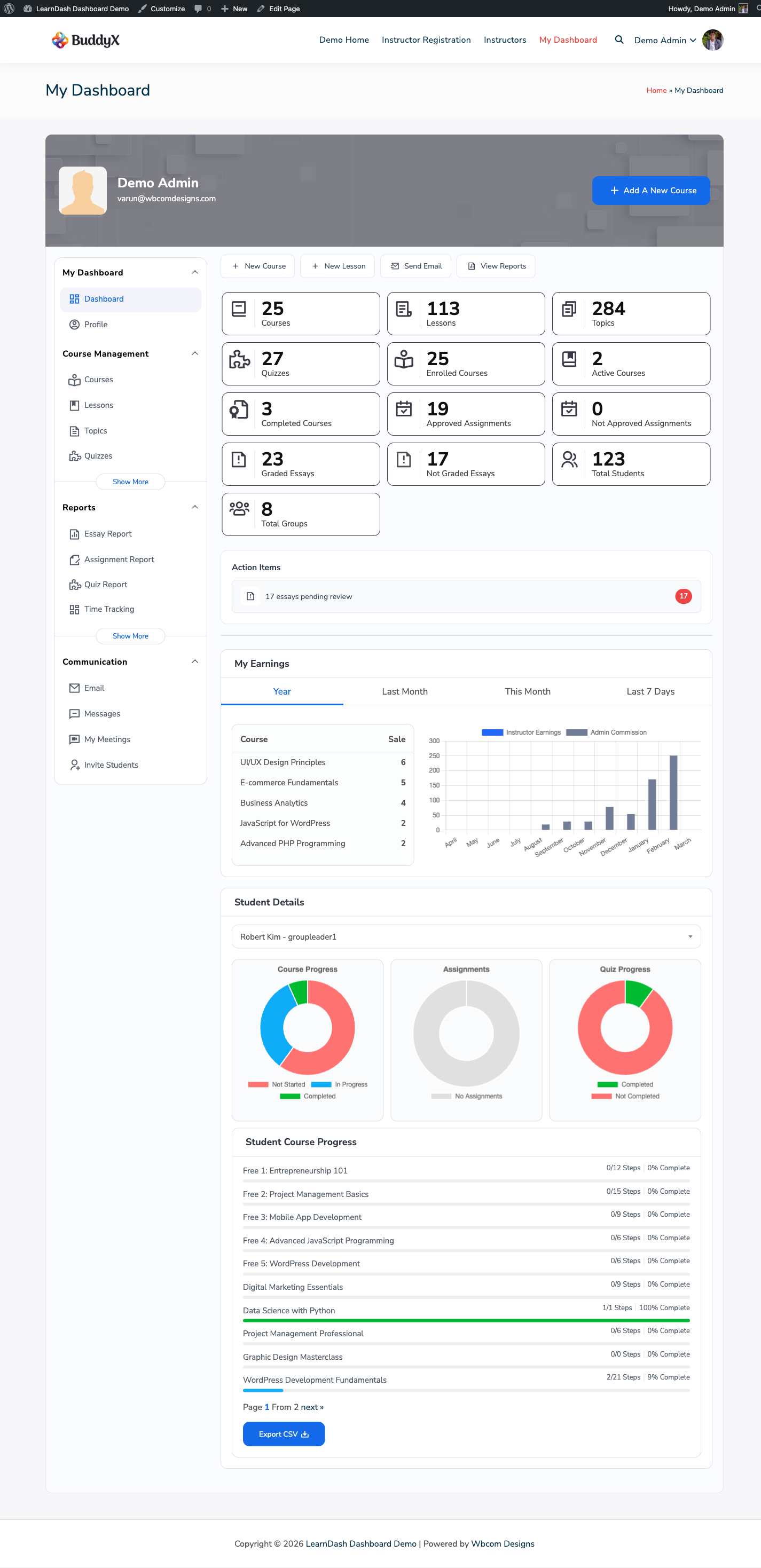
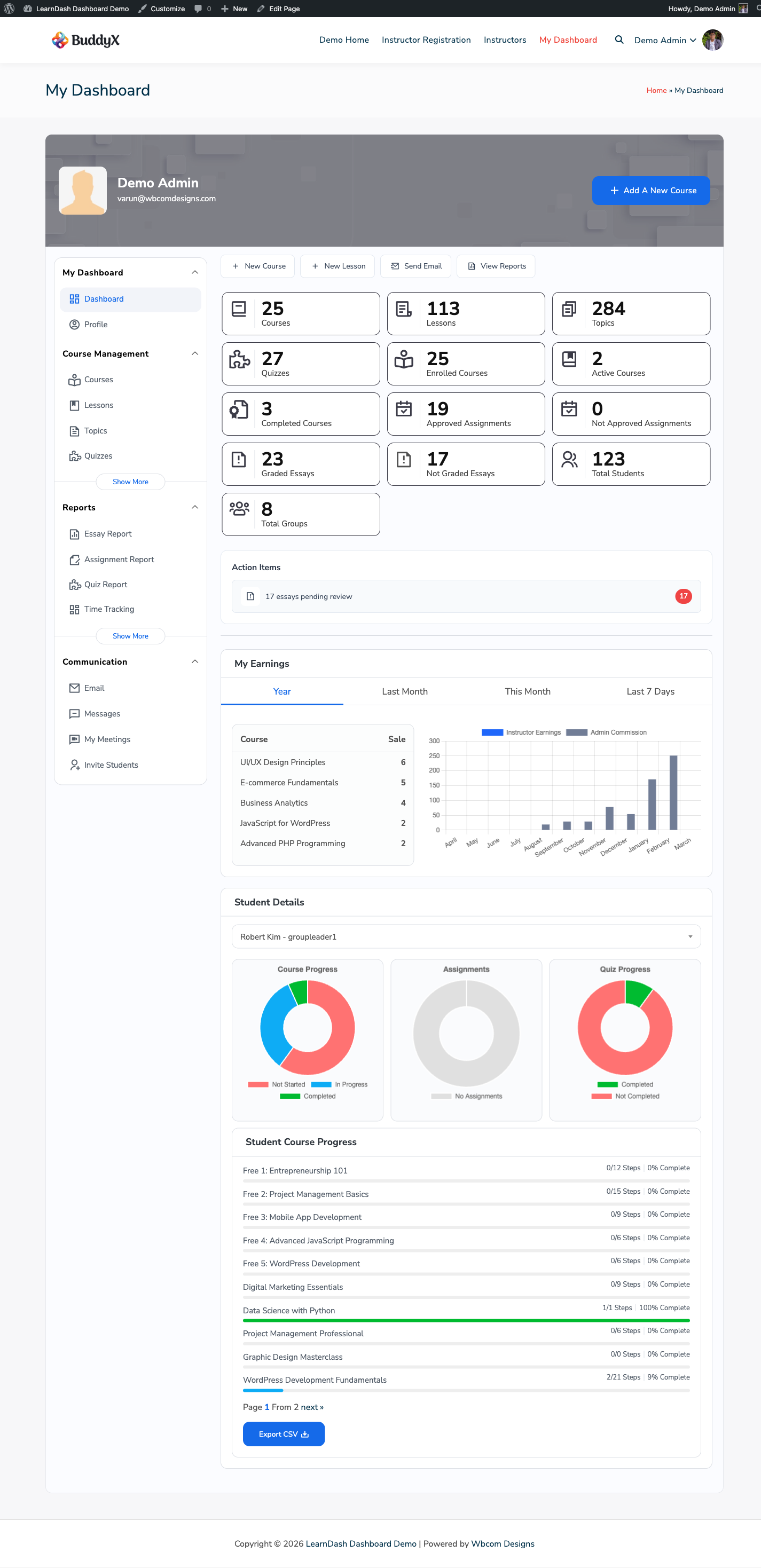
Dashboard overview


What It Includes

Dashboard for LearnDash consolidates seven major feature areas into one plugin:

Feature Area Replaces
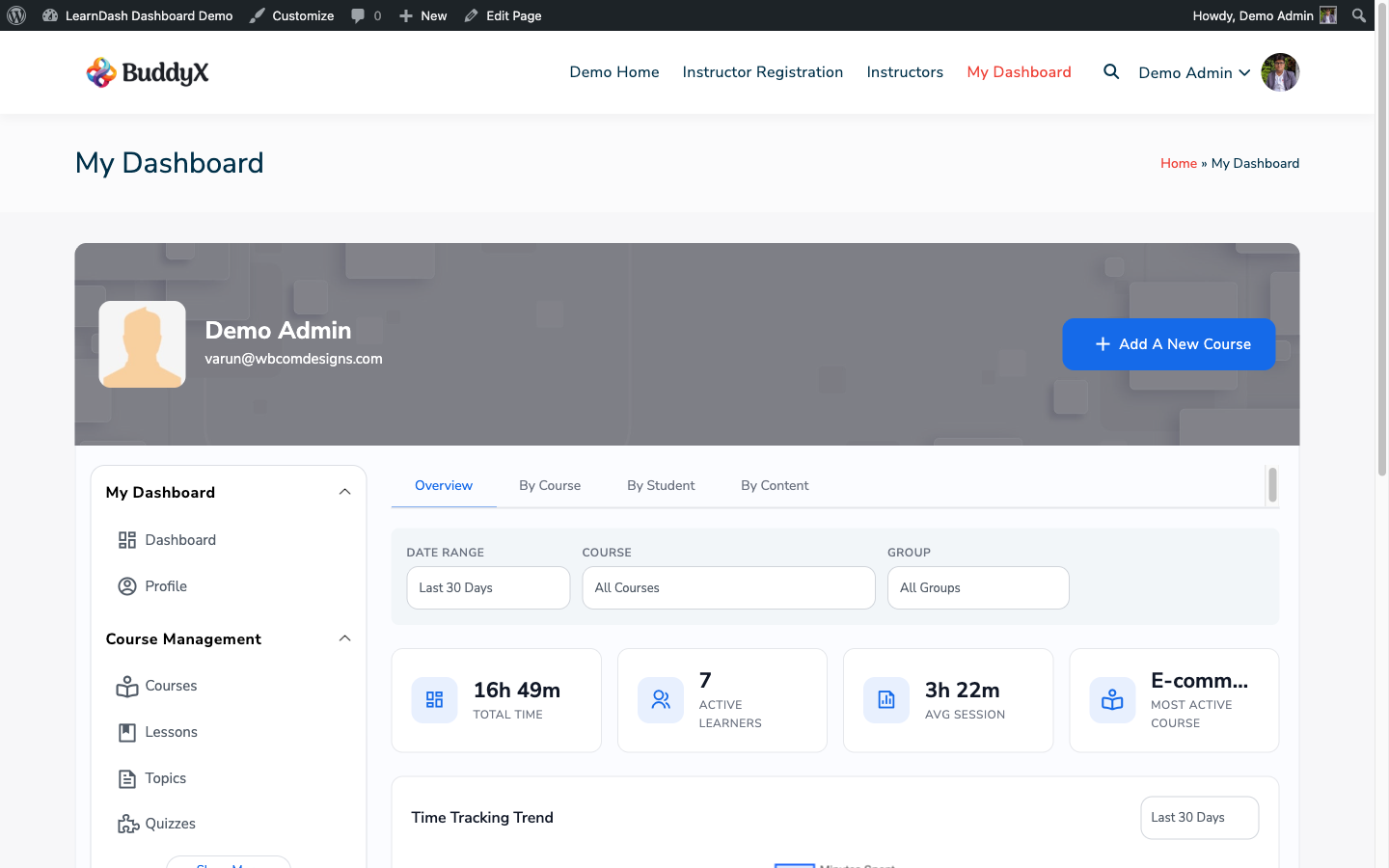
Insights tab — 6 charts + 10+ reports ProPanel 3.0
Instructor dashboard — course management, commissions, ACF field builder WISDM Instructor Role plugin
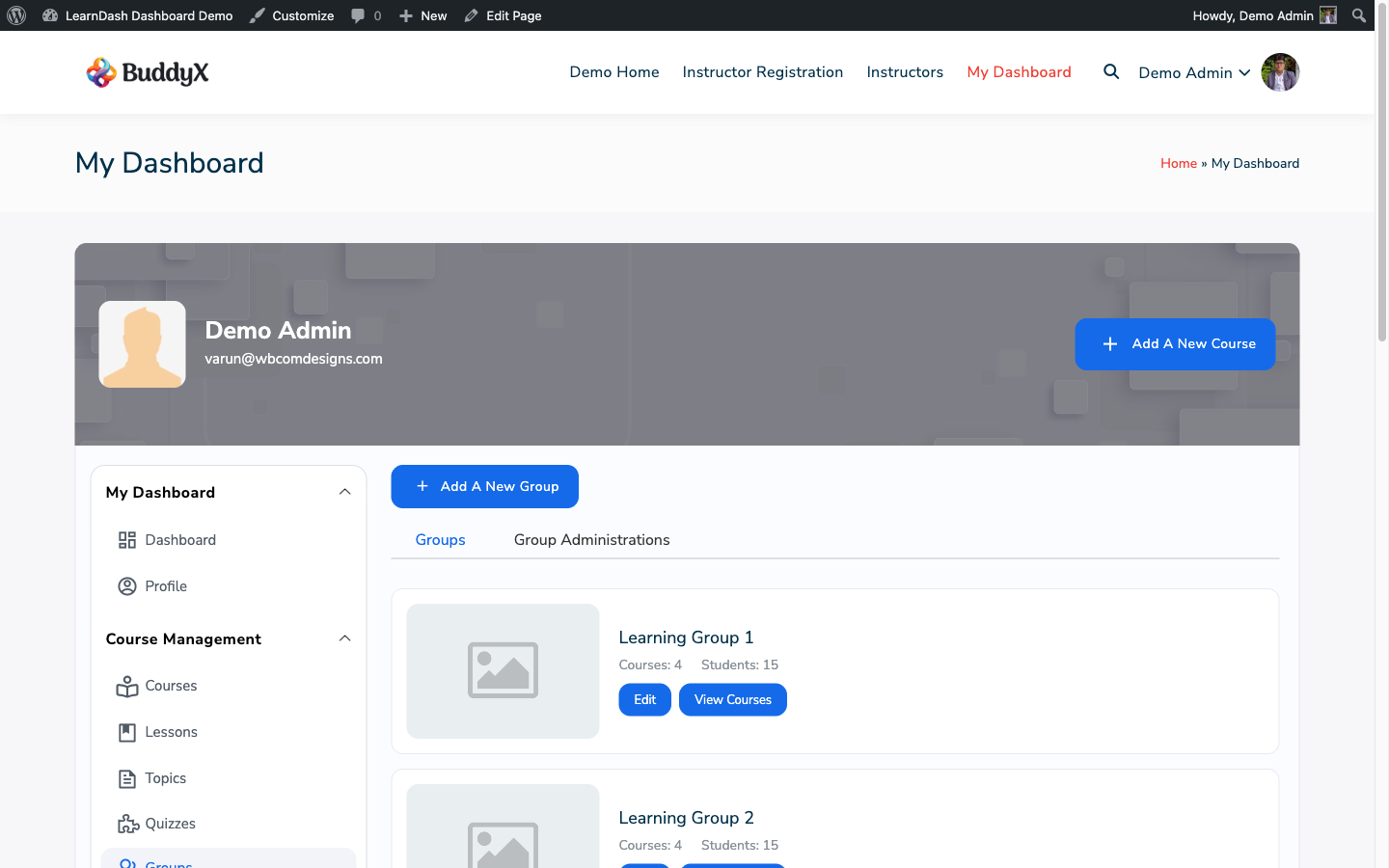
Groups tab — seat allocation, enrollment codes, hierarchy badges LearnDash Groups Plus
Uncanny Groups module — groups management within LD Dashboard Standalone Uncanny Groups management tools
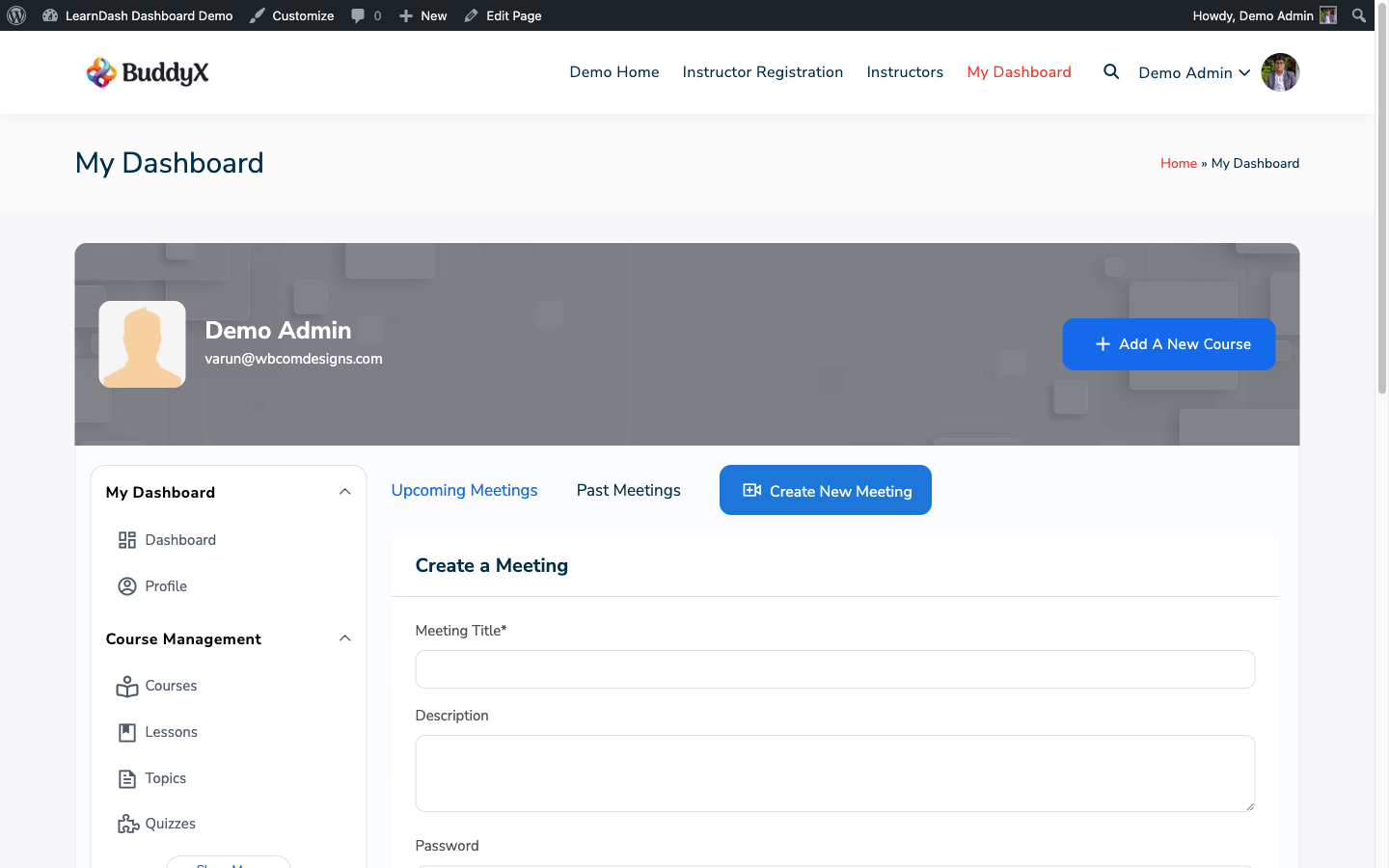
Private Messages tab — course-aware, threaded conversations Private messaging addons
Bulk Management tab — 5 sub-tabs, CSV import, chunked processing Separate bulk enrollment tools
Unified student dashboard — courses, progress, certificates, assignments, time tracking ProPanel student view

Additional unique features: Course Cloning, Time Tracking, and Course Announcements.


Who It Is For

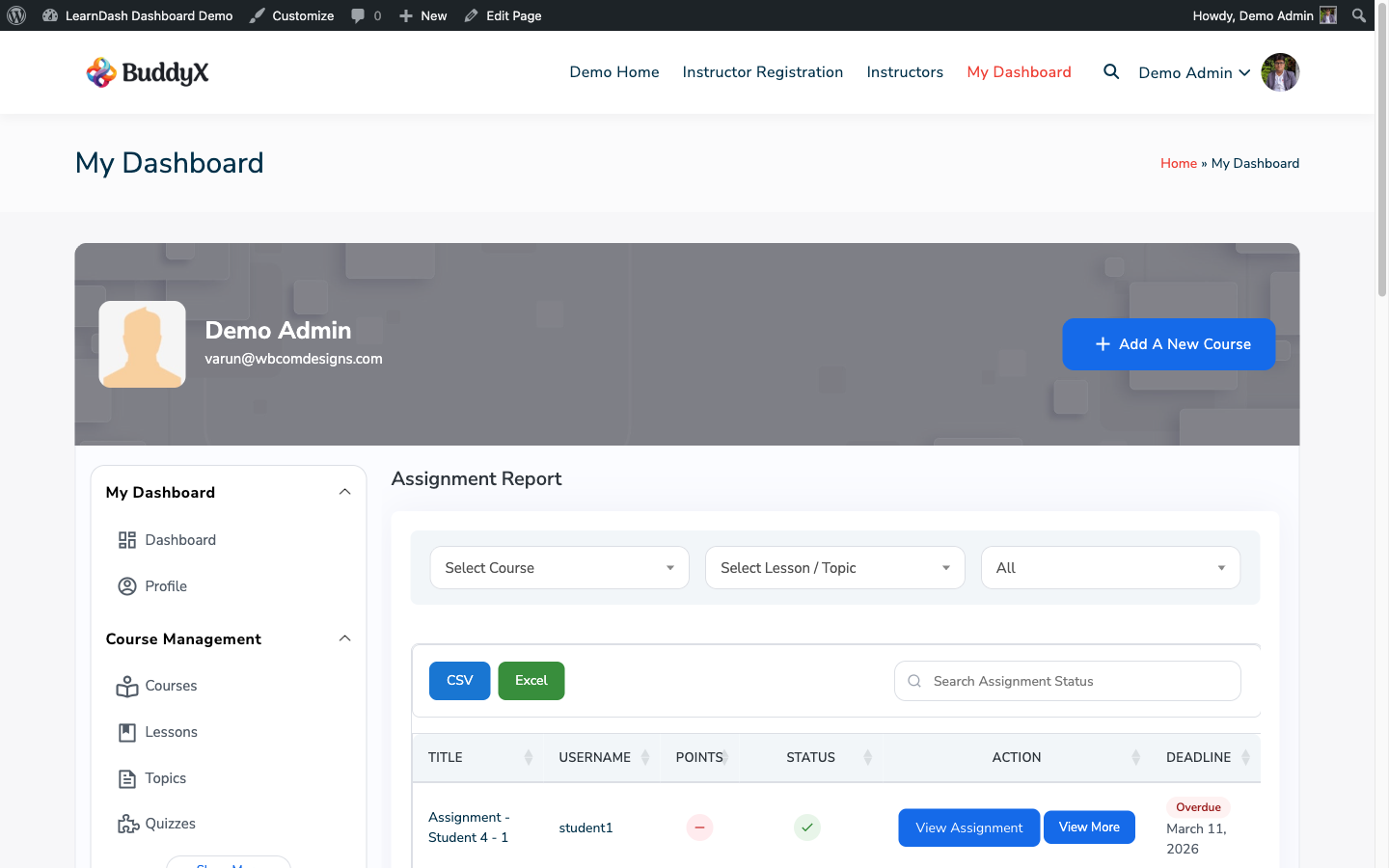
Admins get full access to all tabs: insights, reports, bulk management, all student data, and site-wide settings.

Instructors see their own courses, enrolled students, commission earnings, and have front-end course editing tools with optional custom fields.

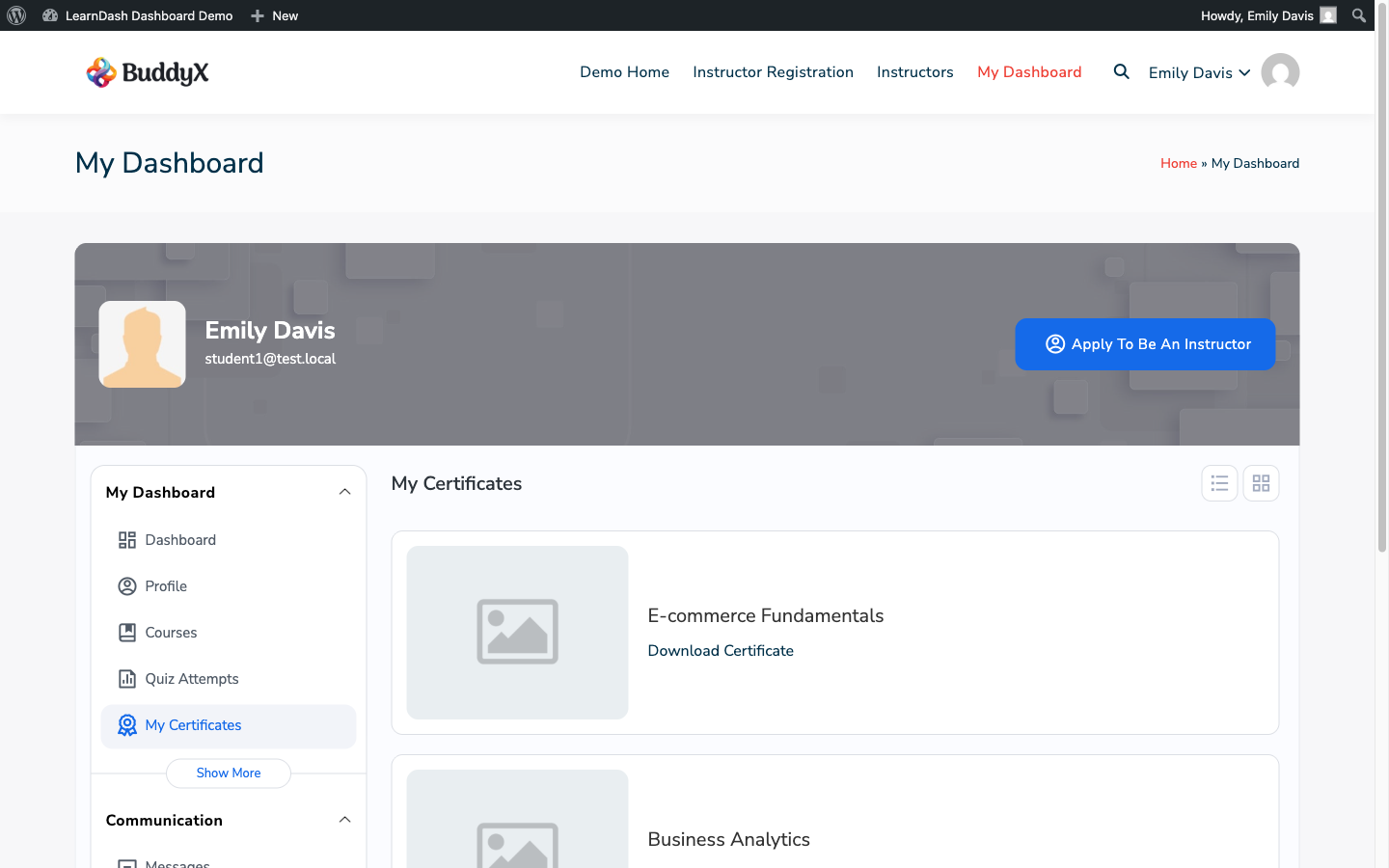
Students see their enrolled courses with progress, quiz attempts, earned certificates, submitted assignments, and time-on-content data.


How It Works

Install the plugin and it automatically creates a /my-dashboard/ page with the [ld_dashboard] shortcode. Every role sees a role-appropriate sidebar and tab set — no separate configuration per role is required.


Next Steps

Installation

This guide walks you through installing and activating Dashboard for LearnDash on your WordPress site.


Requirements

Before installing, confirm your server meets these minimums:

  • WordPress 6.0 or higher
  • PHP 7.4 or higher
  • MySQL 5.6 / MariaDB 10.1 or higher
  • LearnDash 4.0 or higher

Optional integrations require:

  • BuddyPress (any recent version) for BuddyPress activity integration
  • WooCommerce for revenue reports and subscription management
  • Uncanny Groups plugin for the Uncanny Groups module
  • Zoom plugin or API credentials for the Zoom module
  • Advanced Custom Fields (ACF) for the front-end field builder

Installation Steps

Option 1: Upload via WordPress Admin

  1. Download the ld-dashboard.zip file from your wbcomdesigns.com account.
  2. In your WordPress admin, go to Plugins → Add New → Upload Plugin.
  3. Click Choose File, select ld-dashboard.zip, and click Install Now.
  4. After installation completes, click Activate Plugin.

Option 2: FTP Upload

  1. Extract ld-dashboard.zip to get the ld-dashboard/ folder.
  2. Upload the entire ld-dashboard/ folder to wp-content/plugins/ via FTP.
  3. In your WordPress admin, go to Plugins → Installed Plugins.
  4. Find Dashboard for LearnDash and click Activate.

What Happens on Activation

When the plugin activates for the first time, it automatically:

  1. Creates a front-end dashboard page titled "My Dashboard" published at /my-dashboard/ with the [ld_dashboard] shortcode embedded
  2. Sets default plugin settings — default tab, role visibility, and basic appearance options
  3. Flushes WordPress rewrite rules so the /my-dashboard/ URL resolves immediately
  4. Registers custom database tables used by messaging, time tracking, and bulk operations

After Setup Checklist

Once the plugin is active:

  • Visit /my-dashboard/ to confirm the dashboard page loads
  • Go to LearnDash Dashboard → Settings → General and select your dashboard page if it wasn't auto-detected
  • Enter your license key in LearnDash Dashboard → Settings → License to enable auto-updates
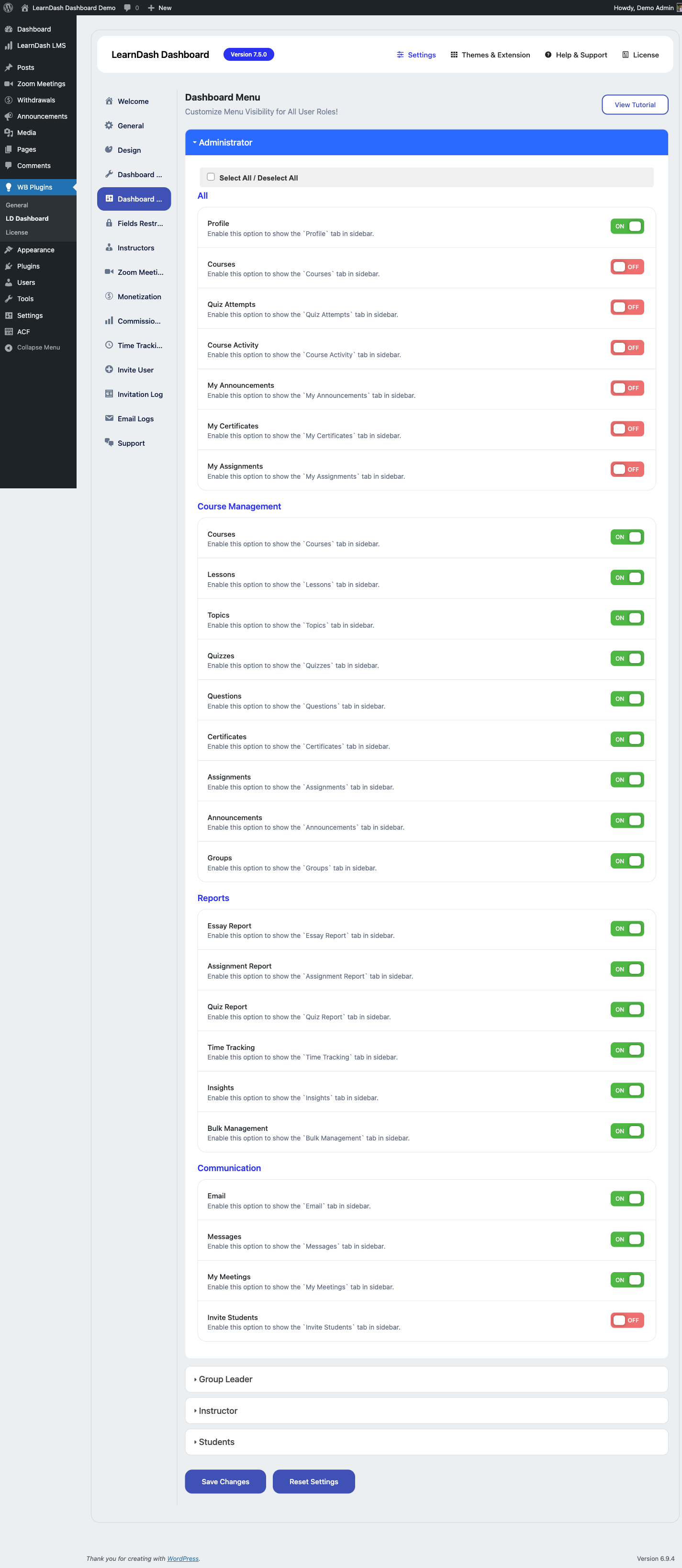
  • Configure which tabs are visible per role in LearnDash Dashboard → Settings → Menu
  • Assign the instructor role to any users who should have instructor access
  • (Optional) Enable integrations in LearnDash Dashboard → Settings → Modules if BuddyPress, Zoom, or Uncanny Groups are active

Deactivation

Deactivating the plugin pauses functionality but preserves all settings and data.

Uninstalling (deleting from the Plugins page) removes plugin options and custom tables. Export any reports or data you need before deleting.

Requirements


Core Requirements

These are required for the plugin to function:

Requirement Minimum Version Notes
WordPress 6.0 Tested up to latest stable release
PHP 7.4 PHP 8.0+ recommended
MySQL 5.6 MariaDB 10.1+ also supported
LearnDash 4.0 Required — plugin will not activate without it

Optional Integrations

These are not required, but unlock additional features when present:

Plugin Minimum Version What It Unlocks
BuddyPress Any recent version BuddyPress activity integration, profile tab
WooCommerce 5.0+ Revenue reports, commission calculations, subscription bulk management
Uncanny Groups Any compatible version Seat management and enrollment codes within LD Dashboard
Zoom (WP Zoom plugin or API) Any compatible version Instructor Zoom meetings tab
Advanced Custom Fields (ACF) 5.0+ Front-end custom field builder for courses, lessons, topics, quizzes

Recommended Hosting Specifications

These specs ensure good performance, especially for sites with many students or large reports:

  • PHP memory limit: 256 MB or higher
  • PHP max execution time: 120 seconds or higher (needed for CSV imports and bulk operations)
  • WordPress memory limit: 256 MB (WP_MEMORY_LIMIT)
  • MySQL query cache: Enabled for faster report queries
  • Object caching: Recommended for high-traffic sites (Redis or Memcached)

Browser Support

The front-end dashboard supports all modern browsers:

  • Chrome 90+
  • Firefox 88+
  • Safari 14+
  • Edge 90+

Internet Explorer is not supported.


LearnDash Content Types Used

The plugin reads and writes to these LearnDash CPTs and data structures:

  • sfwd-courses, sfwd-lessons, sfwd-topic, sfwd-quiz, sfwd-question
  • groups (LearnDash group post type)
  • User meta for course progress, quiz attempts, and certificates
  • LearnDash activity tables (wp_learndash_user_activity, wp_learndash_user_activity_meta)

Quick Start

Get Dashboard for LearnDash up and running in five steps.


Step 1: Install and Activate

  1. Download ld-dashboard.zip from your wbcomdesigns.com account.
  2. Go to Plugins → Add New → Upload Plugin, upload the file, and activate.

The plugin automatically creates a /my-dashboard/ page on your site.


Step 2: View the Student Dashboard

Open a new browser tab and visit:

https://yoursite.com/my-dashboard/

Log in as a student (or any enrolled user). You should see the student dashboard with their enrolled courses, progress tiles, and sidebar navigation.

If the page shows a 404, go to Settings → Permalinks and click Save Changes to flush rewrite rules.


Step 3: Configure Settings

Go to LearnDash Dashboard → Settings in your WordPress admin.

Key settings to review on first setup:

  • General → Dashboard Page — confirm the correct page is selected
  • Menu — choose which tabs are visible and their order
  • Design — set your color scheme and upload a logo if needed
  • License — enter your license key to enable automatic updates

Step 4: Assign the Instructor Role

To give a user instructor access:

  1. Go to Users in WordPress admin and open the user's profile.
  2. Change their Role to Instructor (or your configured instructor role).
  3. Assign courses to that instructor by editing each course and setting the instructor in the course settings.

Instructors log in at /my-dashboard/ and see an instructor-specific tab set including their courses, students, and earnings.


Step 5: Test All Three Role Views

Verify the dashboard looks correct for each role:

Role What to Check
Admin All tabs visible — Insights, Reports, Bulk Management, all student data
Instructor Their courses and students visible, commissions tab if WooCommerce is active
Student Enrolled courses with progress, quiz attempts, certificates, assignments

Use the ?autologin=username URL parameter in local development to switch between users quickly (requires the dev auto-login mu-plugin).


Next Steps

Shortcodes

Dashboard for LearnDash uses a single primary shortcode. The plugin auto-embeds it on the /my-dashboard/ page during activation, but you can use it on any page or post.


[ld_dashboard]

Renders the full dashboard for the currently logged-in user. The content adapts automatically based on the user's role (admin, instructor, or student).

Basic usage:

[ld_dashboard]

Place this shortcode on any WordPress page. The page should not use a full-width page template without a header — the dashboard expects standard WordPress page structure.


Parameters

Parameter Values Default Description
tab Any valid tab slug Site default Opens the dashboard to a specific tab on load
user_id Any WordPress user ID Current user Render the dashboard as a specific user (admin only)
show_menu yes / no yes Show or hide the sidebar navigation

Open to a specific tab:

[ld_dashboard tab="quiz-report"]

Embed a student's dashboard in an admin view:

[ld_dashboard user_id="42"]

Dashboard without sidebar (embed in a modal or compact layout):

[ld_dashboard show_menu="no"]

Valid Tab Slugs

Use these values for the tab parameter:

Slug Tab
dashboard Main dashboard / overview
courses My Courses
quiz-report Quiz Attempts & Report
assignments Assignments
certificates Certificates
messages Private Messages
groups Groups
time-tracking Time Tracking
insights Insights (admin/instructor)
my-students My Students (instructor/admin)
bulk-management Bulk Management (admin only)
commission-report Commissions (instructor)

Dashboard Page

The plugin creates the dashboard page automatically on activation. If you need to create it manually or move it:

  1. Create a new WordPress page.
  2. Add the [ld_dashboard] shortcode to the page content.
  3. Publish the page.
  4. Go to LearnDash Dashboard → Settings → General and set the Dashboard Page to your new page.

Access Control

The shortcode respects role visibility settings configured in LearnDash Dashboard → Settings → Menu. Logged-out users are redirected to the WordPress login page. You can change the redirect URL in Settings → General.

Settings

Configure Dashboard for LearnDash from the WordPress admin

General Settings

Location: WP Admin → LearnDash Dashboard → Settings → General

General settings screen


Dashboard Page

Dashboard Page — Select the WordPress page where the [ld_dashboard] shortcode is placed. The plugin creates this page automatically on activation. If you moved or recreated the page, update this setting so internal links resolve correctly.


Default Tab

Default Tab — The tab that opens when a user visits the dashboard without a tab parameter in the URL. You can set different defaults per role, or a single global default.

Common choices:

  • Dashboard — shows the overview tiles and recent activity
  • Courses — goes directly to the user's course list

User Role Visibility

Controls which WordPress roles can access the front-end dashboard:

  • Subscriber — students and general logged-in users
  • Instructor — your designated instructor role
  • Administrator — always has access

Roles not enabled here will be redirected to the URL set in Login Redirect.

Login Redirect — URL to send users who are not logged in or do not have dashboard access. Defaults to the WordPress login page.


Registration Settings

Allow Registration — If enabled, shows a registration link on the login redirect page for new users to self-register.

Registration Role — The default role assigned to self-registered users. Typically Subscriber.

Registration Redirect — Where to send users after they complete registration. Defaults to the dashboard page.


License Key

License Key — Enter the license key from your wbcomdesigns.com account. An active license enables automatic plugin updates through the WordPress admin.

See License for full details on finding your key and what an active license provides.


Save Changes

Click Save Changes at the bottom of the settings page to apply any modifications. Settings are saved immediately — no site restart needed.

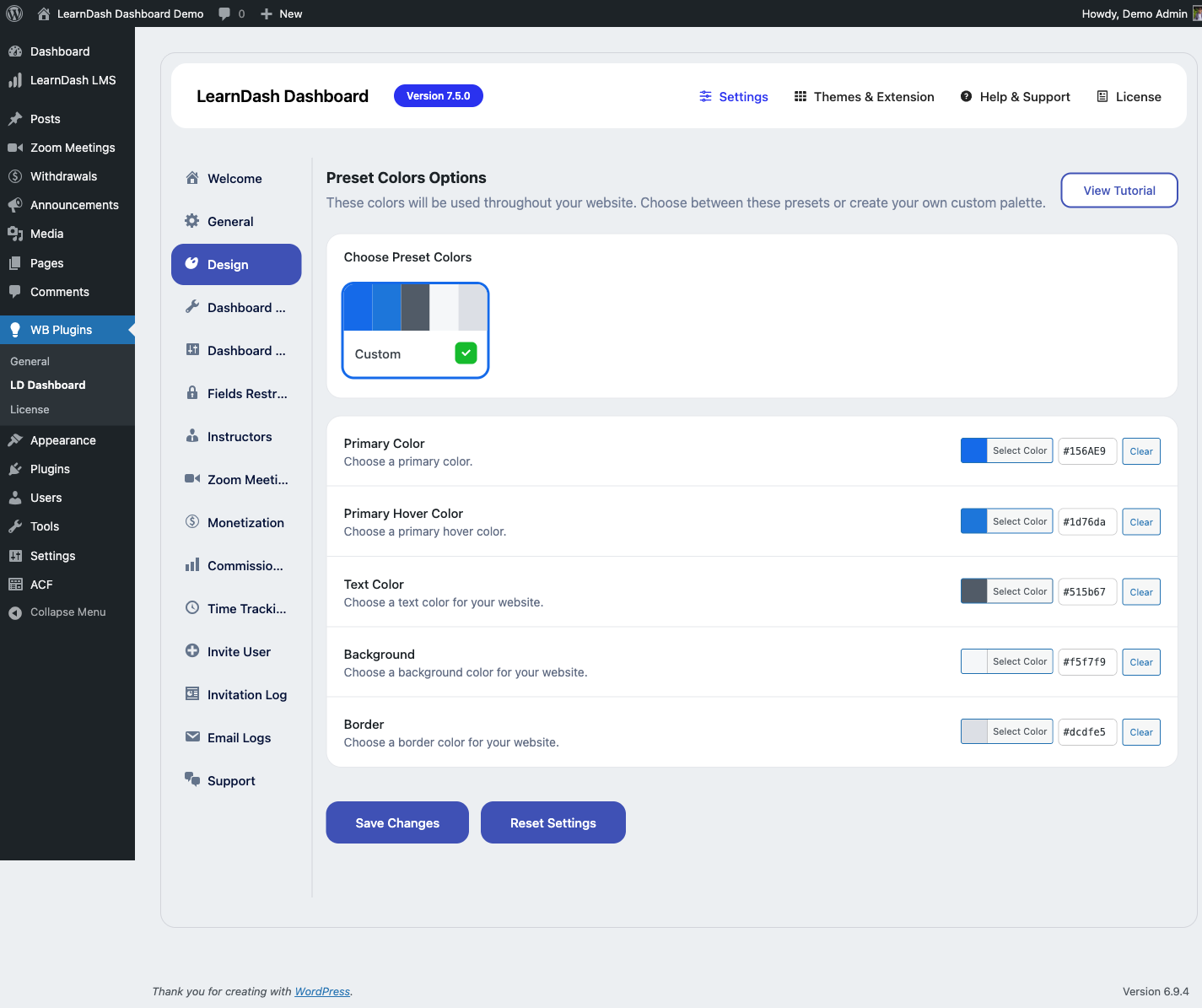
Design Settings

Location: WP Admin → LearnDash Dashboard → Settings → Design

These settings control the visual appearance of the front-end dashboard.

Design settings screen


Color Scheme

Primary Color — The accent color used for buttons, active tab indicators, progress bars, and links throughout the dashboard. Enter a hex color code or use the color picker.

Secondary Color — Used for hover states and secondary UI elements.

Sidebar Background Color — Background color of the left sidebar navigation.

Sidebar Text Color — Text and icon color for sidebar menu items.

Changes here apply site-wide to all dashboard views (admin, instructor, student) without needing to write any CSS.


Logo

Dashboard Logo — Upload an image to replace the default plugin logo in the dashboard header. Recommended size: 200 × 60 pixels. Accepts PNG, JPG, or SVG.

Leave blank to display no logo, or use the default plugin branding.


Layout Options

Sidebar Position — Choose Left (default) or Right for the sidebar navigation panel.

Content Width — Set the maximum width of the dashboard content area. Options are Full Width, Contained (1200px), or Narrow (960px). Choose based on your theme's content area width.


Custom CSS

Custom CSS — Add CSS rules that apply only within the dashboard. This field is the recommended way to make style adjustments without editing plugin files.

Example — change the active tab color:

.ld-dashboard-menu-tab.active a {
    color: #e04e00;
}

Custom CSS is loaded after all plugin stylesheets, so your rules take precedence.


Save Changes

Click Save Changes to apply your design settings. Refresh the dashboard at /my-dashboard/ to see the result.

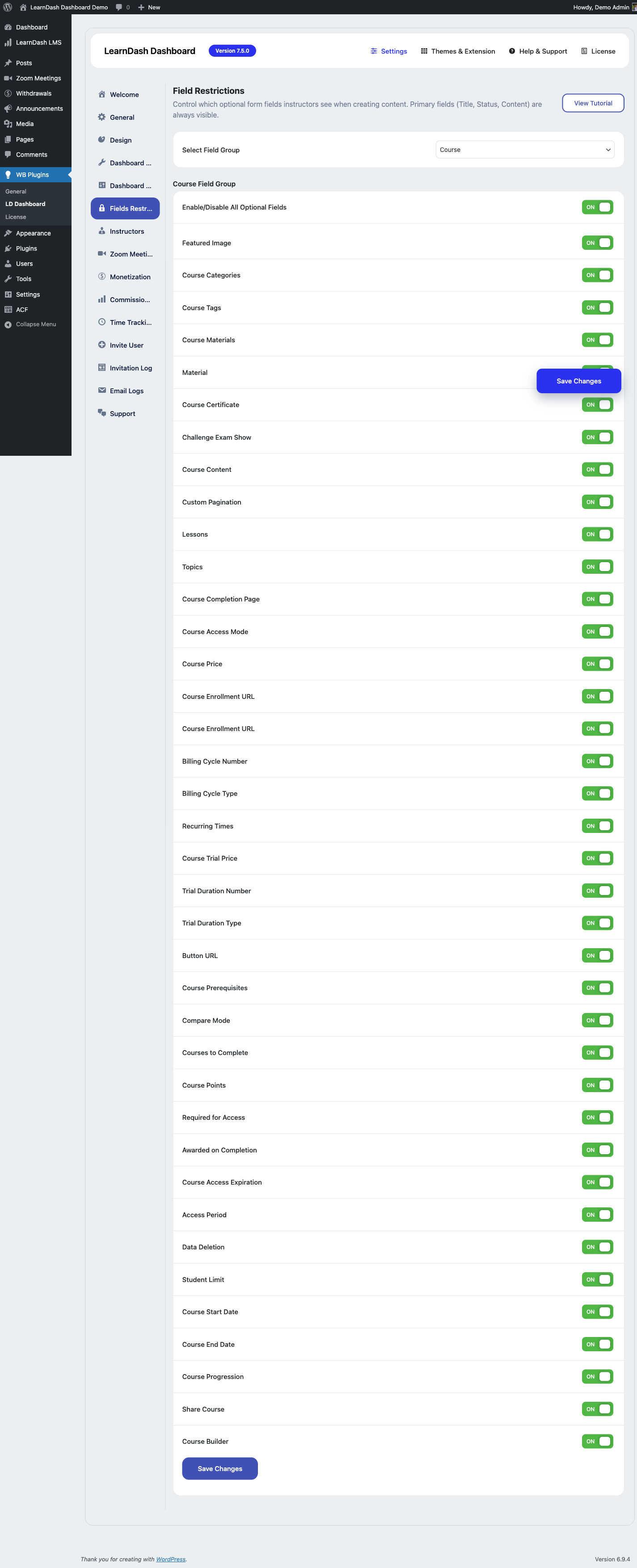
Frontend Fields (ACF Field Builder)

Location: WP Admin → LearnDash Dashboard → Settings → Frontend Fields

The field builder lets you create custom fields that instructors and admins can fill in when editing course content from the front-end dashboard. It uses Advanced Custom Fields (ACF) under the hood.

Requirement: ACF (free or Pro) must be installed and active to use this feature.

Field builder screen


Adding a Field

  1. Go to LearnDash Dashboard → Settings → Frontend Fields.
  2. Click Add Field Group and choose the content type: Course, Lesson, Topic, Quiz, Question, or Certificate.
  3. Click Add Field within the field group.
  4. Set the Field Label (shown to the user), Field Name (used internally), and Field Type.
  5. Click Save Changes.

Supported Field Types

Field Type Description
Text Single-line text input
Textarea Multi-line text input
WYSIWYG Rich text editor (TinyMCE)
Number Numeric input with optional min/max
Email Email address input with validation
URL URL input
Select Dropdown with custom choices
Checkbox One or more checkboxes
Radio Single-choice radio buttons
True/False Toggle switch
Image Image upload
File File upload
Date Picker Calendar date selector

Where Fields Appear

Fields added to a content type appear on the front-end edit form for that content type. For example, fields added to the Course content type appear when an instructor edits a course from their dashboard.

Fields are rendered below the standard content fields. Instructors fill them in and click Save — values are stored as ACF post meta.


Controlling Which Fields Are Visible

The ld_dashboard_prepare_acf_fields filter runs before fields are rendered on the front end. It lets you conditionally show or hide fields based on user role, course ID, or any other condition.

add_filter( 'ld_dashboard_prepare_acf_fields', function( $fields, $post_id, $user_id ) {
    // Remove a specific field for non-admins
    if ( ! current_user_can( 'manage_options' ) ) {
        unset( $fields['field_ldd_course_promo_code'] );
    }
    return $fields;
}, 10, 3 );

If the saved settings whitelist is empty, all registered Field Builder fields are shown by default (permissive behavior).


Field Key Format

Field Builder keys follow this pattern:

field_ldd_{content_type}_{field_name}_{counter}

Example: field_ldd_course_difficulty_1

Use these keys when querying field values with get_field() or get_post_meta().


Important Notes

  • All front-end edit forms that use the field builder must have kses sanitization disabled to prevent content stripping on save. The plugin handles this internally — if you are extending forms, add $form_args['kses'] = false to your form arguments.
  • Fields created here are separate from any ACF field groups you create directly in ACF → Field Groups. Avoid naming conflicts between the two.

Email & Notification Settings

Dashboard for LearnDash includes a built-in email notification system that automatically sends emails to students, instructors, and admins when key events occur. All templates are configurable, and users can opt out of notifications they don't want.


Where to Configure

Go to WordPress Admin → LearnDash Dashboard → Settings → Email Settings.

The Email Settings panel has three sections:

  • General — Enable or disable the email system globally
  • Templates — Edit subject lines and body text for each template
  • Notifications — Toggle which notification types are active

Email Templates

Seven built-in email templates cover the most important events in the course lifecycle:

Template Trigger Sent To
Course Enrollment Student enrolls in a course Student
Course Completion Student completes a course Student, Instructor
New Assignment Student submits an assignment Instructor
Assignment Approved Instructor approves an assignment Student
Assignment Rejected Instructor rejects an assignment Student
New Message Private message received Recipient
New Content Announcement Instructor publishes an announcement All enrolled students

Editing a Template

  1. In Email Settings → Templates, click the template name to expand it.
  2. Edit the Subject line and Body fields.
  3. Use merge tags (see below) to insert dynamic content.
  4. Click Save.

All templates support plain HTML formatting in the body field. The email is wrapped in the site's standard email wrapper automatically.


Merge Tags

Use these merge tags in any template subject or body:

Tag Replaced With
{site_name} Your WordPress site name
{site_url} Your site URL
{student_name} The student's display name
{instructor_name} The instructor's display name
{course_name} The course title
{course_url} Direct URL to the course
{dashboard_url} URL to the front-end dashboard
{assignment_title} Title of the assignment post
{sender_name} Display name of the message sender
{announcement_title} Title of the announcement

Notification Toggles

Each notification type can be enabled or disabled independently. To disable a specific notification:

  1. Go to Email Settings → Notifications.
  2. Uncheck the notification type you want to disable.
  3. Save.

For example, to stop sending emails when a student completes a course, uncheck Course Completion Notification.


Digest Mode

By default, notifications are sent immediately. Enable Digest Mode to bundle notifications into a single daily email per user.

When digest mode is on:

  • All notifications queued during the day are combined into one email
  • The digest is sent at a configurable time (default: 8:00 AM server time)
  • The digest email lists each event with a summary and link

Digest mode uses WordPress cron (ld_dashboard_daily_digest) to schedule delivery.


User Opt-Out

Every notification email includes an unsubscribe link in the footer. When a user clicks it, they are taken to a confirmation page. After confirming, they are opted out of all Dashboard for LearnDash notification emails.

Admins can manually manage opt-out status from the user's WordPress profile page in the admin area.


From Name and Address

The plugin uses the WordPress site email and name as the sender by default (blogname and admin_email options). To use a custom from address:

// Custom from address for all dashboard emails
add_filter( 'ld_dashboard_email_from', function( $from ) {
    return 'courses@yoursite.com';
} );

add_filter( 'ld_dashboard_email_from_name', function( $name ) {
    return 'Your Course Platform';
} );

For Developers: Email Hooks

// Modify email subject before sending
add_filter( 'ld_dashboard_email_subject', function( $subject, $template, $data ) {
    if ( $template === 'course_completion' ) {
        $subject = '🎉 ' . $subject;
    }
    return $subject;
}, 10, 3 );

// Modify email body before sending
add_filter( 'ld_dashboard_email_body', function( $body, $template, $data ) {
    return $body . '<p>Powered by Your Academy</p>';
}, 10, 3 );

// Modify recipient list before sending
add_filter( 'ld_dashboard_email_recipients', function( $recipients, $template, $data ) {
    // CC the admin on every course completion email
    if ( $template === 'course_completion' ) {
        $recipients[] = get_option( 'admin_email' );
    }
    return $recipients;
}, 10, 3 );

// Add a custom email template
add_filter( 'ld_dashboard_email_templates', function( $templates ) {
    $templates['my_custom_event'] = [
        'label'   => 'Custom Event Notification',
        'subject' => 'Something happened in {course_name}',
        'body'    => '<p>Hi {student_name},</p><p>...</p>',
    ];
    return $templates;
} );

// Hook before/after email is sent
add_action( 'ld_dashboard_before_send_email', function( $template, $recipient, $data ) {
    // Log the email attempt
    error_log( "LDD email: $template to $recipient" );
}, 10, 3 );

add_action( 'ld_dashboard_after_send_email', function( $template, $recipient, $result ) {
    // $result = true if wp_mail succeeded
}, 10, 3 );

Troubleshooting Email Delivery

Emails not arriving:

  • Confirm the email system is enabled in Email Settings → General.
  • Check the user's opt-out status on their WordPress profile.
  • Verify WordPress can send email at all — use a plugin like WP Mail SMTP to test.
  • Check server spam filters and ensure the From address matches your domain's SPF record.

Emails going to spam:

  • Set up SPF, DKIM, and DMARC records for your domain.
  • Use a transactional email service (SendGrid, Mailgun, Amazon SES) via WP Mail SMTP.
  • Avoid excessive HTML or spam trigger words in custom template bodies.

License

An active license key enables automatic plugin updates delivered through the WordPress admin. Without an active license, the plugin continues to function but will not receive update notifications.


Finding Your License Key

  1. Log in to your account at wbcomdesigns.com.
  2. Go to My Account → Downloads (or Licenses, depending on account view).
  3. Find Dashboard for LearnDash in your purchase list.
  4. Click View License to reveal your key.

Your license key is a string of letters and numbers, typically in the format xxxxxxxx-xxxx-xxxx-xxxx-xxxxxxxxxxxx.


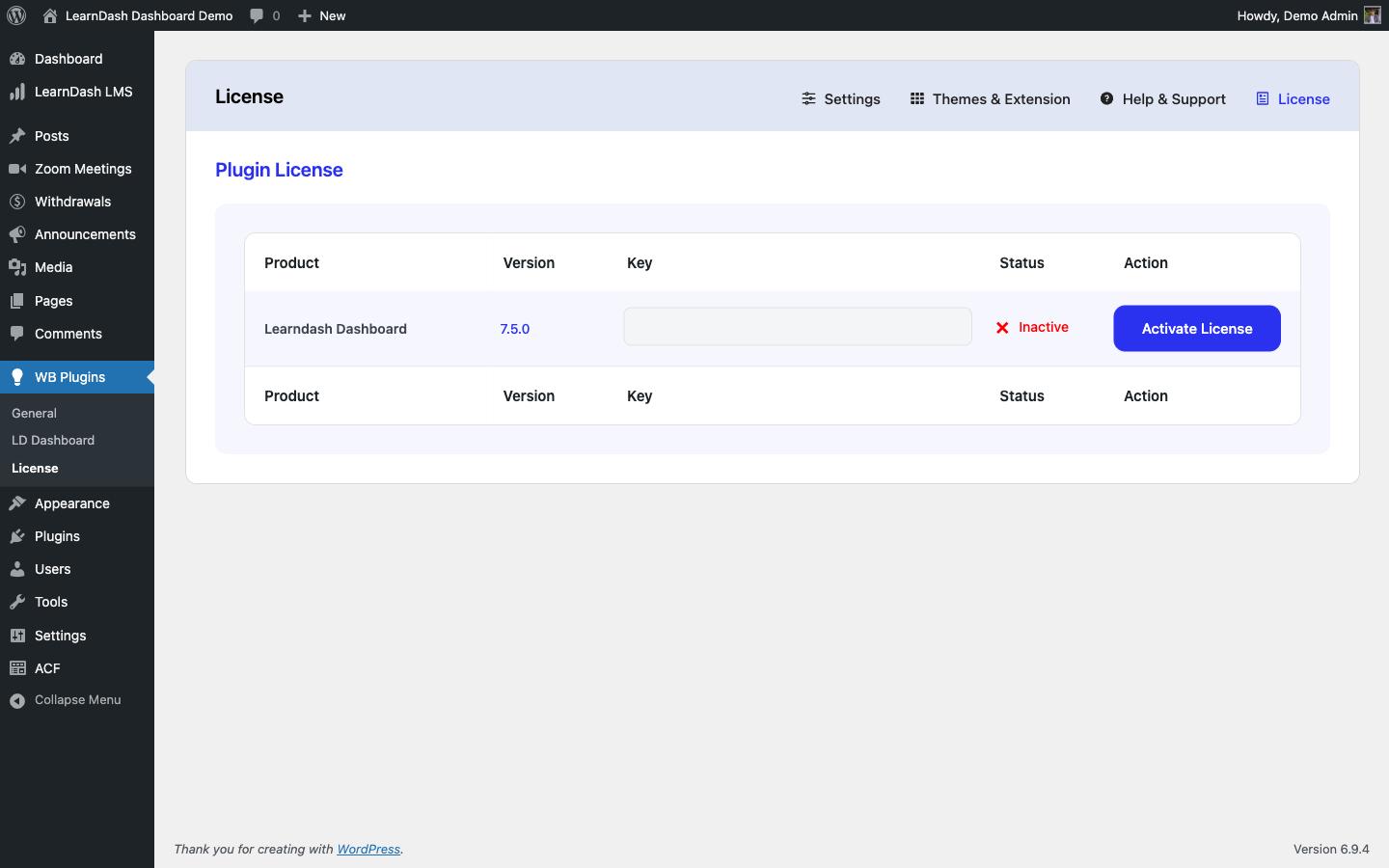
Entering Your License Key

  1. In your WordPress admin, go to LearnDash Dashboard → Settings → License.
  2. Paste your key into the License Key field.
  3. Click Activate License.

A green status indicator confirms the license is active. If activation fails, check that the domain matches your purchase — licenses are tied to a specific site URL.

License settings screen


What an Active License Provides

  • Automatic updates — plugin update notifications appear in Plugins → Installed Plugins, and you can update with one click
  • Support access — active license required to open a support ticket at wbcomdesigns.com

License Scope

A single license covers one WordPress installation (one domain). If you run the plugin on multiple sites (staging + production), you may need to deactivate the license on one site and activate it on another, or purchase a multi-site license.

To deactivate: go to LearnDash Dashboard → Settings → License and click Deactivate License before moving the plugin to a new site.


After License Expiry

When a license expires:

  • The plugin continues to function normally
  • Automatic updates stop — you will not receive update notifications
  • Support ticket access is suspended until renewal

To renew, log in to wbcomdesigns.com, renew the purchase, and re-enter or re-activate the updated key.

Instructor Dashboard

Instructor front-end workspace, commissions, course management, and announcements

Instructor Dashboard Overview

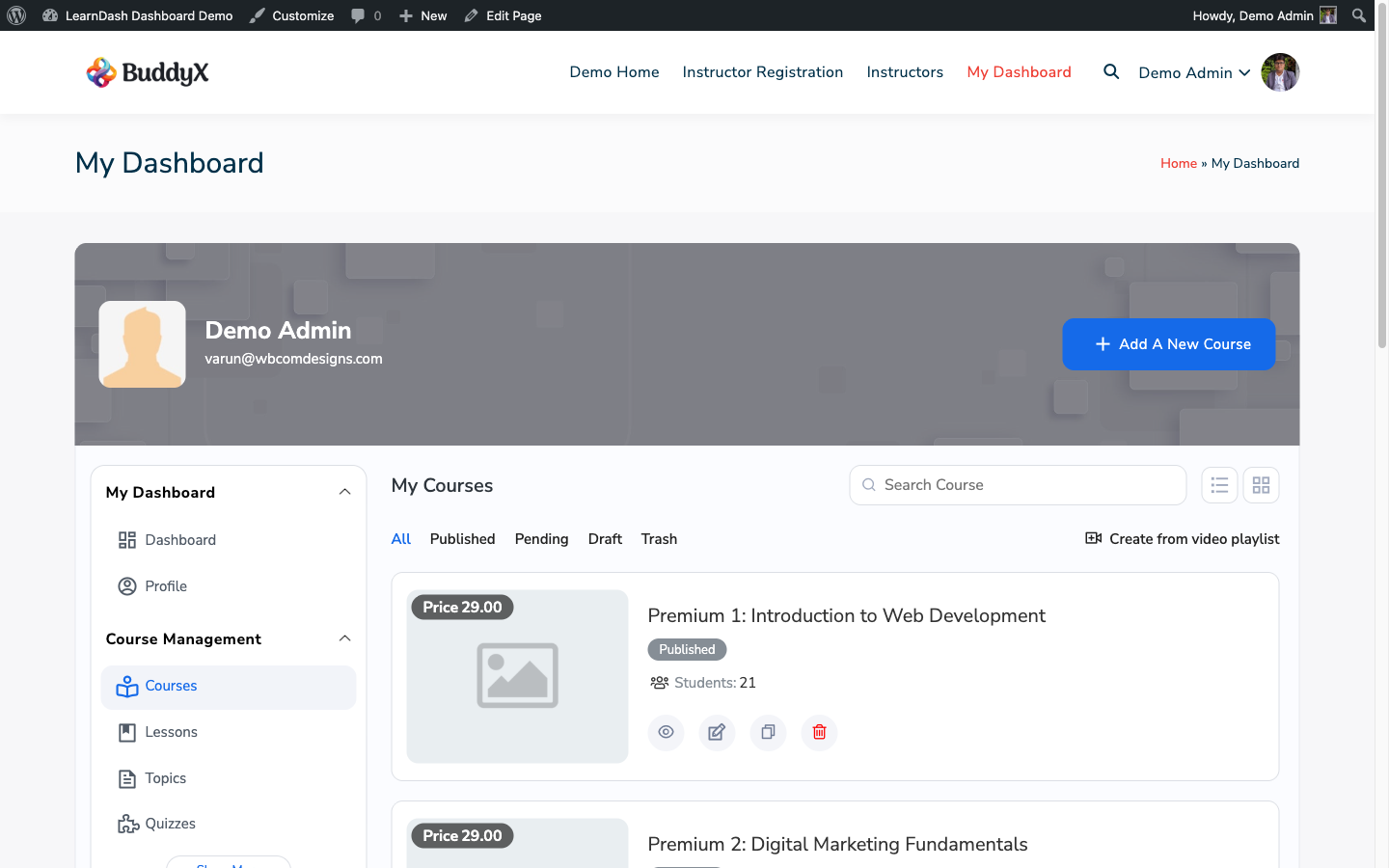
Instructors see a dashboard tailored to managing their own courses and students. They do not see site-wide data — only data for courses they own or are assigned to.

Instructor dashboard


What Instructors See

When an instructor logs in at /my-dashboard/, their sidebar shows:

  • Dashboard — summary tiles: total students, total courses, recent activity, earnings summary (if WooCommerce is active)
  • My Courses — list of courses assigned to this instructor with enrollment counts and completion rates
  • My Students — roster of all students enrolled in their courses with per-student progress
  • Quiz Report — quiz attempts across their courses with filtering by course, student, and date
  • Assignments — pending and completed assignment submissions for their courses
  • Commission Report — earnings breakdown per course (requires WooCommerce)
  • Messages — private messages from their students

Tabs that are not relevant to instructors (Bulk Management, site-wide Insights) are hidden from their view.


Admin View vs Instructor View

Feature Admin Instructor
Course scope All courses on the site Only their assigned courses
Student scope All students Only students in their courses
Bulk management Full access Not available
Insights Site-wide data Their courses only
Commission report View all instructor commissions Their own commissions only
User management Full Not available

Assigning the Instructor Role

  1. Go to Users in WordPress admin.
  2. Open the user's profile.
  3. Change their Role to Instructor.
  4. Save the profile.

Next, assign courses to the instructor:

  1. Open the course in WordPress admin → LearnDash → Courses.
  2. Find the instructor assignment field (added by the plugin) and set it to this user.
  3. Update the course.

The instructor can now see and manage that course from their dashboard.


Co-Instructor Sharing

A course can have more than one instructor. Add additional instructors using the instructor field on the course edit screen. All assigned instructors see the course in their My Courses tab and can manage its students and content.


Next Steps

Commission Setup

Commissions let instructors earn a percentage of course revenue generated through WooCommerce. The plugin calculates earnings from WooCommerce orders and displays them in the instructor's Commission Report tab.

Requirement: WooCommerce must be active and your LearnDash courses must be sold through WooCommerce products.


How Commissions Work

  1. A student purchases a WooCommerce product that is linked to a LearnDash course.
  2. The plugin reads that order and identifies the instructor assigned to the course.
  3. The commission amount is calculated as a percentage of the order total (minus any adjustments you configure).
  4. The result appears in the instructor's Commission Report tab.

Commission data is read-only in the dashboard — it displays what is owed, but actual payment transfer happens outside the plugin (manually, or via a separate payout integration).


Configuring the Global Commission Rate

  1. Go to LearnDash Dashboard → Settings → Commission.
  2. Set the Default Commission Rate as a percentage (e.g., 40 for 40%).
  3. Click Save Changes.

All instructors inherit this rate unless you set a per-instructor override.


Per-Instructor Commission Rate

To set a different rate for a specific instructor:

  1. Go to Users and open the instructor's profile.
  2. Find the Commission Rate field (added by the plugin to the user profile).
  3. Enter the override percentage.
  4. Save the profile.

When calculating this instructor's earnings, the per-instructor rate takes precedence over the global rate.


Viewing the Commission Report

Instructors see their own earnings in My Dashboard → Commission Report.

Admins see all instructor commissions at LearnDash Dashboard → Reports → Commission Report in the WordPress admin, or by visiting the admin area of the dashboard.

The report shows:

  • Order date
  • Course name
  • Student name
  • Order total
  • Commission amount
  • Payment status (Pending / Paid)

Admins can mark commissions as Paid once a payout has been made. This updates the status visible to the instructor.

Commission report


CSV Export

Both admins and instructors can export the commission report as a CSV file using the Export button at the top of the report table. The export respects any active filters (date range, course, status).


Notes

  • Refunded WooCommerce orders are excluded from commission calculations.
  • Commission amounts are based on the order total at time of purchase — they do not update if the order total is edited later.
  • The plugin does not process payments. Use a separate payout plugin or handle payouts manually.

Course Management (Instructor)

Instructors can manage their courses entirely from the front-end dashboard — no WordPress admin access required. This includes editing course details, managing lessons and topics, and posting announcements.


Editing a Course

  1. Log in and go to /my-dashboard/.
  2. Open the My Courses tab.
  3. Click the course name or the Edit button next to a course.

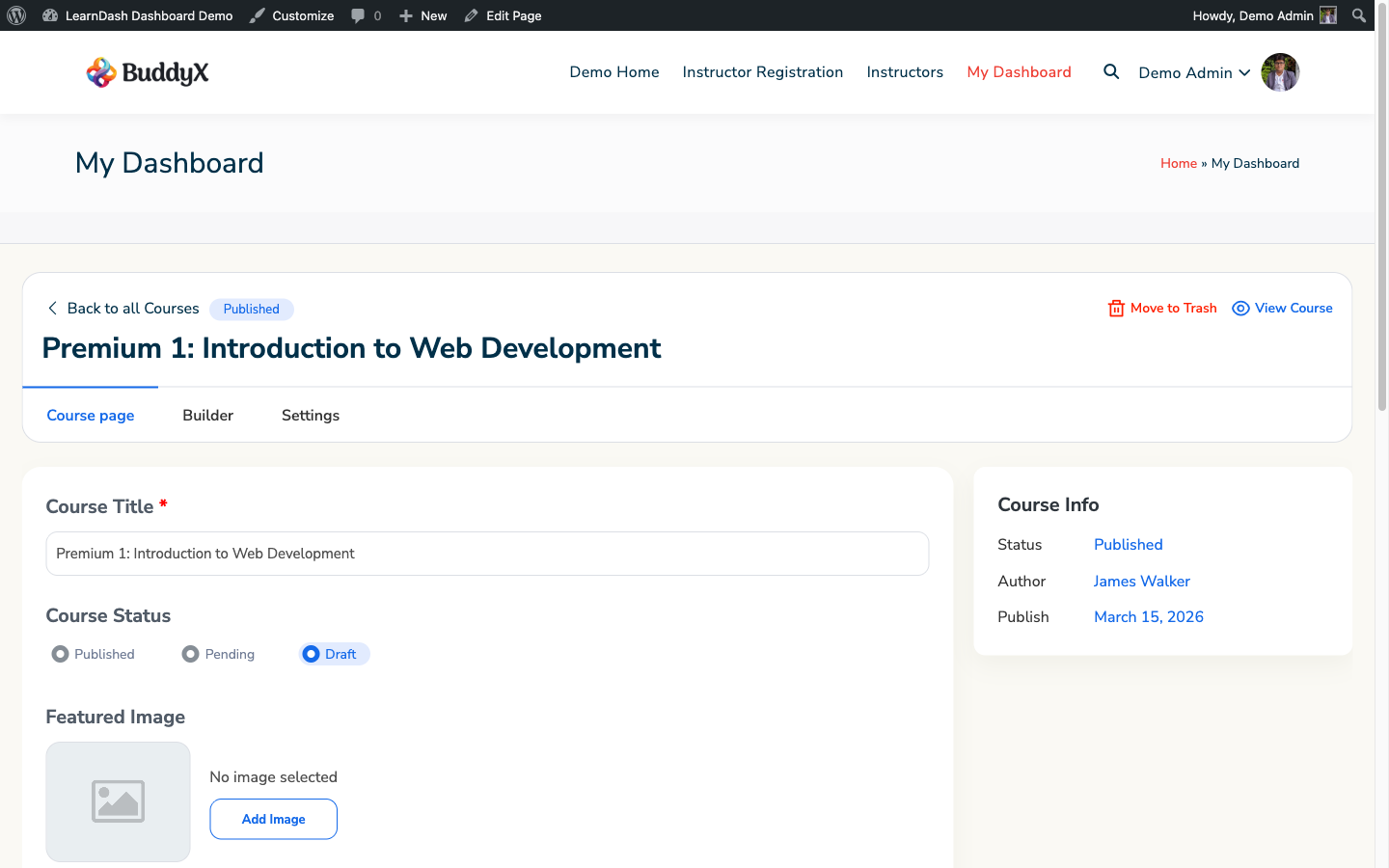
The front-end course editor opens with fields for:

  • Title — course name
  • Description — full course description (rich text editor)
  • Short Description — excerpt shown in listings
  • Featured Image — upload or change the course image
  • Price / Enrollment Type — open, free, paid, closed
  • Custom Fields — any fields configured in the ACF Field Builder (#acf-field-builder-ldd))

Click Save to publish changes immediately.


Managing Lessons and Topics

From the course editor, instructors can:

  • Add a lesson — click Add Lesson, fill in the title and content, and save
  • Edit an existing lesson — click the lesson title to open its edit form
  • Reorder lessons — drag and drop to change the lesson sequence
  • Add topics to a lesson — open the lesson editor and use Add Topic
  • Delete a lesson or topic — click the trash icon (confirmation required)

Changes to lesson order are saved immediately via AJAX.


Managing Quizzes

Instructors can create and edit quizzes from the course structure panel:

  1. In the course editor, click Add Quiz within a lesson.
  2. Set the quiz title, passing score, and time limit.
  3. Add questions using the question editor.
  4. Save the quiz.

Quiz question types supported from the front end: multiple choice, single choice, true/false, fill in the blank, essay.


Course Announcements

Announcements are messages displayed to all students enrolled in a course. They appear at the top of the course page and in the student's dashboard activity feed.

To post an announcement:

  1. Open the course from My Courses.
  2. Click the Announcements tab within the course editor.
  3. Click Add Announcement, write the message, and click Post.

Students enrolled in the course see the announcement the next time they view the course or their dashboard.


Course Cloning

Admins (and instructors with permission) can clone an existing course to create a duplicate with all its lessons, topics, and quizzes.

  1. Go to My Courses in the dashboard.
  2. Click the Clone button next to the course.
  3. The cloned course is created as a draft with "Copy of" prepended to the title.
  4. Edit the cloned course to update its title, content, and settings before publishing.

Cloning does not copy student enrollment or progress data — only course structure and content.


Notes

  • Instructors can only edit courses they are assigned to. Courses assigned to other instructors do not appear in their My Courses tab.
  • Front-end edits go through the same WordPress save hooks as admin edits — post revisions, hook callbacks, and ACF save actions all fire normally.

ACF Field Builder

The field builder lets site admins create custom fields that appear on front-end edit forms for courses, lessons, topics, quizzes, questions, and certificates. Instructors fill these fields in when editing content from their dashboard.

Requirement: Advanced Custom Fields (ACF free or Pro) must be installed and active.

For the admin-side configuration, see Frontend Fields in Settings. This page covers how the field builder works from an instructor's perspective.


What Instructors See

When an admin has added fields to a content type, those fields appear in the edit form when an instructor opens that content from their dashboard.

For example, if an admin creates a "Difficulty Level" select field for courses, instructors see a dropdown labeled Difficulty Level when they edit any of their courses. They select a value and click Save.

Field builder in edit form


Field Placement

Custom fields appear below the standard content fields (title, description, featured image) in the edit form. There is no drag-and-drop reordering from the front end — field order is set by the admin in the field builder configuration.


Supported Field Types

Instructors can fill in any of these field types from the front end:

  • Text — single-line input
  • Textarea — multi-line text
  • WYSIWYG — rich text editor
  • Number — numeric input
  • Email — email address
  • URL — web address
  • Select — dropdown with predefined options
  • Checkbox — one or more options
  • Radio — single selection from options
  • True/False — toggle
  • Image — image upload with media library access
  • File — file upload
  • Date Picker — calendar date selector

Saving Field Values

When an instructor clicks Save on an edit form, all field values are saved as post meta for that content item. Values are retrieved with get_field( 'field_name', $post_id ) (ACF) or get_post_meta( $post_id, 'field_name', true ) (standard WordPress).


Field Visibility Control

Admins can control which fields are shown using the ld_dashboard_prepare_acf_fields filter. See the Frontend Fields documentation for the filter reference.

By default, all fields registered through the field builder are shown to any user who has edit access to that content type.


Notes

  • The field builder creates ACF field groups automatically. Do not delete or rename these groups in the ACF field group editor, as this will break the front-end forms.
  • Field builder field keys follow the pattern field_ldd_{content_type}_{field_name}_{counter} (e.g., field_ldd_course_difficulty_1).
  • Rich text (WYSIWYG) fields require kses filtering to be disabled on save. The plugin handles this internally — field values are saved unfiltered for trusted roles (admin, instructor).

Course Announcements

Instructors post announcements to enrolled students directly from the front-end dashboard. Students see all published announcements for their courses without needing WordPress admin access.


How Announcements Work

Announcements are WordPress posts linked to a specific course. When an instructor publishes an announcement, all students enrolled in that course receive an email notification and the announcement appears in their Announcements tab.

Who can use this feature:

  • Instructors — Create, edit, and delete announcements for courses they manage
  • Admins — Create, edit, and delete any announcement on any course
  • Students — View published announcements for courses they are enrolled in

Creating an Announcement

  1. Log in to the front-end dashboard.
  2. Navigate to the Announcements tab in the sidebar.
  3. Click Add New Announcement.
  4. Fill in the announcement form:
Field Description
Title Short subject line for the announcement
Content Full announcement body (supports basic formatting)
Course The course this announcement is for (dropdown of your managed courses)
Status Draft, Pending Review, or Published
Featured Image Optional image displayed with the announcement
  1. Set Status to Published to make it visible to students immediately.
  2. Click Save.

Note: Instructors can only link announcements to courses they are assigned to. The course dropdown shows only your managed courses.


Draft and Pending Review

Save announcements as Draft while you are still writing them. Set to Pending Review if your site requires admin approval before publishing.

Status behavior:

  • Draft — Visible only to you in the Announcements tab
  • Pending Review — Visible to admins for review; not visible to students
  • Published — Visible to all enrolled students in the linked course

Editing and Deleting Announcements

To edit an existing announcement:

  1. Go to the Announcements tab.
  2. Find the announcement in the list and click Edit.
  3. Update any fields and save.

To delete:

  1. Open the announcement for editing.
  2. Click Delete (or set status to Trash).

Deleting an announcement is permanent. Students who have already read it will no longer see it.


Student View

Students see a read-only list of published announcements in their Announcements tab. Each entry shows:

  • Announcement title
  • Course name badge
  • Publish date
  • Excerpt

Students click the announcement to read the full content.


Email Notifications

When an announcement is published, Dashboard for LearnDash automatically sends an email to every student enrolled in the linked course.

The email uses the New Content Announcement template:

  • Subject: New content added to {course_name}
  • Body: Announcement title, excerpt, and a link to the dashboard

Students can opt out of announcement emails from the unsubscribe link in the email footer. Administrators can also disable announcement email notifications in Settings → Email Settings → Announcement Notifications.


Filtering Announcements

The Announcements tab includes filters for managing a long list:

Filter Options
Course All courses or a specific course
Status All, Draft, Pending, Published
Search Keyword search in title and content

Instructor vs. Admin View

Capability Instructor Admin
See own announcements Yes Yes
See all announcements No Yes
Create announcement Yes (own courses only) Yes (any course)
Edit announcement Own only Any
Delete announcement Own only Any
Publish without approval Depends on site settings Yes

Student Features

What students see and can do from the front-end dashboard

Student Dashboard

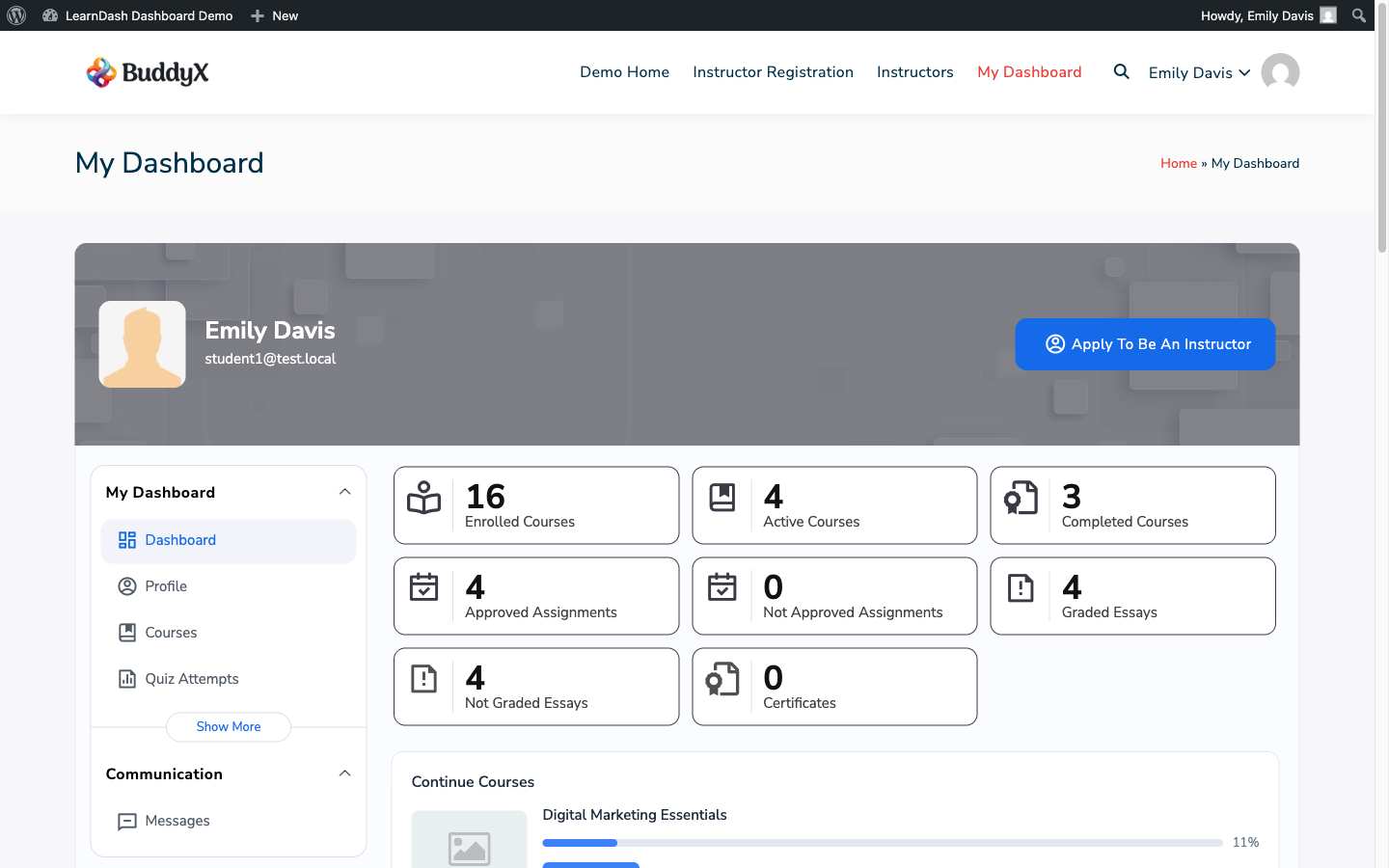
When a student visits /my-dashboard/, they see a role-aware dashboard showing only their own data. No other students' information is visible.

Student dashboard


Statistics Tiles

At the top of the dashboard, students see summary tiles:

  • Enrolled Courses — total number of courses the student is enrolled in
  • Completed Courses — courses where 100% progress has been achieved
  • Lessons Completed — total lessons marked complete across all courses
  • Quizzes Passed — total quizzes with a passing score
  • Certificates Earned — number of downloadable certificates available
  • Time Spent — total time recorded across all course content (if Time Tracking is enabled)

Enrolled Courses

The main content area shows the student's course list. Each course card displays:

  • Course title and featured image
  • Overall progress as a percentage and progress bar
  • Last activity date
  • Continue button linking to the next incomplete lesson
  • View Details button for a per-lesson progress breakdown

Courses are sorted by last activity date by default (most recently accessed first).


Recent Activity

The Recent Activity section shows a chronological feed of the student's learning events:

  • Lessons and topics completed
  • Quizzes taken (with pass/fail result)
  • Certificates earned
  • Group enrollment events
  • Messages received

Upcoming Lessons

If a course has scheduled drip content (lessons unlocked on a date or after a number of days), upcoming locked lessons appear in an Upcoming section so students know what is coming next.


Sidebar Navigation

The student's sidebar shows only the tabs that apply to them:

  • Dashboard — this overview
  • Courses — full course list with filters
  • Quiz Report — attempt history and scores
  • Assignments — submitted work and feedback
  • Certificates — earned certificates with download links
  • Messages — private messages inbox
  • Groups — any groups the student belongs to
  • Time Tracking — time spent per lesson (if enabled)

Tabs not relevant to students (Bulk Management, Insights, Commission Report) are hidden automatically.


Logged-Out Behavior

If a visitor who is not logged in tries to access /my-dashboard/, they are redirected to the login page. The login redirect URL is configurable in LearnDash Dashboard → Settings → General.

Quiz Attempts

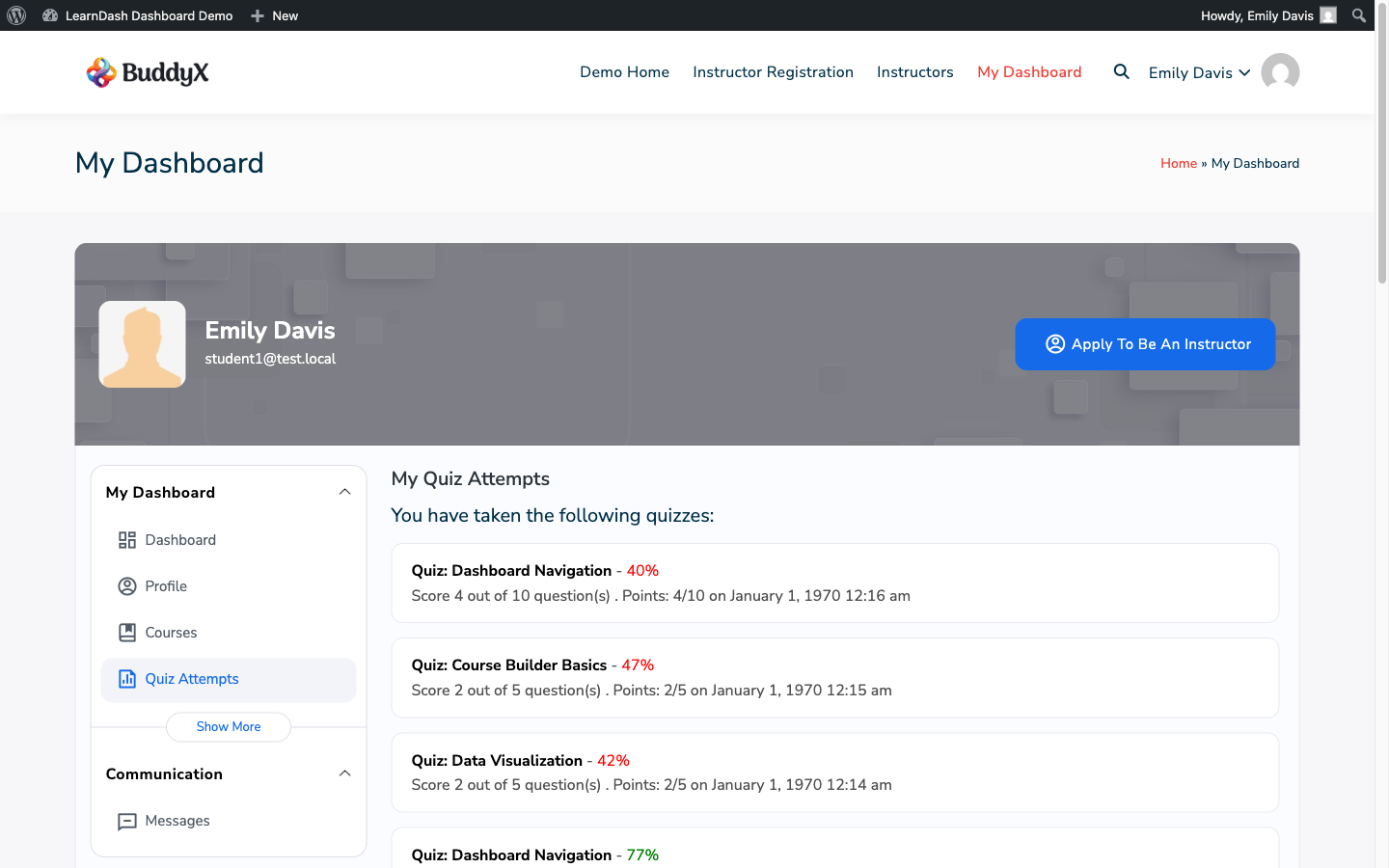
The Quiz Report tab shows a student's complete history of quiz attempts across all their enrolled courses.

Quiz report tab


What Students See

Each row in the quiz report represents one quiz attempt and shows:

  • Quiz Name — the quiz title, linked to the quiz
  • Course — the course the quiz belongs to
  • Date — when the attempt was made
  • Score — percentage scored
  • Pass/Fail — status badge (see below)
  • Actions — view attempt details or retake (if retakes are allowed)

Status Badges

Each attempt is labeled with a colored badge:

Badge Meaning
Passed (green) Score met or exceeded the passing threshold
Failed (red) Score was below the passing threshold
Pending (yellow) Essay or manual-grade quiz awaiting instructor review
Not Attempted (grey) Quiz exists in the course but has no attempts yet

Viewing Attempt Details

Click View Details on any passed or failed attempt to see:

  • Each question asked
  • The student's answer
  • Whether the answer was correct
  • The correct answer (if the quiz allows showing answers)
  • Points earned per question

This detail view is the same view instructors see when reviewing a student's attempt.


Filtering

Students can filter the quiz report by:

  • Course — show only quizzes from a specific course
  • Status — show only passed, failed, pending, or not-attempted quizzes
  • Date range — filter by attempt date

Retaking a Quiz

If the course is configured to allow quiz retakes, a Retake button appears on failed attempts. Clicking it takes the student directly to the quiz.

If retakes are not allowed, the button is absent. The allowed number of retakes and the retake delay are controlled in the LearnDash quiz settings, not in this plugin.


Note on Merged View

The quiz attempts history and quiz report are combined in a single tab. There is no separate "quiz attempts" tab — all attempt data appears within Quiz Report.

Certificates and Assignments


Certificates

The Certificates tab lists all certificates a student has earned across their enrolled courses.

Certificates tab

What Is Shown

Each certificate entry displays:

  • Certificate Name — the certificate title
  • Course — the course it was earned from
  • Date Earned — when the certificate was awarded
  • Download button — generates and downloads the certificate PDF

Certificates are only listed here after the student has met the completion criteria set in the course's LearnDash settings (e.g., completed all lessons, passed all required quizzes).

Downloading a Certificate

Click the Download button next to any certificate. The plugin generates the LearnDash certificate PDF on the fly and downloads it to your browser. Certificate design and content are managed in LearnDash → Certificates in the WordPress admin.


Assignments

The Assignments tab shows all assignment submissions a student has made across their enrolled courses.

Assignments tab

Assignment Status

Each submission shows one of these statuses:

Status Meaning
Pending Review Submitted, waiting for instructor feedback
Approved Instructor has approved the submission
Not Graded Submitted to a lesson that does not require approval

Viewing Feedback

When an instructor leaves feedback on a submission, a View Feedback button appears on the assignment row. Click it to open a modal showing the instructor's comments.

Resubmitting

If an instructor marks a submission for revision (depending on your LearnDash assignment settings), a Resubmit button appears. Click it to upload a new file or edit your submission text.

File Previews

For file-based assignments, click the file name to open a preview panel directly in the dashboard without downloading. Supported preview types: images (JPG, PNG, GIF), PDFs, and plain text files. Other file types show a download link instead.


Notes

  • Certificate availability is controlled entirely by LearnDash course settings — the dashboard displays them, it does not manage when they are awarded.
  • Assignment file size limits are set by your server's PHP upload_max_filesize and post_max_size values, not by the plugin.

Time Tracking

The Time Tracking feature records how long a student actively spends on each lesson and topic. It provides a factual view of time-on-content rather than relying solely on completion checkmarks.


How Time Is Recorded

The plugin starts a timer when a student opens a lesson or topic page within the front-end dashboard. The timer pauses when:

  • The browser tab goes to the background (Page Visibility API)
  • The user is idle for more than 5 minutes
  • The browser window loses focus

When the student returns or navigates away, the elapsed active time is saved via AJAX to the plugin's time tracking database table.

Time is accumulated across sessions — if a student reads half a lesson today and finishes it tomorrow, both sessions are added together.


Student View

Students see their time data in the Time Tracking tab.

Time tracking student view

The tab displays:

  • Total Time — aggregate time across all courses
  • Per-Course Breakdown — expandable rows showing time per lesson and topic within each course
  • Last Accessed — when the lesson was most recently opened

Time is displayed in hours and minutes (e.g., "2h 14m").


Instructor View

Instructors see time tracking data for their students in the My Students tab. Select a student to see a per-course, per-lesson time breakdown for that student.


Admin View

Admins can view time tracking data for any student from:

  • My Students tab — select any student for their time breakdown
  • Student Details report — includes time spent as a column in the export

The time data is also available via the database for custom reporting.


Enabling Time Tracking

Time Tracking is enabled by default on activation. To disable it:

  1. Go to LearnDash Dashboard → Settings → General.
  2. Find the Time Tracking toggle and set it to Disabled.
  3. Save changes.

When disabled, the Time Tracking tab is hidden from all roles and no new time data is recorded. Existing data is preserved.


Notes

  • Time tracking requires JavaScript to be enabled in the student's browser.
  • Time data is stored in a custom plugin table, not in LearnDash's activity tables.
  • Time on quiz pages is not tracked (students are expected to be actively answering, not passively reading).

Profile Management

Every user on Dashboard for LearnDash can update their profile, upload an avatar, and manage custom profile fields entirely from the front-end dashboard. No WordPress admin access required.


Accessing Your Profile

  1. Log in to the dashboard.
  2. In the sidebar, click Profile.
  3. Click Edit Profile to open the edit form.

Direct URL: your-dashboard-page/?tab=profile&section=edit


Editable Profile Fields

Field All Users Instructors & Admins Only
First Name Yes
Last Name Yes
Display Name Yes
Email Address Yes
Website URL Yes
Bio / Description Yes
Avatar Yes
Phone Number Yes

Display Name Options

The Display Name field is a dropdown with these options:

  • First Name
  • Last Name
  • First Name + Last Name
  • Username

Your display name appears in reports, messages, and the instructor listing.


Uploading an Avatar

  1. Click Change Avatar in the profile edit form.
  2. The WordPress media uploader opens.
  3. Upload a new image or select one from your Media Library.
  4. Click Select to confirm.

The avatar is stored as a WordPress media attachment linked to your user account. It appears in the dashboard header, instructor listings, and message threads.

To remove your avatar, click Remove Avatar. The dashboard falls back to a generated or Gravatar-based avatar.

Recommended size: At least 200×200 px. The dashboard displays avatars at various sizes and handles cropping automatically.


Bio / Description

The bio field accepts plain text. It appears on:

  • The instructor profile card visible to students
  • The public profile tab (if BuddyPress is active)

Keep bios concise — one to three sentences describing your teaching background or expertise.


Password Changes

Dashboard for LearnDash does not include a native password change form. To change your password:

  • Without BuddyPress: Use the WordPress Lost Password flow at /wp-login.php?action=lostpassword
  • With BuddyPress active: Use the Change Password section in your BuddyPress profile

Custom Profile Fields

Admins can add custom fields to the profile form using the ACF Field Builder. If custom fields have been configured for your user role, they appear as additional sections in the profile edit form.

Examples of custom profile fields:

  • LinkedIn URL
  • Expertise tags
  • Department (for corporate training sites)
  • Instructor bio (long-form)

See ACF Field Builder for how admins configure these fields.


Saving Your Profile

After making changes, scroll to the bottom of the form and click Update Profile. A success message confirms the save. Changes take effect immediately.

If required fields are left empty (such as email), an error message highlights the missing field before saving.


For Developers: Profile Hooks

Developers can extend the profile form using these hooks:

// Add custom fields to the profile form
add_filter( 'ld_dashboard_user_profile_fields', function( $fields ) {
    $fields['linkedin_url'] = [
        'title'   => 'LinkedIn URL',
        'tag'     => 'input',
        'type'    => 'url',
        'name'    => 'linkedin_url',
        'value'   => get_user_meta( get_current_user_id(), 'linkedin_url', true ),
        'section' => 'contact',
    ];
    return $fields;
} );

// Save custom fields on profile update
add_action( 'ld_dashboard_save_user_profile_fields', function( $user_id, $data ) {
    if ( isset( $data['linkedin_url'] ) ) {
        update_user_meta( $user_id, 'linkedin_url', sanitize_url( $data['linkedin_url'] ) );
    }
}, 10, 2 );

Additional action hooks available around the form:

  • ld_dashboard_before_profile_setting_form — Before the <form> tag
  • ld_dashboard_before_profile_setting_fields — Before the first field group
  • ld_dashboard_after_profile_setting_fields — After the last field group
  • ld_dashboard_after_profile_setting_form — After the </form> tag

Communication

Private messaging between students, instructors, and admins

Private Messages

Dashboard for LearnDash includes a built-in private messaging system that lets students, instructors, and admins send direct messages to each other without leaving the front-end dashboard. No third-party plugin required.


How Messaging Works

Messages are stored in a dedicated database table ({prefix}ld_dashboard_messages) and delivered entirely through the dashboard UI. Messages are not routed through email by default — a notification email is sent when a new message arrives, but the full conversation lives in the dashboard.

Conversations are threaded: replies to a message create a thread under the original, so the inbox stays organized.


Who Can Message Whom

Role Can send messages to
Student Instructors of courses they are enrolled in
Instructor Students enrolled in their courses
Group Leader Members of groups they manage
Admin Any user on the site

This permission model keeps messaging relevant to courses — students cannot cold-message random instructors or other students outside their courses.


Accessing Messages

  1. Log in to the front-end dashboard.
  2. Click Messages in the sidebar navigation.
  3. The inbox opens, showing all conversations grouped by the other participant.

The sidebar navigation badge shows the unread message count and updates in real time.

Direct URL: your-dashboard-page/?tab=messages


Composing a New Message

  1. In the Messages tab, click New Message (or the compose icon).
  2. In the To field, type the recipient's name. The field autocompletes based on your permitted recipients.
  3. Optionally select a Course to tag the message to a specific course context.
  4. Enter a Subject and your Message body.
  5. Click Send.

The recipient immediately sees the message in their inbox and receives an email notification.

Note: If you do not see a user in the recipient autocomplete, they are not in your permitted recipients list. Students can only message instructors of their enrolled courses; instructors can only message their own enrolled students.


Reading and Replying

Click any conversation in the inbox to open the thread view. The full message history is displayed chronologically.

To reply:

  1. Type in the reply box at the bottom of the thread.
  2. Click Send Reply.

All participants in the thread see the reply added to the conversation.


Course Context

When composing a message, the Course dropdown lets you tag the message to a specific course. This is optional but helps instructors filter their inbox by course when managing many students.

The inbox includes a Course filter at the top — select a course to see only messages related to that course.


Deleting Messages

To delete a conversation:

  1. Open the conversation.
  2. Click the Delete button (trash icon) at the top of the thread.

Deletion is soft-delete — the conversation is hidden from your inbox immediately, but the other participant still sees it. The record is fully deleted from the database only when both participants have deleted it.


Email Notifications

When a message is received, Dashboard for LearnDash sends an email notification to the recipient using the New Message email template.

  • Subject: You have a new message from {sender_name}
  • Body: Sender name, subject, message excerpt, and a link to the dashboard Messages tab.

Recipients can opt out of message notification emails from the unsubscribe link in the email footer. Admins can also disable message email notifications in Settings → Email Settings → Message Notifications.


Admin View

Admins see all messages on the site and can filter by course or participant. The admin dashboard does not expose private message content by default — messages are only visible through the front-end dashboard by the participants (or an admin with explicit access).


For Developers: REST API

The messaging system is powered by a REST API under the /wp-json/ld-dashboard/v2/messages/ namespace. See REST API Reference for full endpoint documentation.

Key endpoints:

  • GET /wp-json/ld-dashboard/v2/messages — List inbox messages
  • POST /wp-json/ld-dashboard/v2/messages — Send a new message
  • GET /wp-json/ld-dashboard/v2/messages/{id} — Get a single thread
  • PUT /wp-json/ld-dashboard/v2/messages/{id} — Mark as read
  • DELETE /wp-json/ld-dashboard/v2/messages/{id} — Delete a message
  • GET /wp-json/ld-dashboard/v2/messages/unread-count — Unread badge count
  • GET /wp-json/ld-dashboard/v2/messages/recipients — Autocomplete recipient list

Database Schema

The messages table structure (for developers building integrations):

Column Type Description
id bigint Auto-increment primary key
sender_id bigint WordPress user ID of sender
recipient_id bigint WordPress user ID of recipient
course_id bigint Optional course context (0 = none)
subject varchar Message subject
message longtext Message body
parent_id bigint Thread parent ID (0 = root message)
created_at datetime Send timestamp (UTC)
read_at datetime Read timestamp (NULL = unread)
deleted_by_sender tinyint Soft-delete flag for sender
deleted_by_recipient tinyint Soft-delete flag for recipient

Group Management

Groups, seat management, enrollment codes, and Uncanny Groups integration

Groups Overview

The Groups tab brings LearnDash group management into the front-end dashboard. Group leaders can manage their groups, view member progress, and distribute enrollment codes — without needing WordPress admin access.

Groups tab


What Group Leaders See

When a user who is assigned as a Group Leader in LearnDash opens the Groups tab, they see:

  • A list of groups they lead
  • Seat allocation for each group (used / total seats)
  • Member list with enrollment and progress status
  • Enrollment codes panel for generating and managing codes
  • Group creation wizard (if enabled for their role)

What Admins See

Admins see all groups on the site, not just groups they lead. They can:

  • View and manage any group
  • Create new groups
  • Edit seat limits and group settings
  • See all enrollment codes across all groups

Hierarchy Badges

Members within a group are labeled with a hierarchy badge:

Badge Role
Leader The group leader (primary manager)
Sub-Leader A secondary leader with limited management rights
Member A regular enrolled member

Badges appear next to each member's name in the group member list.


Seat Allocation

Each group can have a seat limit. The seat count display shows:

12 / 25 seats used

When a group is full, new enrollment code redemptions are blocked and the student sees an "enrollment closed" message. Admins and group leaders can increase the seat limit at any time.


Group Creation Wizard

The group creation wizard is a step-by-step front-end form for creating a new LearnDash group:

  1. Group Details — name, description
  2. Course Assignment — select which courses the group provides access to
  3. Seat Limit — set maximum enrollment (optional)
  4. Leader Assignment — assign a group leader
  5. Review & Create — confirm and submit

The wizard maps form fields by data-name attribute. If your site uses ACF for custom group fields, those fields appear as a flat list (no tabs) in the wizard.


Notes

  • Group access in LearnDash is granted through group membership, not through course_{id}_access_from user meta. The plugin follows this model — enrolling a user in a group gives them access to all courses in the group.
  • The Groups tab is separate from the Uncanny Groups module. See Uncanny Groups for the module that adds Uncanny-specific seat and code management.

Enrollment Codes

Enrollment codes let students self-enroll into a LearnDash group by entering a code on the dashboard. Group leaders and admins generate and manage codes from the Groups tab.


How Codes Work

  1. An admin or group leader generates one or more codes for a group.
  2. Codes are shared with prospective students (email, PDF, event handout, etc.).
  3. A student visits /my-dashboard/ and enters the code in their Groups tab.
  4. The plugin validates the code: checks it exists, is not expired, and has seats remaining.
  5. If valid, the student is enrolled in the group and gains access to all courses in that group.

Generating Codes

  1. Open the Groups tab in the dashboard.
  2. Select the group you want to generate codes for.
  3. Click Enrollment Codes → Generate New Code (or Generate Bulk Codes for multiple).
  4. Set:
    • Code — auto-generated or enter a custom alphanumeric string
    • Seat Limit — how many times this single code can be used (leave blank for unlimited)
    • Expiry Date — date after which the code stops working (leave blank for no expiry)
  5. Click Generate.

The new code appears in the Enrollment Codes table immediately.

Enrollment codes panel


Managing Existing Codes

The Enrollment Codes table shows all codes for the selected group with columns:

Column Description
Code The alphanumeric code string
Uses How many times it has been redeemed / seat limit
Expiry Expiry date or "No Expiry"
Status Active / Expired / Full
Actions Copy, deactivate, or delete

Click Deactivate to disable a code without deleting it. Deactivated codes can be reactivated later.


Student Redemption

Students redeem codes from their Groups tab:

  1. Open My Dashboard → Groups.
  2. Click Redeem a Code or find the code entry field.
  3. Enter the code and click Join Group.

If the code is valid, the student is immediately enrolled in the group. If invalid (wrong code, expired, or full), a descriptive error message is shown.


Viewing Redemption History

In the Enrollment Codes panel, click any code to see a log of which students redeemed it and when. This is useful for auditing enrollment at events or tracking code distribution.


Notes

  • Codes are case-insensitive during redemption — students can type uppercase or lowercase.
  • A student can only join a group once. Redeeming a second code for the same group has no effect (no double enrollment, no error shown).
  • Deleting a code does not remove students who have already redeemed it from the group.

Uncanny Groups Module

The Uncanny Groups module integrates the Uncanny Groups plugin features into Dashboard for LearnDash. When active, seat management and enrollment code workflows specific to Uncanny Groups become available within the LD Dashboard interface.


Requirements

  • The Uncanny Groups plugin must be installed and active on your site.
  • Dashboard for LearnDash must have the Uncanny Groups module enabled in settings.

If Uncanny Groups is not active, the module is automatically skipped and no errors are shown.


Enabling the Module

  1. Go to LearnDash Dashboard → Settings → Modules.
  2. Find the Uncanny Groups module toggle.
  3. Enable it and click Save Changes.

If Uncanny Groups is not detected, the toggle will be grayed out with a note explaining the missing dependency.


What the Module Adds

With the module active, the Groups tab gains Uncanny-specific controls:

Seat Management

Uncanny Groups uses its own seat tracking system. The module replaces the standard seat display with Uncanny's seat data, showing:

  • Total seats purchased for the group
  • Seats currently used
  • Seats remaining
  • Seat usage per course (if Uncanny Groups tracks per-course seats)

Group leaders can see this data in real time without visiting the WordPress admin.

Enrollment Code Management

The Uncanny Groups module surfaces Uncanny's enrollment code system within the dashboard:

  • View all Uncanny enrollment codes for your groups
  • See redemption counts and remaining uses per code
  • Deactivate codes that should no longer be used

Code generation for Uncanny Groups is handled by the Uncanny Groups plugin itself. The module provides a read and management view within LD Dashboard, but code creation follows Uncanny's own workflow.


Differences from Native Groups

Feature Native LearnDash Groups With Uncanny Groups Module
Seat tracking LD Dashboard custom seats field Uncanny Groups seat data
Enrollment codes LD Dashboard code generator Uncanny Groups codes
Code redemption Via LD Dashboard Groups tab Via Uncanny's redemption page
Group hierarchy Leader / Sub-Leader / Member Follows Uncanny Groups structure

Notes

  • The module does not replace Uncanny Groups — it adds a dashboard interface for it. Uncanny Groups must remain active.
  • If you deactivate Uncanny Groups, the module automatically disables itself and falls back to the standard LD Dashboard groups behavior.
  • Student-facing code redemption uses Uncanny's own redemption page and flow — the LD Dashboard Groups tab displays their group memberships but does not override Uncanny's redemption process.

Bulk Management

Bulk enrollment, CSV import, and subscription management

Bulk Management Overview

The Bulk Management tab provides tools for performing large-scale enrollment and data operations across your entire LearnDash site. It is available to admins only — instructors and students do not see this tab.

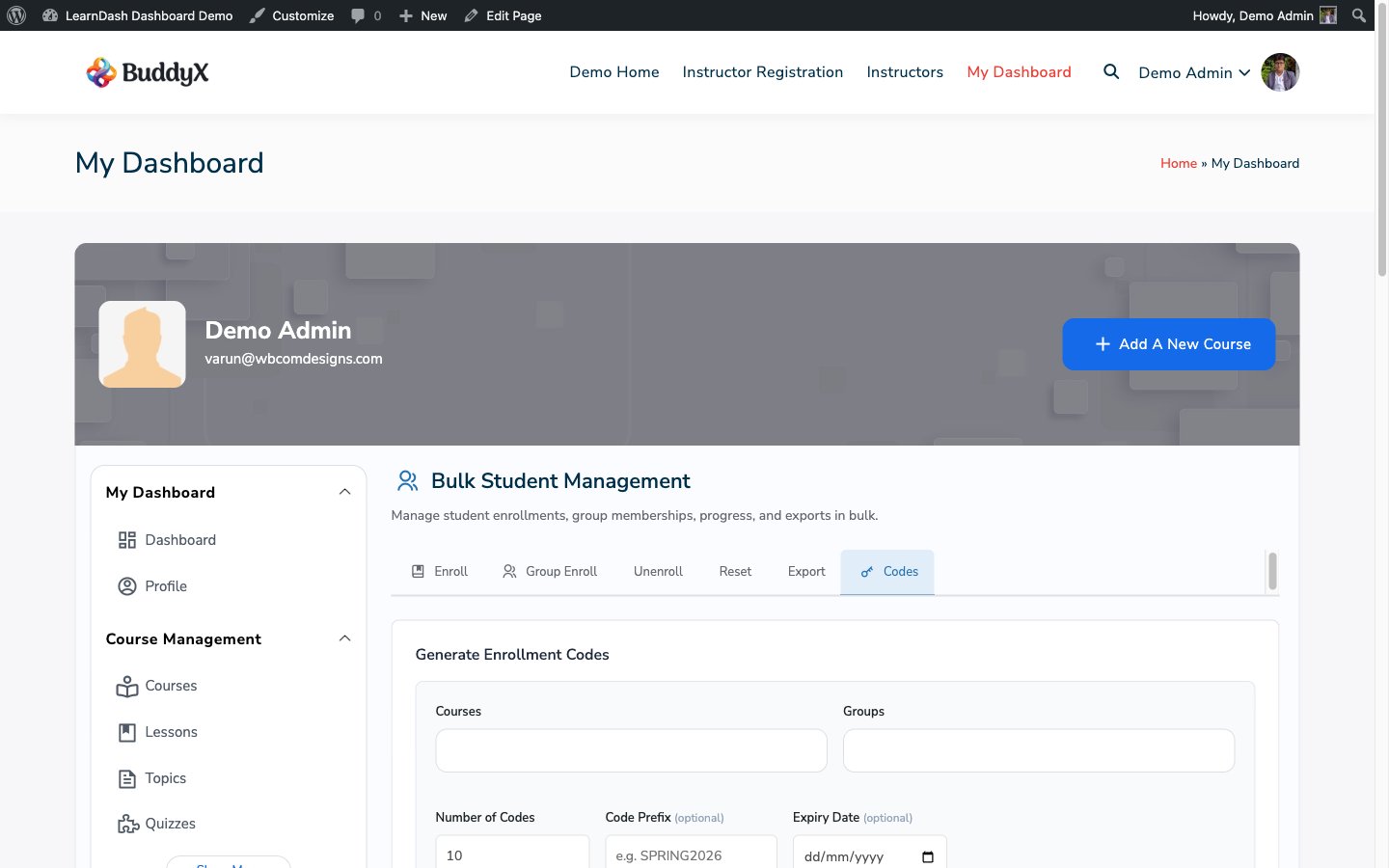
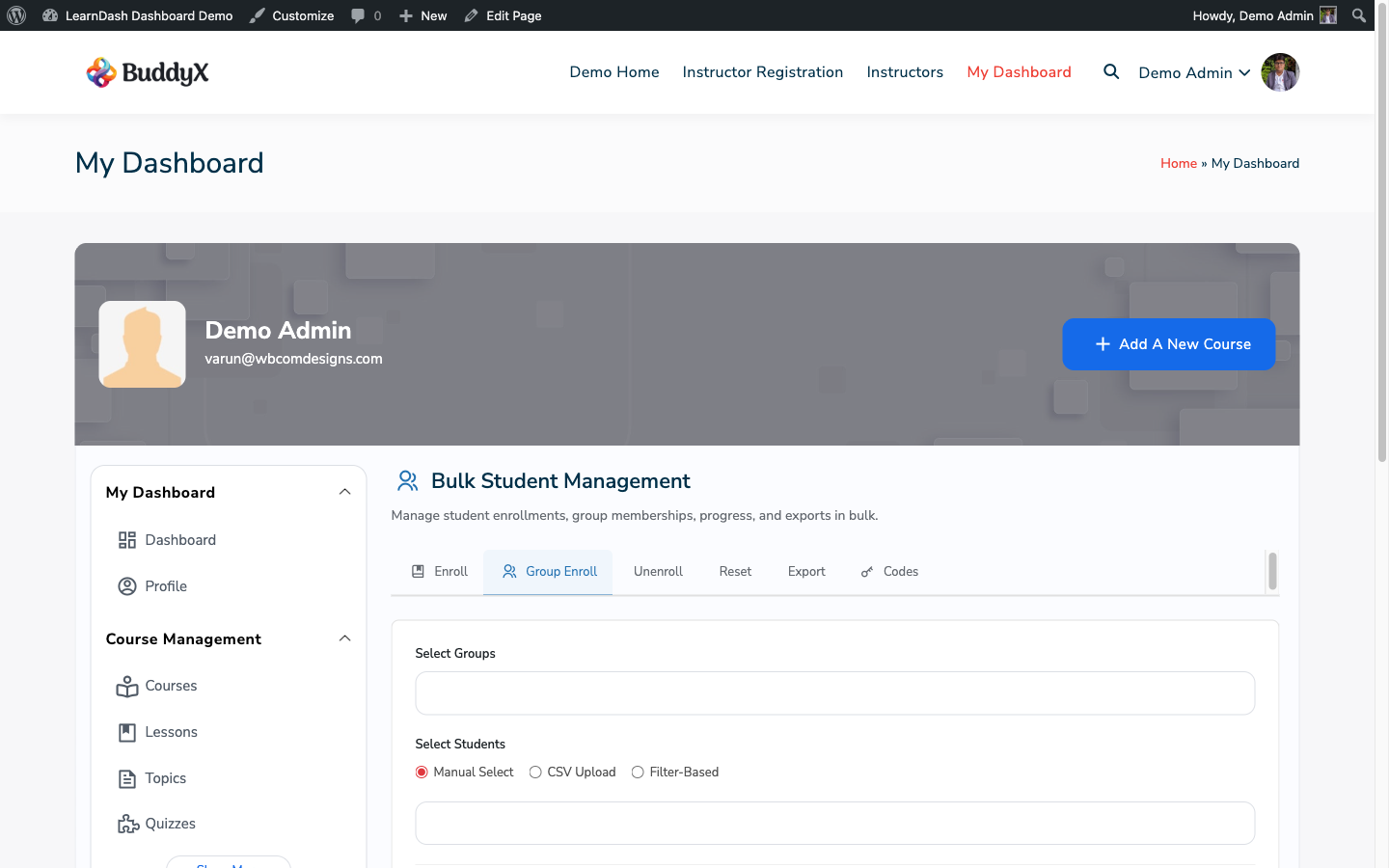
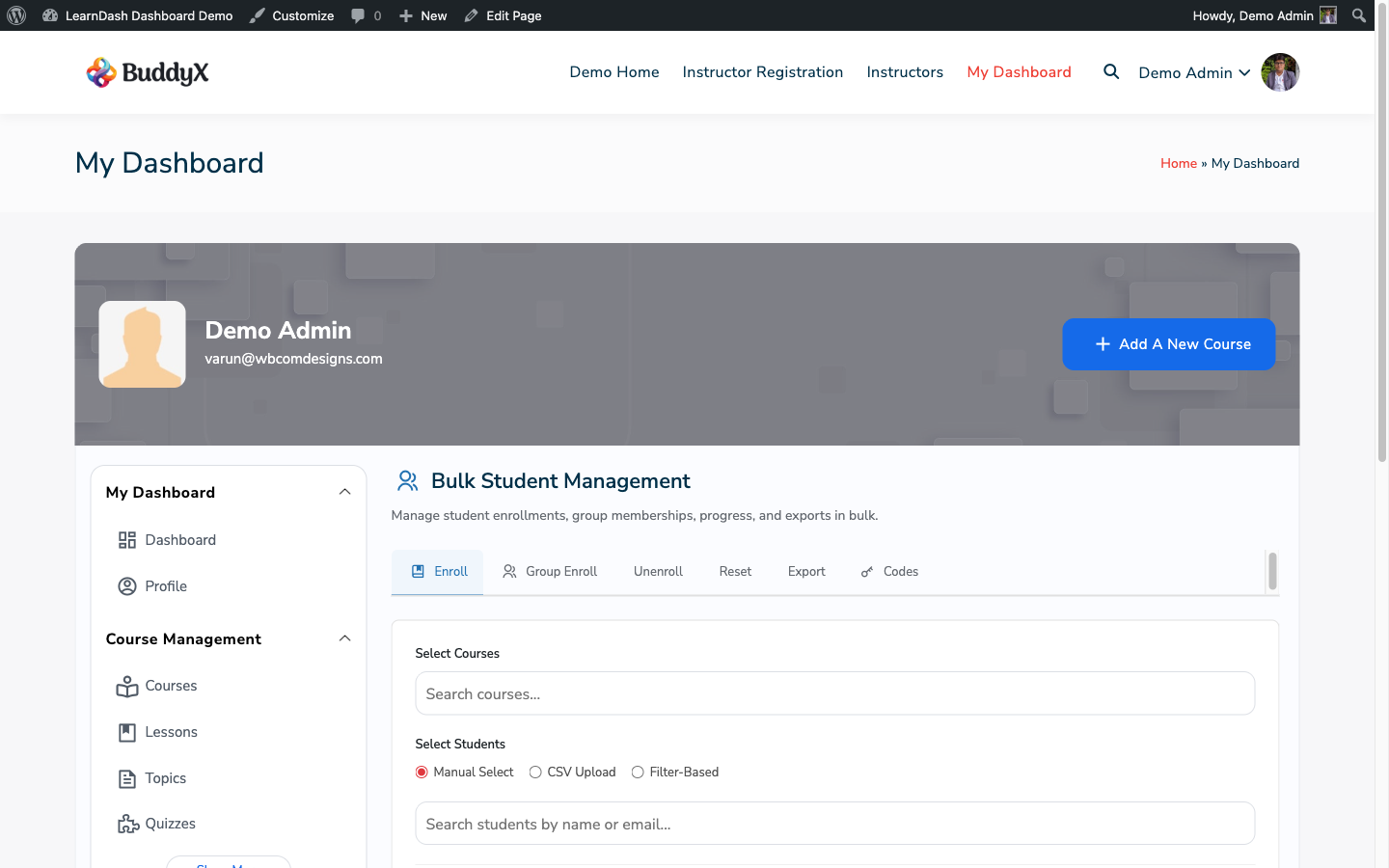
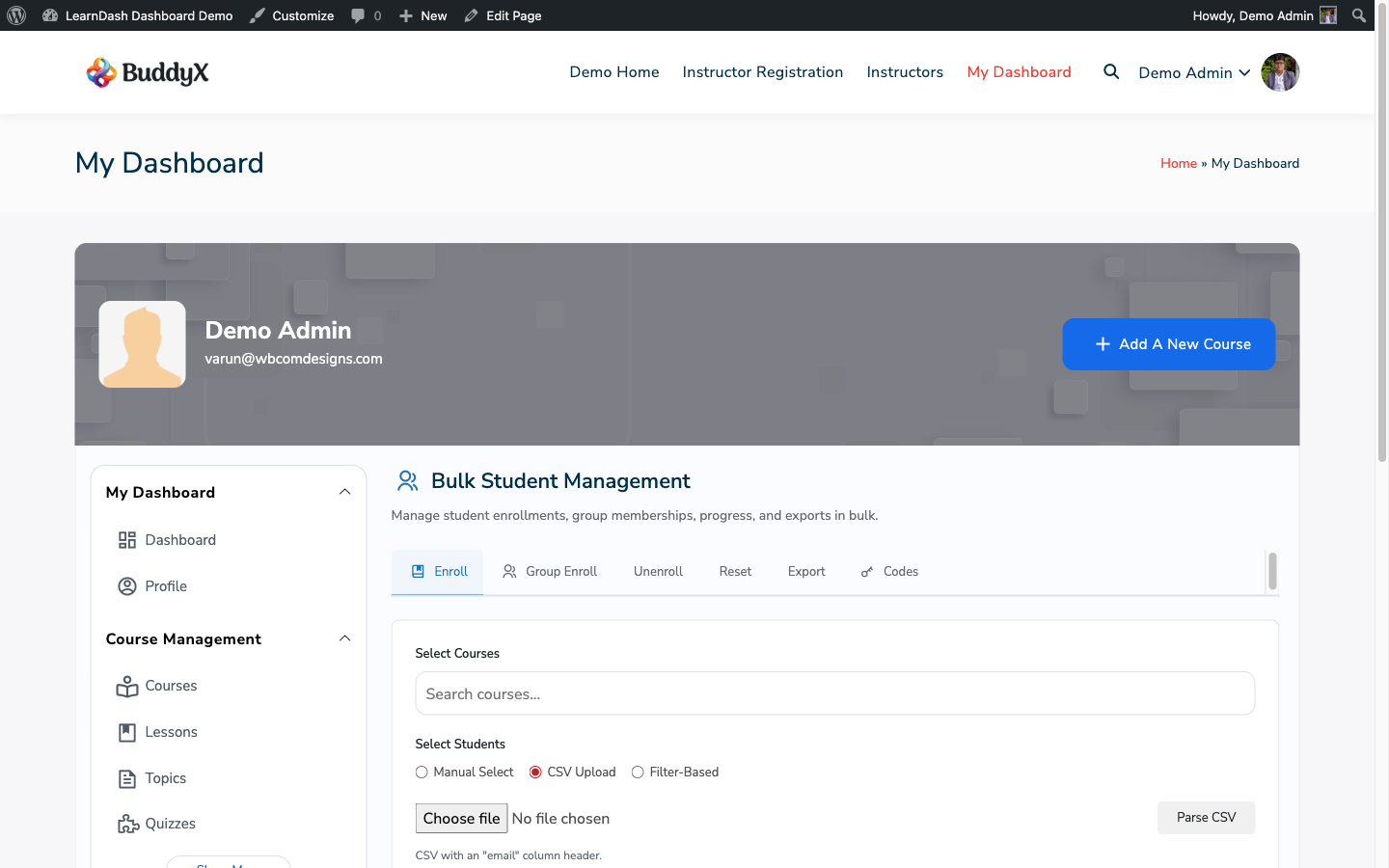
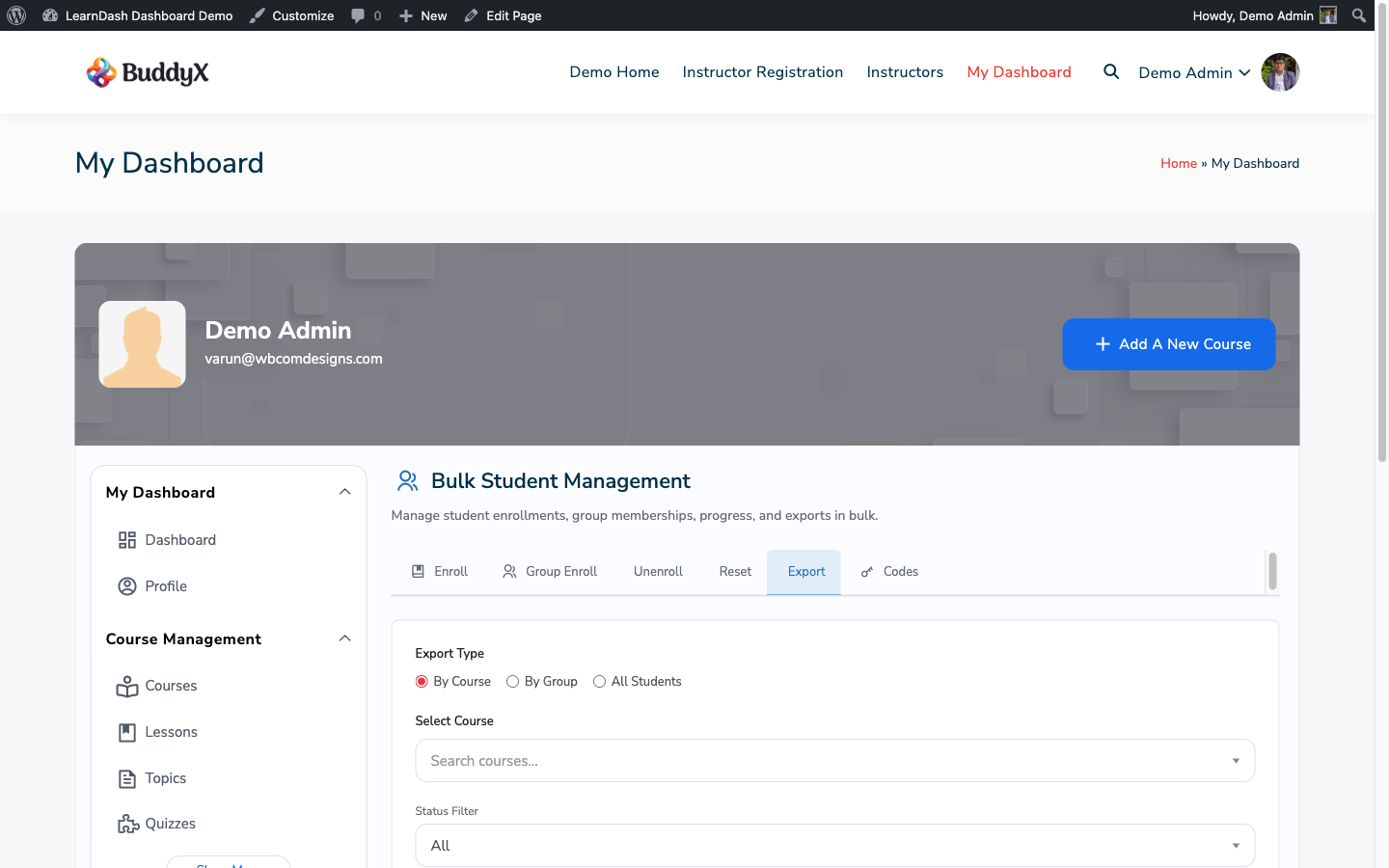
Bulk management tab


The Five Sub-Tabs

Sub-Tab What It Does
Students Enroll or unenroll multiple students in courses or groups at once
Courses Perform course-level bulk actions (e.g., reset progress for all enrolled users)
Groups Assign or remove multiple users from groups in bulk
Subscriptions View and manage WooCommerce subscription statuses for enrolled students
CSV Import Upload a CSV file to enroll students in bulk using a spreadsheet

Who Can Access

Only users with the Administrator role can access the Bulk Management tab. The tab does not appear in the sidebar for instructors or students, regardless of any menu settings.


Chunked Processing

Bulk operations on large datasets run in chunks to avoid PHP timeout errors. When you trigger a bulk action for more than 50 users:

  1. The plugin processes the first chunk immediately.
  2. A progress bar appears showing how many records have been processed.
  3. Subsequent chunks are processed automatically via AJAX until all records are complete.
  4. A success message is shown when the full operation is done.

Chunk size is configurable (default: 50 users per chunk). For very large sites, reduce the chunk size if you see timeout errors.


Before Running Bulk Operations

  • Make a database backup before running large bulk enrollments or unenrollments. Bulk operations directly modify LearnDash enrollment data and cannot be undone from the dashboard.
  • Test with a small group of users first if you are unfamiliar with the operation.
  • Bulk operations trigger LearnDash enrollment hooks normally — any third-party plugins that listen to enrollment events (email notifications, webhook triggers) will fire for each record.

Next Steps

Bulk Enrollment

Use the Students and Groups sub-tabs in Bulk Management to enroll or unenroll multiple users at once without editing each user individually.


Enrolling Students in Courses

  1. Go to My Dashboard → Bulk Management → Students.
  2. In the Select Students field, search for and add the users you want to enroll. You can add users one at a time or paste a comma-separated list of email addresses.
  3. In the Select Courses field, search for and add the courses to enroll them in.
  4. Choose the action: Enroll or Unenroll.
  5. Click Run Bulk Action.

The plugin processes the operation in chunks (default 50 users per chunk) and shows a progress bar. When complete, a summary shows how many enrollments succeeded and any that were skipped (e.g., user was already enrolled).

Bulk enrollment screen


Enrolling Students in Groups

  1. Go to My Dashboard → Bulk Management → Groups.
  2. Select the users to add.
  3. Select the groups to add them to.
  4. Choose Enroll in Group or Remove from Group.
  5. Click Run Bulk Action.

Enrolling a user in a LearnDash group automatically grants them access to all courses in that group — you do not need to separately enroll them in each course.


Bulk Unenroll

Both the Students and Groups sub-tabs support unenrollment. Select the users and courses (or groups) and choose Unenroll as the action.

Unenrolling removes the user's access to the course. Their progress data is preserved by default unless you enable the reset option.


Reset Progress Option

A Reset Progress checkbox is available when running a bulk unenroll. When checked:

  • All lesson and topic completion records for the selected users + courses are deleted
  • Quiz attempts are removed
  • The user's progress percentage for those courses returns to 0%

This is irreversible. Only check Reset Progress if you are certain you want to erase learning history (e.g., re-enrolling students for a new cohort).


Enrollment Notifications

If LearnDash or a third-party plugin sends enrollment email notifications, those emails will fire for each user processed in the bulk operation. For large batches, consider disabling enrollment emails temporarily before running the bulk action, then re-enabling them.


Notes

  • Users must already exist in WordPress to be enrolled. This tool does not create new WordPress user accounts. Use CSV Import for that workflow.
  • The search field in Select Students supports searching by name or email address.
  • Duplicate enrollments are silently skipped — enrolling a user who is already enrolled in a course has no effect.

CSV Import

The CSV Import sub-tab lets you enroll multiple students using a spreadsheet. This is the fastest way to onboard a large cohort when you have a list of students and their course assignments ready.


CSV Format

Your CSV file must have a header row with the following columns:

Column Required Description
email Yes Student's email address. Must match an existing WordPress user.
course Yes Course title or course ID.
group No Group name or group ID. If provided, user is enrolled in the group instead of directly in the course.
first_name No Creates a new user if the email does not exist (if user creation is enabled).
last_name No Used only when creating new users.

Minimal CSV (enroll existing users):

email,course
student@example.com,Introduction to Marketing
jane@example.com,Advanced SEO
bob@example.com,Introduction to Marketing

CSV with group enrollment:

email,course,group
student@example.com,Introduction to Marketing,Cohort 2024
jane@example.com,Introduction to Marketing,Cohort 2024

Uploading the File

  1. Go to My Dashboard → Bulk Management → CSV Import.
  2. Click Choose File and select your CSV.
  3. Click Preview Import to see a summary of what will be processed.
  4. Review the preview table — it shows each row, the matched user, matched course, and any validation warnings.
  5. Click Run Import to execute.

CSV import screen


Column Mapping

If your CSV uses different column names, use the Column Mapping step that appears after upload. Map each column in your file to the expected field (email, course, group, etc.) and proceed.


Reviewing Results

After import completes, a results table shows:

Status Meaning
Enrolled Successfully enrolled
Already Enrolled User was already enrolled — skipped, no error
User Not Found No WordPress user with that email address
Course Not Found No course matched the title or ID
Skipped Row was invalid or empty

Download the results as a CSV using the Download Results button to review errors offline.


Error Handling

Errors in individual rows do not stop the import. The plugin processes all valid rows and logs errors for invalid ones. Fix errors in your CSV and re-import only the failed rows using the Download Failed Rows button, which generates a CSV containing only rows that did not succeed.


Creating New Users on Import

If your CSV includes first_name and last_name columns and the Create Users option is enabled in settings:

  • New WordPress accounts are created for email addresses not found in the database
  • Auto-generated passwords are emailed to new users via the standard WordPress new user notification
  • New users are assigned the role set in Settings → General → Registration Role

This option is disabled by default. Enable it in LearnDash Dashboard → Settings → Bulk Management.

Subscription Management

The Subscriptions sub-tab in Bulk Management gives admins a central view of all WooCommerce subscriptions linked to LearnDash course access. From here you can view subscription status and perform bulk actions on multiple subscriptions at once.

Requirement: WooCommerce and WooCommerce Subscriptions must be active.


What Is Shown

The subscriptions table lists all active and recent subscriptions for LearnDash-connected WooCommerce products. Each row shows:

  • Student — subscriber's name and email
  • Course(s) — LearnDash course(s) linked to the subscription product
  • Status — Active, Pending, On Hold, Cancelled, Expired
  • Start Date — when the subscription began
  • Next Payment — next scheduled renewal date
  • Actions — manage individual subscription

Subscription management screen


Filtering Subscriptions

Use the filter bar at the top of the table to narrow the list:

  • Status — filter by Active, On Hold, Cancelled, or Expired
  • Course — show only subscriptions tied to a specific course
  • Date range — filter by subscription start or next payment date

Bulk Cancel

To cancel multiple subscriptions at once:

  1. Check the checkboxes next to the subscriptions you want to cancel.
  2. Click Bulk Actions → Cancel.
  3. Confirm the action in the dialog.

Cancelled subscriptions immediately remove the student's WooCommerce subscription access. Whether this also removes LearnDash course access depends on how your WooCommerce / LearnDash integration is configured (typically via a plugin like LearnDash WooCommerce Integration).


Bulk Put on Hold

To pause subscriptions without cancelling:

  1. Select the subscriptions.
  2. Click Bulk Actions → Put on Hold.

Students with on-hold subscriptions retain their current enrollment status but will not be charged on the next renewal date. Resume by selecting the subscriptions and choosing Activate.


Individual Subscription Actions

Click Manage on any row to open that WooCommerce subscription's edit page in the admin. Full subscription editing (change next payment date, update payment method, add items) must be done in WooCommerce — the dashboard provides a view and bulk-action interface but does not replicate the full WooCommerce subscription editor.


Export

Click Export CSV to download the current filtered view as a CSV file. Exported columns: student name, email, course, status, start date, next payment date, subscription ID.


Notes

  • This sub-tab shows subscriptions only. One-time purchases are not listed here.
  • Subscription status changes made here trigger the standard WooCommerce subscription status hooks, so any third-party integrations listening for those hooks will fire.

Reports & Analytics

Insights charts, report types, and data export

Insights Dashboard

The Insights tab provides a visual overview of learning activity across your site. It is available to admins and instructors (instructors see data only for their own courses).

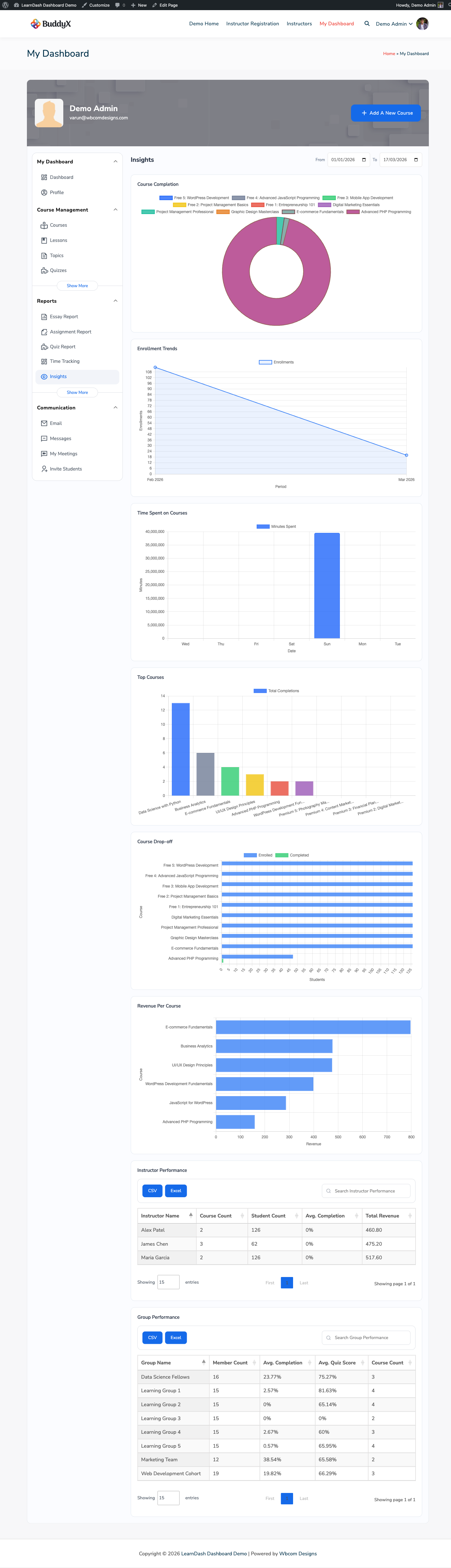
Insights tab


Date Range Filter

All charts respond to the date range filter at the top of the Insights tab. Choose from preset ranges:

  • Last 7 days
  • Last 30 days
  • Last 90 days
  • This year
  • Custom range (date picker)

Changing the date range refreshes all charts simultaneously.


The Six Charts

1. Enrollment Trends

A line chart showing new enrollments over time. Each data point represents the number of new course enrollments on that day (or week, depending on date range). Use this chart to identify when enrollment spikes occur — correlate with promotions or email campaigns.

2. Completion Rates

A bar chart comparing course completion rates across all courses (or instructor's courses). The horizontal axis lists courses; the vertical axis shows the percentage of enrolled students who completed the course. Courses with low completion rates may need content or engagement improvements.

3. Quiz Performance

A grouped bar chart showing average quiz scores and pass rates per quiz. For each quiz, two bars are shown: average score (%) and pass rate (%). Use this to identify quizzes where students consistently struggle.

4. Revenue

A line or area chart showing WooCommerce revenue over the selected date range, broken down by course product. Visible only when WooCommerce is active. Shows gross revenue before fees and refunds.

5. Activity Heatmap

A calendar heatmap showing days with high learning activity (lesson completions, quiz submissions). Darker cells mean more activity. Use this to understand when your students are most active — useful for scheduling email reminders.

6. Group Progress

A horizontal bar chart showing completion progress per LearnDash group. Each bar represents a group; length indicates the average course completion percentage across all group members. Groups with low progress may need outreach from their group leader.


Interacting with Charts

  • Hover over any data point or bar to see the exact value in a tooltip.
  • Click a chart legend item to toggle that data series on or off.
  • All charts use Chart.js and render client-side after the page loads.

Notes

  • If a chart container shows "No data for selected range", there were no qualifying events in that period. Adjust the date range or check that LearnDash activity recording is working correctly.
  • Revenue chart requires WooCommerce. If WooCommerce is inactive, the revenue chart section is hidden.
  • Instructor view of Insights scopes all data to courses assigned to that instructor.

Reports Overview

Dashboard for LearnDash includes multiple tabular reports available to admins and instructors. Each report supports filtering and CSV export.

Reports section


Available Reports

Report Tab / Location Who Can See
Enrollment Report Reports section Admin, Instructor (their courses)
Completion Report Reports section Admin, Instructor (their courses)
Quiz Report Quiz Report tab Admin, Instructor, Student (own data)
Assignment Report Assignments tab Admin, Instructor
Essay Report Reports section Admin, Instructor
Revenue Report Reports section (WooCommerce required) Admin only
Group Activity Report Groups tab Admin, Group Leader
Commission Report Commission Report tab Admin (all), Instructor (own)
Student Details My Students tab Admin, Instructor
Time Tracking Report Time Tracking tab Admin, Instructor

Enrollment Report

Shows all course enrollments across the site. Columns: student name, email, course, enrollment date, enrollment source (direct/group/WooCommerce).

Filters: course, date range, enrollment source.


Completion Report

Shows which students have completed which courses and when. Columns: student name, email, course, completion date, final quiz score (if applicable).

Filters: course, date range, completion status.


Assignment Report

Lists all assignment submissions across all courses. Columns: student, course, lesson, submission date, file, status (pending/approved), instructor feedback.

Filters: course, status, date range.


Essay Report

Lists all essay quiz responses awaiting or receiving manual grading. Columns: student, quiz, question, response (truncated), instructor score, date.

Filters: quiz, grading status, date range.


Revenue Report

Requires WooCommerce. Shows course revenue from WooCommerce orders. Columns: order date, student, course, product, order total, commission amount.

Filters: course, date range, instructor.


Group Activity Report

Shows enrollment and progress activity within a group. Columns: member name, group, courses enrolled, lessons completed, last activity date.

Filters: group, date range.


CSV Export

Every report has an Export CSV button. The export downloads the current filtered view as a UTF-8 encoded CSV file. Large exports are generated server-side and may take a few seconds for sites with many records.


Accessing Reports

Reports are accessed from within the dashboard tabs. Admins can also access most reports from the WordPress admin area under LearnDash Dashboard → Reports.

Quiz Report

The Quiz Report tab provides a unified view of quiz attempts and results. Admins and instructors can see all attempts across their courses; students see only their own attempts.

Quiz report


Filtering the Report

Use the filter bar to narrow results:

  • Course — show attempts for a specific course only
  • Student — search for a specific student by name or email (admin/instructor view)
  • Quiz — show attempts for a specific quiz
  • Status — filter by Passed, Failed, Pending, or Not Attempted
  • Date range — filter by attempt date

Filters are applied via AJAX — the table updates without a page reload.


Status Badges

Each attempt row is labeled with a status badge:

Badge Color Meaning
Passed Green Score met or exceeded the quiz's passing threshold
Failed Red Score was below the passing threshold
Pending Yellow Essay or manual-grade quiz awaiting instructor review
Not Attempted Grey Quiz is in the course but has no attempts from this student

Table Columns

Column Description
Student Name and email (admin/instructor view only)
Quiz Quiz title
Course Course the quiz belongs to
Date Date and time of the attempt
Score Percentage scored
Status Pass/Fail/Pending/Not Attempted badge
Actions View attempt details

Viewing Attempt Details

Click View Details on any attempt to open a modal with the full attempt breakdown:

  • Each question and the student's answer
  • Whether the answer was correct or incorrect
  • Points earned per question
  • The correct answer (if the quiz is configured to reveal answers)
  • Total time spent on the quiz (if time limit tracking is enabled)

Manual Grading (Essay Quizzes)

For quizzes with essay questions, the Pending status appears until an instructor assigns a score. To grade:

  1. Click Grade on a Pending row.
  2. The attempt detail modal opens showing the student's essay response.
  3. Enter a score and optional feedback comment.
  4. Click Submit Grade.

The quiz status updates to Passed or Failed based on the score vs. the passing threshold.


CSV Export

Click Export CSV to download the current filtered view. The export includes all columns visible in the table plus the full question-by-question breakdown for each attempt.

Student Details (My Students)

The My Students tab gives admins and instructors a per-student view of learning progress across all their enrolled courses. It is one of the most data-dense views in the dashboard.

My Students tab


The Student Roster

The main view lists all students enrolled in the admin's or instructor's courses. Each row shows:

  • Student name and email
  • Courses enrolled — total number of active course enrollments
  • Average completion — overall completion percentage across all their courses
  • Last activity — most recent learning activity date
  • Actions — click to view the individual student detail panel

Use the search field to find a student by name or email.


Individual Student Detail

Click any student row to expand their detail panel (or open it as a full-page view). The detail view shows:

Course Progress

A table of every course the student is enrolled in:

Column Description
Course Course title
Progress Percentage complete with progress bar
Lessons Done Completed lessons out of total
Topics Done Completed topics out of total
Completion Date Date completed, or blank if incomplete
Certificate Download link if certificate was earned

Quiz Scores

A summary of the student's quiz attempts within each course: quiz name, score, pass/fail, date.

Assignment Status

All assignment submissions for this student: lesson, status, submission date, instructor feedback.

Time Spent

Total and per-course time-on-content data (requires Time Tracking to be enabled).


Filtering the Student Roster

Filter students by:

  • Course — show only students enrolled in a specific course
  • Completion status — All, Completed, In Progress, Not Started
  • Group — show only members of a specific LearnDash group
  • Date enrolled — filter by enrollment date range

Exporting Student Data

Click Export CSV to download the current filtered student list. The export includes:

  • Student name, email
  • All enrolled courses with progress percentages
  • Completion dates
  • Quiz scores
  • Time spent (if Time Tracking is enabled)

For a single student's full data, open their detail panel and use the Export This Student button.


Notes

  • Instructors see only students enrolled in their assigned courses.
  • Admins see all students on the site.
  • The export does not include quiz question-level detail — for that, use the Quiz Report export.

Integrations

BuddyPress, WooCommerce, Zoom, and LearnDash compatibility

BuddyPress Integration

The BuddyPress module adds an integration between Dashboard for LearnDash and BuddyPress. When active, learning activity from the dashboard is posted to the BuddyPress activity stream.

Requirement: BuddyPress must be installed and active.


Enabling the BuddyPress Module

  1. Go to LearnDash Dashboard → Settings → Modules.
  2. Enable the BuddyPress toggle.
  3. Click Save Changes.

If BuddyPress is not active, the toggle will be grayed out.


What the Module Adds

Activity Stream Integration

When a student completes a lesson, finishes a course, or earns a certificate, an activity item is posted to the BuddyPress activity stream. Other members can see and react to this activity on the BuddyPress activity page.

Activity types posted:

  • Lesson Completed — "StudentName completed Lesson Title in Course Name"
  • Course Completed — "StudentName completed Course Name"
  • Certificate Earned — "StudentName earned a certificate for Course Name"

You can control which activity types are posted in the module settings.

BuddyPress Profile Tab

A Courses tab is added to each user's BuddyPress profile, showing their enrolled courses and completion status. Site visitors can see a user's learning progress without logging in to the dashboard (visibility follows BuddyPress profile privacy settings).


What the Module Does NOT Replace

  • BuddyPress private messaging — the plugin's built-in Private Messages tab is a separate, course-aware messaging system. It does not integrate with or replace BuddyPress messages. Both can coexist.
  • BuddyPress groups — LearnDash groups and BuddyPress groups are separate entities. The module does not sync group memberships between them.

Module Settings

After enabling the module, a BuddyPress section appears in LearnDash Dashboard → Settings:

  • Post lesson completions — toggle activity posts for lesson completions
  • Post course completions — toggle activity posts for course completions
  • Post certificates — toggle activity posts for certificate awards
  • Show Courses profile tab — toggle the Courses tab on BuddyPress profiles

Notes

  • If you disable the BuddyPress module, existing activity items in the BuddyPress stream are not removed.
  • BuddyPress activity posts from this module use the learndash activity type and can be filtered or targeted with BuddyPress activity filters if you are doing custom development.

WooCommerce Integration

Dashboard for LearnDash reads WooCommerce order data to power revenue reporting, commission calculations, and subscription management. No additional configuration is needed beyond having WooCommerce active and your LearnDash courses linked to WooCommerce products.

Requirement: WooCommerce must be installed and active. WooCommerce Subscriptions is required for the subscription management sub-tab.


What WooCommerce Powers in the Dashboard

Feature Requires
Revenue chart in Insights WooCommerce
Revenue Report WooCommerce
Commission calculations WooCommerce
Subscription management tab WooCommerce + WooCommerce Subscriptions

Revenue Reports

The Revenue Report in the dashboard pulls from WooCommerce order data. It does not duplicate order data — it reads directly from WooCommerce tables.

What is included:

  • Orders for products linked to LearnDash courses
  • Order date, student, course, and order total
  • Commission amount per order (based on the instructor assigned to the course and the commission rate)

What is excluded:

  • Refunded orders (excluded by default — refunds are shown separately)
  • Non-LearnDash products

Commission Calculations

When a WooCommerce order is placed for a LearnDash course product:

  1. The plugin identifies which LearnDash course the product is linked to.
  2. It identifies the instructor assigned to that course.
  3. It calculates the commission: order_total × commission_rate.
  4. The result is stored and appears in the Commission Report.

The commission rate comes from the instructor's profile (per-instructor rate) or falls back to the global rate in Settings → Commission.

For setup details, see Commission Setup.


Linking Courses to WooCommerce Products

Course-to-product linking is handled by LearnDash's native WooCommerce integration or a plugin like LearnDash WooCommerce Integration (official LearnDash add-on). Dashboard for LearnDash reads this existing link — it does not create or manage course-product associations itself.


Subscription Management

The Subscriptions sub-tab in Bulk Management requires WooCommerce Subscriptions. See Subscription Management for full details.


Notes

  • The revenue chart and revenue report show data only for courses sold through WooCommerce. Direct enrollments, group enrollments, and CSV imports are not included in revenue data.
  • Tax and fee amounts in orders are included in the order total shown in reports. Commission is calculated on gross order total.
  • Coupon discounts are reflected in the order total (post-discount amounts are used).

Zoom Integration

The Zoom module shows instructors their scheduled Zoom meetings within the dashboard. Students can see upcoming Zoom sessions for their enrolled courses.

Requirement: A Zoom integration plugin must be active on your site (e.g., the Zoom for LearnDash plugin or another plugin that stores Zoom meeting data as WordPress post meta or a custom post type).


Enabling the Zoom Module

  1. Go to LearnDash Dashboard → Settings → Modules.
  2. Enable the Zoom toggle.
  3. Click Save Changes.

If no compatible Zoom plugin is detected, the toggle will be grayed out with a note explaining the missing dependency.


Connecting a Zoom Account

Zoom account connection is handled by your Zoom integration plugin, not by Dashboard for LearnDash. Follow the Zoom plugin's setup guide to connect via API credentials or OAuth.

Once connected at the plugin level, Dashboard for LearnDash reads the meeting data from that plugin and displays it in the dashboard.


What Instructors See

When the Zoom module is active, instructors see a Zoom Meetings section in their dashboard. This shows:

  • Upcoming meetings they have scheduled
  • Meeting title and description
  • Date, time, and duration
  • Join link / Start link for each meeting
  • Courses the meeting is associated with (if the Zoom plugin links meetings to courses)

Instructors can click Start Meeting to launch the Zoom session directly from the dashboard.

Zoom instructor view


What Students See

Students enrolled in courses with associated Zoom meetings see an Upcoming Sessions panel in their dashboard or course view showing:

  • Meeting title
  • Date and time
  • Join Meeting button (active when the meeting is in progress)

The Join button becomes active when the meeting is within the join window set by your Zoom settings.


Module Settings

After enabling the module, a Zoom section may appear in LearnDash Dashboard → Settings depending on your Zoom plugin. Settings may include:

  • Which courses display Zoom sessions
  • How far in advance upcoming sessions are shown
  • Whether students see past recordings

Notes

  • Dashboard for LearnDash does not create or manage Zoom meetings — it reads and displays meeting data from your Zoom integration plugin.
  • If the Zoom integration plugin is deactivated, the Zoom module in the dashboard automatically hides with no errors.
  • Zoom API limits and rate limits are governed by your Zoom plan and the integration plugin, not by Dashboard for LearnDash.

LearnDash Compatibility

Dashboard for LearnDash is built specifically for LearnDash LMS. This page documents which LearnDash versions are supported, which LearnDash features the plugin interacts with, and known limitations.


Supported LearnDash Versions

LearnDash Version Status
4.0.x Supported
4.1.x – 4.x Supported
3.x Not supported (deprecated)
2.x Not supported

Always run the latest stable LearnDash version for best compatibility.


LearnDash Content Types Used

The plugin reads and writes to these LearnDash custom post types:

CPT Used For
sfwd-courses Course listings, editing, cloning, enrollment
sfwd-lessons Lesson management, time tracking, completion data
sfwd-topic Topic management, time tracking
sfwd-quiz Quiz reports, manual grading
sfwd-question Question display in attempt detail views
sfwd-assignment Assignment submission management
sfwd-essays Essay quiz response grading
sfwd-certificates Certificate display and download
groups Group management, seat allocation

LearnDash User Meta Used

Meta Key Used For
course_{id}_access_from Reading enrollment date (not used for granting access)
learndash_course_expired_{id} Detecting expired course access
_sfwd-course_progress Reading lesson/topic completion data
completed_course_{id} Reading course completion status

Important: User group access is granted through LearnDash group membership (via the groups post type and ld_group_enrolled_user relationships), not through direct course_{id}_access_from meta. The plugin follows this model for all group-related enrollment.


LearnDash Activity Tables

The plugin reads from LearnDash's custom activity tables for report data:

  • {prefix}learndash_user_activity — activity event log
  • {prefix}learndash_user_activity_meta — activity event metadata

These tables are created by LearnDash on installation. The plugin does not modify their schema.


Known Limitations

  • Course builder from frontend: The frontend course editor supports standard course structure (lessons, topics, quizzes). Advanced LearnDash course settings only available in wp-admin (topic video progression, prerequisites) must still be configured in the WordPress admin.
  • LearnDash Teams: The plugin has no specific integration with LearnDash Teams (if you are using the official Teams addon). Group features use the native LearnDash groups post type.
  • SCORM / xAPI: The plugin does not interact with SCORM or xAPI course content. Completion tracking for SCORM courses depends on LearnDash's own SCORM handling.
  • Multiple LearnDash instances: Running multiple LearnDash instances on one WordPress install is not a supported configuration.

LearnDash Hooks Used

The plugin hooks into LearnDash actions for triggering events:

  • learndash_course_completed — fires when a student completes a course (used for activity feed and BuddyPress)
  • learndash_lesson_completed — fires on lesson completion (time tracking, activity feed)
  • learndash_quiz_submitted — fires on quiz submission (quiz report updates)
  • ld_added_group_leader — fires when a group leader is assigned
  • ld_added_group_access — fires when a user is added to a group

Developer Guide

Architecture, hooks, REST API, and extending the plugin

Plugin Architecture

Dashboard for LearnDash uses a modular, object-oriented architecture built around four core systems: the module system, the tab system, the field builder, and the asset loader.


Main Plugin File

ld-dashboard.php — bootstraps the plugin, defines constants, and initializes the main plugin class.

Key constants:

LD_DASHBOARD_VERSION     // Current plugin version
LD_DASHBOARD_PATH        // Absolute path to plugin directory
LD_DASHBOARD_URL         // URL to plugin directory
LD_DASHBOARD_SLUG        // 'ld-dashboard'

Directory Structure

ld-dashboard/
├── ld-dashboard.php           # Main plugin file
├── includes/
│   ├── class-ld-dashboard.php             # Core plugin class
│   ├── class-ld-dashboard-public.php      # Frontend output and hooks
│   ├── class-ld-dashboard-admin.php       # Admin screens and AJAX
│   ├── class-ld-dashboard-assets.php      # Script and style registration
│   ├── class-ld-dashboard-tab-base.php    # Abstract tab base class
│   ├── class-ld-dashboard-tab-registry.php # Tab dispatcher
│   ├── class-ld-dashboard-module-base.php  # Abstract module base class
│   ├── class-ld-dashboard-module-registry.php # Module registry (singleton)
│   ├── class-ld-dashboard-field-builder.php   # ACF field builder
│   ├── class-ld-dashboard-field-definitions.php # Reusable field set factory
│   ├── tabs/                  # One class per tab
│   ├── modules/               # One directory per module (BuddyPress, Zoom, etc.)
│   └── content-types/         # Field classes for each content type
├── public/
│   ├── css/
│   └── js/
├── admin/
│   ├── css/
│   └── js/
└── templates/                 # PHP template files

Module System

Modules are self-contained feature packages that can be enabled or disabled independently. Each module checks its own dependencies before activating.

LD_Dashboard_Module_Base        (abstract)
    ↓ extends
LD_Dashboard_Module_Registry    (singleton — manages all modules)
    ↓ registers
    - Zoom module
    - BuddyPress module
    - Uncanny Groups module
    - To-Do List module

Key methods on LD_Dashboard_Module_Base:

  • get_id() — returns the module's unique slug
  • get_dependencies() — returns an array of dependency strings
  • run() — called after dependency check passes; hooks and initialization go here

Global accessor:

ld_dashboard_modules();                       // Returns module registry instance
ld_dashboard_is_module_active( 'zoom' );     // Check if a module is active

Tab System

The tab system uses the Template Method pattern. Each tab extends an abstract base class and implements required methods.

LD_Dashboard_Tab_Base           (abstract)
    ↓ extends
LD_Dashboard_Tab_Registry       (dispatcher — routes requests to the correct tab)
    ↓ dispatches to
    - Lesson tab
    - Topic tab
    - Quiz tab
    - Question tab
    - Assignment tab
    - Announcement tab
    - Certificate tab
    (+ any custom tabs)

Key abstract methods each tab must implement:

  • get_id() — tab slug (e.g., 'quiz-report')
  • get_label() — display name shown in sidebar
  • render() — outputs the tab's HTML content

Field Builder

The field builder uses a Fluent Builder pattern for ACF field registration.

LD_Dashboard_Field_Builder       # Main builder — fluent API for adding fields
LD_Dashboard_Field_Definitions   # Static factory for reusable field sets
Content type classes:
    - LD_Dashboard_Fields_Course
    - LD_Dashboard_Fields_Lesson
    - LD_Dashboard_Fields_Topic
    - LD_Dashboard_Fields_Quiz
    - LD_Dashboard_Fields_Question
    - LD_Dashboard_Fields_Certificate

Field keys generated: field_ldd_{content_type}_{field_name}_{counter}


Asset Loader

class-ld-dashboard-assets.php controls which CSS and JS files are enqueued.

Key internal arrays:

  • $tab_modules — maps tab slugs to the JS module files they require. Every active tab slug must be in this array or its JS will not load.
  • $tab_css_modules — maps tab slugs to their CSS files.

The localized JS objects:

  • ld_dashboard_public_js — legacy localized object (used by older monolith scripts)
  • ld_dashboard_js_object — modern modular scripts object; includes ajax_nonce (= wp_create_nonce('ajax-nonce'))

Hooks and Filters

This page documents the most important action hooks and filters provided by Dashboard for LearnDash for custom development.


Action Hooks

ld_dashboard_before_dashboard

Fires immediately before the dashboard wrapper <div> is rendered. Use it to inject content or markup above the entire dashboard.

add_action( 'ld_dashboard_before_dashboard', function( $user_id ) {
    echo '<div class="my-banner">Welcome back!</div>';
} );

Parameters: $user_id (int) — ID of the user viewing the dashboard.


ld_dashboard_after_dashboard

Fires immediately after the dashboard wrapper closes. Use it to inject content or scripts below the dashboard.

add_action( 'ld_dashboard_after_dashboard', function( $user_id ) {
    echo '<script>console.log("Dashboard loaded for user ' . $user_id . '")</script>';
} );

Parameters: $user_id (int)


Filter Hooks

ld_dashboard_prepare_acf_fields

Filters the array of ACF fields before they are rendered in a front-end edit form. Use this to show or hide specific fields based on user role, post ID, or any condition.

add_filter( 'ld_dashboard_prepare_acf_fields', function( $fields, $post_id, $user_id ) {
    // Hide a field from non-admins
    if ( ! current_user_can( 'manage_options' ) ) {
        unset( $fields['field_ldd_course_internal_notes_1'] );
    }
    return $fields;
}, 10, 3 );

Parameters:

  • $fields (array) — associative array of field key → field config
  • $post_id (int) — ID of the post being edited
  • $user_id (int) — ID of the current user

Returns: array of fields to render.


ld_dashboard_tabs

Filters the array of registered tabs before the sidebar is rendered. Use it to add, remove, or reorder tabs programmatically.

add_filter( 'ld_dashboard_tabs', function( $tabs ) {
    // Remove the messages tab for all users
    unset( $tabs['messages'] );
    return $tabs;
} );

Parameters: $tabs (array) — associative array of tab slug → tab object.

Returns: array


ld_dashboard_modules

Filters the array of registered modules. Use it to add a custom module or disable an existing one.

add_filter( 'ld_dashboard_modules', function( $modules ) {
    // Register a custom module
    $modules['my-module'] = new My_Custom_Module();
    return $modules;
} );

Parameters: $modules (array) — associative array of module ID → module object.

Returns: array


JavaScript

Localized JS Objects

Two JS objects are available globally after the dashboard scripts load:

ld_dashboard_public_js (legacy, frontend):

ld_dashboard_public_js.ajax_url   // WordPress AJAX URL
ld_dashboard_public_js.nonce      // Frontend nonce for AJAX requests

ld_dashboard_js_object (modular scripts, frontend):

ld_dashboard_js_object.ajax_url
ld_dashboard_js_object.ajax_nonce   // = wp_create_nonce('ajax-nonce')

Admin scripts:

ld_dashboard_obj.ajax_nonce   // Admin nonce
ld_dashboard_obj.ajax_url

Using the Nonce in Custom AJAX

When making custom AJAX calls to plugin handlers, include the correct nonce:

jQuery.post( ld_dashboard_js_object.ajax_url, {
    action: 'my_custom_action',
    nonce:  ld_dashboard_js_object.ajax_nonce,
    data:   myData
} );

On the PHP side, verify with:

check_ajax_referer( 'ajax-nonce', 'nonce' );

AJAX Best Practice

All admin-side AJAX handlers should wrap output with ob_start() / ob_end_clean() before calling wp_send_json() to prevent PHP warnings from corrupting the JSON response:

add_action( 'wp_ajax_my_custom_action', function() {
    check_ajax_referer( 'ajax-nonce', 'nonce' );
    ob_start();
    // ... your logic ...
    ob_end_clean();
    wp_send_json_success( $data );
} );

Profile Hooks

ld_dashboard_user_profile_fields

Filters the array of fields rendered in the front-end profile edit form. Use it to add, remove, or reorder profile fields.

add_filter( 'ld_dashboard_user_profile_fields', function( $fields ) {
    $fields['linkedin_url'] = [
        'title'   => 'LinkedIn URL',
        'tag'     => 'input',
        'type'    => 'url',
        'name'    => 'linkedin_url',
        'value'   => get_user_meta( get_current_user_id(), 'linkedin_url', true ),
        'section' => 'contact',
    ];
    return $fields;
} );

Parameters: $fields (array) — associative array of field key → field config.

Returns: array


ld_dashboard_save_user_profile_fields

Fires after the profile form is submitted and validated. Use it to save custom field values.

add_action( 'ld_dashboard_save_user_profile_fields', function( $user_id, $data ) {
    if ( isset( $data['linkedin_url'] ) ) {
        update_user_meta( $user_id, 'linkedin_url', sanitize_url( $data['linkedin_url'] ) );
    }
}, 10, 2 );

Parameters:

  • $user_id (int) — ID of the user whose profile is being saved
  • $data (array) — raw POST data from the form submission

ld_dashboard_before_profile_setting_form

Fires immediately before the <form> tag in the profile edit template.

add_action( 'ld_dashboard_before_profile_setting_form', function( $user_id ) {
    echo '<div class="my-profile-banner">Update your profile below.</div>';
} );

ld_dashboard_before_profile_setting_fields

Fires after the <form> tag opens, before the first field group.

ld_dashboard_after_profile_setting_fields

Fires after the last field group, before the submit button.

ld_dashboard_after_profile_setting_form

Fires immediately after the </form> tag closes.


Email Hooks

ld_dashboard_email_subject

Filters the email subject line before the email is sent.

add_filter( 'ld_dashboard_email_subject', function( $subject, $template, $data ) {
    if ( $template === 'course_completion' ) {
        $subject = '🎉 ' . $subject;
    }
    return $subject;
}, 10, 3 );

Parameters:

  • $subject (string) — the subject line
  • $template (string) — template ID (e.g., course_completion, new_message, new_announcement)
  • $data (array) — merge tag data for this email

ld_dashboard_email_body

Filters the email body HTML before the email is sent.

add_filter( 'ld_dashboard_email_body', function( $body, $template, $data ) {
    return $body . '<p style="color:#999;">Sent by Your Academy</p>';
}, 10, 3 );

ld_dashboard_email_recipients

Filters the array of recipient email addresses before the email is sent.

add_filter( 'ld_dashboard_email_recipients', function( $recipients, $template, $data ) {
    if ( $template === 'course_completion' ) {
        $recipients[] = 'completions@yoursite.com';
    }
    return $recipients;
}, 10, 3 );

ld_dashboard_email_templates

Filters the registered email template definitions. Use it to add a new template or modify an existing one.

add_filter( 'ld_dashboard_email_templates', function( $templates ) {
    $templates['my_custom_event'] = [
        'label'   => 'Custom Event Notification',
        'subject' => 'Something happened in {course_name}',
        'body'    => '<p>Hi {student_name},</p><p>A custom event occurred.</p>',
    ];
    return $templates;
} );

ld_dashboard_before_send_email

Fires immediately before wp_mail() is called.

add_action( 'ld_dashboard_before_send_email', function( $template, $recipient, $data ) {
    // Log outgoing email
    error_log( "LDD: sending $template to $recipient" );
}, 10, 3 );

ld_dashboard_after_send_email

Fires immediately after wp_mail() returns.

add_action( 'ld_dashboard_after_send_email', function( $template, $recipient, $result ) {
    if ( ! $result ) {
        error_log( "LDD: email $template to $recipient failed" );
    }
}, 10, 3 );

Email From Address

// Override the From address for all dashboard notification emails
add_filter( 'ld_dashboard_email_from', function( $from ) {
    return 'courses@yoursite.com';
} );

add_filter( 'ld_dashboard_email_from_name', function( $name ) {
    return 'Your Course Platform';
} );
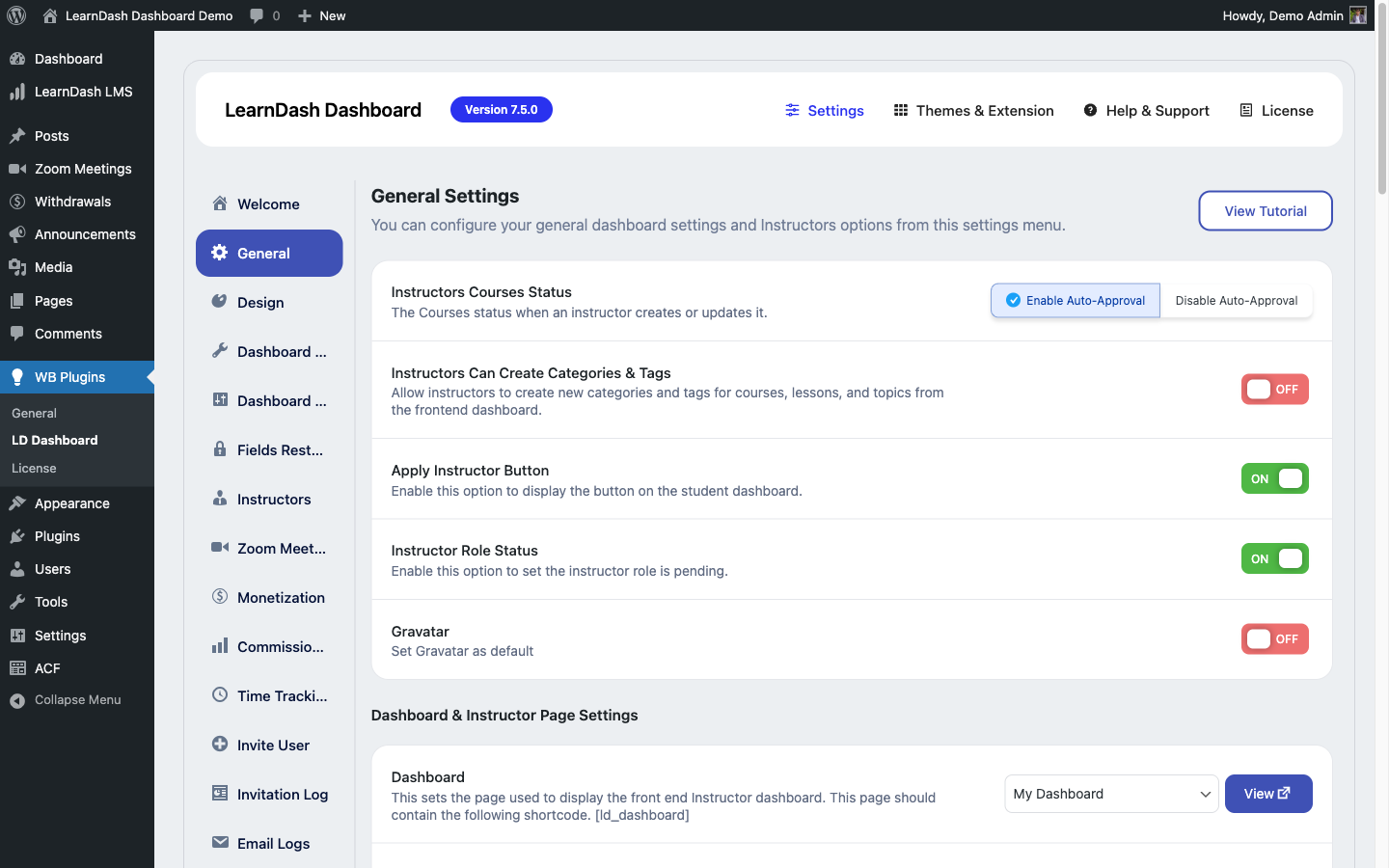
REST API

Dashboard for LearnDash provides a small set of REST API endpoints used internally by the dashboard's JavaScript modules. These endpoints can also be consumed by external tools with proper authentication.


Authentication

All plugin REST endpoints require authentication. Requests must be made as a logged-in user with appropriate permissions. Use one of the standard WordPress REST API authentication methods:

  • Cookie authentication (browser-based, nonce required)
  • Application passwords (WordPress 5.6+, recommended for external clients)
  • JWT authentication (requires a JWT plugin)

Include the nonce in browser-based requests:

fetch( '/wp-json/ld-dashboard/v1/students', {
    headers: {
        'X-WP-Nonce': ld_dashboard_js_object.ajax_nonce
    }
} );

Endpoints

GET /wp-json/ld-dashboard/v1/students

Returns the list of students visible to the current user (all students for admins; enrolled students for instructors).

Query parameters:

Parameter Type Description
course_id integer Filter by course
search string Search by name or email
per_page integer Results per page (default: 20)
page integer Page number

Response:

{
  "students": [
    {
      "id": 42,
      "name": "Jane Smith",
      "email": "jane@example.com",
      "enrolled_courses": 3,
      "avg_completion": 67
    }
  ],
  "total": 150,
  "pages": 8
}

Required capability: manage_options (admin) or instructor role with course access.


GET /wp-json/ld-dashboard/v1/student/{id}/progress

Returns a single student's course progress.

Path parameter: id — WordPress user ID.

Response:

{
  "user_id": 42,
  "courses": [
    {
      "course_id": 101,
      "course_title": "Introduction to Marketing",
      "progress": 75,
      "lessons_completed": 9,
      "lessons_total": 12,
      "completed": false,
      "completion_date": null
    }
  ]
}

GET /wp-json/ld-dashboard/v1/quiz-attempts

Returns quiz attempt records for the current user (students) or for a specified student (admin/instructor).

Query parameters:

Parameter Type Description
user_id integer Filter by student (admin/instructor only)
course_id integer Filter by course
status string passed, failed, pending, not_attempted
per_page integer Default: 20
page integer Page number

Messaging Endpoints

The private messaging system exposes its own set of endpoints under the /wp-json/ld-dashboard/v2/messages/ namespace.

GET /wp-json/ld-dashboard/v2/messages

Returns the current user's inbox — all conversations the user is a participant in.

Query parameters:

Parameter Type Description
course_id integer Filter conversations by course context
per_page integer Results per page (default: 20)
page integer Page number

Response:

{
  "messages": [
    {
      "id": 12,
      "subject": "Question about Lesson 3",
      "excerpt": "Hi, I had a question about...",
      "sender": { "id": 5, "name": "Jane Smith" },
      "course_id": 101,
      "created_at": "2025-03-10T14:22:00Z",
      "read_at": null,
      "reply_count": 2
    }
  ],
  "total": 8,
  "unread": 3
}

POST /wp-json/ld-dashboard/v2/messages

Send a new message.

Request body (JSON):

Field Type Required Description
recipient_id integer Yes WordPress user ID of the recipient
subject string Yes Message subject
message string Yes Message body (HTML allowed)
course_id integer No Optional course context

Response: The created message object with id, created_at, and status.

Permission check: The recipient must be in the sender's permitted recipients list. Returns 403 Forbidden if not permitted.


GET /wp-json/ld-dashboard/v2/messages/{id}

Retrieve a single message thread.

Path parameter: id — message ID.

Response: The full message object including all replies in replies[].

Calling this endpoint marks the message as read for the current user (sets read_at timestamp).


PUT /wp-json/ld-dashboard/v2/messages/{id}

Update a message — primarily used to mark a message as read or unread.

Request body:

{ "read": true }

DELETE /wp-json/ld-dashboard/v2/messages/{id}

Soft-delete a message for the current user. The message is hidden from their inbox immediately. The database record is permanently deleted only when both participants have deleted it.


GET /wp-json/ld-dashboard/v2/messages/unread-count

Returns the current user's unread message count. Used to power the sidebar badge.

Response:

{ "unread": 4 }

This endpoint is polled periodically by the dashboard UI. It is lightweight (single COUNT query, no joins).


GET /wp-json/ld-dashboard/v2/messages/recipients

Returns the autocomplete list of permitted recipients for the current user.

Query parameters:

Parameter Type Description
search string Filter by name or email
course_id integer Restrict to participants of a specific course

Response:

{
  "recipients": [
    { "id": 7, "name": "Alex Johnson", "avatar": "https://..." },
    { "id": 23, "name": "Maria Lopez", "avatar": "https://..." }
  ]
}

Notes

  • Endpoints that would expose another user's data check role permissions server-side. A student querying /student/43/progress for a different user will receive a 403 Forbidden response.
  • All endpoints return JSON. Error responses follow the standard WordPress REST API error format with a code and message.
  • These endpoints are used by the dashboard UI. Avoid making high-frequency requests against them from external tools as they run database queries and are not cached.
  • Messaging endpoints use the v2 namespace (/ld-dashboard/v2/messages). Student and quiz endpoints use v1 (/ld-dashboard/v1/).

Custom Modules

You can create a custom module for Dashboard for LearnDash to add optional feature blocks that are only active when their dependencies are met. Modules are self-contained and registered via the ld_dashboard_modules filter.


When to Use a Module

Use a module when your feature:

  • Has an optional dependency (a plugin that may or may not be active)
  • Should be loadable/unloadable without affecting core dashboard functionality
  • Is logically distinct from an existing tab

If you are adding a new tab without optional dependencies, consider registering a custom tab instead (#custom-tabs-ldd)).


Creating a Module Class

Extend LD_Dashboard_Module_Base and implement the required methods:

<?php

class My_Custom_Module extends LD_Dashboard_Module_Base {

    /**
     * Return the unique module ID (slug).
     */
    public function get_id() {
        return 'my-custom-module';
    }

    /**
     * Return a human-readable module name (for settings UI).
     */
    public function get_name() {
        return __( 'My Custom Module', 'ld-dashboard' );
    }

    /**
     * Return dependencies. Each string uses one of these prefixes:
     *   plugin:slug/file.php    — checks if a plugin is active
     *   class:ClassName         — checks if a class exists
     *   function:function_name  — checks if a function exists
     *   constant:CONSTANT_NAME  — checks if a constant is defined
     */
    public function get_dependencies() {
        return [
            'plugin:my-required-plugin/my-required-plugin.php',
            'class:My_Required_Class',
        ];
    }

    /**
     * Called after all dependency checks pass. Add hooks here.
     */
    public function run() {
        add_action( 'init', [ $this, 'initialize' ] );
        add_action( 'wp_enqueue_scripts', [ $this, 'enqueue_assets' ] );
    }

    public function initialize() {
        // Module-specific initialization
    }

    public function enqueue_assets() {
        // Enqueue module CSS/JS
    }
}

Dependency Checking Syntax

Prefix Example What It Checks
plugin: plugin:woocommerce/woocommerce.php is_plugin_active()
class: class:WooCommerce class_exists()
function: function:wc_get_order function_exists()
constant: constant:WOOCOMMERCE_VERSION defined()

If any dependency fails, the module's run() method is not called and the module shows as inactive.


Registering the Module

Register your module class using the ld_dashboard_modules filter. Place this in your custom plugin or in a must-use plugin:

add_filter( 'ld_dashboard_modules', function( $modules ) {
    require_once __DIR__ . '/class-my-custom-module.php';
    $modules['my-custom-module'] = new My_Custom_Module();
    return $modules;
} );

Checking Module Status

Anywhere in your code, check whether a module is active:

if ( ld_dashboard_is_module_active( 'my-custom-module' ) ) {
    // Module is active and dependencies passed
}

Or get the module object:

$registry = ld_dashboard_modules();
$module   = $registry->get( 'my-custom-module' );

Adding Module Settings

If your module needs settings, add a settings section using WordPress Settings API and hook into the LearnDash Dashboard → Settings → Modules page by filtering the module settings sections. Refer to the built-in modules (BuddyPress, Zoom) as examples of how settings are structured.


Notes

  • Modules are registered and dependency-checked on the plugins_loaded hook at priority 20, after all plugins are loaded.
  • Do not perform heavy work in the module constructor. Put all initialization in run().
  • A module registering a new tab must also add the tab slug to $tab_modules in class-ld-dashboard-assets.php (or enqueue JS independently from within the module's run() method).

Custom Tabs

You can add a new tab to the Dashboard for LearnDash sidebar by extending LD_Dashboard_Tab_Base and registering it via the ld_dashboard_tabs filter.


When to Use a Custom Tab

Use a custom tab when you want to:

  • Add a new front-end section to the dashboard sidebar
  • Display custom data or forms within the dashboard layout
  • Give a specific role access to a feature not included in the core plugin

If your feature has optional external dependencies, consider wrapping the tab in a Custom Module.


Creating a Tab Class

Extend LD_Dashboard_Tab_Base and implement all required methods:

<?php

class My_Custom_Tab extends LD_Dashboard_Tab_Base {

    /**
     * Unique tab slug. Used in URL (?tab=my-custom-tab) and sidebar links.
     */
    public function get_id() {
        return 'my-custom-tab';
    }

    /**
     * Label shown in the sidebar navigation.
     */
    public function get_label() {
        return __( 'My Custom Tab', 'ld-dashboard' );
    }

    /**
     * Optional icon class (dashicon or custom CSS class).
     */
    public function get_icon() {
        return 'dashicons-star-filled';
    }

    /**
     * Which roles can see this tab.
     * Return an array of role slugs, or empty array for all roles.
     */
    public function get_allowed_roles() {
        return [ 'administrator', 'instructor' ];
    }

    /**
     * Render the tab content.
     * Output is echoed directly — use wp_kses_post() or esc_html() as appropriate.
     */
    public function render( $user_id ) {
        ?>
        <div class="ld-dashboard-my-custom-tab">
            <h2><?php esc_html_e( 'My Custom Tab', 'ld-dashboard' ); ?></h2>
            <p><?php esc_html_e( 'Custom content here.', 'ld-dashboard' ); ?></p>
        </div>
        <?php
    }
}

Registering the Tab

Use the ld_dashboard_tabs filter:

add_filter( 'ld_dashboard_tabs', function( $tabs ) {
    require_once __DIR__ . '/class-my-custom-tab.php';
    $my_tab = new My_Custom_Tab();
    $tabs[ $my_tab->get_id() ] = $my_tab;
    return $tabs;
} );

The tab now appears in the sidebar for allowed roles and responds to ?tab=my-custom-tab in the URL.


Adding CSS and JS for Your Tab

Option 1: Hook into wp_enqueue_scripts

add_action( 'wp_enqueue_scripts', function() {
    if ( ! is_page( /* dashboard page ID */ ) ) return;

    wp_enqueue_style(
        'my-custom-tab',
        plugin_dir_url( __FILE__ ) . 'css/my-custom-tab.css',
        [ 'ld-dashboard-public' ],
        '1.0.0'
    );

    wp_enqueue_script(
        'my-custom-tab',
        plugin_dir_url( __FILE__ ) . 'js/my-custom-tab.js',
        [ 'jquery', 'ld-dashboard-public-js' ],
        '1.0.0',
        true
    );
} );

Option 2: Add to $tab_modules in the Asset Loader

If you have access to the plugin source, add your tab slug to the $tab_modules array in class-ld-dashboard-assets.php. This is the pattern used by built-in tabs. For third-party customizations, Option 1 is preferred.


Template Pattern

For more complex tabs, keep render logic clean by separating template files:

public function render( $user_id ) {
    $data = $this->get_tab_data( $user_id );
    include plugin_dir_path( __FILE__ ) . 'templates/my-custom-tab.php';
}

private function get_tab_data( $user_id ) {
    // Prepare data array for the template
    return [
        'courses' => learndash_user_get_enrolled_courses( $user_id ),
    ];
}

Use direct include with a local path. The plugin does not have a ld_dashboard_get_template() helper function — do not use one.


AJAX in Custom Tabs

Use the plugin's existing nonce for AJAX calls from your tab's JavaScript:

jQuery.post( ld_dashboard_js_object.ajax_url, {
    action: 'my_tab_ajax_action',
    nonce:  ld_dashboard_js_object.ajax_nonce,
    user_id: currentUserId
}, function( response ) {
    console.log( response );
} );

PHP handler:

add_action( 'wp_ajax_my_tab_ajax_action', function() {
    check_ajax_referer( 'ajax-nonce', 'nonce' );
    ob_start();
    // ... logic ...
    ob_end_clean();
    wp_send_json_success( [ 'data' => 'your response' ] );
} );

Always wrap handlers with ob_start() / ob_end_clean() to prevent PHP notices from corrupting the JSON response.


Notes

  • Tab slugs must be unique across the plugin. Check existing slugs in Shortcodes before choosing one.
  • The sidebar order of your tab is determined by the position in the $tabs array returned from the filter. Append to the end or splice to a specific position as needed.
  • Capability checks in render() are your responsibility — the tab system calls render() for any user in the allowed roles array. Add current_user_can() checks inside render() for finer-grained control.

Troubleshooting

Common issues, debug mode, and how to get support

Troubleshooting

This page covers the most common issues encountered with Dashboard for LearnDash and how to resolve them.


Dashboard Page Returns 404

Symptom: Visiting your dashboard URL (e.g., /my-dashboard/) returns a WordPress 404 page.

Causes and fixes:

  1. Permalinks not flushed — Go to WordPress Admin → Settings → Permalinks and click Save Changes without changing anything. This flushes the rewrite rules.

  2. Wrong shortcode page — Confirm the dashboard page contains the [ld_dashboard] shortcode and is published (not draft).

  3. Page slug conflict — If another plugin or page uses the same slug, change the dashboard page slug.

  4. Missing page — If the dashboard page was accidentally deleted, create a new page with the [ld_dashboard] shortcode and update the page ID in LearnDash Dashboard → Settings → General.


Charts Not Loading (Insights Tab)

Symptom: The Insights tab shows the chart containers but no data or a spinning loader that never resolves.

Causes and fixes:

  1. JavaScript error — Open your browser's DevTools console (F12). If you see a JS error related to Chart.js or a 400/500 AJAX response, another plugin is likely conflicting. Deactivate plugins one by one to isolate the conflict.

  2. AJAX blocked — Some security plugins block AJAX requests. Check if the AJAX URL (/wp-admin/admin-ajax.php) is accessible.

  3. No data yet — Charts require at least one enrolled student and one activity event. If your site is new, the charts will be empty until students start engaging.

  4. Role restriction — Chart data is only visible to instructors and admins. Students do not see the Insights tab.


Instructor Cannot See Their Courses

Symptom: An instructor logs in to the dashboard but sees no courses listed under their Course Management tab.

Causes and fixes:

  1. Instructor not assigned — The instructor must be set as the course author OR explicitly assigned in LearnDash's Instructor field on the course. Go to WordPress Admin → LearnDash LMS → Courses → [Course] → Settings and verify the instructor is assigned.

  2. Wrong role — Confirm the user has the ld_instructor or group_leader role, or manage_options capability. A user with only the subscriber role will see the student view.

  3. Instructor role not enabled — In LearnDash Dashboard → Settings → General, confirm instructor features are enabled.

  4. Course not published — Draft courses are not visible in the front-end dashboard.


Bulk Enrollment Times Out

Symptom: Uploading a CSV with many users causes a server timeout error before enrollment completes.

Causes and fixes:

  1. PHP max execution time — Increase max_execution_time in php.ini or .htaccess. A value of 120–300 seconds is usually sufficient.

  2. Use chunked processing — The bulk enrollment tool processes users in chunks automatically, but very large CSVs (500+ rows) can still time out on slow servers. Split the CSV into smaller files (200 rows each) and import in batches.

  3. Server memory — Increase memory_limit in php.ini if you see Fatal error: Allowed memory size in your error log.

  4. Check the error log — Enable WP_DEBUG_LOG and check /wp-content/debug.log for the specific error.


Messages Tab Shows "You Have No Permission"

Symptom: A student or instructor clicks the Messages tab and sees a permission error.

Causes and fixes:

  1. Messages tab disabled — Go to LearnDash Dashboard → Settings → Menu Settings and confirm the Messages tab is enabled for the user's role.

  2. No eligible recipients — The messaging system only allows messages between course participants. A student with no active enrollments has no eligible recipients and cannot compose a new message (they can still receive messages from instructors).

  3. Role mismatch — Ensure the user has the correct LearnDash role. A user mistakenly assigned only the subscriber role won't have instructor permissions.


Assignments Not Appearing in the Assignment Report

Symptom: Students submit assignments but the instructor's Assignment Report tab shows no entries.

Causes and fixes:

  1. Assignment upload required — If a LearnDash assignment requires a file upload, submissions without a file are not recorded. Confirm the student completed the upload step.

  2. Wrong course assignment — Confirm the assignment is attached to the correct LearnDash lesson under the correct course.

  3. Status filter — The Assignment Report defaults to showing Pending assignments. If assignments were already reviewed, change the filter to All or Approved.


Enabling Debug Mode

To get detailed error output from the plugin:

  1. Add the following to wp-config.php:
define( 'WP_DEBUG', true );
define( 'WP_DEBUG_LOG', true );
define( 'WP_DEBUG_DISPLAY', false );
  1. Visit the affected dashboard page.

  2. Check /wp-content/debug.log for PHP errors or warnings related to ld-dashboard.

  3. Open DevTools in your browser (F12 → Console) for JavaScript errors.

When reporting a bug, include:

  • Plugin version (visible in LearnDash Dashboard → Settings → License)
  • LearnDash version
  • WordPress version
  • PHP version
  • Any relevant error log output

Getting Support

If the steps above don't resolve your issue:

  1. Search the documentation — Use the search bar at the top of this site.
  2. Submit a support ticket — Log in to your account at wbcomdesigns.com and open a ticket under your purchase.
  3. Include your debug log — Attach the relevant section of debug.log to speed up diagnosis.

Something unclear? Open a support ticket →

Buy Dashboard for LearnDash